UX Components and Text
Summary
In this guide you will:
- Review the Qualtrics UX guidelines
- Learn about Qualtrics-provided UX Component libraries and visit their corresponding npm webpages
Prerequisites
Before continuing with this guide we recommend you review and complete the XM Extension Overview guide.
Limitations
UX Consistency
All XM Extension Plugins (Workflows Task, Survey Question, etc.) have a user interface to allow configuration by the end user. Each Plugin you publish must maintain a consistent user experience and styling.
General UX Design Guidelines
Design System
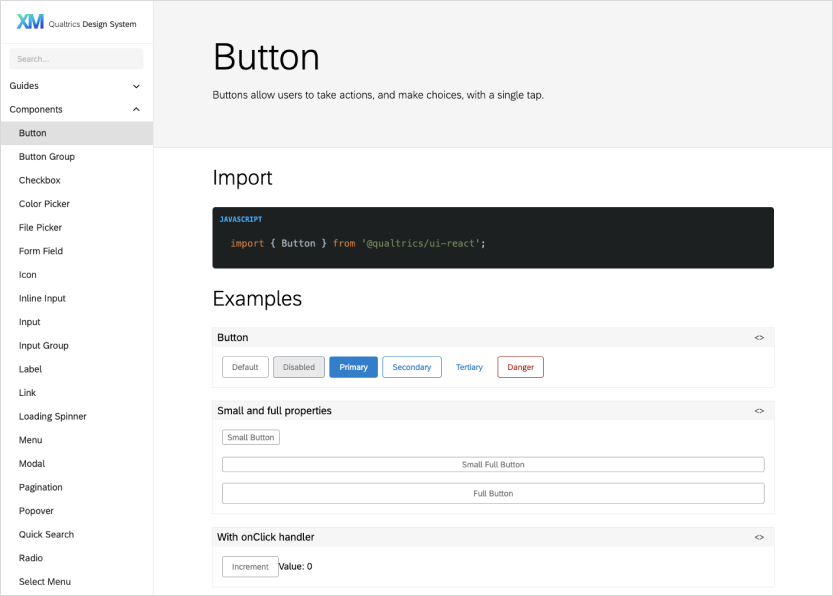
Qualtrics has its own design library with ready-to-use components.
Using our official library should help you adhere to Qualtrics design guidelines without extra effort and ensure you’re always using the latest styles.
Plugin UX Components
You may also utilize these XM Plugin react components to create user interfaces that look and behave like the Qualtrics product.
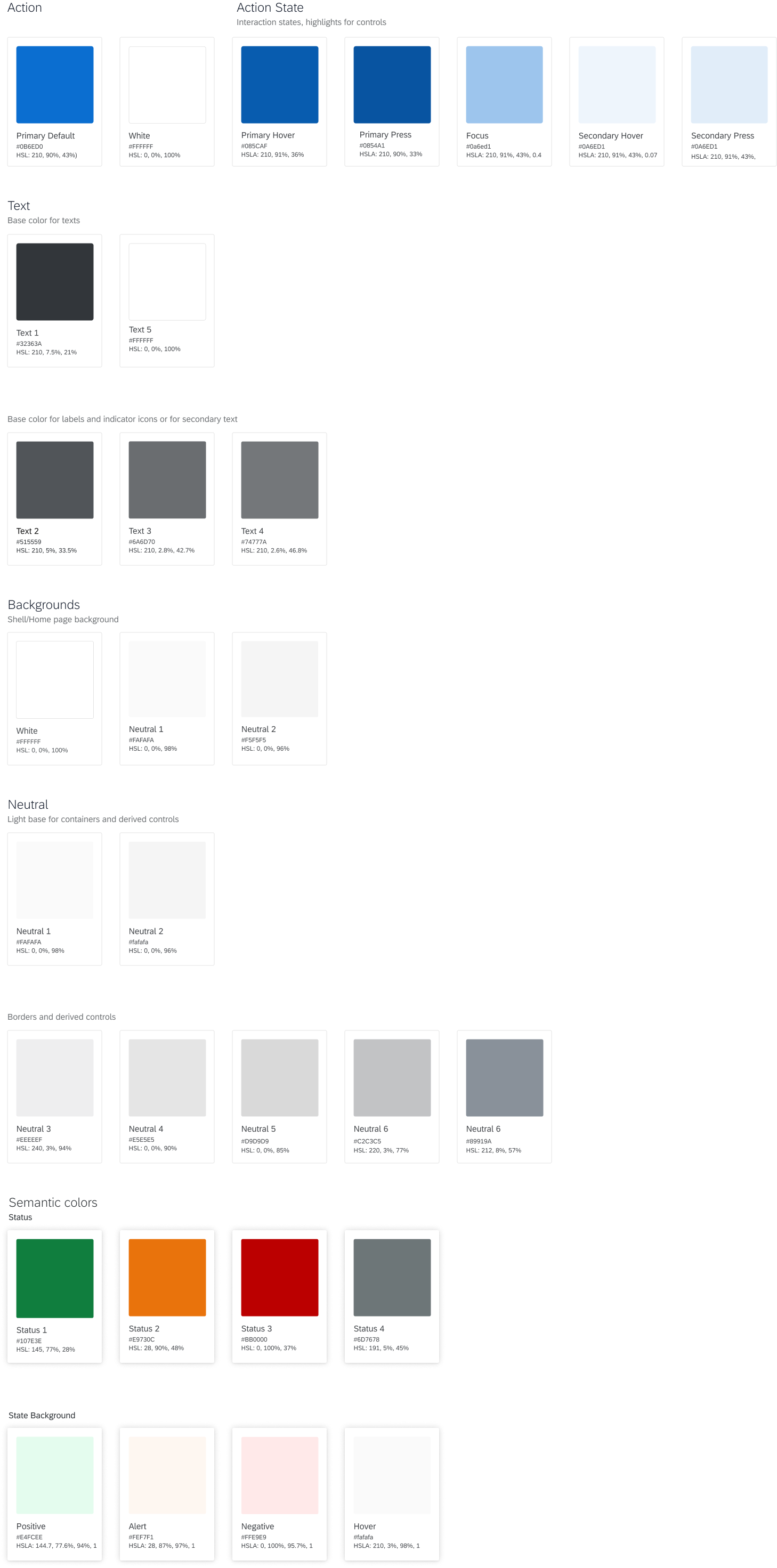
Colors
If you are using official Qualtrics Design System components, they will already use the correct colors.
Using unofficial colors should be reserved for special situations, such as the use of a branded logo.
Fonts and Icons
Fonts
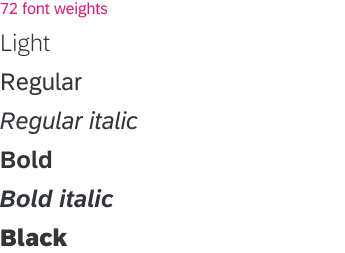
Qualtrics uses the official SAP font, 72. Please do not use any other fonts in the UI.
Fallback fonts for browsers that fail to render certain fonts should go in this order:
"72", "Helvetica Neue", Helvetica, Arial, sans-serif
Typography Scale
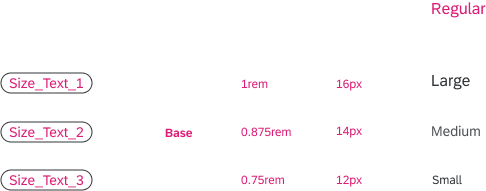
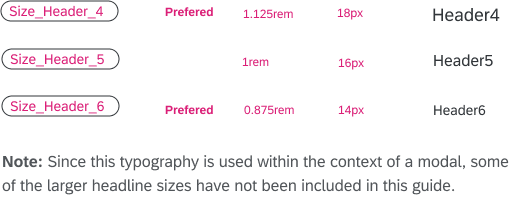
The typography scale is an essential means of creating balance and harmony in font sizing. Target sizes have been determined by using a base size of 16px to determine a root size of 1rem.
Values have been rounded to achieve an even set of stable pixel values.

UI Controls
Main UI controls can include components such as buttons, input fields, labels, texts, identifiers. Regular weights are preferred, use bold sparingly and inline to call attention.
Title Headlines
Headline usage includes main titles, page headers, form, and table titles. See these examples for more context:
Icons
Use one of the pre-approved icons from the official Qualtrics icon library.
Do not use your own icons, unless it’s for something very specific like a company logo.

Accessibility
We are in the process of formalizing our accessibility standards, but here are some general best practices to help anyone perceive, understand, navigate, and interact with your solution.
Color Contrast
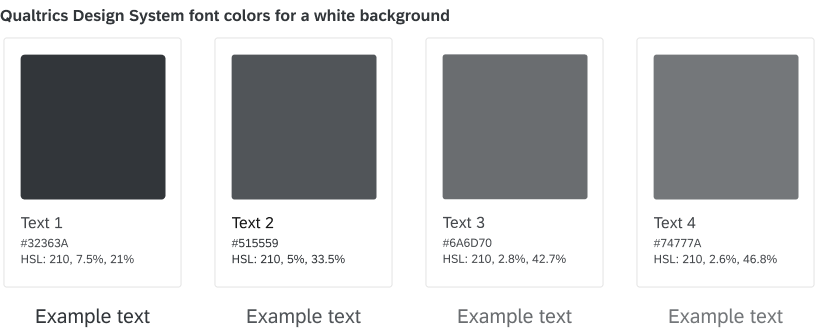
Dark fonts on a white background have an appropriate amount of contrast. You should avoid placing text on a colored background except for situations like primary action buttons.
If you do place text on a colored background, we recommend using a checker like this one to ensure proper levels of contrast.
Keep in mind that the size and weight of the font also impacts the contrast ratio required.
Keyboard Accessibility
Users should be able to interact with all elements of your solution without the use of a mouse. Qualtrics Design System components already have some of this built in, but it is up to you to apply it to any components you build yourself, and test to make sure it flows correctly.
Best Practices
- Tabbing through elements should be in a logical order (in western cultures this would be starting from the top-left down to the bottom-right)
- Users should be able to tab forward and backwards through elements
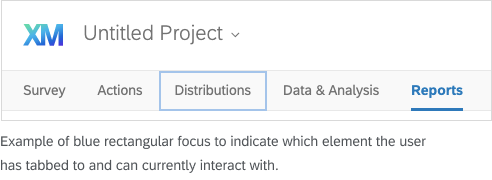
- Users should be able to tell which element they are currently tabbed to. We use a light blue rectangle surrounding the element
- Users should be able to bring focus to any element so they can interact with it
- Users should be able to navigate to all areas of your solution
For more information, visit this site.
Localization
Qualtrics supports many languages, which can affect the way content renders.
Best Practices
- A good rule of thumb is to assume text in English could end up being 2 or 3 times longer when translated into a different language.
- Make sure all elements have built-in rules for wrapping text, so longer languages do not cause text to run off the page or become obscured.
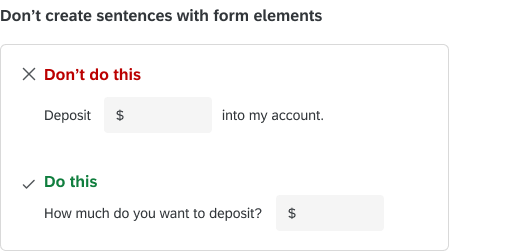
- For form elements, avoid using a sentence structure to string multiple inputs together, since the order may not make sense as a sentence in other languages.
- Do not embed text in images
Plugin UX Guidelines
Learn about specific UX guidelines for each Plugin:
Qualtrics UX Component Libraries
Backgrounds
Qualtrics-provided component libraries benefit your team because they:
- Contain out-of-the-box consistency with Qualtrics style guidelines, requiring no extra work on your part
- Maintain industry-standard practices and tooling
- Have active developers and support
- Are used internally at Qualtrics
React
Qualtrics supports using the React framework by providing component libraries and detailed instructions for incorporating Qualtrics-themed React components into your UX.
Two UX component libraries from Qualtrics are currently available in React:
Alternative Libraries
Support for these other libraries/frameworks is on the roadmap:
Don’t see your preferred library or framework or want to upvote one these? Let us know via the feedback survey.
How to install
Each XM Plugin you create comes with a file, typically package.json, referencing all libraries it depends on. For example, the Workflows Task Plugin contains dependencies on both of these Qualtrics React component libraries and installs them automatically when you invoke the npm install command.
Guidelines for User-Facing Text
User-facing text is a required component of configuration in all Extensions and Plugins. The text you provide in the description and longDescription fields is displayed to users browsing the App Marketplace as well as other contexts.
The standards in this guide are designed to encourage a smooth user experience by enforcing a minimum level of conformity in the tone and structure of all user-facing text.
Writing Extension Descriptions
Users will likely see the description text (description and longDescription) in their first encounter with your Extension.
Following a few simple guidelines when composing that text will help promote a consistent user experience across the XM ecosystem.
Description text should:
- Be succinct, explanatory, and jargon-free
- Start with the action performed, using an action word in imperative voice, e.g. "Create new survey"
- Not use a period/full-stop at the end of description text that consists of only a single sentence
- Avoid excessive capitalization, e.g. "Create a new Jira ticket", not "Create a New Jira Ticket."
- Spell out acronyms followed by the acronym itself in parentheses, e.g. "Command Line Interface (CLI)", not just "CLI"
Let's look at some considerations specific to each description type.
Text for the description Field
The text should generally start with an action word, preferably a current, industry-standard term — the word you would use when describing your Extension's functionality to another developer. For example, if the central function of the Extension is to perform a common CRUD operation, use the related term ("create", "read", "update", "delete").
Example — "Display survey statistics when users click a call to action link"
Other things to know:
- Where is it Displayed? — The short description (
description) is displayed by default on the face of the Extension card in the Marketplace. Its purpose is to convey the Extension's high-level functionality at a glance. - Maximum Length — While the maximum length is 256 characters, in practice it should be kept to a single short sentence, 40-60 characters as a rule of thumb, with no period at the end.
- Example — "Create a Zendesk survey based on customer response"
Text for the longDescription Field
The longDescription text should add context and detail to the functionality advertised in the short description.
Other things to know:
- Where is it Displayed? — The long description (
longDescription) is displayed by default when a user hovers over the "i" icon in the upper right corner of the Extension card. - Maximum Length — The maximum length is 2048 characters, but best practice is to aim for a paragraph-length explanation describing what you would want to know as a user — the key aspects of functionality needed to decide whether the Extension is a probable fit for the target use-case.
- Example — "Create a Zendesk ticket when customers complete a survey. The type of ticket created and the text selected for its description are conditioned on the customer's specific response."
Note that a paragraph of more than one sentence should be punctuated normally.
Writing Plugin Descriptions
Plugin description guidelines differ somewhat between Workflows Tasks and Workflows Events plugins.
Text for the description Field
The short description (description) is displayed by default both on the face of the app selector cards, and in workflow templates before the trigger is configured. Its purpose is to convey the high-level functionality provided by the Plugin at a glance.
While there is no maximum length enforced, in practice the short description should be kept to a single concise sentence.
Workflows Task Description
Short descriptions for Workflows Task plugins should follow the same basic guidelines as Extensions.
EXAMPLE: "Send a followup survey" (imperative voice, with no closing period)
Workflows Event Description
Events are activities that trigger workflows. Reinforce this for users by beginning the description with "Starts a workflow when...", then describing the event with no period at the end.
EXAMPLE: "Starts a workflow when a Jira ticket is closed"
Text for the longDescription Field
Customers see the long description when they mouse-over the 'i' icon on the app tile. There is no strict maximum size, but best practice is to limit the text to one or two paragraphs.
Consider opening with a more precise and detailed version of the short description, then providing additional detail as needed.
Most importantly, focus on the explanatory value to the customer and avoid jargon.