Reporting Widget Plugin Guide
Follow this guide to understand how to build Reporting Widget Plugins.
Objectives
In this guide you will:
- Learn more about Reporting Widgets
- Build and Interact with the default Reporting Widget Plugin
Limitations
These are the current constraints in Reporting Widget Plugins:
- Widget action menu is unavailable (e.g. view data table, exports features)
- Split configuration panel is unavailable
- Dashboard user attribute information is unavailable
- A maximum of 5,000 records can be returned to your Widget Plugin
Prerequisites
Before continuing with this guide it is recommended that you have reviewed and completed these guides:
Reporting Widget Quickstart
The instructions in this guide continue from where the Reporting Widget Quickstart guide finished, so please go through that first.
And have experience with:
- Basic usage of Qualtrics surveys and dashboards, including mapping survey data to a dashboard
- Basic usage of dashboard widgets such as
And have these tools installed:
- Latest stable major version of nodejs
- Latest major version of npm or yarn
Main Concepts
Overview
Reporting Widgets configure and visualize data in Qualtrics reporting applications.
The Reporting Widget Plugin allows developers to create new custom widgets in Qualtrics Dashboards.
UX Guidelines
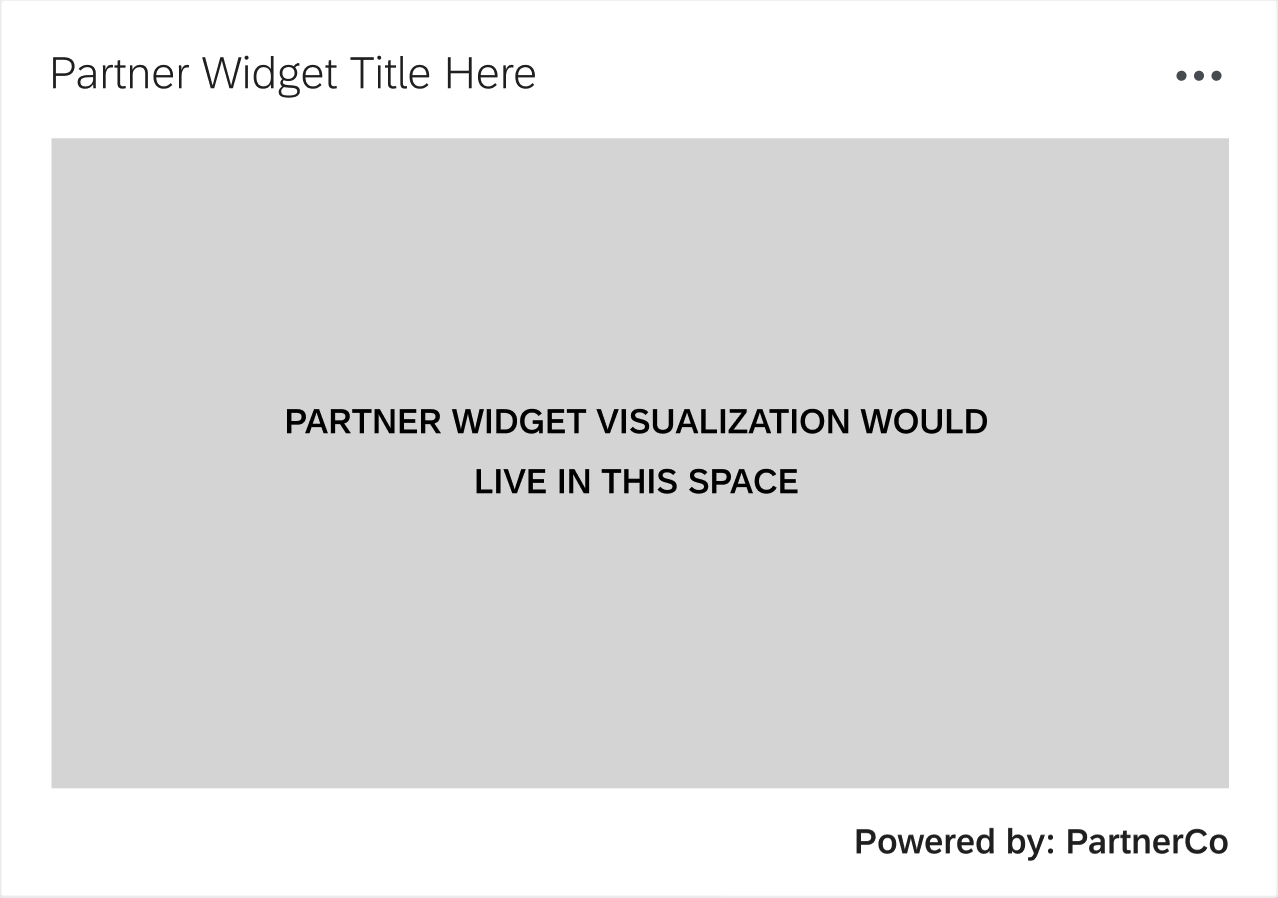
Review these general Qualtrics UX guidelines and the resources below to guide you in building your Reporting Widget Plugin UX.
Please Do
- Include a Powered by: {insert company name} in the widget footer
- Focus on the visualization
- Keep branding minimal
- Use comparable font sizing and type styles
Please Avoid
- Branding that looks like banner advertisements
- Large logos
Example Mockup
Composition
Reporting Widgets are comprised of these two panels:
1. Configuration Panel
This is where users configure data retrieval (Data Configuration) and configure presentation options (View Configuration).
The entry point for the configuration panel is: public/configuration-panel.html.
The HTML file implements public/js/configuration-panel.js.
Both files are created automatically when you build the Plugin.
2. Visualization Panel
This is where the visualization is actually rendered.
The entry point for the visualization panel is: public/visualization.html.
The HTML file implements public/js/visualization.js.
Again, these files are created automatically when you build the Plugin.
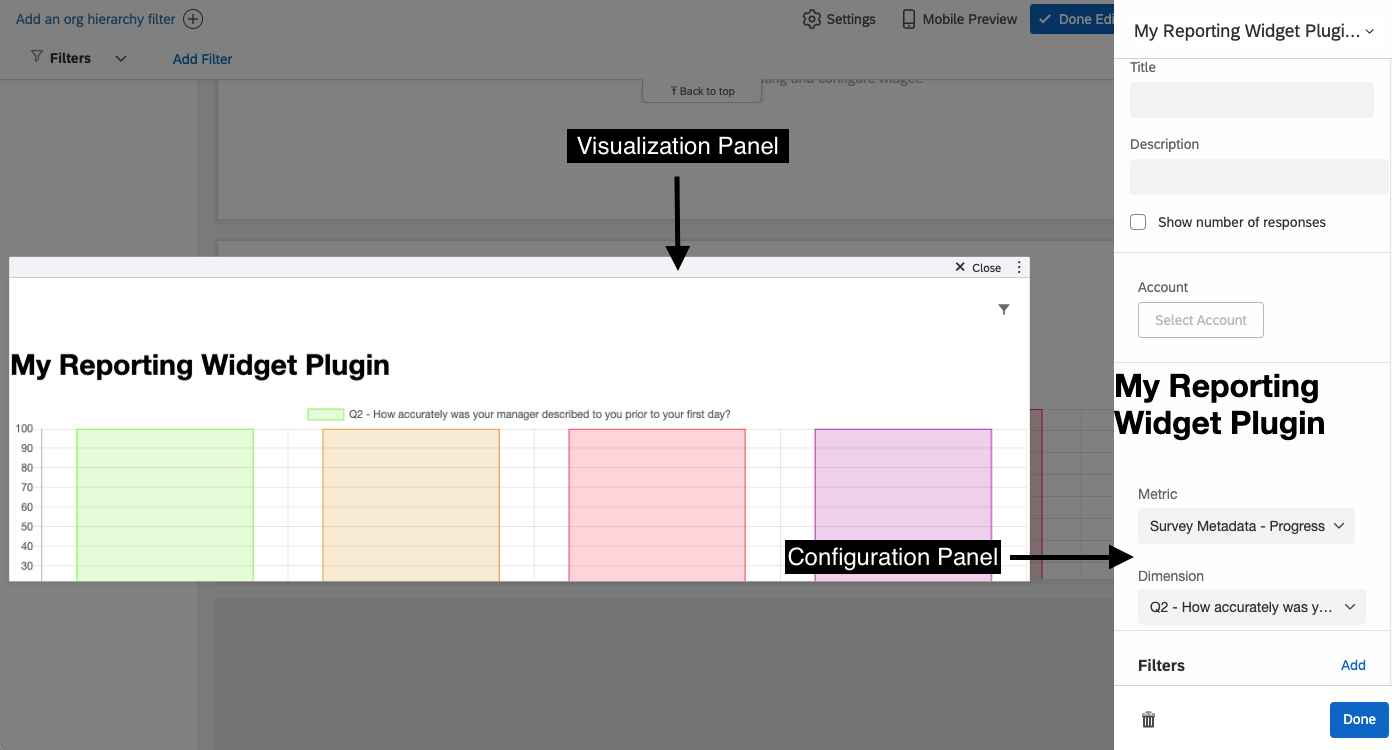
You have to implement both panels in your Reporting Widget plugin.
Other Panels
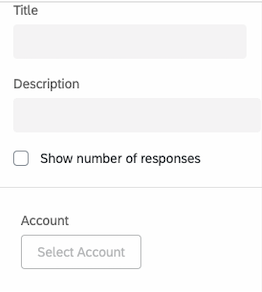
The panels above the Configuration Panel are entirely managed by the Reporting product and are not customizable.
Externally-Hosted Reporting Widgets
As an alternative to hosting your plugin assets on Qualtrics’ servers, you can instead add the following to your plugin’s config.json file:
"entrypoint": {
  "root": {
    "url": "https://example.com"
  }
}
The url key points to the location where your plugin assets are stored. It is expected that this location mimics the file structure of a Qualtrics plugin: that is, it should still serve the entrypoints configuration-panel.html and visualization.html when requested.
In addition, resources such as the config.json and translations/* files are still part of the submission package you upload to Qualtrics servers.
Tips and Tricks
- Get a feel for the back-and-forth communication between widgets and dashboards by opening the data network tab and exploring the request/response payloads when developing your widget.
- Remember to share your extension to your brand with the
xmt create share -o <brand>XMT command or through the Developer Portal UI. - Specific interfaces/types can be found with the
@qualtrics/reporting-widget-clientpackage (see list here). Exact definitions can be found in the package's declaration file at this location of your XM Extension {extension-name}/plugins/{reporting-widget-plugin-name}/node_modules/@qualtrics/reporting-widget-client/dist/reporting-widget-client.d.ts
Pre-Build Steps
The default Reporting Widget Plugin is built with React and is meant to be an example that helps you understand how to create your own customized Reporting Widget Plugin. (See the Qualtrics Design System pages for a comprehensive guide to incorporating Qualtrics-themed React components into your UX.)
These steps cover what you need to know and do before you start working with the default Plugin:
Step 1: Review Important Files and Folders
When you created your Plugin in the Reporting Widget Quickstart guide, many files and folders were created.
This table has detailed information about each one:
| Name | Type | Editable | Description |
|---|---|---|---|
| .gitignore | File | Yes | Tells Git to ignore certain files and folders so that developers do not accidentally commit code that shouldn’t be committed (e.g. 3rd party libraries installed via npm, files with local-development secrets, etc.) |
| clean.js | File | No | Contains a script that removes all files and folders from public/ except anything nested under the public/translations/ directory |
| config.json | File | Yes | Contains settings for the Plugin. The only thing you should need to modify in this file is when you add a connection to set up authentication for any outbound HTTPS requests your Plugin makes. More details can be found in the Setting up Authentication guide |
| package.json | File | Yes | The npm file that lists all of the dependencies, devDependencies, metadata, and helpful development commands accessed by invoking npm run. Here is a list of the most important commands:build - performs a one-time production build from the src directory + npm dependencies and outputs the resulting files into public/, invoked by running npm run buildstart - starts a process on your computer that performs a one-time development build and then watches your Plugin files for any changes and triggers new builds, invoked by running npm startdev - executes a one-time development build of your code, useful for testing and debugging, invoked by running npm run devclean - removes all files from public/ except for any files in translations/, invoked by running npm run clean. This is also run internally by the npm run build command, so it is only necessary for when you want to clean out the directory onlytest - placeholder for you to put in the command to run your tests, invoked by running npm test |
| public | Directory | Yes | The directory where your source code is built and bundled by webpack. Translations - The public/ directory also comes pre-packaged with a translations/EN.json file, which is discussed in the Working with Translations guide Plugin Entrypoints - The entrypoints for your Reporting Widget plugin are the configuration-panel.html file for the Configuration Panel, and the visualization.html file for the Visualization Panel |
| src | Directory | Yes | Where you put your source code containing the logic and UX components for your Reporting Widget Plugin. We provide a working sample plugin out-of-the-box, comprised of the files located in the src directory. We encourage you to review and leverage these files as you start to build your Plugin |
| webpack.config.js | File | Yes | Webpack is the industry-standard front-end build tool that bundles your CSS, JavaScript, HTML, and images into a few files (or sometimes a single one) This file contains the webpack configurations for bundling your extension together and outputting it to the public directory |
NPM & Yarn
NPM is referenced throughout this guide but Yarn will work just as well. Just substitute the NPM command for the equivalent Yarn one.
Step 2: Install External Library Dependencies
The next step is to install all of your Plugin’s front-end dependencies.
Installing Libraries from the NPM Public Registry
In your plugin’s root directory run this command to download all of the dependencies and devDependencies listed in package.json:
npm install
Now all of the necessary libraries have been installed/updated and are ready to be used in your Reporting Widget plugin!
Step 3: Reporting Widget Client
The Plugin Client library plays a vital role in communicating between your XM Plugin and the underlying Qualtrics XM functionality it is extending. Documentation on it can be found here.
Confirm You Have the Reporting Widget Client
Confirm that your Reporting Widget Plugin contains the Reporting Widget Client library by searching the package.json file for this:
"@qualtrics/reporting-widget-client"
If not, it can be installed with the command:
npm i @qualtrics/reporting-widget-client
Accessing the client
The client should be used via the WithClient Higher Order Component which will initialize the necessary dependencies for you. Directly instantiating the ReportingWidgetClient will not work.
You can use the WithClient HOC by wrapping it around the component which should have access to the client. This should be done for both the Configuration Panel and for your Visualization, like so:
import { WithClient } from '@qualtrics/reporting-widget-client';

<WithClient >
  {Content} //Your component
</WithClient>
Available Methods
Some of the methods in the library are unique to the Plugin Type (i.e. Reporting Widget) client API and wrap functionality from the Plugin Client.
This list is not exhaustive but instead focuses on the most common methods.
getDataSourceDefinition
- Returns an object with the fieldset definition
client.getDataSourceDefinition();
onDataConfigurationChange
- Callback to trigger a
DataConfigurationupdate. - Only available within Configuration Panels
client.onDataConfigurationChange(
  dataConfiguration //Takes the new data configuration as an argument
);
onViewConfigurationChange
- Callback to trigger a
ViewConfigurationupdate. - Only available within Configuration Panels
client.onViewConfigurationChange(
  viewConfiguration //Takes the new view configuration as an argument
);
changeData
- Callback to trigger a data change from the Visualization.
- Current only supports the
GetPageChangetype
client.changeData(
  change //PluginDataChange type
);
onDataClick
- Callback that handles widget data click events. It enables actions when users click on the visualization data.
- Currently only supports {@link CubeShape} and only the click-to-filter action.
client.onDataClick(
  coordinate //CubeHierarchyCoordinate type
);
Additional Types
This package also exports many useful types, interfaces and typeguards for you to use, which are helpful particularly when developing using VS Code because of the inbuilt Intellisense capabilities. We expose many types from our internal packages which can be accessed through the following 2 namespaces:
- DataShapes
- CoreDataConfig
For example, they can be used like this:
import { DataShapes, CoreDataConfig } from '@qualtrics/reporting-widget-client'

const myShape: DataShapes.CubeShape = {
  //define your shape here
};

const myConfig: CoreDataConfig.FieldsetsAggregateDataConfiguration = {
  //define config here
}
For a more complete list of exported types, see the Appendix.
Additional Reporting SDK Documentation
Additional documentation on Data Configurations and Data Shapes can be found in the library's build folder. This can be found at node_modules/@qualtrics/reporting-widget-client/dist/documentation from a plugin.
Step 4: Diving Into the src Directory
The files that come packaged inside of the src directory represent a default Reporting Widget plugin that shows how you can build your plugin and it can be used as your plugin starter.
Details on each of the files of the default plugin are included below:
| Name | Description | Editable | Key Aspects |
|---|---|---|---|
| src/index.html | The template used by webpack to generate the two entrypoints for your Reporting Widget plugin, public/visualization.html and public/configuration-panel.html | Yes, however it is likely that you will not need to edit this file as it works out of the box except to upgrade the Plugin Client version | By default the <div id='root'></div> serves as the root element of your React app and which all your UX components are nested inside |
| src/configuration-panel.jsx | Parent/container element for your DataConfigurationPanel and ViewConfigurationPanel components | Yes | Responsible for passing data to its children components and then rendering those components |
| src/data-configuration-panel.jsx | Manages how the user interacts with and configures the data they want to visualize | Yes | Posts the onDataConfigurationChange message with the new data-configuration that will trigger the rendering of the visualization |
| src/panel-container.jsx | Wraps its child components (in this case DataConfigurationPanel and ViewConfigurationPanel) inside of the Qualtrics Design System UX | Yes, but you will likely not need to | By using this component you enable your Plugin to meet the Qualtrics Design System guidelines with minimal effort on your side |
| src/render.jsx | Module that renders components with ReactDOM | Yes, but you will likely not need to | Both your plugin entrypoints (src/visualization.jsx and src/configuration-panel.jsx) use this module to render their respective component trees |
| src/styles.css | Default panel styles | Yes | You can add styles in this file |
| src/view-configuration-panel.jsx | Manages the presentation details of your Reporting Widget | Yes | Posts the onViewConfigurationChange message with the new view-configuration |
| src/visualization.jsx | Renders the data/visualization in the Visualization Panel | Yes | Receives data and the view-configuration as inputs to generate the visualization. Any data transformations should be done here. |
Now that you have an understanding of the default Plugin, let's walk through how to build/bundle and interact with it!
Build Steps
Step 1: Build Your Plugin
Run npm run build to build your Plugin from the src directory to the public directory
Review the contents of src and verify that your Plugin entrypoint files and their corresponding bundled js files were created:
Plugin Entrypoint Files
- public/configuration-panel.html
- public/visualization.html
Plugin Frontend App Files
- public/js/configuration-panel.js
- public/js/visualization.js
Your public directory should look similar to this:
../public
├── configuration-panel.html
├── js
│   ├── configuration-panel.js
│   ├── fonts
│   │   ├── 72-Bold.ttf
│   │   ├── 72-Bold.woff
│   │   ├── 72-Bold.woff2
│   │   ├── 72-BoldItalic.ttf
│   │   ├── 72-BoldItalic.woff
│   │   ├── 72-BoldItalic.woff2
│   │   ├── 72-Condensed.ttf
│   │   ├── 72-Condensed.woff
│   │   ├── 72-Condensed.woff2
│   │   ├── 72-CondensedBold.ttf
│   │   ├── 72-CondensedBold.woff
│   │   ├── 72-CondensedBold.woff2
│   │   ├── 72-Italic.ttf
│   │   ├── 72-Italic.woff
│   │   ├── 72-Italic.woff2
│   │   ├── 72-Light.ttf
│   │   ├── 72-Light.woff
│   │   ├── 72-Light.woff2
│   │   ├── 72-Regular.ttf
│   │   ├── 72-Regular.woff
│   │   ├── 72-Regular.woff2
│   └── visualization.js
├── translations
│   └── EN.json
└── visualization.html

3 directories, 26 files
Step 2: Add Data to Your Dashboard
If you haven't already added survey response data to your Dashboard then follow these steps:
Step 3: Run Your Local Plugin
Follow the same steps you went through previously in the Reporting Widget Quickstart guide to run and render your local plugin in the Qualtrics Dashboard product.
Step 4: Interact with Your Plugin
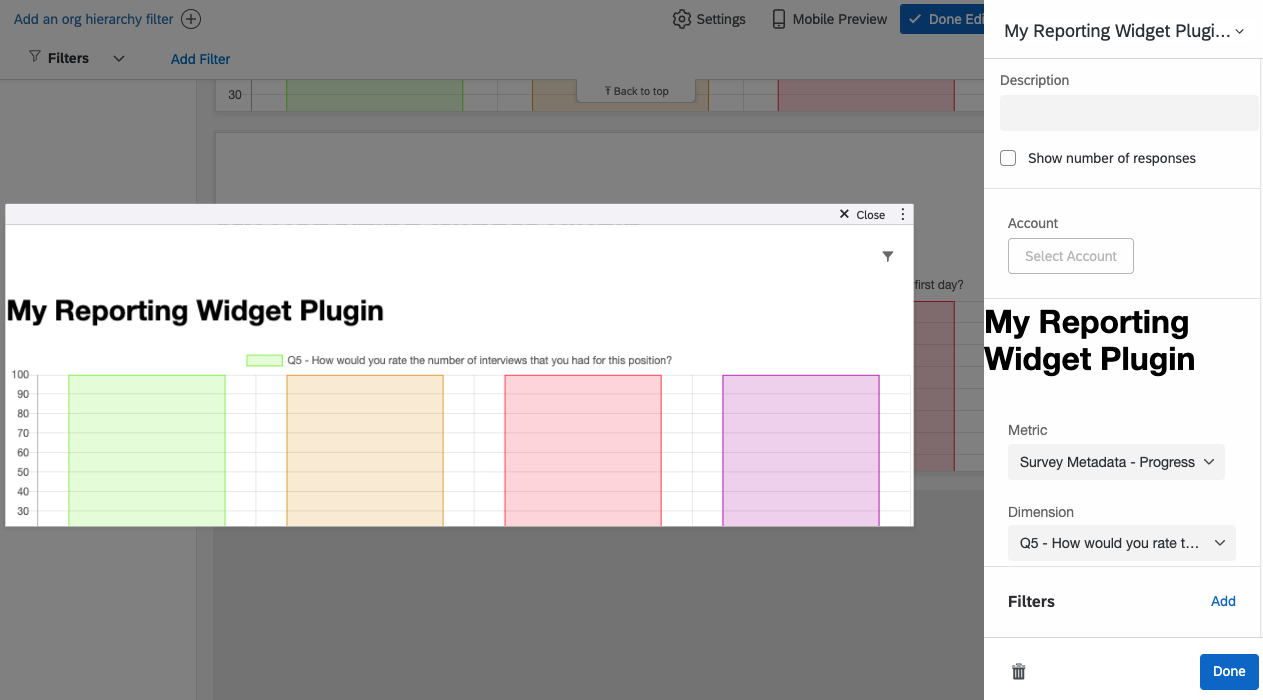
You should see three dropdowns in your configuration panel that look like this:
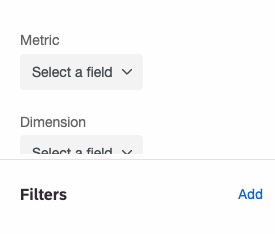
Once you select values for both Metric and Dimension you should see a chart appear in the visualization panel:
What's Next
Nice work completing this guide! By using the default Plugin files you should be able to customize your own Configuration and Visualization panels to render custom widgets.
Here are some recommended next steps:
- Review the code in the src directory to understand the different moving parts and how they work together
- Debug the code while interacting with it to understand the data/communication flow
- Download a sample Reporting Widget Plugin to see a very custom visualization and review its code in the Sample Plugin section below
- Learn more about the Reporting Widget Plugin in the Appendix
Sample Plugin
This sample Reporting Widget Plugin contains an interactive sunburst chart that allows a dashboard user to drill down up to 3 nested levels to extract insights. Follow these steps to install it:
- Create a new Reporting Widget Plugin or use an existing one
- Download the sample Reporting Widget Plugin
- Unzip it and move the files into the Plugin directory from step #1, overwriting any existing files with the new ones from step #2 — see this example for *nix and replace
~/path/to/your/extension/plugins/your-plugin/with the file path to your plugin directory:
unzip -o ~/Downloads/sample-reporting-widget-plugin.zip -d ~/path/to/your/extension/plugins/your-plugin/
Review the README.md that is included in the sample Reporting Widget Plugin package, as it contains the remainder of the instructions for you to follow.
Appendix
More detailed information about Reporting Widget components can be found below:
Configuration Panel
This panel presents both data and view configuration.
Data Configuration Component
The Data Configuration component renders the UI for configuring access to the data. Its sole responsibility is to produce the data-configuration. It is initially undefined for new widgets until it's edited.
The data-configuration is in a specific format that Qualtrics interprets to retrieve the data. You will need to match the format in order to pass data through to your visualization.
View Configuration Component
The View Configuration component provides the UI for configuring presentational aspects of the visualization, such as colors, font sizes, display of axes, etc. It takes the retrieved data and previously configured view-configuration as input and can produce an updated view-configuration.
The format of the view-configuration has a JSON format that is only understood by itself and the Visualization component. It does not follow any particular format.
Visualization Panel
The visualization component is responsible for rendering the data and is provided two inputs:
- The data in a JSON format called a data-shape (see more details below). The data-shape contains all information about the data to be rendered, minus presentational details.
- The view-configuration: a JSON format produced by the View Configuration component.
Pagination Support
Reporting Widgets using the fieldsets-records data configuration format can paginate their data from the visualization by using the changeData method on the client. The change object passed to this method must conform to the following interface:
export interface GetPageChange {
  type: 'get-page';
  pagination: {
    offset: number;
    limit: number;
  };
}
The message handler can be used like this:
function getNewPage(page) {
  const changeObj = {
    type: 'get-page',
    pagination: {
      offset: (page - 1) * PAGE_SIZE,
      limit: PAGE_SIZE
    }
  }
  client.changeData(changeObj);
}
which will refresh the Visualization component with the new data. For a full example, please see the sample table reporting widget plugin.
Click To Filter Support
You can allow users to click on a visualization data point to 'zoom into' the data by adding a page-level filter on the field. To enable this feature for your plugin, you add an additional config.json file to your /public folder with this structure:
{
 "reportingWidgetOptions": {
  "dataClickAction": "FilterAggregate"
 }
}
This feature currently only supports thefieldsets-aggregate configuration format.
Additionally, you will need to trigger the client.onDataClick callback when the visualization data point is clicked. The coordinate object passed into this callback must conform to the following interface:
export interface CubeHierarchyCoordinate {
    type: 'cube-hierarchy';
    /**
     * A hierarchy of member IDs.
     *
     * An index in the array has a dimension with corresponding depth.
     */
    hierarchy: CubeMemberId[];
}

/**
 * Type of values of {@link CubeHierarchyCoordinate#hierarchy}.
 * A null value indicates that all values at the hierarchy level are represented.
 * For example, in a hierarchy with dimensions Country, States, Age Group, a hierarchy of
 * ["USA", null, "70-80"] points to all people of age group "70-80" in the "USA" no matter what state they are in.
 */
export declare type CubeMemberId = string | number | null;
Data Flow Diagram
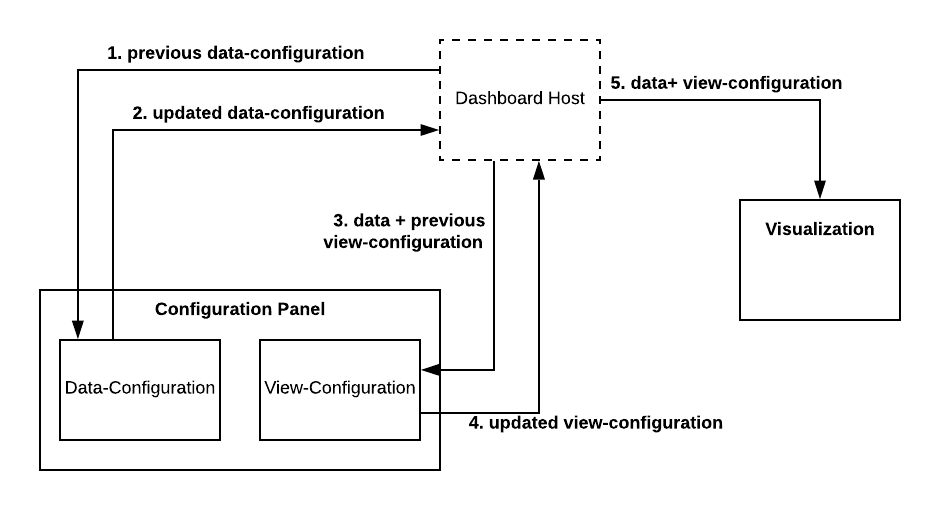
- The
DataConfigurationcomponent receives the previously configured data-configuration (if any), then renders a UI matching the data-configuration. - The
DataConfigurationcomponent produces an updated data-configuration and sends it to the Dashboard Host. This can be done immediately, but is usually done in response to a change in the UI (i.e. user selects/inputs a value). - The Dashboard Host takes the data-configuration and uses it to retrieve the data. The data is then provided to the
ViewConfigurationcomponent along with the previously configured view-configuration (if any). TheViewConfigurationcomponent renders a UI that corresponds to the received view-configuration. - The
ViewConfigurationcomponent sends an updated view-configuration to the Dashboard Host in response to a UI interaction with the user. - The visualization concurrently receives the data as well as the previously configured view-configuration (if any). The visualization renders itself.
Data-Shape Format
Data-Shapes is the data format provided to visualizations.
Cube Shape
The cube data-shape is most appropriate for representing aggregates over categorized data. This is a popular format for line charts, bar charts, pie charts and pivot tables.
cube has the following key concepts:
| Concept | Description |
|---|---|
| Axis | Described by the top-level axes field. These provide spatial organization of dimensions e.g. Rows, Columns. An axis can have one or many dimensions. |
| Dimension | Described by dimensions fields on each axis. These provide categorization of the data, e.g. Country, City. |
| Member | A category in a dimension showing up in the data, e.g. the City dimension could have a Seattle and San Francisco dimensions. |
| Metric | Described by the top-level metrics field. A metric is a summary of a numeric fact for a hierarchy of dimension members, e.g. a count or a dollars average of sales in each Country and City. |
| Value | Shows up in the value fields. This is the output of a metric. |
Examples
{

  type: 'cube',

  metrics: {
    count: {
      label: 'Count'
    }
  },

  axes: [{
    id: 'x-axis',
    label: 'X Axis',
    dimensions: [{
      id: '_recordedDate',
      label: 'Recorded Date',
      dataType: 'date-time',
      members: {
        '01-01-2018': {
          label: 'January 1st 2018'
        }
      }
    }]
  }, {
    id: 'data-series',
    label: 'Data Series',
    dimensions: [{
      id: 'favorite_icecream',
      label: 'Favorite Icecream',
      dataType: 'string',
      members: {
        vanilla: {
          label: 'Vanilla'
        },
        chocolate: {
          label: 'Chocolate'
        }
      }
    }]
  }],

  data: [{
    id: '01-01-2018',
    children: [{
      id: 'vanilla',
      value: 3351,
      label: '3351'
    }, {
      id: 'chocolate',
      value: 3132,
      label: '3132'
    }]
  }]
}
// Count of recipients by country, city, favorite ice cream with a total count and average age.
// The   metrics   dimensions is used, which has the name of each metric as its members.
{

  type: 'cube',

  metrics: {
    count: {
      label: 'Count'
    },
    avg_age: {
      label: 'Average Age'
    }
  },

  axes: [{
    id: 'rows',
    label: 'Rows',
    dimensions: [{
      id: 'country',
      label: 'Country',
      dataType: 'string',
      members: {
        USA: {
          label: 'USA'
        }
      }
    }, {
      id: 'city',
      label: 'City',
      dataType: 'string',
      members: {
        SEA: {
          label: 'SEA'
        }
      }
    }]
  }, {
    id: 'columns',
    label: 'Columns',
    dimensions: [{
      id: 'ice_cream_brand',
      label: 'ice cream brand',
      dataType: 'string',
      members: {
        'Ben & Jerry\\'s': {
          label: 'Ben & Jerry\\'s'
        }
      }
    }, {
      id: 'ice_cream_flavor',
      label: 'ice cream flavor',
      dataType: 'string',
      members: {
        'Cookie Dough': {
          label: 'Cookie Dough'
        }
      }
    }, {
      id  : 'metrics',
      label: 'Metrics',
      dataType: 'number'
    }]
  }],

  data: [{
    id: 'USA',
    children: [{
      id: 'Seattle',
      children: [{
        id: 'Ben & Jerry\\'s',
        children: [{
          id: 'Cookie Dough',
          children: [{
            id: 'count',
            value: 3351,
            label: '3351'
          }, {
            id: 'avg_age',
            value: 16,
            label: '16'
          }]
        }, {
          id: 'Vanilla',
          children: [{
            id: 'count',
            value: 1001,
            label: '1001'
          }, {
            id: 'avg_age',
            value: 28,
            label: '28'
          }]
        }]
      }]
    }]
  }]
}
Table Shape
The table data-shape is most appropriate for representing tabular data. This is a common format for visualizations that lists of rows or records such as tables.
Concepts
| Concept | Description |
|---|---|
| Column | A named field which appears on every row. Columns also have a defined order. |
| Row | A record has a field for each column. |
| Role | A role assigned to a column. The semantics of the role are defined externally. |
| Id | The id of a record uniquely identifies it. |
Examples
{

  type: 'table',

  columns: [{
    id: '00004',
    label: 'Q1: What\\'s your favorite ice cream?',
    role: 'content',
    dataType: 'string'
  }, {
    id: '00005',
    label: 'Name',
    role: 'primary-label',
    dataType: 'string'
  }],

  rows: [{
    id: 'ER_XXXXXXX',
    values: {
      '00004': {
        value: 'Vanilla',
        label: 'Vanilla'
      },
      '00005': {
        value: 'John Doe',
        label: 'Jon Doe'
      }
    }
  }, {
    id: 'ER_ZZZZZZZ',
    values: {
      '00004': {
        value: 'Chocolate',
        label: 'Chocolate'
      },
      '00005': {
        value: 'Jane Doe',
        label: 'Jane Doe'
      }
    }
  }]
}
Fieldset Definition Format
interface FieldSetDefinition {

  /** Uniquely identifies the fieldset. */
  fieldSetId: string;

  /** Dictionary of fields in the fieldset. */
  fields: {

      [fieldId: string]: {

        /** Human friendly name for the string that can be shown to the end user. */
        name: string;

        /** Type of the field. */
        type: FieldType;
      }
  }
}

/** Types of fields in field sets */
enum FieldType {
  /** An identifier value, such as a GUID or UUID (string). */
  Id = 'Id',

  /** Any generic value, for which no aggregations exist (string). */
  GenericValue = 'GenericValue',

  /** Contains a timestamp value, accurate to the millisecond (ISO-8601). */
  DateTime = 'DateTime',

  /** Free-form text, like that written by a human (string). */
  FreeFormText = 'FreeFormText',

  /** An identifier with a domain small enough to be enumerable (string). */
  EnumerableValue = 'EnumerableValue',

  /** A numeric value (double). */
  ScalarValue = 'ScalarValue',

  /** A numeric value with a domain small enough to be enumerable (double). */
  EnumerableScalarValue = 'EnumerableScalarValue',

  /** A set of GenericValues (array of strings). */
  ValueSet = 'ValueSet',

  /** A set of GenericValues with a small domain (array of strings). */
  EnumerableValueSet = 'EnumerableValueSet',

  /** Represents a geometric structure as a polygon (array of strings). */
  Geometry = 'Geometry'
}
Data-Configuration Format
data-configurations are descriptions of how to retrieve the data from a specific data source and into a data-shape.
Fieldsets-Aggregate Data-Configuration
The fieldsets-aggregate data-configuration retrieves aggregates from fieldsets and produces a cube data-shape.
EXAMPLE: Custom Metrics and Metric-Level Filters
This example demonstrates the use of custom metrics and metric-level filters.
Query: Ratio of respondents who like vanilla ice cream
{
 "component": "fieldsets-agggregate",
 "fieldsetId": "<replace-with-fieldset-id>",
  "metrics": [{
  "type": "custom",
  "id": "vanilla-rating",
  "label": "Vanilla Rating",
  "equation": "Responded / Total",
  "metrics": [{
   "id": "Responded",
   "field": "_recordId",
   "function": "count",
   "label": "Responsed",
   "filters": [{
    "type": "filter",
    "filter": {
     "field": "LikedIcecreamFlavors",
     "includes": ["Vanilla"]
    }
   }, {
    "id": "Total",
    "field": "_recordId",
    "label": "Total",
    "function": "count"
   }]
  }]
 }]
}
EXAMPLE: Removing Values
Filters omit records from the computation, but not values. In order to remove values use the remove field on dimensions.
Query: Count the number of respondents who like a specific ice cream flavor, except for vanilla.
{
 "component": "fieldsets-agggregate",
 "fieldsetId": "<replace-with-fieldset-id>",
  "metrics": [{
  "id": "count",
  "label": "Count",
  "function": "count",
  "field": "_recordId"
 }],
  "axis": [
  "id": "x_axis",
  "label": "X-Axis",
  "dimensions": [{
   "id": "LikedIcecreamFlavors",
   "label": "Like Ice Cream Flavors",
   "fieldId": "LikedIcecreamFlavors",
   "remove": ["Vanilla"]
  }]
 ]
}
EXAMPLE: Comparisons
There are 3 types of comparisons. The types are used as a hint for data visualizations to know how to display the comparison data.
previous-period: a comparison to an earlier time period on the same metric. Number chart's "show change since" is using this type. You can include the label field in the comparison. This label is for explaining what the comparison is in visualizations. For example, "over previous 3 months" is one of the time periods in number chart.breakout: a comparison of a dimension breakout on the same metric.time-series: a comparison of a date dimension breakout on the same metric.
Previous-Period Data Configuration
{
 "component": "fieldsets-aggregate",
 "fieldsetId": "fieldsetId_0",
 "metrics": [{
  "id": "metric0",
  "label": "Metric 0",
  "type": "built-in",
  "field": "_recordId",
  "function": "count",
  "comparisons": [{
   "id": "comparison_0",
   "label": "Customized label",
   "type": "previous-period",
   "filters": [],
   "dimensions": []
  }, {
   "id": "comparison_1",
   "type": "previous-period",
   "filters": [{
    "type": "relative-date-range",
    "field": "endDate",
    "unit": "month",
    "offset": {
     "unit": "month",
     "count": 1
    }
   }],
   "dimensions": []
  }]
 }]
}
Breakout Data Configuration
{
 "component": "fieldsets-aggregate",
 "fieldsetId": "fieldsetId_0",
 "metrics": [{
  "id": "metric0",
  "label": "Metric 0",
  "type": "built-in",
  "field": "_recordId",
  "function": "count",
  "comparisons": [{
   "id": "comparison_0",
   "label": "Some label",
   "type": "breakout",
   "filters": [],
   "dimensions": [{
    "id": "dimension_0",
    "fieldId": "fieldId_0",
    "label": "Dimension label"
   }]
  }]
 }]
}
TimeSeries Data Configuration
{
 "component": "fieldsets-aggregate",
 "fieldsetId": "fieldsetId_0",
 "metrics": [{
  "id": "metric0",
  "label": "Metric 0",
  "type": "built-in",
  "field": "_recordId",
  "function": "count",
  "comparisons": [{
   "id": "comparison_0",
   "label": "Some label",
   "type": "time-series",
   "filters": [],
   "dimensions": [{
    "id": "dimension_0",
    "fieldId": "fieldId_0",
    "groupBy": "year"
   }]
  }]
 }]
}
Fieldsets-Records Data-Configuration
The fieldsets-records data-configuration retrieves records from fieldsets and evaluates to a table data-shape. Note that the fields may be customized as necessary and the limit key has a maximum value of 4999.
Query: "Fetch the first and last name of respondents who liked the vanilla flavor."
{
 "component": "fieldsets-records",
 "fieldsetId": "<replace-with-fieldset-id>",
 "columns": [{
  "id": "first-name",
  "label": "First Name",
  "field": "FirstName"
 }, {
  "id": "last-name",
  "label": "Last Name",
  "field": "LastName"
 }],
 "filters": [{
  "type": "filter",
  "filter": {
   "field": "LikedIcecreamFlavors",
   "includes": ["Vanilla"]
  }
 }],
 "limit": 100,
 "offset": 0,
 "sort": {
  "field": "LastName",
  "direction": "asc"
 }
}
Multi Data-Configuration
The multi data-configuration allows multiple configurations to be grouped into a single request. It produces multiple data shapes depending on the configurations requested.
Query: "Fetch the first and last name of respondents which liked the vanilla flavor." and "Ratio of respondents who like vanilla ice cream" under the aggregate key.
{
 "component": "multi",
 "configurations": {
  "main": {
   "component": "fieldsets-records",
   "fieldsetId": "<replace-with-fieldset-id>",
   "columns": [{
    "id": "first-name",
    "label": "First Name",
    "field": "FirstName"
   }, {
    "id": "last-name",
    "label": "Last Name",
    "field": "LastName"
   }],
   "filters": [{
    "type": "filter",
    "filter": {
     "field": "LikedIcecreamFlavors",
     "includes": ["Vanilla"]
    }
   }],
   "limit": 100,
   "offset": 0,
   "sort": {
    "field": "LastName",
    "direction": "asc"
   }
  },
  "aggregate": {
   "component": "fieldsets-agggregate",
   "fieldsetId": "<replace-with-fieldset-id>",
   "metrics": [{
    "type": "custom",
    "id": "vanilla-rating",
    "label": "Vanilla Rating",
    "equation": "Responded / Total",
    "metrics": [{
     "id": "Responded",
     "field": "_recordId",
     "function": "count",
     "label": "Responsed",
     "filters": [{
      "type": "filter",
      "filter": {
       "field": "LikedIcecreamFlavors",
       "includes": ["Vanilla"]
      }
     }, {
      "id": "Total",
      "field": "_recordId",
      "label": "Total",
      "function": "count"
     }]
    }]
   }]
  }
 }
}
Filters
The Reporting Widget Plugin currently supports 10 filters, which can be applied at the page or widget level. For flexibility, you are provided all page/widget level filters that are applied. This means that some filters may be unsupported, which will be typed as UnknownFilter.
When working with filters, it is your responsibility as a Reporting Widget Plugin developer to check these filters so that any related operations can be done in a type-safe manner.
These are filters that are either newly available or not modeled by the underlying Reporting system. Write your code to treat the filters as dynamic entities to avoid potential bugs where a filter you are expecting may not be present.
Parent Filter
A parent filter represents a combination of page and widget level filters. Child filters can override parent filters if the child filter is on the same field as a parent filter. Fieldset "or" and "and" filters are never overridden.
{
  type: 'parent';

  /**
   * The parent filters.
   *
   * These typically correspond to page-level filters.
   */
  filters: TFilter[];

  /**
   *  The children filters.
   *
   * These typically correspond to widget-level filters.
   */
  children: TFilter[];
}
Here, the TFilter type represents any filter listed in this document.
Fieldset Filter
A fieldset filter can be split into two separate types: unmodeled and modeled filters. Fieldset filters support the following types:
enum FieldsetFilterTypes {
  Filter = 'filter',
  And = 'and',
  Or = 'or'
}
Unmodeled Fieldset Filter
interface UnmodeledFieldsetFilter {
  type: FieldsetFilterTypes;

  /**
   * If it is set to true, then the filter will combine in conjunction with parent filter,
   * even if same field is specified.
   */
  conjunctiveWithParent: boolean;
}
Modeled Fieldset Filter
enum FieldsetFilterOperators {
  IncludesAny = 'includesAny',
  LacksAll = 'lacksAll',
  In = 'in',
  ContainsAll = 'containsAll',
  Between = 'between',
  After = 'after',
  Equals = 'equals',
  Contains = 'contains'
}

interface FieldFieldsetFilter {
  type: FieldsetFilterTypes.Filter;
  filter: {
    field: string;
    operator: FieldsetFilterOperators
    operand: [number, number] | string | number | string[];
  };

  /**
   * If it is set to true, then the filter will combine in conjunction with parent filter,
   * even if same field is specified.
   */
  conjunctiveWithParent: boolean;
}
Drill down Filter
A drill down filter is applied to a drill down field, which is just a group of fields similar to a field group or measure group. A drill down filter uses these fields to "drill down" a potentially large amount of data into a smaller, more focused subset.
interface PersonMetadataExpression = {
  type: 'person-metadata';

  /** user metadata field */
  field: string;

  /** Mappings between user metadata value and specified substitutions */
  substitutions?: {
    [metadataValue: string]: string
  };
}

type ResolvedPersonMetadataExpression = string[] | undefined;

interface DrillDownFilter {
  type: 'drill-down';

  field: string;

  /**
   * Filters at each level of the DrillDown field.
   *
   * Property names are the ID of the field.
   * Values of fields are values to filter for.
   */
  filters: {
    [field: string]: PersonMetadataExpression | ResolvedPersonMetadataExpression;
  };

  /**
   * If a user has a role that is present in the filter's roles, the filter will be applied.
   * Otherwise, it won't be applied.
   */
  roles?: string[];

  /**
   * If it is set to true, then the filter's operand will be validated against given datasource.
   * The operand value that doesn't exist in the datasource will be removed.
   */
  shouldEvaluateOperand?: boolean;
}
Relative Date Range Filter
A relative date range filter filters data relative to the current date.
enum DateTimeUnit {
  Day = 'day',
  Week = 'week',
  Month = 'month',
  Quarter = 'quarter',
  SixMonth = 'sixMonth',
  Year = 'year'
}

interface RelativeDateRangeFilter {
  type: 'relative-date-range';
  field: string;

  /** An offset to the above range. */
  offset?: {
    /** The range to filter for. */
    unit: DateTimeUnit;

    /** The count of unit. */
    count: number;
  }

  /** The unit of time to include. */
  unit?: DateTimeUnit | string;

  /** If true, the end of the range will be rounded at the day instead of the offset's unit. */
  endOffsetAtDay?: boolean;

  /**
   * If set to true, the offset will be from filters on the same field in parent filters.
   *
   * Parent filters are filters that have wider scope. For example, if this filter is on a metric,
   * then it will be relative to the filters at the data-configuration level.
   */
  relativeToParent?: boolean;

  /**
   * Works in conjunction with relativeToParent.  If set to true, the offset will be
   * from the current time when there is no parent filter.
   */
  relativeToNowIfOrphaned?: boolean;

  /** Number of periods to filter on */
  amount?: number;
}
Rolling Date Range Filter
A rolling date range filter filters data relative to the current date, but rounded to a specified period.
interface RollingDateRangeFilter {
  type: 'rolling-date-range';

  field: string;

  /** An offset to the above range. */
  offset?: {
    /** The range to filter for. */
    unit: DateTimeUnit;

    /** The count of unit. */
    count: number;
  };

  /** The period range to filter for. */
  period: {
    /** The range to filter for. */
    unit: DateTimeUnit;

    /** The count of unit. */
    count: number;
  };
}
All Filter
An all filter removes filters on the same field that are declared in a wider scope.
interface AllFilter {
  type: 'all';

  /** Field ID on which to remove filters. */
  field: string;
}
Dynamic Operand Fieldset Filter
A dynamic operand fieldset filter is a fieldset filter that has an expression as an operand.
interface PersonMetadataExpression = {
  type: 'person-metadata';

  /** user metadata field */
  field: string;

  /** Mappings between user metadata value and specified substitutions */
  substitutions?: {
    [metadataValue: string]: string
  };
}

type ResolvedPersonMetadataExpression = string[] | undefined;

interface DynamicOperandFieldsetFilter {
  type: 'dynamic-operand';

  filter: {
    field: string;

    operator: string;

    operand: PersonMetadataExpression | ResolvedPersonMetadataExpression;
  };

  /**
   * If a user has a role that is present in the filter's roles, the filter will be applied.
   * Otherwise, it won't be applied.
   */
  roles?: string[];

  /**
   * If it is set to true, then the filter's operand will be validated against given datasource.
   * The operand value that doesn't exist in the datasource will be removed.
   */
  shouldEvaluateOperand?: true;
}
Record Count Threshold Filter
A record count threshold filter removes values that are not derived from a certain number of records.
interface RecordCountThresholdFilter {
  type: 'record-count-threshold';

  /**
   * The treshold to use for the filter.
   * @TJS-type integer
   * @minimum 0
   */
  threshold: number;
}
Low Sample Size Threshold Filter
A low sample size threshold filter marks values below threshold with a lowSampleSize tag.
interface LowSampleSizeThresholdFilter {
  type: 'low-sample-size';

  /**
   * The threshold to use for the filter.
   * @TJS-type integer
   * @minimum 1
   */
  threshold: number;
}
Unknown Filter
An unknown filter is a filter that does not fit into any of the above categories.
interface UnknownFilter {
  [field: string]: unknown;
}
Client Library Exported Types
Apart from the internal types exported through the DataShapes and CoreDataConfig namespaces, we also export the following types:
Typeguards
- isAllFilter
- isDataConfigurationFilter
- isDrillDownFilter
- isDynamicOperandFieldsetFilter
- isFieldFieldsetFilter
- isLowSampleSizeThresholdFilter
- isParentFilter
- isRecordCountThresholdFilter
- isRelativeDateRangeFilter
- isRollingDateRangeFilter
- isUniversalFilter
- isUnknownFilter
- isUnmodeledFieldsetFilter
- isAggregateDataConfiguration
- isRecordsDataConfiguration
FielsetDefinition Types
- DataSourceDefinition
- FieldsetDefinition
- FieldGroupTypeName
- FieldsetViewField
Configuration Types
- DataConfiguration
- ViewConfiguration
- ViewConfigurationDefaults
- Filter
React Component Types
- PluginProps
- ConfigurationPanelPlugin
- ConfigurationPanelPluginProps
- VisualizationPlugin
- VisualizationPluginProps