Reporting Widget Plugin Quickstart
Reporting Widget Plugins help make reporting data more understandable and intuitive through custom visualizations.
By the end of this guide you will Create and Run a Qualtrics Reporting Widget Plugin within an existing XM Extension.
Prerequisites
Before starting, please ensure you:
- Complete the Extension Quickstart guide
- Review the CX Dashboard product documentation
- Create a new CX dashboard
- Have access to the command line
- Have access to a Qualtrics-supported web browser with mixed content enabled
- Have internet connectivity
Create and Run a Reporting Widget Plugin
The process for creating the initial Plugin template is the same as it is for Workflows Events and Workflows Tasks.
Step 1: Initialize Reporting Widget Plugin
Navigate to your hello_world directory from the Extension Quickstart guide.
Run this xmt command to initialize a reporting_widget plugin:
xmt create plugin -n "My Reporting Widget Plugin" -t reporting_widget
- The
-nflag allows you to provide a name for the plugin, in this case My Reporting Widget Plugin - The
-tflag indicates the Plugin Type, meaning which part of the Qualtrics platform you will extend. In this case the Plugin Type is reporting_widget.
After running the command, your hello_world/plugins/my_reporting_widget_plugin directory should look like this:
├── clean.js
├── config.json
├── package.json
├── public
│   └── translations
│       └── EN.json
├── scripts
│   ├── build.js
│   ├── compat.js
│   ├── dev.js
│   └── start.js
├── src
│   ├── configuration-panel.jsx
│   ├── data-configuration-panel.jsx
│   ├── index.html
│   ├── panel-container.jsx
│   ├── render.jsx
│   ├── styles.css
│   ├── view-configuration-panel.jsx
│   └── visualization.jsx
└── webpack.config.js
This sample widget uses the React and chart.js libraries to implement the visualization and configuration panel components and Webpack to bundle the Javascript in the required output format.
However, this is not meant to be prescriptive; Feel free to use whichever technology you're comfortable with. You are free to develop any kind of visualization. For more information, please see the Deep Dive guide.
Step 2: Run Your Extension
To develop your XM Extension, including the Reporting Widget Plugin you just created, first install all dependencies and build the example plugin widget from the hello_world/plugins/my_reporting_widget_plugin directory:
npm install
npm run build
Next, from the root folder of the hello_world extension, execute the xmt develop extension command in the hello_world directory:
xmt develop extension
You should see this output in your command line:
Starting development session: {develop session id}
Watching for changes...
This command syncs your XM Extension and Plugin with Qualtrics. This enables you to test your local XM Extension and Plugins in the Qualtrics XM Platform UI while your code runs from your local environment.
Step 3: Experience Your Extension
Follow these steps to see what your new Plugin looks like:
3.1: Invoke the xmt develop extension command to continuously submit your Extension.
3.2: Navigate to Qualtrics in your web browser. We recommend that you use a Qualtrics Developer Brand instance when actively developing a pre-release version of a Reporting Widget.
3.3: Login to your account
3.4: Select an existing CX Dashboard or create a new one following these steps
3.5: Click on any Dashboard or create a new one and select it
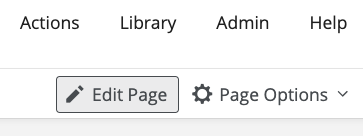
3.6: Click the Edit Page button
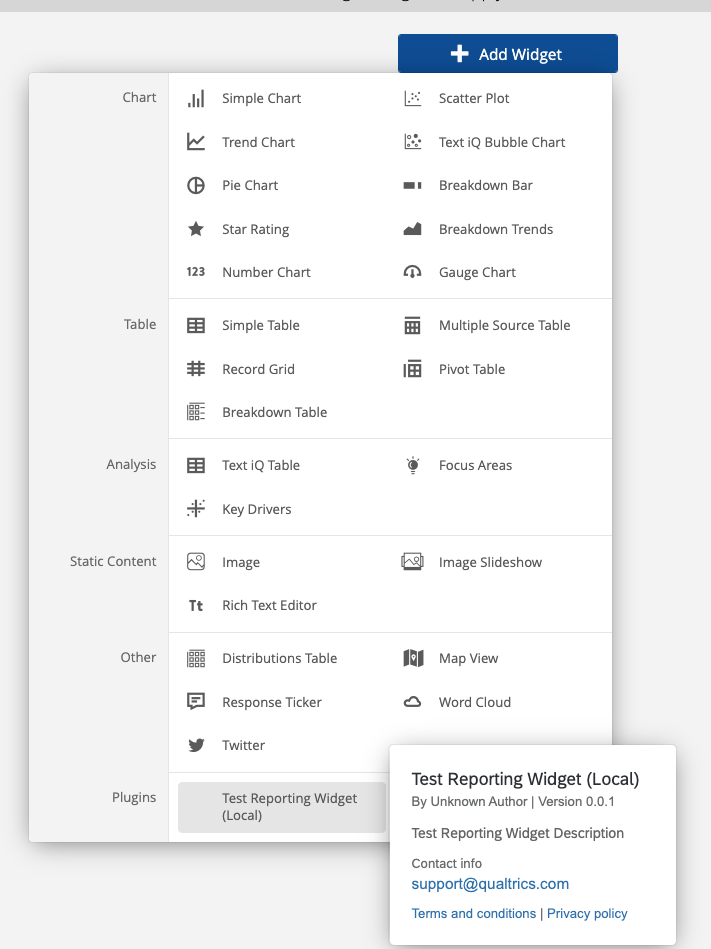
3.7: Click the + Add Widget button

3.8: Find and select your custom widget at the bottom of the widget modal under the Plugins section
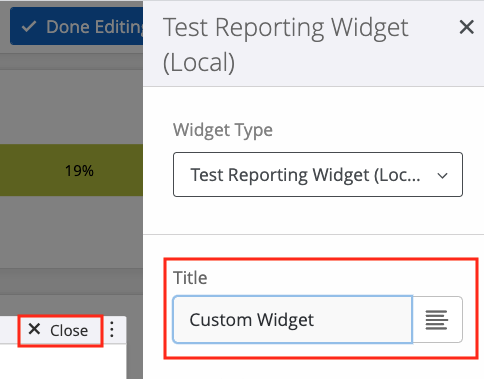
3.9: Enter Custom Widget in the Title
3.10: Click the X Close link in the top right of the widget pane
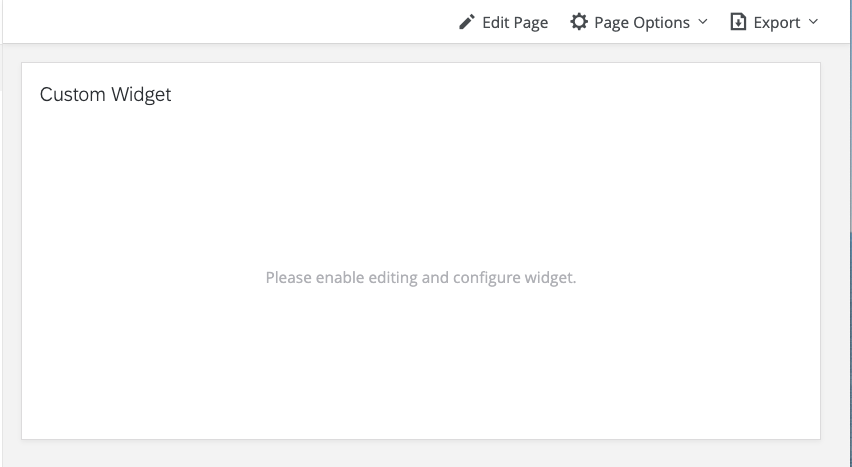
3.11: Click the Done Editing button
3.12: Check out your Reporting Widget
If your extension doesn't load, or you get a 404 or access denied error after logging into the developer portal, trying running XMT again.
Step 4: Modify Your Plugin
After you ran the command to create a new reporting widget, some boilerplate files were added to your file structure inside the plugins directory. We'll go over all of that in more detail in the full Reporting Widget Plugin Deep Dive, but for right now, the two most important folders are public and src.
When making modifications to your Plugin, you should be doing all of your coding inside the src directory. The public directory is built when you run npm start or npm run build, and it contains the code that is actually rendered by the browser but it should not be edited directly.
Follow these steps to make some quick modifications to your new Plugin:
4.1: Open a new shell and navigate to the src directory by running the following command:
cd plugins/my_reporting_widget_plugin/src
4.2: Open the existing index.html file and add a header inside the body element:
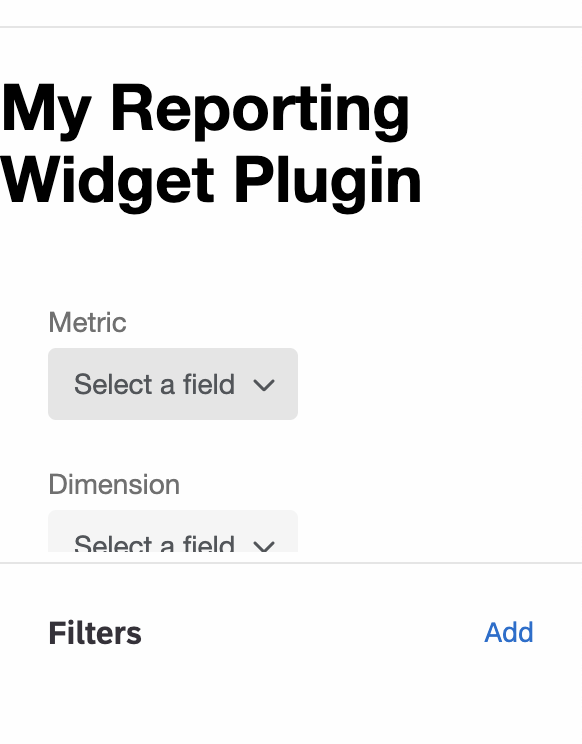
<h1>My Reporting Widget Plugin</h1>
4.3: Save the file
4.4: Navigate back up to the plugins/my_reporting_widget_plugin directory by running cd .. in the command line
4.5: Build your changes to the public folder by running npm install followed by npm start.
At this point you will have two processes running locally:
-
The process initiated by
xmt develop extensioninside the hello_world directory, which does the work of syncing the extension and the Plugin files up to the Qualtrics product -
The process initiated by
npm startinside the plugins/my_reporting_widget_plugin directory, which continuously builds your Plugin frontend app in response to file changes in your Plugin's src folder
4.6: In your browser close the Reporting Widget modal by clicking the waste bin icon:
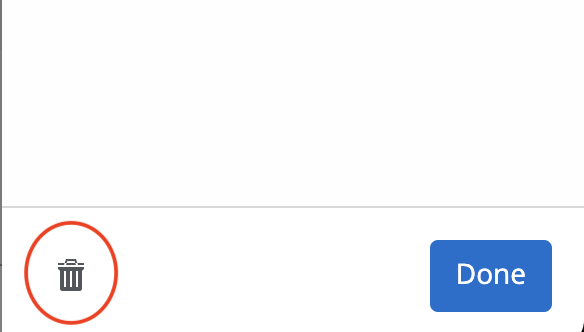
When prompted, select "Yes, delete this widget." We aren't quite using it, so it's safe to remove it.
4.7: Follow Step 3 and you should see the HTML snippet we just added:
Curious for more?!
The instructions above let you get your hands on the code quickly, but they don't give you the whole story. Check out the Deep Dive guide for details on what comes with your Reporting Widget out of the box and how you can use it.
What's Next?
Congratulations on creating, running, and experiencing your XM Extension and Reporting Widget Plugin!
Continue building out your plugin by following the Reporting Widget Deep Dive Guide