Developer Brands
In this guide you will:
- Understand what Developer Brands are and how to use them effectively
- Learn how to access a Developer Brand for developing and testing your XM Extension
Prerequisites
Before continuing with this guide we recommend you review and complete:
What are Developer Brands?
Developer Brands are isolated instances of the Qualtrics XM Platform available for XM development purposes. These brands allow users to develop, test, and deploy XM Extensions and API-based integrations on the platform without impacting their production Qualtrics instance.
To ensure that there are no conflicts throughout the development lifecycle, each Developer Brand is unique to a Qualtrics account and does not support more than one user. Developer Brands are persistent, and any data or configuration created in an instance will be accessible the next time the user logs in.
These brands also have limitations in place to prevent unauthorized use. They are optimized for developing extensions and should not be used for any other purpose. Developer Brands are only available to Qualtrics partners and customers.
Limitations of Developer Brands
Developer Brands are not intended to be used for any purpose other than development and testing of XM Extensions. Developer Brands are not suitable for real data collection. There are several limitations in place intended to prevent incorrect use. These limitations will be displayed as error messages in the UI:
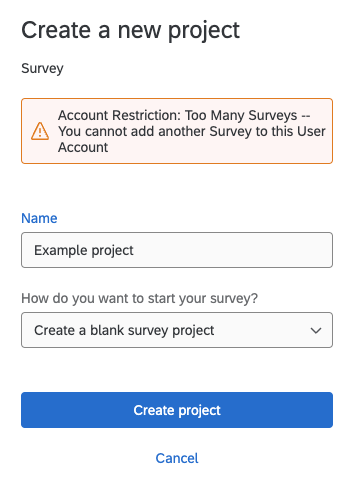
You may run into the following limitations when using a Developer Brand, but this list is not exhaustive:
- Does not work with SSO accounts
- Maximum of 1 user
- Maximum of 5 surveys
- Maximum of 2 active surveys
- Maximum of 150 responses
- Maximum of 100 responses in any one survey
- Emails can only be distributed to the owner of the Developer brand
- Maximum of 50 API calls per minute
- No access to certain product features, e.g. EX, data isolation, etc.
Misusing your Developer Brand may result in losing your access to the Developer Brand feature.
When to use a Developer Brand?
Developer Brands are best used to quickly iterate on extensions in an isolated environment. In order to avoid issues with production brands, developers should use their Developer Brand for prototyping, experimentation, development, manual testing, iteration and bug fixes.
When a developer is ready to release their extension, they should submit a production version (non-prerelease version) and share it with a production brand for release testing.
Accessing a Developer Brand
To access your Developer Brand, log into the Qualtrics Developer Portal and click on the user icon in the top-right corner. From there, select the Launch Developer Instance option.
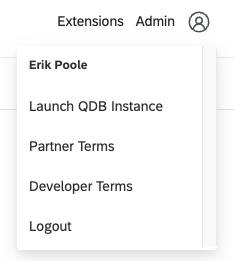
This will present you with a login screen. Use the same email address and password used to access the Developer Portal and click Sign In.
If you have both a production and Developer Brand associated with the same account, you may be prompted to select an organization when you log in. The Developer Brand organization will always be prefixed with QDB Developer Instance. Selecting that option will log you into your Developer Brand.
In the future, selecting the Launch Developer Instance menu option in the Developer Portal will take you directly to this instance, but will still require you to login.
Using a Developer Brand to build an XM Extension
Developer Brands have several advantages over using production brands for development. Prerelease extensions can immediately be shared with Developer Brands without requiring any special access.
Also, multiple developers are able to collaborate on the same XM Extension simultaneously when each uses their own Developer Brand. Finally, XM extensions are automatically shared and installed into a user’s Developer Brand.
Steps to Build XM Extension in Developer Brand
- Log into the Developer Portal and launch your Developer Brand
- Open a terminal window and log into XMT using the
xmt initcommand - Ensure you use the same credentials to login in to both the Developer Portal - Create a new extension by invoking the
xmt create extensioncommand and filling out the required information OR navigate to the root directory of an existing Extension - From within the extension directory, run
xmt develop extensionand ensure that there are no errors - Once a development session is started, share the extension with your Developer Brand through either the Developer Portal or XMT - see details below:
Share Extension via Developer Portal
From the Extensions page within the Developer Portal, from the left-side menu select the Extension that you want to work on and navigate to the Versions header.
If your extension does not appear in this list, verify that you are using the same account in XMT and the Developer Portal. Also ensure that the development session was started correctly with xmt develop extension.
From there, find the version of the extension that is currently under development and select Preview this Version. The extension will automatically be installed on the developer instance and set to the corresponding version.
Share Extension via XMT
To share from XMT, find the Brand ID for your Developer Brand by selecting the user icon in the top-right corner of the page and selecting Account Settings.
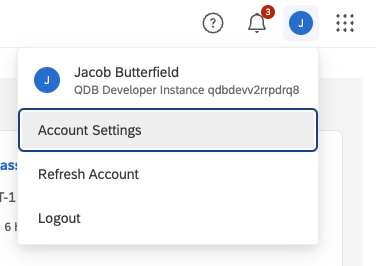
In the settings page, select the Qualtrics IDs tab, and find the Organization ID.
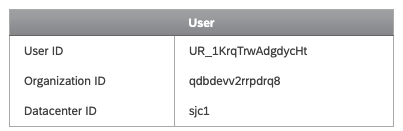
Inside the extension’s root directory, type the command xmt create share -o <organization ID> -v <version> to share the extension with your Developer Brand.
Change Extension Version
To change the current installed version of an extension, find the version in the Developer Portal and select Preview this Version. This feature allows you to quickly access and test different versions of the same extension without manually changing sharing settings.