Extension SDK Tools Getting Started
Summary
In this guide you will configure your local development environment for building and maintaining XM Extensions and Plugins.
Prerequisites
Ensure that you comply with these requirements before continuing on with this guide:
- Have internet connectivity
- Complete these steps from the Extension SDK Quickstart guide
- Use a Qualtrics-supported browser when developing and testing your XM Extensions and Plugins
- Have administrator-level privileges on your computer. This may not be feasible in every situation, so please reach out to us with related problems via the Feedback & Support button.
- Open the command-line interface (CLI) on your computer
Steps
Step 1: Install nodejs and npm
Follow these instructions to install the LTS version of nodejs and corresponding package manager npm
Step 2: Install the XMT Command-line Interface
npm i -g @qualtrics/xmt-cli
If you don't have sufficient privileges to successfully execute the install command, try running it with elevated privileges (sudo for Mac/Linux, or Run as Administrator for Windows) or from a different user account.
If you still encounter issues, please follow these instructions to install the XMT CLI manually.
Verify installation was successful by running xmt to print this screen:
Extension Management Toolkit. This CLI is intended for creating, developing, running, and submitting extensions to the Qualtrics XM Platform.

Usage:
  xmt [command]

Available Commands:
  assign      Assign a resource
  completion  Generate the autocompletion script for the specified shell
  create      Create an extension or plugin
  delete      Delete a resource
  develop     Develop a resource
  help        Help about any command
  init        xmt init runs a getting started workflow to authorize xmt access to the developer platform
  logout      xmt logout logs you out of your current session
  package     Package an extension for submission
  submit      Submit an extension
  update      Update a resource
  validate    Validate a resource
  version     Output the current version of xmt
  view        Display information about a resource

Flags:
      --config string   Configuration file path (default "/Users/davidbean/.config/xmt/config.json")
  -h, --help            help for xmt
--help flagYou can get more details about any XMT command by appending the --help or -h flag to it. For example, xmt create --help will output information about the create command.
If you have trouble installing or running xmt then request help via the Feedback & Support button
Step 3: Initialize the Qualtrics XMT Command-line Interface
The XM Extensions you create are associated with your Qualtrics XM Developer Account.
Run this command to authenticate via XMT:
xmt init
You should see the following command-line prompt to log in:
You must log in to continue. Would you like to log in (Y/n)? [Y]:
Press enter to log in. A login page opens in your default browser.
Enter your Qualtrics username and password, then click the Sign In button.
You should see a screen in the Developer Portal that looks like this:
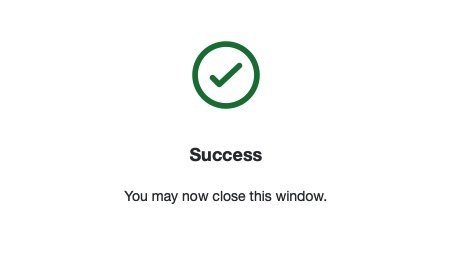
--console-only flagIf XMT doesn't automatically open a browser on your machine, use the --console-only flag like this xmt init --console-only to output the authentication URL in your command line, then copy and paste it into your browser.
Step 4: Launch your Qualtrics Developer Brand
We recommend that you perform the majority of your XM Extension and Plugin development and testing in your Qualtrics Developer Brand.
Follow these quick steps to initialize and launch your Qualtrics Developer Brand.
Step 5: Review UX Resources and Guidelines (Optional)
Become familiar with Qualtrics UX expectations and tools for building XM Extensions and Plugins.
Recap
Huzzah! You completed this Quickstart guide on setting up your local environment for developing XM Extensions and Plugins!
Recommended Content
Continue your quest by learning about and creating XM Extensions.