XM Extension SDK Deep Dive
Summary
This guide explains in more detail what the XM Extension SDK is and how it works.
Prerequisites
We recommend that you first review the XM Extension SDK overview before continuing with this guide.
Limitations
The XM Extension SDK supports development on modern browsers and on these operating systems:
- Linux
- Mac
- Windows
You must be a registered Qualtrics XM Developer in order to create with the XM Extension SDK.
Fundamentals
What it is
The XM Extension SDK is a suite of software development tools, libraries, and documentation that combine to enable developers to build native integrations and customizations on Qualtrics.
This list comprises many of the integral tools and resources in the XM Extension SDK:
- Developer portal
- Command-line interface (CLI)
- Extension template
- Plugin template
- Plugin libraries
- Design system components
- Extension and Plugin documentation
- Extension and Plugin runtime
- Extension and Plugin functionality
Why it exists
The purpose of the Extension SDK it to enable you to create integrations with and customizations to Qualtrics that can be listed on the Qualtrics marketplace and can be discovered, configured, and maintained by customers within the Qualtrics product.
Tips and Tricks
Best Practices
Here are some proven practices to help you develop with the XM Extension SDK:
- Register on the Qualtrics Developer Platform with an SSO, Free Trial, or Participant account.
- Login to the Developer Platform when viewing documentation
- Be familiar with front-end development, especially React
- When in doubt, ask for help in the Developer Corner XM Community
Common Pitfalls
If you are experiencing issues in your XM Extension SDK journey, then the solution to your problem may be in this list:
- ISSUE: Access Denied or 404 on xmt Login
- ISSUE: Insufficient User Privileges
- ISSUE: Unable to Install xmt
- ISSUE: Error Running xmt
- ISSUE: XMT Fails to Open my Browser
ISSUE: Access Denied or 404 on xmt Login
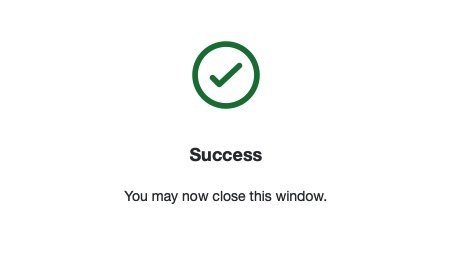
You get a 404 or access denied after logging into the developer portal and accepting the terms and conditions.
Solution: Rerun xmt init
- Go back to the terminal and run
xmt init. - or press Y if the prompt is still there.
- When you get back to the page, it should show success.
ISSUE: Unable to Run System Commands
If your have trouble running mkdir or similar OS commands, your computer may not have sufficient privileges.
Solution: Run with Elevated Privileges
If your computer user does not have sufficient privileges to successfully execute these commands, then try to run them with elevated privileges (sudo for Mac/Linux - shown above, or Run as Administrator for Windows) or from a different user account.
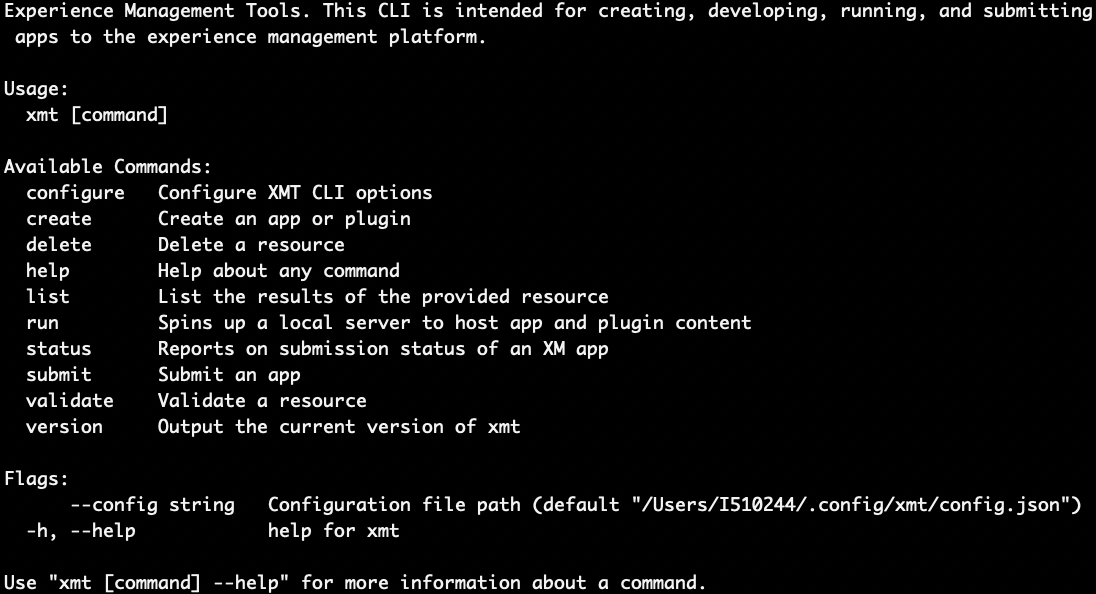
Verify installation was successful by running xmt to print this screen:
ISSUE: Unable to Install xmt with npm
You may experience trouble installing xmt via npm.
Solution: Install via Direct Download
If you were unable to install xmt using npm, you can download platform specific binaries here:
XMT for MacOS | XMT for Windows | XMT for Linux
Now that you have the CLI binary downloaded, make it executable and add it to your path. Open your command-line terminal and execute the following commands based on your operating system:
sudo chmod a+x ~/Downloads/xmt
# next command necessary if folder doesn't exist
sudo mkdir /usr/local/bin
# move xmt into user supplied binary folder
sudo mv ~/Downloads/xmt /usr/local/bin
## run terminal as administrator
move \Users\%username%\Downloads\xmt.exe \Windows\System32\xmt.exe
sudo chmod a+x ~/Downloads/xmt
sudo mv ~/Downloads/xmt /usr/local/bin
ISSUE: Error Running xmt
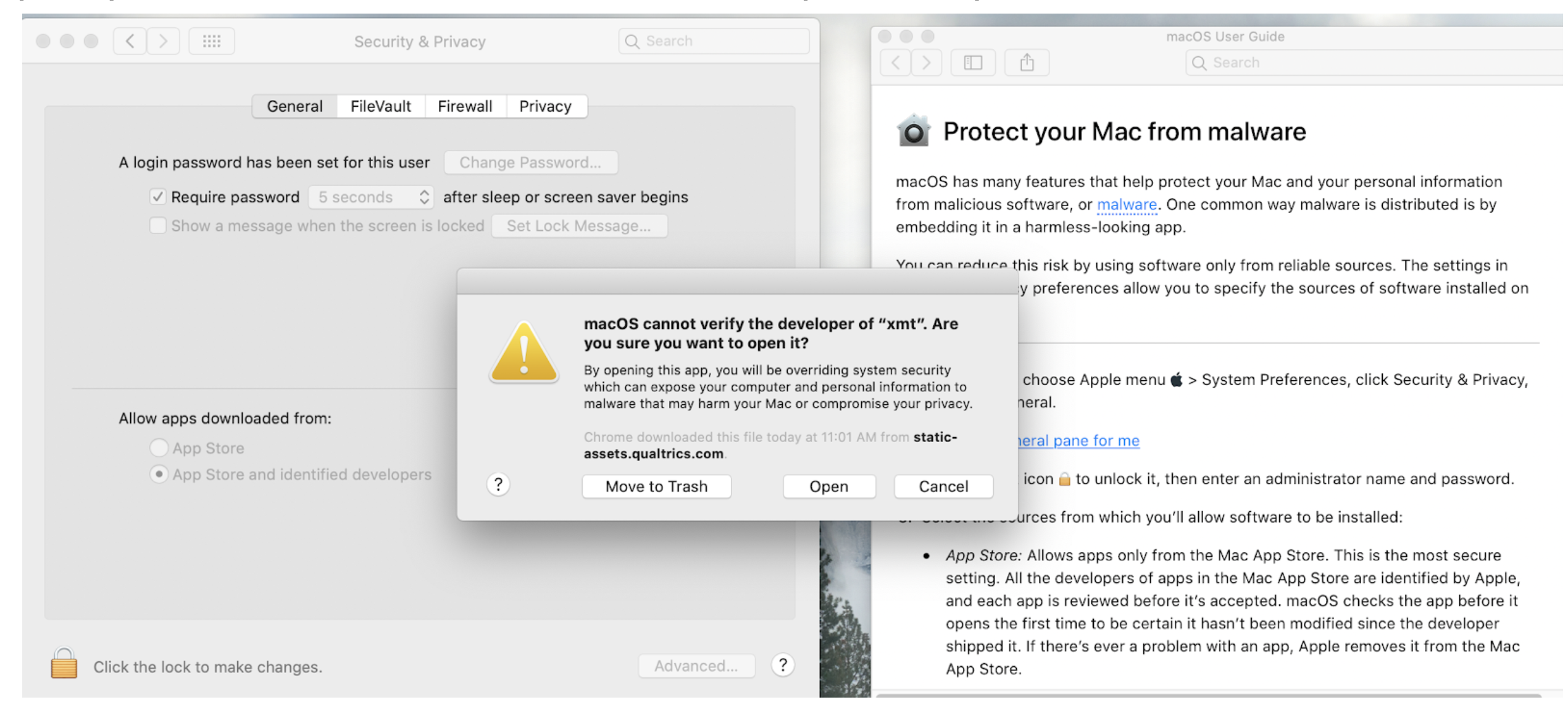
If you get a prompt like "Mac OS Cannot Verify the Developer" when trying to run xmt on Mac, unblock xmt specifically in the Security & Privacy menu:
Solution: Adjust System Preferences
- Go to the System Preferences >> Security & Privacy menu.
- Confirm that the xmt executable will be listed as blocked.
- Click Allow anyway.
- Try to execute the command again.
- When the security prompt appears, click the Open button.
ISSUE: XMT Fails to Open my Browser
When you run xmt init it should automatically open your default browser, but it fails.
Solution: Explicitly Paste URL into Browser
Use the following command to output the authentication URL in your command line and allow you to copy and paste it into a browser of your choice:
xmt init --console-only