Working with Translations
In this guide you will:
- Review the languages the Qualtrics user interface supports
- Learn how to add localization/translation support for your XM Extensions and Plugins
Setup
Before continuing with this guide we recommend you review and complete the XM Extension Overview guide.
Qualtrics Language Support
If the target audience of your XM Extensions include users who speak different languages, then you can support them by adding translation files to your XM Extensions and Plugins.
The Qualtrics XM/OS user interface supports these languages.
English (US) is the default language for all new Qualtrics accounts and is required for all XM Extensions.
Language Files
You provide translated text in your Extension and Plugin(s) by first creating a language file for each supported language.
The filenames for these language files follow the BCP-47 language code standard, see the table below for all supported languages and their corresponding language codes (i.e. filename).
| Language | BCP-47 Language Code |
|---|---|
| Arabic | ar |
| Assamese | as |
| Azeri/Azerbaijani (Latin script) | az |
| Belarusian | be |
| Bulgarian | bg |
| Bengali | bn |
| Bosnian | bs |
| Catalan | ca |
| Cebuano | ceb |
| Kurdish (Sorani) | ckb |
| Montenegrin | cnr |
| Czech | cs |
| Welsh | cy |
| Danish | da |
| German | de |
| Greek | el |
| English | en |
| English UK | en-GB |
| Esperanto | eo |
| Spanish | es |
| Spanish Latin America | es-419 |
| Estonian | et |
| Persian | fa |
| Finnish | fi |
| French | fr |
| French (Canada) | fr-CA |
| Gujarati | gu |
| Hebrew | he |
| Hindi | hi |
| Ilonggo/Hiligaynon | hil |
| Croatian | hr |
| Hungarian | hu |
| Armenian (Eastern) | hy |
| Bahasa Indonesia | id |
| Icelandic | is |
| Italian | it |
| Japanese | ja |
| Georgian | ka |
| Kazakh (Cyrilic) | kk |
| Khmer | km |
| Kannada | kn |
| Korean | ko |
| Lithuanian | lt |
| Latvian | lv |
| Macedonian | mk |
| Malayalam | ml |
| Mongolian | mn |
| Marathi | mr |
| Bahasa Malaysia | ms |
| Myanmar/Burmese | my |
| Dutch | nl |
| Nepali | ne |
| Norwegian | no |
| Odia/Oriya | or |
| Punjabi | pa |
| Pseudoloc | pb |
| Polish | pl |
| Portuguese | pt |
| Portuguese Brazil | pt-BR |
| Rigi | ri-GI |
| Romanian | ro |
| Russian | ru |
| Sinhalese | si |
| Slovak | sk |
| Slovenian | sl |
| Somali | so |
| Albanian | sq |
| Serbian | sr |
| Swedish | sv |
| Swahili | sw |
| Tamil | ta |
| Telugu | te |
| Thai | th |
| Tagalog | tl |
| Turkish | tr |
| Ukrainian | uk |
| Urdu | ur |
| Vietnamese | vi |
| Chinese Simplified | zh-Hans |
| Chinese Traditional | zh-Hant |
Language File Locations
For example, if you wanted to provide text in Norwegian, you would create a file named no.json in these two locations:
- The Extension language translation directory is located at {{extension-root}}/assets/translations and you can learn about the file content details here.
- The Plugin language translation directory is located at {{plugin-root}}/public/translations and you can learn about the file content details here.
XM Extensions Translations
You specify translations for your XM Extension via three standard keys:
| Key | Value Max Character Length | Description |
|---|---|---|
| name | 128 | The name of the extension |
| description | 256 | A brief description of the extension (see guidelines) |
| longDescription | 2048 | A longer description of the extension (see guidelines) |
You will find these in the default en.json translation file located in the assets/translations directory of your XM Extension.
The values of these keys are automatically displayed in certain user interfaces on the Qualtrics platform.
These values have further specifications which can be found in section 7 of the XM Extension Certification page, so take a peek at those to make sure you hit all of the requirements before submitting your extension.
Standard Translation Strings
Follow these steps to add a new translation file for a Qualtrics-supported language:
- Navigate to your Extension root directory
- Add a new translation file in assets/translations directory by copying the EN.json file
- Rename the file using the uppercase language code as the name of the file, and use a suffix of .json (e.g. Latin American Spanish looks like ES.json)
- Update the
textandcontextvalues of thenameproperty nested in the top-levelstringsobject - Save the file
- Follow these steps to change your account language to match
- Verify your XM Extension name now matches the text in the language file you just created
Writing Extension Descriptions
Users will likely see the description text (description and longDescription) in
their first encounter with your Extension.
Following a few simple guidelines when composing that text will help promote a consistent user experience across the XM ecosystem.
Description text should:
- Be succinct, explanatory, and jargon-free
- Start with the action performed, using an action word in imperative voice, e.g. "Create new survey"
- Not use a period/full-stop at the end of description text that consists of only a single sentence
- Avoid excessive capitalization, e.g. "Create a new Jira ticket", not "Create a New Jira Ticket."
- Spell out acronyms followed by the acronym itself in parentheses, e.g. "Command Line Interface (CLI)", not just "CLI"
Let's look at some considerations specific to each description type.
Text for the description Field
The text should generally start with an action word, preferably a current, industry-standard term — the word you would use when describing your Extension's functionality to another developer. For example, if the central function of the Extension is to perform a common CRUD operation, use the related term ("create", "read", "update", "delete").
Other things to know:
-
Where is it Displayed? — The short description (
description) is displayed by default on the face of the Extension card. Its purpose is to convey the high-level functionality of the Extension at a glance. -
Maximum Length — While the maximum length is 256 characters, in practice it should be kept to a single short sentence, 40-60 characters as a rule of thumb, with no period at the end.
-
Example — "Create a Zendesk survey based on customer response"
Text for the longDescription Field
The longdescription text should add context and detail to the functionality advertised in the short description.
Other things to know:
-
Where is it Displayed? — The long description (
longDescription) is displayed by default when a user hovers over the "i" icon in the upper right corner of the Extension card. -
Maximum Length — The maximum length is 2048 characters, but best practice is to aim for a paragraph-length explanation describing what you would want to know as a user -- the key aspects of functionality needed to decide whether the Extension is a probable fit for the target use-case.
-
Example — "Create a Zendesk ticket when customers complete a survey. The type of ticket created and the text selected for its description are conditioned on the customer's specific response."
Note that a paragraph of multiple sentences should be punctuated properly.
XM Plugin Type Descriptions
In addition to the Extension-level description and longDescription fields, you may also define a Plugin type-level description and longDescription for each type of Plugin currently available (e.g. Workflows Task, Survey Question, XM Solution).
These are used in lieu of the Extension-level values in the context of selecting from Extensions with that type of Plugin. For instance, when a user is choosing from only extensions with Workflows Tasks, if an eligible extension has a description for its Workflows Task plugins, that will be shown to the user instead of the general Extension description.
The keys for these translations are set in your Extension's manifest.json as pluginTypeTranslationKeys. As an example, the following snippet defines a description and longDescription for both Workflows Task and Workflows Event type plugins.
"pluginTypeTranslationKeys": {
    "workflows_task": {
      "description": "WorkflowsTaskDescription",
      "longDescription": "WorkflowsTaskLongDescription",
    },
    "workflows_event": {
      "description": "WorkflowsEventDescription",
      "longDescription": "WorkflowsEventLongDescription",
    }
}
The values of description and longDescription for each defined plugin type should correspond to the translation key used in your Extension's translation files.
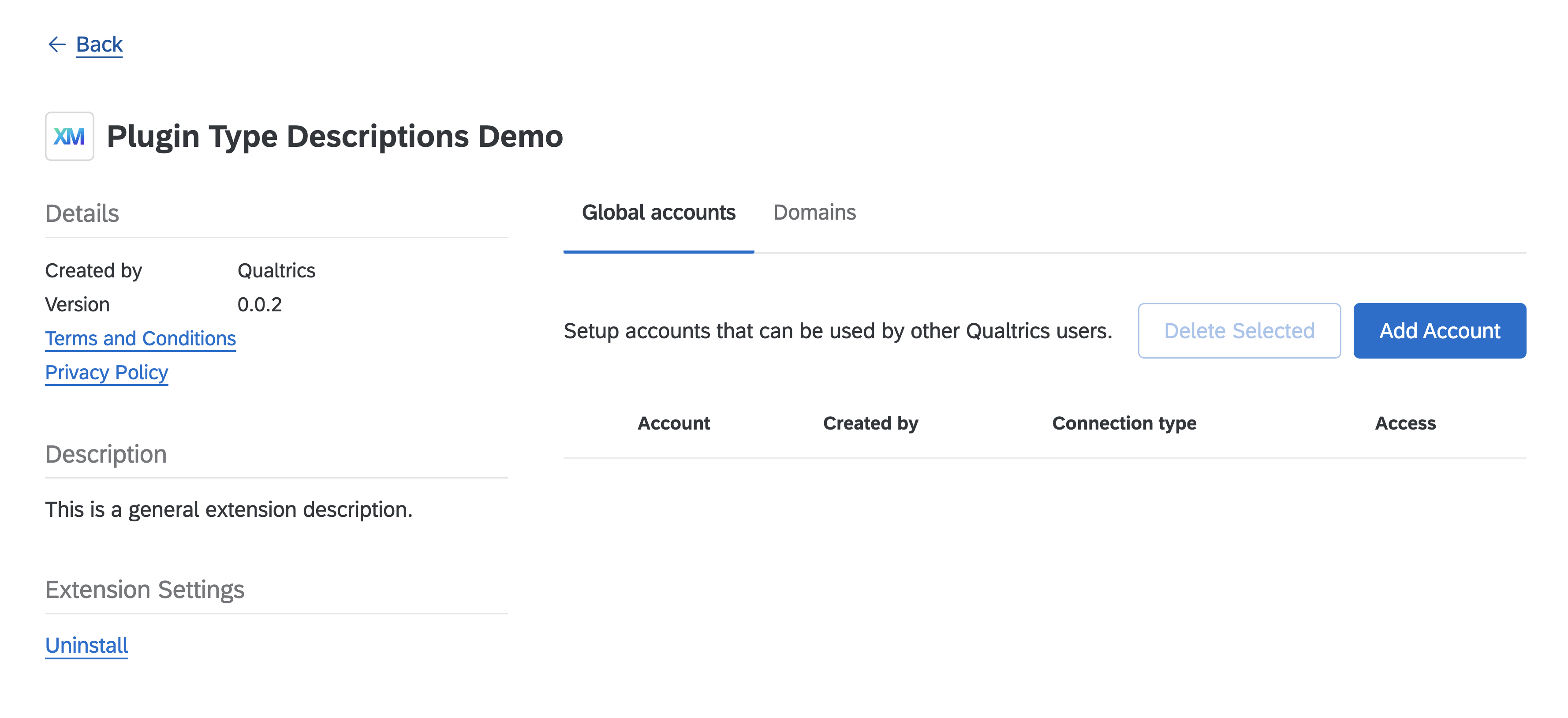
In the Admin UI, we expect a high-level view of the extension as a whole, meaning the general extension description will be shown.
When viewing options for extensions in the context of a particular Plugin type, the Plugin type description will be preferred.
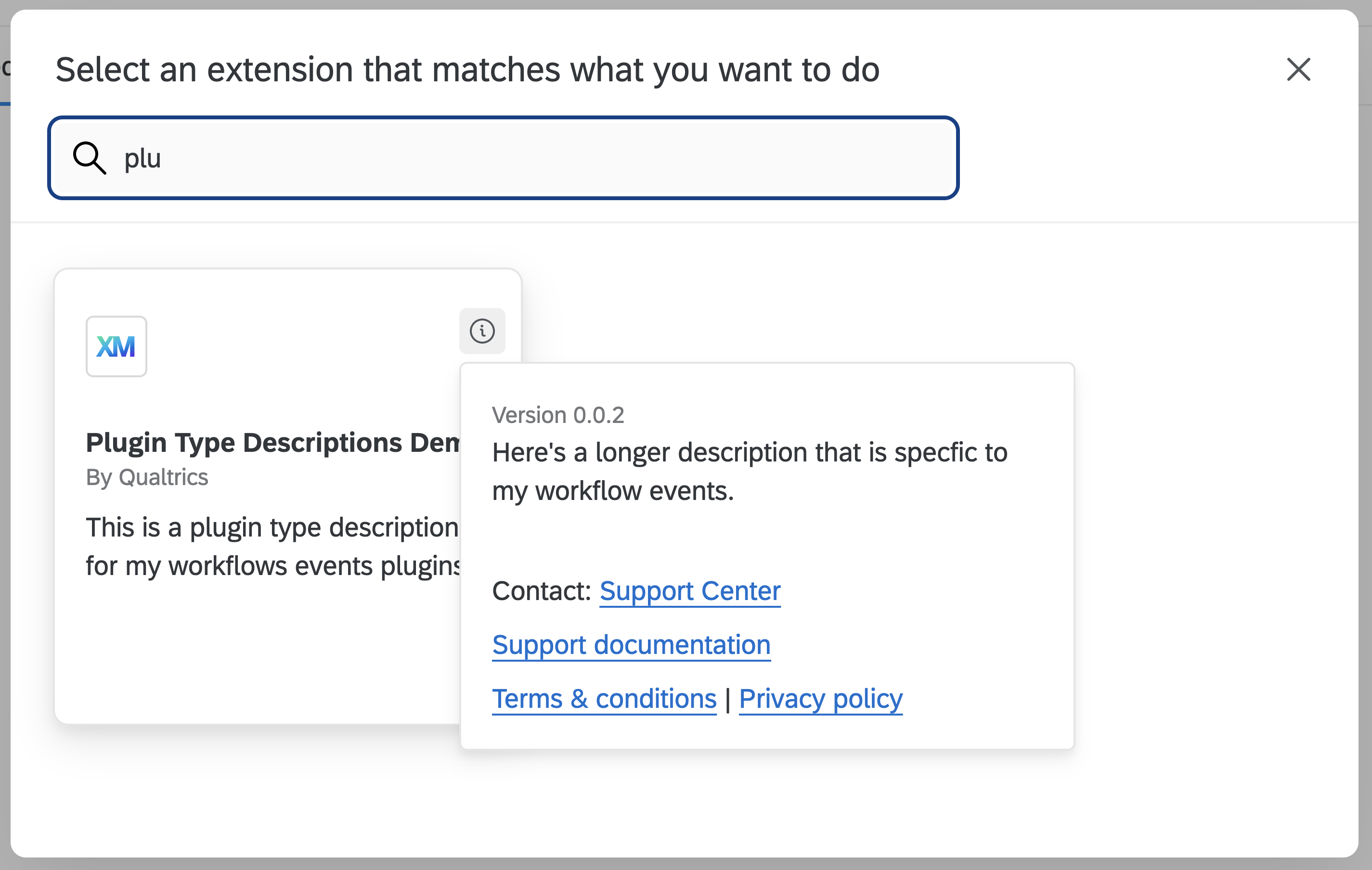
Having Plugin type-level translations allows you to provide more granular descriptions for each Plugin type in your Extension. This communicates more detailed information to users regarding the functionality of your Extension and relevant Plugins.
XM Plugin Translations
Similar to XM Extensions, XM Plugins allow you to add Standard Translation Strings in any Qualtrics-supported language. However, XM Plugins differ in that you can also add Custom Translation Strings for use in the configuration user interface you build.
Standard Translations Strings
Follow these steps to add a new translation file for a Qualtrics-supported language:
- Navigate to your Plugin root directory
- Add a new translation file in public/translations directory by copying the EN.json file
- Rename the file using the uppercase language code as the name of the file, and use a suffix of .json (e.g. Latin American Spanish looks like ES.json)
- Update the
textandcontextvalues of thenameproperty nested in the top-levelstringsobject - Save the file
- Follow these steps to change your account language to match
- Verify your XM Plugin title now matches the text in the new language translation file that you just created
Writing Plugin Descriptions
Plugin description guidelines differ somewhat between Workflows Tasks and Workflows Events.
Text for the description Field
The short description (description) is displayed by default both on the face of the app
selector square cards, and in workflow templates before the trigger is configured.
Its purpose is to convey the high-level functionality provided by the Plugin at a glance.
While there is no maximum length enforced, in practice the short description should be kept to a single concise sentence.
Workflows Task Description
Short descriptions for Workflows tasks should follow the same basic guidelines as Extensions.
EXAMPLE: "Send a followup survey" (imperative, no closing period)
Workflows Event Description
Events are activities that trigger workflows. Reinforce this for users by beginning the description with "Starts a workflow when...", then describing the event with no period at the end.
EXAMPLE: "Starts a workflow when a Jira ticket is closed"
Text for the longDescription Field
Customers see the long description when they mouse-over the 'i' icon on the app tile. There is no strict maximum size, but best practice is to limit the text to one or two paragraphs.
Consider opening with a more precise and detailed version of the short description, then providing additional detail as needed.
Most importantly, focus on the value to the customer and avoid jargon.
Custom Translation Strings
Follow these steps to add Custom Translation Strings for a Qualtrics-supported language:
- Navigate to your Plugin root directory
- Open up an existing translation file in the default language configured in your Qualtrics Account, located in the public/translations directory
- Add translation string entries at the top level of the
stringskey
{
  "meta": {
    "summary": "Extension Plugin Language Strings - EN"
  },
  "strings": {
    "name": {
      "text": "My Awesome Plugin",
      "context": "Plugin name"
    },
    "description": {
      "text": "A description of My Awesome Plugin",
      "context": "Displayed when listing plugin"
    },
    "longDescription": {
      "text": "A really long description of My Awesome Plugin",
      "context": "This long textual description is displayed when a user clicks for more details on plugin"
    },
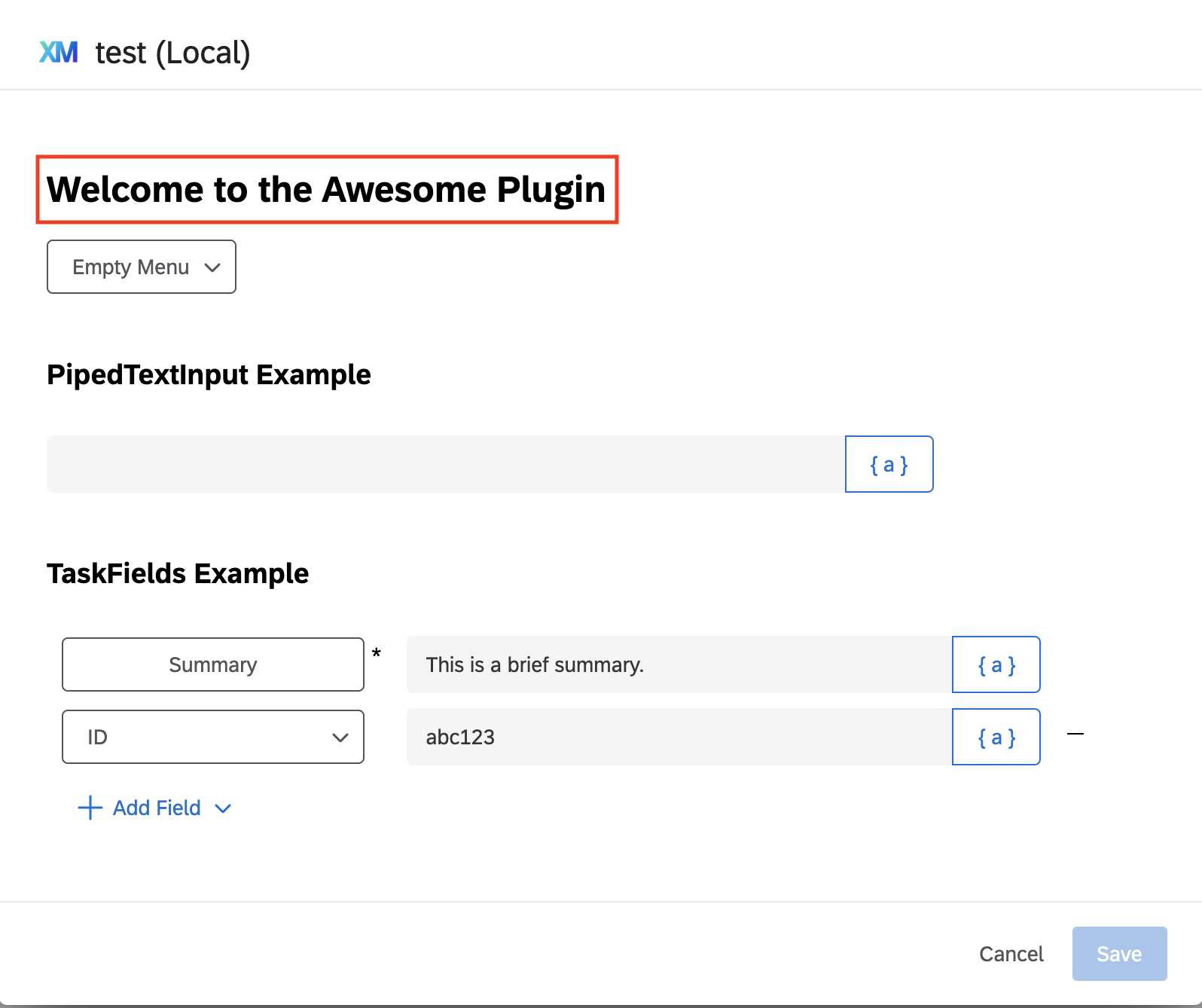
    "intro": {
      "text": "Welcome to the Awesome Plugin",
      "context": "An introductory message"
    }
  }
}
In the example above, the key intro is used to reference this XM Plugin's
introductory text.
String Key
- The key must appear at the top level of the
stringsobject (i.e. no nesting multiple key levels) - The key should be descriptive
- The key should be fewer than 100 characters
Text Value
The text value should not be longer than 1000 characters (if it exceeds this then consider splitting it into multiple Custom Translation String entries)
Context Value
- The
contextvalue should not be longer than 200 characters - Save the translation file
- Open up your main XM Plugin source file (e.g.
src/plugin-extension/plugin-app.jsin the template) - Using the client.getText method from the Plugin Client, render any new Custom Translation Strings you have added - see example below:
return (
    <div className="plugin-app">
      <h2>
        {client.getText('intro')}
      </h2>
- Save the file
- Run
npm run buildfrom your XM Plugin root directory - Run your XM Extension locally and select your XM Plugin
- Verify the Custom Translated Strings you added show up correctly in the UI
Plugin UX Components
Translations of labels, menus and other user-facing text within the provided UX Components is handled when initializing the library in your Plugin code:
// Webpack ingested imports
import '@qualtrics/base-styles/dist/base-styles.css';

// External (npm) dependencies
import React from 'react';
import ReactDOM from 'react-dom';

const sdkClient = PluginSdkService.getPluginSdkClient();

// Imports required for default translations
import { languageCodeAdapter, PluginUIProvider } from '@qualtrics/plugin-ui-react';
import pluginUITranslations from "@qualtrics/plugin-ui-react-translations";

// Internal dependencies
import { PluginApp } from './plugin-app/plugin-app.jsx';

(async () => {
  try {
    // Initialized the plugin
    const client = await sdkClient.initialize();
    renderPlugin(client);
  } catch(error) {
    console.error(error);
    ReactDOM.render(<div>{error}</div>, document.getElementById('app-root'));
  }
})();

function renderPlugin(client) {
  const context = client.context;
  // Get the langauge from the context object
  const languageCode = languageCodeAdapter(context.language);
  // Map the language to the default translations
  const config = {
    localizedText: pluginUITranslations[languageCode],
  };

  // Pass the translations to the PluginUIProvider component
  const Index = () => {
    return (
      <PluginUIProvider config={config}>
        <PluginApp client={client} />
      </PluginUIProvider>
    );
  };

  ReactDOM.render(<Index/>, document.getElementById('app-root'));
}
This configuration comes standard in the Workflows Task Plugin Type, and we will work to provide similar out-of-the-box translation configurations for subsequent Plugin Types.
Change Your Account Language
It helps to test translations you add to your XM Extensions & Plugins using your own account. Follow these steps to change your user interface language to the ones you wish to test:
- Login to Qualtrics
- Click on the Account Profile icon in the top right
- Select Account Settings
- Click the User Settings tab
- Click the Language dropdown in the Change Language section
- Select a different language
- Notice that the webpage will refresh and all user interface text is now in the language you selected
If the webpage is not refreshing automatically after following all the steps above, try logging in and out to get the language to update.
That's It
Hurrah! You learned how to create and apply translations to your XM Extensions and Plugins.
What's Next
Carry on to building Qualtrics-themed UX Components.