Managing XM Extension Teams and Sharing
In this guide you will:
- Learn what XM Extension Teams are and the why, when, and how to manage them
- Learn what XM Extension Shares are and the why, when, and how to manage them
Prerequisites
Before continuing with this guide we recommend you review and complete the XM Extension Overview guide
XM Extension Teams FAQs
What are Teams?
XM Extension Teams consist of a collection of registered XM Extension Developers associated with a single XM Extension via an assigned role.
Teams represent the development and product stakeholders involved in the build and maintenance phases of an XM Extension.
Typically, customers should not be Team members - not even for early access or previews. To share with customers, you first need to get your XM Extension certified.
Once your extension is certified, you can publish it and apply for marketplace listing approval. After your extension is listed, Qualtrics customers can enable it without needing to be a member of your Extension team.
When are Teams Created?
Every time you create an extension, an Extension Team is created with you, the Extension creator, as the first Team member in the Owner role.
Each XM Extension has only one Team, and each Team belongs to one XM Extension.
Why Should I Care About Teams?
Teams enable role-based access to XM Extensions. This allows for robust collaboration management, making it easy to build and maintain XM Extensions within your development and product processes.
What are the Team Roles?
This screenshot of an info modal from the Developer Portal shows the intersection of roles and permissions
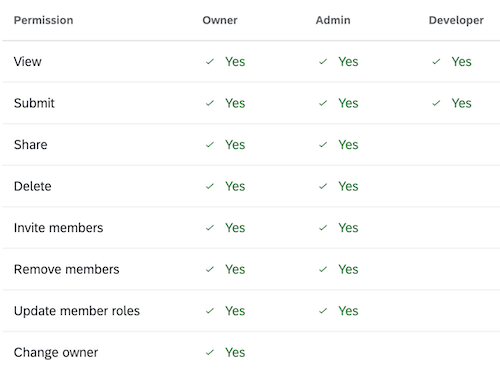
Here are more details for each of the roles:
| Role | Who | Why |
|---|---|---|
| Developer | Software developers, typically from your company/team | You want them to be able to submit a new version of the extension while you're on vacation |
| Admin | 1-2 developers from your team that you trust | You want to have backup Team members in place that can manage both the XM Extension and its associated Team |
| Owner | The XM Extension creator (You!) or XM Extension transfer recipient | Each Team must always have one and only one owner for clear ownership identification |
How are Teams Managed?
The creator of an XM Extension is assigned the role of Owner, which allows them to invite, promote, demote, and remove teammates.
An Owner can add Admins to help manage the Team.
Where are Teams Managed?
You can manage your Extension Team in the Developer Portal or in the XMT CLI.
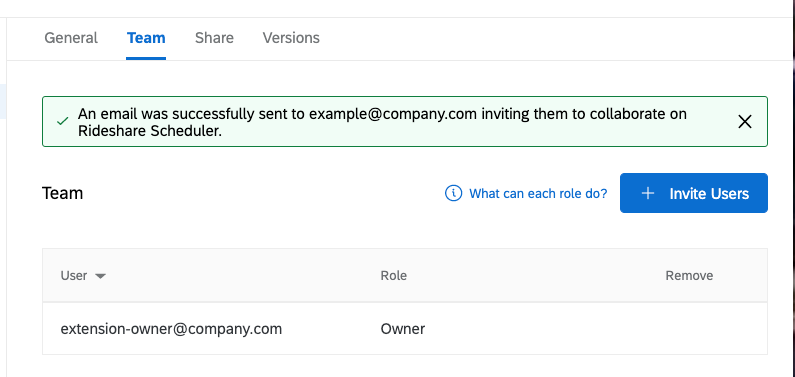
What Happens When Someone is Invited to Join a Team?
- The invitee receives an email with a link to accept the invitation to join the Team
- If the invitee already registered as an XM Developer, then they can just click the accept button and authenticate if needed
- If the invitee needs to register as an XM Developer, then they can accept but will go through the registration process as well
- The invitee may elect to ignore the invitation and not join the Team
What are Team Prerequisites?
- You must first submit an XM Extension before being able to manage its Team
What Recommended Practices Exist for Teams?
1. Do Not Add Customers to Your Team
The only exception to this is if you agreed to create an XM Extension for a specific customer. It would then make sense to add a Brand Administrator from their organization to your Team.
2. Mirror Your Team's VCS Setup
The simplest way to add the right teammates in the appropriate roles is to mimic the setup you have for your development team's version control system (VCS).
3. Always Have 1-2 Admins
Try to always maintain 1-2 active Admins in the Team, which will lighten the administrative load on the Owner.
4. Ensure Ownership Transfer When Appropriate
If the Owner leaves the company/team/project, then make sure to have them transfer the Owner role to the appropriate successor before they leave.
Preview Support
If you are a Qualtrics Developer or an Innovation Partner, you can preview an extension by sharing it to up to 15 organizations outside your team.
-
As part of sharing, you'll select a version, which overrides existing XM Extension Versions enabled by the Licensing and Enabling XM Extensions process.
-
When revoking a Share from an Organization, there are two possible outcomes:
- If there is an Enabled XM Extension for the Organization, the XM Extension goes back to the previous Enabled XM Extension Version.
- If not, the XM Extension will be completely removed from the Organization. Consequently, the Qualtrics user accounts in the revoked Organization will no longer be able to use the XM Extension.
-
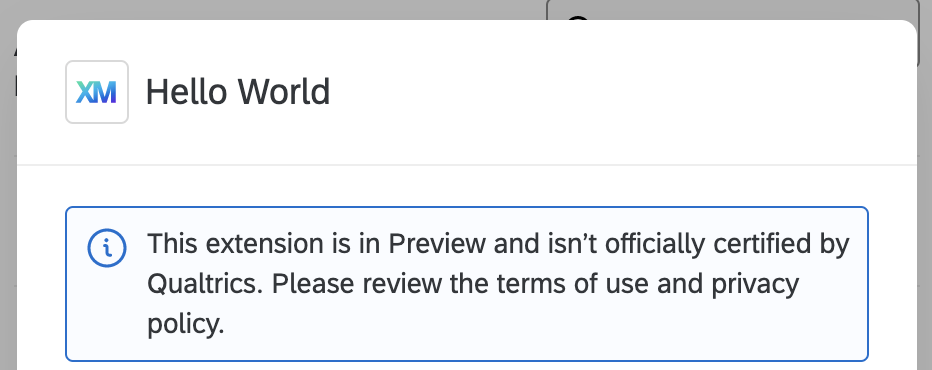
An administrator in the destination organization will need to install your extension after you share it with them. When installing, a banner will appear informing the administrator they are attempting to install a preview and that the extension has not been certified.
There is a limit of 15 Shares per Extension as this isn’t meant to be a means of wide distribution. See the Licensing and Enabling XM Extensions documentation for details on that.
XM Extensions Preview Management via XMT
To create a Share of a XM Extension Version run: xmt create share -o <organizationId> -v <version> (replace the respective Organization ID and Version parameters).
To revoke a Share of an XM Extension Version run: xmt delete share -o <organizationId> (replace the respective Organization ID parameter).
See the XMT API Reference or run xmt create share --help on the command line for details.
XM Extensions Preview Management via Developer Portal
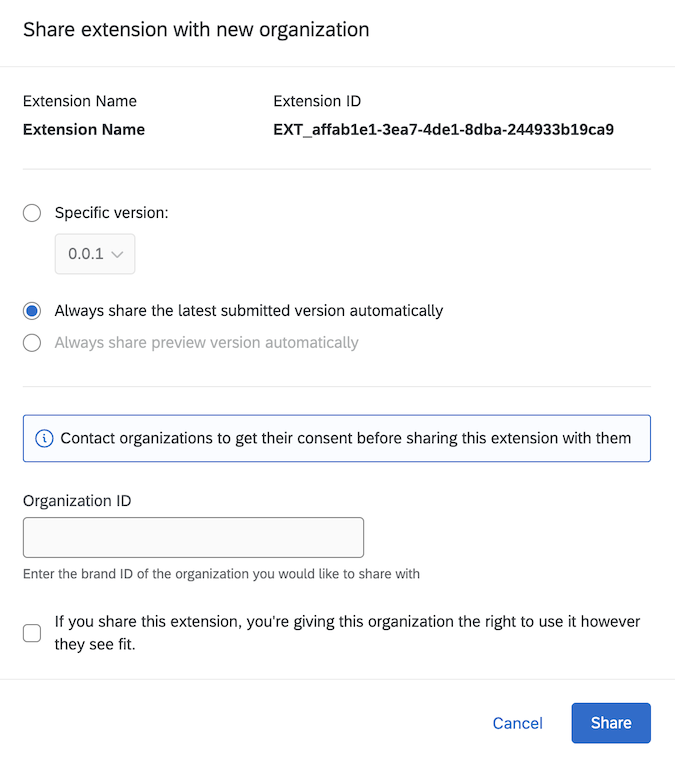
Select the extension you wish to share, and then select the Share tab. Click the "Share extension" button, and then select which version to share, and type the ID of the organization you wish to share with.
The resulting Share can be managed in the Share tab.
XM Extension Sharing FAQs
What is Sharing?
XM Extension Sharing ("Sharing") allows Brand Administrator members of your Team to install the XM Extension in their respective Qualtrics organizations. This lets the Qualtrics user accounts in their organization use the XM Extension.
When Would I Share an XM Extension?
Here are some scenarios for sharing your Extension with a Qualtrics brand:
- To develop your Extension via your Qualtrics Developer Brand (QDB).
- To invite a teammate to test and review the Extension, either in their QDB or in a legacy sandbox brand.
- To deliver a bespoke Extension to your own company or a single customer.
If you you need to share your XM Extension with a brand that is not a Qualtrics Developer Brand, then ensure that you invite a Brand Administrator from that brand to join your Extension Team. Only Brand Administrators can review and install your Extension so that it may be used by users in their brand.
How Do I Share an XM Extension?
Sharing can be done either in the Developer Portal or via the XMT CLI:
Developer Portal
XMT CLI
See the XMT API Reference
or run xmt create share --help on the command line for details.
What are Sharing Prerequisites?
You can only Share with a Brand Administrator who is a member of your Team. Once shared with a Brand Administrator Team member they can follow these steps to review and install the XM Extension. Once installed, the XM Extension will become available for use to all members of their Qualtrics organization.
What is the Sharing Limit for each Extension?
"3rd-Party" Extensions can be shared with up to 15 brands.
Should I Enable Auto-Update for My Share?
In most scenarios, it makes sense to Share with auto-update because it ensures all project stakeholders are using the same version.
The only scenario in which you would not want auto-update is if you agreed to create an XM Extension for a specific customer and therefore do not want to potentially break their usage with each new version you submit. In this case you would not enable auto-update for the Share to that customer's Qualtrics organization. When you are ready to update the version for that customer, update your non-auto-update Share with them using the version you tested and feel is ready for use by the customer.
Should I Enable Preview for My Share?
You would want to Share with preview if you want multiple brands to have the same version and be updated whenever you publish a new preview version.
Congrats
Nicely done on learning the when, how, why and what of XM Extension Teams and Sharing! Refer to the following table for quick reference regarding the various ways to collaborate on the Qualtrics Developer Platform.
| Collaboration Type | Relevant Scenarios | Capabilities |
|---|---|---|
| Sharing |
|
|
| Previewing |
|
|
| Publishing |
|
|
What's Next
Review the XM Extension Certification Policies to brush up on the required policies for certification.