Setting Up Authentication
Objectives
In this guide you will:
- Learn about the authentication schemes supported by Qualtrics XM Extensions
- Review the steps to enable each authentication scheme in your XM Extension and Plugins:
- Review the steps for users to connect their 3rd-party accounts in each scheme
Prerequisites
Before continuing with this guide we recommend you review and complete:
Background
XM Extensions enable you to create native-like extensions that link Qualtrics XM Platform and external systems.
These extensions communicate with external systems via HTTP requests/responses.
Security best practices demand authentication via credentials transmitted within each request made between Qualtrics and the endpoints on these external systems.
XM Extension Authentication
XM Extensions currently support these authentication schemes:
- OAuth 2.0
- Basic Authentication
- API Key
- SFTP
- AWS Signature V4
If you wish to request another authentication scheme, please let us know by clicking on the Feedback & Support button in the bottom right of the Developer Portal.
Because extension directories can house one or more Plugins, adding an authentication method to a Plugin is accomplished in two steps:
- Adding the connection to the extension via
xmt create connection(details) - Referencing the connection inside the plugin (manually, inside a plugin's config.json file)
With this broad picture in mind, carry on to the next section to find specific setup instructions for each connection type.
OAuth 2.0
These are high-level steps to enable OAuth 2.0 for your XM Extension.
Prerequisites
Before starting, you need to have:
- An XM Extension
- At least one XM Plugin in that Extension
- An OAuth 2.0 provider that supports the OAuth 2.0 spec
Step 1: Allow the Qualtrics OAuth 2.0 Redirect URL
This is an optional step based on the requirements of your OAuth 2.0 provider/server.
Qualtrics' redirect URL is https://{dataCenter}.qualtrics.com/oauth-client-service/redirect where {dataCenter} represents this value associated with your Qualtrics account.
Step 2: Create an OAuth 2.0 Connection
2.1: Run this command in start the process:
xmt create connection
2.2: Enter a Connection Name
2.3: Enter a Service Name for the external system you will be authenticating against
2.4: Enter in the Client ID that you retrieved from the external system
2.5: Enter in the Client Secret that you retrieved from the external system
2.6: Enter in the Authorization Endpoint for the external system
2.7: Enter in the Token Endpoint for the external system
2.8: You should see an entry similar to this in your manifest.json file:
"connections": [
       {
           "clientCredentialId": {
                "prod": "CREG_faeowinaaewfoi"
           },
           "name": "{nameFromStep2.2}",
           "scheme": "oauth2",
           "target": "{nameFromStep2.3}"
       }
   ],
Step 3: Reference the name in your XM Plugin Config.json
3.1: In the editor of your choice, open the config.json file in the plugins/<plugin_name> directory
3.2: Insert this object into it as a top-level property:
"credentials": ["{namefromStep2.2}"],
3.3: Replace the {} placeholders with the appropriate value (should be the same as the name value from the connections property in the manifest.json file from above).
3.4: Save the config.json file
Step 4: Submit your XM Extension
Submit your extension by invoking the xmt submit extension from your Extension's root directory.
Step 5: Create either a Shared or Individual OAuth 2.0 Grant
This depends on how customers use your API and associated resources.
OAuth 2.0 Grants
You have several options in how to enable Qualtrics users to create their own OAuth 2.0 connections.
The right option depends on how much OAuth 2.0 configuration you expect from your users.
Option 1: All OAuth 2.0 Connection Fields Open-Ended
This configuration leaves all OAuth 2.0 fields open-ended and requires the user to provide values for all OAuth 2.0 connection fields, specifically:
Client IDClient SecretAuthorization EndpointToken Endpoint
"connections": [
       {
           "name": "external-service",
           "scheme": "oauth2",
           "target": "external-service",
           "oauth2GrantTypes": {
                "authorizationCode": {},
                "clientCredentials": {}
           }
       }
   ],
While authorizationCode and clientCredentials can both be included, only one is required.
Option 2: Only Client ID and Client Secret OAuth 2.0 Connection Fields Open-Ended
This configuration requires the user to provide values for only these fields:
Client IDClient Secret
"connections": [
       {
           "name": "external-service",
           "scheme": "oauth2",
           "target": "external-service",
           "oauth2GrantTypes": {
                "authorizationCode": {
                    "authEndpoint": "https://www.example.com/auth",
                    "tokenEndpoint": "https://www.example.com/token"
                },
                "clientCredentials": {
                    "tokenEndpoint": "https://www.example.com/token"
                }
            }
       }
   ],
While authorizationCode and clientCredentials can both be included, only one is required.
The authorizationCode grant type requires both authEndpoint and tokenEndpoint fields, while the clientCredentials grant type only requires the tokenEndpoint field.
Option 3: No OAuth 2.0 Connection Fields Open-Ended
This configuration does not require the user to configure any fields.
"connections": [
       {
           "name": "external-service",
           "scheme": "oauth2",
           "target": "external-service",
           "autocreateCredentials": true,
           "oauth2GrantTypes": {
                "authorizationCode": {
                    "clientCredentialId": {
                        "prod": "CREG_XXX"
                    }
                },
                "clientCredentials": {
                    "clientCredentialId": {
                        "prod": "CREG_XXX"
                    }
                }
            }
       }
   ],
While authorizationCode and clientCredentials can both be included, only one is required.
Additionally, with this configuration, you can add the autocreateCredentials field to the top level of your connection.
This is an optional boolean value that defaults to false. If set to true, when a user attempts to access your extension,
a user account will be created and selected automatically, allowing them to proceed directly to your app. These accounts
can be managed as usual via the Extension Admin UI.
Grant FAQs
Question 1: Can I mix and match the open-ended field configurations for both authorizationCode and clientCredentials?
Yes! If you include both then their open-ended field configurations can be different, like this:
"connections": [
       {
           "name": "external-service",
           "scheme": "oauth2",
           "target": "external-service",
           "oauth2GrantTypes": {
                "authorizationCode": {
                    "authEndpoint": "https://www.example.com/auth",
                    "tokenEndpoint": "https://www.example.com/token"
                },
                "clientCredentials": {
                    "clientCredentialId": {
                        "prod": "CREG_XXX"
                    }
                }
            }
       }
   ],
Question 2: What happens if my scheme already has a clientCredentialId?
Backwards compatibility is still maintained for those connections that already contained a
clientCredentialId.However, if both an
oauth2GrantTypesandclientCredentialIdproperty exist on a connection, the account creation flow will try to create an account with theoauth2GrantTypeskey first before defaulting to theclientCredentialIdkey
Question 3: Can I use oauth2GrantTypes if my connection has a multi-valued authentication scheme?
As long as one of the values is
oauth2, then yes!
Question 4: My OAuth 2.0 provider requires the use of scopes, how can I include them?
To add scopes to Authorization Code or Client Credential grants, insert the
scopeskey in the manifest.json file.Enter a corresponding value of an array of strings, with each string representing a distinct scope.
See the example below:
"connections": [
       {
           "name": "external-service",
           "scheme": "oauth2",
           "target": "external-service",
           "oauth2GrantTypes": {
                "authorizationCode": {
                    "authEndpoint": "https://www.example.com/auth",
                    "tokenEndpoint": "https://www.example.com/token",
                    "scopes": ["read:users", "write:users"]
                },
                "clientCredentials": {
                    "tokenEndpoint": "https://www.example.com/token",
                    "scopes": ["read:users", "write:users"]
                }
            }
       }
   ],
Basic Authentication
Basic Authentication enables username and password combination to be sent as a header in the outbound HTTP request.
Step 1: Create a Basic Auth Connection
1.1: Run xmt create connection from the Extension's root directory
1.2: Enter a name for your connection - something like the name of your extension appended with -basic
1.3: Enter a value for the target service, e.g. google
1.4: Enter basic as the connection scheme
1.5: Check the contents of manifest.json and you should see the following array entry in the top-level key connections:
"connections": [
        {
            "name": "{name-you-supplied}",
            "scheme": "basic",
            "target": "{value-you-supplied}"
        }
]
Step 2: Reference the Basic Auth Connection in Your XM Plugin
2.1: Open the config.json file in the root directory of your XM Plugin
2.2: Add this JSON snippet as a top-level key:
"credentials": ["{name-you-supplied}"],
2.3: Replace the {name-you-supplied} value with the name value you specified above in Step 1.2
2.4: Save the config.json file
Step 3: Test Basic Auth Connection Account Creation
3.1: Make sure to start your development session (e.g. xmt develop extension)
3.2: Navigate to your Plugin in the Qualtrics XM Platform UI
3.3: Refresh the page as needed or check the refresh when change detected box
3.4: Select your Plugin. You should see a button to add a user account:
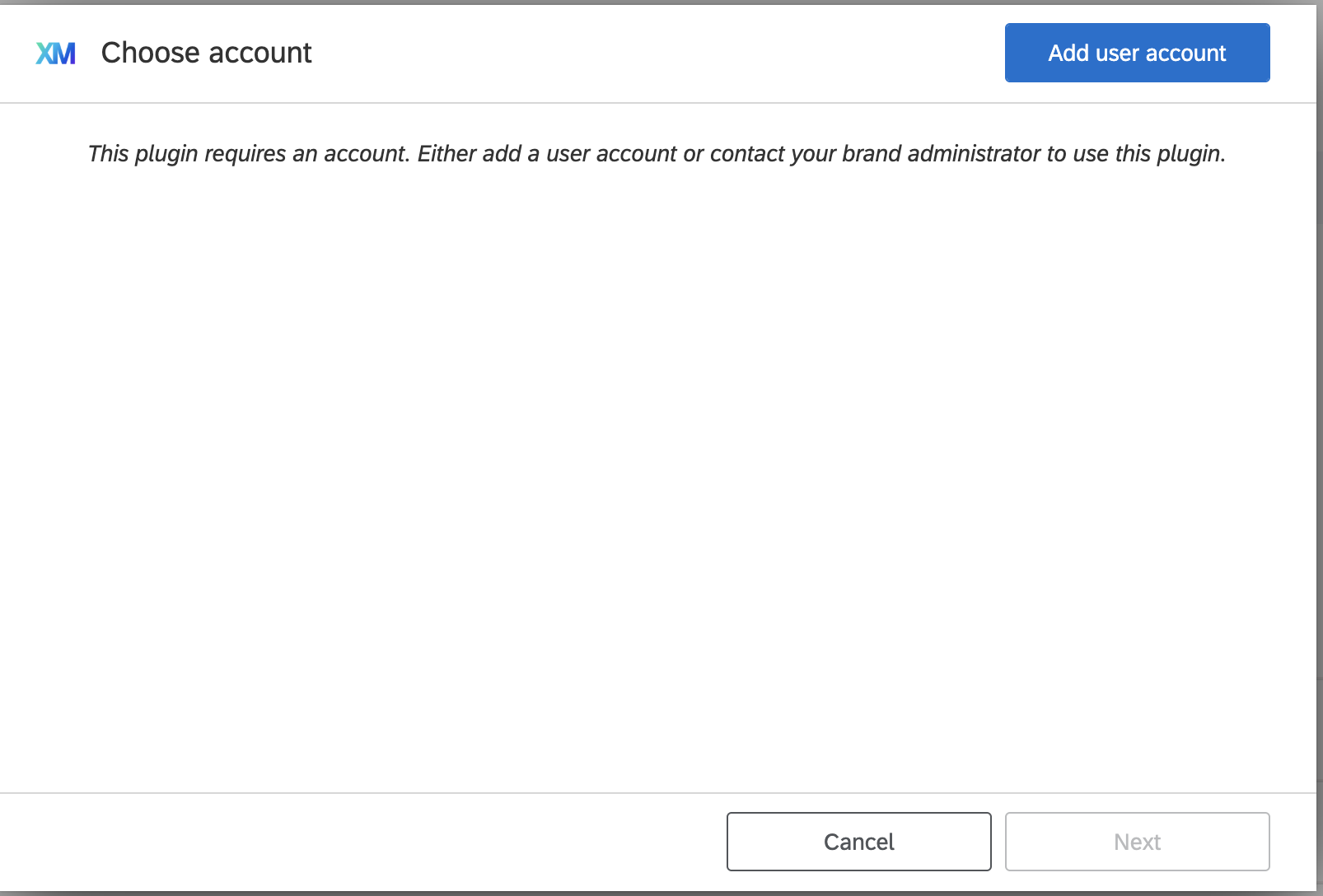
3.5: Click the Add user account button, and you will see a screen like this:
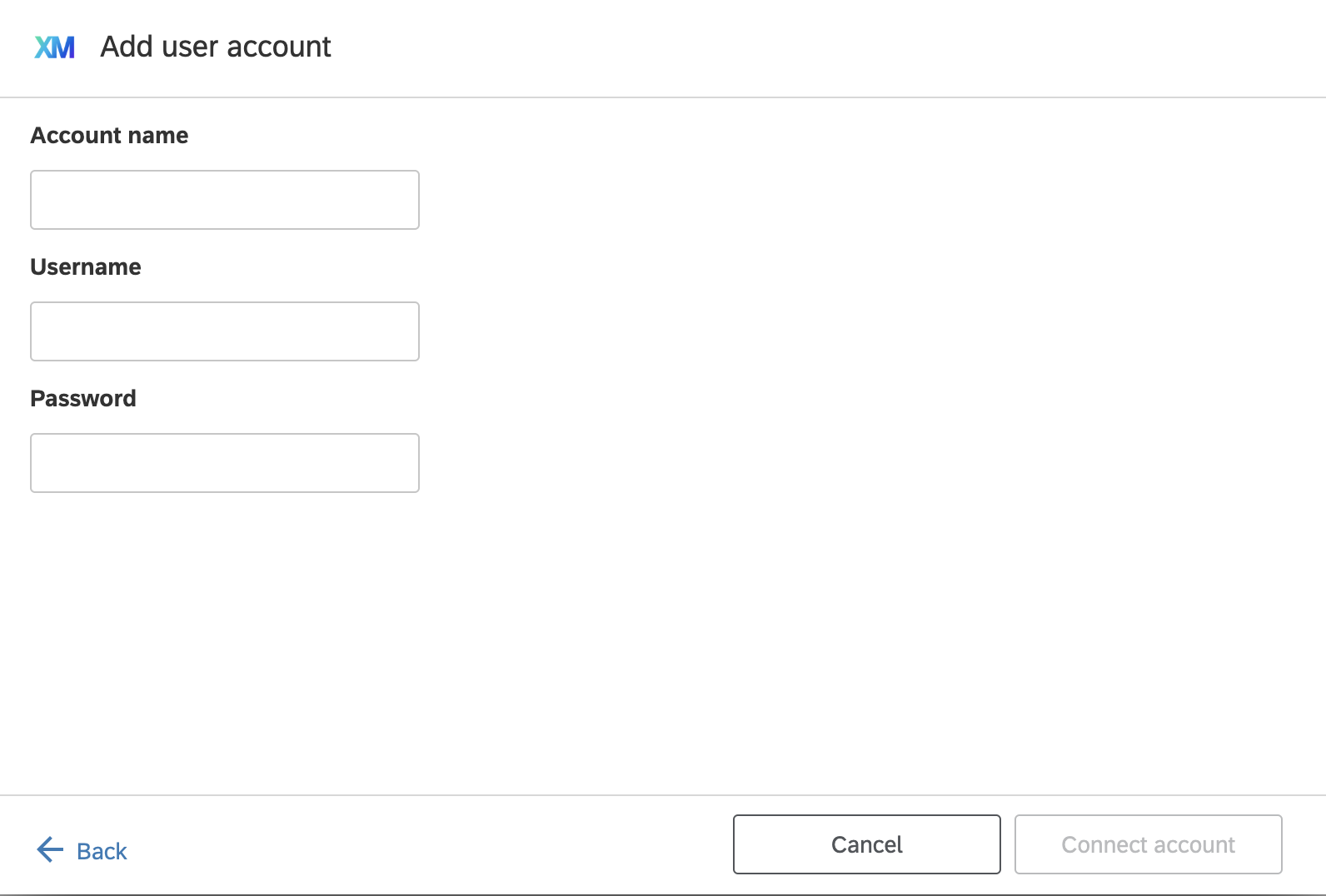
3.6: Enter a name for this user account in the Account Name field
3.7: Enter the appropriate username in the username field
3.8: Enter the corresponding password in the password field
3.9: Click the Connect account button
3.10: Verify you can now see and select your newly created authentication account
You have successfully enabled Basic Authentication for your XM Extension and XM Plugin!
API Key
An API Key is a string token passed as a header in the outbound HTTP request to your system. This token identifies and authenticates the user making the request.
Follow these steps to enable users to securely authenticate against your system via API Key.
Step 1: Create an API Key Connection
1.1: Run xmt create connection
1.2: Enter in a name for your connection - something like the name of your extension appended with -apikey
1.3: Enter a value for the target service, e.g. google
1.4: Enter in apikey as the connection scheme
1.5: You should see a message that says, successfully added connection to extension
1.6: Check the contents of manifest.json and you should see the following array entry in the top-level key connections:
"connections": [
        {
            "name": "{name-you-supplied}",
            "scheme": "apikey",
            "target": "{value-you-supplied}"
        }
]
Step 2: Reference the API Key Auth Connection in Your XM Plugin
2.1: Open the config.json file in the root directory of your XM Plugin
2.2: Add this JSON snippet as the first top-level key:
"credentials": ["{name-you-supplied}"],
2.3: Replace the {name-you-supplied} value with the name value you specified above in Step 1.2
2.4: Save the config.json file
Step 3: Test API Key Connection Account Creation
3.1: Make sure to start your development session (e.g. xmt develop extension)
3.2: Navigate to your Plugin in the Qualtrics XM Platform UI
3.3: Refresh the page as needed or check the refresh when change detected box
3.4: Select your Plugin. You should see a button to add a user account:
3.5: Click the Add user account button. You should see a screen like this:
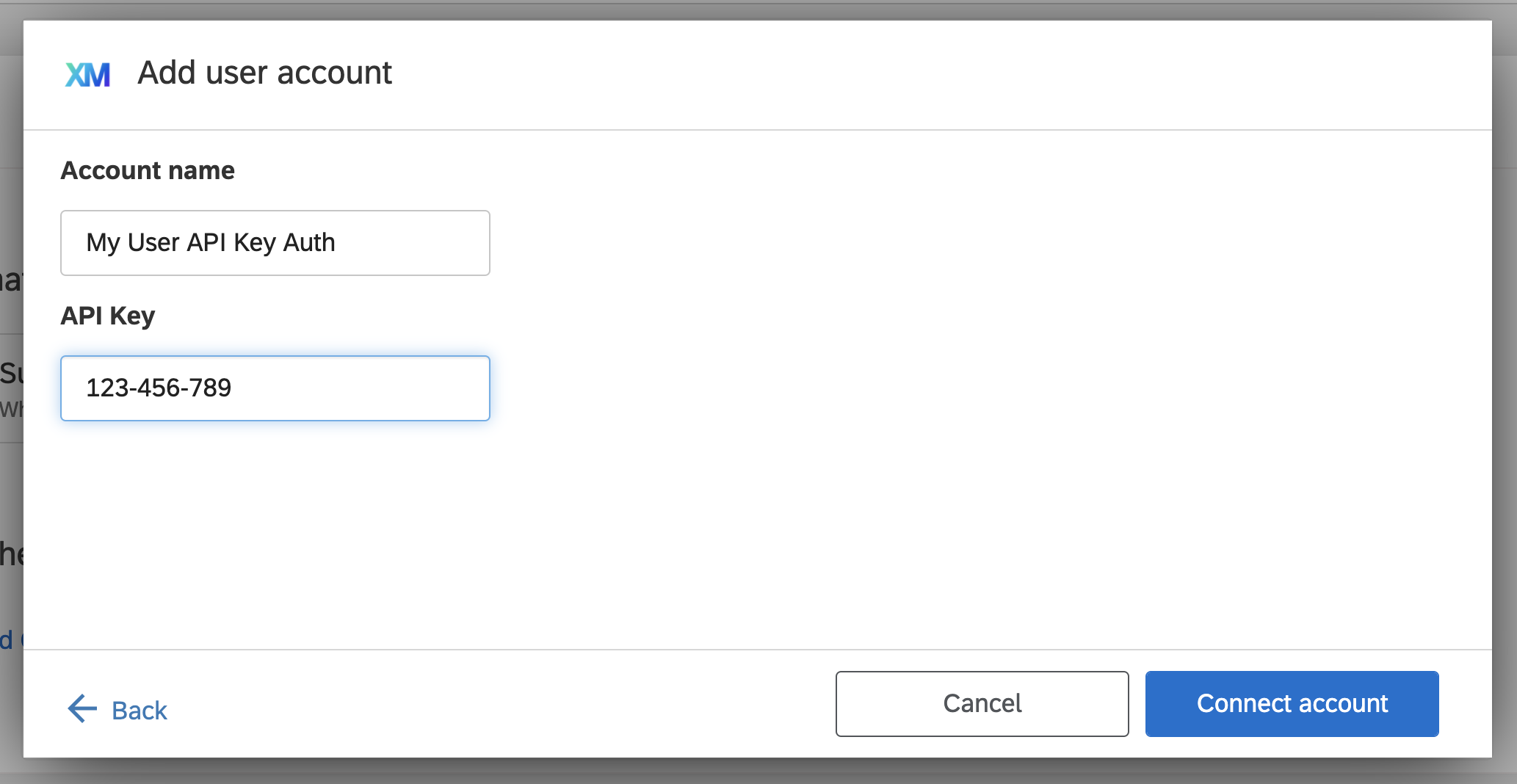
3.6: Enter a name for this user account in the Account Name field
3.7: Enter in your API Key into the corresponding field
3.8: Click the Connect account button
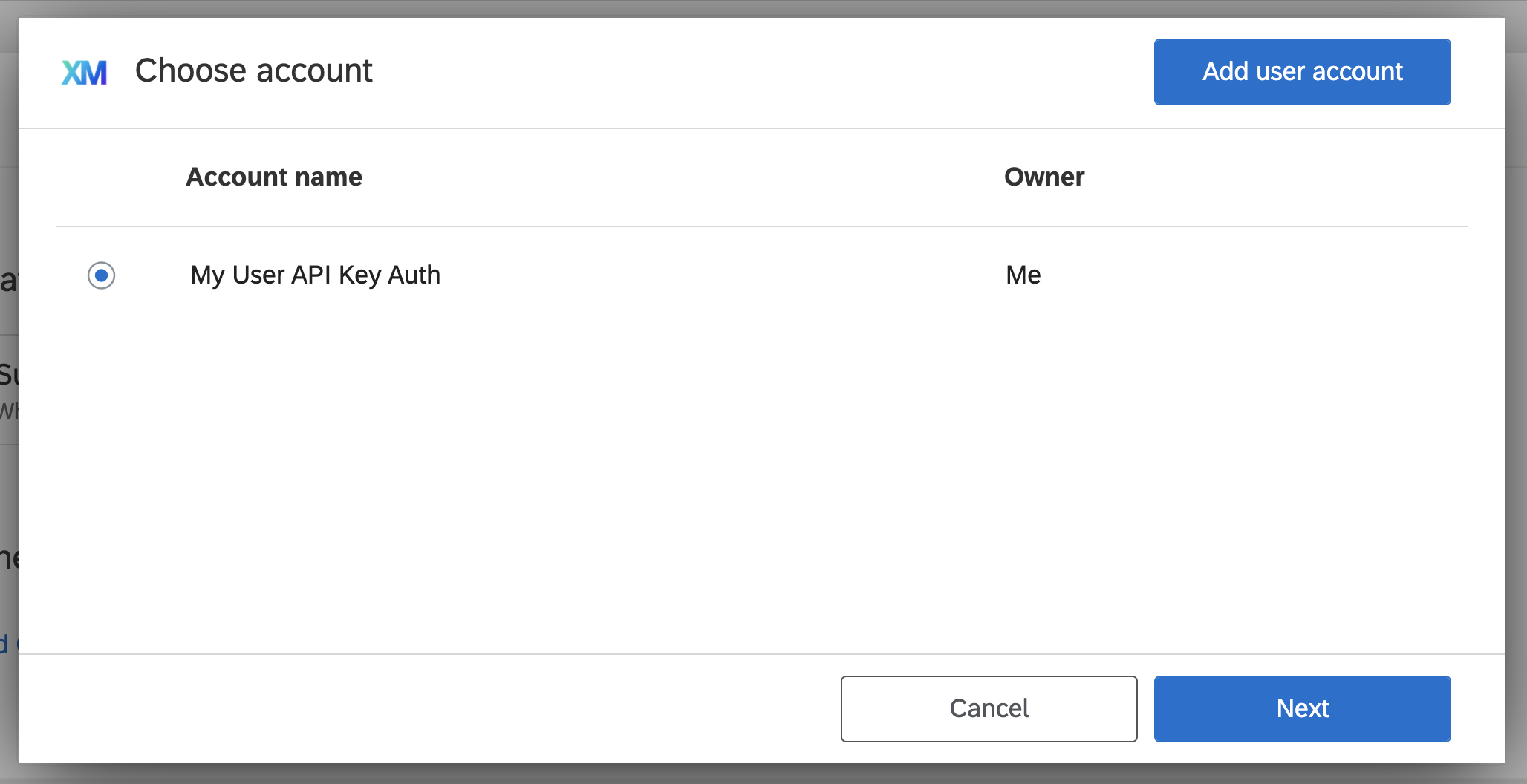
3.9: Verify that you can now see and select your newly created authentication account, it should look like this:
You successfully enabled API Key for your XM Extension and Plugin!
Shared and Individual Connection Accounts
Customers can authenticate to an external system via Basic Auth or API Token through:
- Shared connection accounts
- Individual connection accounts
Which is the Right Account?
Each joint customer between Qualtrics and your company has a license to the Qualtrics XM Product that is called a "Brand" or "Organization".
Each customer's "Brand" can have at least one, but typically many, individual Qualtrics user accounts.
If all of those individual Qualtrics user accounts should connect to your system through a single shared account, then they should use Shared connection accounts.
If each individual Qualtrics user account should connect to your system through their own unique individual account, then they should use Individual connection accounts.
Shared Account
You must be a Brand Administrator in order to create a shared connected account (See also Determining Who Can Use an Extension Account for administration details)
These steps demonstrate how a user creates a Shared connected account for Basic Auth:
- Log in to Qualtrics
- Click on the Admin link in the top navigation
- Click on the Extensions navigation link on the far right
- A list of available XM Extensions is displayed
- Click on the one for which you want to create a Shared connected account
- Click the Add an Account button
- Enter in all the required fields
- Click Connect Account
- You should see the account (credential) listed in the UI
- Click Manage Access
- Navigate to the Users tab
- Click Give access to all users to grant every user access or Add user for individual users
This connected account will now show up for any user in this Brand when viewing your XM Extension Plugin.
This could be useful for situations in which many users share the same access to your system.
Individual Account
These steps demonstrate how a user creates an Individual connected account for Basic Auth:
-
Select your XM Extension Plugin
-
The "Choose Account" UI screen is displayed (as shown above)
-
Click on the Add User Account button:
-
Enter in the Account name, Username, and Password fields based on instructions/information you have provided
-
Click the Connect account button
Connection Account Attributes
What Are They
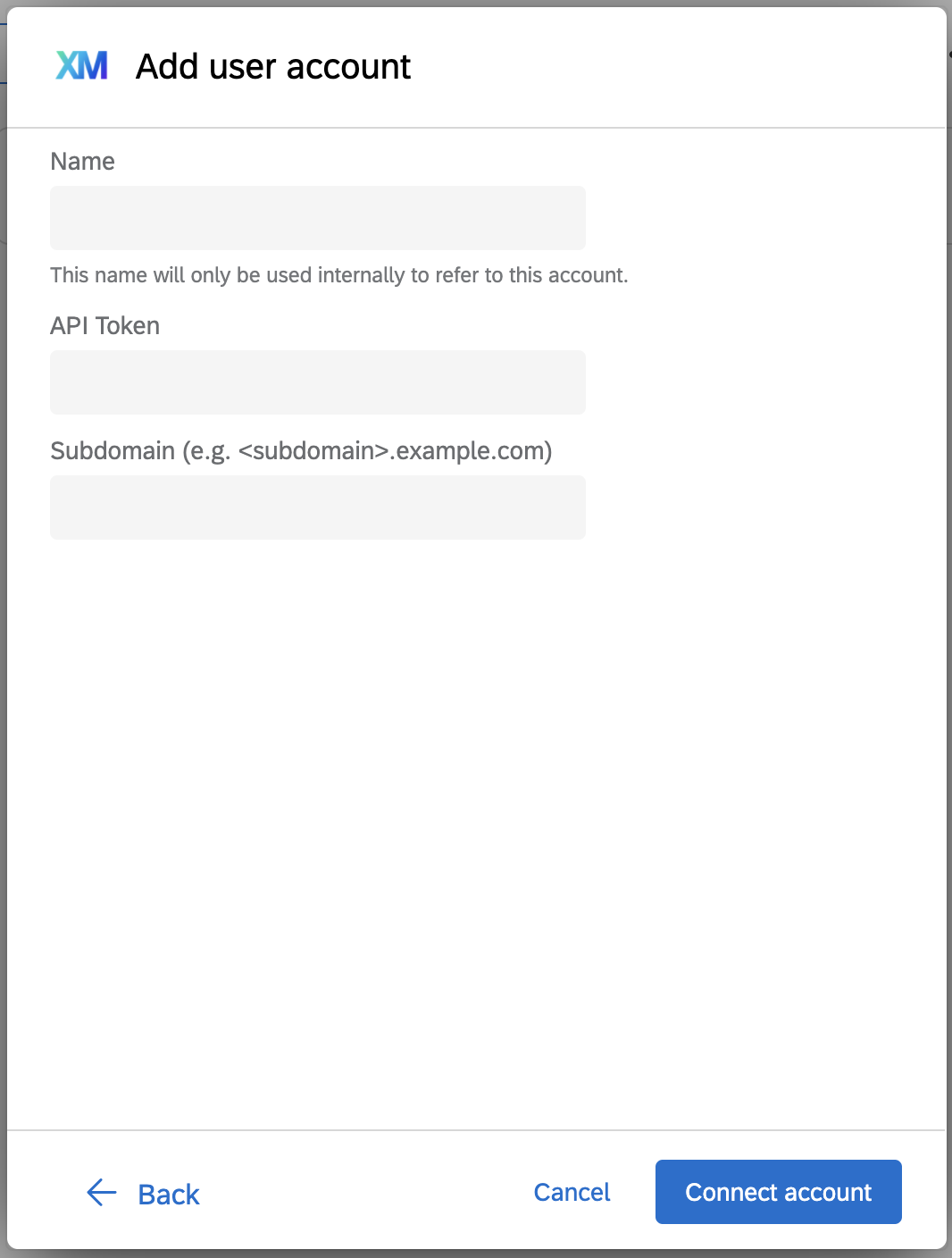
Connection Account Attributes are custom text-entry form fields with corresponding custom labels that you can add to your Extension to display to users during set-up of either Shared or Individual connection accounts.
When To Use Them
If your external system requires additional authentication/connection parameters, such as a tenant ID or URL, then this feature is for you!
In order to capture these values from the user you can specify a list of attributes for each connection scheme your extension supports and they will be shown to users at both the Shared and Individual connection account configuration screens.
Examples
- Customer subdomain (e.g.
customer.yourdomain.com) - Customer tenant ID (e.g.
customer_id)
Limitations
- URL Scheme, Domain and Path Only: These attributes can only be used in the HTTP request URL scheme, domain/subdomain, and path (see these general URL docs for details). Note: Query parameters are not supported yet.
- Value Restrictions: Values are limited to fifty characters in length, and can include only unreserved URL characters: letters, numbers, and these symbols:
_ . - ~. You can use this regular expression to validate values:/^[-A-Za-z0-9_.~]{1,50}$/ - Value Access: Values entered in by users cannot be accessed within your Plugin code.
- Maximum Attributes: Each account is limited to five attributes.
Prerequisites
- You have already created a connection in your extension
- You have referenced the connection in at least one of your plugins
Step 1: Define Connection Account Attributes
1.1: Open the manifest.json file in the editor of your choice
1.2: Inside the array of connections, find the connection object to which you want to add Connection Account Attributes and add a key called attributes with a value of an empty array
  "connections": [
    {
      // name, scheme, target, etc.
      "attributes": []
    }
   ]
1.3: For each of your attributes, insert an object into the attributes array that contains these key-value pairs:
| Key | Required | Value Type | Value Description | Value Options | Value Example |
|---|---|---|---|---|---|
| id | Yes | String | You will reference the id value in your code where you define the external API endpoint URL | Any string that appropriately represents the underlying attribute | 'subdomainAttribute' |
| translationKey | Yes | String | You will reference the translationKey value in all of your supported languages via the files in assets/translations/ | Any string that describes the id in a translation context | 'subdomainAttributeTranslation' |
| type | No | String | What type of value the attribute can be | Currently text is the only supported value, however there is a potential use case for adding in multiple values like a list or array | 'text' |
Using the example values from the table above would result in this:
   "attributes": [
    {
      "id": "subdomainAttribute",
      "translationKey": "subdomainAttributeTranslation",
      "type": "text"
    }
   ]
The attributes are displayed to the user in the order they are defined in the attributes array
Step 2: Add Translation Key
2.1: Open the assets/translations/EN.json file in the editor of your choice
2.2: Include the translationKey value(s) from step 1.3
  "strings": {
    "subdomainAttributeTranslation": {
      "text": "Subdomain (e.g. <subdomain>.example.com)",
      "context": "Customer subdomain"
    }
}
Each Connection Account Attribute you provide must have a corresponding entry in a translation file for each language your extension supports
2.4: Repeat steps 2.1 - 2.3 for each additional language your extension supports
(OAuth 2.0 only) Create Client Credential with Placeholder
You may create a connection with the special placeholder {{}} syntax in the authorization URL (not in the token URL) where the Connection Account Attribute value should be interpolated.
Follow this example when creating your OAuth 2.0 connection:
$ xmt create connection
Connection name: example
Name of the service to authenticate connection credentials: example.com
Connection scheme: oauth2
Client ID: my_client_id
Client Secret: my_secret
Authorization Endpoint: https://{{}}.example.com/auth
Token Endpoint: https://example.com/token
OAuth 2.0 Limitations
- The supplied auth URL may have only one placeholder.
- It will be replaced with the value of the first item in the
connection.attributesarray.
Step 3: Reference the Connection Account in HTTP Requests
There are several ways to place account information into an HTTP request. The following examples assume that the user has selected an account with an attribute called foo, containing a value of bar.
In the URL
client.fetch2('https://{{foo}}.example.com/', {
    method: 'GET',
    connection: {
      connectionName: 'example connection',
      paramFormat: 'header',
      paramName: 'Authorization',
      paramTemplate: 'Bearer %s'
    },
  })

// calls https://bar.example.com/
In query parameters
client.fetch2('https://example.com/', {
    method: 'GET',
    params: {
        foo: '{{/credential/metadata/foo}}'
    },
    connection: {
      connectionName: 'example connection',
      paramFormat: 'header',
      paramName: 'Authorization',
      paramTemplate: 'Bearer %s'
    },
  })

// calls https://example.com/?foo=bar
Step 4: Verify the Connection Account Attributes
4.1: Submit your extension with updates from Steps 1-3
4.2: Login to Qualtrics
4.3: Click on the Admin link in the top navigation
4.4: Click on the Extensions link in the sub-navigation bar
4.5: Find and select your extension (you may need to install it)
4.6: Click on the Create Account button
4.7: Verify that your Connection Account Attributes render as expected
4.8: Enter Connection Account Attributes values and test them by setting up your plugin
Example Screenshot
SFTP
An SFTP connection enables user input fields for a server host, port number (which is defaulted to 22), username and password.
Step 1: Create a SFTP Connection
1.1: Run xmt create connection from the Extension's root directory
1.2: Enter a name for your connection - something like the name of your extension appended with -sftp
1.3: Enter in a value for the target service, e.g. google
1.4: Enter in sftp as the connection scheme
1.5: After completion, open the contents of manifest.json and you should see the following array entry in the top-level key connections
"connections": [
        {
            "name": "{name-you-supplied}",
            "scheme": "sftp",
            "target": "{value-you-supplied}"
        }
]
Step 2: Reference the SFTP Connection in Your XM Plugin
2.1: Open the config.json file in the root directory of your XM Plugin
2.2: Add this JSON snippet as a top-level key:
"credentials": ["{name-you-supplied}"],
2.3: Replace the {name-you-supplied} value with the name value you specified above in Step 1.2
2.4: Save the config.json file
Step 3: Test SFTP Connection Account Creation
3.1: Make sure to start your development session (e.g. xmt develop extension)
3.2: Navigate to your Plugin in the Qualtrics XM Platform UI
3.3: Refresh the page as needed or check the refresh when change detected box
3.4: Select your Plugin. You should see a button to add a user account:
3.5: Click the Add user account button, and you will see a screen like this:
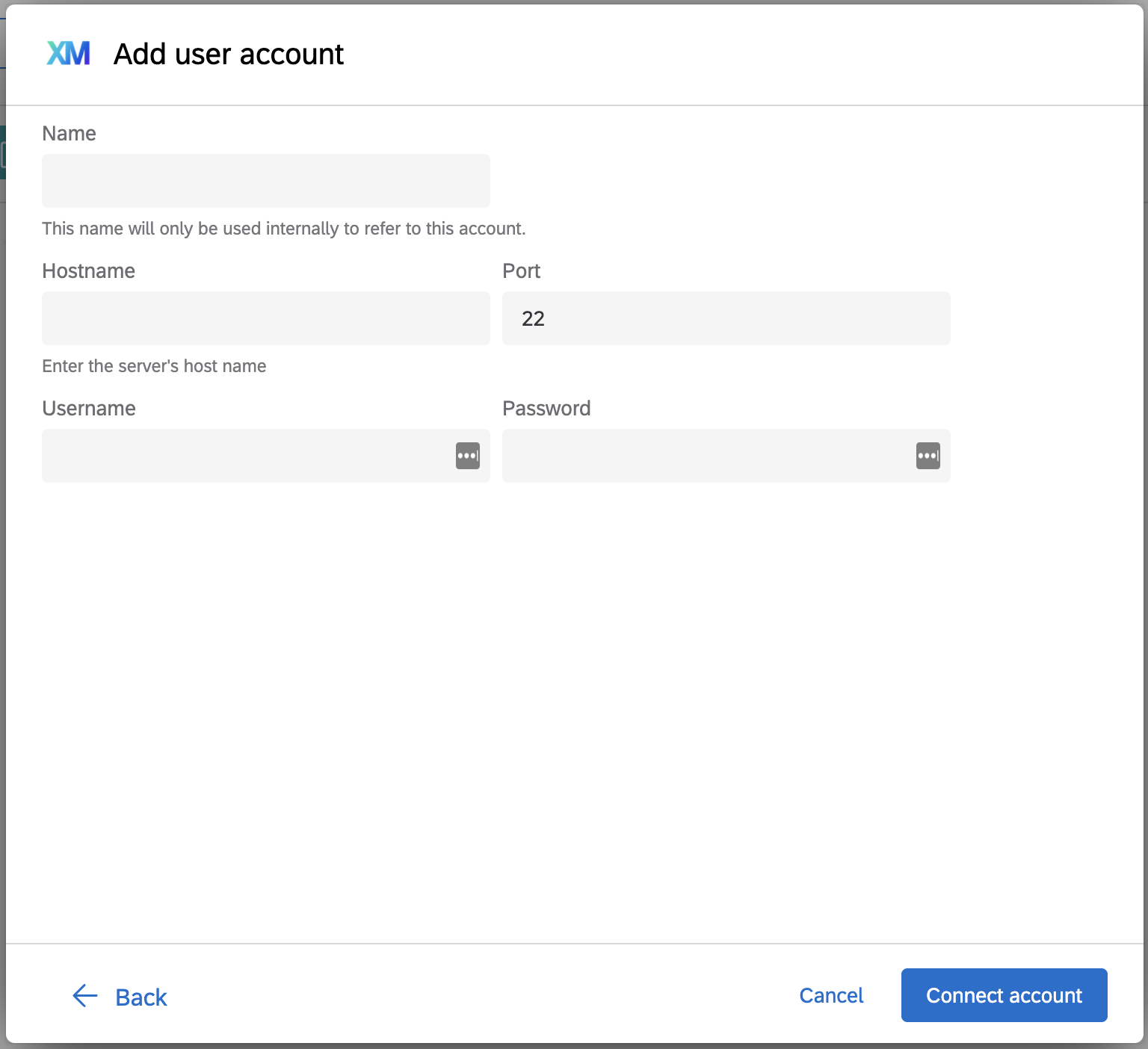
3.6: Enter your SFTP information (Name, Hostname, Port, Username, and Password)
3.7: Click the Connect account button
3.8: Verify you can now see and select your newly created SFTP account
You have successfully enabled SFTP for your XM Extension and XM Plugin!
Predefined Requests
Predefined Requests are templated API requests that you can enable in your plugins in order to permit anonymous or unauthenticated users to securely supply sensitive authentication credentials that can be used to make outbound API network calls.
While Predefined Requests can be used from any XM Plugin, they are most useful in the case of Survey Question Plugins, as they allow authenticated requests to be securely triggered from anonymous survey respondents.
Learn more about Predefined Requests here
AWS Signature V4
AWS Signature V4 is a protocol for authenticating API requests to AWS services.
Based on AWS best practices, it is advised to use AWS Signature V4 authentication only for Extensions used within your organization.
Step 1: Create an AwsSigV4 Connection
1.1: Run xmt create connection from the Extension's root directory
1.2: Enter a name for your connection - something like the name of your extension appended with -awsSigV4
1.3: Enter in a value for the target service, e.g. amazon
1.4: Enter in awsSigV4 as the connection scheme
1.5: Add s3.amazonaws.com as a valid domain for your extension
1.6: Review the contents of manifest.json and you should see the following array entry in the top-level key connections
"connections": [
        {
            "name": "{name-you-supplied}",
            "scheme": "awsSigV4",
            "target": "{value-you-supplied}"
        }
]
Step 2: Reference the AwsSigV4 Connection in Your XM Plugin
2.1: Open the config.json file in the root directory of your XM Plugin
2.2: Add this JSON snippet as a top-level key:
"credentials": ["{name-you-supplied}"]
2.3: Replace the {name-you-supplied} value with the name value you specified above in Step 1.2
2.4: Save the config.json file
Step 3: Test AwsSigV4 Connection Account Creation
3.1: Make sure to start your development session (e.g. xmt develop extension)
3.2: Navigate to your Extension in the Qualtrics XM Platform UI
3.3: Refresh the page as needed or check the refresh when change detected box
3.4: Select your Plugin. You should see a button to add a user account:
3.5: Click the Add user account button; you should see a screen like this:
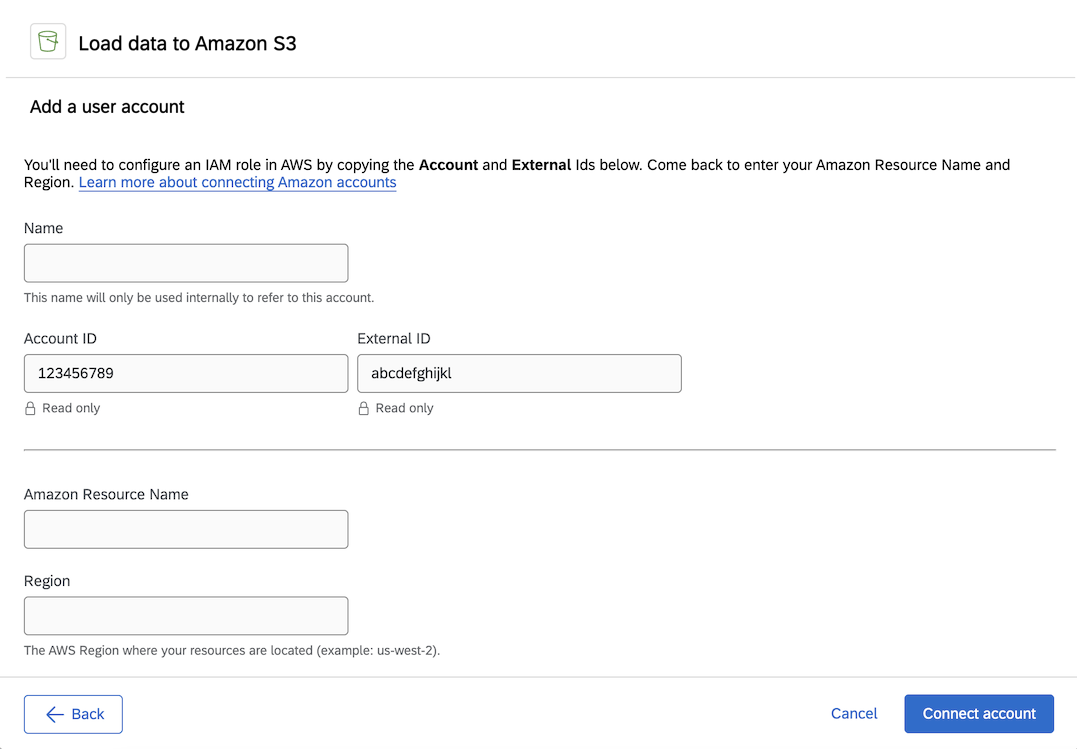
3.6: Enter your AWS information (Name, Amazon Resource Name, and Region)
You'll be provided an Account ID and an External ID to use to configure an IAM role in AWS before adding the Amazon Resource Name and Region.
3.7: Click the Connect account button
3.8: Verify you can now see and select your newly created AwsSigV4 account
You have successfully enabled AwsSigV4 for your XM Extension and XM Plugin!
OAuth 2.0 JWT Bearer
The OAuth 2.0 JWT Bearer grant type flow exchanges a JWT for an access token from a token endpoint.
Step 1: Create an OAuth2ClientJWT Connection
Please note this implementation of the JWT Bearer grant type flow is generic, meaning there are many ways to set up the connection, and so the exact configuration of the connection depends on the system you're integrating with.
It allows you to:
- Set required headers and claims for use in building the JWT. The user creating a connection will be required to enter a value for these fields.
- Enable / disable additional, user-defined headers and claims for use in building the JWT. These are optional, so the user may create a connection without adding any additional headers or claims.
- Enabling additional headers would give the user the option to add key-value pairs under the Headers section when setting up a connection in the UI.
- Enable / disable the
client_idparameter from the access token request. - Enable / disable the
client_secretparameter from the access token request. - Enable / disable the
scopeparameter from the access token request.- A space delimited string of scopes, rendered as an input field in the UI.
- Select an algorithm for signing the JWT, one of:
RS256,HS256,HS384,HS512.- Will be rendered as a dropdown in the UI.
- Enter in an authorization endpoint, which is the endpoint for obtaining an access token.
- May be left blank to let the user decide. In either case, the user may change this URL when setting up a connection.
1.1: Run xmt create connection -s oauth2ClientJWT from the Extension's root directory
1.2: Enter a name for your connection - something like the name of your extension appended with -oauth2ClientJWT
1.3: Enter in a value for the target service, e.g. servicenow
1.4: Select a signing algorithm. This depends on the system you're integrating with.
1.5: Enter in the authorization endpoint, which is the URL for obtaining an access token.
1.6: Select yes or no, depending on whether your connection requires specific headers. These headers are used in building the JWT. Selecting yes will prompt you to enter in the required headers.
1.6a: If you selected no in the previous step, skip to Step 1.7.
1.6b: If you selected yes in the previous step, you will now be prompted to enter in the headers. Enter in one header per line. Once you're finished with adding the headers, press ENTER to continue to the next step.
1.7: Select yes or no, depending on whether your connection requires specific claims. These claims are used in building the JWT. In the same way as in the previous step, selecting yes will allow you to enter in the claims.
1.8: Select yes or no, depending on whether you wish to enable or disable additional headers. These are optional key-value pairs that the user can add under the headers section in the UI.
1.9: Select yes or no, depending on whether you wish to enable or disable additional claims. These are optional key-value pairs that the user can add under the claims section in the UI.
1.10: Select yes or no, depending on whether you wish to enable or disable the scope parameter from the access token request.
1.11: Select yes or no, depending on whether you wish to enable or disable the client_id parameter from the access token request.
1.12: Select yes or no, depending on whether you wish to enable or disable the secret parameter from the access token request.
1.13: Add a domain for your extension. For example *.service-now.com.
1.14: Review the contents of manifest.json and you should see a similar array entry in the top-level key connections.
"connections": [
    {
        "name": "{name-you-supplied}",
        "oauth2ClientJWT": {
            "allowAdditionalClaims": true,
            "allowAdditionalHeaders": true,
            "clientIdRequired": true,
            "clientSecretRequired": true,
            "requiredClaims": [],
            "requiredHeaders": [
                "customHeader1",
                "customHeader2"
            ],
            "scopeRequired": false,
            "signingAlgorithm": "RS256",
            "tokenUrl": "https://company.com/token"
        },
        "scheme": "oauth2ClientJWT",
        "target": "{value-you-supplied}"
    }
]
Step 2: Reference the OAuth2ClientJWT Connection in Your XM Plugin
2.1: Open the config.json file in the root directory of your XM Plugin.
2.2: Add this JSON snippet as a top-level key:
"credentials": ["{name-you-supplied}"]
2.3: Replace the {name-you-supplied} value with the name value you specified above in Step 1.2.
2.4: Save the config.json file.
Step 3: Test OAuth2ClientJWT Connection Account Creation
3.1: Make sure to invoke the xmt develop extension command to continuously submit your Extension.
3.2: Navigate to your Extension in the Qualtrics XM Platform UI.
3.3: Select your Plugin. You should see a button to add a user account:
3.4: Click the Add user account button; you should see a screen like this:
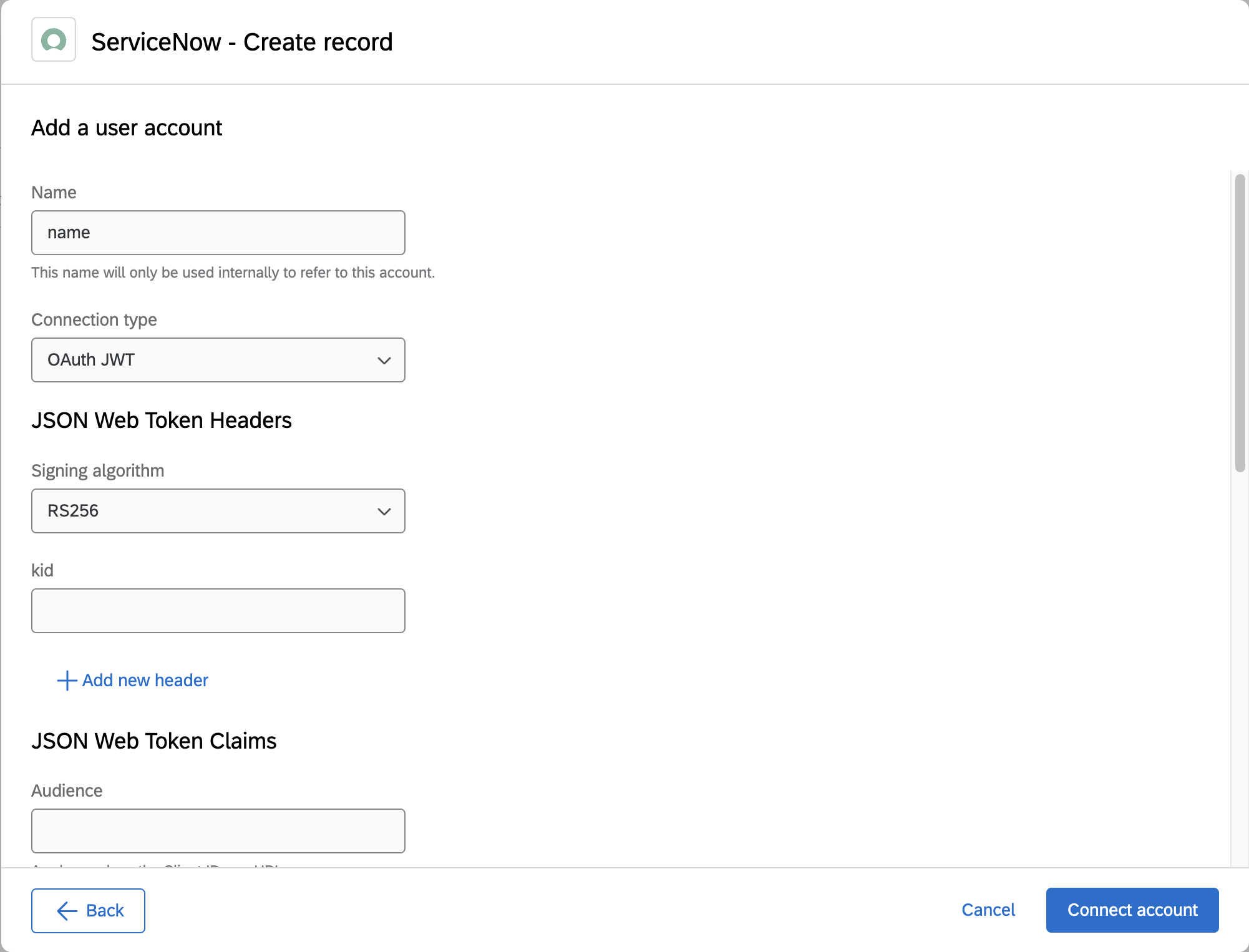
3.5. Select OAuth JWT from the Connection type dropdown.
3.6: Enter your connection information.
3.7: Click the Connect account button.
3.8: Verify you can now see and select your newly created OAuth2ClientJWT account.
You have successfully enabled OAuth2ClientJWT for your XM Extension and XM Plugin!
Multiple Connection Types for Plugins
You can enable your plugin to support multiple connection types and allow users to select the appropriate option when they are configuring your plugin.
This is useful if your API supports multiple authentication schemes. For a full list of available supported schemes see here.
Follow these steps to enable Multiple Connection Types for Plugins:
Step 1: Create a Connection which supports multiple connection types
1.1: Navigate to your manifest.json
1.2: Add the connections array to the top level of your manifest if not already defined
1.3: As one of the connections in the connections array, manually add name and a oneOf array like below:
"connections": [
        {
            "name": "multiple-connection-types",
            "oneOf": []
        }
]
1.4: Inside oneOf, define individual connection objects as explained in the previous sections. Each connection in oneOf should include name, scheme, and target at a minimum, but can also include attributes and scheme-specific fields (see note below about OAuth 2.0). Connections nested in oneOf must have a unique target and cannot contain additional oneOf arrays.
If you want to enable OAuth 2.0 as one of the connection types for your plugin, then make sure to enter that as your connection choice when running xmt create connection as it requires extra steps that the other connection types do not. Once the oauth2 connection has been created, manually copy the created connection into your oneOf array.
"connections": [
        {
            "name": "multiple-connection-types",
            "oneOf": [
              {
                  "name": "external-service-oauth2",
                  "scheme": "oauth2",
                  "target": "external-service-oauth2",
                  "oauth2GrantTypes": {
                       "authorizationCode": {},
                       "clientCredentials": {}
                  }
              },
              {
                  "name": "external-service-basic",
                  "scheme": "basic",
                  "target": "external-service-basic",
                  "attributes": [
                      {
                          "id": "datacenter",
                          "translationKey": "datacenterKey",
                      }
                  ],
              }
            ]
        }
]
1.5: Save and close the manifest.json file
Step 2: Add Connection Reference to Plugin
2.1: Open your plugin's config.json file in your editor of choice
2.2: Add the reference to the connection you created as a top-level key like this "credentials": ["{the-name-you-gave-the-connection-in-step-1.3"],
Following the example from step 1.4, the connection reference in your plugin's config.json file would look like this:
"credentials": ["multiple-connection-types"],
2.3: Save and close the config.json file
Step 3: Derive Selected Connection Within Your Plugin
Follow these steps to find out which connection the user has selected when your plugin initializes:
3.1: Get access to the pluginClient
3.2: Invoke the getContext() method
3.3: Find the connections property from the returned object
To continue our example from step 1.4, let's say that the user selected the basic connection type.
The resulting connections array returned from getContext() would look like this:
{
    connections: [
        {
            name: "external-service-basic",
            scheme: "basic"
        }
    ],
}
Your plugin should now support Multiple Connection Types!
Add a Description to your Connection
Background
Adding a description to a Connection can provide more context to users when they set up their accounts.
Prerequisites
- Create an XM Extension with the XMT CLI
- Create a Connection using the XMT
create connection command
Scenario
To illustrate this functionality, pretend that your Extension integrates with an external system called "ACME" via OAuth2. There are some fields that must be retrieved from the external system.
Without providing a Connection Description, a user might not have sufficient context to successfully set up their account. In this scenario, a Connection Description would provide users with much more context around the ACME system.
Step 1: Add the Description to a connection
Add the descriptionTranslationKey field to a Connection (or nested connection in oneOf) in the manifest.json, with the value being something descriptive like acmeOAuth2DescriptionTranslationKey.
This value will be referenced in another file that supplies translated text.
Here is an example:
"connections": [
        {
            "name": "ACME",
            "scheme": "oauth2",
            "target": "ACME",
            "descriptionTranslationKey": "acmeOAuth2DescriptionTranslationKey",
            "oauth2GrantTypes": {
                    "authorizationCode": {},
                    "clientCredentials": {}
            }
        }
]
Step 2: Add the Description reference to Translation Files
For each of your translation files (e.g. assets/translations/EN.json, etc.), insert entries for the translation labels that you added to the manifest.json in the previous step:
You can add a hyperlink to your connection by formatting your translation text with markdown syntax. Ensure the URL has a valid protocol.
"strings": {
    "acmeOAuth2DescriptionTranslationKey": {
        "text": "Description about ACME. [Learn more here](https://www.example.com)",
        "context": "The description for an oauth2 connection scheme to ACME",
    }
}
Step 3: Test and Verify
- Login to Qualtrics
- Find and select your Extension
- Select your Extension Plugin
- Click the Add user account button
- Verify that the Connection Description changes you made are reflected in the UI. It should show up above the Name label.
Override Connection Type Labels
Background
Adding context to the Connection Type label can help signal to users which specific external service their accounts are connecting to. This can be especially helpful if your plugin supports multiple connection types with the same underlying scheme.
Prerequisites
- Create an XM Extension with the XMT CLI
- Create a Connection using the XMT create connection command
Scenario
Let's say that your extension integrates with an external system called ACME via OAuth2. ACME has set up a sandbox environment for testing changes before pushing them out to customers in the production account. Using Multiple Connection Type connections, we can define two OAuth2 connections, one for the sandbox account and another for the production account. Without overriding connection type labels, these accounts would be indistinguishable from each other in the account selector apart from their user-inputted names. We can use connection type labels to provide users with more context around which ACME instance these accounts were setup for:
Step 1: Add the Override Labels to a connection
Add the translationKey field to a connection (or nested connection in oneOf) in the manifest.json, with the value being something descriptive like acmeSandboxTranslationKey.
This value will be referenced in another file that supplies translated text.
Here is an example:
"connections": [
        {
            "name": "ACME",
            "oneOf": [
              {
                  "name": "sandbox",
                  "scheme": "oauth2",
                  "target": "ACME-sandbox",
                  "translationKey": "acmeSandboxTranslationKey",
                  "oauth2GrantTypes": {
                       "authorizationCode": {},
                       "clientCredentials": {}
                  }
              },
              {
                  "name": "production",
                  "scheme": "oauth2",
                  "target": "ACME-production",
                  "translationKey": "acmeProdTranslationKey",
                  "oauth2GrantTypes": {
                       "authorizationCode": {},
                       "clientCredentials": {}
                  }
              },
            ]
        }
]
Step 2: Add the Override Label References to Translation Files
For each of your translation files (e.g. assets/translations/EN.json, etc.), insert entries for the translation labels that you added to the manifest.json in the previous step:
"strings": {
    "acmeSandboxTranslationKey": {
        "text": "ACME Sandbox",
        "context": "The label for an oauth2 token field to connect to ACME sandbox",
    },
    "acmeProdTranslationKey": {
        "text": "ACME",
        "context": "The label for an oauth2 token field to connect to ACME production",
    }
}
Step 3: Test and Verify
- Login to Qualtrics
- Find and select your extension (i.e. Workflows Task, Workflows Event, Reporting Widget)
- Select your extension’s plugin
- Click the Add user account button
- Verify that the label override changes you made are reflected in the UI. If using multiple connection types, the dropdown menu should display options such as
{MyConnectionTypeLabel} ({scheme}). Accounts listed in the account selector should follow the same format as the dropdown menu options.
Override Authentication Labels
Background
Sometimes the naming convention for apikey, basic, and SFTP authentication schemes do not match up with terminology used by external systems.
The Override Authentication Labels feature was created to help users avoid confusion when creating Connection Accounts.
Limitations
- Only available to 1st-party developers (may expand to 3rd parties later)
- Only available to connection/auth schemes of apikey, basic auth, and SFTP
Prerequisites
- Create a first-party XM Extension with the XMT CLI
- Create a Connection using the XMT create connection command
Scenario
Let’s say that you want your extension to integrate with an external system called ACME via an API Key (Token), Basic Auth, and SFTP. However, ACME has different naming conventions for each type:
API Token
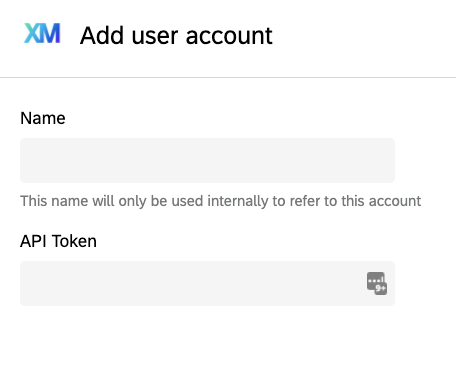
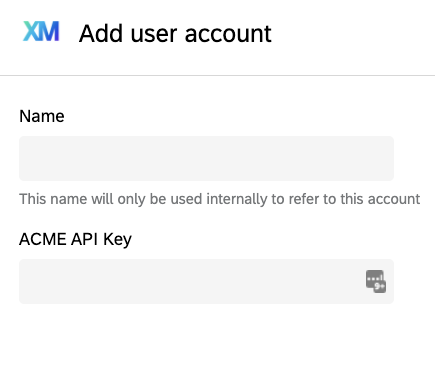
- Replace with ACME API Key
Basic Auth
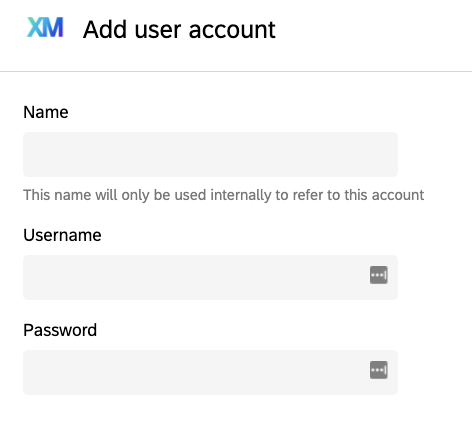
- Replace Username with "ACME API Username"
- Replace Password with "ACME API Password"
SFTP
- Replace Hostname with "ACME SFTP Server"
- Replace Port with "ACME SFTP Port"
- Replace Username with "ACME SFTP User ID"
- Replace Password with "ACME SFTP Password"
- Replace SSH Key with "ACME SSH Key"
- Replace Encrypted SSH Key with "ACME Encrypted SSH Key"
- Replace Passphrase with "ACME SFTP Passphrase"
Override API Key Label
Step 1: Add the Override Labels to a Connection
Add the labelOverrideTranslationKeys object to an apikey connection in the manifest.json and add apikey as a key, with the value being something descriptive like apikeyLabelTranslation.
This value will be referenced in another file that supplies translated text.
Here is an example:
"connections": [
       {
           "name": "ACME API Auth",
           "scheme": "apikey",
           "target": "acme",
           "labelOverrideTranslationKeys": {
               "apikey": "apikeyLabelTranslation"
           },
       }
   ],
Step 2: Add the Override Label References to Translation Files
For each of your translation files (e.g. assets/translations/EN.json, etc.), insert entries for the translation labels that you added to the manifest.json in the previous step:
"strings": {
    "apikeyLabelTranslation": {
        "text": "ACME API Key",
        "context": "The label for an api token field to connect to ACME",
    }
}
| Before | After |
|---|---|
 |  |
Override Basic Auth Labels
Step 1: Add the Override Labels to a Connection
Add the labelOverrideTranslationKeys object to a basic connection in the manifest.json and add username and password as keys, with their values being something descriptive like usernameLabelTranslation and passwordLabelTranslation.
These values will be referenced in another file that supplies translated text.
Check out this example:
"connections": [
       {
           "name": "ACME API Auth",
           "scheme": "basic",
           "target": "acme",
           "labelOverrideTranslationKeys": {
               "username": "usernameLabelTranslation",
               "password": "passwordLabelTranslation"
           },
       }
   ],
Step 2: Add the Override Label References to Translation Files
For each of your translation files (e.g. assets/translations/EN.json, etc.), insert entries for the translation labels that you added to the manifest.json in the previous step:
"strings": {
    "usernameLabelTranslation": {
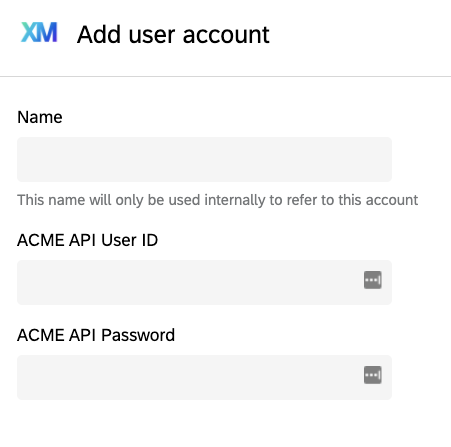
        "text": "ACME API User ID",
        "context": "The label for the user ID to connect to ACME",
    },
    "passwordLabelTranslation": {
        "text": "ACME API Password",
        "context": "The label for the user password to connect to ACME",
    }
}
| Before | After |
|---|---|
 |  |
Override SFTP Labels
Step 1: Add the Override Labels to a Connection
Add the labelOverrideTranslationKeys object to an SFTP connection in the manifest.json and add host, port, sftpUsername, sftpPassword, sshKey, encryptedSshKey, and sshKeyPassphrase as keys, with their values being
something descriptive like hostLabelTranslation and portLabelTranslation, etc..
These values will be referenced in another file that supplies translated text.
Look at this example:
"connections": [
       {
           "name": "ACME API Auth",
           "scheme": "basic",
           "target": "acme",
           "labelOverrideTranslationKeys": {
               "host": "hostLabelTranslation",
               "port": "portLabelTranslation",
               "sftpUsername": "sftpUsernameLabelTranslation",
               "sftpPassword": "sftpPasswordLabelTranslation",
               "sshKey": "sshKeyLabelTranslation",
               "encryptedSshKey": "encryptedSshKeyLabelTranslation",
               "sshKeyPassphrase": "sshKeyPassphraseLabelTranslation",
           },
       }
   ],
Step 2: Add the Override Label References to Translation Files
For each of your translation files (e.g. assets/translations/EN.json, etc.), insert entries for the translation labels that you added to the manifest.json in the previous step:
"strings": {
    "hostLabelTranslation": {
        "text": "ACME SFTP Server",
        "context": "The label for the ACME SFTP Server host",
    },
    "portLabelTranslation": {
        "text": "ACME SFTP Port",
        "context": "The label for the ACME SFTP Server port",
    },
    "sftpUsernameLabelTranslation": {
        "text": "ACME SFTP User ID",
        "context": "The label for the ACME SFTP User ID",
    },
    "sftpPasswordLabelTranslation": {
        "text": "ACME SFTP Password",
        "context": "The label for the ACME SFTP User Password",
    },
    "sshKeyLabelTranslation": {
        "text": "ACME SSH Key",
        "context": "The label for the ACME SSH Key",
    },
    "encryptedSshKeyLabelTranslation": {
        "text": "ACME Encrypted SSH Key",
        "context": "The label for the ACME Encrypted SSH Key",
    },
    "sshKeyPassphraseLabelTranslation": {
        "text": "ACME SFTP Passphrase",
        "context": "The label for the ACME SFTP Passphrase",
    },
}
| Before | After |
|---|---|
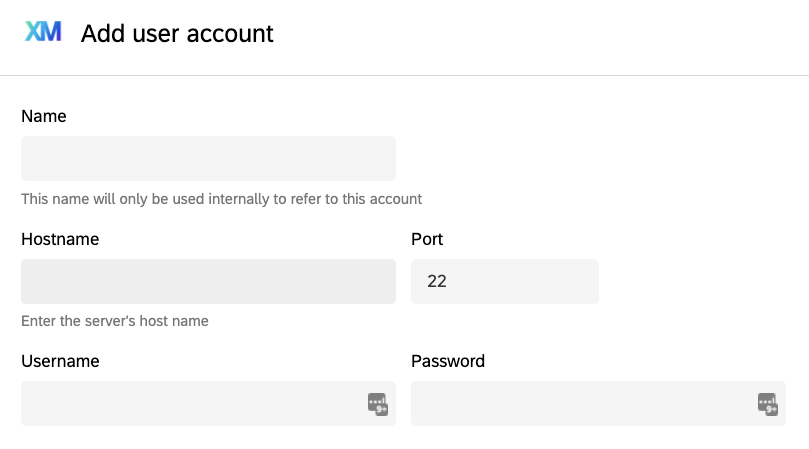 | 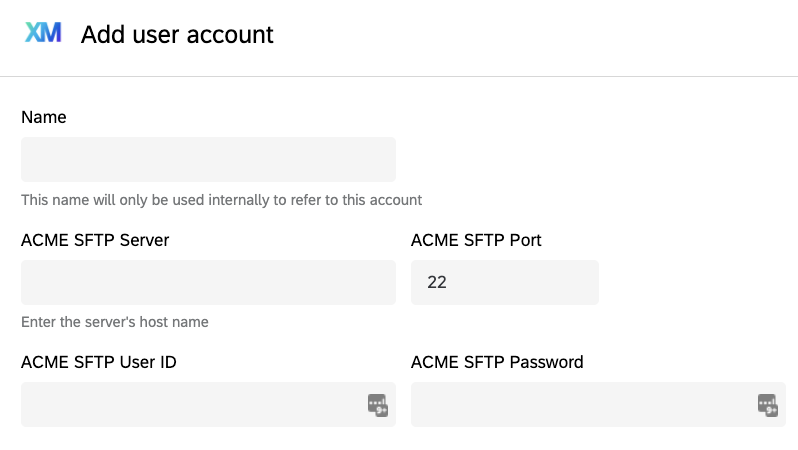 |
Test and Verify
- Login to Qualtrics
- Find and select your extension (i.e. Workflows Task, Workflows Event, Reporting Widget)
- Select your extension’s plugin
- Click the Add user account button
- Verify that the label override changes you made are reflected in the UI
Setting Up Account Testing
The Account Testing feature enables you to specify an HTTP API endpoint from your system that can validate or authenticate a user’s Connection Account before they start configuring the Extension.
This API endpoint is called when a user clicks the Connect Account button. If the validation succeeds, the account will be created as normal. Otherwise, an error will prevent the account from being created.
To enable this functionality simply add the test object to the connection entry in your Extension’s manifest.json file. This field is optional and only blocks account creation if a developer specifies it.
Account Testing supports attribute interpolation due to being modeled after the pluginClient fetch2 method. However, it does not support connections with multiple authentication schemes or connections using the oauth2 scheme.
manifest.connections[0].test
| Property Name | Required | Type | Description | Example |
|---|---|---|---|---|
url | yes | string | The validation/authentication API URL to be called during account setup | https://www.google.com |
method | yes | string | The HTTP method the validation endpoint expects | GET, PUT, POST, etc |
expectedStatus | yes | number | The HTTP status code the validation endpoint returns upon success | 200 |
connectionData | yes | Object | Contains info on how to inject the credential into the request during testing (See connectionData below) | See below |
params | no | Object<string,string> | The query parameters structured as string key-value pairs | {"auth": "true"} |
headers | no | Object<string,string> | The headers of the request structured as string key-value pairs | {"Content-Type": "application/json"} |
body | no | Object or string | The body of the request structured as a JSON or a string | {"key": "value"} or Example text body |
errorMessages | no | Object<string, array> | A mapping of http status codes to an array of translation keys for user-facing error messages to show when authentication for the endpoint fails | See below |
connectionData
| Property Name | Required | Type | Description | Example |
|---|---|---|---|---|
paramFormat | no | string | Where to inject the credential. Must be one of: header, query, body | header |
paramName | no | string | The key whose value is the authentication secret as specified in paramTemplate | Auth-Token, Authorization, X-API-TOKEN |
paramTemplate | no | string | What to insert the credential as. Put as a string with a %s for where the credential should be injected | Bearer %s |
errorMessages
| Property Name | Required | Type | Description | Example |
|---|---|---|---|---|
pattern | yes | string | A regex string to match the error message returned by the endpoint against | .* |
translationKey | yes | string | The translation key for the user-facing error message to show when an error matches the above pattern. | ATranslationKey |
An example manifest connection with Account Testing enabled is:
{
   "connections": [
       {
           "name": "testconnection",
           "scheme": "apikey",
           "target": "qualtrics",
           "attributes": [
               {
                   "id": "datacenter",
                   "translationKey": "datacenterKey",
               }
           ],
           "test": {
               "url": "https://{{datacenter}}.qualtrics.com/API/v3/whoami",
               "method": "GET",
               "expectedStatus": 200,
               "connectionData": {
                   "paramFormat": "header",
                   "paramName": "X-API-TOKEN",
                   "paramTemplate": "%s"
               },
               "params": {
                   "auth": "true"
               },
               "headers": {
                   "Content-type": "application/json"
               },
               "errorMessages": {
                    "400": [
                        {
                            "pattern": ".*",
                            "translationKey": "CatchAll400Key"
                        }
                    ]
               }
           }
        }
   ],
}
Setting Up Input Validation and Input Help Text
Input Validation allows you to specify custom validation for each individual account field with the goal of helping users avoid creating invalid connection accounts.
With this feature you may also display an error message, which appears underneath the account field, to instruct users how to fix their input.
Help text allows users to also understand what they'll need to input in order to avoid errors.
These new fields are optional and no validation or help text will display if not specified.
There are two places where this functionality can be added:
- Within the
attributesobject for developer-defined attributes - Within a new manifest connection field called
defaultFieldOverrides, which allows a developer to add customization to the scheme default fields.
Validation Object
This is an object that is used in both the attributes and the defaultFieldOverrides keys to provide input validation for a specific field. It has an identical structure when used in both places, and is referenced by the “validation” field name.
| Property Name | Required | Type | Description | Example |
|---|---|---|---|---|
pattern | If format is not defined | string | A regex string which the input will be validated against. Note that you will need to escape backslashes. | "^PASS_[a-zA-Z]+$" |
format | If pattern is not defined | string enum | A predefined format that a developer can choose to validate the input against. The currently supported formats are: email, url, and privateKey | email |
errorTranslationKey | yes | string | The translation key for the error message to display to the user when validation fails. The developer must provide the translation in the language file(s) in the assets/translations directory. | "usernameErrorKey" |
Adding Validation and Help Text to Attributes
The following fields can be added to attribute items in order to enable input validation and/or help text.
| Property Name | Required | Type | Description | Example |
|---|---|---|---|---|
helpTranslationKey | no | string | The translation key for the help message that is displayed below the input field. If specified, the a matching key should be placed in the language file(s) in the assets/translations directory. | "attributeHelpKey" |
validation | no | Object | The validation object used to validate input for this attribute (See Validation Object above). | See Validation Object above |
Adding Validation and Help Text to Scheme Default Fields using defaultFieldOverrides
defaultFieldOverrides is a new manifest connection field that allows a developer to add customization to the scheme default fields. This is structured similarly to labelOverrideTranslationKeys field which is currently in place, since it is keyed by the field name. This field allows developers to add validation, help text, and also override the default label (adds another place the developer can override the default label) for a default field.
| Property Name | Required | Type | Description | Example |
|---|---|---|---|---|
helpTranslationKey | no | string | The translation key for the help message that is displayed below the input field. If specified, the value must be present as a key in the language files in the assets/translations directory | "usernameHelpKey" |
labelTranslationKey | no | string | The translation key for the label to override the default label with. If provided, the value must be present as a key in the in the language files in the assets/translations directory | "usernameLabelOverrideKey" |
validation | no | Object | The validation object used to validate input for this default field (See Validation Object above). | See Validation Object above |
defaultFieldOverrides is keyed by the name of the input field name. Valid keys are:
apikeyusernamepasswordclientIdclientSecretauthEndpointtokenEndpointscopeshostportencryptedSshKeysshKeysshKeyPassphrasesftpPasswordsftpUsernameadobeClientIdadobeClientSecretadobeTechnicalAccountIdadobeOrganizationIdadobePrivateKeyprivateKey
Check out this example manifest connection with input validation and help text enabled for both attributes and defaultFieldOverrides:
{
   "connections": [
       {
           "name": "testconnection",
           "scheme": "apikey",
           "target": "qualtrics",
           "attributes": [
               {
                   "id": "datacenter",
                   "translationKey": "datacenterKey",
                   "helpTranslationKey": "datacenterHelp",
                   "validation": {
                       "pattern": "^(b1-prv|g1-cmh|pdx1)$",
                       "errorTranslationKey": "datacenterError"
                   }
               }
           ],
           "defaultFieldOverrides": {
               "username": {
                   "validation": {
                       "format": "email",
                       "errorTranslationKey": "usernameError"
                   },
                   "helpTranslationKey": "usernameHelp"
               },
               "password": {
                   "validation": {
                       "pattern": "PASS_[a-z]+",
                       "errorTranslationKey": "passwordError"
                   },
                   "labelTranslationKey": "passcodeKey"
               },
               "apikey": {
                   "labelTranslationKey": "apikeyLabel",
                   "helpTranslationKey": "apikeyHelp",
                   "validation": {
                       "pattern": "^[0-9a-zA-Z]+$",
                       "errorTranslationKey": "apikeyError"
                   }
               }
           }

        }
   ],
}
Authentication FAQs
Can an XM Extension Support Multiple Auth Types?
Yes. However ensure you specify a unique name for each connection/auth type.
What is Target and How is it Used?
When creating a connection you specify a target. This is a string that represents the external system the user "connects to" in order to execute some operation. If you are connecting to gmail, you would specify gmail as the value for the target.
When and How Are Auth Credentials Passed to the Target?
Before interacting with your Plugin the user selects or sets up an authentication account.
This account gets associated with their instance of the Plugin. Using the connections object returned from pluginClient.getContext() method, your code can access a reference to the account when making outbound API requests. The method allows the connection information to be used without exposing the underlying authentication secrets directly.
What's Next
Well done on completing this guide for setting up authentication between your XM Extension and your external system!
Learn how to render translated text in your Extension and Plugin in this guide.