Survey Question Plugin Guide
Survey Question Plugins make collecting data more understandable and intuitive through custom look and feel in both the survey-building and survey-taking contexts.
Survey Question Plugins are currently in an early access state.
If you would like to join the early access program for Survey Question Plugins, then please let us know by taking this survey.
This feature is in Early Access and is not yet generally available. Functionality, APIs, and documentation may change before general availability.
Objectives
This guide helps you:
- Learn the details of Survey Question Plugins
- Enhance the Survey Question Plugin you created in the Survey Question Quickstart guide
Prerequisites
Before continuing with this guide we recommend that you review and complete the Survey Question Overview.
Also ensure you have these tools installed:
- latest LTS version of nodejs
- latest major version of npm or Yarn
- version control system (i.e. git)
Requirements and Expectations
Limitations
Simple Layout
Survey Question Plugins can only be used in surveys configured to use the simple layout theme. This theme provides significant improvements in the area of Accessibility (WCAG 2.1 AA) and User Experience, but it does not yet support all features and question types available in the Qualtrics platform.
The questions and features available to Survey Question Plugin developers will grow over time as Qualtrics deliver further feature compatibility for survey taking on the simple layout theme.
Accessibility
You will be responsible to make sure that your Survey Question Plugin is accessible according to the WCAG standards and customer requirements.
- WCAG 2.0/2.1 AA for the Survey Taking UX is optional but recommended.
- WCAG 2.0 AA for the Survey Building UX is optional but recommended.
Your Extension's Terms and Conditions should clarify any lack of WCAG.
Guidance for Meeting WCAG 2.1 AA
This list comprises basic things to consider when working on accessibility in your Survey Question Plugin. This list is not all-inclusive, so please consult the WCAG standards for additional details and clarity.
Keyboard Traps
For the Qualtrics-supported screen readers and browsers, there must be no traps in the keyboarding cycle. Tabbing and reverse tabbing must progress into, through, and exit your Survey Question Plugin intuitively and smoothly.
Page Zoom
Your Survey Question Plugin iframe and its content must zoom with the page as it is zoomed. It must also be mobile friendly.
Scrolling
No scrollbars should show up around the iframe content. Even at high zoom levels, the content in the iframe should all be visible.
This feature is in Early Access and is not yet generally available. Functionality, APIs, and documentation may change before general availability.
You're not required to implement your Plugin in React JS, however we provide the most support for it in the form of sample code and UX components.
If you are new to React JS but want to build your Plugin with it, you should read through their documentation. You can find popular tutorials, especially about functional components.
See the Qualtrics Design System pages for a comprehensive guide to incorporating Qualtrics-themed React components into your UX.
Tips and Tricks
- Decide on your underlying question model before you start developing. You are essentially putting a new skin on an standard out-of-the-box question type.
- Question plugins are powerful, but they are just questions. They’re designed to be self-contained and not to be something that controls, interacts with, or affects other elements in a survey. If you want to do that, please leave us feedback via the Feedback & Support button!
- The Simple Layout has to be used for Question plugins
- You can make HTTP requests to external APIs, but it is not currently possible to store and access credentials in a safe manner. Support for that is coming!
Core Concepts
The sections below describe the capabilities and major components of the Survey Question Plugin.
Question Design
Review these general Qualtrics UX guidelines and the resources below to guide you in designing your Survey Question Plugin UX.
Establish a clear picture of how you want your question to look and behave is critical. Some important aspects of designing your question are:
- UX cohesion Maintaining UX consistency with the rest of the Qualtrics platform
- Base question Choosing the right base question type—your question inherits attributes of the base question!
- UI components Determining which UI components you should and shouldn’t use
- Limits and capabilities Understanding what you can and cannot do from within the platform
To make development easier, consider using the Qualtrics Design System elements as much as possible. It offers ready-made React UI components that are high quality and fit within the Qualtrics ecosystem.
These topics and more are covered in the non-technical QTP UX Documentation. These principles should be reviewed by developers and product managers alike.
Plugin Features
Survey questions are presented to survey respondents to collect data for analysis within Qualtrics reporting applications.
The Survey Question Plugin allows developers to present existing question types (e.g. Multiple Choice, Matrix, Text Entry) using custom graphics and interactions.
For example, the standard Multiple Choice Question displays a list of choices with an HTML radio button next to each choice, like this:
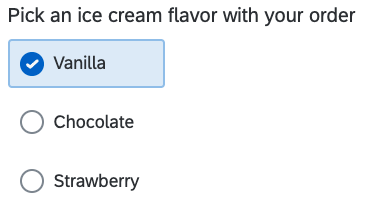
But you could build a Survey Question Plugin which collects the same data with a more interactive interface such as images users can drag and drop, like this:
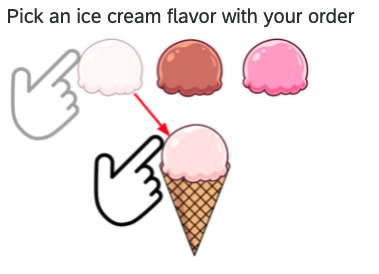
This hypothetical custom question has the same functionality as the base question above it but with the added flare of drag and drop selection.
Major Components
Survey Question Plugins are composed of two components at the highest level:
Component 1: Survey Builder
| Description | Entrypoint | Functionality |
|---|---|---|
| Survey Builder is where users add your question to their survey and configure it. | The entrypoint for the Survey Builder component is: public/survey-builder.html. | It initializes a SurveyBuilderQuestionClient instance, registering callback functions which your app will implement to interact with the Survey Builder UI. |
Component 2: Survey-Taking
| Description | Entrypoint | Functionality |
|---|---|---|
| This is where survey respondents interact with the question to enter data. | The entry point for the Survey-Taking component is: public/survey-taking.html. | It initializes a SurveyTakingQuestionClient instance, registering callback functions which your app will implement to interact with the Survey-Taking UI. |
Pre-Build Steps
Prior to building the survey, it’s important to review the contents of several critical files and folders, and to install dependencies.
Review Important Files and Folders
| Name | Type | Editable | Description |
|---|---|---|---|
| .gitignore | File | Yes | Tells Git to ignore certain files and folders so that developers do not accidentally commit code that shouldn’t be committed (e.g., third-party libraries installed via npm and files with local-development secrets) |
| clean.js | File | No | Contains a script that removes all files and folders from public/ except anything nested under the public/translations/ directory |
| config.json | File | Yes | Contains settings for the Plugin; the things you need to modify in this file are: * Defining the question type via the Question Type Name ID, baseQuestionType. and baseQuestionSelector. Adding a connection to set up authentication for any outbound HTTPS requests your Plugin makes; more details can be found in the Setting up Authentication guide |
| package.json | File | Yes | The npm file that lists all of the dependencies, devDependencies, metadata, and helpful development commands accessed by invoking npm run. Here is a list of the most important commands: build: performs a one-time production build from the src directory and npm dependencies, and outputs the resulting files into public/; invoked by running npm run build. start: starts a process on your computer that performs a one-time development build, and then watches your Plugin files for any changes and triggers new builds; invoked by running npm start; dev: executes a one-time development build of your code, which is useful for testing and debugging; invoked by running npm run dev; clean: removes all files from public/ except for any files in translations; invoked by running npm run clean; also run internally by the npm run build command, so it is only necessary for when you want to clean out the directory only; test: serves as a placeholder for you to put in the command to run your tests; invoked by running npm test. |
| public | Directory | Yes | Where your source code is built and bundled by webpack. Translations: The public/ directory also comes pre-packaged with a translations/EN.json file, which is discussed in the Working with Translations guide Plugin Entrypoints: The entrypoints for your Survey Question Plugin are the survey-builder.html file for configuring the question in a survey, and the survey-taking.html file for presenting the question to respondents. |
| src | Directory | Yes | Where you put your source code containing the logic and UX components for your Survey Question Plugin; we provide a working sample Plugin out-of-the-box, composed of the files located in the src directory. we encourage you to review and leverage these files as you start to build your Plugin |
| webpack.config.js | File | Yes | Configuration file for Webpack, the industry-standard front-end build tool which bundles your CSS, JavaScript, HTML, and images into a few files (or sometimes a single one). Contains the configurations for bundling your Extension together and outputting it to the public directory. |
Install External Library Dependencies
The next step is to install all of your plugin’s front-end dependencies.
Installing Libraries from the npm Public Registry
In your plugin’s root directory, run this command to download all of the dependencies and devDependencies listed in package.json:
npm install
Now all of the necessary libraries are installed/updated and are ready to use in your Survey Question Plugin!
Files in the src Directory
The APIs and data models for the Survey Question Plugin type are feature-rich, but also complex! We recommend using TypeScript to help you take full advantage of its Intellisense and build integrity features. All of the provided examples use .ts or .tsx syntax.
| Name | Description | Editable | Key Aspects |
|---|---|---|---|
| src/index.html | The template used by webpack to generate the two entrypoints for your Survey Question Plugin, public/survey-builder.html and public/survey-taking.html | Yes, but it is likely you will not need to edit this file, as it works out of the box | By default, the <div id='app-root'></div> serves as the root element of your React app, and all your UX components are nested inside it. At Survey-Building and Survey-Taking time, each instance of your question will run in its own i-frame. So, if a survey has three instances of your question, there will be three i-frames running the entrypoints associated .html file. |
| src/shared/data-model.ts | The declaration of your question’s data model | Yes | This is where you define the three pillars of your question type’s data model: 1. Survey-Builder Question 2. Survey-Taking Question 3. Survey-Taking Response. This is done mostly by defining a Properties object which is shared across both entry points, and then extending the pre-existing interfaces defined in the question-client node libraries. The models you inherit must align with the baseQuestionType and baseQuestionSelector in your config.json. |
| src/shared/base-question-body.tsx | A React component with shared render logic between the Survey Builder and Survey-Taking entrypoints | Yes | The question body should usually look the same in both entrypoints, but will behave differently. This component contains code which is shared between the Survey Builder and Survey-Taking entrypoints. |
| src/shared/base-question-body.css | The default question styles | Yes | You can add styles in this file. |
| src/survey-builder/index.tsx | The entrypoint for an instance of the question in the Survey Builder UI. | Yes, but you will likely not need to edit this file | This module is responsible for rendering the question body and initializing the SurveyBuilderQuestionClient |
| src/survey-builder/survey-builder-client.tsx | A module to initialize the Survey Builder Client | Yes | This module creates an instance of the SurveyBuilderQuestionClient, which is used to communicate with the Survey Builder UI to do things like: - Initialize default properties when the question is first created - Manage the Configuration Panel - Send and receive updates to the question definition |
| src/survey-builder/survey-builder-question-body.tsx | A module to render the Survey Builder question body | Yes | This module renders the base-question-body.tsx component, with behaviors specific to the Survey Builder view, such as defining choice text using a text input component. |
| src/survey-builder/config-panel.ts | A module to manage the configuration panel sidebar, which allows survey builders to customize the question | Yes | This module defines the getConfigPanelSchema function, which uses simple declarative syntax to describe the configuration panel components and their behaviors. Learn more about how to configure this in the Survey Builder Configuration Panel section. Unlike Reporting Widgets, Survey Question developers cannot define the HTML for the configuration panel. It can only be controlled through getConfigPanelSchema. |
| src/survey-taking/index.tsx | The entrypoint for an instance of the question in the Survey-Taking UI. | Yes, but you will likely not need to edit this file | This module is responsible for rendering the question body and initializing the SurveyTakingQuestionClient |
| src/survey-taking/survey-taking-client.tsx | A module to initialize the Survey-Taking Client | Yes | This module creates an instance of the SurveyTakingQuestionClient, which is used to communicate with the Survey-Taking UI to do things such as to send and receive updates to the response definition. |
| src/survey-taking/survey-taking-question-body.tsx | A module to render the Survey-Taking question body | Yes | This module renders the base-question-body.tsx component, with behaviors specific to the Survey-Taking UI, such as capturing a survey taker’s input and saving it as the question’s response. |
Review the Survey Question Client Libraries
The Plugin Client library plays a vital role in communicating between your XM Plugin and the underlying Qualtrics functionality it is extending.
The Survey Question Client libraries wrap the Plugin Client library and add some additional functionality to help you interact with the question’s host applications.
The @qualtrics/survey-builder-question-client library communicates with the Survey Builder.
The @qualtrics/survey-taking-question-client library communicates with the Survey-Taking.
The libraries also provide TypeScript interfaces for the data models used in each UI, namely the Survey Builder Question Definition, the Survey-Taking Question Definition, and the Survey-Taking Response.
These libraries are written in TypeScript, and we highly recommend writing your Survey Question in TypeScript! See these TypeDocs for the Survey Question Clients.
Step 1: Build Your Plugin
To take your Plugin from source to a fully interactive executable you need to build and run it.
To build your Plugin from the src directory to the public directory, run npm start for continuous builds in response to file changes.
(Or run npm run build for a one-time production build.)
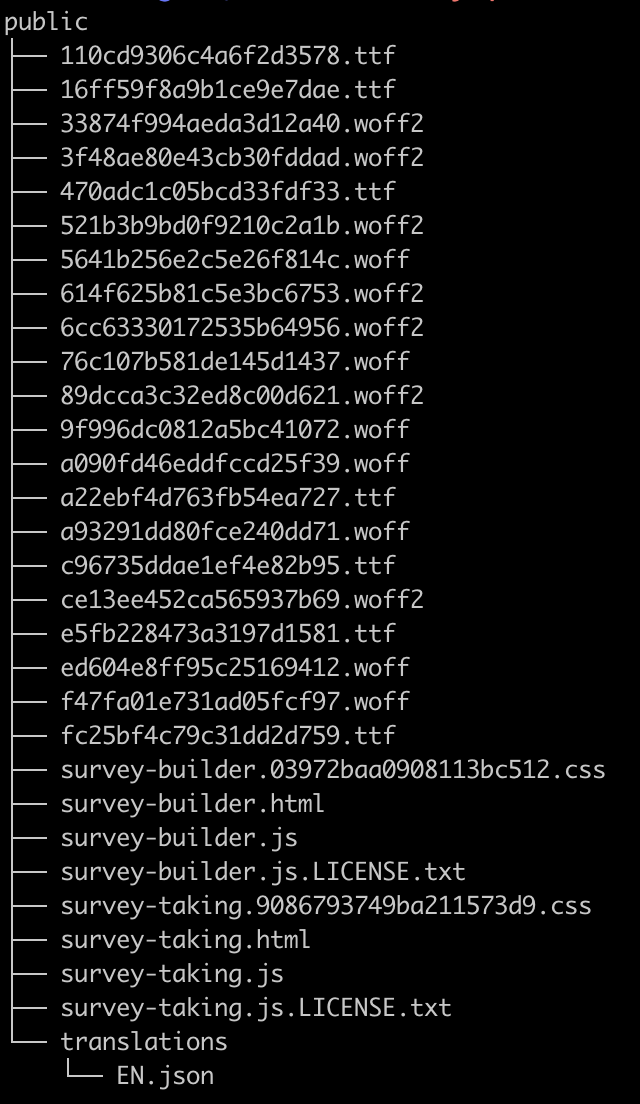
Review the contents of the src directory and verify that your Plugin entrypoint files and their corresponding bundled js files were created:
Plugin Entrypoint Files
- public/survey-builder.html
- public/survey-taking.html
Plugin Frontend App Files
- public/survey-builder.js
- public/survey-builder.css
- public/survey-taking.js
- public/survey-taking.css
After running a production build with npm run build, your public directory should look similar to this:
Step 2: Run Your Plugin
Follow the same steps you used previously in the Quickstart guide to run and render your local Plugin in the Qualtrics Survey Builder UI and Survey-Taking UI.
Step 3: Test Drive Your Plugin
Now you can interact with your question as a user. Start with the Survey Builder UI, and then actually use your question as a respondent would in the Survey-Taking UI.
Inheriting from a Base Question Type means that most of the features available in the Survey Question platform work natively without your having to lift a finger! To see the full list of native behaviors, see the Platform-Supported Features section in the Appendix.
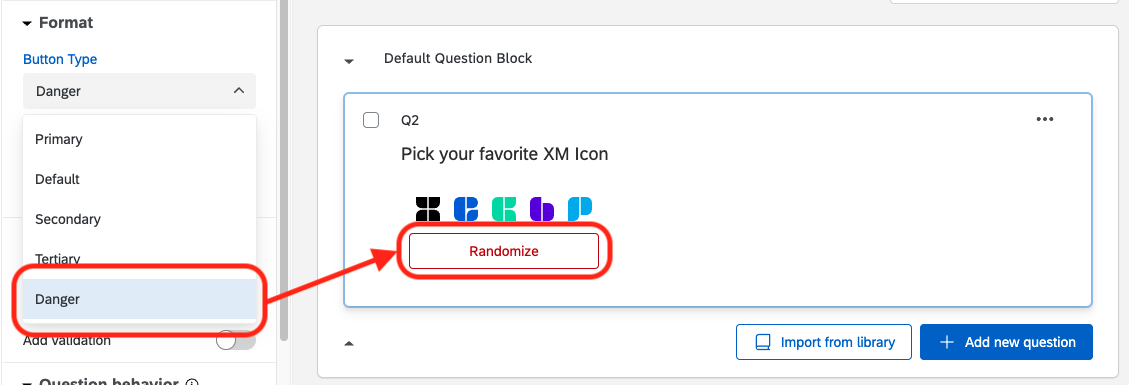
Play around with the Configuration Panel and watch how it affects the question body. Some configuration properties can be specific to your question type, such as:
Custom Configuration 1: Change the button type
Custom Configuration 2: Move the button
Some configuration properties are inherited from the base question type, such as:
- The number of available choices
- Display Logic
…and more!
Step 4: Interact with Your Plugin in the Survey-Taking UI
Check out your question in the Survey-Taking UI by pressing the “Preview” button in the top right corner. This will open a new window showing you what the question will look like to survey takers.
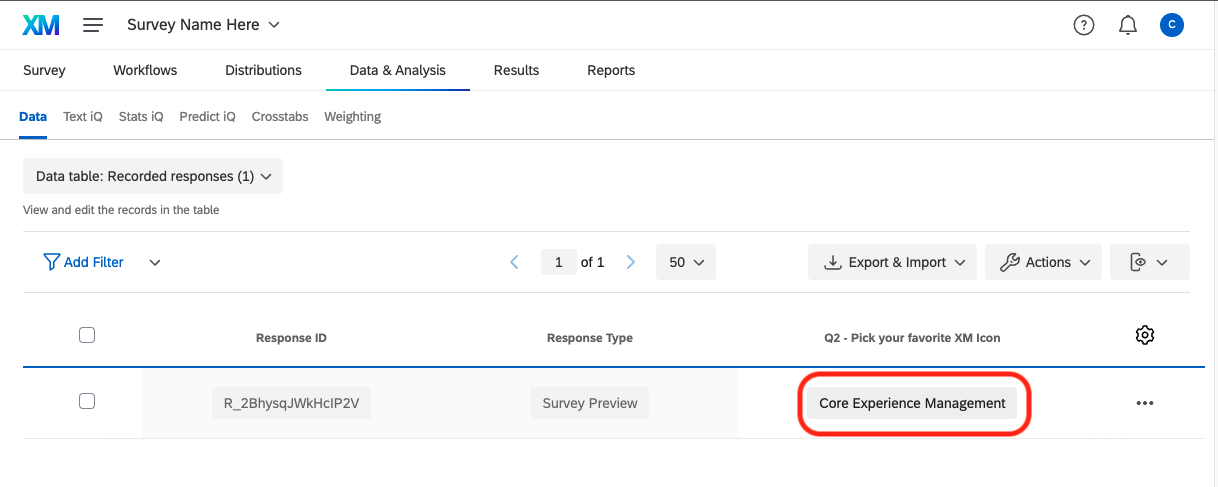
4.1: Try picking one, such as the Core Experience Management icon.

4.2: Click Next Page to submit the response.
4.3: Close the Survey-Taking window and return back to the Survey Builder UI.
4.4: Go to the Data & Analysis tab.

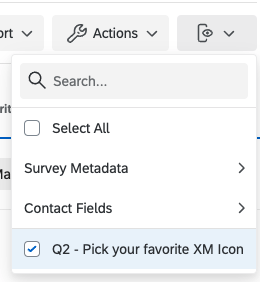
4.5: Add your question as a visible column in the table.
4.6: Find the response value you captured in the Survey-Taking UI.
Step 5: Add secure authentication to external APIs with Predefined Requests
Predefined Requests are templated API requests that you can enable in your Survey Question plugins in order to permit unauthenticated or anonymous users to securely supply sensitive authentication credentials that can be used to make outbound API network calls.
Predefined Requests are the only mechanism to add secure authentication to outbound network calls; Survey Question plugins do not support fetch2.
Predefined Requests are embedded within credentials. To configure one, navigate to your extension's manifest.json file and create or edit a connection. Inside the connection you can specify predefined requests.
Review this example to see how one is structured:
"connections": [
       {
           "name": "OAuthConnectionWithPR",
           "scheme": "oauth2",
           "target": "qualtrics",
           "oauth2GrantTypes": {
               "authorizationCode": {
                   "clientCredentialId": {
                       "beta": "CREG_xxxxxxxxxxxxx"
                   },
                   "scopes": [
                       "write:surveys"
                   ]
               }
           },
           "predefinedRequests": [
               {
                   "name": "predefinedRequestA",
                   "description": "translationKeyToDescription",
                   "payload": {
                       "url": "https://...",
                       "method": "POST",
                       "queryParameters": {
                           "pages": "1-10"
                       },
                       "headers": {
                           "Content-Type": "application/json"
                       },
                       "body": {
                           "test": "test value: {{/parameter/paramName}}"
                       },
                       "connectionData": {
                           "paramFormat": "header",
                           "paramTemplate": "Bearer %s",
                           "paramName": "Authorization"
                       }
                   },
                   "parameters": [
                       {
                           "name": "paramName",
                           "validation": {
                               "pattern": "^[0-9a-zA-Z]+$",
                               "errorTranslationKey": "paramNameValidationFailed"
                            }
                       }
                   ]
               }
            ]
       }
   ],
Predefined Request Properties
This table contains information about the properties of Predefined Request objects:
| Property name | Type | Required | Description |
|---|---|---|---|
name | string | Yes | The name should be unique within the single connection and is used to invoke the Predefined Request. |
description | string | Yes | This is a translation key used to provide a description to the Predefined Request functionality when users create an account. The field is required in the translations asset file. |
payload.url | string | Yes | The URL that the Predefined Request will call. |
payload.method | string | Yes | HTTP method used in the API call. |
payload.queryParameters | null/object | No | Query parameters sent in the API call. If the payload.url has any parameters defined, they will be erased and only queryParameters will be sent. |
payload.headers | null/object | No | HTTP headers that will be sent in the API call |
payload.body | null/object/string | No | Body that will be sent in the API call. |
payload.connectionData | object | No | Specifies how the credential data will be injected in the API call |
parameters | array of objects | No | Contains the list of parameters that will be used to replace the corresponding placeholders in the payload |
parameters.name | string | Yes | Parameter name. It will replace the corresponding placeholder. E.g. placeholder in the payload {{/parameter/param1}} will be replaced by the value passed to parameter param1. |
parameters.validation | object | No | Contains validation details for the parameter |
parameter.validation.pattern | string | Yes | Specifies the regex to validate the passed parameter value against |
parameter.validation.errorTranslationKey | string | No | Provides a translation key to an error message that should be shown to the user if the parameter value fails the pattern validation. The field is required in the translations asset file. |
Interpolation Syntax
The interpolation syntax {{/parameter/parameterName}} is used within the Predefined Request payload to dynamically interpolate parameter values during API calls. This allows developers to specify placeholders within the supported locations inside Predefined Request payloads that will be replaced with actual values during runtime (see here for how to pass these values).
Placeholder Format
The placeholder is enclosed in double curly braces {{ }} and follows the path format /parameter/parameterName, where parameterName corresponds to a parameter whose value is expected to replace the placeholder.
| Placeholder Location | Description | Example |
|---|---|---|
| URL | Placeholders can be used within the HTTP Request URL which will be verified against the Valid Domains. | In a URL like https://api.example.com/users/{{/parameter/userId}}, the {{/parameter/userId}} placeholder would be replaced by the actual user ID passed in the request parameters. |
| Header Values | When constructing HTTP headers, placeholders can be applied to dynamically set values. | For instance, in a header like Content-Type, the placeholder {{/parameter/contentType}} will be replaced with the actual Content-Type provided during runtime. |
| Query Parameter Values | Query parameters can also utilize this interpolation syntax similar to Header Values. Keep in mind, if specified, the query parameters placeholders will override any query parameters specified in the URL with the same key. | For example, the query parameter {{/parameter/filter}} will be replaced by the value supplied at runtime. |
| Body Payload | In the case of POST and PUT HTTP requests, the body content can include placeholders as well. | For instance, in a JSON body like { "userId": "{{/parameter/userId}}", "action": "{{/parameter/action}}" }, the placeholders will be replaced by their respective values. |
Placeholders should be unique as they are not namespaced by location in the HTTP Request, so be careful to avoid duplicate names across URL values and keys in the Query Parameters, Headers, and Body.
Request Parameter Sources
Predefined Request parameter values can be sourced from the following locations:
- The Survey Respondent - The key-value pairs of the
parametersobject when callingclient.invokePredefinedRequest(). - The Survey Definition - By calling
client.setRequestParamOverride()orclient.setRequestParamOverrides()at survey-building time, you can set specific parameter values such that the survey respondent cannot override them. At survey-taking time, piped text expressions will be resolved before the Predefined Request is invoked.
Invoke a Predefined Request
The Plugin client exposes the invokePredefinedRequest method that allows you to invoke a Predefined Request. You need to pass a Connection name, Predefined Request name, and parameters with corresponding values, as shown in this example:
client.invokePredefinedRequest({
   connectionName: 'OAuthConnectionWithPR',
   requestName: 'PredefinedRequestA',
   parameters: {
     paramName: 'value',
   }
 }).then(function(response){
   // do stuff with response
   console.log('status:', response.status)
   console.log('data:', response.responseData)
 }).catch(function(error){
   console.log('something went wrong!')
   console.log('status:', error.status)
   console.log('data:', error.responseData)
   if(error.errorTranslationKey) {   // error contains localized error message that can be defined in validation section of the parameter definition in the manifest
    alert(client.getText(error.errorTranslationKey))
   }
 })
Manage Predefined Requests in Extension Releases
During development using prerelease versions, you may introduce and edit Predefined Requests as needed. However, once a release version of your extension is submitted, the Predefined Requests specified in the manifest.json become locked and cannot be modified.
At that point, only new Predefined Requests may be added. This policy ensures that ongoing survey-taking processes remain uninterrupted by changes in Predefined Requests.
You must prioritize backward compatibility when implementing updates. If a new Predefined Request is added, all account owners (users) for your Plugin will be notified and required to review and consent to the changes.
Until consent is granted by users, calls to invokePredefinedRequest using the new Predefined Requests will fail. Developers should implement fallback logic, such as invoking Predefined Requests from already released in previous versions of your Extension.
What’s Next
Nice work completing this guide!
By using the default Plugin files you should be able to customize your own Survey-Building and Survey-Taking experience.
Here are some recommended next steps:
- Review the code in the src directory to understand the different moving parts and how they work together.
- Debug the code while interacting with it to understand the data/communication flow between the question and host UIs.
- Download a sample Survey Question Plugin to see a very custom visualization and review its code in the Sample Plugin section below.
- Learn more about the Survey Question Plugin in the Appendix section below.
Appendix
API Documentation
To view the full APIs available for developing your question type, check out our TypeDoc documentation.
Config.json Specifications
This is a human-readable alias for the Plugin ID (PLUG_123…) inside your Plugin’s config.json file
{
 "id": "PLUG_1461e401-513c-47b1-a513-d373b0e4b98d",
 "type": "survey_question",
 "metadata": {
   "tags": [],
   "name": "@your-organization/your-question-type-here",
   "baseQuestionType": "MC",
   "baseQuestionSelector": "MAVR",
   "descriptionLinks": ["https://www.qualtrics.com/terms-of-service"],  //optional
   "showTermsAndConditions": true,
   "browserPermissions": ["microphone", "camera"], //optional
   "questionPickerIcon": "WhatsAppIcon" //optional
 }
}
'name' field
The name field follows the convention of @organization/question-type-name.
When a survey builder adds your question to their survey, the name will be saved for that question in the database for easy reference.
Optional Configurations
Configure Iframe Browser Permissions
browserPermissions contains a list of browser permission policies which will be enabled for your Survey Question plugin's iframe. Review this list of definable permissions.
Follow these links for more information about browser permission policies:
Customize the Displayed Question Icon
The questionPickerIcon key inside the metadata object in the config.json file can either be one of the following:
- A Qualtrics Design System (QDS) icon from this list (e.g. “GlobeIcon”)
- A custom SVG image located at public/assets/images with the filename of logo.svg
If not set, then the default QDS icon, "ThirdPartyQuestionIcon", will be applied.
Choosing a Base Question Type
Every Survey Question Plugin must declare a baseQuestionType and baseQuestionSelector in the Plugin’s config.json file. These two values together determine the existing question type from which the Plugin will inherit its data shape and general behaviors.
Inheriting from a base question type means that many of the features available in the Survey Question platform such as display logic and piped text will work natively with no development required!
Selecting the Base Type
When designing a Survey Question Plugin, carefully consider which base question type to inherit from using this criteria:
- How do you expect the reporting experience to look?
- Which question type supports that kind of reporting experience?
Validating the Base Type
Before developing, test your design by creating an instance of your base question type with all the fields that your custom question would produce, then make sure you can report on it in the way you expect. Consider things such as:
- Localization: Can the survey builder, survey respondent, and survey analyzer all fulfill their role in different languages?
- Reporting operations: How will the analyzer try to interact with data from this question? For example, if they will do math, are you giving them a text value or a scalar value? Read more about reporting field types here.
Supported Base Question Types
| Name | Description | config.json baseQuestionType Id | config.json baseQuestionSelector Id |
|---|---|---|---|
| Multiple Choice - Single Answer | Allows a respondent to select one, and only one, answer choice. | MC | SAVR |
| Multiple Choice - Multiple Answer | Allows a respondent to select multiple answer choices for a question. | MC | MAVR |
Matrix - Likert | Displays a list of statements (rows) and scale points (columns) in a table format. | Matrix | Likert |
| Text Entry | Provides respondents with a single text entry box. | TE | SL |
| Form Field | Provides respondents with multiple, separate text entry boxes. | TE | FORM |
Unsupported Question Types
If you’re interested in making a question based on a question type that is not currently supported, please use the Feedback & Support button to request this feature.
It is not currently possible to create a Survey Question Plugin with a custom, never-before-seen data shape.
Platform-Supported Features
The Qualtrics Surveys product is complex and feature-rich. This is great for end-users, but can be daunting for developers. The Survey Question Plugin aims to hide away as much complexity as possible behind the scenes, so that developing a Plugin can be as simple as possible.
The following sections group Survey Question Plugin features by which require developer attention.
Development Required
A Survey Question Plugin is responsible for implementing the listed behaviors for each component:
Survey Builder UI
- Render the Question Body.
- Capture user input in order to update the question definition using the Question Client library.
- Declare the
getConfigPanelSchemafunction which drives Survey Builder Config Panel behavior. WCAG 2.0 Accessibility works natively.
Survey-Taking UI
- Render the Question Body
- Capture user input in order to update the question’s response definition using the Question Client library
- Capture user input in order to update the plugin’s non-response state data using the Question Client library
- This is necessary in order for the mobile and desktop views to sync while previewing surveys
No Development Required
These features require no development, or are agnostic to the Survey Question Plugin:
- Adding, Deleting, Moving, and Copying Questions within a Survey
- Rich Question Text
- Response Requirements & Validation
- Survey Flow
- Auxiliary Question Views do not have Plugin support, and will behave like the Base Question Type:
- The following generic question behaviors:
Unsupported Features
Custom JavaScript, including the Qualtrics.SurveyEngine JavaScript APIs.
Survey Builder Config Panel
Survey Question Plugin developers are required to implement the getConfigPanelSchema interface by descriptively declaring the controls which should show up on the Survey Builder UI’s configuration panel, which is the toolbar on the left side of the screen.
At a high level, the config panel schema object has two properties at the root level: presets and customControls:
presetsis used to declaratively configure pre-packaged control presets, such as for adding and removing choices, enforcing a selection count, and conditionally disabling the control.customControlsis where you can declare the content, order and behavior of custom controls.
Review the complete documentation of the config panel schema object here.
Custom Controls
| Sidebar Type | Description | Sample UI | Notes |
|---|---|---|---|
| toggle | A switch which allows toggling between ON and OFF states. | 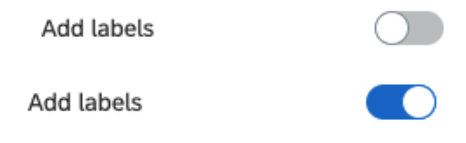 | |
| checkBox | A checkbox which allows switching between checked and unchecked states. | 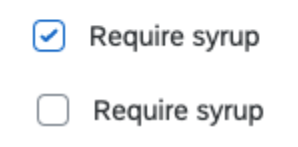 | |
| textSize | A dropdown menu that contains the available sizes of the font to choose from. It also supports other fonts by typing inside the input box. | 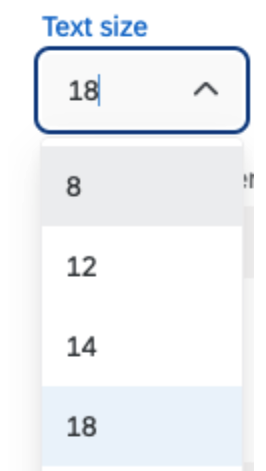 | Available sizes are: 8, 12, 14, 18, 24, 30, 48, 60, 72, 80 Minimum size: 8 Maximum size: 80 |
| colorScheme | A dropdown menu with available color schema to choose from. | 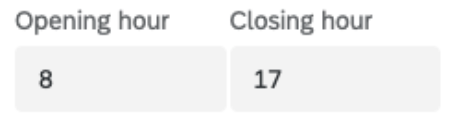 | For each color schema, the number of options can be ranged from 1 to 10. |
| button | A button that executes custom code defined by the question developers. |  | |
| dropdown | A dropdown menu that allows users to select options. | 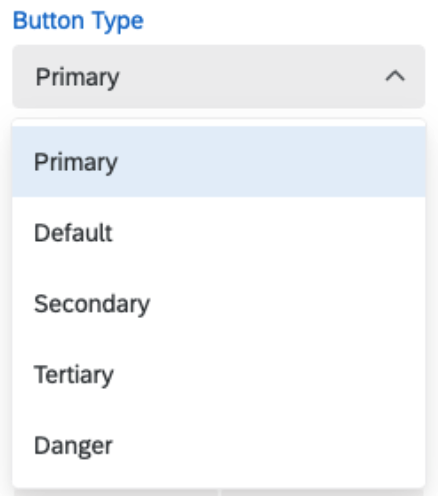 | Optional Properties isMultiSelect: controls whether the dropdown menu supports multiple selections. |
| stepper | A two-segment control to incrementally increase or decrease a numeric value. | 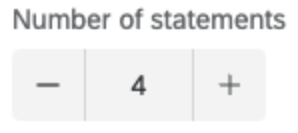 | Optional Properties min: minimum number allowed. max: Maximum number allowed step: The amount by which the value should increment or decrement |
| radio | A control which allows users to select a choice from two or more mutually exclusive options. | 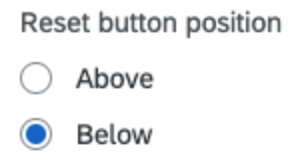 | |
| numberRange | A set of two input boxes that allow users to input numbers to form a range. | | Custom validation can be implemented. |
| textField | An input field that allows text entry. | 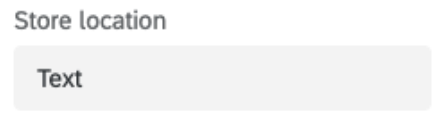 | Optional Properties textType: Can be one of 'number', 'text', 'password', 'email', 'tel' or 'url'.Custom validation can be implemented. |
| pipedText | A control for creating strings which include piped text expressions. | With dropdown: 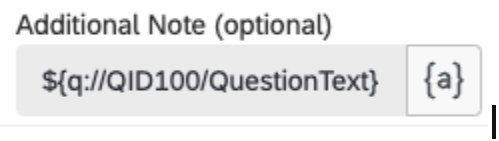 With text entry: 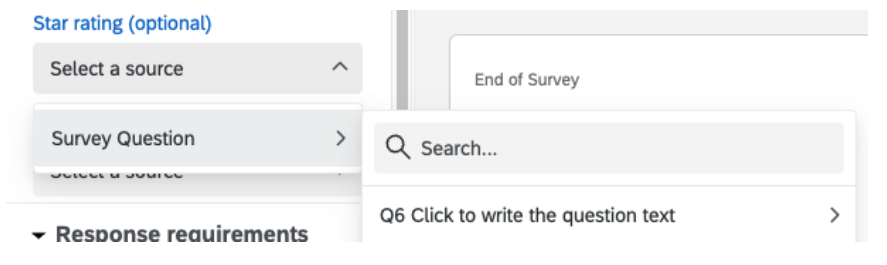 | Optional Properties disableTextEntry: controls whether freeform text is allowed. placeholder: The placeholder text to display when no selection has been made. The config panel can be used to store piped text properties in the question definition for use within your Survey Question Plugin. See Managing Plugin Piped Text for more details. |
All components have the optional behavior property, which includes optional action and getPropertyValue callbacks
action: A callback function to be fired when the user interacts with the control.
getPropertyValue: Returns the current value of the control's associated property.
Question Data Models
As you develop your Survey Question Plugin, you may notice that the question definition in the Survey Builder is rather different from the question definition in the Survey-Taking UI. This is because each data model is specialized to drive behaviors which are unique to their UI.
Survey Builder Question
This object describes the behavior of a question within a survey. It looks similar to the question data model exposed in the Survey API, but with only enough information to power the behaviors requiring development. Users of the Survey API will be familiar with it.
Random IDs
In order to prevent unintended response data associations in certain scenarios, you should expect the IDs of newly-created selections (choices/answers) to be effectively random.
Survey-Taking Question
This object is a runtime-based derivative of the Survey Builder question data model. For example, if a question is using the Choice Randomization feature, the Survey-Taking question data model will present the choices in their randomized order.
Survey-Taking Response
This object contains the data which was captured from user input. For example, the response for a Multiple Choice question would be the choiceId which the respondent selected.
Managing Plugin Piped Text
If you want to use custom piped text in your plugin, you can define a custom interface that extends PipedTextPropertiesDefinition and include a second (or third) type in your custom question's base question type (e.g. MultipleChoiceDefinition<Properties, 'choices', PipedTextProperties>.
Note: some question definitions include a third generic type parameter between Properties and PipedTextProperties).
export interface PipedTextProperties extends PipedTextPropertiesDefinition {
    additionalNote: string;
}
export type QuestionTypeModels = MatrixDefinition<Properties, 'statements', PipedTextProperties>;
/**
* Your Survey Question Plugin's base question type
*/
Default values for the piped text properties can be set in the initializePlugin handler in survey-builder-client.ts using the method client.setPluginPipedTextProperties.
if (!client.questionDefinition.QuestionTypePluginProperties.hasOwnProperty('PipedTextFields')){
    // First-time-ever initialize
    await client.setPluginPipedTextProperties(PipedTextPropertiesDefaults);
}
Piped text can be set and stored for use within your Survey Question Plugin. In order for the piped text to be resolved correctly at survey taking time, it must be stored in the Survey Question client question definition, specifically client.questionDefinition.QuestionTypePluginProperties.PipedTextFields.
In order for piped text expressions to be properly stored and resolved from the config panel, you need to define the action and getPropertyValue callbacks for the piped text component in the config panel.
The action callback should invoke the Survey Builder client.setPluginPipedText method to store the current piped text value. In order for the config panel UI to display the chosen piped text value correctly, you must also implement the getPropertyValue handler to return the current value of the piped text property. See the example below:
{
    label: 'Additional Note (optional)',
    type: 'pipedText',
    elementType: 'l2',
    property: 'addiontalNote',
    disableTextEntry: true,
    sources: {
        question: true,
    },
    behavior: {
        action: async (text): Promise<void> => {
            text ??= '';
            await client.setPluginPipedText('additionalNote', text);
        },
        getPropertyValue: async (): Promise<string> => {
            return client.questionDefinition.QuestionTypePluginProperties.PipedTextFields?.additionalNote ?? '';
        },
    },
}
To access those fields on the survey taking side, you simply reference the PipedTextFields object:
additionalNote={client.question.questionTypePluginProperties?.PipedTextFields?.additionalNote}
Quality Expectations
Survey Question Plugins should provide a straightforward and high-quality experience for users. See the guidelines listed in this section.
Backwards Compatibility
Survey Question Plugins must always be backwards-compatible with questions which were created on an older version of your Extension.
Example
-
Let's say you create a Survey Question Plugin with a configurable background color. In the Survey Builder UI, survey creators can pick a color which is then saved as the
backgroundColorproperty. -
In the Survey-Taking UI, you set the background color using the property configured on the question:
const backgroundColor = client.questionDefinition.AdditionalProperties.backgroundColor; -
You publish version
1.0.0to your customers. -
Customers create surveys which use your question.
-
Customers report a bug with version
1.0.0. You investigate it and find that it’s because of a typo. You accidentally saved it tobackgroundColrinstead ofbackgroundColor. -
You correct this typo in version
1.0.1. Now you can just publish the fixed version and be done, right? Not quite! Your1.0.1update needs to be backwards-compatible with the questions which were created on version1.0.0.. For this reason, we provide you with theQuestionTypePluginProperties.Versionquestion property, which declares the version which was used to produce the question definition in the Survey Builder UI.warningQuestionTypePluginProperties.Versiondoes not declare which version of the plugin to run! -
You add some extra Survey-Taking code to handle older instances of the question:
let backgroundColor = client.questionDefinition.AdditionalProperties.backgroundColor
if (client.questionDefinition.QuestionTypePluginProperties.Version === '1.0.0') {
// questions created using version 1.0.0 had a typo. Read the value from that location.
backgroundColor = client.question Definition.AdditionalProperties.backgroundColorclient.questionDefinition.AdditionalProperties.backgroundColr
} -
Optional: You can add code to the Survey-Builder entrypoint which auto-fixes the question property. However, because you have no control over the survey creation process, you should assume that this question will never be opened in the Survey Builder UI again! So if you fix it in just one place, it should be on the Survey-Taking side.
-
Now you’re ready to publish version
1.0.1!
Every time your question is loaded in the Survey Builder UI, the QuestionTypePluginProperties.Version property will be automatically updated to the currently-running version of the code.
Each time the question initializes, you should check for any discrepancy between the currently-running version and the data model version, and apply any associated data modeling changes.
Expect Invalid Inputs
The Qualtrics Survey Platform is designed to gracefully handle invalid user inputs, and you should too. As a rule of thumb, expect that if a user can configure it, they will not always do so correctly.
Even if you put safeguards in place, you’ll need to handle the case where your question was misconfigured via the Survey API. Cases to consider include, but are not limited to:
- Broken piped text expression
- Math expression divides by zero
- Value is
undefined - Survey definition file (
.qsf) is exported, modified in a breaking way, then re-imported without the user ever interacting with your code - Questions show up anywhere in the survey, before or after anything else
Question Description
The question description in the Survey Builder UI can be configured via the strings.description object in the plugin translation files (assets/translations). You can optionally add limited rich text to parts of the description. Supported rich text includes:
- New Lines:
This is on one line.\nThis is on another line. - Bold:
I really, really want you to know {{start_bold_1}}this thing{{end_bold_1}} and {{start_bold_2}}this other thing{{end_bold_2}} - Hyperlinks:
For more information, {{start_link_1}}click this link{{end_link_1}}.- The links which will be associated with this syntax must be defined in your plugin’s config.json under the
metadata.descriptionLinksarray.
- The links which will be associated with this syntax must be defined in your plugin’s config.json under the
Dynamic Theming
Survey-wide styles for platform built-in question types can be configured in the Look & Feel Editor, including individual settings for primary color, secondary color, etc. However, for Survey Question Plugins, your html structure and thus the rendered styles could be dramatically different from the base question, meaning these built-in styles won't apply automatically.
If you would like to customize the styling of your plugin question, the question-related theming variables are exported to the :root element in the Survey Question Plugin iframe as CSS custom properties. They are designed to provide a basic but adequate representation of your survey's theme and the proper contrast needed to be accessible.
Within your question's stylesheets you can import these variables to customize the look and feel of your question. Below are listed the available dynamic theming variables:
| Name | Description | Configuration Location | Example |
|---|---|---|---|
--font-family | Font family of the question text/choices. Include style and size | Font and Answer Text in the Look & Feel Editor | 72, Helvetica Neue, Helvetica, Arial, sans-serif |
--text-color | A color that's going to be used for most text. It's color will adjust automatically to contrast with the survey background color (usually a shade of black or a shade of white). | Based on configured background color but not configured directly | #000000 |
--background-color | Canvas background color | Look & Feel Editor "Background" section | #000000 |
--text-color-on-primary-control | The color for text that is on a control of the primary color e.g. text on a button. Used to get proper contrast | Based on configured primary color in the survey theme, but not configured directly | #000000 |
--text-color-on-secondary-control | The color for text that is on a control of the secondary color e.g. text on a button. Used to get proper contrast | Based on configured secondary color in the survey theme, but not configured directly | #8d8d8d |
--primary-color-as-text | The primary color for text. It may be adjusted slightly for contrast in a way that makes it better for use as text than just the straight primary color. i.e. WCAG safe | Based on configured primary color in the survey theme, but not configured directly | #737373 |
--primary-color-as-control | The primary color for controls. It may be adjusted slightly for contrast to the rest of the theme | Based on configured primary color in the survey theme, but not configured directly | #8e8e8e |
--secondary-color-as-text | The secondary color for text. It may be adjusted slightly to give it a proper contrast with the control it's on | Based on configured secondary color in the survey theme, but not configured directly | #737373 |
--secondary-color-as-control | The secondary color for controls. It may be adjusted slightly to give it a proper contrast with the rest of the theme | Based on configured secondary color in the survey theme, but not configured directly | #8e8e8e |
In the :root element a snippet using these css variables could look like this:
:root {
    --font-family: 72, Helvetica Neue, Helvetica, Arial, sans-serif;
    --text-color: #000000;
    --background-color: #D4D4D4;
    --text-color-on-primary-control: #366354;
    --text-color-on-secondary-control: #964126;
    --primary-color-as-text: #1e88e5;
    --primary-color-as-control: #144444;
    --secondary-color-as-text: #f4511e;
    --secondary-color-as-control: #964126
  }
Do this to use dynamic theming css variables in your stylesheets:
#button-text {
    font-family: var(--font-family);
    color: var(--text-color-on-primary-control);
 }
State Management
Some notes about state management with your Survey Question Plugin:
- The Survey-Builder UI will manage the question definition state. Listen for updates from the
onQuestionDefinitionUpdatecallback defined in survey-builder-client.ts file. - The response definition state is managed by an internal service. You can listen for updates from the
onHostHasChangedResponsecallback defined in survey-taking-client.ts file. - Non-response
stateData(i.e. any data survey takers can change that isn’t part of the question response). stateData stores the values of all the state data properties as key-value pairs. - Define an object that contains default values for all the plugin’s state data properties and pass it to the
SurveyTakingQuestionClient.initialize()method in survey-taking-client.ts. - Rather than updating state data properties directly in your plugin, update state data via the
SurveyTakingQuestionClientusing either theupdatePluginStateDataObject(to replace the whole state data object) orupdatePluginStateDataField(to update a specific state data field). - Listen for updates from the
onHostHasChangedPluginStateDatacallback defined in survey-taking-client.ts.