Survey Question Plugin Quickstart
Survey Question Plugins empower you to create special questions to meet non-standard use cases.
These custom questions are displayed next to standard Qualtrics questions, making them easy to find and intuitive to use.
Survey Question Plugins make collecting data more understandable and intuitive through custom Survey-Building and Survey-Taking visualizations.
Survey Question Plugins are currently in an early access state.
If you would like to join the early access program for Survey Question Plugins, then please let us know by taking this survey.
This feature is in Early Access and is not yet generally available. Functionality, APIs, and documentation may change before general availability.
This guide describes how to create and run a Qualtrics Survey Question Plugin within an existing XM Extension. To get the most out of it, code along as you read.
Prerequisites
Before starting, ensure you’ve met these prerequisites:
- Completed the Extension Quickstart guide
- Created a new Survey and configured it to use the new Simple Layout
Create and Run a Survey Question Plugin
Step 1: Initialize Survey Question Plugin
Navigate to your hello_world directory you created in the Extension Quickstart guide.
Run this xmt command to initialize a survey_question Plugin:
xmt create plugin -t survey_question -n <NAME>
- The
-nflag — allows you to provide a name for the Plugin, which, in this case, is "My Survey Question Plugin". - The
-tflag — indicates the Plugin Type, meaning which part of the Qualtrics platform you will extend. In this case the Plugin Type issurvey_question.
After running this command your hello_world/plugins/my_survey_question_plugin directory should look like this:
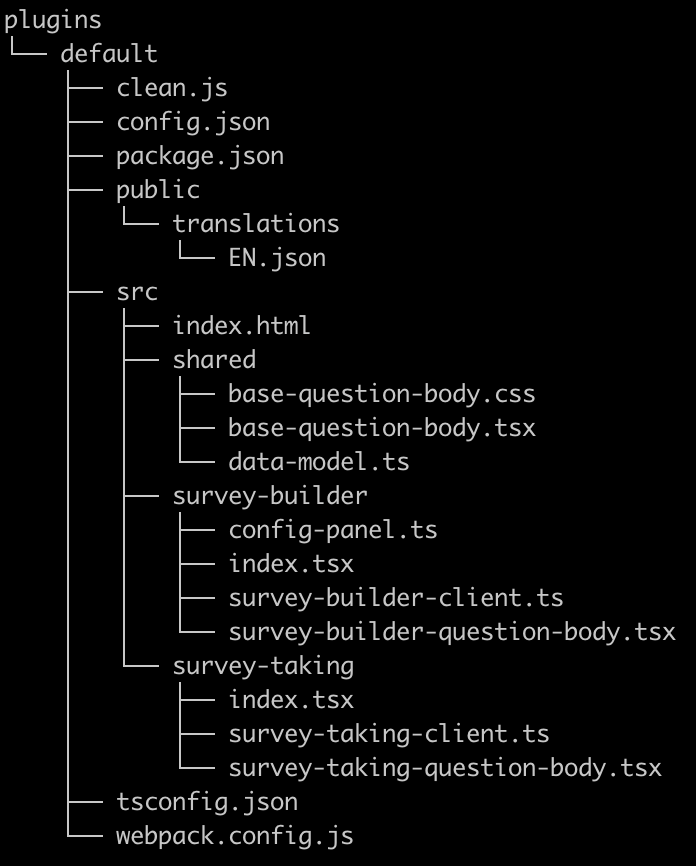
The directory contents are discussed in more detail in the full Survey Question Plugin guide, but for right now, the two most important folders are public and src.
When making modifications to your Plugin, do all of your coding inside the src directory. The public directory contains the code that is actually rendered by the browser. It is populated by the build which we’ll cover later. Before building your new Plugin, you must first get it registered within your account so that you can create instances of your question within a survey.
Step 2: Set Up Your Extension
The Qualtrics Survey platform ensures that end users can only add a Survey Question Plugin to their surveys if they have the associated Extension enabled on their brand.
Because of this, you must submit and install your newly-generated Extension before you can interact with it.
Submit Your Extension
2.1: Open your plugin’s config.json file.
2.2: Replace the template Question Type Name ID in metadata.name with your own, following the @organization/question-type-name pattern (e.g. @AcmeInc/appointment-scheduler)
Do not include spaces in the string value for the metadata.name field, otherwise you will encounter errors when trying to submit your Extension.
2.3: Ensure you are logged into XMT
xmt view session
If you do not have an active session then login with this command
xmt init
2.4: You can use the xmt develop command to watch for changes and sync individual files instead of submitting the extension every time you update your extension. In the same directory as the extension and manifest.json, run the following command:
xmt develop extension
The develop command will use a prerelease version of your extension.
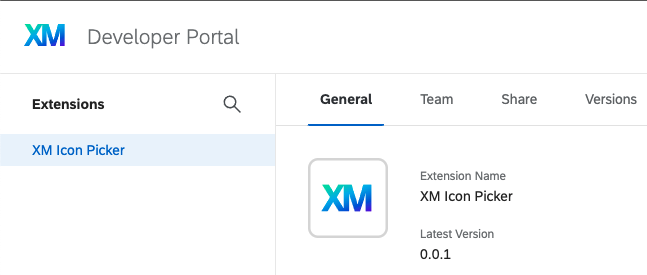
Your Extension should now appear in your Qualtrics Developer Portal’s Extensions page
Share Your Extension
The first time you run xmt develop extension or xmt submit extension it may take up to 20 minutes for your Extension to appear in a Qualtrics brand that you have shared it with. All subsequent invocations of those commands result in very quick updates to your Extension in any brands that you have shared it with.
In order to review and iterate on your Extension, you need to share it with a Qualtrics brand. We recommend the following order for deciding which brand to share with during development:
- Developer Brand (most recommended)
- Shared sandbox brand
- Production brand (least recommended)
If your user account is not a Brand Admin, then proceed with these steps:
-
In the Team tab, click the Invite Users button.
-
Enter the email address of a Brand Admin account in your brand.
-
Choose the Admin role.
-
Click the Send Email Invite button.
-
Have the Brand Admin follow the email invitation link and log in. This will accept the collaboration invitation. You can proceed with the remaining steps using either account.
-
In the Share tab, click the Share Extension button.
-
Select Always share the latest submitted version automatically.
-
Under the Organization ID dropdown, select your brand/organization ID.
Brand ID Not Showing Up?Make sure that a Brand Admin within your organization has accepted an invitation to be on your Extension’s team (see steps 1 - 5 above).
-
Check the box next to If you share this extension, you're giving this organization the right to use it however they see fit.
-
Click the Share button.
This may be due to the XM Extension is still being propagated throughout the Qualtrics, which can take up to 20 minutes.
After waiting 5 minutes, try refreshing the page, selecting your Extension, and retrying the steps above.
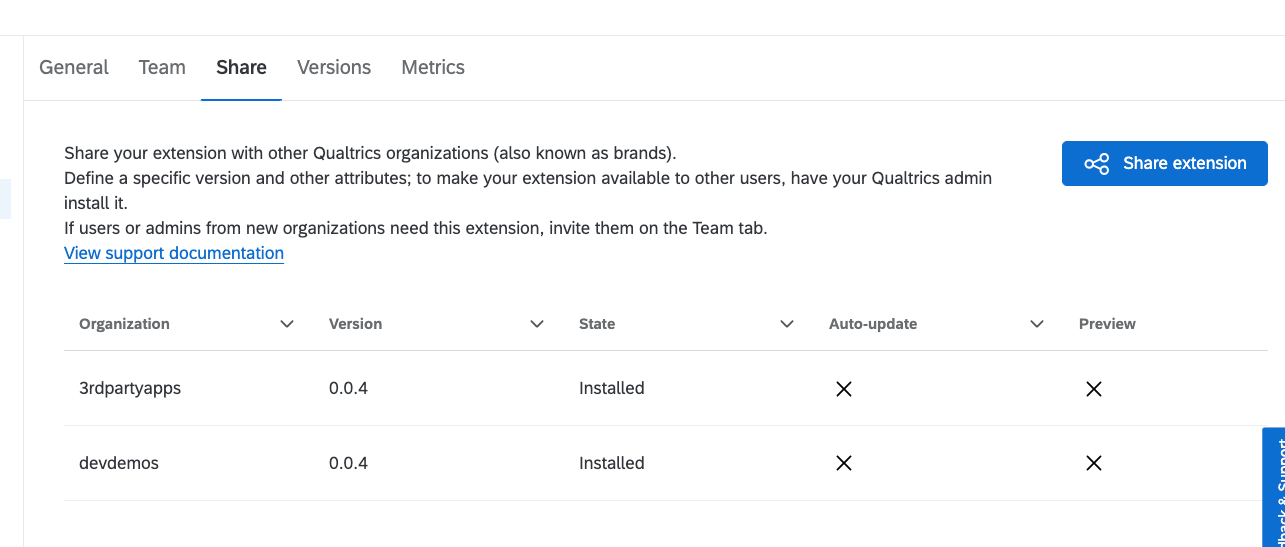
The Extension is now shared with that brand, but shown as Not Installed. Continue to the installation procedure below to remedy that!
Install Extension
In order to experience your Extension, you first need to install it in the brand you shared it with by following these steps:
- Log in to the brand with a Brand Admin user (you are a Brand Admin in your Developer Brand)
- Follow these instructions to navigate to the Extensions Admin page
- Find and install your Extension
Step 3: Develop Your Extension
To develop your XM Extension, including the Survey Question Plugin you just created:
3.1: Execute this command in the hello_world directory if it isn't already running:
xmt develop extension
This command syncs your XM Extension and Plugin with Qualtrics. You should see this output in your command line:
Starting development session: {develop session id}
Watching for changes...
3.2: In a separate terminal process, navigate to the Plugin folder:
cd plugins/my_survey_question_plugin
3.3: Build your Plugin’s source files to the public folder by running npm install followed by npm start.
At this point, two processes are running locally:
Process 1: XMT Develop Session. The process initiated by xmt develop extension inside the hello_world directory, which does the work of syncing the Extension and the Plugin files up to the Qualtrics product
Process 2: Plugin builder. The process initiated by npm start inside the plugins/my_survey_question_plugin directory, which continuously builds your Plugin frontend app in response to file changes in your Plugin's src folder
You have now set up and built your Extension!
Time to view it in action.
Step 4: Experience Your Extension
Follow these steps to see what your new Plugin looks like:
4.1: Invoke the xmt develop extension command to continuously submit your Extension.
4.2: Navigate to Qualtrics in your web browser and log in to your Qualtrics account.
4.3: Select the Survey you set up in the Prerequisites section.
4.4: Click the + Add new question button or the Question type switcher.


4.5: Find and select your custom question in the list of available question types.
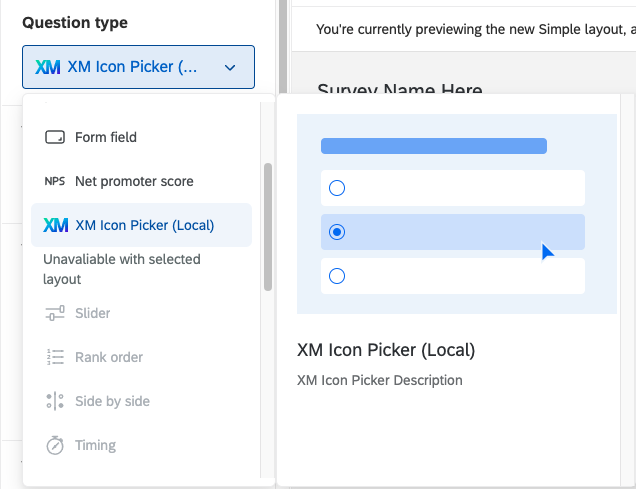
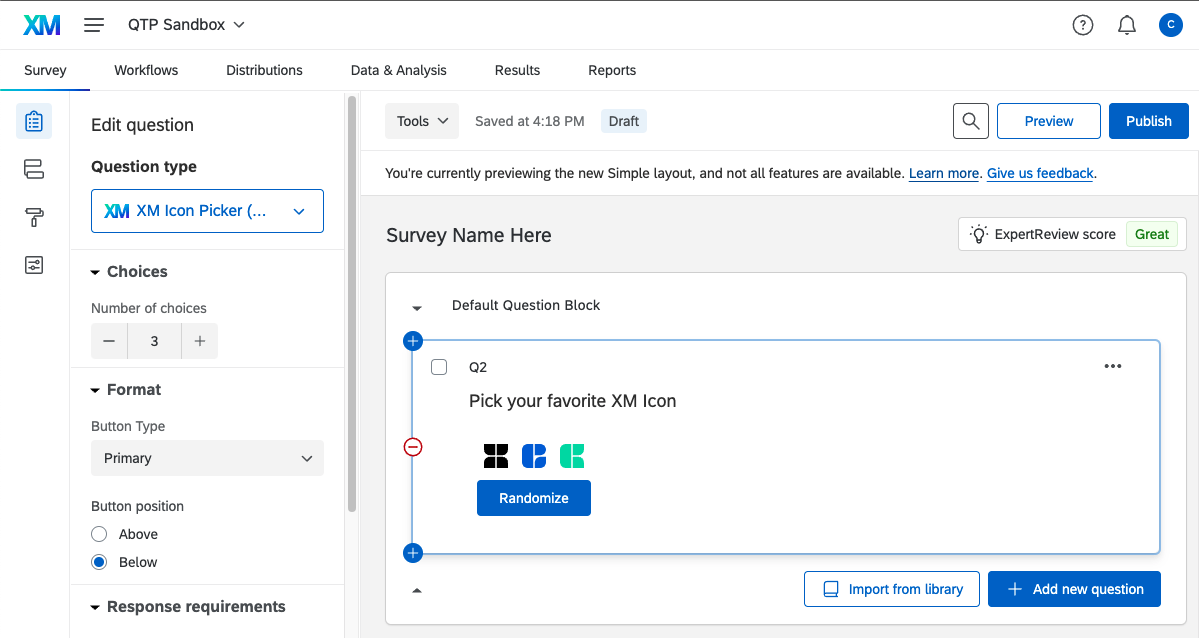
4.6: Check out your question in the Survey Builder UI — notice that the config panel sidebar can customize the behavior. Try playing around with the configuration! Notice how you can configure the question in this view, but you cannot interact with it until Survey-Taking time.
4.7: Check out your question in the Survey-Taking UI by pressing the “Preview” button in the top right corner. This will open a new window showing you what the question will look like to survey takers.
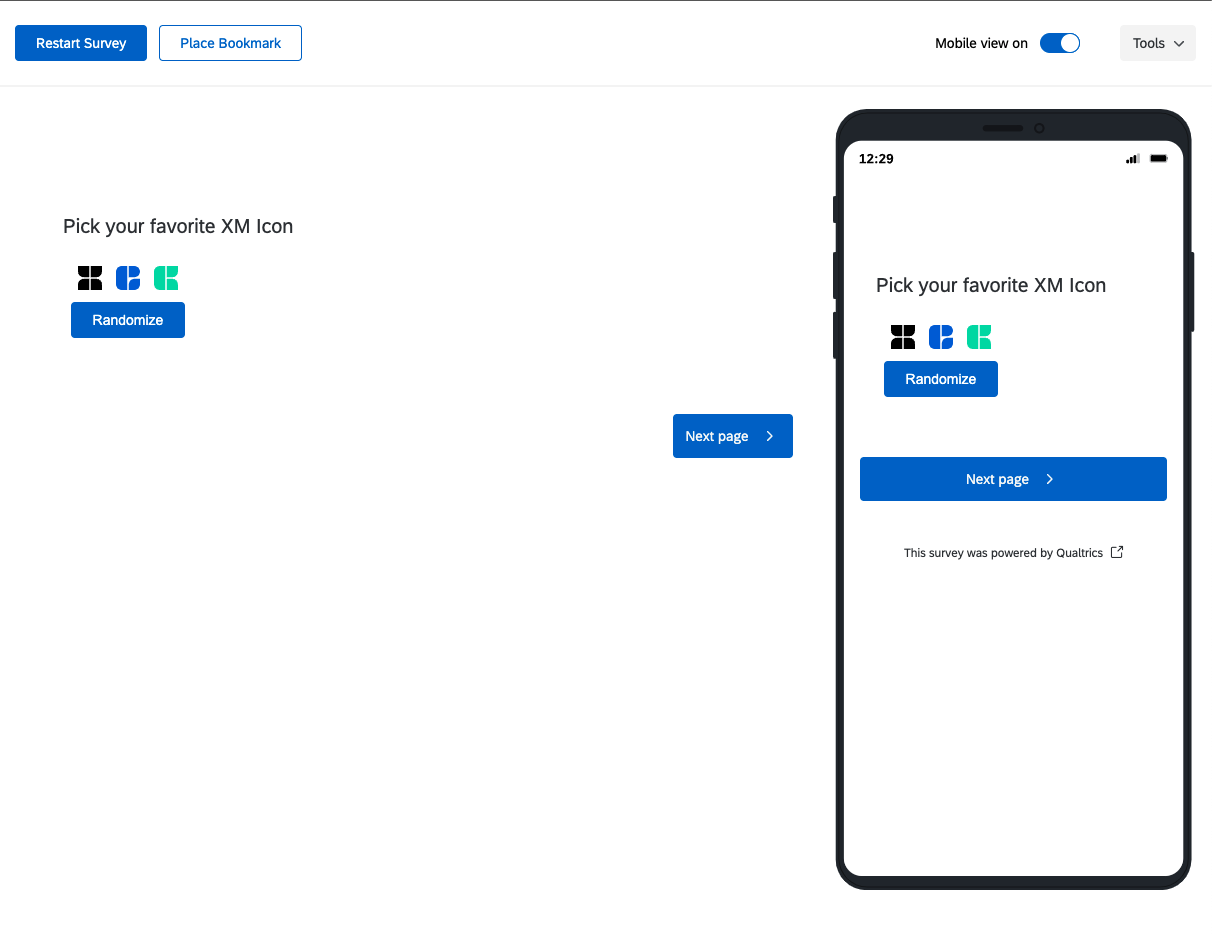
Notice that in this view you can interact directly with the question.
The general rule is that your question should be configurable in the Survey Builder UI, and interactive in the Survey-Taking UI.
Troubleshooting
If you get an error, or things didn't work as expected when you tried your Extension, there are some common issues to look at first.
Question Type Is Grayed Out? If the Survey Builder won’t let you select the question type, you can resolve that by configuring your survey to use the new Simple layout as described in the Prerequisites section.
You may also run into issues when trying to implement question types that aren't enabled.
Invalid question type plugin id This message indicates Qualtrics couldn’t find the Question Type Plugin ID in your user’s list of enabled question types. See Step 2: Submit Your Extension.
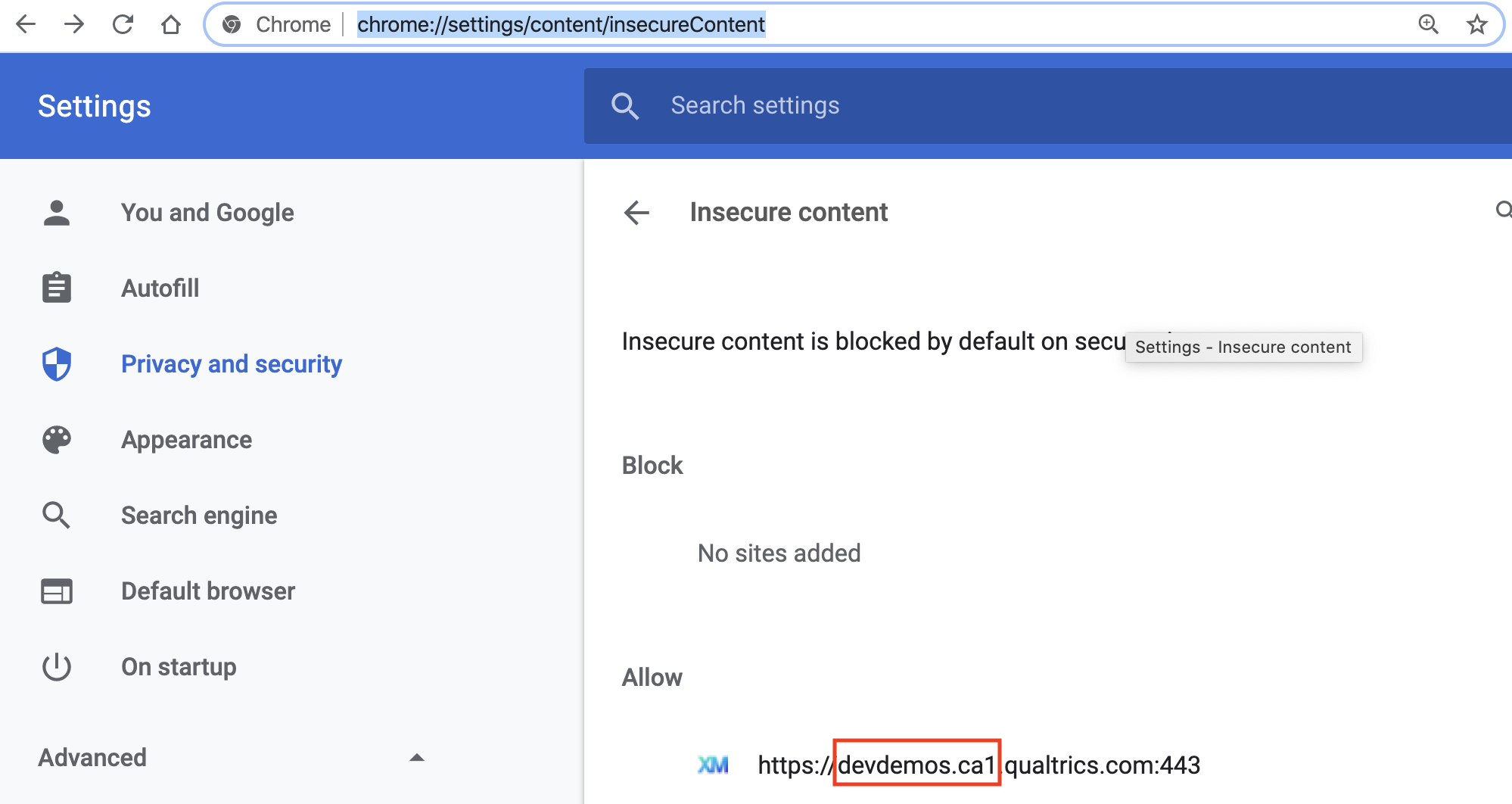
Insecure Content Blocked | Enable Mixed Content If your Plugin doesn’t render any content on the webpage, you may need to enable mixed content in your browser.
This occurs because the local server started by the XMT CLI is communicating via HTTP and the browser is expecting HTTPS. This is not a security hazard because the script being loaded comes directly from a static Qualtrics Extension template, which means that you’re not interacting with any external actors.
Enable Mixed Content in Chrome To enable mixed content in Chrome:
- Open a new tab and navigate to
chrome://settings/content/insecureContent. - Add your full Qualtrics account domain followed by
:443.
See the screenshot below for an example:
Step 5: Modify Your Plugin
Follow these steps to make some quick modifications to your new Plugin:
5.1: Open the existing index.html file and add a header inside the body element:
<h1>
My Survey Question Plugin
</h1>
5.2: Save the file.
5.3: Rebuild your changes to the public folder using the npm start command (This process may still be running from a previous step, so then wait until it is done before completing this step.)
5.4: In your browser, refresh each UI to see the HTML snippet we just added:

Left, Survey Builder UI. Right, Survey-Taking UI
The instructions above let you get your hands on the code quickly, but they don't give you the whole story. Check out the Deep Dive for details on what comes with your Survey Question Plugin out of the box and how you can use it.
What's Next?
Congratulations on creating, running, and experiencing your XM Extension and Survey Question Plugin!
Continue building out your plugin by following the Survey Question Deep Dive.