Workflows Event Plugin Guide
Workflows Events let you initiate XM workflows based on events in your application environment, web platform, or back-office systems.
Objectives
In this guide you should:
- Learn the details about Workflows Event Plugins
- Enhance the Workflows Event Plugin you created in the Quickstart guide
Prerequisites
Before continuing with this guide we recommend that you review/ complete these guides:
And have these tools installed:
- latest stable major version of nodejs
- latest major version of npm or Yarn
- version control system (i.e. git)
We do not require that you implement your plugin in React JS, however we provide the most support for it in the form of sample code and UX components.
If you are new to React JS but want to build your plugin with it, then we recommend going through their documentation and finding popular tutorials, especially about functional components.
(See the Qualtrics Design System pages for a comprehensive guide to incorporating Qualtrics-themed React components into your UX.)
Note that your decision to use React, or any other popular web-development framework, does not affect your access to, or ability to leverage native XM Extension capabilities.
Understanding Workflows Events
Let's first look at what Workflows Events do, some requirements and limitations, and why you would build one.
What do Workflows Events Do?
Workflows Event Plugins enable customers to subscribe to events from external systems and initiate Qualtrics workflows with relevant event data.
Technical Requirements
The external system must be able to:
- Accept webhook subscriptions from Qualtrics via a
POSTHTTPS request that contains the unique Workflows Event webhook URL - Accept 202 HTTP status code when the Workflows Event webhook URL is called
Limitations
Here are some of the current limitations of Workflows Events:
- Workflows Event webhooks only accept
POSTHTTPS requests withJSONpayloads under 1KB in size - Workflows Events cannot be edited after creation — you must delete the existing one and create a new one
- Workflows Events do not delete the subscription in the external system when the Workflows Event is deleted within Qualtrics — the external system will receive 404 HTTP status code responses when making calls to the Workflows Event webhook
Why Build a Workflows Event?
Workflows Event Plugins can help drive engagement with your customers and prospects by initiating workflows on the Qualtrics platform as part of support, pre-sales, retention initiatives, and much more.
The most common scenario for building a Workflows Event is to send out a survey to one or more contacts when some event occurs in an external system.
However there are other Qualtrics workflows that can be triggered, such as:
- Updating a contact's information in XM Directory
- Interacting with Qualtrics Ticketing
- Sending a notification to a Qualtrics user
Example Scenario
Let's say a button on your website lets your customers click to download a brochure. You would also like to send the customer a feedback survey about the brochure.
You can develop the same button to act as a Workflows Event, so that it seamlessly triggers a task on the Qualtrics platform that sends out the follow-up survey.
Tips and Tricks
- Listening for events that are not required by your use case can introduce unnecessary load. Take care to minimize the number of webhooks implemented in your Workflows Event.
Pre-Build Steps for Workflows Event
Follow these steps to prepare for building out a custom Workflows Event:
Step 1: Get Familiar with Workflows Event Folders and Files
When you created your workflows_event Plugin in the Quickstart guide many files and folders were created.
This table has high-level information about each one:
| Name | Type | Editable | Description |
|---|---|---|---|
| .eslintrc.js | File | Yes | ESLint is a JavaScript linter that helps dev teams to write consistent and standardized code. It can even detect and correct some code issues early in the development cycle. The file we provide adheres to industry standards but can be modified and extended by your team to match team-adopted configurations/standards. You can invoke the commands npm run lint and npm run lint-fix to lint your files under the src directory |
| .gitignore | File | Yes | Tells Git to ignore certain files and folders so that developers do not accidentally commit code that shouldn’t be committed (e.g. 3rd party libraries installed via npm, files with local-development secrets, etc.) |
| clean.js | File | No | Contains a script that removes all files and folders from public/ except anything nested under the public/translations/ directory. A step is defined in webpack.config.js which cleans up public/ when npm run build or npm start is executed |
| config.json | File | Yes | Contains settings for the Plugin. For workflows_event Plugins, there is a special metadata key:{"metadata": { "event": {"type": "ApiExternal", "setup": "subscribe", "subtype": ""}}} The type and setup keys comes pre-populated with values, so you do not need to worry about updating them. You only need to supply a value for the 'subtype' field. This field is required, but it will not be shown to end users. It represents the external system that your Plugin will be subscribing to (e.g. google, Facebook, etc)This file is where you add a connection to set up authentication for any outbound HTTPS requests, more details can be found in the Step 2: Foundations - Setting up Authentication guide |
| package.json | File | Yes | The npm file that lists all of the dependencies, devDependencies, metadata about your project, and helpful development commands accessed by invoking npm run. Here is a list of the most important commands:build - performs a one-time production build from the src directory + npm dependencies and outputs the resulting files into public/, invoked by running npm run buildstart - starts a process on your computer that performs a one-time development build and then watches your Plugin files for any changes and triggers new builds, invoked by running npm startdev - executes a one-time development build of your code, useful for testing and debugging, invoked by running npm run devclean - removes all files from public/ except for any files in translations/, invoked by running npm run clean. This is also run internally by the npm run build command, so it is only necessary for when you want to clean out the directory only.test - placeholder for you to put in the command to run your tests, invoked by running npm test |
| postcss.config.js | File | Yes | Contains a module configuration for postcss-preset-env, which enables developers to use modern CSS and takes care of browser compatibility/polyfills automatically. |
| public | Directory | Yes | Where your source code will get built and bundled into by webpack. Translations: The public/ directory also comes pre-packaged with a translations/EN.json file, which is discussed in the Working with Translation guide. Plugin Entrypoint: The entrypoint of your Plugin is the index.html file. This file needs to have the logic to bootstrap and render your Plugin’s UX and corresponding logic. |
| src | Directory | Yes | Where you put your source code containing the logic and UX components for your Workflows Event Plugin. |
| webpack.config.js | File | Yes | Webpack is the industry-standard front-end build tool that bundles your css, JavaScript, html, and images into a few files (or sometimes a single one). This file contains the webpack configurations for bundling your Extension together and outputting it to public/ |
| .xmtignore | File | Yes | Tells XMT to ignore certain files and folders so that developers do not accidentally commit code that shouldn’t be committed (e.g. 3rd party libraries installed via npm, files with local-development secrets, etc.) |
npm is referenced throughout this guide but Yarn will work just as well, just substitute the npm command for the equivalent Yarn one.
Step 2: Install External Library Dependencies
Let’s get ready to start developing by installing all of your Plugin’s front-end dependencies.
Installing Libraries from the npm Public Registry
In your Plugin’s root directory run this command to download all of the
dependencies and devDependencies listed in package.json:
npm install
Now all of the necessary libraries have been installed/updated and are ready to be used in your Workflows Event Plugin!
Step 3: Review the Workflows Event Client
The Plugin Client library plays a vital role in communicating between your XM Plugin and the underlying Qualtrics functionality it is extending.
The Workflows Event Client library wraps the Plugin Client library and adds some additional functionality to help you create the subscription to the external system. We recommend that you use the Workflows Event Client library to build out your XM Plugin's functionality. Here are some details about its important methods:
Available Methods
enableSaveButton and disableSaveButton
A new Workflows Event Plugin should not be savable as it typically requires some user configuration first. You can follow the example of the starter Plugin code to see how you could perform user input validation.
Upon sufficient configuration by the user, you should invoke the enableSaveButton method on the Workflows Event Client library to enable the Save button. If the user changes the configuration such that a required field is missing, then invoke the disableSaveButton method to disable the Save button.
onSave
- Handler to be called when the
savebutton is clicked in the Trigger configuration modal
client.onSave(() => {
return {
  appId: savedConfig.appId,
  id: savedConfig.id,
  title: savedConfig.title,
  properties: properties,
  fields: [],
  options: { payload }
 }
});
startRequestCapture
- Signals to the Qualtrics platform to begin recording incoming requests matching your webhook url
- This method should be called prior to calling pollForJsonRequest
cancelRequestCapture
- Signals to the Qualtrics platform to stop recording incoming requests matching your webhook url
- This method should always be called after testing with startRequestCapture and pollForJsonRequest to ensure that future events after trigger configuration are not intercepted and properly propagate to the workflows runtime.
pollForJsonRequest
- Checks if the Qualtrics platform has intercepted any messages matching your webhook url
- This method should be called on an interval after startRequestCapture
getAvailableConnections
- Requires one or more connections to have been created following the process outlined in Setting Up Authentication
- Retrieves your connections object with information for making authenticated API calls
const {
  connectionName,
  consentedForReadByAnonymousUsers,
  credentialId,
  name,
  qualtrics,
  scheme,
  target,
} = client.getAvailableConnections();
getText
- Retrieves localized strings from the Plugin's translation files, based on the the user's language. Valid keys are defined by top-level properties of the
stringsobject in the translation file - See more details in the translations guide
export function IntroductorySection(props) {
  const client = props.client;

  return (
    <>
      <div>
        {client.getText('introHeading')} // simple usage
      </div>
      <div>
        {client.getText('welcomeMessage', { username: 'John' })} // with placeholders
      </div>
      <div>
        {client.getText('noMatchingValue', {}, 'defaultText')} // with default text
      </div>
    </>
  );
}
fetch
- Sends an external API request
Parameters
| Key | Type | Required | Description |
|---|---|---|---|
| method | string | Yes | The HTTP method (e.g. 'POST', 'GET', 'PUT', etc.) |
| headers | object | No | Key/value pairs that correspond to headers to add to the request (e.g. "Content-Type": "application/json") |
| body | object or string | No | The body of the request |
| params | object | No | Key/value pairs that correspond to query parameters to add to the request URL (e.g. "filter": "random") |
| connection | object | No | Authentication configuration for the request |
| connection.connectionName | string | Yes — if the connection property is defined | The name of the connection to use (call getAvailableConnections for a list of connections) |
| connection.paramFormat | string | Yes — if the connection property is defined | Where to place the credential. Can be 'header', 'body', or 'query' |
| connection.paramName | string | Yes — if the connection property is defined | What to name the credential param. As in, the field name for a body param, the query name for a query param, or the header name for a header. Ex: for a bearer token this might be "Authorization" |
| connection.paramTemplate | string | Yes — if the connection property is defined | What to insert the credential as. Use it similarly to a string passed to String.format. Ex: "Bearer %s" would be a template for bearer tokens, "%s" inserts the token as-is |
// simple example
const simpleRequest = {
  method: 'GET',
  params: {
    filter: 'active',
    limit: 10
  }
};
client.fetch('https://api.example.com/users', simpleRequest);

// complex example with authentication
const complexRequest = {
  method: 'POST',
  headers: {
    'Content-Type': 'application/json',
    'Accept': 'application/json'
  },
  body: {
    username: 'johndoe',
    email: 'john@example.com',
    status: 'active'
  },
  connection: {
    connectionName: client.getAvailableConnections().connectionName,
    paramFormat: 'header',
    paramName: 'Authorization',
    paramTemplate: 'Bearer %s'
  }
};
client.fetch('https://api.example.com/users', complexRequest);
Step 4: Dive Into the src Directory
High-Level Info
| Name | Description | Editable | Key Aspects |
|---|---|---|---|
| src/index.html | This file represents the entrypoint of the XM Plugin and by default its "body" element serves as the root for your Plugin components. | Yes, however it is likely that you will not need to edit this file as it works out of the box | The "section" DOM element is, by default, the root element in which all of your UX components are nested |
| src/main.js | This module is where your top-level Plugin component is bootstrapped after the Plugin Client initialize method returns/rejects its promise | Yes, however it is likely that you will not need to edit this file as the provided code has translation support and initialization logic covered | Initialization of the Workflows Event Client (wrapper of the Plugin Client) and automatic translation support provided to Qualtrics Design System UX components |
| src/plugin-app/plugin-app.js | This module is the orchestrator/controller of the functionality your Plugin will provide/extend, including rendering UX such as html or forms, pulling in components that bring in data from an external system. | Yes | It is suggested to add custom branding and instructions before the key components of the plugin are rendered. See comments in the template for where to add these items |
| src/plugin-app/plugin-app.scss | SASS This file contains styling for the components of your Plugin | Yes | This approach can be used to add custom styles to any of your UX components |
| src/plugin-app/saveHandler.js | This module contains the logic that subscribes to an event emitted by the external system and provides it a unique webhook URL for it to invoke | Yes, however it is likely that you will not need to edit this file as it works out of the box | saveHandler function formats the plugin data for saving |
| src/plugin-app/constants.js | This module contains constant string values used throughout the Plugin | Yes | Modify as needed |
| public/translations/EN.json | This file contains the text that is rendered inside the plugin | Yes | You can modify the text as needed. Note disclaimerMessage is important and we highly recommend not changing it in an effort to prevent unauthorized workflows from happening |
Build Steps for Workflows Event
Follow these steps to build your Workflows Event Plugin:
Step 1: Bundle Plugin Assets
Included in your Workflows Event Plugin are files and modules under the src directory that cover the boilerplate functionality and enable you to focus on any business logic and mapping to your API.
Only files inside of the public/ directory will be available and rendered inside of the Qualtrics UI.
Invoking npm run start on the command-line bundles all of the required/production external library assets with your assets in the src directory and outputs them to the public/ directory.
To Bundle Assets to the Public Directory
Follow these steps to bundle the starter Plugin code to the public directory:
- View the contents of the public/index.html file
- Run
npm run start - View the contents of the public/index.html file again - it should be different than before (if this is the first time you have run
npm run startin this Plugin) - Notice the presence of other files in the public directory, including .woff, .ttf, .css and a .js. These are all the outputs of the webpack bundling process and the index.html serves as the entrypoint to your XM Plugin.
Before Plugin Build

After Plugin Build
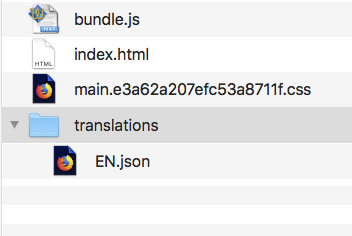
The index.html file contains links to both the main.{hash}.css and bundle.js so that your Workflows Event Plugin is ready to be rendered.
For easier local development/testing, avoid minifying the front-end plugin code. Running npm start or npm run build-dev will not minify the front-end code, so we recommend those commands for development.
However, to ready your Plugin/Extension for production, certification (third-party) or publishing (first-party), run npm run build to produce a minified, production-ready front-end file.
Step 2: Render Your Plugin Locally
Now that you have built the template code from the src directory into the public directory you can see the results by running the xmt develop extension command.
Step 3: Review Code and Comments
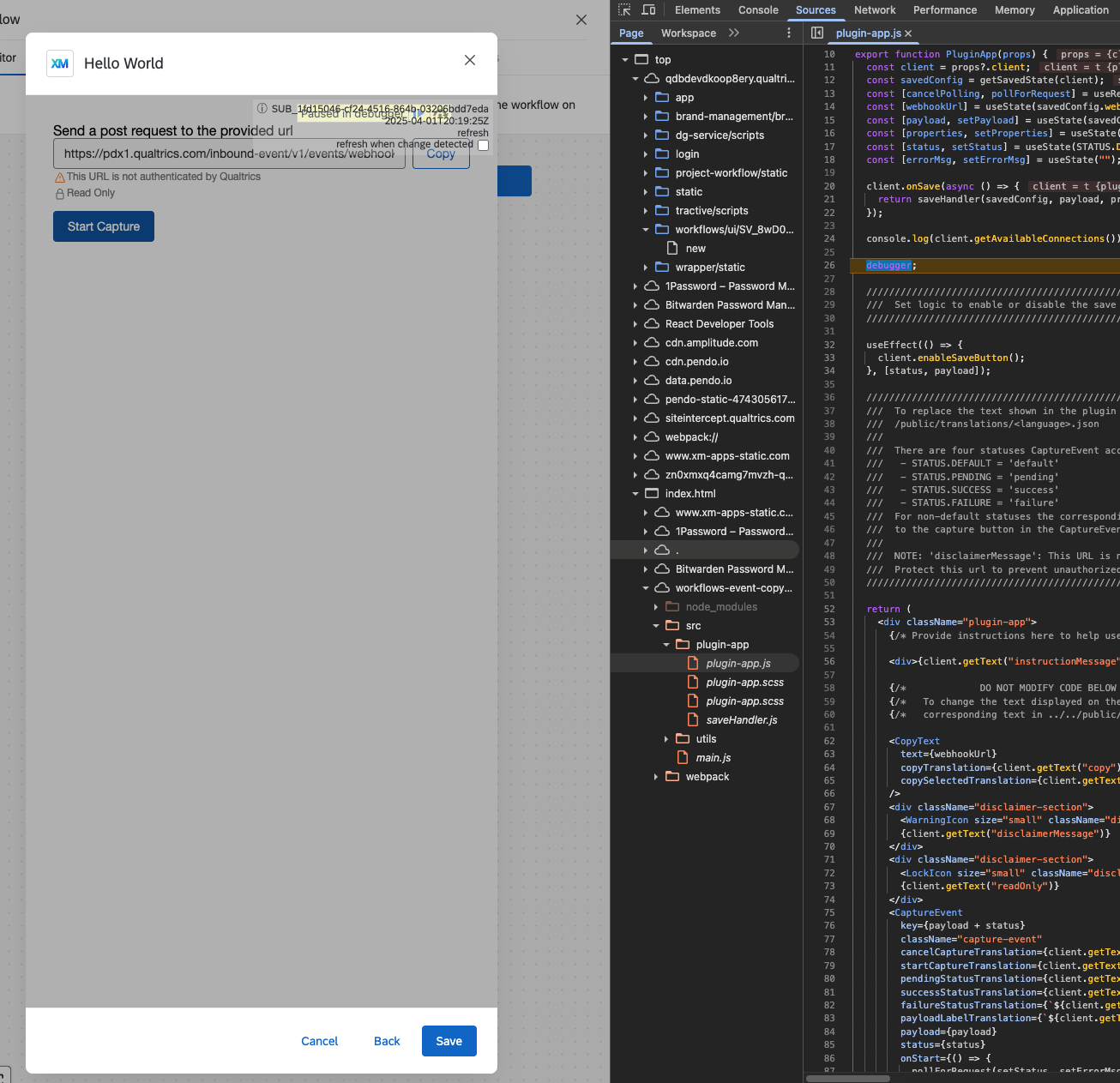
The code within the src/plugin-app directory is full of comments that explain the purpose and use of each module. We recommend that you read through it to gain a better understanding of what it does.
Step Through Code
We also recommend walking through the code by setting breakpoints in your browser's dev tools. This will help you see what and how things are working together, with the goal of reusing and modifying as much code/logic as possible to help you fulfill your Workflows Event Plugin requirements:
Modifying the Sample Plugin
Finally, you should modify this Sample Plugin to fit your needs — feel free to change the structure, add/delete/change files, or to use a different library/framework, whatever you need to fit your dev paradigm as long as the rendered output meets the Qualtrics Extension style guidelines.
Libraries
How do I Submit my Extension?
Running the command xmt develop extension submits your Extension automatically, so you do not have to take any extra steps.
What's Next
Huzzah! You should have learned key concepts of Workflows Event Plugins and submitted a working version!
Learn about other plugins here.