Workflows Event Plugin Quickstart
Objectives
By the end of this guide you will Create and Run a Qualtrics Workflows Event Plugin within an existing XM Extension.
Prerequisites
Complete these prerequisites before continuing with this guide:
- Finish the Extension Quickstart guide
Create and Run a Workflows Event Plugin
Step 1: Initialize Workflows Event Plugin
Navigate to your hello_world directory that you created previously in the Extension Quickstart guide.
Run this xmt command to initialize a workflows_event Plugin:
xmt create plugin
Running this command will result in a prompt to gather information on the plugin. First you will be asked to provide a plugin name, let's use "My Workflows Event Plugin".
Plugin Name: My Workflows Event Plugin
Once you have provided a valid name, you will be prompted to select which Plugin Type you want to create. Select "Workflows Event" using the arrow keys and press the Enter key.
Use the arrow keys to navigate: ↓ ↑ → ←
? select the plugin type:
    Workflows Task
  ▸ Workflows Event
After running the command you will be prompted to select the desired user experience. Select Allow the user to copy and paste the webhook URL. Note: Automatically create a webhook subscription via API (advanced) is not covered in this tutorial.
Use the arrow keys to navigate: ↓ ↑ → ←
  Select the desired user experience:
  ▸ Allow the user to copy and paste the webhook URL
    Automatically create a webhook subscription via API (advanced)
At this point you will be prompted to select a starter code package. Each Plugin Type will have different start code package options. Currently the Workflows Event Plugin Type offers an ES6 starter code package and a TypeScript starter code package. Select the ES6 option for this guide.
Use the arrow keys to navigate: ↓ ↑ → ←
? Select your language standard:
  ▸ ES6
    TypeScript
Select the No thanks option when prompted to add a connection to your plugin:
? Would you like to add a connection to your new plugin?:
Add new connection
Learn more
▸ No thanks
After running the command, you should see a new directory: hello_world/plugins/my_workflows_event_plugin/. The code which appears in this directory is the boilerplate for your new Plugin!
Feel free to poke around, but we will explore how to edit this code in a later section, and a deep dive on the Workflows Event template is available here.
Step 2: Build and Run Your Extension
To test your XM Extension including the Workflows Event Plugin you just created locally, two processes must be run simultaneously. First, execute the following commands in your my_workflows_event_plugin Plugin directory:
npm install
npm start
Then, in a different terminal, navigate to your hello_world Extension directory and run:
xmt develop extension
You should see this output in your command line:
Submitting extension version 0.0.1-SNAPSHOT...
Preparing submission of extension {extension id}
Submitted version 0.0.1-SNAPSHOT of extension {extension id}
Submission ID: {submission id}

Note: This submission is for a snapshot version and should only be used for development purposes. Snapshot versions can be overwritten, and cannot be certified or published. To submit a non-snapshot version, run 'xmt submit extension --release'.

Waiting for submission to complete...
Submission complete. Below is the submission report:

Success! Your extension was successfully submitted. Submission ID: {submission id}

Since this is the first time you are submitting this extension, we need some extra time to set things up. Your extension should be ready to share within 30 minutes.
Starting development session: {develop session id}
Watching for changes...
At this point you will have two processes running locally:
-
The process initiated by
xmt develop extensioninside the hello_world directory, which uploaded your local XM Extension and Plugin to Qualtrics by submitting a Prerelease extension version and continually resubmits that prerelease version when your Plugin changes. -
The process initiated by
npm startinside the plugins/my_workflows_event_plugin directory, which continuously builds your Plugin in response to file changes in your Plugin's src folder
Step 3: Experience Your Extension
Follow these steps to view your XM Extension and Workflows Event Plugin in the Qualtrics XM Platform:
3.1: Navigate to your developer brand via the developer Portal Developer Brand by selecting Preview this version for your newly created snapshot.
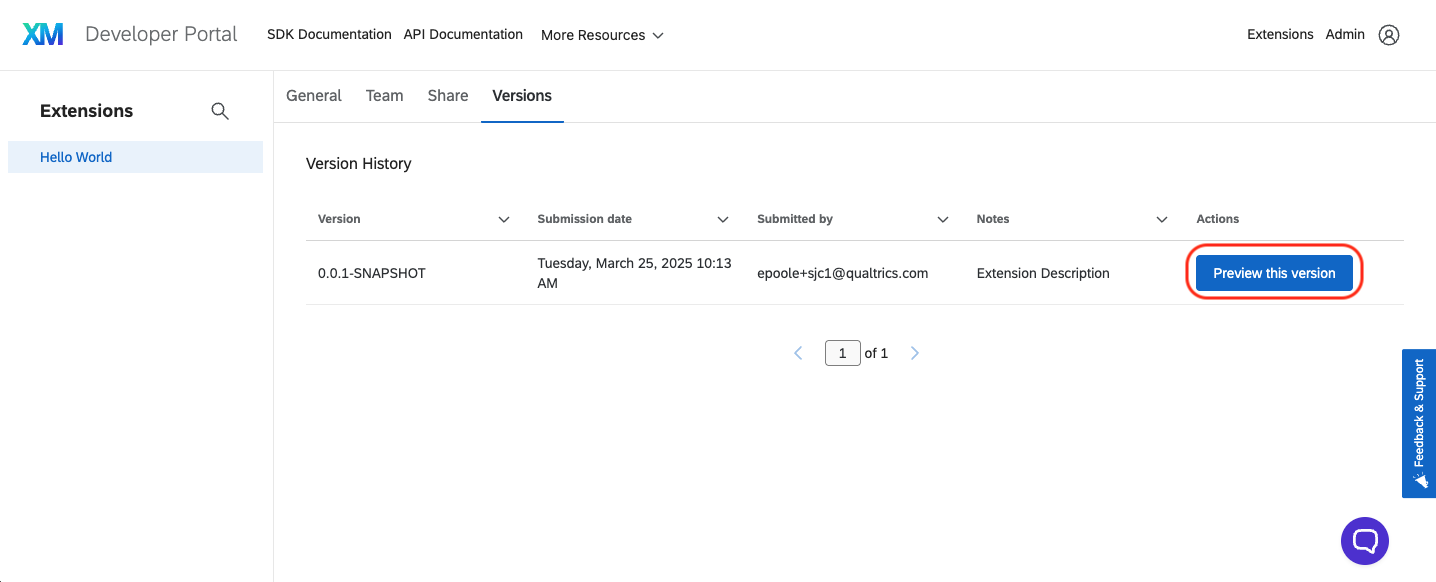
We recommend navigating to your developer brand by clicking Preview this version which will automatically share your new extension with it. If you do not navigate to the brand in this manner you will need to manually share your extension.
3.2: Login to your account.
3.3: Select an existing survey or create a new one.
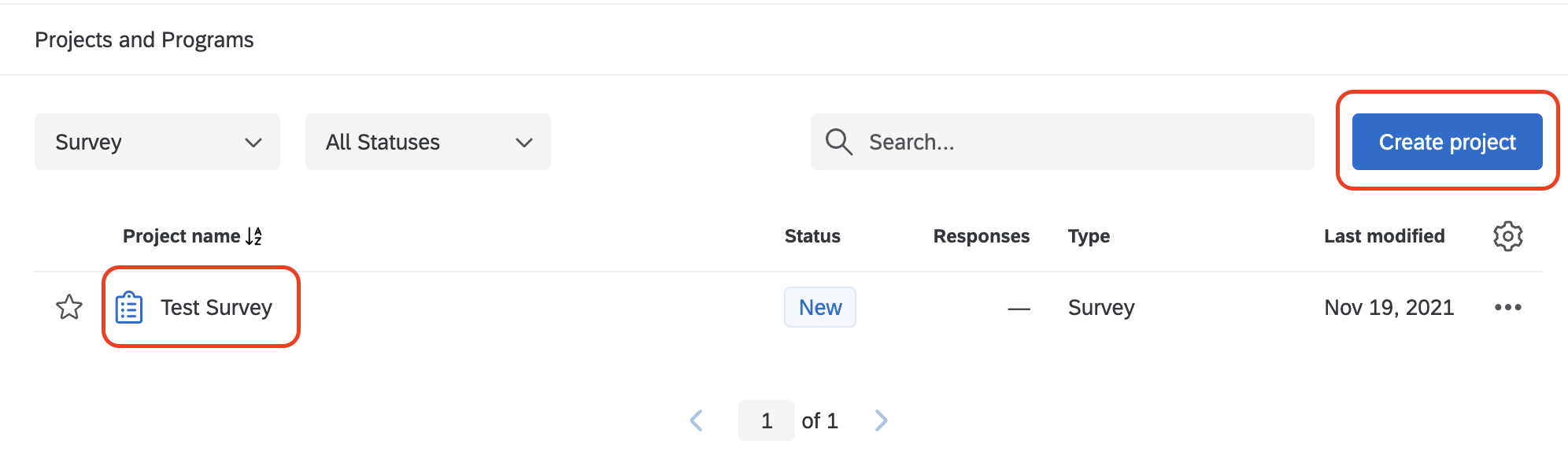
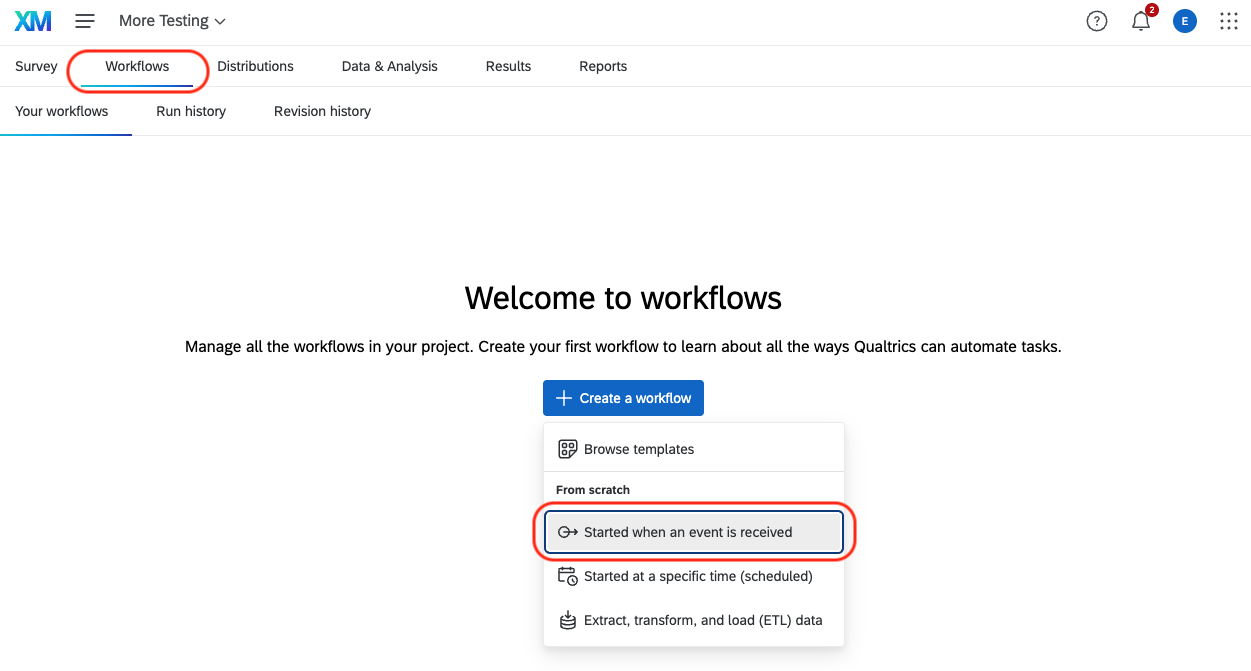
3.4: Select the Workflows tab. Then click the Create a workflow button. Select the option Started when an event is received.
3.5: In the dialog box that appears, your extension labeled Hello World should appear in the gallery of tiles.
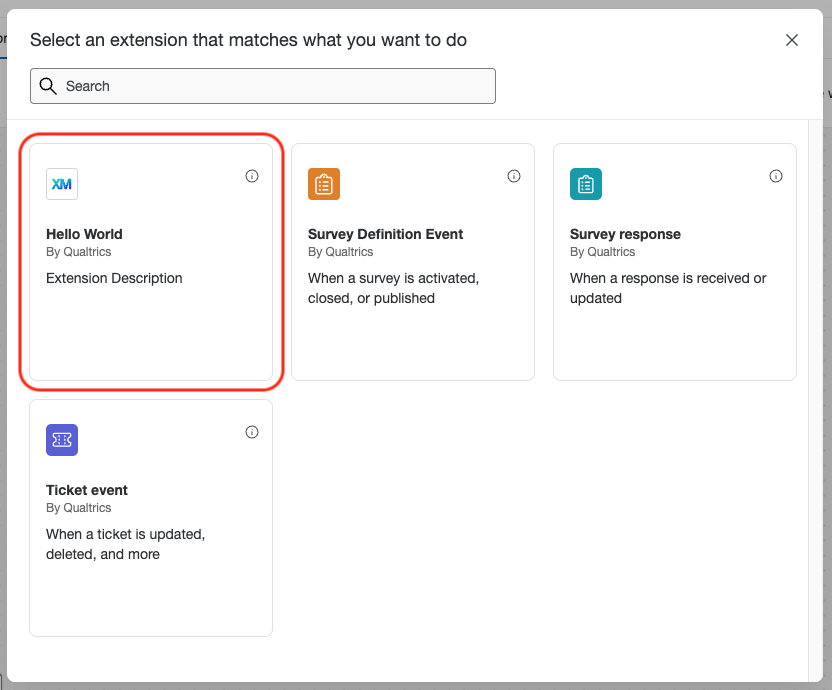
The Workflows trigger selector caches results which can result in your task not showing up immediately, if you don't see your task, append ?resetUserCache=true to the page url and reload the page.
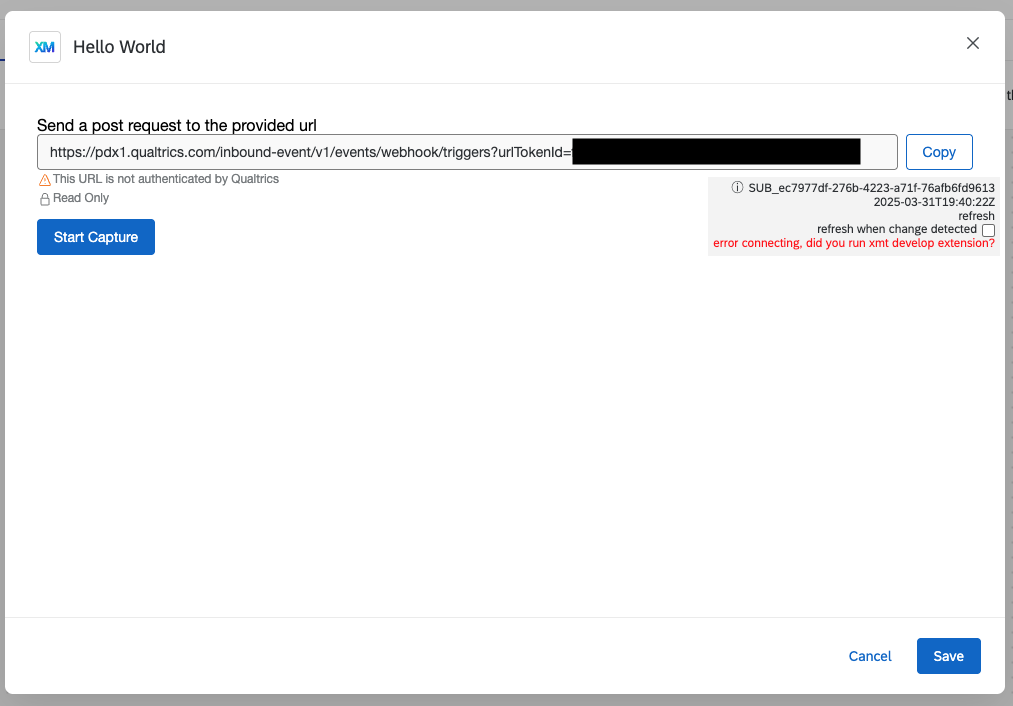
3.6 Click on your Hello World Extension and you should see your template Plugin which includes an example UI including a webhook URL and a capture event button. Sending a post request with json data to the webhook URL will trigger the Workflows Event Plugin.
Step 4: Modify Your Plugin
As part of running the command to create a new Workflows Event, some boilerplate files were added to your file structure inside the plugins directory. We'll go over all of that in more detail in the full Deep Dive guide, but for right now, the two most important folders are public and src.
When making modifications to your Plugin, you should be doing all of your coding inside the src directory. The public directory is built when you run npm start or npm run build, and it contains the code that is actually rendered by the browser but it should not be edited directly.
It's important to use the latest major version of npm to ensure all plugin components build correctly.
Follow these steps to make a quick modification to your Workflows Event Plugin:
4.1: Open the file plugins/my_workflows_event_plugin/src/index.html in your editor.
4.2: Add <h1> My Workflows Event Plugin </h1>inside the body element.:
4.3: Save the index.html file.
4.4: In your browser close the Hello World modal by pressing the Cancel button:

4.5: Select the Hello World extension again, and you should see the HTML snippet you just added.
What's Next?
Congratulations on creating, running, experiencing, and modifying your XM Extension and Workflows Event Plugin!
Further build out your plugin by reviewing the Deep Dive.