Workflows Task Plugin Guide
Objectives
During this guide you will:
- Learn details about the capabilities, components, and architecture of Workflows Task Plugins
- Build and Interact with a Workflows Task starter plugin
Prerequisites
Before continuing with this guide, it is recommended that you review/complete these guides:
And have these tools installed:
- latest stable major version of nodejs
- latest major version of npm or Yarn
- version control system (i.e. git)
We do not require that you implement your plugin in React JS, however we provide the most support for it in the form of sample code and UX components.
If you are new to React JS but want to build your plugin with it, then we recommend going through their documentation and finding popular tutorials, especially about functional components.
(See the Qualtrics Design System pages for a comprehensive guide to incorporating Qualtrics-themed React components into your UX.)
Note that your decision to use React, or any other popular web-development framework, does not affect your access to, or ability to leverage native XM Extension capabilities.
What is a Workflows Task?
Overview
When you create a Workflows Task you are creating a UI and backend for capturing user-selected input from a Qualtrics event (e.g. survey response) or other task (e.g. Import from SFTP) and performing some work that may in turn provide its own exports to be used as input for other tasks.
Who are the Stakeholders?
As you develop your Plugins, it's useful to be aware of the four distinct stakeholders involved:
- The Qualtrics customer — the company or other entity that uses various Qualtrics products such as Surveys and Dashboards.
- The Qualtrics customer’s customer — the end-user, someone who participates in or consumes the product made by the Qualtrics customer. Qualtrics itself has little direct interaction with this customer, but these individuals actually complete surveys and provide data to the Qualtrics platform.
- The customer's developer — the person who builds the Plugin itself, typically to meet a requirement for a specific brand. This might be a Qualtrics developer (first-party) or a developer employed by a Qualtrics customer (third-party).
- The third-party community developer — the person or other entity who builds Plugins as a core line of business. They typically build speculative, revenue-generating applications that they anticipate will have broad appeal in the Qualtrics marketplace.
Why Build a Workflows Task?
The most common scenario for building a Workflows Task is to push or pull data to or from Qualtrics into your system when an event in Qualtrics occurs (e.g. survey completion, ticket gets closed, scheduled event).
Backend Asynchronous Workflow
Workflows Tasks are backend asynchronous workflow streams that operate independently of other Qualtrics processes. For example, you cannot interact with the survey respondent's browser tab before, during, or after survey completion with the Workflows Task functionality.
Tips and Tricks
- Use the XM Functions template to control the backend execution of your Task plugin
- Consider enabling the form wizard functionality in your Task plugin if there are substantial or multi-step user inputs/screens.
Pre-Build Steps for Workflows Task
Follow these steps to prepare for building out a custom Workflows Task:
Step 1: Get Familiar with Workflows Task Folders and Files
When you created your workflows_task Plugin in the Quickstart guide, many files and folders were created.
This table has detailed information about each one:
| Name | Type | Editable | Description |
|---|---|---|---|
| .eslintrc.js | File | Yes | ESLint is a JavaScript linter that helps dev teams to write consistent and standardized code. It can even detect and correct some code issues early in the development cycle. The file we provide adheres to industry standards but can be modified and extended by your team to match team-adopted configurations/standards. You can invoke the commands npm run lint and npm run lint-fix to lint your files under the src directory. |
| .gitignore | File | Yes | Tells Git to ignore certain files and folders so that developers do not accidentally commit code that shouldn’t be committed (e.g. 3rd party libraries installed via npm, files with local-development secrets, etc.). |
| clean.js | File | No | Contains a script that removes all files and folders from public/ except anything nested under the public/translations/ directory. A step is defined in webpack.config.js which cleans up public/ when npm run build or npm start is executed |
| config.json | File | Yes | Contains settings for the Plugin. For workflows_task Plugins, there is a special metadata key:{"metadata": { "tags": ["test","tag","survey"],"worker": {"type": "runner"}}This comes pre-populated so you do not need to worry about changing the default values. This file is where you add a connection to set up authentication for any outbound HTTP requests, more details can be found in the Step 2: Foundations - Setting up Authentication guide. |
| package.json | File | Yes | The npm file that lists all of the dependencies, devDependencies, metadata about your project, and helpful development commands accessed by invoking npm run. Here is a list of the most important commands:build - performs a one-time production build from the src/ directory + npm dependencies and outputs the resulting files into public/, invoked by running npm run build.lint - This command lints your files and inform you of changes you need to make, invoked by running npm run lint.lint-fix - same as lint but automatically applies fixes to everything it can, invoked by executing npm run lint-fix. start - starts a process on your computer that performs a one-time build and then watches your Plugin files for any changes and triggers a new build, invoked by running npm start.clean - removes all files from public/ except for any files in translations/, invoked by running npm run clean. This is also run internally by the npm run build command, so it is only necessary for when you want to clean out the directory only.test - placeholder for you to put in the command to run your tests, invoked by running npm test. |
| postcss.config.js | File | Yes | Contains a module configuration for postcss-preset-env, which enables developers to use modern CSS and takes care of browser compatibility/polyfills automatically. |
| public | Directory | Yes | Where your source code is built and bundled into by webpack. Translations: The public/ directory also comes pre-packaged with a translations/EN.json file, which is discussed in the Working with Translation guide. Plugin Entrypoint: The entrypoint of your Plugin is the index.html file. This file needs to have the logic to bootstrap and render your Plugin’s UX and corresponding logic. |
| src | Directory | Yes | Where you put your source code containing the logic and UX components for your Workflows Task Plugin. |
| webpack.config.js | File | Yes | Webpack is the industry-standard front-end build tool that bundles your css, JavaScript, html, and images into a few files (or sometimes a single one). This file contains the webpack configurations for bundling your extension together and outputting it to public/. |
| worker.js | File | Yes | Where you put your source code for your extension backend. This is the code that will be executed during the workflows runtime. For more information, see here. |
| .xmtignore | File | Yes | Tells XMT to ignore certain files and folders so that developers do not accidentally commit code that shouldn’t be committed (e.g. 3rd party libraries installed via npm, files with local-development secrets, etc.) |
npm is referenced throughout this guide but Yarn works just as well, just substitute the npm command for the equivalent Yarn one.
Step 2: Install External Library Dependencies
Let’s get ready to start developing by installing all of your Plugin’s front-end dependencies.
Installing Libraries from the NPM Public Registry
In your Plugin’s root directory run this command to download all of the
dependencies and devDependencies listed in package.json:
npm install
Now all of the necessary libraries should be installed/updated.
Step 3: Workflows Task Client
The Plugin Client library plays a vital role in communicating between your XM Plugin and the underlying Qualtrics XM functionality it is extending. Documentation on it can be found here.
Confirm You Have the Workflows Task Client
Confirm that your Workflows Task Plugin contains the Workflows Tasks Client
library by searching the package.json file for this:
"@qualtrics/workflows-task-client"
Available Methods
Some of the methods in the library are unique to the Plugin Type (i.e. Workflows Task) client API and wrap functionality from the Plugin Client.
This list is not exhaustive but instead focuses on the most common methods.
initialize
- Should always be called upon first loading your plugin (and is included in the provided template)
- You can pass an optional
optionsto argument to define the number of pages to be shown in your plugin. This is necessary if you wish to utilize theenableAdvanceanddisableAdvancefunctionality and will modify theSavebutton to aNextbutton on all pages but the last.
const workflowsTaskClient = await WorkflowsTaskClient.initialize({
  pages: 2,
});
enableSaveButton
- Enables the user to click the Save button
- When the user has filled out all of the required parts of your configuration form then you should invoke this method to allow them to save
client.enableSaveButton();
disableSaveButton
- Prevents the user from clicking the Save button
- This is the default state of your Plugin UX
- When the user makes changes to your configuration form that results in required fields being incorrect or missing then your code should invoke this method to prevent the user from attempting to save the form
client.disableSaveButton();
xmFunctionOnSave
- Only usable if you are using an XM Function and associated
worker.jsfile - This method gets invoked automatically when the user clicks the Save button
- See more details below
onSave
- Only usable if you are not using an XM Function and associated
worker.jsfile - This method gets invoked automatically when the user clicks the Save button
- You provide a callback/function that constructs and returns a configuration object with all of the information necessary to execute an outbound HTTP request
- This configuration object should also contain a
configkey to store the state of the form, so when the user opens a saved task the previous form state can be easily accessed withgetConfigand then displayed to the user - You should use lexical scoping to capture the form inputs that the user has entered in
client.onSave(() => {
  let outboundHttpConfigurationObject = {
    url: '', // contains your URL
    config: {} // contains any state or configurations necessary to pre-populate a Plugin when a user loads a saved task
  };
  // Map all form inputs and static values
  return outboundHttpConfigurationObject;
});
isSavedTask
- This checks to see if the user is loading a previously saved task (
true) or if they are setting up a brand new task (false) - This informs you whether or not to hydrate the form inputs with previously saved values
if (client.isSavedTask()){
  const config = client.getConfig();
  // logic to hydrate fields from config object
}
enableAdvance
- Enables the
Nextbutton (available when you've set thepagesproperty in theinitializefunction).
client.enableAdvance();
disableAdvance
- Disables the
Nextbutton (available when you've set thepagesproperty in theinitializefunction).
client.disableAdvance();
enableBackButton
- Enables the
Backbutton (available when you've set thepagesproperty in theinitializefunction).
client.enableBackButton();
disableBackButton
- Disables the
Backbutton (available when you've set thepagesproperty in theinitializefunction).
client.disableBackButton();
onNext
- Registers callback when the the
Nextbutton is clicked (available when you've set thepagesproperty in theinitializefunction). - You should use this to change the rendered state of your plugin
const [ pageNum, setPageNum ] = useState(1);
client.onNext(page => setPageNum(page));
onBack
- Registers callback when the the
Backbutton is clicked (available when you've set thepagesproperty in theinitializefunction). - You should use this to change the rendered state of your plugin.
const [ pageNum, setPageNum ] = useState(1);
client.onBack(page => setPageNum(page));
getConfig
- This method is used to retrieve the unique
configobject that was persisted when a Plugin was last saved by a user with theonSavemethod above - This is useful to access when you want to hydrate the form inputs with persisted values
const config = client.getConfig();
getAvailableConnections
- Requires one or more connections to have been created following the process outlined in Setting Up Authentication
- Retrieves your connections object with information for making authenticated API calls
const {
  connectionName,
  consentedForReadByAnonymousUsers,
  credentialId,
  name,
  qualtrics,
  scheme,
  target,
} = client.getAvailableConnections();
getText
- Retrieves localized strings from the Plugin's translation files, based on the the user's language. Valid keys are defined by top-level properties of the
stringsobject in the translation file - See more details below and in the translations guide
export function IntroductorySection(props) {
  const client = props.client;

  return (
    <>
      <div>
        {client.getText('introHeading')} // simple usage
      </div>
      <div>
        {client.getText('welcomeMessage', { username: 'John' })} // with placeholders
      </div>
      <div>
        {client.getText('noMatchingValue', {}, 'defaultText')} // with default text
      </div>
    </>
  );
}
fetch
- Sends an external API request
Parameters
| Key | Type | Required | Description |
|---|---|---|---|
| method | string | Yes | The HTTP method (e.g. 'POST', 'GET', 'PUT', etc.) |
| headers | object | No | Key/value pairs that correspond to headers to add to the request (e.g. "Content-Type": "application/json") |
| body | object or string | No | The body of the request |
| params | object | No | Key/value pairs that correspond to query parameters to add to the request URL (e.g. "filter": "random") |
| connection | object | No | Authentication configuration for the request |
| connection.connectionName | string | Yes — if the connection property is defined | The name of the connection to use (call getAvailableConnections for a list of connections) |
| connection.paramFormat | string | Yes — if the connection property is defined | Where to place the credential. Can be 'header', 'body', or 'query' |
| connection.paramName | string | Yes — if the connection property is defined | What to name the credential param. As in, the field name for a body param, the query name for a query param, or the header name for a header. Ex: for a bearer token this might be "Authorization" |
| connection.paramTemplate | string | Yes — if the connection property is defined | What to insert the credential as. Use it similarly to a string passed to String.format. Ex: "Bearer %s" would be a template for bearer tokens, "%s" inserts the token as-is |
// simple example
const simpleRequest = {
  method: 'GET',
  params: {
    filter: 'active',
    limit: 10
  }
};
client.fetch('https://api.example.com/users', simpleRequest);

// complex example with authentication
const complexRequest = {
  method: 'POST',
  headers: {
    'Content-Type': 'application/json',
    'Accept': 'application/json'
  },
  body: {
    username: 'johndoe',
    email: 'john@example.com',
    status: 'active'
  },
  connection: {
    connectionName: client.getAvailableConnections().connectionName,
    paramFormat: 'header',
    paramName: 'Authorization',
    paramTemplate: 'Bearer %s'
  }
};
client.fetch('https://api.example.com/users', complexRequest);
Step 4: Diving Into the src/ Directory
Below are details on each of the files that come packaged inside of the src/ directory:
| Name | Description | Editable | Key Aspects |
|---|---|---|---|
| src/index.html | This represents the entrypoint of the XM Plugin and by default its "body" element serves as the root for your Plugin components. | Yes, however it is likely that you will not need to edit this file as it works out of the box | The "section" DOM element is, by default, the root element in which all of your UX components are nested |
| src/main.js | This is where your top-level Plugin component is bootstrapped after the Plugin Client initialize method returns/rejects its promise | Yes, however it is likely that you will not need to edit this file as the provided code has translation support and initialization logic covered | Initialization of the Workflows Task Client (wrapper of the Plugin Client) / Translation support of provided Qualtrics Design System UX components, |
| src/plugin-app/plugin-app.js | The orchestrator/controller for functionality your plugin provides/extends, including rendering UX such as html or forms, pulling in components that bring in data from an external system or add dropdown items, etc. | Yes | Field Mapper example is helpful to see what UX options we provide to you out-of-the-box |
| src/plugin-app/plugin-app.scss | SASS styling for the components of your Plugin | Yes | This approach can be used to add custom styles to any of your UX components |
Build Steps for Workflows Task
Follow these steps to build your Workflows Task:
Step 1: Run Build Command
Included in your workflows_task Plugin are files under the src/ directory that contain examples of UX components that you can use as templates.
However, only files in the public/ directory are available and rendered inside of the Qualtrics UI.
Invoking npm run build on the command-line bundles all of the
required/production external library assets with your assets in the src/
directory and outputs them to the public/ directory:
Follow these steps to render these UX components by building your Plugin:
- View the contents of the public/index.html file
- Run
npm run build - View the contents of the public/index.html file again — it should be different than before (if this is the first time you have run
npm run buildin this plugin) - Notice the presence of other files in the public directory, including .woff, .ttf, .css and a .js. These are all the outputs of the webpack bundling process and the index.html serves as the entrypoint to your XM Plugin.
Before Plugin Build

After Plugin Build
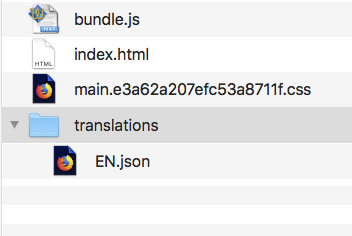
The index.html file contains links to both the main.{hash}.css and bundle.js so that your Workflows Task Plugin is ready to be rendered.
Step 2: Render Your Plugin Locally
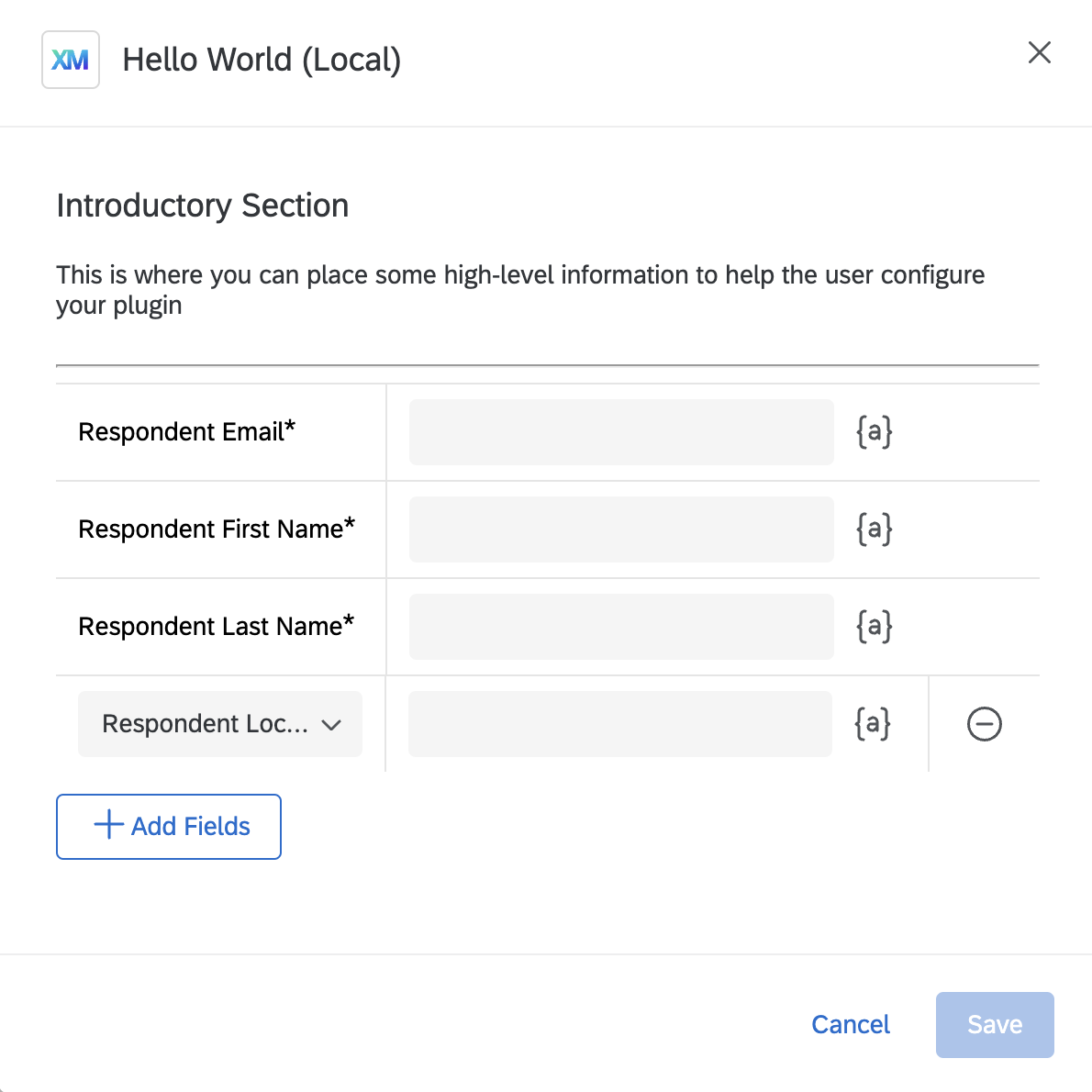
Now that you have built the template code from the src directory into the public directory, you can see the results by rendering your Plugin from your local machine in your Qualtrics account — just follow the instructions in Step 5 of the Hello World guide.
You should see something like this:
Step 3: Add Localized Text
Let's add some localized text to our Plugin that gives some initial instructions to the user.
The process of translating text is your responsibility. Once your text has been translated into all of the languages your extension supports then it is ready to be dynamically interpolated into your Workflows Task Plugin.
Place Localized Text in Translation Files
Let's add some text that describes what your Plugin does.
First, locate the translation file at public/translations/EN.json. Next, locate the strings key. Inside of strings, add a new key named intro, and a nested key named text. The value of the text key is rendered when viewing the Plugin in the browser, so fill that with a short introductory paragraph about your Plugin.
Lastly, add another nested key inside of intro called context and place "Introductory paragraph" there.
Verify that the snippet looks something like this and save the file:
"strings": {
  "intro": {
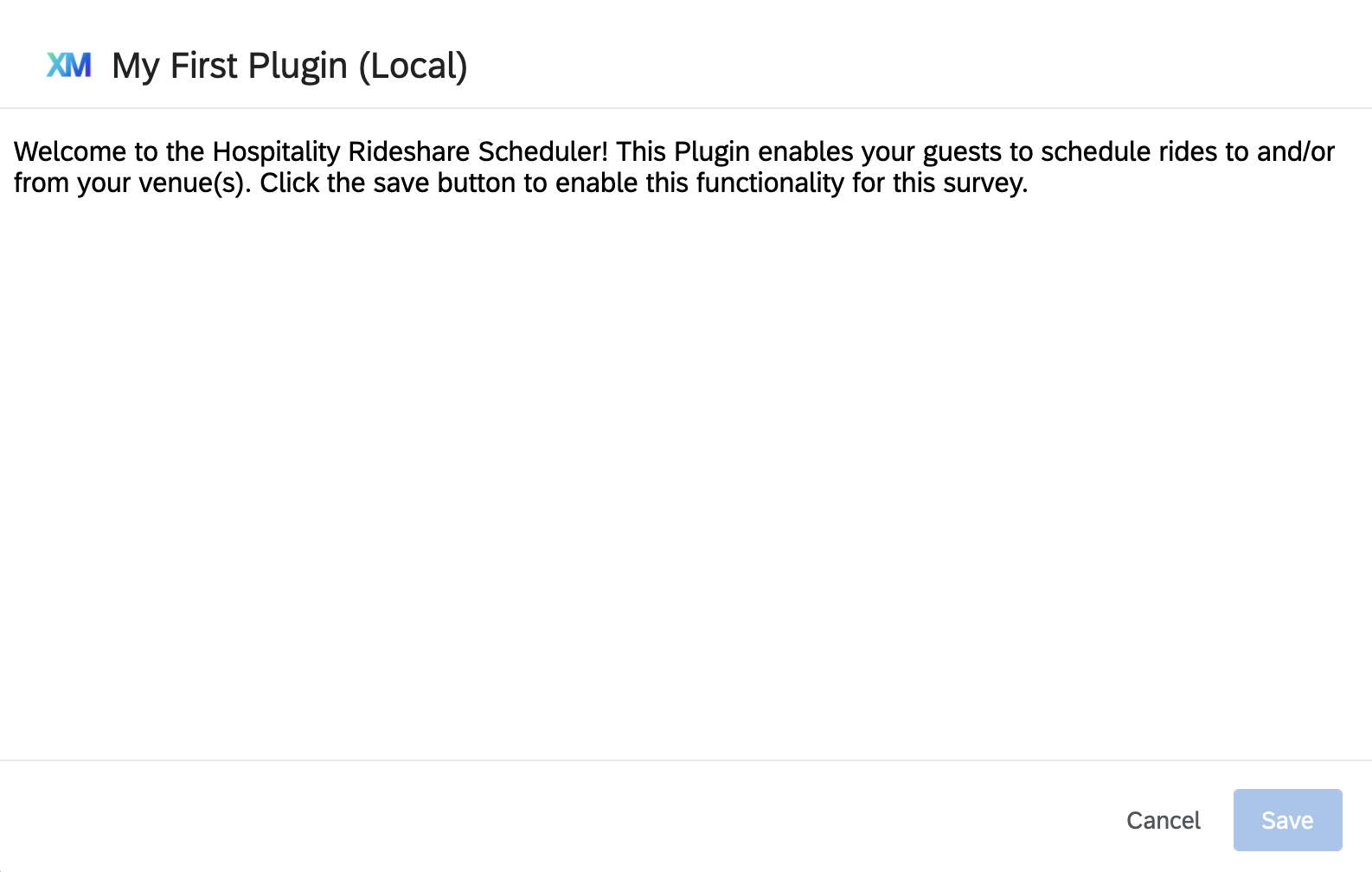
    "text": "Welcome to the Hospitality Rideshare Scheduler! This Plugin enables your guests to schedule rides to and/or from your events and venues. Click the save button to enable this functionality for this survey.",
    "context": "Introductory paragraph"
  }
  //...other items generated by the build
}
Render Localized Text in Your Plugin
Comment out or replace the content in the src/plugin-app/plugin-app.js file with this code snippet:
import './plugin-app.scss';

export function PluginApp(props) {
  return (
      <p>{props.client.getText('intro')}</p>
  );
}
Save the file and build your Plugin with npm run build.
Now follow the same steps as mentioned previously to render the changes to your Plugin in the Qualtrics UI.
You should see something similar to this:
Plugin Starter Template
A basic Plugin starter template is included every time you create a new Workflows Task Plugin. This template includes all of the files under the src directory and it implements the core functionality of a Workflows Task.
Review, modify, replace, and even remove sections of the Plugin starter template as you see fit.
Follow these steps to get started with the template:
Step 1: Create a Dev Build of Your Plugin
We recommend running this command to start a process that watches your src directory and, when there are saved changes, it automatically lints and generate a development build of your plugin code:
npm start
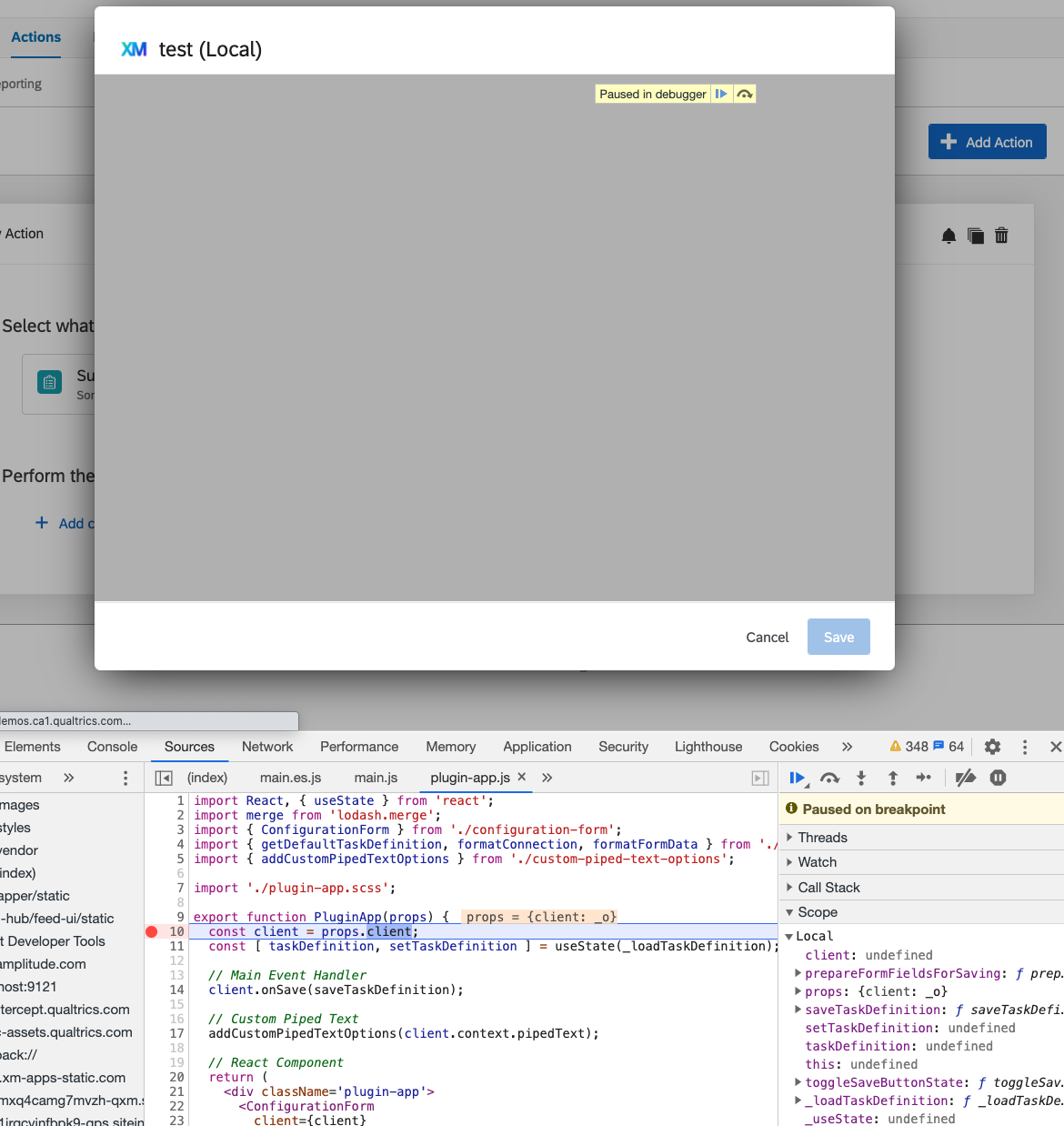
This generates an unminified version of your plugin code in the file public/bundle.js, which enables you to more easily walk through it using your browser's development tool capabilities (Chrome DevTools is great for this), specifically setting breakpoints and stepping over/into code blocks.
You should use npm start or npm run build-dev during development and npm run build for extension submissions (production)
Step 2: Render the Sample Plugin
Run the plugin locally and test it in your Qualtrics account.
Step 3: Review Code and Docs
First, review the .js files in src/plugin-app/ and the accompanying README.md to see both how the template is structured and how all of the modules and React components work together.
Next, walk through the code by setting breakpoints in your browser's dev tools. This helps you see what and how things are working together, with the goal of using or implementing this knowledge into your Workflows Task plugin.
Finally, you should modify this Sample Plugin to fit your needs — feel free to change the structure, add/delete/change files, use a different library/framework, whatever you need to fit your dev paradigm as long as the output that is rendered meets our style guidelines.
Libraries
Choosing the input and output fields present in Workflows Run History
When a task executes, the task inputs and outputs are made available to the user in the Workflows Run History. In order to increase readability for the end user, the task inputs and outputs must be schematized.
Schematizing is as simple as adding to the JSON schema in your plugin folder under /src/schemas/schema.json. The fields specified in your schema file will enable a translated detail view to be displayed to users in their own language. In addition, the specified export fields will be discoverable/searchable to the end users in the task output data search bar.
Format for schema.json file
{
    "version": <string>,
    "parameters": {
        <$parameterFieldId>: {
            "source": <string: path to field in input payload>,
            "?type": <"string"|"number"|"boolean"|"collection">
            "?label": <translateStringId>,
            "?include": <"onSuccess"|"onFailure"|"always">
        },
        ...
    },
    "exports": {
        <$exportFieldId>: {
            "source": <string: path to field in output payload>,
            "?type": <"string"|"number"|"boolean"|"collection">
            "?label": <string: translate string ID>,
            "?optional": < true | false >//default is false
            "?include": <"onSuccess"|"onFailure"|"always">
        },
        ...
    }
}
In the schema, inputs are specified by the parameters object and outputs are determined by the fields underneath the exports object.
Schema Properties
| Name | Required | Description | Example |
|---|---|---|---|
| source | Yes | Path to source field in the unstructured payload | "source": "payload.subject.subject" |
| type | No | The type of the field after schematization. If absent, the type of the source field is derived. Collections (objects and arrays) by default are marshaled into a string. Using type "collection" flattens into their own report fields, which will be prefixed with the field's label (below). Array items will have a number appended and object properties will have their key appended | "type": "string" array as string: "label": "item1, item2"object as collection: "label/Key 1": "value1""label/Key 2": "value2"<br /> "label/Nested 1/Key 1": "value 3" |
| label | No | How the data will be labeled in the UI. If this property is absent, by default it uses the source field's key and will attempt to convert to title case. If you include this property, the value should be a translated string ID which will be used as the label for the field in the UI. | "label": "NAMESPACE.STRING_ID"conversion to title case: "myKey" -> "My Key" |
| include | No | When the field should be included in the report. By default, fields are included only when the task execution is successful. This option allows the field to be included "onFailure" or "always". | "include": "always" |
| optional | No | Whether or not this field is guaranteed to exist on the output. The default value is false. | "optional": true |
Schema Example
{
  "version": "1.0",
  "parameters": {...}
  "exports": {
    "subject": {
      "source": "subject.subject"
      "include": "always"
    },
    "recipients": {
      "source": "recipients.emails",
      "label": "ACTIONS.EMAIL_RECIPIENTS"
    },
    "distributionId": {
      "source": "id",
      "label": "ACTIONS.DISTRIBUTION_ID"
    },
    "stats": {
      "source": "stats",
      "type": "category"
    }
  }
}
Schema Validation
If you run into issues setting up your schema, the following validation schema can be used to help debug when using an external schema validation tool such as https://www.jsonschemavalidator.net/
{
    "$schema": "http://json-schema.org/draft-07/schema",
    "type": "object",
    "properties": {
        "version": {
            "type": "string"
        },
        "parameters": { "$ref": "#/$defs/mapping" },
        "exports": { "$ref": "#/$defs/mapping" }
    },
    "required": [
        "version",
        "parameters",
        "exports"
    ],

    "$defs": {
        "mapping": {
            "type": "object",
            "patternProperties": {
                "": {
                    "type": "object",
                    "properties": {
                        "source": {
                            "type": "string",
                            "minLength": 1
                        },
                        "type": {
                            "enum": [
                                "string",
                                "number",
                                "boolean",
                                "collection"
                            ]
                        },
                        "label": {
                            "type": "string",
                            "minLength": 1
                        },
                        "include": {
                            "enum": [
                                "onFailure",
                                "onSuccess",
                                "always"
                            ]
                        }
                    },
                    "required": [
                        "source"
                    ]
                }
            }
        }
    }
}
All Workflows Task Plugin starter code packages come with a valid schema.json file in the /public/schemas/ folder. While this ensures that each new Workflows Task Plugin is valid by default, this file will be overwritten by the /src/schemas/schema.json file when the plugin is built using npm run build or npm start. When editing your plugin's schema, always modify the /src/schemas/schema.json file and rebuild your plugin.
How do I Submit my Extension?
Running the command xmt develop extension submits your Extension automatically, so you do not have to take any extra steps.
Executing Server Side Code
Workflows Task Plugins have the ability of executing server side code using XM Functions, enabling you to execute server-side code to perform logic at task execution runtime.
Please keep in mind that this feature has limits on scalability, please click on the Feedback & Support button to ask for more details.
Setting up Workflows Tasks to use XM Functions
In order to set up your Workflows Task Plugin to use XM Functions, you will need to configure the following:
- Create a worker.js file. This is where the code that will be executed will live.
- Set the
metadata.hasWorkerattribute in the config.json file totrue, which indicates that your plugin intends to use server side execution. - Use the
xmFunctionOnSavefunction instead of the regularonSavefunction - Update your @qualtrics/workflows-task-client package to use version 1.3.3 or higher
Running the command xmt create plugin -t workflows_task -n <name> --stage will create a new Workflows Task Plugin that leverages XM Functions by default
worker.js File
This file contains your code that will run on the server and must be located at /my_app/plugins/my_plugin/worker.js.
It should have the following structure:
module.exports = async function (context) {
    // Replace with your code
    return {}
}
For more information on what functions are available to your worker.js function, see these docs.
Enable XM Functions
The metadata.hasWorker field must be present and set to true in your config.json.
It indicates that your Plugin intends to use server side execution. If this is not set to true and you attempt to call xmFunctionOnSave, users will not be able to save your Workflows Task.
{
  "id": "PLUG_a11aaaaa-111x-1111-a1aa-111a11111a1a",
  "type": "workflows_task",
  "version": "0.0.1",
  "metadata": {
    "tags": [
      "test",
      "tag",
      "survey"
    ],
    "hasWorker": true
  },
  "schema": {
    "$schema": "http://json-schema.org/draft-07/schema"
  }
}
Save Handler
xmFunctionOnSave allows you to persist and pass a configuration object that will be passed into the server side execution, via the exported function in worker.js, when your Workflows Task is triggered.
It also enables you to export the return values of your worker.js export function to other downstream tasks.
Replace the default onSave method with xmFunctionOnSave.
xmFunctionOnSave takes a callback function as an argument with the following stipulations:
- The callback function must have 0 arguments
- The callback function must return an object with the following properties
- arguments
- exports
- config (optional)
Putting it all together, an example call that will be able to properly use xmFunctionOnSave will look something like this:
workflowsTaskClient.xmFunctionOnSave(() => {
  return {
      arguments: {
        message: 'Hello',
        audience: 'World'
      },
      exports: [
        {
          key: 'result',
          display_name: client.getText('result')
        }
      ],
      config: {
        extraData: 'foo bar'
      }
    }
})
arguments (object)
This field contains the arguments that will be passed into your worker.js export function, where the name of the argument is the key and the value of the argument is its value.
arguments: {
  message: 'Hello',
  audience: 'World'
}
Next, you will reference the arguments in the worker.js function by using the context object:
module.exports = async function (context) {
    result = `${context.arguments.message}, ${context.arguments.audience}`
    return {
      result
    }
}
// {result: 'Hello, World'}
exports (object[])
This object allows you to export the return values of your worker.js function so any subsequent tasks can use them via piped text. Each exported item has the following structure:
{
  key: 'result',
  display_name: 'result of worker'
}
key represents a key in the exported function in your worker.js return object and display_name is how the export will appear in the UI when using piped text (be sure to localize this since it appears in the UI).
The export key must match a key of the returned object of your worker.js function in order to be used by other tasks. If the export key does not correspond to a key in the returned object of the worker.js function, the chained piped text will resolve to an empty string.
config (object)
This object allows you to set any persisting data you want so that you can reference it across saves, and behaves exactly the same as the config used in onSave function in the Workflows Task Client library, see details here.
What's Next
Impressive! You should have learned key concepts of Workflows Task plugins and submitted a working version!
Learn about other plugins here.