Workflows Task Plugin Tutorial
Welcome to the Workflows Task Plugin Tutorial
This tutorial walks you through adding new features and functionality to your Workflows Task Plugin. It describes the full process of building out a custom Plugin, from the boilerplate Workflows Task code all the way through submission and certification.
To add context, the Workflows Task is built around a fictional application, the ACME Rideshare app.
How To Use This Tutorial
This is a code along tutorial; you should execute each instruction locally to produce a working Qualtrics XM Extension and Workflows Plugin Task at the end. The completed Plugin (minus the Extension part) can be downloaded from here. To preserve the rule that each Plugin have a valid, unique ID (generated when you run xmt create plugin), this Plugin does not contain a config.js file, and won't run as-is — but feel free to drag and drop anything from this code into your own project.
Objectives
By completing this tutorial you will:
- Learn how to customize the boilerplate code to fulfill alternative functionality
- Understand details of Workflow Tasks behavior and capabilities:
- Building a simple form
- Navigating between pages
- Dynamically populating a drop down selector
- Persisting variable values between pages
- Implementing authorization
- Build an advanced Plugin that adheres to the Qualtrics Design System
Prerequisites
This tutorial assumes that you have a basic understanding of React and its principles because the Plugin is built in React.
Review this documentation before getting started:
Stakeholders
As you develop your Plugins, it's useful to be aware of the four distinct stakeholders involved:
- The Qualtrics customer — the company or other entity that uses various Qualtrics products such as Surveys and Dashboards.
- The Qualtrics customer’s customer — the end-user, someone who participates in or consumes the product made by the Qualtrics customer. Qualtrics itself has little direct interaction with this customer, but these individuals actually complete surveys and provide data to the Qualtrics platform.
- The customer's developer — the person who builds the Plugin itself, typically to meet a requirement for a specific brand. This might be a Qualtrics developer (first-party) or a developer employed by a Qualtrics customer (third-party).
- The third-party community developer — the person or other entity who builds Plugins as a core line of business. They typically build speculative, revenue-generating applications that they anticipate will have broad appeal in the Qualtrics marketplace.
Rideshare Plugin
Here's the background story for our fictional plugin:
ACME Rideshare Corp., a fake rideshare company, has decided to develop a Workflows Task Plugin that enables Qualtrics customers (e.g. FakeEvents Inc.) to schedule a free ride to those who complete their survey.
The role of the Qualtrics customer is played by a fictitious company called FakeEvents Inc. — for the purposes of this guide, FakeEvents Inc. is hosting a local convention this weekend and they want to collect feedback from their attendees.
FakeEvents Inc. has created an event registration survey and wants to increase response rates by offering attendees an incentive to fill it out.
This is where the Plugin comes into play!
You're the lead developer at ACME Rideshare and responsible for building out this Plugin.
Plugin Deliverables
These are the deliverables and requirements for our Plugin:
- All components must adhere to the Qualtrics Design System
- The Plugin has two pages
- The first page contains a form for survey respondent information and a dropdown for ACME ride type information
- Must enforce user completion of all items in the input form, which collects the following respondent information:
- First Name
- Last Name
- Location
- Dropdown to select ride type
- Must enforce user completion of all items in the input form, which collects the following respondent information:
- The first page dropdown populates asynchronously using the Plugin Client's fetch method
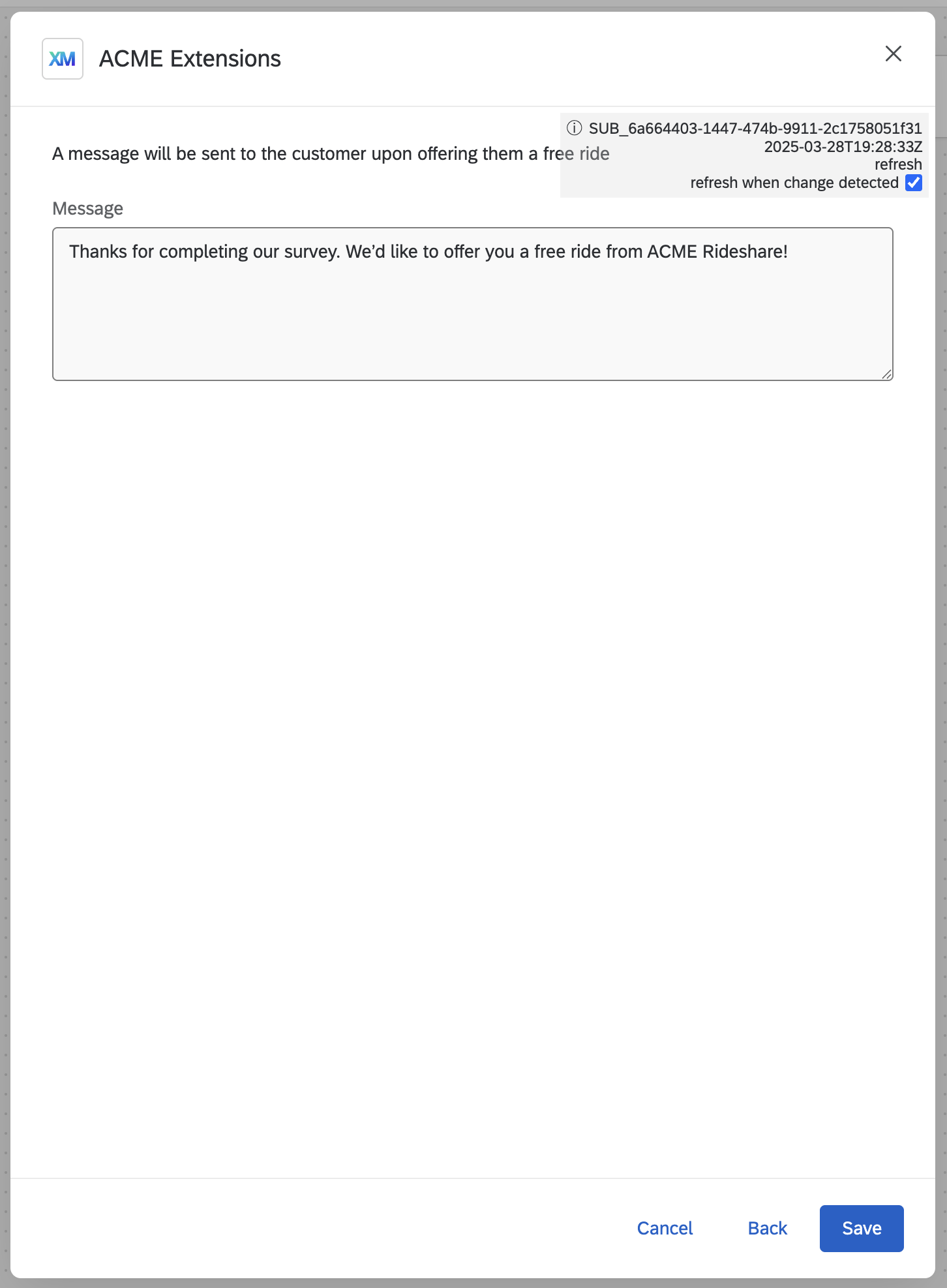
- The second page contains a single input form for the outgoing message (sent to survey respondents with the promotional offer)
- The outgoing message form is pre-populated with a customized message once the ride type has been selected from the dropdown on page one
- The plugin must implement user authentication
Development Process
Here is the outline of the major tasks required to take us from requirements to a working, certified Plugin:
- Create the Survey in the Qualtrics Project UI
- Copy the Workflows task we made in Hello World Getting Started
- Initialize two-page functionality
- Set up event handlers to let users navigate back and forth between pages
- Create the form on the first page
- Add the first page drop down
- Create the second page
- Incorporate authentication
- Add styling
- Submit for certification
- Bask in the glory of your success!
Set Up
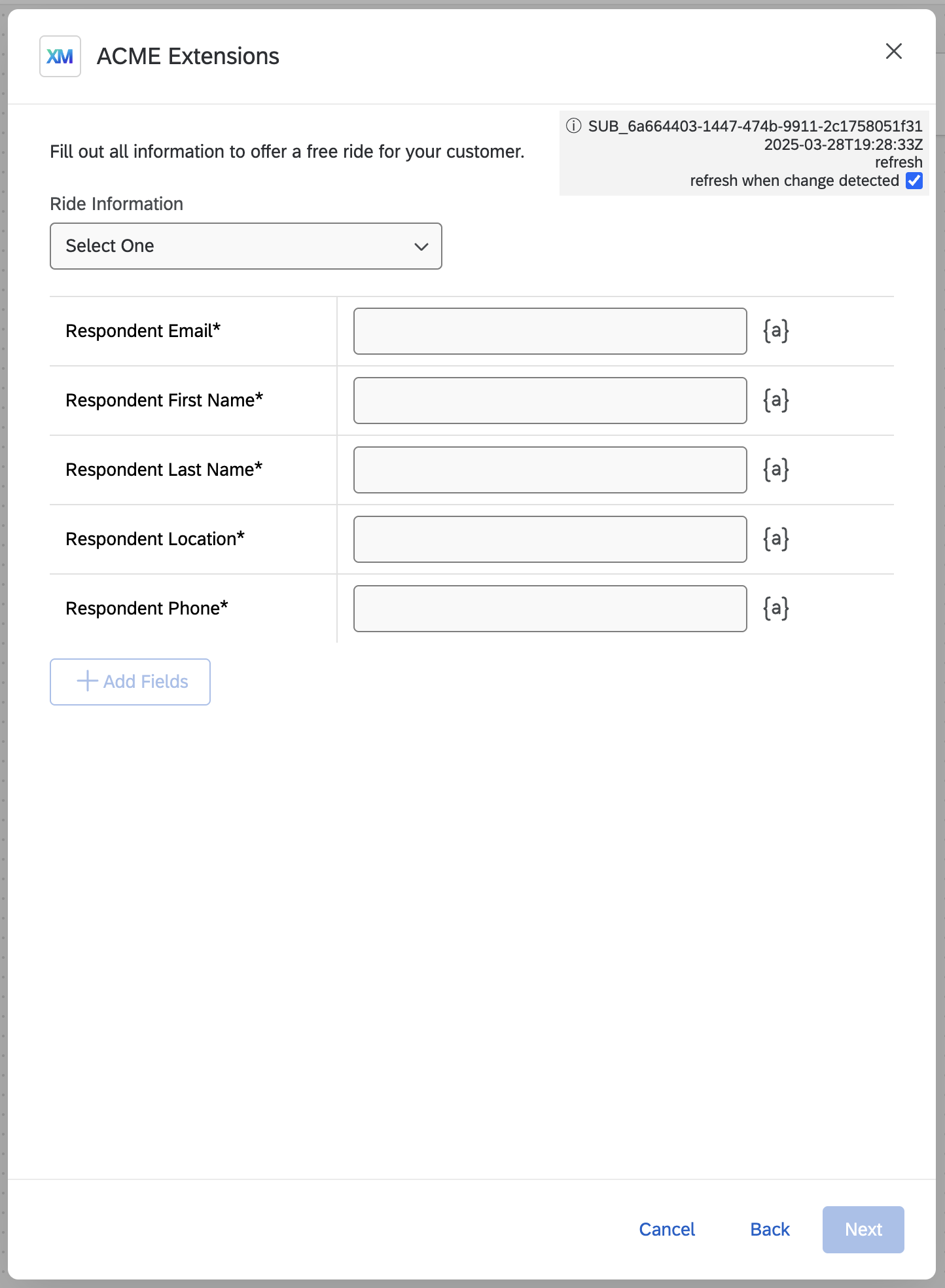
First, visualize the end result. Upon completing this tutorial your Plugin will look like this:
| Page One | Page Two |
|---|---|
 |  |
Configuring and saving this Plugin requires some asynchronous code and user input, which you will address by implementing a multi-page flow for the Plugin. Keep this in mind and use the following steps to begin setting up for this Plugin.
Step 1: Create the Survey
Follow these steps to create the FakeEvents Inc. survey that acts as the trigger for your Workflows Task:
- Download this QSF file
- Unzip the downloaded QSF file
- Log into your Qualtrics brand
- From the home screen, navigate to Projects and click Create New Project
- Select Survey and click the Get started button
- Name the project "FakeEvents Customer Survey"
- Select Import a QSF file from the dropdown
- Choose the QSF file you previously downloaded to create the project
Step 2: Start with Boilerplate Plugin
By completing the guides listed in the prerequisites section, you should have a shiny new Workflows Task to use as a foundation.
To customize the Task to our purposes, use the following steps to rename the Extension:
- Find the translations folders for both the Extension and the Plugin (inside the assets and public folders, respectively)
- Find the EN.json files
- Find the
nameobjects and replace the value of thetextkey with "ACME Extensions" for the Extension and "ACME Rideshare scheduler" for the Plugin
Step 3: Render Your Plugin in the Browser
- In separate terminals, test your Plugin by running by
xmt develop extensionin your extension directory andnpm startin your plugin directory. - Navigate to the survey you created in step one
- Select the
Workflows Tabof the Survey and create a new Workflow - Create a Survey Response Trigger using the default settings
- Create a new task and select
ACME Extensionsto see your boilerplate Plugin
While following this tutorial, keep the plugin UI up and avoid actually saving your task. Saved tasks will retain some of the state specific to the plugin as it was when the task was saved and might result in slightly different behavior than what's laid out in this guide. If you do save your task, simply delete it and re-open the task UI.
Develop the Custom Plugin
Your boiler plate Workflows Task Plugin is a foundation to build on with multi-page functionality, page and form definitions, a dropdown to select ride type, and our message on page two.
Step 1: Set Up Multi-Page Functionality
The first step is to alter the Plugin code to allow for multiple pages by:
- Informing the Plugin Client to expect multiple pages
- Writing the logic in the src folder to create those pages
These sections discuss how to complete both #1 and #2.
1.1 Initialize the Workflows Task Client for Two Pages
As mentioned in the Workflows Task Deep Dive, the Workflows Task Client wraps the Plugin Client and provides additional functionality.
When you call the WorkflowsTaskClient.initialize the resulting Plugin defaults to a single page. We need two pages, so let's do that first.
To Enable Multi-page Functionality
- Open the src/main.js file.
- Declare a configuration object with a
pagesparameter set to2
const config = {
    pages: 2
};
- Pass the new
configobject to theinitializemethod:
(async () => {
  try {
    const workflowsTaskClient = await WorkflowsTaskClient.initialize(config);
    renderPlugin(workflowsTaskClient);
  } catch(error) {
    console.error(error);
    ReactDOM.render(<div>{error}</div>, document.getElementById('app-root'));
  }
})();
The client is now configured for two pages.
1.2 Create State for the Page Number
Reload the Plugin in the browser and notice that a Next button has replaced the Save button, although it's not yet functional without a second page!
One common React pattern for managing multiple pages is to keep some component state to determine which page the app is on and when it should switch.
Create page state:
- Open the plugin-app.jsx file in src/plugin-app.
- In the
PluginAppfunction, assignpageNumandsetPageNumto theuseStatehook:
const [ pageNum, setPageNum ] = useState(1);
1.3 Render Page based on pageNum
Next, in plugin-app.jsx, add a renderPage function to display the correct page based on the pageNum state.
Ideally, the return value of the PluginApp component is as simple as possible so that the end result can be read and understood quickly. As such, it is helpful to place a callback function in the return value instead of writing the logic inline.
Create the Page Rendering Function:
- Name the function
renderPage. - Create the
switch-casecode to return the component to be rendered based onpageNum. - Place this function in the "Component Handlers" section.
  function renderPage() {
    switch(pageNum) {
      case 1:
        return (
          <div>
            First page content
          </div>
        );
      case 2:
        return (
          <div>
            Second page content
          </div>
        );
    }
  }
The only thing this does is return the correct component to render based on the page number. This example uses a switch statement so you can easily add more pages later if desired.
The function is then called in the return value of the PluginApp component. For now, you can just place it at the top, as you will move the other components around in later sections of the tutorial:
  return (
    <div className='plugin-app'>
      {renderPage()}
      <IntroductorySection
        client={client}
      >
      </IntroductorySection>
      <ConfigurationForm
        client={client}
        toggleSaveButtonState={toggleSaveButtonState}
        attachFormFieldsToTaskDefinition={attachFormFieldsToTaskDefinition}
      >
      </ConfigurationForm>
    </div>
  );
1.4 Connect pageNum State to Navigation Buttons
Now connect the handler for the pageNum state to the Next and Back buttons by using two built-in methods from the Task Plugin Client, .onNext and .onBack.
Make the connection only once, when the Plugin is mounted, by calling these methods inside a useEffect block. This code should live next to the other useEffect handlers, just below the state declarations:
useEffect(()=> {
    client.onNext(page => setPageNum(page));
    client.onBack(page => setPageNum(page));
}, []);
//   This effect is not dependent on anything and should only occur once, so the dependency array is empty
Prevent Page Navigation Before Form Validation
In the template code you downloaded, the code confirms that the user has completed data entry and saved the form before it lets them transition forward or backward between pages.
However, the template code is designed for only a single page and utilizes -
client.disableSaveButton()client.enableSaveButton()
For multi-page plugins, the recommended client methods to control page transitions are:
client.disableAdvance()— call this when initializing to prevent the user from clicking Save or Nextclient.enableAdvance()— call this to allow the user to click Save or Next when your code completes the appropriate forms validation
Update these methods in the updateSaveButtonState function:
function updateSaveButtonState() {
  if(canSaveTask.isFormValid) {
    client.enableAdvance();
  } else {
    client.disableAdvance();
  }
}
And now it's a multi-page Plugin!
Close the Plugin with the Cancel button and reselect it from the Tasks list to test it out.
The Plugin has some input validation built into the boilerplate, so to see the Next and Back buttons in action fill out all required fields and they should both work correctly.
Step 2: Plan the Component Tree
Now that the two pages are available, it's worth making some organizational choices before building up functionality. This way, the end result will be simple to read and understand based on the file structure.
First, identify which components belong on each page, and then create two folders inside the plugin-app directory for clarity: page-one and page-two.
Then move the appropriate components into each folder. Some components which haven't yet been built, such as customer-message-form.jsx, create an empty file for that component for now. Here is the file structure for this tutorial:
├── index.html
├── main.js
│   ├── schemas
│   │   └── schema.json
└── plugin-app
    ├── README.md
    ├── xm-function-task-definition.js
    ├── page-one
    │   ├── configuration-form-fields.js
    │   ├── configuration-form.jsx
    │   ├── introductory-section.jsx
    │   ├── ride-type-select-menu.jsx
    ├── page-two
    │   └── customer-message-form.jsx
    ├── plugin-app.jsx
    └── plugin-app.scss

3 directories, 11 files
Now review and update all import file path references that changed with the file structure (your code editor may do this automatically).
Step 3: Build the First Page
Take a step back and revisit these screenshots to get a clear picture of the elements required on the first page:
- A description for using this Plugin page
- A dropdown to select what type of ride to offer
- A form with four fields to collect customer information
- The Next and Cancel buttons
We'll tackle the description and the form first, as those components already exist and only need to be edited.
3.1 Move and Modify the Introductory Section
Moving the description isn't too bad — just head on over to plugin-app.jsx, cut the IntroductorySection component and paste it into the renderPage function for the first page, replacing the placeholder div:
  function renderPage() {
    switch(pageNum) {
      case 1:
        return (
            <IntroductorySection
                client={client}>
            </IntroductorySection>
        );
      case 2:
        return (
          <div>
            Second page content
          </div>
        );
    }
  }
Now the intro only appears on the first page! Next, modify the content to show accurate Plugin information to the customer.
Open introductory-section.jsx to make some changes.
The title of the task ("ACME Rideshare scheduler") acts as the heading, so the div that contains introHeading can be removed.
To alter the description in the second div, review the instructions in the Translations guide and edit the introContent text to read: "Fill out all information to offer a free ride for your customer."
export function IntroductorySection(props) {
  const client = props.client;

  return (
    <>
      <div className='section-content'>
        {client.getText('introContent')}
      </div>
    </>
  );
}
3.2 Move the Configuration Form Component
The ConfigurationForm component contains the form that the Qualtrics customer (in this case, FakeEvents Inc.) fills out by piping information through from the survey.
Before modifying it, follow the same pattern as mentioned above to move it into the correct section of the renderPage function under the page 1 case statement.
  function renderPage() {
    switch(pageNum) {
      case 1:
        return (
          <>
            <IntroductorySection
              client={client}
            >
            </IntroductorySection>
            <ConfigurationForm
              client={client}
              toggleSaveButtonState={toggleSaveButtonState}
              attachFormFieldsToTaskDefinition={attachFormFieldsToTaskDefinition}
            >
            </ConfigurationForm>
          </>
        );
      case 2:
        return (
          <div>
            Second page content
          </div>
        );
    }
  }
3.3 Customize the Configuration Form
With that complete, check out the code inside the configuration-form.jsx file and review the available functionality with the help of the FieldMapper documentation.
Use that documentation as a reference while customizing the form fields using the process below:
Part 1: Set All Form Fields to 'Required' and 'Visible'
The default state of the form fields is determined by the getStaticFields function inside the configuration-form-fields.js file.
The required attribute is already set to true for the Email, First Name, and Last Name fields. Set the required value for Location and Phone to true as well.
The isVisible attribute is already set to true for the Email, First Name, Last Name, and Location fields. Set the required value for Phone to true as well.
Part 2: Populate the form on Clicking the Back Button
When the component mounts, the form fields are populated using the loadVisibleFields function. Currently, it accounts for two cases: when the Plugin is brand new, and when the Plugin is a previously saved task.
Because our Plugin has multiple pages, there is a third case where the FieldMapper component can mount: when a user clicks the Back button.
In short, you need to know if the form fields have been edited before. To do this, we'll have to edit several files. To begin, head to the xm-function-task-definition.js file and provide a default value for the form fields:
function getDefaultTaskDefinition() {
  // Fill this out with your default values
  return {
    // The arguments passed into your worker.js function. Referenced as context.arguments.<arg> in worker.js
    arguments: {
      // ex. foo: 'bar'
    },
    // The export items your function can pass to other tasks. Each item must have the form:
    // {key: string, display_name: string}, where key is the key of your worker function's returned object and display_name is how you want the export to be referenced in the piped text UI
    exports: [],
    // The config property can be used to store user selections when the save button is clicked, and those selections can then be retrieved and loaded if/when the user clicks on a saved task
    config: {
      formFields: [],
    },
  };
}
Then inside plugin-app.jsx, pass that through to the ConfigurationForm component as a prop:
  return (
    <>
      <IntroductorySection
        client={client}
      >
      </IntroductorySection>
      <ConfigurationForm
        client={client}
        toggleSaveButtonState={toggleSaveButtonState}
        attachFormFieldsToTaskDefinition={attachFormFieldsToTaskDefinition}
        formFields={taskDefinition.config.formFields}
      >
      </ConfigurationForm>
    </>
  );
Next, head back to configuration-form.jsx and update the props destructuring statement in the ConfigurationForm component:
export function ConfigurationForm(props) {

  /////////////////////////////////////////////
  /////////////   Props Mapping   /////////////
  /////////////////////////////////////////////
  const client = props.client;
  const formFields = props.formFields;
And lastly, write a new check in the loadVisibleFields function:
  function loadVisibleFields() {
    // Previously edited, but not yet saved (if the user hits the Back button)
    if(formFields.length) {
      return formFields;
    }
    // Saved Task
    if(client.isSavedTask()) {
      return client.getConfig().config.formFields;
    }
    // New Task
    return staticFields.filter(removeNonVisibleFields);
  }
3.4 Create the Ride Type Select Menu
Available ride types depend on the customer account, ride location, and current ACME Rideshare services. Your Plugin must hit the ACME Rideshare API to retrieve the dynamic list of ride types and then display them in select menu component.
Phase 1: Create the Component
Start by creating a new file in the page-one directory called ride-type-select-menu.jsx and then add this simple React functional component code:
import React from 'react';

export function RideTypeSelectMenu() {

  return (
    <div>
      Ride Type Select Menu
    </div>
  );
}
With the basic component created, the next step is to import it into plugin-app.jsx and drop it into the appropriate section of the renderPage function.
Once the component is being rendered on the first page, pop back over to ride-type-select-menu.jsx.
Phase 2: Import Stylized Components
The following Qualtrics Design System (QDS) components are used to create this page:
SelectMenuMenuItem(a child ofSelectMenu)LoadingSpinnerLabel
A new Plugin already includes all QDS components as dependencies. To use any QDS component just use the import statement like so:
import { SelectMenu, MenuItem, LoadingSpinner, Label } from '@qualtrics/ui-react';
The basic structure of your ride-type-select-menu.jsx component should follow this pattern:
  return (
    <div>
      <Label>
      </Label>
      <LoadingSpinner>
        <SelectMenu>
          <MenuItem>
          </MenuItem>
        </SelectMenu>
      </LoadingSpinner>
    </div>
  );
- This component is wrapped in a
divinstead of a React fragment because you use thedivto apply styling in a later step - One or many
MenuItemcomponents may live inside of theSelectMenucomponent
Phase 4: Set Up State for LoadingSpinner Component
A common React practice is to use state to determine whether or not to show a loading status. The QDS loading component uses this pattern, so create the state hook just inside of the RideTypeSelectMenu component and handed to the LoadingSpinner component.
The isLoading state is also used to determine whether or not the select menu is disabled, so passing that state through to both components should look like this:
export function RideTypeSelectMenu() {
  const [ isLoading, setIsLoading ] = useState(true);

  return (
    <div>
      <Label>
      </Label>
      <LoadingSpinner
        background='fade'
        show={isLoading}
        size='small'
      >
        <SelectMenu
          disabled={isLoading}
        >
          <MenuItem>
          </MenuItem>
        </SelectMenu>
      </LoadingSpinner>
    </div>
  );
}
Some style has been provided to the LoadingSpinner component as well, which can of course be customized. All optional style properties for the LoadingSpinner can be found in its QDS page.
Phase 5: Retrieve Menu Options
The isLoading state must be set to false after the data is retrieved, so the next step is fetching the data, or ride types, to use for each MenuItem.
Create another state variable to store the menu options by adding this line near the other useState declaration:
const [ menuOptions, setMenuOptions ] = useState([]);
Now begin building the function to fetch the data. In a production setting, asynchronous services would typically be relegated to their own file and imported where needed, but for the sake of ease we'll build them inline during this section.
This data should be retrieved only one time at the moment that the component is mounted, so you can place it inside of a useEffect. To make use of useEffect you must first import it at the top:
import React, { useEffect, useState } from 'react’;
And then, in writing the function, you can abstract it out and simply hand it to the useEffect as a callback like so:
useEffect(retrieveSelectMenuOptions, []);

function retrieveSelectMenuOptions(){
    (async () => {
      try {

        const url = 'https://jsonplaceholder.typicode.com/users';
        const config = {
          method: 'GET',
          headers: {},
        };

        const result = await client.fetch(url, config);
        setMenuOptions(result.responseData);

      } catch(error) {
        console.log(error)
      } finally {
        setIsLoading(false);
      }
  })();
}
In the above code you can see that once the fetch either resolves or errors out, the state for the loading spinner is updated to ensure that the users know the process is complete.
It also shows the .fetch method being called on client, which you haven't defined yet.
To resolve that, pass client to the RideTypeSelectMenu component from the PluginApp as a prop:
  <RideTypeSelectMenu
    client={client}>
  </RideTypeSelectMenu>
And subsequently destructured in the component:
export function RideTypeSelectMenu(props) {
  const { client } = props;
Phase 6: Handle Fetch Errors
The final piece of state to add handles showing a fetch error. Go ahead and create the state alongside the others:
const [ menuErrorMessage, setMenuErrorMessage ] = useState();
Then update that state in the event of a fetching error. The text for the error can be customized, but for now you can use a generic message: "An issue is affecting the dropdown functionality." This text is sourced from the Translations file:
useEffect(retrieveSelectMenuOptions, []);

function retrieveSelectMenuOptions(){
    (async () => {
      try {

        const url = 'https://jsonplaceholder.typicode.com/users';
        const config = {
          method: 'GET',
          headers: {},
        };

        const result = await client.fetch(url, config);
        setMenuOptions(result.responseData);

      } catch(error) {
          setMenuErrorMessage(client.getText('selectMenuGenericErrorMessage'));
      } finally {
        setIsLoading(false);
      }
  })();
}
With the error captured, create an area in which to display it in the return value of the component:
return (
    <div>
      <Label>
      </Label>
      <LoadingSpinner  background='fade' show={isLoading} size='small'>
        <SelectMenu
          disabled={isLoading}
        >
          <MenuItem>
          </MenuItem>
        </SelectMenu>
      </LoadingSpinner>
      { menuErrorMessage &&
        <div>
          <span>{menuErrorMessage}</span>
        </div>
      }
  </div>
);
Phase 7: Populate and Label Select Menu
Now that the menu options have been retrieved and saved to state, use them to populate the dropdown component like so:
return (
    <div>
      <Label>
      </Label>
      <LoadingSpinner  background='fade' show={isLoading} size='small'>
        <SelectMenu
          disabled={isLoading}
        >
            {menuOptions.map(menuOption => {
              return (
                <MenuItem
                  key={menuOption.id}
                  value={menuOption.id}
                >
                  {menuOption.name}
                </MenuItem>
              );
            })}
        </SelectMenu>
      </LoadingSpinner>
      { menuErrorMessage &&
        <div>
          <span>{menuErrorMessage}</span>
        </div>
      }
  </div>
);
We'll now provide some labeling for this menu to improve readability for the user.
First head over to the EN.json file for the Plugin and add this entry into the strings object:
  "selectMenuWrapperLabel": {
    "text": "Ride Information",
    "context": "The wrapper label for the Select Menu"
  }
Now, provide a label property to the select menu to give it a default value, and fill out the Label component to show the title of the select menu to the user:
return (
    <div>
      <Label>
        {client.getText('selectMenuWrapperLabel')}
      </Label>
      <LoadingSpinner  background='fade' show={isLoading} size='small'>
        <SelectMenu
          label={client.getText('selectMenuLabel')}
          disabled={isLoading}
        >
            {menuOptions.map(menuOption => {
              return (
                <MenuItem
                  key={menuOption.id}
                  value={menuOption.id}
                >
                  {menuOption.name}
                </MenuItem>
              );
            })}
        </SelectMenu>
      </LoadingSpinner>
      { menuErrorMessage &&
        <div>
          <span>{menuErrorMessage}</span>
        </div>
      }
  </div>
);
The select menu now populates the proper options, but it doesn't have the functionality to save the user's selection just yet. For that, let's move on to the next step in the overall Plugin development.
Step 4: Set Up Task Definition
The taskDefinition contains any state which should be persisted to the Qualtrics backend once the Plugin is configured and saved by a user.
To visualize this using the example case, consider the following example user story:
- A FakeEvents Inc. user pulls up a fresh instance of the ACME Rideshare scheduler
- They fill out all of the required input elements
- They click on the Save button
- Your Plugin code persists their configurations within the
taskDefinitionobject
You can view the default state for a brand new Task by looking in the xm-function-task-definition.js file, in the getDefaultTaskDefinition function.
Since you know that the Plugin needs to save whichever ride type the user selects, you can add a default value for that in the config object. For a brand new task, the undefined value indicates that no selection has been made yet.
function getDefaultTaskDefinition(client) {
  // Fill this out with your default/static api values
  return {
    url: 'https://jsonplaceholder.typicode.com/users',
    method: 'POST',
    headers: {
      'Content-Type': 'application/json'
    },
    body: {
      staticProperty: 'someHardcodedValue'
    },
    // The config property can be used to store user selections when the save button is clicked, and those selections can then be retrieved and loaded if/when the user clicks on a saved task
    config: {
      selectedMenuOption: undefined,
      formFields: []
    }
  };
}
Now that selectedMenuOption lives in state, you need to pass it down to the RideTypeSelectMenu component as a prop:
  <RideTypeSelectMenu
    client={client}
    selectedMenuOption={taskDefinition.config.selectedMenuOption}
  >
  </RideTypeSelectMenu>
Destructure it for use in the component, the same way as the client:
export function RideTypeSelectMenu(props) {
  const { client, selectedMenuOption } = props;
Hook up the selectedMenuOption state to an onChange event within the SelectMenu component by creating two functions to:
- Handle menu selections and any errors that may arise
- Set the new state for
selectMenuOption
Name the first function onMenuOptionSelection and place it in the RideTypeSelectMenu component:
  function onMenuOptionSelection(menuOptionId) {
    // find the the selection
    const newSelectedMenuOption = menuOptions.find((menuOption) => {
      return menuOption.id === menuOptionId;
    });

    if(newSelectedMenuOption === undefined) {
      // handle the case that the selection doesn't exist
      setMenuErrorMessage(client.getText('selectMenuOptionInvalidErrorMessage'));
      return;
    }

    // Save it to state
    saveSelection(newSelectedMenuOption);

    // Clear out any error messages
    setMenuErrorMessage();
  }
Name the second function saveSelection to match the callback referenced above, and put it in the plugin-app.jsx file so it can update the taskDefinition:
  function saveSelection(selection) {
    // copy full state
    const updatedTaskDefinition = cloneDeep(taskDefinition);

    // update selected menu option
    updatedTaskDefinition.config.selectedMenuOption = selection;

    // save it
    setTaskDefinition(updatedTaskDefinition);
  }
Now that saveSelection exists, pass it down as a prop from plugin-app.jsx to ride-type-select-menu.jsx:
  <RideTypeSelectMenu
    client={client}
    selectedMenuOption={taskDefinition.config.selectedMenuOption}
    saveSelection={saveSelection}
  >
  </RideTypeSelectMenu>
And lastly, make three additional changes to ride-type-select-menu.jsx:
- Add
saveSelectionto the values destructured from the props - Add an
onChangeproperty to theSelectMenucomponent which points toonMenuOptionSelection - Add a function to determine whether the select menu's
labelproperty should show the user's selection or the default value
With these three changes added, the return value and the new labeling function for the RideTypeSelectMenu component should look like this:
  const { client, selectedMenuOption, saveSelection } = props;

  function getLabel() {
    return selectedMenuOption ? selectedMenuOption.name : client.getText('selectMenuLabel');
  }

  return (
    <div>
      <Label>
        {client.getText('selectMenuWrapperLabel')}
      </Label>
      <LoadingSpinner  background='fade' show={isLoading} size='small'>
        <SelectMenu
          label={getLabel()}
          disabled={isLoading}
          onChange={onMenuOptionSelection}
        >
          {menuOptions.map(menuOption => {
            return (
              <MenuItem
                key={menuOption.id}
                value={menuOption.id}
              >
                {menuOption.name}
              </MenuItem>
            );
          })}
        </SelectMenu>
      </LoadingSpinner>
      { menuErrorMessage &&
        <div>
          <span>{menuErrorMessage}</span>
        </div>
      }
    </div>
  );
Then, be sure to update your translation string
    "selectMenuLabel": {
      "text": "Select One",
      "context": "The label for the Select Menu or dropdown"
    },
And now you have a working select menu!
The plugin-app.jsx file has built-in functionality in the boilerplate code which hooks the saveTaskDefinition function up to the Save button in a useEffect. This means that the rest of the logic is already in place to persist this information to the Qualtrics backend.
Step 5: Create the Second Page
In Step 2, you created a blank file in which to house the future page two of the Plugin. Now that you've completed the select menu, you can use some of the same patterns to start filling out the customer-message-form.jsx file.
The ACME Rideshare app requires a message to be sent to the FakeEvents customers whenever a free ride is offered, so your next step is to add the form for that message to your Plugin.
5.1 Add Translation Strings
The customer message form uses four strings:
- A default message to pre-populate the form when no ride type is chosen
- A separate message to pre-populate the form after a user selects a ride type
- A label
- Instructions for the form
Open the EN.json file in the Plugin and add the following translations:
  "customerMessageInstructions": {
    "text": "A message will be sent to the customer upon offering them a free ride",
    "context": "Instruction for filling out the outgoing message form"
  },
  "customerMessageLabel": {
    "text": "Message",
    "context": "Placeholder label for the customer message input"
  },
  "defaultCustomerMessage": {
    "text": "Thanks for completing our survey. We’d like to offer you a free ride from ACME Rideshare!",
    "context": "The default outgoing message for rideshare recipients."
  },
  "customerMessageWithRideType": {
    "text": "Thanks for completing our survey. We’d like to offer you a free ride from ACME Rideshare! Your ride type will be: ",
    "context": "The outgoing message for rideshare recipients which will include the ride type."
  }
We'll access these strings to fill out the component in future steps.
5.2 Import and Implement QDS Input
Import the correct elements to create the new input form, just as you did with the select menu.
Inside the customer-message-form.jsx file, use the new Translation strings to give it instructions and a label, and add some customization to the InputField component to make it look nice on the page:
import React from 'react';
import { InputField } from '@qualtrics/ui-react';

export function CustomerMessageForm(props) {
  const client = props.client;

  return (
    <>
      <div>
        {client.getText('customerMessageInstructions')}
      </div>
      <InputField multiline full
        label={client.getText('customerMessageLabel')}
        rows={5}
      />
    </>
  );
}
Add the CustomerMessageForm to your renderPage function in plugin-app.jsx. Like other components, the CustomerMessageForm component also receives the Plugin Client as a prop, so pass that down in this step as well.
function renderPage() {
    switch(pageNum) {
      case 1:
        return (
          <>
            <IntroductorySection
              client={client}
            >
            </IntroductorySection>
            <RideTypeSelectMenu
              client={client}
              selectedMenuOption={taskDefinition.config.selectedMenuOption}
              saveSelection={saveSelection}
            >
            </RideTypeSelectMenu>
            <ConfigurationForm
              client={client}
              toggleSaveButtonState={toggleSaveButtonState}
              attachFormFieldsToTaskDefinition={attachFormFieldsToTaskDefinition}
              formFields={taskDefinition.config.formFields}
            >
            </ConfigurationForm>
          </>
        );
      case 2:
        return (
          <CustomerMessageForm
            client={client}
          />
        );
    }
5.3 Add to Task Definition
This component handles and saves its user input in the same way that the select menu does: setting up an onChange for the form and saving the form data to the task definition.
To start, update the object returned by the getDefaultTaskDefinition function. The default message is sourced from the Translations file, which means that you also need to pass the plugin client in (so you can call getText on it).
Head to plugin-app.jsx and locate the loadTaskDefinition function. Pass the client in the call to getDefaultTaskDefinition:
  function loadTaskDefinition() {
    if(client.isSavedTask()) {
      return client.getConfig();
    }
    return getDefaultTaskDefinition(client);
  }
Then, back in xm-function-task-definition.js, grab the default text:
function getDefaultTaskDefinition(client) {
  // Fill this out with your default/static api values
  return {
    url: 'https://jsonplaceholder.typicode.com/users',
    method: 'POST',
    headers: {
      'Content-Type': 'application/json'
    },
    body: {
      staticProperty: 'someHardcodedValue'
    },
    // The config property can be used to store user selections when the save button is clicked, and those selections can then be retrieved and loaded if/when the user clicks on a saved task
    config: {
      selectedMenuOption: undefined,
      customerMessage: client.getText('defaultCustomerMessage'),
      formFields: []
    }
  };
}
Next add a new save handler in the "Hooks Handlers" section of the plugin-app.jsx file:
  function saveMessage(message) {
    const updatedTaskDefinition = cloneDeep(taskDefinition);
    updatedTaskDefinition.config.customerMessage = message;
    setTaskDefinition(updatedTaskDefinition);
  }
Now pass these two items through as props to the CustomerMessageForm component (which is rendered under case 2 in the renderPage function):
  <CustomerMessageForm
    client={client}
    customerMessage={taskDefinition.config.customerMessage}
    saveMessage={saveMessage}
  >
  </CustomerMessageForm>
And finally, destructure those props in the CustomerMessageForm component and set up the onChange:
import React from 'react';
import { InputField } from '@qualtrics/ui-react';

export function CustomerMessageForm(props) {
  const { client, customerMessage, saveMessage } = props;
  return (
    <>
      <div>
        {client.getText('customerMessageInstructions')}
      </div>
      <InputField multiline full
        label={client.getText('customerMessageLabel')}
        value={customerMessage}
        rows={5}
        onChange={(event) => saveMessage(event.target.value)}
      />
    </>
  );
}
The customer message form is complete!
According to our deliverables, there is one last addition to make: the form should pre-populate some information about the ride type from page one.
Adding this is relatively easy, as you can take care of it the moment that the ride selection has been made. Revisit the saveSelection function inside of plugin-app.jsx and add in a check to see if the message has been customized yet. If not, then you should customize it:
  function saveSelection(selection) {
    // copy full state
    const updatedTaskDefinition = cloneDeep(taskDefinition);

    // update selected menu option
    updatedTaskDefinition.config.selectedMenuOption = selection;

    // If the customer message is the default, give it some customization
    if(updatedTaskDefinition.config.customerMessage === client.getText('defaultCustomerMessage')) {
      updatedTaskDefinition.config.customerMessage = client.getText('customerMessageWithRideType') + selection.name;
    }

    // save it
    setTaskDefinition(updatedTaskDefinition);
  }
In the above code you also added a new translation string to handle adding in a customized message.
If you haven't already, now would be a good time to take a step back and test out your Plugin.
You should be able to fill out all form items successfully and click the Save button. Then, if you reopen the Plugin by clicking on it, you should see your saved configurations repopulate automagically, just like that!
The built in saveTaskDefinition and loadTaskDefinition functions are already hooked up to check for any saved state from a previously configured Task.
Step 6: Set Up Authentication
In our fictional example, ACME Rideshare requires any API requests made by Plugins on behalf of users to be authenticated. To get started, take a moment to follow the instructions in the Authentication guide to create a basic auth connection.
Once you have completed that and you can confirm that your Plugin has an auth form added, you can use that connection to authenticate the Plugin when it tries to fetch data in the RideTypeSelectMenu component.
Head on over to ride-type-select-menu.jsx. Once there, go ahead and grab the available connection so you have access to it in the component. This code should be placed near the props mapping section.
const authConnectionName = client.getAvailableConnections().connectionName;
After this, locate the retrieveSelectMenuOptions function and add some error handling for the event that an auth connection was not provided. We can add this in with a second check before the fetch is made:
function retrieveSelectMenuOptions() {
  (async () => {
    if (authConnectionName) {
      try {

        const url = 'https://jsonplaceholder.typicode.com/users';
        const config = {
          method: 'GET',
          headers: {},
        };

        const result = await client.fetch(url, config);
        setMenuOptions(result.responseData);

      } catch (error) {
        setMenuErrorMessage(client.getText('selectMenuGenericErrorMessage'));
      } finally {
        setIsLoading(false);
      }
    } else {
      setMenuErrorMessage(client.getText('selectMenuGenericErrorMessage'));
      setIsLoading(false);
    }
  })();
}
If the check fails, our code hits the else statement and gives the user an error.
The last step is to reference the auth connection information and add it to the config object used for the fetch:
function retrieveSelectMenuOptions() {
  (async () => {
    if (authConnectionName) {
      try {

        const url = 'https://jsonplaceholder.typicode.com/users';
        const config = {
          method: 'GET',
          headers: {}
        };

        config.connection = {
          connectionName: authConnectionName,
          paramFormat: 'header',
          paramName: 'Authorization',
          paramTemplate: 'Basic %s'
        };

        const result = await client.fetch(url, config);
        setMenuOptions(result.responseData);

      } catch(error) {
        setMenuErrorMessage(client.getText('selectMenuGenericErrorMessage'));
      } finally {
        setIsLoading(false);
      }
    } else {
      setMenuErrorMessage(client.getText('selectMenuGenericErrorMessage'));
      setIsLoading(false);
    }
  }
  )();
}
In a real scenario the request parameters would be modified here to match the requirements of the API.
Once again the saveTaskDefinition is pre-built to save a reference to the user's credentials for future use, so with this addition...
...your Plugin functionality is complete!
Congratulations!!
The hard part's over. Now that you have the features for the Plugin developed, move on to the next section to add the required styling.
Step 7: Add Styling
To make it as simple as possible, copy the code from plugin-app.scss in the completed Plugin (download it from the How To Use This Tutorial section) and paste it into the same file in your own Plugin.
To finish up, add a few class names to the components you've built.
Firstly in the return value of the CustomerMessageForm component, give the outermost div a class name of "section-content".
And in the return value of the RideTypeSelectMenu component, make the following changes:
- Locate the outermost
div; give it the class name "selectMenuContainer" - Locate the
Labelcomponent; give it the class name "selectMenuWrapperLabel" - Locate the
SelectMenucomponent; give it the class name "selectMenu"
Look over the UX Design Guidelines thoroughly to make sure that your Plugin meets the requirements.
Once your Plugin meets the style requirements, take a look the publishing section to learn about sharing your Plugin with the Qualtrics world.
Closing Overview
Now you have had your hands on the full life cycle of a custom built Workflows Task Plugin. The topics in this guide can inform your future work on custom Plugins and provide a sense of the bigger picture when it comes to interacting with a Plugin, its users, and other Qualtrics products.
Enjoy your newfound Plugin proficiency — we look forward to seeing what you create!