Configure an XM Solution for the Catalog
All Qualtrics projects are created from the Catalog. It's accessed by clicking the "Get Started" button on the Qualtrics home page.
Your custom XM Solution Plugins will also be created from the Catalog, so you need to configure your solutions to appear there.
If you would like to join the early access program for XM Solution Plugins, then please let us know by taking this survey.
This feature is in Early Access and is not yet generally available. Functionality, APIs, and documentation may change before general availability.
This configuration is controlled by the src/catalogConfig.json file. It must not be moved or renamed.
Here is what an example catalog configuration file looks like:
{
  "name": "XM Solution Plugin Workflow Template",
  "description": "Catalog configuration figure for your XM Solution plugin",
  "offeringType": "SOLUTION",
  "tags": [
    {
      "groupId": "CTG_xxx",
      "tagId": "CT_xxx"
    }
  ],
  "collections": [
    "ProjectWorkflowTemplates",
    "WorkflowTemplatesOnly"
  ],
  "assetMap": {
    "catalogIcons": [
      "Assets/Survey_response.svg",
      "Assets/Ticket.svg"
    ],
    "summaryMarkdown": "Assets/summary.md",
    "workflowInstructions": "Assets/instructions.md",
    "authorIcon": "authorIcon.svg"
  }
}
Fields & objects
| Field | Type | Description | Required | Example |
|---|---|---|---|---|
name | string | The name of the XM Solution as it will appear to users. | yes | "name": "Solution Plugin Workflow Template" |
description | string | A short description of the XM Solution. It appears as small text on the XM Solution card. If the summary markdown file isn't provided, the description will show in the sidebar. | yes | "description": "Catalog configuration figure for solution plugin" |
offeringType | string | The type of catalog offering. Currently only SOLUTION and WORKFLOW are accepted types. The SOLUTION type is used for most solutions. WORKFLOW is used for workflow templates that are styled differently. | yes | "offeringType": "SOLUTION" |
collections | []string | A list of strings that determines which categories your XM Solution will be a part of. | yes | "collections": [ "ProjectWorkflowTemplates", "WorkflowTemplatesOnly"] |
tags | []Tag | A list of objects that are used to group XM Solutions together by common attributes. | yes | "tags": [{"groupId": "CTG_xxx","tagId": "CT_xxx"}] |
assetMap | Object | Maps specific asset files to their intended use. | yes | "assetMap": {"catalogIcons": ["Assets/Survey_response.svg"],"summaryMarkdown": "Assets/summary.md"} |
Tag properties
| Field | Type | Description | Required | Example |
|---|---|---|---|---|
groupId | string | The type of tag. | yes | "groupId": "CTG_xxx" |
tagId | string | The id of the tag. The Tags must be present in the Catalog database to be valid. | yes | "tagId": "CT_xxx" |
Asset map properties
| Field | Type | Description | Required | Example |
|---|---|---|---|---|
catalogIcons | []string | The list of icons (file paths) that the catalog will use. | no | "catalogIcons": ["Assets/Survey_response.svg", "Assets/Ticket.svg"] |
summaryMarkdown | string | The markdown file that catalog will render on the summary page of the XM Solution. | yes | "summaryMarkdown": "Assets/summary.md" |
workflowInstructions | string | The markdown file that the workflow template will render on the right-hand sidebar of the XM Solution. | no | "workflowInstructions": "Assets/instructions.md" |
authorIcon | string | A author/company icon will be displayed at the bottom of offering cards. Adding might result in warning, see next section. | no | "authorIcon": "authorIcon.svg" |
Having at least one of the fields - catalogIcons or authorIcons - is required of all XM Solution Plugins. Only put both fields if you are working with a Workflow Solution, otherwise authorIcon will override the catalogIcons field. If you eventually want your plugin to go through the certification process, use authorIcon and read through this section below.
Details on Collections and Tags
Collections
Collections are a group of things that can be visualized in a Catalog in Qualtrics. To make your XM Solution visible to end users, you'll have to add it to a collection, which is tied to one or more catalogs.
There are several "Catalogs" in the system, and they each display a different set of collections. Collections may appear in more than one Catalog, so make sure you double-check where it's displayed before you choose a collection to put it in.
The best way to see what tags are available and to add one to your configuration is by running solution add-catalog. It will prompt you to add either a collection or tag to your XM Solution. Choose "collections" and it will show you which collections are available to choose from.
Tags
The purpose of Tags is to associate a XM Solution in multiple ways for filtering in the catalog sidebar. Multi-tagging is supported.
A Tag Group consists of multiple Tags. An XM Solution offering could be tagged by multiple tag groups and tags.
For example, it could be tagged with Marketing and advertising and Market research which both tags are under the same tag group called Department. You can also tag with different tags from different tag groups.
To add a tag to your XM Solution you need to add the group and tag ID to your catalogConfig.json file. A tag entry looks like this:
{
  "groupId": "CTG_xxx",
  "tagId": "CT_xxx"
}
The best way to see what tags are available and to add one to your configuration is by running solution add-catalog command.
It will prompt you to add either a collection or tag to your XM Solution. Choose "tags" and it will show you which tags are available to choose from.
Icons display
See the next section if you are unsure about your XM Solution type.
In a non-workflow XM Solution:
- If
catalogConfig.jsoncontains theauthorIconfield, theauthorIconwill be displayed instead ofcatalogIcons - A warning will notify you
catalogIconsgets replaced when you run translation-extract
In a workflow XM Solution:
- Both
catalogIconsandauthorIconget to display in the catalog - No warnings in CLI
Extension/Plugin information display
If you plan on having your plugin go through the certification process, make sure to have the authorIcon field in the catalogConfig.json file set along with every sub-field in the info section of the manifest.json file.
Review this guide if you want to learn more about the XM Extension certification process.
info.websiteUrl Not DisplayedThe info.websiteUrl value will not be show up in the catalog.
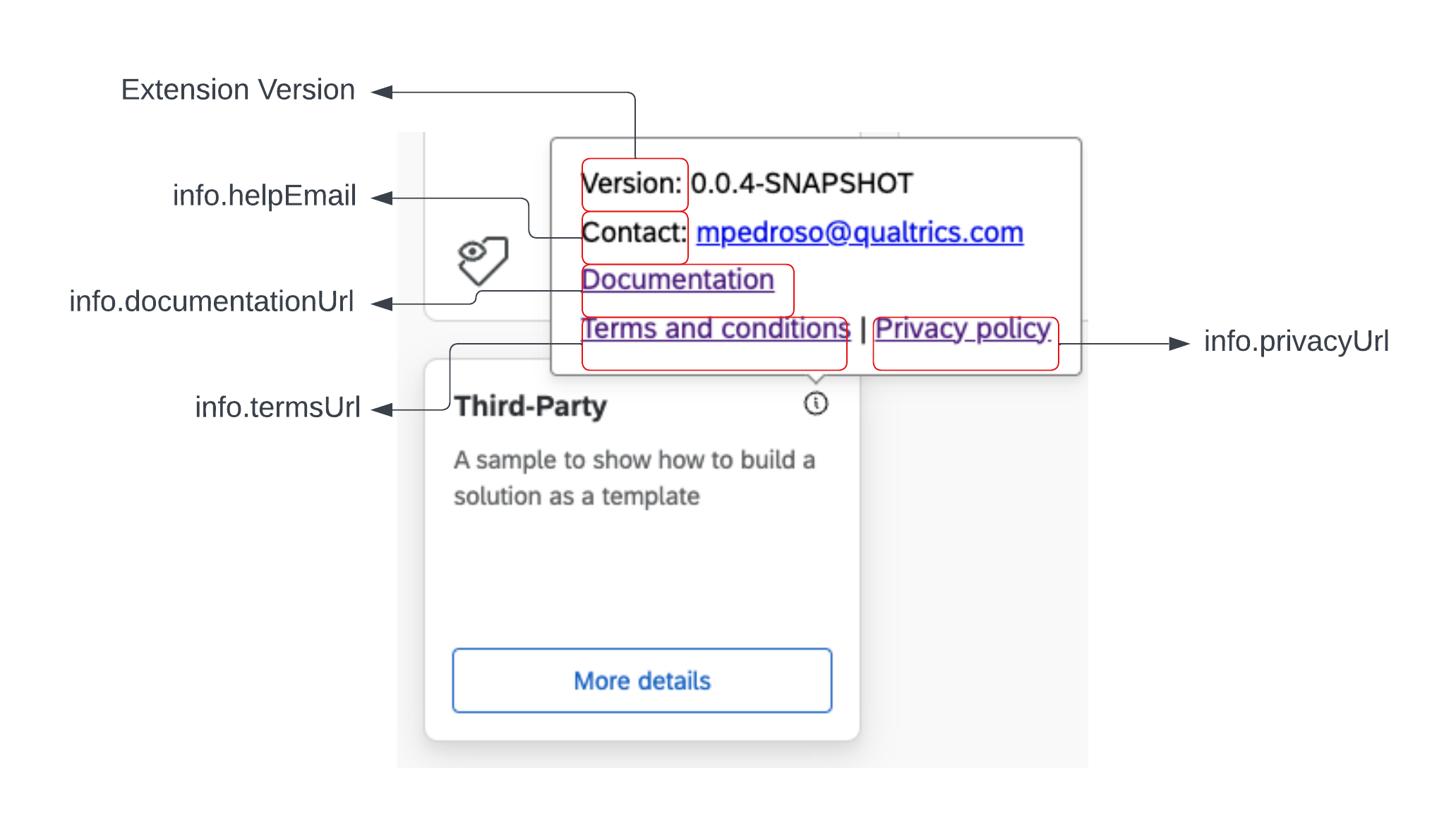
The image below represents all fields that will get displayed for any solution plugin regardless if the fields are set:
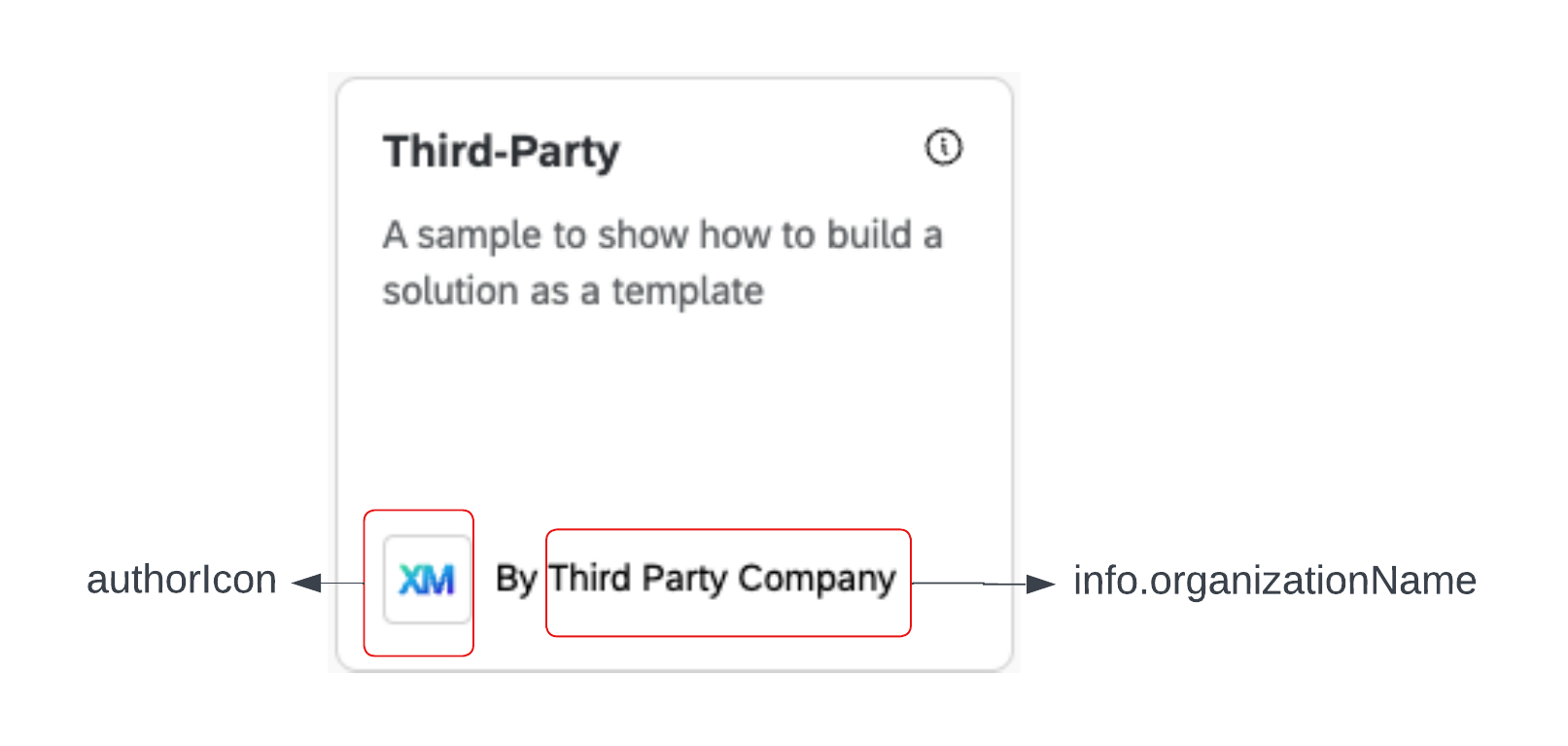
Once the authorIcon and info.organizationName fields are set, the catalog will display more information in two places. The first place will be the catalog card and the organization name will be next to your author icon.
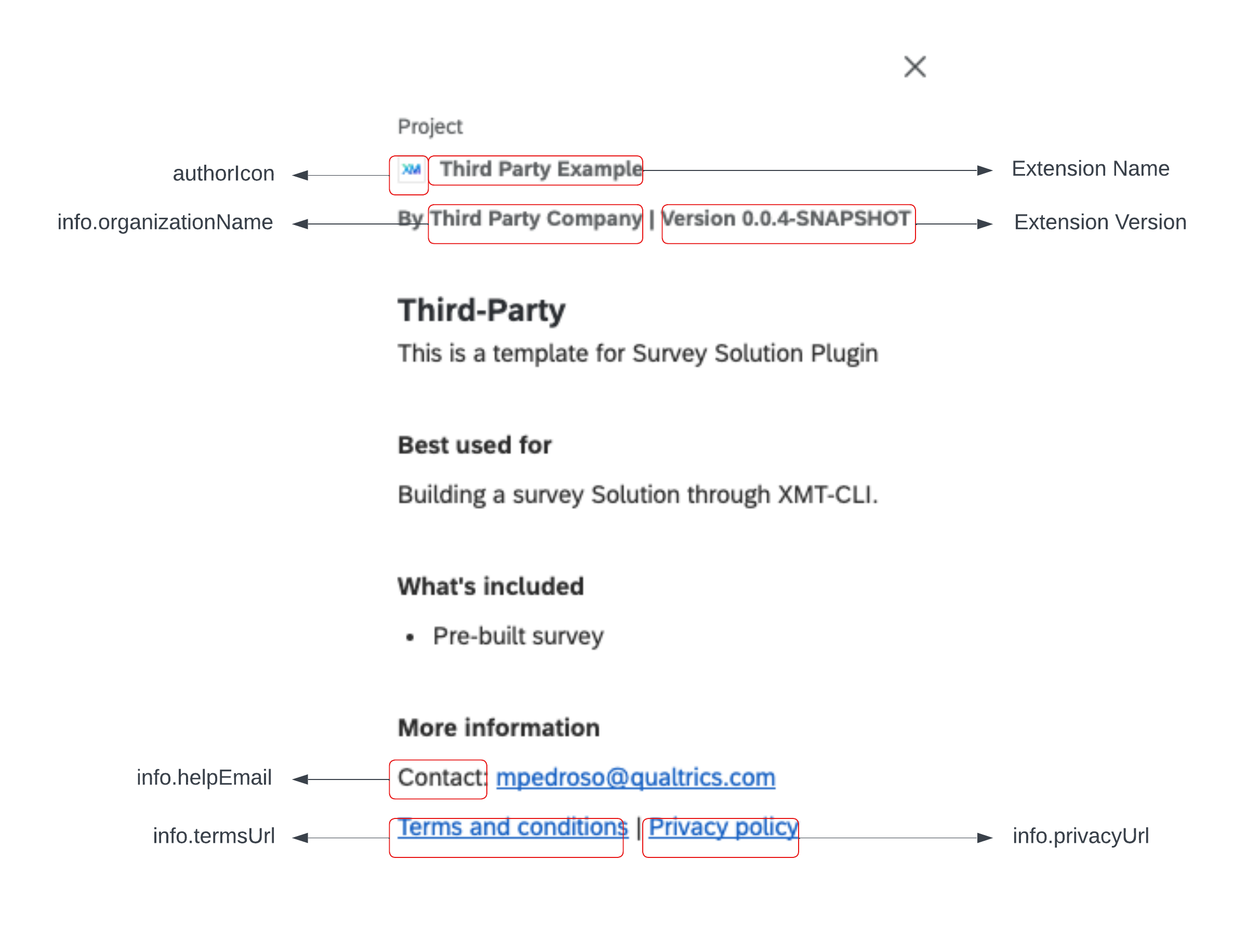
The second place this information will be displayed will be the details panel that appears on the right side of the Catalog once a user clicks on the Solution Plugin.
Display available options
Using solution add-catalog --list command will display the available options for both collections and tags.