Solution Execution Guide
Introduction
The Solution Execution file controls the overall flow of your XM Solution. It defines which resources will get created and the steps a user needs to complete.
If you would like to join the early access program for XM Solution Plugins, then please let us know by taking this survey.
This feature is in Early Access and is not yet generally available. Functionality, APIs, and documentation may change before general availability.
The user visible steps you add to this file will appear in the guidance sidebar. Other steps define which resources should be created as a part of your solution.
After a user completes your Setup Assistant, the guidance sidebar will appear alongside pages related to the resources your solution creates, such as the survey editor or distributions page. It looks like this:
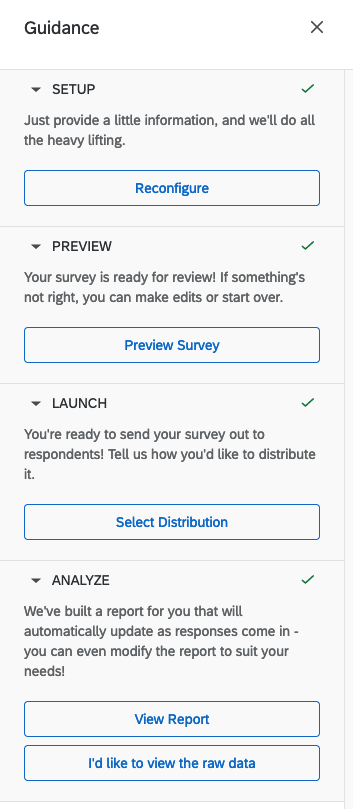
The steps you add to the solution execution that are not user visible will create or update resources, or perform certain actions on them.
Here is what an example Solution execution file looks like:
{
  "apiVersion": "workflow.v3",
  "config": {
    "description": "This is an example v3 workflow for trigger (aka outcome) resource",
    "disableGuidanceSidebar": true
  },
  "setup": {
    "formFilePath": "Resources/path_to_setup_assistant.json"
  },
  "steps": [
    {
      "id": "trigger",
      "type": "Create",
      "config": {
        "apiVersion": "trigger.v0",
        "templateFilePath": "Resources/trigger.json",
        "transformationFilePath": "Resources/triggerTrans.js"
      }
    },
    {
      "id": "locationSetting",
      "type": "SetLocation",
      "config": {
        "setLocation": {
          "sectionData": {
            "contextId": "input.survey_id",
            "outcomeId": "trigger.triggerId"
          },
          "section": "GlobalOutcome",
          "type": "Product"
        }
      }
    }
  ]
}
Breaking changes
A breaking change to your Solution Execution file, as of now, is considered literally any difference between your published version and the version are trying to publish.
For example, if you had the following Solution Execution file published in your solution:
{
  "apiVersion": "workflow.v3",
  "config": {
    "description": "This is an example v3 workflow for trigger (aka outcome) resource",
    "disableGuidanceSidebar": true
  },
  "setup": {
    "formFilePath": "Resources/path_to_setup_assistant.json"
  },
  "steps": [
    {
      "id": "trigger",
      "type": "Create",
      "config": {
        "apiVersion": "trigger.v0",
        "templateFilePath": "Resources/trigger.json",
        "transformationFilePath": "Resources/triggerTrans.js"
      }
    },
    {
      "id": "locationSetting",
      "type": "SetLocation",
      "config": {
        "setLocation": {
          "sectionData": {
            "contextId": "input.survey_id",
            "outcomeId": "trigger.triggerId"
          },
          "section": "GlobalOutcome",
          "type": "Product"
        }
      }
    }
  ]
}
And you were trying to publish a new version of this file, which has a very small change in line #4:
{
  "apiVersion": "workflow.v3",
  "config": {
    "description": "This is an example v3 workflow for trigger resource",
    "disableGuidanceSidebar": true
  },
  "setup": {
    "formFilePath": "Resources/path_to_setup_assistant.json"
  },
  "steps": [
    {
      "id": "trigger",
      "type": "Create",
      "config": {
        "apiVersion": "trigger.v0",
        "templateFilePath": "Resources/trigger.json",
        "transformationFilePath": "Resources/triggerTrans.js"
      }
    },
    {
      "id": "locationSetting",
      "type": "SetLocation",
      "config": {
        "setLocation": {
          "sectionData": {
            "contextId": "input.survey_id",
            "outcomeId": "trigger.triggerId"
          },
          "section": "GlobalOutcome",
          "type": "Product"
        }
      }
    }
  ]
}
You would get an error in the Solution CLI for incoming "breaking changes" in your Solution Execution file that will NOT let you publish your new solution version. This is obviously true for bigger changes in your Solution Execution file that are in fact, breaking changes. If you don't change your Solution Execution file at all, you won't have this problem.
To prevent this, you can create a new plugin inside your extension that will contain the new version of your solution
that you want to publish.
You'd need to run xmt create plugin -t solution to create the new plugin and then copy over the necessary assets
and resources into it to build the new version of your plugin, of course including the new version of your
Solution Execution file.
Fields & objects
| Field | Type | Required | Description | Example |
|---|---|---|---|---|
apiVersion | string | Yes | The version of the workflow file; it must be named workflow.v3 | "apiVersion": "workflow.v3" |
config | object | No | Allows setting certain configuration options for the workflow; see config below | "config": {...} |
steps | []object | Yes | Defines the steps the Solution execution will take throughout the instance lifecycle; see steps detail below | "steps": [...] |
setup | object | No | Defines the setup assistant which contains the setup assistant form path; see setup detail below | "setup": {"formFilePath": "Resources/path_to_setup_assistant.json"} |
Config Properties
| Field | Type | Required | Description |
|---|---|---|---|
description | string | No | The description of the Solution execution that will be shown in the guidance sidebar |
disableGuidanceSidebar | boolean | No | Turn off sidebar display on pages for this instance when it sets to true |
Step Types
The Solution Execution file is primarily made up of steps. These determine the Solution contents and order of
execution.
There are 6 different step types: BasicUI, Create, Update, SetLocation, Action, Var. This section will look
at each of the step types and the fields required for them. You can get more detailed descriptions of each of those
fields
in the next section.
Basic UI
BasicUI step types require user input and defines the content of the "Guide" that appears on the right-hand side of
the survey editor. BasicUI steps should come after all other types of steps and will appear in the Guidance Sidebar
in the order defined by these steps' dependencies fields.
For example, if you have two BasicUI steps,
survey1Preview and survey1Launch, and survey1Launch has "survey1Preview" in its dependencies field,
survey1Launch will come after survey1Preview in the Guidance Sidebar and will be grayed out until survey1Preview
is completed. Absent any dependency information, BasicUI steps will appear in the order in which they appear in the
solutionExecution file, and can be completed in any order.
Required fields:
idtypeconfigMore config details in the next sectiondescriptiontitleprimaryActionsetLocationOnReady
Example:
{
  "id": "preview_survey",
  "type": "BasicUI",
  "config": {
    "description": "Your survey is ready for review! If something's not right, you can make edits or start over.",
    "title": "PREVIEW",
    "setLocationOnReady": {
      "type": "Product",
      "section": "EditSurvey",
      "sectionData": {
        "surveyId": "survey.id"
      }
    },
    "primaryAction": {
      "location": {
        "type": "Product",
        "section": "PreviewSurvey",
        "sectionData": {
          "surveyId": "survey.id"
        },
        "completeOnClick": true
      },
      "text": "Preview Survey"
    },
    "secondaryAction": {
      "location": {
        "type": "Product",
        "section": "EditSurvey",
        "sectionData": {
          "surveyId": "survey.id"
        },
        "primaryResourceKey": "survey"
      },
      "text": "I'd like to edit my survey"
    }
  }
}
Create
Creates a resource by providing apiVersion and templateData or templateFilePath. Check out resource specific
documentation to see how to create a specific resource. These steps will be executed in the order defined by the
dependencies fields of Create steps.
For example, the Create step of a fieldset will always be executed before the
Create step of an associated dashboard regardless of the order in which they appear in the solutionExecution file.
This is because the dashboard Create step would have the id of the fieldset Create step in its dependencies field.
Absent any dependency information, these steps will be executed in parallel.
Required fields:
idtypeconfigMore config details in the next sectionapiVersion- Either
templateDataortemplateFilePath
Example:
{
  "id": "createSurvey",
  "type": "Create",
  "config": {
    "apiVersion": "survey.v0",
    "templateFilePath": "Resources/survey.qsf",
    "transformationFilePath": "Resources/modifySurvey.js"
  }
}
Update
Updates an existing resource. This step type can only apply to a resource previously created or updated in an update
or create step. Check out resource specific documentation to see how to create a specific resource. These steps will
be executed in the order defined by their dependencies fields.
Required fields:
idtypeconfigMore config details in the next sectiontarget- Either
templateDataortemplateFilePath
Example:
{
  "id": "updateSurvey",
  "type": "Update",
  "dependencies": [
    "createSurvey"
  ],
  "config": {
    "target": "createSurvey",
    "templateFilePath": "Resources/updateSurvey.qsf",
    "transformationFilePath": "Resources/modifyUpdatedSurvey.js"
  }
}
Set Location
SetLocation sets a location to redirect to after all steps have been executed.
Required fields:
idtypeconfigMore config details in the next sectionsetLocation
Example:
{
  "id": "navigate",
  "type": "SetLocation",
  "config": {
    "setLocation": {
      "type": "Product",
      "section": "EditSurvey",
      "sectionData": {
        "surveyId": "createSurvey.id"
      }
    }
  }
}
Action
Associated with a resource type, acts on a resource. For example, when publishing and/or activating a survey, you can
use an action step to refresh the fieldset. These steps will be executed in the order defined by their dependencies
fields, so make sure you're acting not acting on a resource that hasn't been created yet.
Required fields:
idtypeconfigMore config details in the next sectionapiVersionactionNameAvailable action names listed in survey page- Either
templateDataortemplateFilePath
Example:
{
  "id": "publishSurvey",
  "type": "Action",
  "dependencies": [
    "createSurvey"
  ],
  "config": {
    "apiVersion": "survey.v0",
    "actionName": "publish",
    "templateData": {
      "surveyId": "{{ $.createSurvey.surveyId }}"
    },
    "transformationFilePath": "Resources/interpolate.js"
  }
}
Var
Var steps allow you to put any value you want onto the context. The output of your JavaScript will be saved as a JSON
object on the context.
Required fields:
idtypeconfigMore config details in the next section- Either
templateDataortemplateFilePath
- Either
Example:
{
  "id": "myvar",
  "type": "Var",
  "config": {
    "transformationFilePath": "Resources/var.js"
  }
}
Step Properties
| Field | Type | Used In | Required | Description |
|---|---|---|---|---|
id | string | All | Yes | The id of the step; must be unique across all steps |
type | string | All | Yes | The type of step; must be one of BasicUI, Create, Update, SetLocation, Action, Var |
condition | string | All | No | Determines whether the step will be executed or not; if not included, the step will be executed by default; references to the context should be done like this: "[path.to.variable, default_value]"; It must evaluate to a boolean. |
config | object | All | Yes | Includes information on transforming and creating/updating |
dependencies | []string | All | No | The step id of the steps that must in a terminal state (done or skipped) before this step can be evaluated; must reference only ids of steps defined in the Solution execution |
Config Field in step
Some fields are required for all step types, while others can only be used with certain types, which is noted below. If a field is marked as required, and only for certain step types, it is only required for those types.
If the step type contains templateData and templateFilePath, at least one of them is required.
| Field | Type | Used In | Required | Description |
|---|---|---|---|---|
apiVersion | string | Create, Action | Yes | The config type that RIG will use to identify the config |
templateData | any | Create, Update, Action, Var | Raw JSON to be used as the config template | |
templateFilePath | string | Create, Update, Action, Var | The path to the config template in the bundle | |
transformationFilePath | string | Create, Update, Action, Var | No | The path to the transformation file in the bundle |
target | string | Update | Yes | Identifies the string in the context to use as the id in the Create/Update |
supportLink | string | BasicUI | No | Information for a link to a support page to display in the guidance sidebar; see supportLink |
description | string | BasicUI | Yes | Displays in the guidance sidebar as the description for the step |
title | string | BasicUI | Yes | Displays in the guidance sidebar as the header of the step |
primaryAction | object | BasicUI | No | Configuration for the primary call to action in the guidance sidebar for this step; the action needs product Location block inside |
secondaryAction | object | BasicUI | No | Configuration for the secondary call to action in the guidance sidebar for this step; the action needs product Location block inside |
setLocationOnReady | object | BasicUI | Yes | Sets the location of the instance when this step is marked as ready; see Location. Possible values |
setLocation | object | SetLocation | Yes | Sets the location of the instance; see Location. Possible values |
Support Link Field in step
| Field | Type | Required | Description |
|---|---|---|---|
text | string | Yes | The text on the support link button |
location | string | Yes | The URL to redirect to; must use protocol "HTTPS" |
Location
A location must either be a URL Location or a Product Location.
For example, setLocation & setLocationOnReady fields in step use a URL Location or a Product Location.
Location section possible values can be found in the navigation page
URL Location This location type links directly to the URL to direct to.
| Field | Type | Required | Description |
|---|---|---|---|
type | string | Yes | Identifies the location type; must be “URL” |
url | string | Yes | The URL to redirect to; must use protocol "HTTPS" |
Product Location
This location type is a configuration that directs to a specific location, using data from the instance to build the URL.
| Field | Type | Required | Description |
|---|---|---|---|
type | string | Yes | Identifies the location type; must be “Product” |
section | string | Yes | The section to redirect to. Section data in navigation page |
sectionData | object | No | Identifies data the section needs to build the URL; may be required depending on the section; the specific fields and their meaning depends on the section |
enableCompleteOnClick | boolean | No | If true, this indicates to mark the step as “done” when the associated action button is clicked; only applicable if this location is in an action |
enableOpenInNewTab | boolean | No | If true, this indicates to open the link in the new tab when the associated action button is clicked; only applicable if this location is in an action |
Setup Property
| Field | Type | Required | Description |
|---|---|---|---|
formFilePath | string | Yes | The file path to setup assistant form |
Execution Stages
This section will go over each stage of solution execution as well as how they are enforced in validation.
Setup
The first stage is setup, where users fill out the setup assistant form. Since this stage is required for all solutions, it is separated from the rest in the solution execution file. No extra validation is necessary for this stage.
Create
This stage includes all Create, Update, Action, and Var steps in the solution execution file, so all resource creations and actions will be completed after a user finishes their setup assistant. Because this is the first stage in the steps array, no extra validation is necessary.
Guidance
This stage includes all BasicUI steps in the solution execution file. Once all resources have been created and all actions performed, the solution execution then guides the user through the rest of the solution.
BasicUI steps are optionalA solution does not need BasicUI steps. This can be useful for simple solutions where extra guidance is not necessary.
If you do not include any BasicUI steps, you should disable the guidance sidebar in the solution execution config:
{
  "config": {
    "disableGuidanceSidebar": true
  },
  ...
}
In validation, this stage is enforced by ensuring that no Create, Update, Action, or Var step has a BasicUI step as an ancestor.
Set Location
The final stage of the solution execution file is to set the location of the solution for redirecting the user after certain actions are completed, i.e. the setup assistant.
This stage is required only if the solution has no BasicUI steps; otherwise, it is optional. This stage includes a single SetLocation step as the final step of the solution execution.
BasicUI stepsIf you have BasicUI steps, the setLocationOnReady field of the first BasicUI step will determine redirection after the setup assistant is complete.
Validation for this stage verifies that the solution execution file contains at least one BasicUI or SetLocation step. The solution execution file can contain at most one SetLocation step. If included, the SetLocation step must be a descendent of all BasicUI steps.