Custom XM Solution Plugin Tutorial
This tutorial will help you create an XM Solution using a Plugin. You will start by simply creating a Solution that reproduces the Qualtrics resources, and then work through some of the ways to update and transform the resources with user input.
By the end of the tutorial, you should have a better idea of how to import your existing projects into a Plugin and to use the Setup Assistant and Resource Transformation to give users more flexibility when creating your Solution.
If you would like to join the early access program for XM Solution Plugins, then please let us know by taking this survey.
This feature is in Early Access and is not yet generally available. Functionality, APIs, and documentation may change before general availability.
Step 0 - Overview
Objectives
By completing this tutorial, you will:
- Understand how to use the
solution importfeature to create a basic template based on an existing Qualtrics product - Create and edit a Setup Assistant to collect user input
- Create an example of a Solution Plugin with three levels of increasing transformation complexity:
- Using the pre-defined
interpolatefunction with in-line variables - Using functions from the JavaScript library to perform basic transformations
- Using custom JavaScript to perform more complicated transformations
- Using the pre-defined
Prerequisites
This tutorial assumes you have a basic understanding of JavaScript and a basic understanding of how to use a CLI.
Review this documentation before getting started:
- Complete the Quick Start guide for XM Solutions.
- Read the Overview and Deep Dive for XM Solutions.
Additionally, you will need to have the tutorial solution enabled in your account. To gain access, please use this survey.
Step 1 - Import resources and create a working template
Create the base files in your account
The first thing you need to do is to create the project you're going to use to create an XM Solution. You will be using an existing Solution to generate the resources in your account to create a new Solution.
While the resources you work with in Solutions can be shared as JSON files, using existing projects is more representative of how you'll create more Solutions in the future using your own Surveys and Reports.
To enable the Solution in your brand please complete this survey. You will be notified via email when the tutorial is enabled.
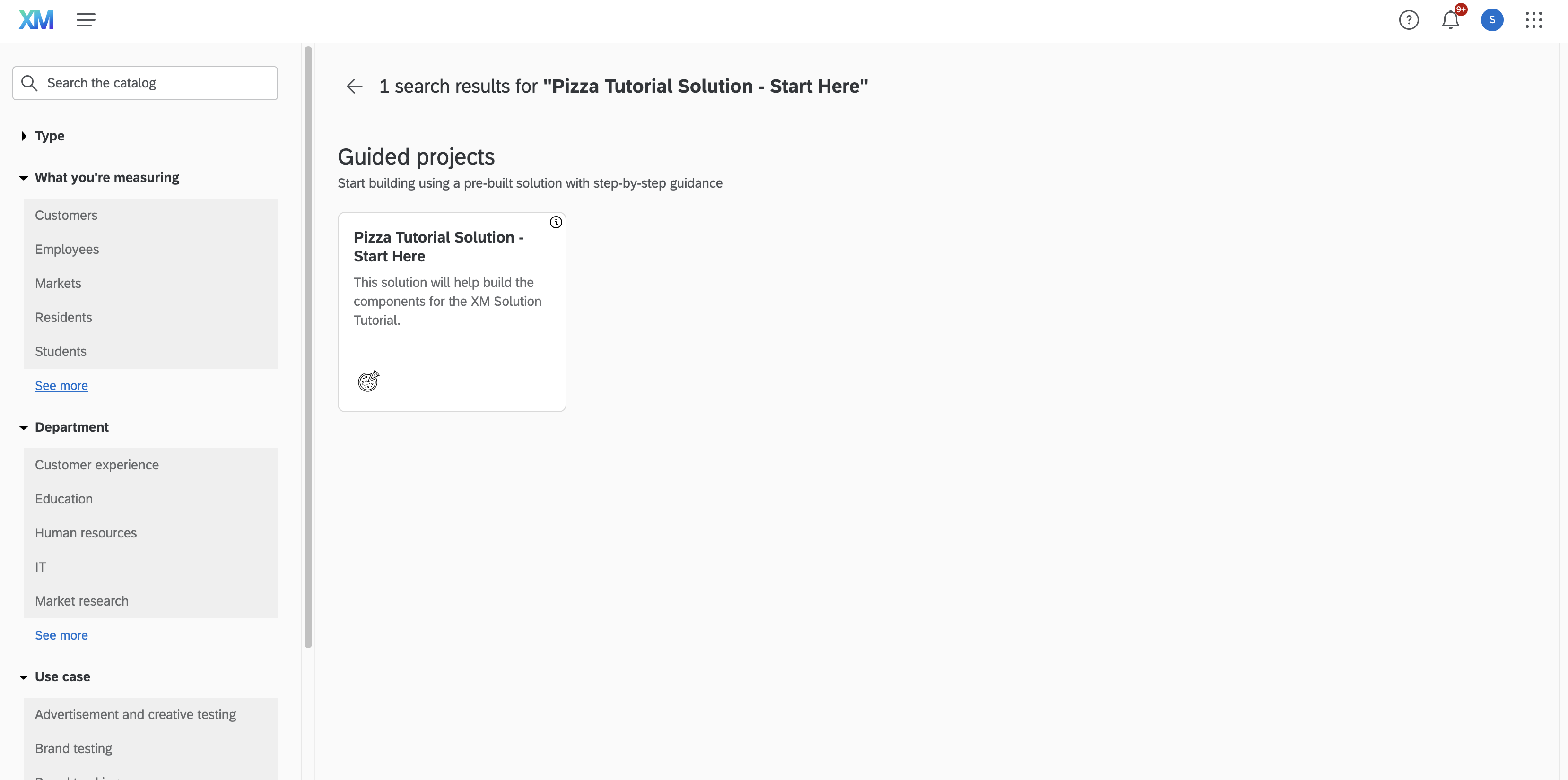
To find the Solution, go to the Catalog and search for “Pizza Tutorial Solution - Start Here". This will allow you to create the Survey, Printed Report, and CXDashboard components that you will use to generate a new Solution.
Create an instance using "Get started" at the bottom right, then "Finish" the Setup Assistant.
Create a new Plugin
If you’ve done the Hello World tutorial for XM Solutions, you should already have an existing Extension that is shared with your brand. If not, check that out here first.
Before you create the new plugin, make sure that you have initialized both xmt and solution using these commands:
xmt init(and sign in using your account)solution init(and sign in using your account)
Next, using the command line, either navigate to your Hello World Extension or create a new Extension using this command and completing the subsequent prompts:
xmt create extension -n "Pizza Tutorial"
If you create a new Extension, remember that you’ll need to share it with your brand in the Extensions manager 30 minutes after publishing it for the first time.
In your Extension, run this command to create a new Plugin:
xmt create plugin -n "Pizza Tutorial" -t solution
This will create a new Solution Plugin. For this tutorial, choose the “Blank Solution Template (default)” option - this will give us the bare bones essentials, and you will work on creating the rest of the Solution through this tutorial.

You don’t need a connection, so just say “No thanks” to that option.
Before you move on, if you are using an Extension with multiple Plugins, you will need to ensure only one Plugin is shown at a time when published.
To do this, in each Plugin, navigate to the config.json file. There, at the top of the file, add the hidden field, and set it to false for the Plugin(s) that won't be shown. It should look like this:
{
  "hidden": false,
  "id": "PLUG_920afcca-486e-407a-8539-fad2789cd017",
  "metadata": {
    "AUTO_GENERATED_ACCESS_CONTROLS": {
      "AccountPermissions": ["createSurveys"],
      "QuestionPermissions": ["DB", "MC", "TE"]
    }
    //...
  }
}
Solution import
Now, you can import the resources that you added to your account.
To add them, navigate to your Plugin with the command line, then run this import command:
cd plugins/pizza_tutorial

solution import
In the import command, you’ll first choose the type of resource. Since you have a CXDashboard, choose the CXDashboard option.
Next, you’ll choose the dashboard type. The only type is vocalize, so choose that.
Lastly, choose the specific CXDashboard project you just created earlier. It should be named something like “Pizza Tutorial Dashboard”.
The system will then download the files for your resources. These are templates that you will use to build new projects when users create instances of the Solution.
Solution execution
The next step will be to rename the newly-generated solutionExecution file to be just solutionExecution.json. The import command generates a fully-built file, but gives it a new name with a random string appended, so you need to remove those random letters and numbers to be just solutionExecution.json. You can either do this manually using a file editor or in your text editor, or you can use a terminal command like this:
mv src/solutionExecution_tlf0.json src/solutionExecution.json
You may delete the older solutionExecution.json file as it is effectively empty.
npm install
Run this command in the CLI:
npm install
This will install the relevant packages for your Solution’s transformation files. The solution import utilizes some JavaScript library functions, so running this command will allow those files to work correctly.
Generate test
The last thing you need to do before submitting the Extension is run this command in the CLI:
solution generate-test
This command opens up the Setup Assistant, where you input your custom answers, and then a second command will download your answers into a test file for your Solution in a new tests folder. Before you validate, you must have a test-{sessionId}.json file. Get it by running this command:
solution generate-test --session-id {sessionId}
Your default Setup Assistant from importing comes with a text field asking for a title, after finishing and exiting from Setup Assistant, the text field should be filled.
This file will help to simulate user input for validation so that it can run your transformations and see if what is produced is valid. You will see the textVariable in the setup.answers section with the string value you inputted:
{
  "seed": 0,
  "setup": {
    "answers": {
      "textVariable": "example title"
    }
  },
  "system": {
    "Language": ""
  },
  "user": {
    "BrandID": "",
    "UserID": ""
  }
}
Build, submit, validate
Now you’ll go through the three steps you need to take every time you want to update your Solution in Qualtrics. The first step is to run this command:
solution build
This will compile all of your files and prepare them for submission.
If you’ve created a new Extension, make sure to update the file name at assets/translations/EN.json to assets/translations/en.json. This is in your top-level Extension, not the Plugin.
Next, run this command:
xmt submit extension
This will submit your Extension, including your newly updated Plugin.
Before the last command, if you are using a new Extension, make sure to visit the Extension manager, wait ~20 minutes, and then share it with your brand.
Finally, run this command:
solution validate
This will use the test file to run through the steps of your solutionExecution.json and ensure everything is working as expected. You should see a success here.
Note that while you are creating a Solution, you can set the version in your Extension's manifest.json file to include -prerelease at the end, like this:
{
  //...
  "metadata": {},
  "settings": [],
  "version": "1.0.0-prerelease"
}
This will allow you to submit your Extension without manually updating the version number each time, which is ideal for development.
However, this also prevents you from fully publishing your Solution and sharing it with other brands. In order to do that, you will need to remove the -prerelease.
For this tutorial, you will leave it as prerelease because you are not looking to fully publish, but keep this in mind when you are creating your own Solutions.
Look up the Solution in the Catalog
Now that your Solution is published, you can navigate to the Catalog in your Qualtrics account and see it. Try searching for “Solution Plugin Template” - you should see something like this:
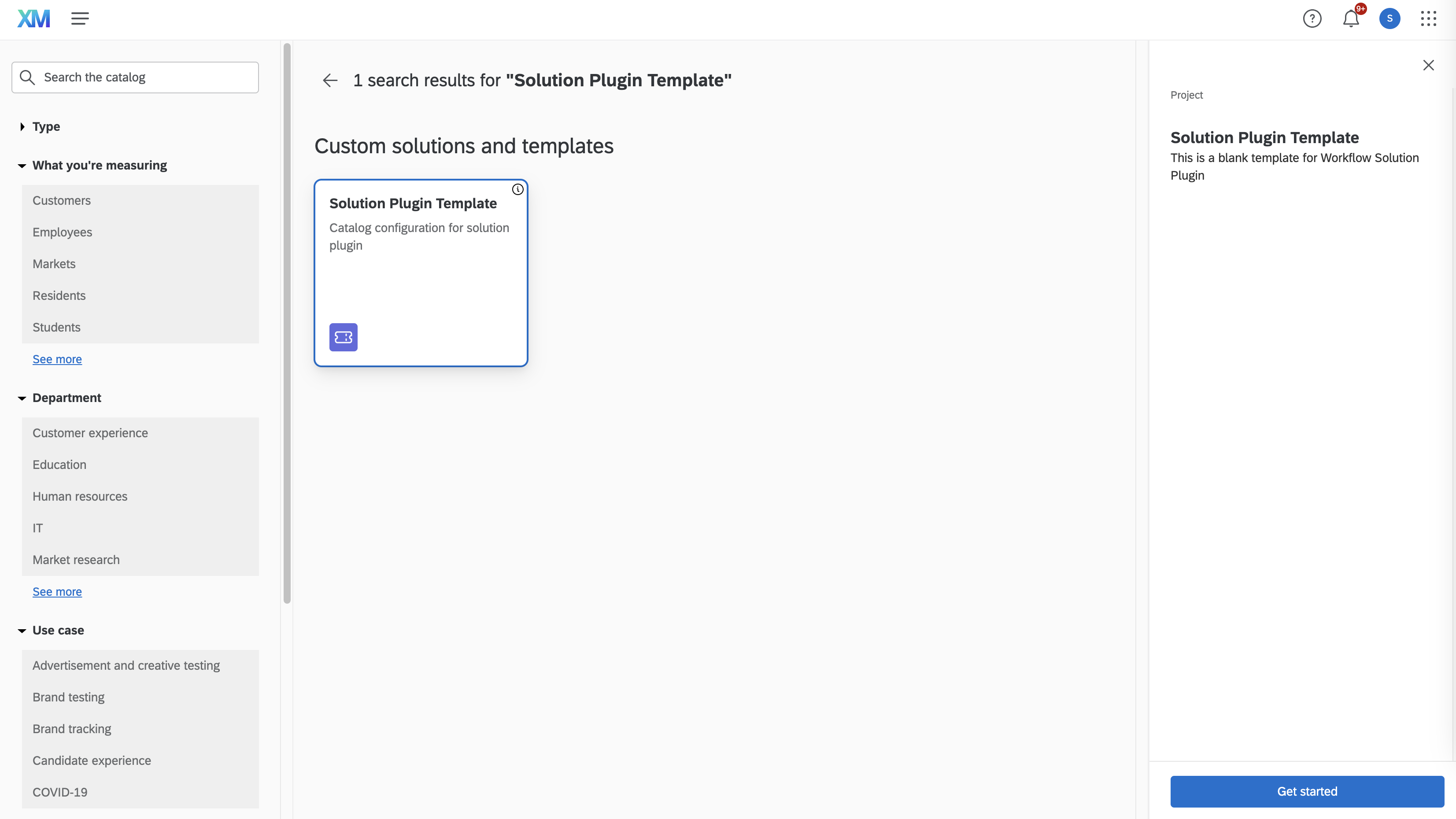
Now, that’s not exactly what you were hoping to see. It’s using the default values from your basic Solution template when you generated your Plugin. Let’s fix that up so that your Solution is easier to find and provides a description of what it is.
Create a Solution Instance from the CLI
You may want to create an instance of your solution without having to go through the Setup Assistant UI every time. For this, you can use the answers from your previously created test file to create an instance right from your CLI.
To do so, run this command:
solution create
You will be prompted to choose a test file to use for the Setup Assistant answers. Select the one you want to use. For more information on how to use this command take a look here.
After the command is done, you will be able to see your newly created project in your projects section in the UI.
Step 2 - Refine catalog appearance and guidance sidebar
In this step, you will revisit your Solution files to adjust what you're seeing in the Catalog.
Catalog configuration
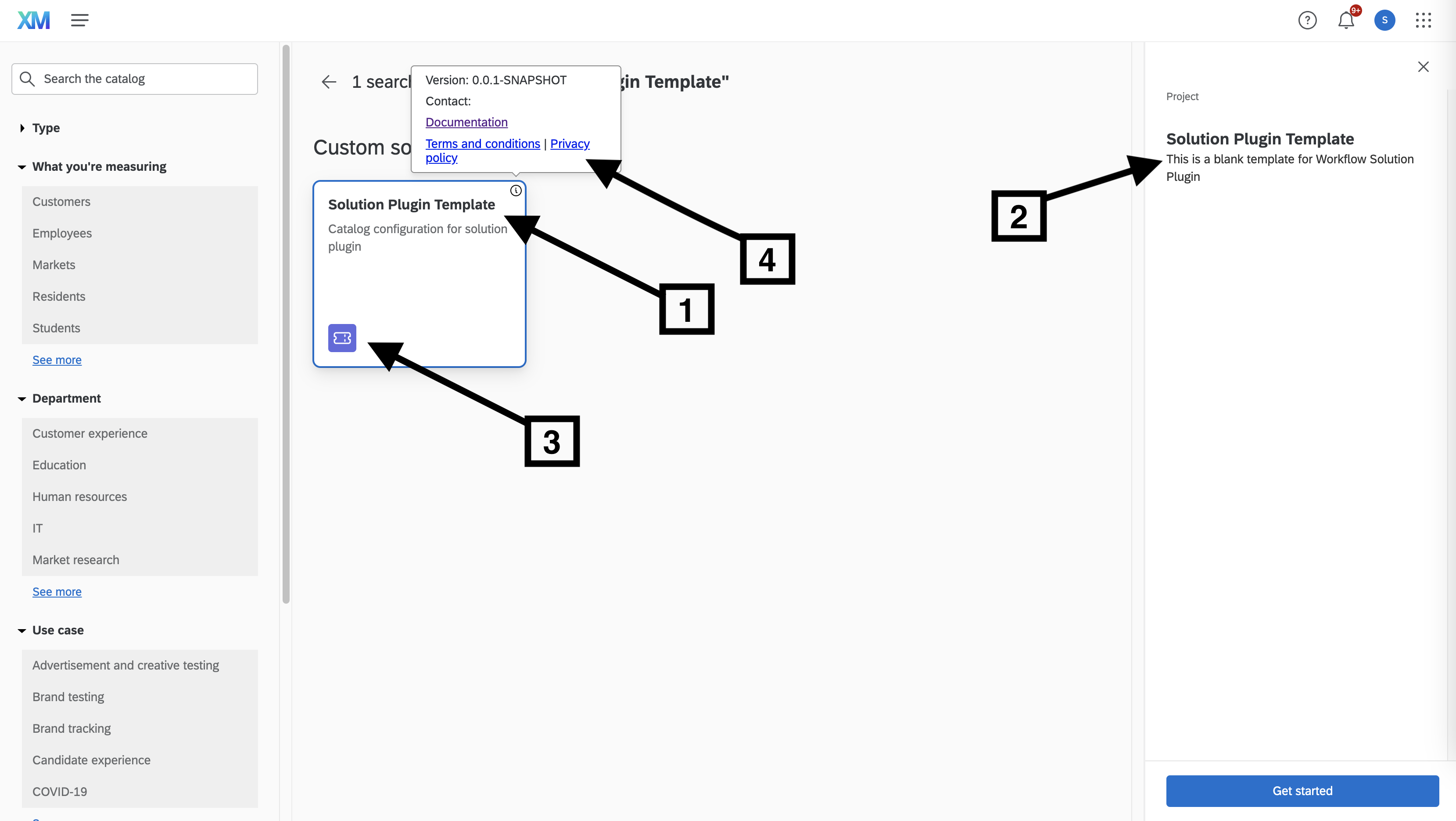
There are four important files for your Solution that define the appearance in the Catalog:
- The catalogConfig.json file
- The summary.md file in your Assets folder
- The svg image file in your Assets folder (either catalog icon or author icon)
- The manifest.json file in your Extension (if you’re making a 3rd party plugin)
Catalog config
in your src folder, both the catalogConfig.json file and the solutionExecution.json file contain the name and description shown on the card for your Solution in the Catalog. It should look like this:
{
  "name": "Solution Plugin Template",
  "description": "Catalog configuration for solution plugin",
  "offeringType": "SOLUTION",
  "tags": [],
  "collections": ["CustomSolutions"],
  "assetMap": {
    "catalogIcons": ["Assets/Ticket.svg"],
    "summaryMarkdown": "Assets/summary.md"
  }
}
There’s more information about each of these fields here. For your purposes, make sure you update the name and description.
Use this command to address collections and tags:
solution add-catalog
This will allow you to add the relevant fields to your catalogConfig. For now, select the collections option, then the projects option, then the GuidedProjects option.
This will add the value to your file and make the Solution appear in that group in the Catalog. You can also explore the tags options.
Assets
Two other files that matter for the Catalog are the summary.md and svg icon file in your Assets folder. As you can see in the catalogConfig above, these names are actually not required - as long as you put the right file path in your summaryMarkdown and catalogIcons fields, you can use whatever names you like.
Summary
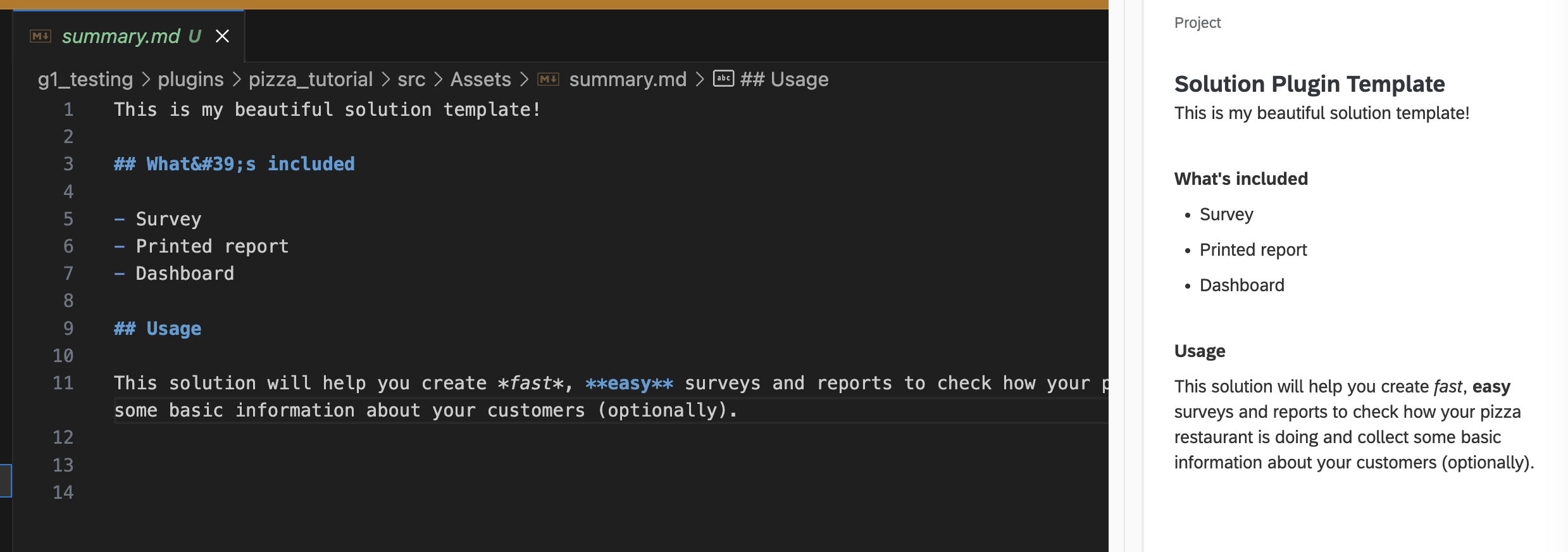
The summary.md file defines what is shown on the right-hand sidebar when you click on the card for your Solution. You can use markdown styling to create headers, bold and italicize text, and create bullet points.
Catalog Icons
You can have one Catalog icon that appears on the card in the bottom left. Generally, this has to be an svg file, and you need to include the file path in your catalogIcons array of the catalogConfig.
Author Icons (3rd party)
You can have one author icon that appears in place of the Catalog icon in the bottom left. Generally, this should be an svg file, and you need to include the file path as your authorIcon in the assetMap of your catalogConfig, like this:
{
  "name": "Pizza Tutorial Solution",
  "description": "Help your pizza chains collect feedback",
  "offeringType": "SOLUTION",
  "tags": [],
  "collections": ["GuidedProjects"],
  "assetMap": {
    "catalogIcons": ["Assets/pizza.svg"],
    "authorIcon": "Assets/QualtricsLogo.svg",
    "summaryMarkdown": "Assets/summary.md"
  }
}
Using an author icon will also show your organization name, as discussed below, next to the icon at the bottom of the Solution's Catalog card.
Manifest (3rd Party)
If you’re making a 3rd-party Solution then you need to make some updates to your manifest.json file in the top level of your Extension folder. This helps to define the links that appear to a user in the Catalog.
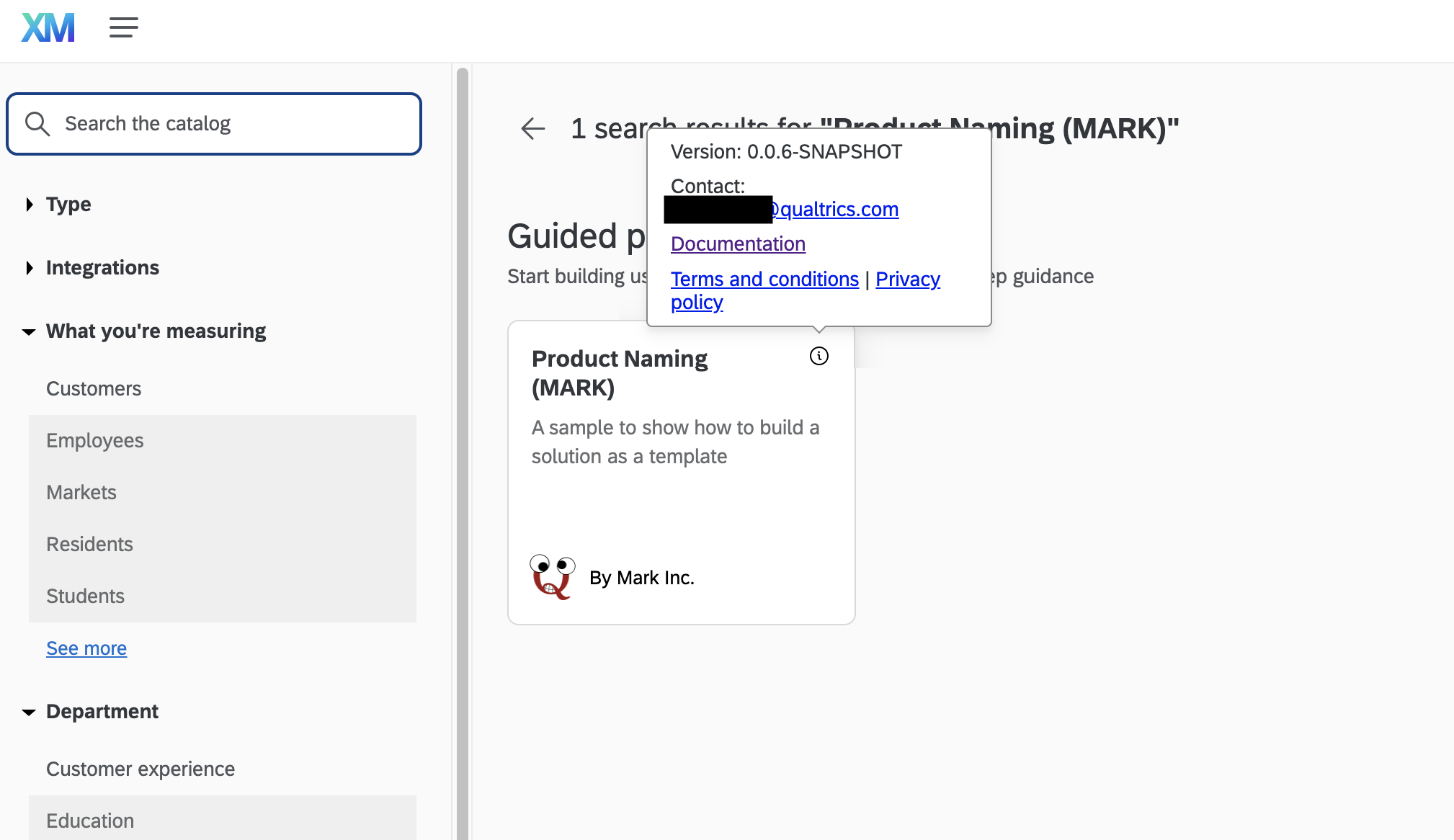
In your manifest.json file, you need to add this to the info section:
"info": {
    "privacyUrl": "https://www.qualtrics.com/",
    "termsUrl": "https://www.qualtrics.com/",
    "helpEmail": "solutionauthor@qualtrics.com",
    "documentationUrl": "https://www.qualtrics.com/",
    "organizationName": "NOT Mark Inc."
},
These fields will define the links that appear when you hover over the information button at the top right of the Catalog card, and the organizationName field will change what text is shown next to the author icon in the bottom left.
Editing
Go ahead and update your Assets - give users some more information using the summary.md file and feel free to use this svg file to replace the one you have. Make sure to update the catalogConfig file to match the file name you give this svg!

Build, Submit, Validate
Now that you've made some updates to your Solution, go ahead and check them out. Just like at the end of the first step, run these three commands:
solution build

xmt submit extension

solution validate
Make sure to do all three of these in this order, especially validation. It’s a great habit to ensure that if something gets misconfigured you can catch it quickly.
Guidance Sidebar
Now that you've addressed the Catalog, create an instance of the Solution. Navigate to the Catalog and search for your newly-updated Solution to see the changes.
Next create using the option at the bottom right. This will direct us to the Setup Assistant, which currently only asks for a title - you will tackle this in a future step, but for now just click “Finish” at the bottom right.
This will take us to the Survey editor after all your resources are created. To the right, you’ll see a sidebar that gives us some directions on what next steps to take - these are determined in your solutionExecution.json file, and the import will create steps for us based on what resources you have.
Basic UI Steps
If you look at the solutionExecution.json file, you should see some larger steps called BasicUI steps. You will talk more about the Create steps in the future.
For Surveys, you have a Basic UI step to preview the Survey, which also sets your location after the Setup Assistant to be the Survey editor. Additionally, you have a step to go to the Distributions tab so that users can share the Survey to collect responses.
For reporting resources, you get a single step to go to that resource. For Printed Reports, that will be a button to go to the “Reports” tab and see the Printed Report. For CXDashboards, that will be a button to go to the CXDashboard project.
For the purposes of the tutorial, you will keep all the steps. However, you can change the text fields to see how that impacts the sidebar. You can change the title and description fields to alter what the step on the sidebar shows, and you can change the text field inside each button to change what the button says.
Feel free to play with the solutionExecution.json Basic UI steps, but remember that users of your Solution will likely need each of these steps to know where they need to go to see the other resources.
If you do make changes, go through the steps of Build, Submit, Validate above to see the changes and make sure your Solution is functioning properly.
Step 3 - Change the title of your projects
For this next step, you're going to collect user input and use it to update your resources. This is the basis of what you call “transformations”.
While the import command sets your Solution up with some basic transformations, this step will dig into how to add more and make the projects you create more flexible for users.
In this step, you will update the Setup Assistant to use the title a user provides to name their Survey project and CXDashboard project. You may have noticed that the instances you’ve created so far have all had the same name.
This makes it hard to distinguish which one is which. You can change the name, but first dive into the Setup Assistant to understand how you do that.
Collecting user input
The way you collect user input with Solutions is to use the Setup Assistant, which is the page you see after you choose the Solution in the Catalog before you go to the Survey editor.
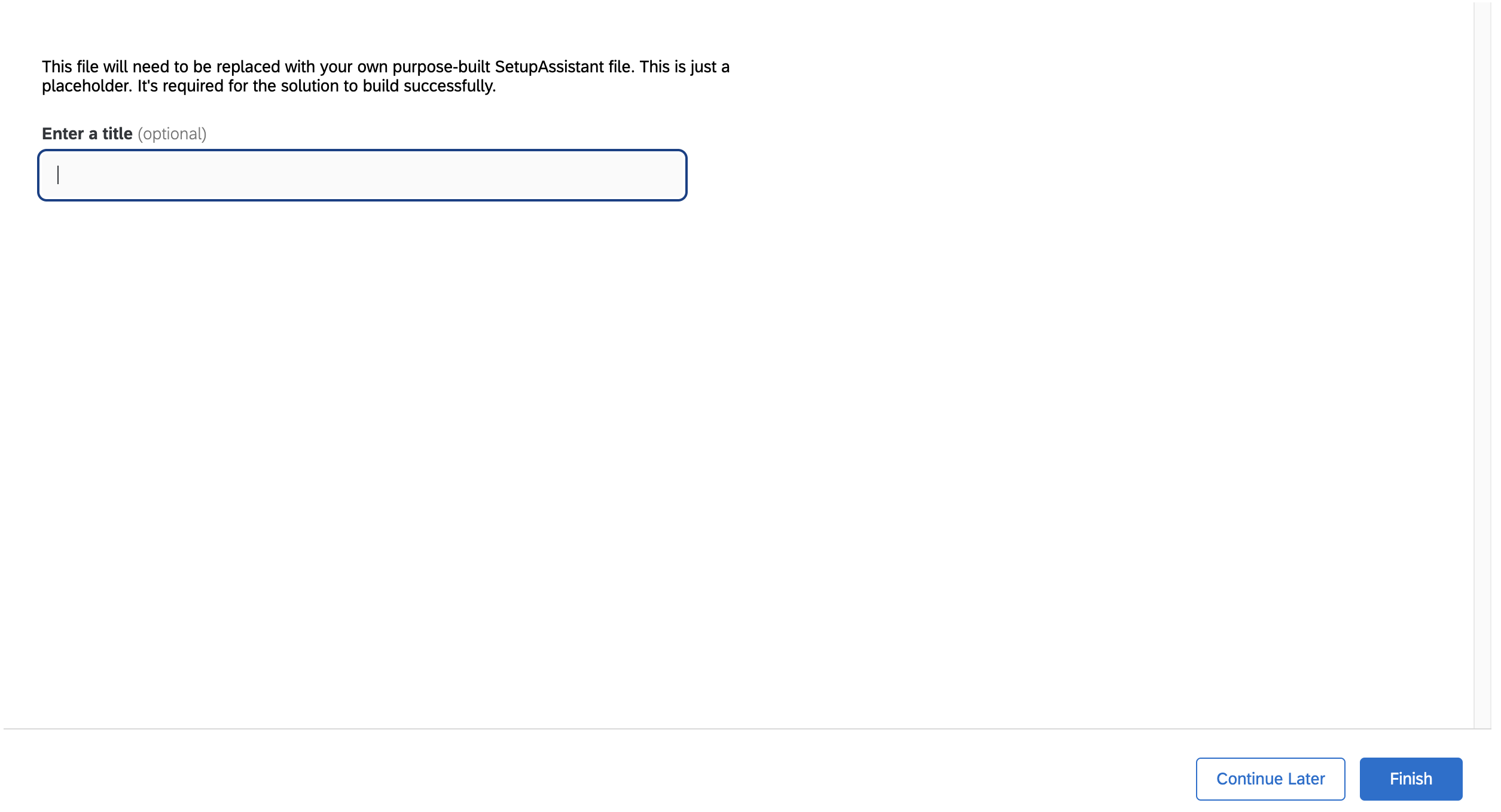
Since you used the import command, your Plugin has a setupAssistant.json file in your Resources folder. There's also the setup.json file in your src folder, but you can safely delete this as it is essentially empty and is not being used.
By default, the generated setupAssistant.json file asks for a title using the default variable name (textVariable), which can work but is confusing. To update the variable name, use the Setup Assistant Creator. Launch the Setup Assistant Creator by running this command in your terminal:
solution editor —setupAssistant
Upload your setupAssistant.json file located in your imported Resources folder, which will open it in the editor. You can delete the first item, the text block that starts "This file will need to be replaced...", by clicking the pencil button at the top right of it and then clicking "Delete" in the bottom left-hand corner.
Then, click the pencil button at the top right of the text entry widget asking for a title.
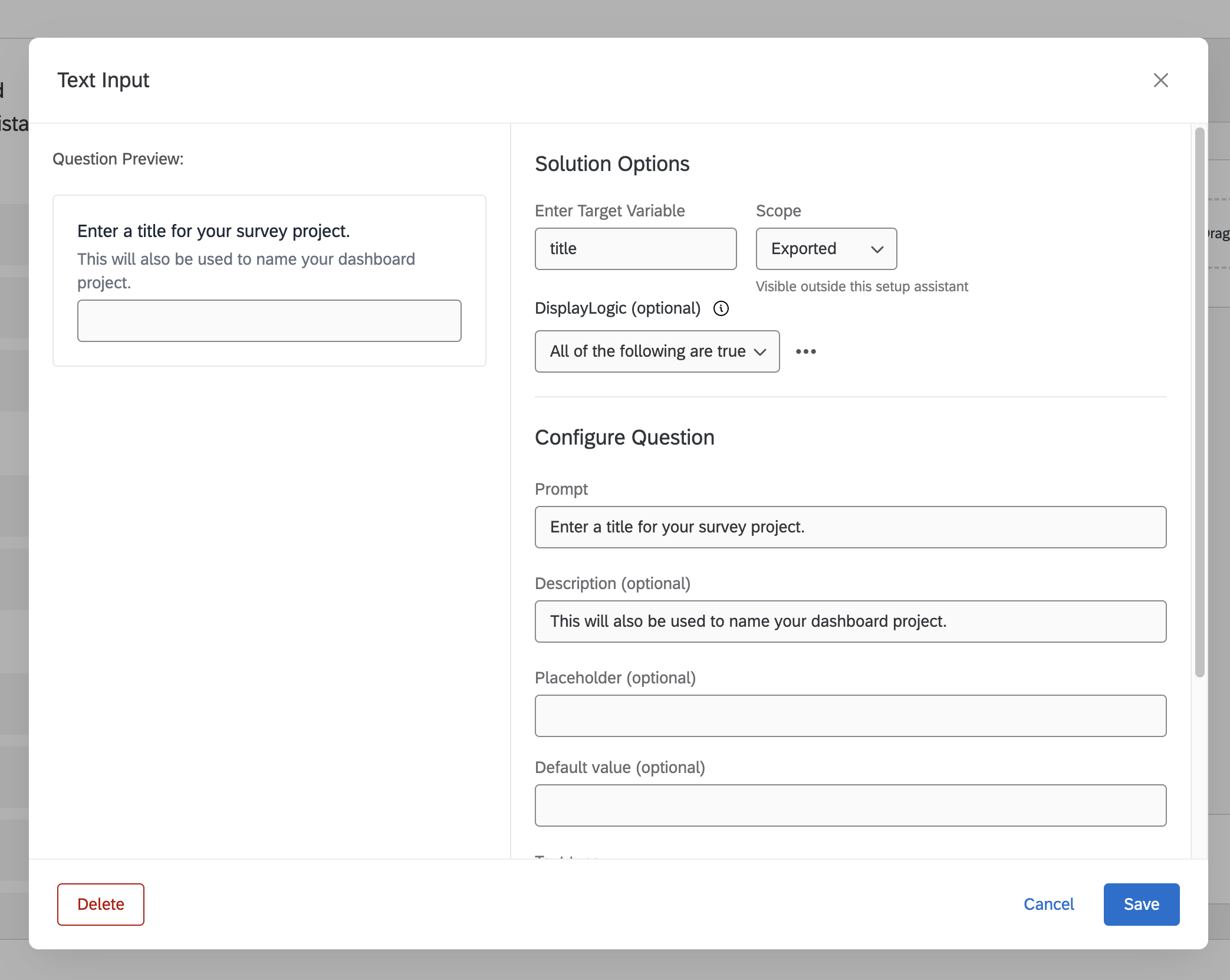
Change the Target Variable field to be title. You can technically name this whatever you’d like, but this field will be used to fetch the user’s title later, so remember that whenever this tutorial mentions title you need to reference the name you chose.
Next, update the Prompt and Description to let users know what to look for. Additionally, at the bottom of the options, click on the switch for "Response required". This will prevent users from finishing the Setup Assistant if no title has been provided.
Then, save the changes and download your new setupAssistant.json file at the bottom right corner of the editor. Replace the old file in your Plugin with this new one.
When you download the file, the name will be all lowercase. Make sure to rename the file setupAssistant.json when you put it into your Resources folder - this will ensure your solutionExecution.json has the correct file path referenced.
Using the title
Now that you're collecting the title in the Setup Assistant, you need to make sure it gets used in your resource transformations. For this Solution, there are two resources that get generated that appear in My Projects - the Survey and the CXDashboard.
To ensure that users can find these easily and don’t create too many projects with the same name, you will adjust a few files using transformations.
Interpolate
In order to use this title value, you're going to use the transformation that’s created by default when you import. This transformation is using a function called interpolate, which looks for patterns in your resources that have double brackets like this: {{$.setup.answers.title}} Inside the brackets, you can call values from your context. Let’s start with the Survey.
Survey
Open survey1.json in your Resources folder and format the document. In most text editing programs, this is done by right-clicking and choosing “Format Document”, “Reformat Code”, or something similar. This will change your file from being a single-line string of text to a prettier format for JSON where objects are broken out by fields.
To change your title, you need to change the SurveyName field in the SurveyEntry object. This can either be at the top or bottom of your file, but you can also just search the document for “SurveyName”.
Once you find it, use this variable to replace the text in the SurveyName field: {{$.setup.answers.title}}
{
  "SurveyElements": [],
  "SurveyEntry": {
    "SurveyName": "{{$.setup.answers.title}}"
    //...
  }
}
If you’re curious about that variable, it’s essentially a path to the title field that a user provided in the answers of your setup step that is saved on the context. If you used a different target variable in the Setup Assistant, make sure to update that path here. You can learn more about the context here.
Dashboard
For the dashboard, you have two resources you need to adjust with this new title input. Those are the Fieldset and CXDashboard.
Fieldset
The Fieldset resource should be called fieldset1.json in your Resources folder. Go ahead and open that up and format it just like you've done with the survey.
Find the top level name field and replace the string with {{$.setup.answers.title}} Dashboard to create a value like this:
{
  "contextMeta": {},
  "fieldSetView": [],
  "fields": {},
  "name": "{{$.setup.answers.title}} Dashboard",
  "sources": []
}
This will change the CXDashboard project name, which will make it line up with the Survey in the My Projects page in terms of naming. You're leaving the Dashboard part to help clarify that it is the CXDashboard component.
CXDashboard
The last resource you need to adjust is the CXDashboard resource. It should be in your Resources file as CXDashboard1.json, so open it up and format the document.
Find the description field, which defines the name of the CXDashboard project. You will update it to the same string you used in the fieldset ("{{$.setup.answers.title}} Dashboard"), like this:
{
  "_id": "646d178dcf54dd0008fccf57",
  "containerType": "dashboard",
  "description": "{{$.setup.answers.title}} Dashboard",
  "fieldSetId": "{{ $.fieldset1.id }}",
  "language": "EN",
  "product": "vocalize"
  //...
}
It’s important that the name is the same between the Fieldset and the CXDashboard, so if you don’t want to use this exact name just make sure it lines up between your two files.
Build, Submit, Validate
Before you build and submit, update your exampleTest.json file in the tests folder. Since you've changed the field in your Setup Assistant, you need to update that here as well. You changed textVariable to title, so do the same in setup.answers:
{
  "seed": 0,
  "setup": {
    "answers": {
      "title": "example title"
    }
  },
  "system": {
    "Language": ""
  },
  "user": {
    "BrandID": "",
    "UserID": ""
  }
}
Then, just like before, run these three commands:
solution build

xmt submit extension

solution validate
Make sure to do all three of these in this order, especially validation. It’s a great habit to ensure that if something gets misconfigured you can catch it quickly.
Check the product
After you’ve validated, go ahead and look for the Solution in the Catalog again. Now when you create an instance, you should see the Setup Assistant asking for a title, and once you provide it and click Finish, your new projects should have names that line up with the one you provided!
Step 4 - Transforming with interpolate
At this point, you have a basic Solution, and hopefully you have an understanding of how each resource generates something in the product. After the last step, you now see how you can collect and use input from the user creating the Solution, but this step will dive deeper into what it means to transform resources.
For the next three steps, you are going to work through three different transformations, getting more complex in difficulty each time. You will start with updating the Setup Assistant each time, making the relevant changes to your resources, and then going through build, submit, validate for each of the transformations.
For the first transformation, you will do something very similar to what you did in the last step by collecting a string from the user and then replacing your pizza restaurant’s name with that string in the Survey. This will use interpolation (the {{ }} inline variables) but won’t require additional JavaScript changes.
Get more user input
You need to add another text entry question to your Setup Assistant to collect the user's pizza chain’s name. As with the last step, you need to update your setupAssistant.json file. Launch the Setup Assistant Creator by running this command in your terminal:
solution editor —setupAssistant
Upload the setupAssistant.json file. Just like in the last step, you need a text input question, so drag a new one from the left-hand sidebar to the spot underneath the text question asking for the title. Then, click the pencil button at the top right to edit.
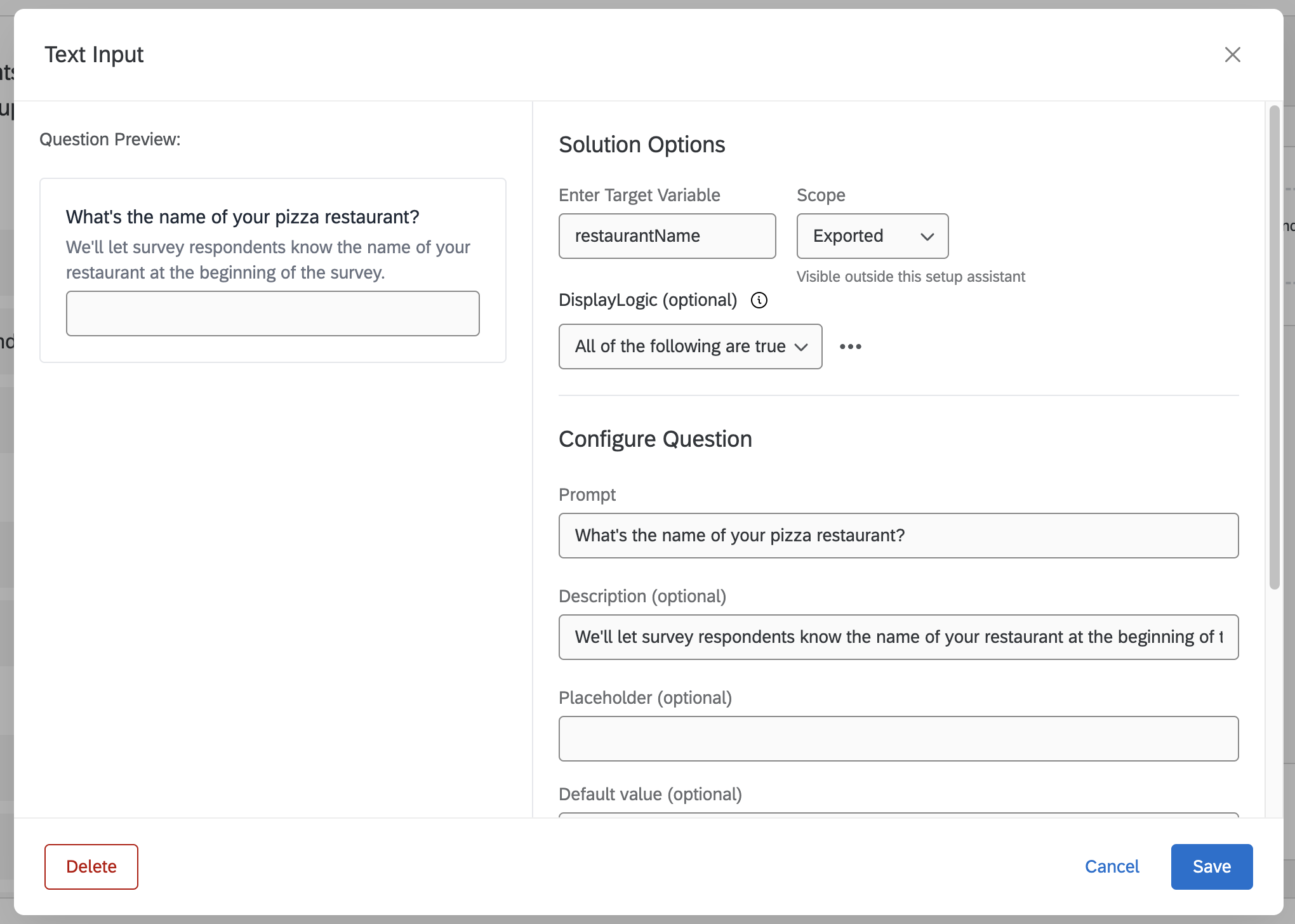
For this one, you will set your Target Variable to be restaurantName. As with title, you can technically set this to be whatever you’d like, but remember that when you reference this answer you’ll need to use the string you set. Additionally, update the Prompt and Description to indicate that you want the name of the restaurant so that you can customize the survey. Be sure to mark the question as required, so the user can’t skip it.
Once that’s saved, export the new setupAssistant.json file at the bottom right and replace the old file in your plugin with this new one.
Transforming resources
For this transformation, the only place you use the restaurant name is in the first Survey question. So, you can just do something very similar to what you did last step and use an interpolation variable to replace the name that’s currently there with the name that’s been provided.
Go ahead and open up the survey1.json file in your Resources folder. Now, search for this string: Pizza Dome. You should find 3 instances of that string. For context, Survey question text typically appears three times in a Survey file, but the point here is that you need to change that string in all three places to take the input from your Setup Assistant that you just added.
To do that, replace that string (Pizza Dome) with this string: {{$.setup.answers.restaurantName}}
Much like the title in the last step, this path tells the interpolate function where to find the restaurant name the user has provided. That’s all you need to do to pull it in!
Build, Submit, Validate
Just like last step, now that you've added a field to your Setup Assistant, you need to update your exampleTest.json file inside your tests folder to match what you expect to see when a user finishes the Setup Assistant. In this case, you added another field named restaurantName, so add that to setup.answers and give it a dummy string value:
{
  "seed": 0,
  "setup": {
    "answers": {
      "title": "example title",
      "restaurantName": "My Pizza Restaurant"
    }
  },
  "system": {
    "Language": ""
  },
  "user": {
    "BrandID": "",
    "UserID": ""
  }
}
Now, just go through the same three steps. Make sure to save your survey1.json file and your exampleTest.json file before you build and submit!
solution build

xmt submit extension

solution validate
Validate should give you a successful build. If it doesn’t, make sure that your Setup Assistant has the correct questions, your test file has the correct fields, and your Survey file’s new variable is calling the right path.
Test it out
Once it’s submitted and validated, you can create a new instance in the product. Just open up the Catalog, find the Solution, and create a new instance. Your Setup Assistant should now ask you for that name, and when you finish you should see it in the first question. Note that this method can be used in any of your resources that display text, and can also be used in choice text, widget titles, report names, embedded data fields, quotas, filter names, and more.
Step 5 - Transforming with JavaScript library
The next transformation you will do will be to remove the follow-up questions from your Survey and corresponding widgets and fields from your Printed Report and CXDashboard components if a user indicates they don’t want them. You will do that with a checkbox in the Setup Assistant and conditionally remove the questions and related widgets and fields when a user doesn’t want to include them.
As a note, this method of including all optional questions and reporting widgets in your original resources is considered best practice. It’s a lot easier to remove items from your resources than it is to generate new ones, especially with the moving pieces between Surveys and reporting resources.
This transformation of removing follow-up will require a little more work, and you’ll need to create new JavaScript transformation files for each resource rather than using the basic interpolate.js one for all of them. This means you will be changing the Setup Assistant to collect new information, you'll be creating new files for transforming your resources and pulling in the JavaScript library functions, and you'll be updating the solutionExecution.json file to make sure the correct files are used for transforming.
Getting more user input
The first thing you need to do is to collect another data point from your users in the Setup Assistant so that you can determine if they want to have the follow-up block or not. To do that, add a checkbox to the form.
To update your form, use the Setup Assistant Creator. Launch the Setup Assistant Creator by running this command in your terminal:
solution editor —setupAssistant
Upload your setupAssistant.json file, which should open it in the editor. Now, add a checkbox question. Drag the option from the left-hand sidebar to the middle underneath your restaurant name question, and then click the pencil button at the top right of the block that gets created.
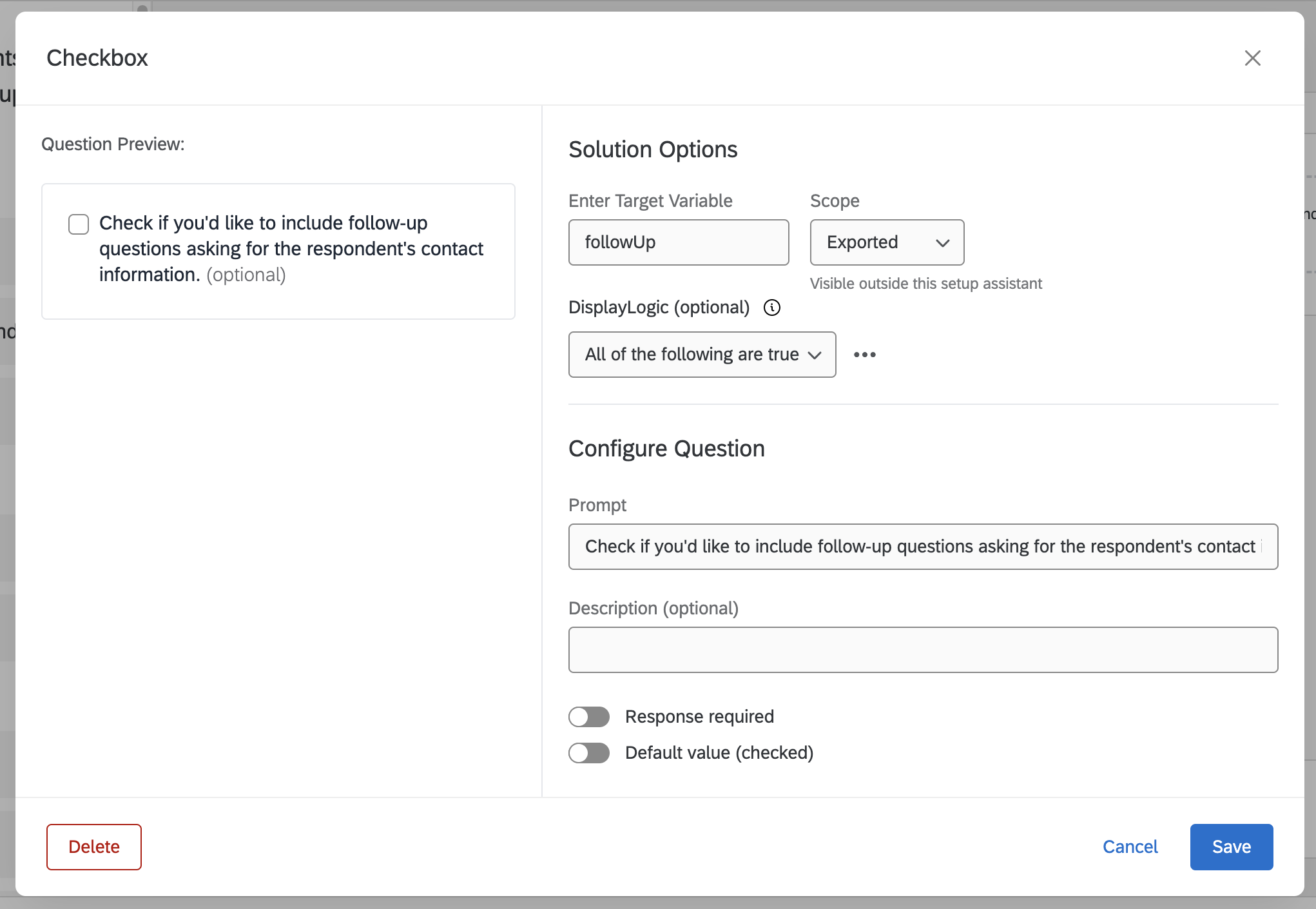
You're going to change the Target Variable field to be followUp. You can technically name this whatever you’d like, but this is the field name that will be created on your context when a user takes the setup assistant, so remember that whenever this tutorial mentions followUp you’ll need to use the name you used.
Past that, update the Prompt and Description to let users know that checking this box will include the follow up questions in the Survey and the reports. Then, save the changes and export your new setupAssistant.json file at the bottom right corner of the editor. Replace the old file in your Plugin with this new one.
Transforming resources
Unlike the last step, this question will create a boolean value on your context. Since you indicated that users should check the box to include the follow up questions, here’s what that will mean for us:
| Condition | Transformation |
|---|---|
If context.setup.answers.followUp = true | Include the follow up question block and the widgets in the reports |
If context.setup.answers.followUp = false | Remove the follow up question block and the widgets in the reports |
With that in mind, start with the Survey.
Survey
First things first, make a copy of your interpolate.js file and rename it surveyChanges.js. The name doesn’t need to match, but you’ll need to reference this file by name at the end of this step, so make sure you keep track if you name it something else:
import { interpolate as func } from "@qualtrics/solution-utils";

function interpolate(resource, context) {
  return func(resource, context);
}

export default interpolate;
You're still going to interpolate, so this is a good foundation for your new transformation file. However, you're going to do some more in-depth Survey transformation, so import your survey library functions after you import interpolate by adding this line after line 1.
import * as surveyFunctions from "@qualtrics/solution-utils/survey";
This will allow us to use Survey library functions. Then, add a variable to easily call Setup Assistant answers at the top of your function and change all the instances of resource with survey. Additionally, simplify your interpolate call and make your function transform instead of interpolate to help keep your script clear.
import { interpolate } from "@qualtrics/solution-utils";
import * as surveyFunctions from "@qualtrics/solution-utils/survey";

function transform(survey, context) {
  const setupAnswers = context.setup.answers;

  survey = interpolate(survey, context);

  return survey;
}

export default transform;
Put everything new above your interpolate line because you want to make sure that interpolate only runs at the end once you're done transforming the resource.
Now that you have your transformation file, you need to use a specific JavaScript library function to remove the follow-up questions and block if a user doesn’t want them. The removeQuestion function requires the survey as well as the internal QID question id for the question to remove. The two questions in the follow up block are QID5 and QID6, respectively. You can find that in the survey1.json file if you search for the question text or if you search for the block name, which will show you the questions in that block with their internal ids.
Additionally, you need to remove the block itself. Normally, an empty block won’t impact a Survey respondent’s experience, but for the less experienced Qualtrics user it could look off and cause some concern. To remove it from the Survey editor (and the Survey Flow), you need to provide the removeBlock function with the block’s id and its corresponding Flow id in the Survey Flow. To find this, search for the block name in your survey1.json file (Contact Block) and find the ID, which should look like this: BL_5apTIeYNTFjQVYG. Then, search for that id to find the corresponding Flow id, which should look like this: FL_33
And that’s all you need to do for the Survey! Your changes file should look like this, calling the removeQuestion and removeBlock functions:
import { interpolate } from "@qualtrics/solution-utils";
import * as surveyFunctions from "@qualtrics/solution-utils/survey";

function transform(survey, context) {
  const setupAnswers = context.setup.answers;

  if (!setupAnswers.followUp) {
    //remove the questions and block
    surveyFunctions.removeQuestion(survey, "QID5");
    surveyFunctions.removeQuestion(survey, "QID6");
    surveyFunctions.removeBlock(survey, "BL_5apTIeYNTFjQVYG", "FL_33");
  }

  survey = interpolate(survey, context);

  return survey;
}

export default transform;
Printed Report
The next resource you'll need to transform is the Printed Report. If you look at the Printed Report in the product, you can see that the second page is devoted to the contact block questions - since you might not have those in the Survey, you need to make sure the report only has that page if the corresponding questions exist.
Along those lines, you need to copy the interpolate.js file again, and this time rename it reportChanges.js. Let’s tidy it up a bit by changing your function to be transform rather than interpolate, importing interpolate more simply, and changing resource to report. Then, add the import statement for your Printed Report library and add your Setup Assistant answers:
import { interpolate } from "@qualtrics/solution-utils";
import * as reportFunctions from "@qualtrics/solution-utils/printed-report";

function transform(report, context) {
  const setupAnswers = context.setup.answers;

  report = interpolate(report, context);

  return report;
}

export default transform;
You only need to remove the second page, because all the widget data is contained inside of the page in your Printed Report. To do that, you can call the removePage function with the page’s id. To find that id, look at your printedReport1.json file. Find the pages array, then find the second item in that array. The _id of that item will be the value you need (Page_59db20c2-9c77-4a0f-b685-29af86e7f351).
{
  "_id": "646bb56a2f495a0008f7e75d",
  "containerType": "dashboard",
  "contextMeta": {},
  "description": "Pizza Printed Report",
  "fieldSetId": "{{ $.fscs-printedReport1.fieldsetId }}",
  "language": "EN",
  "mobileEnabled": true,
  "pages": [
    {},
    {
      "_id": "Page_59db20c2-9c77-4a0f-b685-29af86e7f351",
      "description": "?",
      "icon": "?",
      "widgets": [],
      "width": "12"
    }
  ],
  "product": "printed-reports"
  //...
}
That’s all you need to do for the report! Your reportChanges.js file should look like this with removePage:
import { interpolate } from "@qualtrics/solution-utils";
import * as reportFunctions from "@qualtrics/solution-utils/printed-report";

function transform(report, context) {
  const setupAnswers = context.setup.answers;

  if (!setupAnswers.followUp) {
    //remove page and widgets
    reportFunctions.removePage(
      report,
      "Page_59db20c2-9c77-4a0f-b685-29af86e7f351"
    );
  }

  report = interpolate(report, context);

  return report;
}

export default transform;
Fieldset
Now you'll tackle the dashboard resources. You will start with the Fieldset, which determines the values that are accessible to your CXDashboard widgets, and you'll need to adjust it just like you did with the Survey and Printed Report based on whether it should have those follow up questions included or not.
To start, copy the interpolate.js file again and name your new file fieldsetChanges.js, then make the same updates as the last two times. You can import Fieldset functions from @qualtrics/solution-utils/fieldset.
import { interpolate } from "@qualtrics/solution-utils";
import * as fieldsetFunctions from "@qualtrics/solution-utils/fieldset";

function transform(fieldset, context) {
  const setupAnswers = context.setup.answers;

  fieldset = interpolate(fieldset, context);

  return fieldset;
}

export default transform;
Now, much like Survey questions, each field in the Fieldset has an entry that you can optionally remove if the user didn’t want to include those questions. To do that, you need the field’s fieldId, which can be found in the objects in the fieldSetView array of your fieldset1.json file. In this case, you have four fields you need to remove: QID5, QID6_1, QID6_2, and QID6_3 (because your second contact question had three form fields). With that, you can call removeField, which takes the Fieldset and the fieldId of the field you want to remove.
With that set up, your Fieldset changes are ready. The file should look like this:
import { interpolate } from "@qualtrics/solution-utils";
import * as fieldsetFunctions from "@qualtrics/solution-utils/fieldset";

function transform(fieldset, context) {
  const setupAnswers = context.setup.answers;

  if (!setupAnswers.followUp) {
    //remove fields
    fieldsetFunctions.removeField(fieldset, "QID5");
    fieldsetFunctions.removeField(fieldset, "QID6_1");
    fieldsetFunctions.removeField(fieldset, "QID6_2");
    fieldsetFunctions.removeField(fieldset, "QID6_3");
  }

  fieldset = interpolate(fieldset, context);

  return fieldset;
}

export default transform;
Sourcemap
The next resource to adjust is the Sourcemap. This resource is a key between your Survey and the Fieldset. Since your Survey and Fieldset might not have certain questions/fields, you need to make sure those aren’t present here, either.
Begin by copying interpolate.js, naming the new file sourcemapChanges.js, and making the updates you've made before. You can import sourcemapFunctions from @qualtrics/solution-utils/sourcemap.
import { interpolate } from "@qualtrics/solution-utils";
import * as sourcemapFunctions from "@qualtrics/solution-utils/sourcemap";

function transform(sourcemap, context) {
  const setupAnswers = context.setup.answers;

  sourcemap = interpolate(sourcemap, context);

  return sourcemap;
}

export default transform;
The Sourcemap will use the same fieldId as the Fieldset to determine its mappings, so you can call removeMapping to remove those same four fields.
Removing those mappings is the only change you need, so your full file should look like this:
import { interpolate } from "@qualtrics/solution-utils";
import * as sourcemapFunctions from "@qualtrics/solution-utils/sourcemap";

function transform(sourcemap, context) {
  const setupAnswers = context.setup.answers;

  if (!setupAnswers.followUp) {
    //remove mappings
    sourcemapFunctions.removeMapping(sourcemap, "QID5");
    sourcemapFunctions.removeMapping(sourcemap, "QID6_1");
    sourcemapFunctions.removeMapping(sourcemap, "QID6_2");
    sourcemapFunctions.removeMapping(sourcemap, "QID6_3");
  }

  sourcemap = interpolate(sourcemap, context);

  return sourcemap;
}

export default transform;
CXDashboard
The last dashboard file is the CXDashboard. This is pretty similar to the Printed Report, both in the file’s layout and how it is configured for this Solution. You have two pages, and the second page titled “Contact Follow-Up” is the one that has widgets that call on the questions that you've been making conditional.
To that end, start by making a copy of interpolate.js, naming it cxDashboardChanges.js, and updating it a little to match the other changes files you've made. You can import CXDashboard functions at @qualtrics/solution-utils/cxdashboard:
import { interpolate } from "@qualtrics/solution-utils";
import * as dashboardFunctions from "@qualtrics/solution-utils/cxdashboard";

function transform(container, context) {
  const setupAnswers = context.setup.answers;

  container = interpolate(container, context);

  return container;
}

export default transform;
Now, much like the Printed Report, in order to removePage in your transformation, you'll need the page’s id. It’ll be the second page in the pages array of your CXDashboard1.json file, or you can search for “Contact Follow-Up” and get the _id value in that page object. It should look like this: Page_f6ba4325-ab5e-448c-812f-6ba8693d5dfe
And that’s all you need to do for the CXDashboard file. Here’s what your final changes file should look like, with removePage:
import { interpolate } from "@qualtrics/solution-utils";
import * as dashboardFunctions from "@qualtrics/solution-utils/cxdashboard";

function transform(container, context) {
  const setupAnswers = context.setup.answers;

  if (!setupAnswers.followUp) {
    //remove page and widgets
    dashboardFunctions.removePage(
      container,
      "Page_f6ba4325-ab5e-448c-812f-6ba8693d5dfe"
    );
  }

  container = interpolate(container, context);

  return container;
}

export default transform;
Solution execution
Now, you have all the changes files you need, but you're not using them yet. To do that, you need to edit your solutionExecution.json file.
This file is a list of steps for the Solution to take as it builds resources and directs users with the guidance sidebar. The default file from import will tell the Solution to use interpolate.js as the transformation file for all your creation steps. Now that you've made individual files for each resource, you need to update your ”Create” steps to use those specific files.
In solutionExecution.json, you need to make sure that when you create each resource, you're using the new changes files you've made for them. Go ahead and open that file up.
{
  "apiVersion": "workflow.v3",
  "config": {
    "description": "Description",
    "disableGuidanceSidebar": false
  },
  "steps": [
    {
      "id": "survey1",
      "type": "Create",
      "dependencies": [],
      "config": {
        "apiVersion": "survey.v0",
        "templateFilePath": "Resources_cvqg/survey1.json",
        "transformationFilePath": "Resources_cvqg/interpolate.js"
      }
    }
    //...
  ],
  "setup": {
    "formFilePath": "Resources_cvqg/setupAssistant.json"
  }
}
The first step you see should be for your Survey. You’ll see that it has a field in config named transformationFilePath - this needs to point to your new changes file, rather than the generic interpolate.js one. For instance, in the file above, the new file path should be like this:
"transformationFilePath": "Resources_b600/surveyChanges.js"
Update that for each of your resource “Create” steps (survey1, printedreport1, fieldset1, sourcemap1, and cxdashboard1).
Make sure that path points to the name you gave the file. Also, don’t change the file path for anything besides those resources - there’s a special step in there for the fscs resource that will continue to use interpolate.js.
Build, Submit, Validate
Just like the last transformation, now that you've added a field to your Setup Assistant, you need to update your exampleTest.json file inside your tests folder to match what you expect to see when a user finishes the Setup Assistant. In this case, you added another field named followUp, so add that to setup.answers and give it a value of false:
{
  "seed": 0,
  "setup": {
    "answers": {
      "title": "example title",
      "restaurantName": "My Pizza Restaurant",
      "followUp": false
    }
  },
  "system": {
    "Language": ""
  },
  "user": {
    "BrandID": "",
    "UserID": ""
  }
}
You're doing false rather than true because that’s when you know the part of your transformation that's removing elements will occur. This will validate your changes rather than making everything the same way it has so far.
Now, just go through the same three steps. Make sure to save your all your resources and your test file before you build and submit!
solution build

xmt submit extension

solution validate
If running the build gives you trouble, you might need to run this command first:
npm install
This will install the correct packages like the JavaScript library.
Validate should give you a successful build. If it doesn’t, make sure that your Setup Assistant has the correct questions, your test file has the correct fields, and your JavaScript lines up with the code above.
Test it out
Once it’s submitted and validated, you can create a new instance in the product. Just open up the Catalog, find the Solution, and create a new instance. Your Setup Assistant should now ask you if you want those questions, and if you don’t check the box it should create all your resources without those fields!
Step 6 - Transforming with custom JavaScript
The next transformation will be to allow your users to input pizza toppings of their own choice, rather than using the defaults you've coded into the Survey. This will impact the following resources:
- Setup Assistant - you need to add the question to collect the toppings
- Survey - you need to change the toppings question so that each choice’s
Displaytext matches the toppings given and remove any extra choices - Sourcemap - you need to update your toppings question's mapping so that
RecodeValuesmatch your new toppings and remove any extra choices
You don’t need to change your Printed Report, Fieldset, or CXDashboard. The Printed Report will automatically pull the choice labels from the Survey, the Fieldset doesn’t record the choices, and the CXDashboard pulls the information from the Sourcemap through the Fieldset.
Unlike the last step, this transformation will take a little more JavaScript and require some basic understanding of how the various resources are built.
Setup Assistant
The first thing you'll adjust is your Setup Assistant. Launch the Setup Assistant Creator by running this command in your terminal:
solution editor —setupAssistant
For this question, use the Repeating Text question type. Drag it from the left-hand sidebar to the middle under your checkbox from the last step.
You're going to change the Target Variable field to be pizzaToppings. You can technically name this whatever you’d like, but this is the field name that will be created on your context when a user takes the setup assistant, so remember that whenever this tutorial mentions pizzaToppings you’ll need to use the name you used.
Past that, update the Prompt and Description to let users know that this will be the list of toppings shown to Survey respondents. You can also add Default Values to give users a few of the ones you've been using so they don’t have to type it out. You only have 8 choices in your Survey, so make sure to set the Max to 8 at the bottom, and you can choose a Min as long as you have at least 1. This minimum will ensure users provide answers, as well.
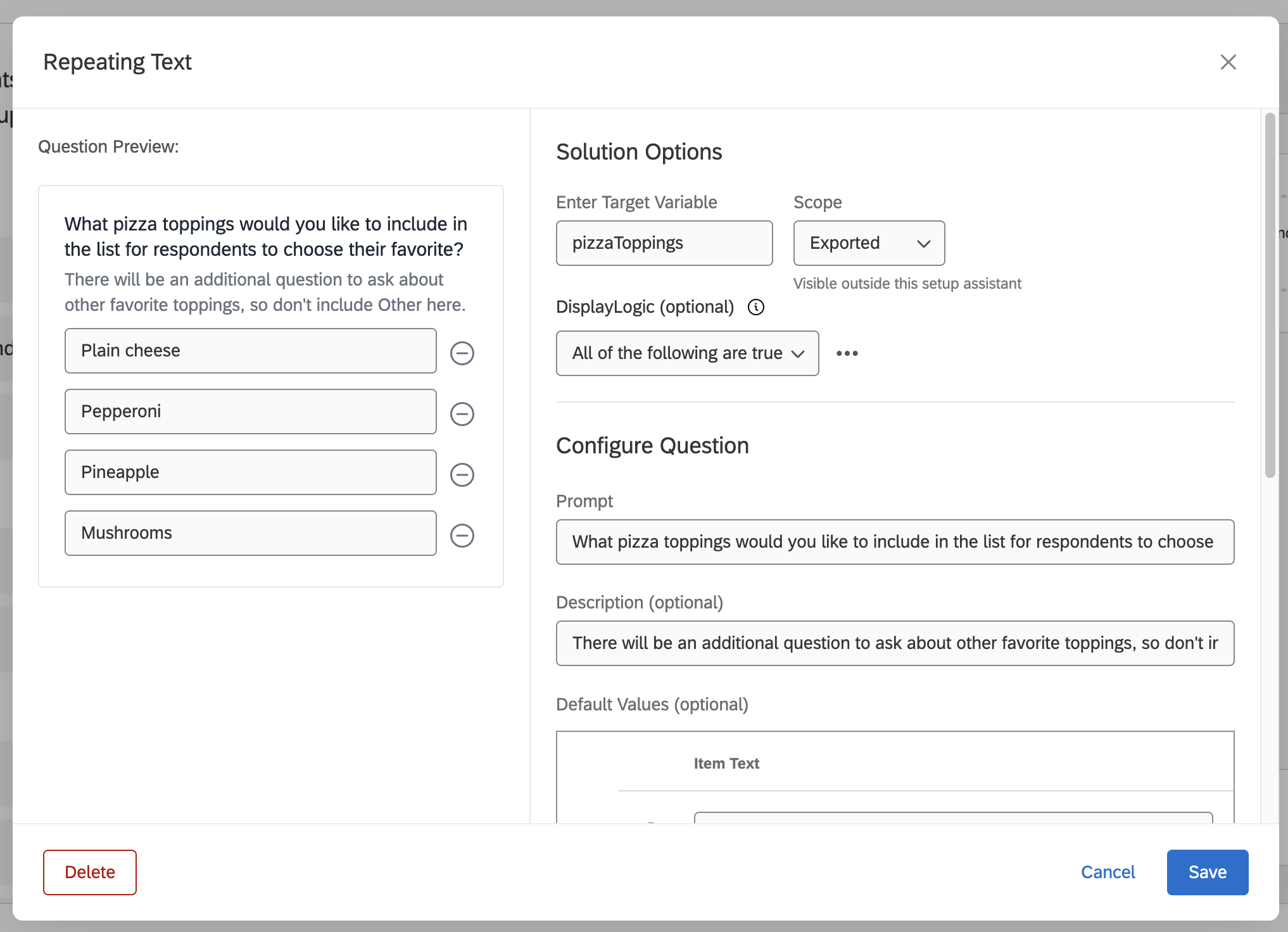
Save the changes and download your new setupAssistant.json file at the bottom right corner of the editor. Replace the old file in your Plugin with this new one.
Context
Before you dive into adapting your resources for this new question, add this new variable to your exampleTest.json file in your tests folder so that you can see what it looks like on the context.
Repeating Text questions will create arrays of strings, where each string is a text box from the question. That means it will produce something like this:
"pizzaToppings": ["Plain cheese", "Pepperoni", "Pineapple", "Mushrooms"]
Added to your exampleTest.json file, it should look like this:
{
  "seed": 0,
  "setup": {
    "answers": {
      "title": "example title",
      "restaurantName": "My Pizza Restaurant",
      "followUp": false,
      "pizzaToppings": ["Plain cheese", "Pepperoni", "Pineapple", "Mushrooms"]
    }
  },
  "system": {
    "Language": ""
  },
  "user": {
    "BrandID": "",
    "UserID": ""
  }
}
Make sure to save that file as it will get used when you validate after building and submitting.
Survey
Now open up your survey1.json and surveyChanges.js files. You're only going to make changes to the JavaScript file, but having the survey available will help to show what you're doing.
In your survey file, if you search for the question about favorite topping, you can find that it’s QID1:
{
  "SurveyElements": [
    //...
    {
      "Element": "SQ",
      "Payload": {
        "ChoiceOrder": [1, 2, 3, 4, 5, 6, 7, 8],
        "Choices": {
          "1": {
            "Display": "Plain cheese"
          },
          "2": {
            "Display": "Pepperoni"
          },
          "3": {
            "Display": "Pineapple"
          },
          "4": {
            "Display": "Mushrooms"
          },
          "5": {
            "Display": "Artichoke hearts"
          },
          "6": {
            "Display": "Topping 6"
          },
          "7": {
            "Display": "Topping 7"
          },
          "8": {
            "Display": "Topping 8"
          }
        },
        "DataExportTag": "Q1",
        "QuestionDescription": "What is your favorite pizza topping?",
        "QuestionID": "QID1",
        "QuestionText": "What is your favorite pizza topping?",
        "QuestionType": "MC",
        "Selector": "SAVR",
        "SubSelector": "TX"
        //...
      },
      "PrimaryAttribute": "QID1",
      "SecondaryAttribute": "What is your favorite pizza topping?",
      "SurveyID": "SV_9oCuBGl7pNdcTGK",
      "TertiaryAttribute": null
    }
  ],
  "SurveyEntry": {}
}
Here's a brief overview of what your code needs to do. There's an example at the end of this section. Remember that you'll do all of this before the interpolation line.
- You need to find this question inside of the
SurveyElementsobject. - You need to reset the
choiceOrderarray inside the question'sPayload- if you look at the survey, you’ll notice it has the numbers 1 through 8 in it. While it is possible to alter that as-is, it’s much easier to just reset it to an empty array for your next goal. - You need to get the input array and loop through it to either update the choice's text (
Payload.choices[x].Display) or remove the choice entirely from thechoicesarray. Additionally, if a choice should exist, you need to push it's internal id (the loop value) to thechoiceOrderarray so that it appears in the survey editor.
Your surveyChanges.js file should look like this:
import { interpolate } from "@qualtrics/solution-utils";
import * as surveyFunctions from "@qualtrics/solution-utils/survey";

function transform(survey, context) {
  const setupAnswers = context.setup.answers;

  if (!setupAnswers.followUp) {
    //remove the questions and block
    surveyFunctions.removeQuestion(survey, "QID5");
    surveyFunctions.removeQuestion(survey, "QID6");
    surveyFunctions.removeBlock(survey, "BL_5apTIeYNTFjQVYG", "FL_33");
  }

  //find the toppings question
  let questions = survey.SurveyElements;
  for (const i in questions) {
    if (questions[i].PrimaryAttribute === "QID1") {
      //find the choices object and choiceOrder array
      let choices = questions[i].Payload.Choices;
      questions[i].Payload.ChoiceOrder = [];
      let choiceOrder = questions[i].Payload.ChoiceOrder;
      //loop through your toppings and either update or remove choices
      let toppings = setupAnswers.pizzaToppings;
      for (let j = 0; j < 8; j++) {
        let choiceNum = j + 1;
        if (toppings[j]) {
          choices[choiceNum].Display = toppings[j];
          choiceOrder.push(choiceNum);
        } else {
          delete choices[choiceNum];
        }
      }
    }
  }

  survey = interpolate(survey, context);

  return survey;
}

export default transform;
Sourcemap
Next is the Sourcemap. You don’t need to adjust the Printed Report or Fieldset, so open up your sourcemap1.json and sourcemapChanges.js file.
Much like the Survey, in this file there will be a section for the question’s choices that you need to adjust to align with your input. It looks like this:
{
  "fieldSetId": "{{ $.fieldset1.id }}",
  "mapping": {
    "QID1": {
      "locator": {
        "itemSelector": "selectedChoice",
        "qid": "QID1",
        "questionType": "MC",
        "type": "question"
      },
      "name": "QID1",
      "recodeValues": {
        "1": "Plain cheese",
        "2": "Pepperoni",
        "3": "Pineapple",
        "4": "Mushrooms",
        "5": "Artichoke hearts",
        "6": "Topping 6",
        "7": "Topping 7",
        "8": "Topping 8"
      }
    }
    //...
  },
  "responseSetId": "{{ $.survey1.responseSetId }}",
  "sourceId": "{{ $.survey1.id }}",
  "sourceName": "{{$.setup.answers.title}}",
  "sourceType": "survey"
}
Here are the steps you'll need to take for your Sourcemap changes:
- Find the mapping for
QID1in the mapping object - Get the relevant
recodeValuesobject in the mapping - Either update or remove each item depending on your setup answers array
Our final JavaScript file should look like this:
import { interpolate } from "@qualtrics/solution-utils";
import * as sourcemapFunctions from "@qualtrics/solution-utils/sourcemap";

function transform(sourcemap, context) {
  const setupAnswers = context.setup.answers;

  if (!setupAnswers.followUp) {
    // //remove mappings
    sourcemapFunctions.removeMapping(sourcemap, "QID5");
    sourcemapFunctions.removeMapping(sourcemap, "QID6_1");
    sourcemapFunctions.removeMapping(sourcemap, "QID6_2");
    sourcemapFunctions.removeMapping(sourcemap, "QID6_3");
  }

  //find the mapping
  let toppingsMap = sourcemap.mapping["QID1"];
  //find the recode values
  let toppingsRecodes = toppingsMap.recodeValues;
  //update or remove values
  let toppings = setupAnswers.pizzaToppings;
  for (let i = 0; i < 8; i++) {
    let choiceNum = i + 1;
    if (toppings[i]) {
      toppingsRecodes[choiceNum] = toppings[i];
    } else {
      delete toppingsRecodes[choiceNum];
    }
  }

  sourcemap = interpolate(sourcemap, context);

  return sourcemap;
}

export default transform;
Build, Submit, Validate
Now, go through the same three steps. Make sure to save your all your resources and your exampleTest.json file before you build and submit!
solution build

xmt submit extension

solution validate
Validate should give you a successful build. If it doesn’t, make sure that your Setup Assistant has the correct questions, your exampleTest.json file has the correct fields, and your JavaScript lines up with the code above.
Test it out
Once it’s submitted and validated, you can create a new instance in the product. Just open up the Catalog, find the Solution, and create a new instance. Your Setup Assistant should now ask you for those toppings, and it should propagate through your resources!
Step 7 - Go forth and XM Solution
This is the end of the tutorial! At this point, you should have some familiarity with the functions and features of the solution CLI as well as the resources and transformations that you can use to help users dynamically adjust their Solution instances. Check out more functions in your JavaScript library and use these resources to learn more about individual aspects of the Solution Plugin to help you in creating your own Solution Plugins.