How Does an XM Solution Keep Track of IDs and Setup Values
XM Solutions have a system for tracking the resources that are created as well as the input from a user from a setup assistant. This system is called the context and is a JSON object that stores relevant ids and values for each resource as they are created by each step of the solution execution.
Notably, the context is not a resource that is created with a file. Instead, it is generated automatically by the framework, but it is still accessible to transformation files.
If you would like to join the early access program for XM Solution Plugins, then please let us know by taking this survey.
This feature is in Early Access and is not yet generally available. Functionality, APIs, and documentation may change before general availability.
This context will look different based on the specific solution's execution file but will generally have a similar shape.
Here is what an example context looks like:
{
  "fscsfieldset": {
    "fieldsetId": "2af65f81857e4983b64b8ba5"
  },
  "report": {
    "containerId": "64245a32db568f0008f962ae"
  },
  "setup": {
    "answers": {
      "companyName": "Qualtrics",
      "demographicsTypes": {
        "age": true,
        "children": true,
        "employment": false,
        "gender": true,
        "household": false,
        "marital": false
      },
      "includeFollowUpQuestion": false,
      "includeSatisfactionDrivers": true,
      "satisfactionDrivers": [
        "driver1",
        "driver2"
      ],
      "title": "CES Test",
      "transactionName": "support call"
    }
  },
  "demographicsSurvey": {
    "id": "SV_ebS3tHfL3KXvyLA",
    "isProject": true,
    "projectStoreProjectType": "basicSurvey",
    "responseSetId": "RS_8eqA4TDNM0Nj8G2",
    "surveyId": "SV_ebS3tHfL3KXvyLA"
  },
  "system": {
    "language": "EN",
    "user": {
      "userId": "UR_xxx",
      "brandId": "brandid",
      "dc": "pdx1"
    }
  }
}
Every XM Solution will have a system object on the context to provide the user's language setting and various ids related to the user. XM Solutions that have a setup assistant will have the setup object with a nested answersobject to provide all the user input that was given in the setup assistant.
In this example, there are also objects for the demographicsSurvey, fscsfieldset, and report (Printed Report) that were created by the solution execution steps. These objects provide the ids that are necessary for future resources to be generated correctly.
The names of these resources are configured by the author and are not visible to the end user. The properties on each object depend on the type of the resource. This is explained in more detail below.
General objects
The only general object is the system object, which is always added to allow authors to access the user's language setting and various ids related to the user's account. These ids are the userId (UR_XXX), the brandId the account is in, and the dc (datacenter) where the brand is located.
The language field can be referenced as follows: context.system.language. The user ID fields can be referenced as context.system.user.userId, context.system.user.brandId, and context.system.user.dc respectively.
{
  "system": {
    "language": "EN",
    "user": {
      "userId": "UR_xxx",
      "brandId": "brandid",
      "dc": "pdx1"
    }
  }
}
The language field can be used to update any resource that specifies a language. It is important to include user language information, as some localized resources will only be available to the user if created in the user's language.
For example, some surveys are intended to work for both EN and EN-GB users who could have library messages in their specific language. In those cases, setting the language of the survey to be equal to the user will allow them to access those messages.
The user IDs—userId and brandId—are necessary for specific resources, like xFlow tasks and triggers, that are tied to a specific user's account with that ID. The datacenter is less commonly used, but can be used for generating links to other resources in the text of task resources or creating static image links.
Resource objects
Resources will have some id field that provides an ID to uniquely identify that resource, such as a surveyId for a Survey or a containerId for a Printed Report. These IDs can be used in transformations to link resources together with the newly generated IDs.
{
  "fscsfieldset": {
    "fieldsetId": "2af65f81857e4983b64b8ba5"
  },
  "report": {
    "containerId": "64245a32db568f0008f962ae"
  },
  "survey": {
    "surveyId": "SV_ebS3tHfL3KXvyLA",
    "isProject": true,
    "projectStoreProjectType": "basicSurvey",
    "responseSetId": "RS_8eqA4TDNM0Nj8G2"
  }
}
Using our context above, we can get our Survey ID using context.survey.surveyId. The object field's name (survey) is set using the id field of the solution execution step that creates that resource.
Beyond the id field, other fields are added to the context depending on resource type. Refer to the Resources section of the API Reference for specific information about each resource and the relevant fields on the context.
Setup answers objects
The last type of object on the context is the answers that were provided by a setup assistant in the setup object. These answers will always be accessible through context.setup.answers, but the contents will change based on what questions you ask in your setup assistant.
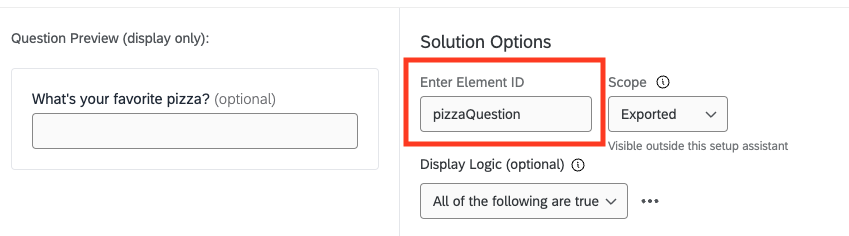
Every question in the setup assistant has an Element ID, which uniquely identifies that question and sets the field name for that question in your answers. Above, the element id is pizzaQuestion. In the example below, the element ids are companyName, demographicsTypes, includeFollowUpQuestion, includeSatisfactionDrivers, satisfactionDrivers, title, and transactionName.
{
  "setup": {
    "answers": {
      "companyName": "Qualtrics",
      "demographicsTypes": {
        "age": true,
        "children": true,
        "employment": false,
        "gender": true,
        "household": false,
        "marital": false
      },
      "includeFollowUpQuestion": false,
      "includeSatisfactionDrivers": true,
      "satisfactionDrivers": [
        "driver1",
        "driver2"
      ],
      "title": "CES Test",
      "transactionName": "support call"
    }
  }
}
Each question type from the setup assistant provides a different response on the context. You can learn how to generate custom answers here, you can read more about the various question outputs here, or see below for some of the most common question types and their responses in the example:
Text Input
The value entered into the text box will be set as a string for that field. For example, calling context.setup.answers.companyName using our context above will give us the value "Qualtrics".
Checkbox
The boolean state of the checkbox will be the value for that field. For example, calling context.setup.answers.includeFollowUpQuestion using our context above will give us the value false.
Multiple Choice
Each choice of a multiple choice question will be a boolean as to whether the choice was selected or not. This is true regardless of whether the multiple choice question can have multiple answers selected or not. For example, calling context.setup.answers.demographicsTypes.age using our context above will give us the value true.
Repeating Text
The value of a repeating text question will be an array of the strings that were provided in each text box. For example, calling context.setup.answers.satisfactionDrivers using our context above will give us the array ["driver1", "driver2"].