XM Solution Plugin Quickstart
What is an XM Solution?
XM Solutions are pre-built Qualtrics projects that allow users to get started with a fully functional project or piece of a project in minutes instead of hours. If you find yourself creating very similar projects many times, then you may want to turn it into an XM Solution.
XM Solutions enable brands and partners to access and enforce best in class, standardized methodology. This helps decrease the time to value for customers of Qualtrics and its partners and decreases the effort required of brands to run a standardized study.
Qualtrics XM Solutions drive action across the organization with pre-built XM programs and projects that anyone in the organization can use.
If you would like to join the early access program for XM Solution Plugins, then please let us know by taking this survey.
This feature is in Early Access and is not yet generally available. Functionality, APIs, and documentation may change before general availability.
While the following instructions are specific to survey template creation, the steps are very similar for other types of solutions. The main differences are:
- During initialization, you will start with a different template.
- You will access the final XM Solution in a different place in the Qualtrics product depending on what kind of XM Solution it is.
Objectives
By the end of this guide, you will:
- Install and Use the XM Solution-specific command line interface (CLI).
- Create and Run an XM Solution template plugin within an existing XM Extension.
Prerequisites
Before starting, please ensure you’ve completed these prerequisites:
Quick Start
Step 1: Initialize an XM Solution Template Plugin
The first step is to initialize the files and container for the plugin.
Navigate to the hello_world directory you made in the Extension Quickstart guide.
1.1: Run this xmt command to initialize a solution Plugin:
xmt create plugin -n "My Solution Template Plugin" -t solution
The following should be displayed after the command above is run:
Use the arrow keys to navigate: ↓ ↑ → ←
? Select your starter code package:
    Blank Solution Template (default)
  ▸ Survey Template
    Survey Template with Typescript
Select a starter code package using the arrow keys. A blank XM Solution is the default option, but it comes with almost nothing aside from the necessary directory scaffolding. For the purposes of this guide, select survey template, because it comes with all the files to get started with a survey template quickly.
After running the command, you should see a hello_world/plugins/my_Solution_template_plugin directory that looks like this:
plugins
    └── my_solution_template_plugin
        ├── babel.config.json
        ├── config.json
        ├── jest.config.js
        ├── package.json
        ├── public
        │   └── translations
        │       └── en.json
        └── src
            ├── Assets
            │   ├── catalogIcon.svg
            │   └── summary.md
            ├── Resources
            │   ├── modifySurvey.js
            │   ├── modifySurvey.test.js
            │   └── survey.json
            ├── catalogConfig.json
            └── solutionExecution.json
The most important directory for now is src. It is where you write all of your code.
However, the src directory does not contain files that are ready to be deployed. To create those, you first have to build the plugin.
1.2: Navigate into your XM Solution Plugin directory
cd plugins/my_solution_template_plugin
1.3: Install dependencies and Solution CLI globally
Install the XM Solution CLI and other dependencies by running this command:
npm install
npm install --location=global @qualtrics/solution-cli
For Windows users, follow these steps to add Solution CLI to the environment path:
-
In the System Properties window, click on the Environment Variables... button.
-
In the Environment Variables window, under User variables or System variables, find the Path variable, select it, and click on Edit....
-
In the Edit environment variable window, click on New and paste the path to your global npm bin directory (C:\Users<username>\AppData\Roaming\npm\bin) which is where the Solution CLI is installed.
-
Click OK to save the changes and close all the open windows.
-
Restart the Command Prompt or PowerShell window for the changes to take effect.
1.4: Log in to the Solution CLI
Up to this point you have only executed xmt commands in your CLI, but now you will start to run commands with the XM Solution CLI as well by using the solution command prefix.
The solution CLI provides specific functionality for working with XM Solutions, which you can learn more about in the CLI Reference
Log in to the Solution CLI by running
solution init
You will be prompted to log in again. Be sure to log in with the same credentials you used to log into the XMT CLI.
1.5: Build the Solution Template files
solution build
At this point, your hello_world/plugins/my_solution_template_plugin directory should look like this (ignoring everything in the node_modules directory):
plugins
    └── my_solution_template_plugin
        ├── babel.config.json
        ├── config.json
        ├── jest.config.js
        ├── node_modules
        │   └── etc...
        ├── package-lock.json
        ├── package.json
        ├── dist
        │   └── etc...
        ├── public
        │   └── translations
        │       └── en.json
        └── src
            ├── Assets
            │   ├── catalogIcon.svg
            │   └── summary.md
            ├── Resources
            │   ├── modifySurvey.js
            │   ├── modifySurvey.test.js
            │   └── survey.json
            ├── catalogConfig.json
            └── solutionExecution.json
Notice that when you ran the build command a directory named dist was created and the built files were placed there. The files in the dist folder are the ones that actually get submitted, and you should never manually edit them.
This is why you must always run the build command right before you submit your Extension. If you don't, then your latest changes in the src directory won't be submitted.
Step 2: Submit Your Extension
XM Solutions create Qualtrics resources inside your Qualtrics account. You must first submit and install your Extension before you can interact with it.
Utilize the prerelease versioning pattern for local development.
2.1: To submit your Extension, execute the submit command:
xmt submit extension
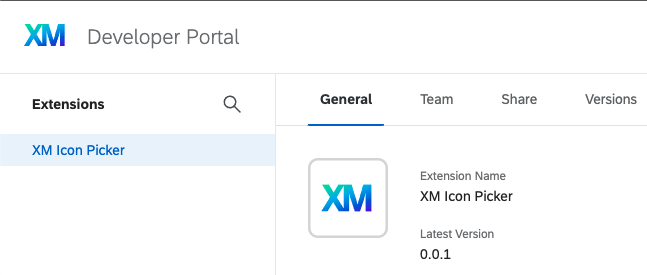
Your Extension should now appear in the Qualtrics Developer Portal Extensions page.
You may see this error when submitting your Extension containing a Solution Plugin
- [Error] The extension translations use the legacy language code standard, but some plugins (test_plugin) use the BCP-47 language code standard.
Run `xmt validate extension --tidy` to automatically cleanup errors
To fix this, navigate to the extension-name/assets/translations folder and rename the EN.json file to en.json. Following this change, you should be able to successfully submit your new extension.
If this is not your first time submitting your Extension, you will first need to bump the version of your extension by modifying the manifest.json file. For example, you could increase its version from 0.0.1 to 0.0.2. The manifest.json file can be found in the base directory of your Extension. If you’ve been following along, that’s the hello_world directory.
2.2: Confirm that your Extension is listed by navigating to the Qualtrics Developer Portal’s Extensions page. If prompted, log in using the same email you used to submit the Extension.
Share Your Extension
You cannot access your newly-submitted Extension until you have shared it with your Qualtrics tenant/brand.
Brand Admin User
Extension installation requires a Brand Admin user.
If your user account is a Brand Admin then you may skip these steps and proceed to the Extension Sharing section.
Otherwise proceed with these steps to add a Brand Admin user to your Extension team:
1: In the Team tab, click the Invite Users button.
2: Enter the email address of a Brand Admin account in your brand.
3: Choose the Admin role.
4: Click the Send Email Invite button.
5: Have the Brand Admin follow the email invitation link and log in. This will accept the collaboration invitation.
Make sure that a Brand Admin within your organization has accepted an invitation to be on your Extension’s team (see steps 1 - 5 above).
You can proceed with the sharing steps using either account.
Extension Sharing
Follow these steps to share your Extension to your Qualtrics tenant/brand for testing:
1: In the Share tab, click the Share Extension button.
2: Select Always share the latest submitted version automatically.
3: Under the Organization ID dropdown, select your brand/organization ID.
4: Check the box next to If you share this extension, you're giving this organization the right to use it however they see fit.
5: Click the Share button.
This may be due to the XM Extension is still being propagated throughout the Qualtrics XM Platform, which may take up to 20 minutes.
After waiting 5 minutes, try refreshing the page, selecting your Extension, and retrying the steps above.

The Extension is now shared with that brand, but shown as Not Installed. Continue to the installation procedure below to remedy that!
Install Extension
With your Extension submitted and shared, it's ready for installation.
-
Log in to the Qualtrics product UI using the brand admin account from step 2 above
-
Go to the Extensions admin page by following the first two steps from these instructions

-
Find your Extension in the list (using the search bar if you like)

-
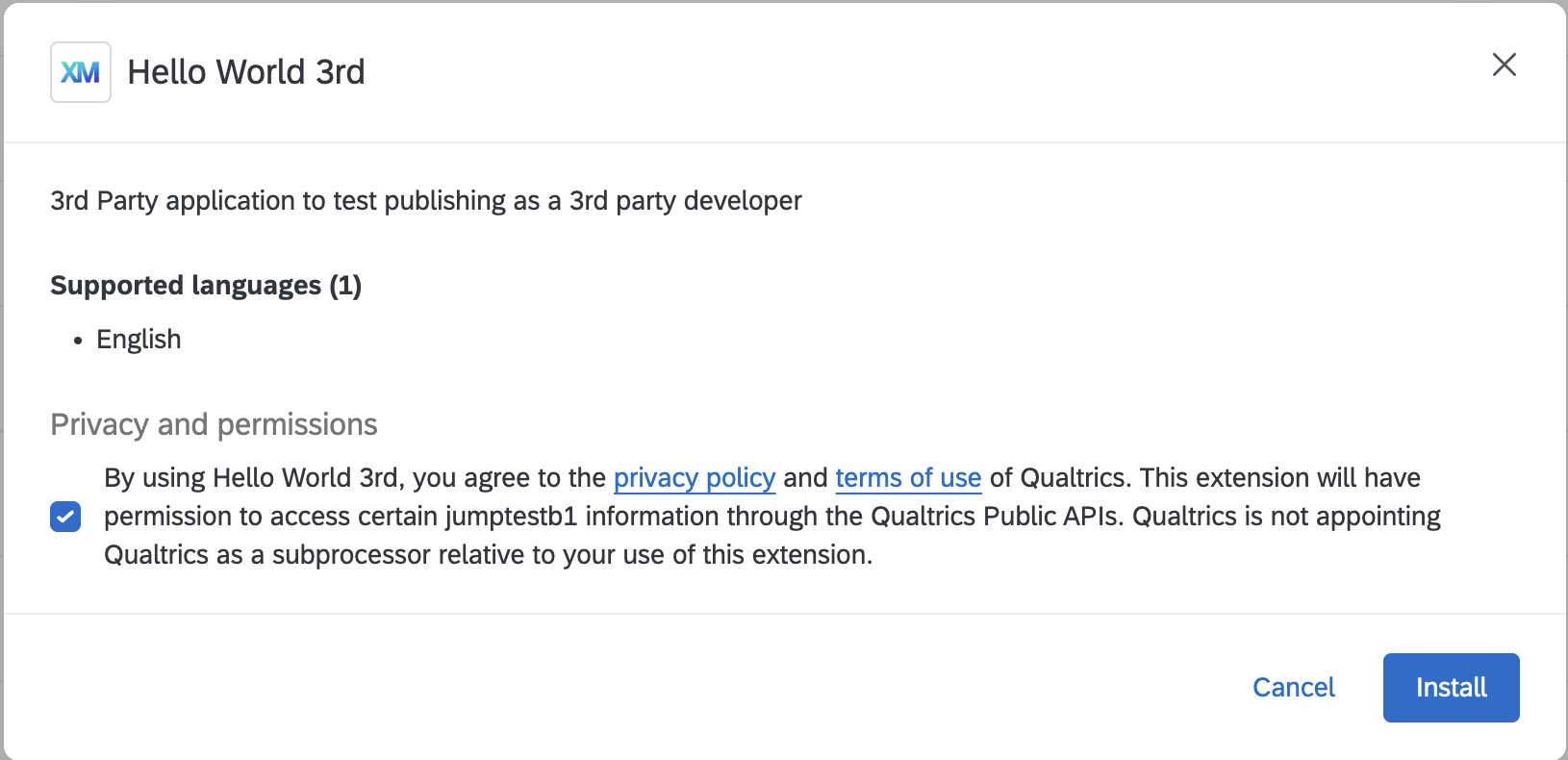
Click Install. The license agreement should open

-
Check the box to accept the license agreement
-
Click Install again to complete installation
You’re done with installation! Now you’re ready to run your Extension
Step 3: Experience your Extension
Now that you've got the plugin installed, follow these steps to see what your new Plugin looks like:
3.1: Navigate to Qualtrics in your web browser
3.2: Log in to your account
3.3: Navigate to the Catalog
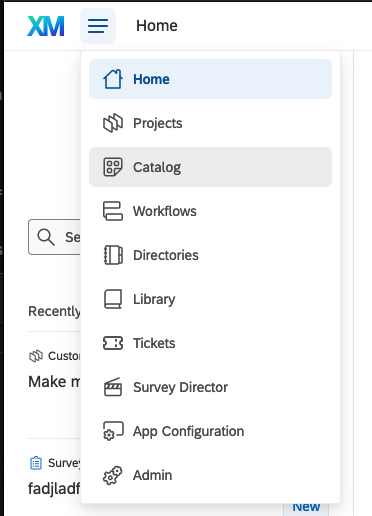
3.4: Find the "Custom solutions and templates" section. You may need to click the “See all” button if you have many custom solutions or templates available in your account.

3.5: Find your template in the list
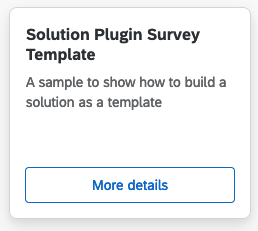
If you can’t find your template in the list of templates, then your user account may not have the necessary permissions to create it. Open up the config.json file, which will be found at this path: hello_world/plugins/my_solution_template_plugin. This JSON file contains a field called accessControls that tells you which permissions you need enabled to see the template in the Catalog. Make sure your account has these permissions enabled.
3.6: Click the Get started button to build your survey template. This template contains two elements:
- First, you are directed to a page called the Setup Assistant to fill out some basic information.
- Then you are directed to preview the included survey.
Step 4: Modify Your Plugin
Now that you've got a working XM Solution, you probably want to customize it to your specific needs. This step will make some quick modifications and allow you to see them reflected in the Qualtrics product.
4.1: Open a new shell and navigate to the src directory by running this command:
cd plugins/my_solution_template_plugin/src
4.2: Open the existing catalogConfig.json file and change the name field to whatever you want.
4.3: Build the solution
solution build
4.4: Update your Extension version.
You need to update the version in the manifest.json file found in the directory for your extension. If you’ve been following along, that’s the hello_world directory that’s two levels above where you are right now.
Edit your manifest.json file and increment the patch version count by one (e.g. from 0.0.1 to 0.0.2).
4.5: Resubmit your Extension
xmt submit extension
4.6: Navigate to the template like you did in Step 3 to see that your name change has taken effect.
What's Next
Congratulations on creating, running, and experiencing your XM Extension and Solution Template Plugin with the XMT CLI!
Take your XM Solution Plugin to the next step by going through the XM Solutions Deep Dive.
To learn about XM Extension fundamentals, please visit the Intro to Extension SDK guide.