Survey
What is a Survey
The Survey resource is one of the most important for the majority of XM Solutions. This will define the Survey that is created either when a template is created or a Setup Assistant is finished.
If you would like to join the early access program for XM Solution Plugins, then please let us know by taking this survey.
This feature is in Early Access and is not yet generally available. Functionality, APIs, and documentation may change before general availability.
Context
The Survey resource will generate two fields:
responseSetIdsurveyId
The surveyId will be your Survey's id (SV_***) and can be accessed with <step.id>.surveyId.
The responseSetId is your project's response set id (RS_***) and can be called
with <step.id>.responseSetId.
The Survey id will be necessary for any resources that rely on the Survey, such as the Printed Report or Dashboard resources.
The response set id is needed for sourcemap resources connected to this Survey.
How to import it into an XM Solution
Using the XM Solution CLI
Start by running the following command
solution import
You should see a list of project categories. Select "basicSurvey" to view all potential Surveys to import:
1. AgileVideoDiscovery
2. BrandTracker
3...
11. basicSurvey
12...
Next, a list of all your basic survey projects will show, and you can select one to download.
1. [basicSurvey] Survey1
2. [basicSurvey] Survey2
3. [basicSurvey] Survey3
4...
Now you should have your Survey project and all of its dependencies downloaded in a src/Resources_**** folder of your XM
Solution plugin.
Using Product
You can also export your Survey from the Qualtrics survey editor using the "Export" option in the Tools menu, as shown in the screenshot below:
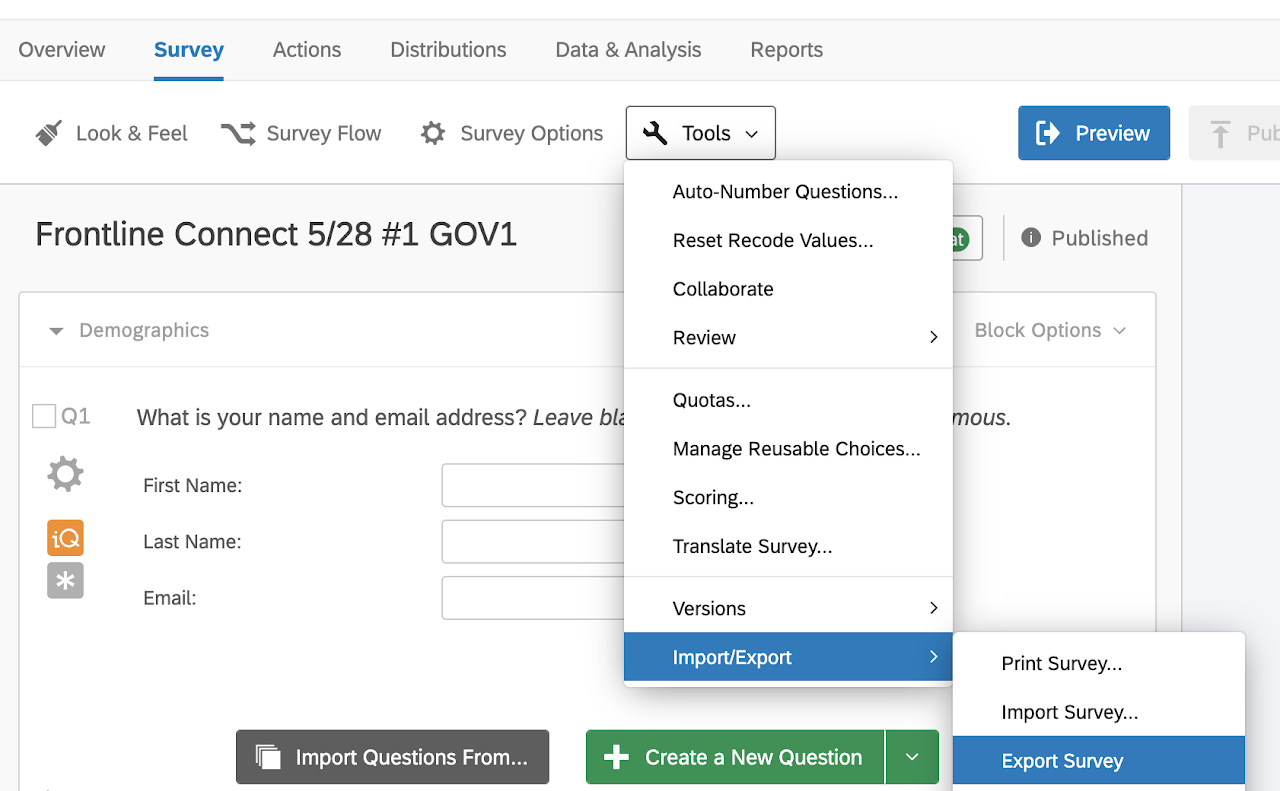
Your browser should download a survey QSF (Qualtrics survey file). Move this file to your plugin's src/Resources folder to use it in your XM Solution.
Solution Execution
In most cases, Survey resources are created using a "Create" step or updated using an "Update" step in the Solution Execution file.
{
  "id": "survey",
  "type": "Create",
  "config": {
    "apiVersion": "survey.v0",
    "templateFilePath": "Resources/survey.qsf",
    "transformationFilePath": "Resources/surveyChanges.js"
  }
},
{
"id": "newSurvey",
"type": "Update",
"config": {
"target": "survey",
"templateFilePath": "Resources/survey.qsf",
"transformationFilePath": "Resources/surveyChanges.js"
},
"dependencies": ["survey"]
}
There is one exception, and it's only relevant to Survey resources in EX Projects. If you need to create a Survey for an EX Project,
you need to apply an "Update" step to the EX Project "Create" (or "Update") step, and provide a resourceIdPath field in the config
in place of the target field. The value of this field should be a JSON path accessing the surveyId field of the EX Project's context (see example below).
This "Update" step will take the EX Project "Create" step as a dependency.
{
  "id": "exproject",
  "type": "Create",
  "config": {
    "apiVersion": "exproject.v1",
    "templateFilePath": "Resources/exproject.json",
    "transformationFilePath": "Resources/exprojectChanges.js"
  }
},
{
"id": "survey",
"type": "Update",
"config": {
"apiVersion": "survey.v0",
"resourceIdPath": "$.exproject.surveyId",
"templateFilePath": "Resources/survey.qsf",
"transformationFilePath": "Resources/surveyChanges.js"
}
"dependencies": ["exproject"]
}
resourceIdPathIn general, you should avoid using resourceIdPath in "Update" steps unless you have to. It's necessary to create Surveys in EX Projects, but that's
currently the only required use case. In all other cases, our recommendation is to use target because it's easier to guarantee that you're accessing
the right fields on the context.
The current apiVersion for Survey resources is "survey.v0".
Common / Required changes
When importing a Survey resource, your brand id and user id will be included in the SurveyEntry section. These ids will automatically be replaced by the user's relevant ids when a new Survey is created, but those fields can be scrubbed by replacing the values with placeholders for security.
Your SurveyID will also be replaced with a placeholder SV_*** to make sure that any Triggers and Tasks get handled properly during creation.
When transforming a Survey resource, the Survey's title can be changed by updating the SurveyEntry.SurveyName field using the setup.answers.title field from the context. This title field is created using the input from the creation of the XM Solution in the catalog.
If your Survey is part of an EX Project, make sure to replace the value of the ThreeSixtyID field with a reference to your EX Project step, such as "{{ $.EXProject.id }}".
JavaScript library functions available
For a Survey resource transformation, use the following functions to adjust the Survey:
-
nameChange(survey, name): Change the Survey's name to match what the user provided when creating the project -
removeQuestion(survey, questionID): Remove a question from a Survey using the question's id. Optionally, remove a page break from before or after the question as well.
Actions
There are several actions associated with the Survey resource that you can include in your solution execution file. To include an action (e.g. to activate a Survey after creating it), your solution execution steps might look like this:
[
  {
    "id": "survey",
    "type": "Create",
    "config": {
      "apiVersion": "survey.v0",
      "templateFilePath": "Resources/survey.qsf",
      "transformationFilePath": "Resources/surveyChanges.js"
    }
  },
  {
    "id": "activateSurvey",
    "type": "Action",
    "config": {
      "apiVersion": "survey.v0",
      "actionName": "activate",
      "templateData": {
        "surveyId": "{{ $.survey.id }}"
      },
      "transformationFilePath": "Resources/insertSurveyId.js"
    }
  }
]
The Action step type is similar to a Create or Update step, but with some small differences. The id can be whatever you want it to be, as long as it is unique across all steps. Use "type": "Action" instead of Create or Update.
The config object must still contain an apiVersion since all actions are tied to a resource, but you must also include an actionName (in this case, "activate"). The step can have either templateFilePath or templateData, just like Create or Update. You can also include a transformationFilePath as well.
Actions may or may not produce data. If they do, the data will be put on the context, just like a Create or Update step. The following sections will explain the actions available to the Survey resource, along with the data they expect and any data they may produce.
Activate Survey
The activate action activates a Survey. The body the action expects is a JSON object with the following field:
| Field | Description | Example |
|---|---|---|
surveyId | The id of the survey to activate (required) | "surveyId": "{{ $.survey.id }}" |
This action produces no data.
Deactivate Survey
The deactivate action deactivates a survey. The body the action expects is a JSON object with the following field:
| Field | Description | Example |
|---|---|---|
surveyId | The id of the survey to deactivate (required) | "surveyId": "{{ $.survey.id }}" |
This action produces no data.
Publish Survey
The publish action publishes a Survey. A Survey must be activated before it is published. The body the action expects
is a JSON object with the following field:
| Field | Description | Example |
|---|---|---|
surveyId | The id of the survey to deactivate (required) | "surveyId": "{{ $.survey.id }}" |
This action produces no data.
FSCS Field Set
The FSCS Field Set action is used to get the id of the FSCS Field Set associated with the Survey. This id will be
necessary to connect the Survey to Dashboards and Printed Reports correctly. The body the action expects is a JSON
object with the following field:
| Field | Description | Example |
|---|---|---|
surveyId | The id of the survey to deactivate (required) | "surveyId": "{{ $.survey.id }}" |
This action produces an object with the following field:
| Field | Description | Example |
|---|---|---|
fieldsetId | The id of the FSCS Field Set | "fieldsetId": "ABCD1324" |
Notice the syntax used to reference resource fields you intend to replace during transformation, such as {{ $.survey.id }}. This bracket
notation should be stripped out during the transformation step and replaced with a real value that would exist on the
context at that time (in this case, context.survey.id). The best way to do this is to run the interpolate function
on each resource in its corresponding transformation file. This function is available as a part of the
@qualtrics/solution-utils package.