Trigger
What is a Trigger
The Trigger resource is a resource that initiates some action once a particular set of criteria is met relating to a survey. For example, a trigger may go off on survey completion.
Triggers are also called Outcomes.
If you would like to join the early access program for XM Solution Plugins, then please let us know by taking this survey.
This feature is in Early Access and is not yet generally available. Functionality, APIs, and documentation may change before general availability.
Context
The Trigger resource will generate two fields:
triggerIdcontextId
The triggerId will be your Trigger's id (OC_***) and can be accessed with <step.id>.triggerId.
The contextId is the context identifier for this trigger. This is usually a Survey id (SV_***) or
an Outcome id (OC_***) and can be called with <step.id>.contextId.
The Trigger id will be necessary for any resources that rely on the Trigger, such as Tasks or dependent Triggers.
The context id is needed for Task resources connected to this Trigger.
How to import it into an XM Solution
Using the XM Solution CLI
You can import a Trigger resource along with its associated Survey using the CLI import command as long as the imported Survey is linked to the Trigger.
Start by running the following command:
solution import
Next, a project category list should be displayed. Select "basicSurvey" to view all potential Surveys to import:
1. AgileVideoDiscovery
2. BrandTracker
3...
11. basicSurvey
12...
Then a list of all your basic Survey projects will render, and you can select one to import.
1. [basicSurvey] Survey1
2. [basicSurvey] Survey2
3. [basicSurvey] Survey3
4...
Now you should have your Survey project and all of its dependencies downloaded into a src/Resources_**** folder of your solution plugin. This will include any Trigger resources that are attached to your Survey project.
Solution Execution
Trigger resources are created using a "Create" step or updated using an "Update" step in the Solution Execution file.
{
  "id": "trigger",
  "type": "Create",
  "config": {
    "apiVersion": "trigger.v0",
    "templateFilePath": "Resources_ab12/trigger.json",
    "transformationFilePath": "Resources_ab12/modifyTrigger.js"
  },
  "dependencies": [
    "survey"
  ]
}
The current apiVersion for Trigger resources is "trigger.v0".
Common / Required changes
There are two types of Triggers which need different modifications. These two types are top-level Triggers and workflow branch Triggers which depend on top-level Triggers. We'll deal with them separately.
All Triggers
All Trigger resources will need their contextId and workspaceId fields replaced with "{{ $.surveyStep.id }}" where surveyStep is the id of the Survey step that this trigger depends on.
Top-Level Triggers
Top-level Triggers depend solely on a Survey. Most Triggers will be of this type.
If your top-level Trigger has no corresponding workflow branch Trigger, there are no recommended/required changes aside from the general Trigger modifications below.
If your Top-level Trigger does have a corresponding workflow branch Trigger, it is recommended, but not required, to delete the branches field for clarity. This field is a legacy field that references the child Trigger.
It will contain some OC_*** id that won't end up being used once we create all the new resources, so feel free to delete it if you find unnecessary ids confusing.
Workflow Branch Triggers
Workflow branch Triggers depend on another Trigger as well as a Survey. These Triggers have
a field called EventType with the value, "WorkflowBranch".
It is required that you add a field called parentId to the top level of this Trigger. The value of this field should be "{{ $.triggerStep.id }}" where triggerStep is the id of the Trigger step that this workflow branch Trigger depends on.
Workflow Instructions
The instructions.md file defines what is shown on the right-hand sidebar when you open your workflow template. You can use markdown styling to create headers, bold and italicized text, and bullet points.
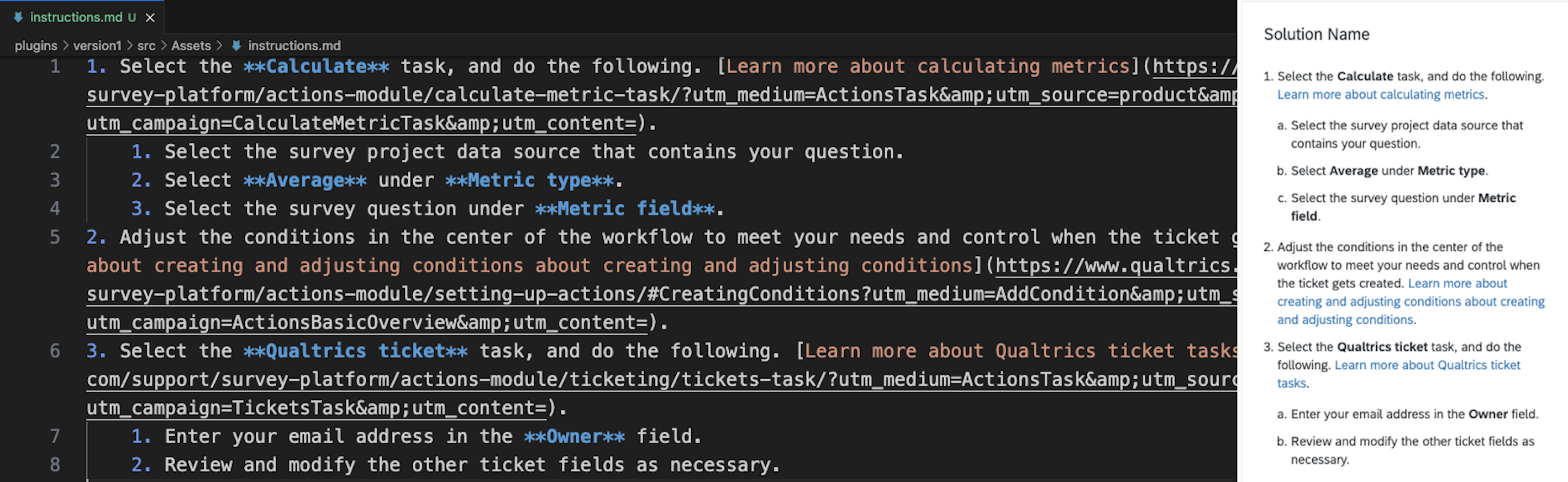
You need to include the file path as the value to the assetMap.workflowInstructions key in the catalogConfig.json file, like this:
{
  "name": "Solution Name",
  "description": "Solution with Workflow template",
  "offeringType": "SOLUTION",
  "tags": [],
  "collections": ["GuidedProjects"],
  "assetMap": {
    "catalogIcons": ["Assets/qualtrics.svg"],
    "summaryMarkdown": "Assets/summary.md",
    "workflowInstructions": "Assets/instructions.md"
  }
}
Notice the syntax used to reference resource fields you intend to replace during transformation, such as {{ $.trigger.id }}. This bracket notation should be stripped out during the transformation step and replaced with a real value that would exist on the context at that time (in this case, context.survey.id).
The best way to do this is to run the interpolate function on each resource in its corresponding transformation file. This function is available as a part of the @qualtrics/solution-utils package.