Purpose-built App Deep Dive
Objectives
This page describes all of the functionality made available through Purpose-built App plugins. It will help you:
- Learn the details of Purpose-built App plugins
- Modify your existing Purpose-built App plugin to add more functionality
Prerequisites
Before continuing with this guide, we recommend that you review and complete these:
If you want to create a custom tab to display in your Purpose-built App plugin, you should also review:
What is a Purpose-built App?
Purpose-built App plugins enable you to combine Qualtrics features and custom functionality into a cohesive and simplified user experience.
Some Qualtrics users only require subsets of the Qualtrics platform to do their jobs. You can create Purpose-built App Plugins for them to reduce friction, increase efficiency, and even provide custom functionality with a tailored and user-centered experience.
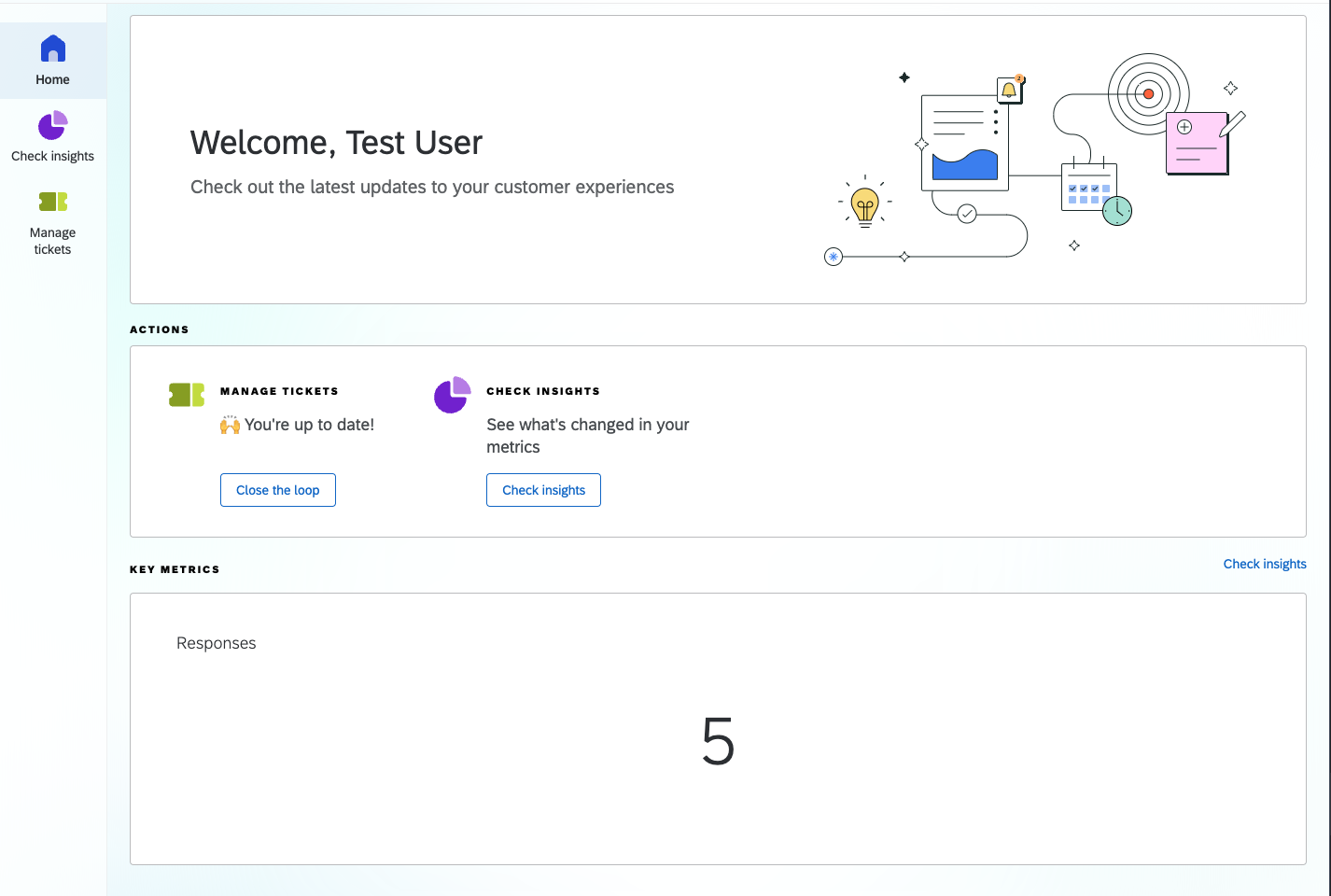
For example, here's a picture of a Purpose-built App that was made to help users look at feedback on a dashboard and resolve tickets.
Check out Tab Content Examples for code samples and configuration patterns for each tab type.
Supported Features
Display Qualtrics pages
You can display Qualtrics pages in your Purpose-built App by setting up a content tab in your plugin's config.json file, pointing href at the page you want to show. The tab's URLAllowList then controls which URLs (as regular expressions) are allowed to load inside that tab, and drives how the platform routes URLs to the right app and tab.
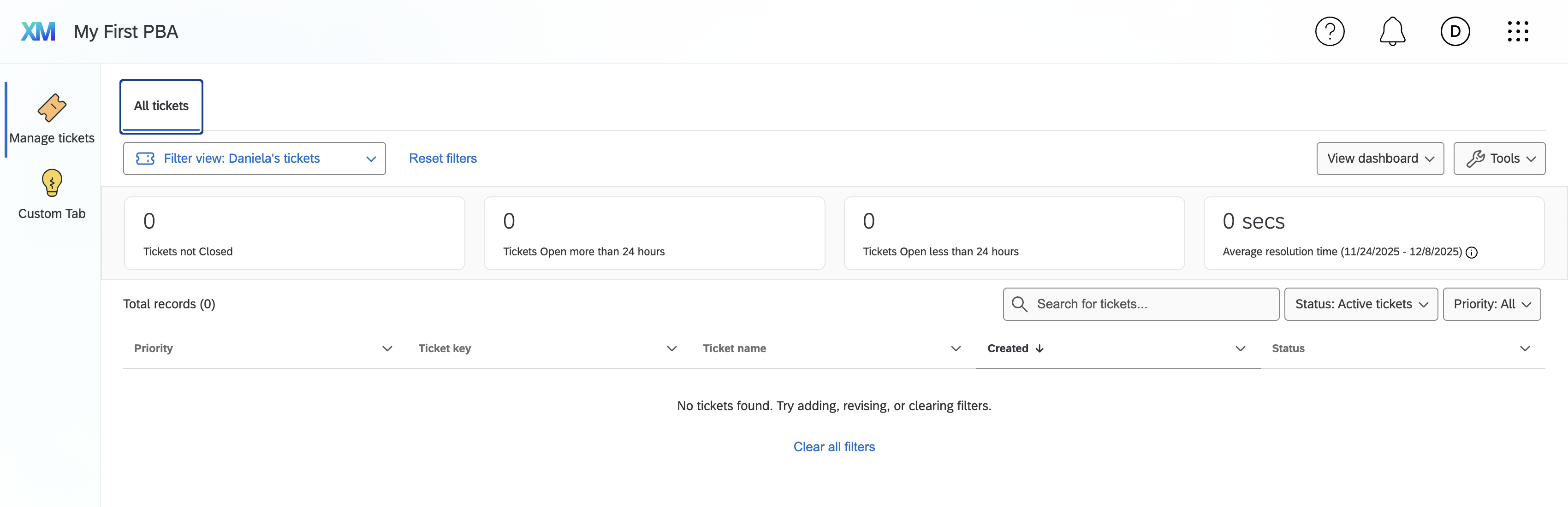
See Display Qualtrics Pages for step-by-step configuration, URLAllowList best practices, and URL routing details.
Display Custom Blocks
Custom Blocks are custom pages that allow you to make any page you'd like inside a Purpose-built App tab, and can navigate between tabs using the changePbaTab function from the Custom Block SDK.
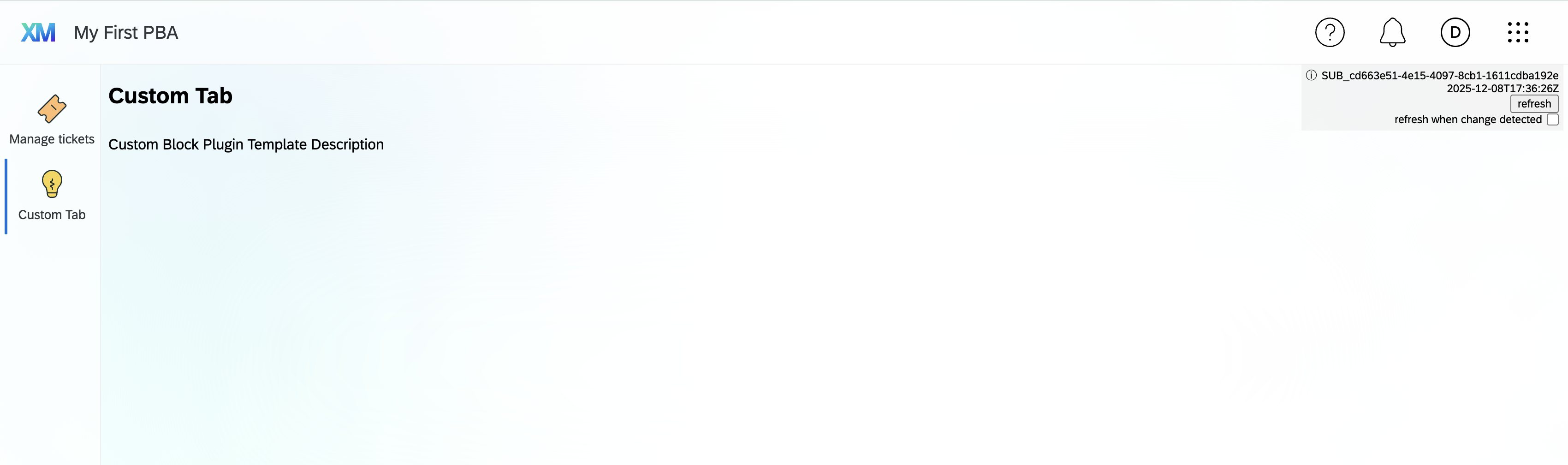
See Display Custom Blocks for the tab configuration fields, navigating between tabs with changePbaTab, and the Custom Block Quickstart for creating the Custom Block itself.
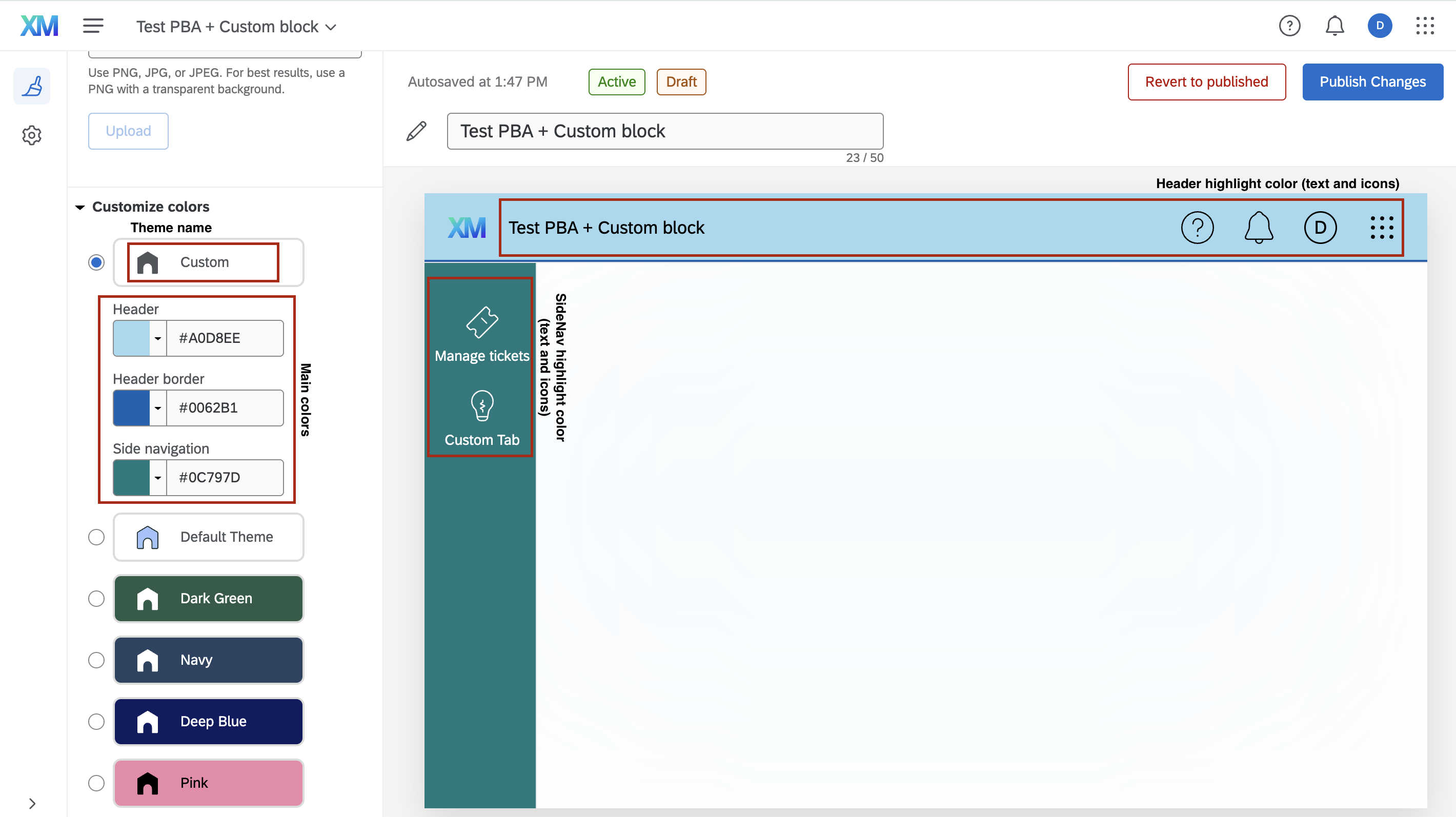
Sharing Themes With Custom Blocks
You may want to share the colors in the theme selected in the EditTheme configuration for your Purpose-built App with your Custom Block plugin. To do this, use the getTheme function from the Custom Block SDK:
// In your Custom Block's React component. `client` is automatically passed into your component via props.
theme = client.getTheme();
This function will create a theme object with the colors selected in your Purpose-built App, it will have the following structure:
{
 Theme {
  id: string;
  name?: string;
  header: {
    mainColor: string;
    highlightColor: string;
  };
  sideNav: {
    mainColor: string;
    highlightColor: string;
  };
  headerColor?: string;
  }
}
You can then use the theme object to set colors to any component in the React app, and it will be updated when the colors in the Purpose-built App change.
Display Multi-Page Dashboards
Multi-page dashboard tabs allow you to display Qualtrics dashboards within your Purpose-built App. These tabs are useful when you want to embed data visualizations, metrics, or analytics dashboards that are configured in Qualtrics without having to manage separate content URLs.
To display a multi-page dashboard tab in your Purpose-built App, the type field must be set to multiPageDashboardTab. Here's a basic example:
{
  "type": "multiPageDashboardTab",
  "id": "PerformanceDashboard",
  "iconName": "DashboardIcon",
  "nameKey": "dashboardTabName",
  "themeType": "blue"
}
Prerequisites for Multi-Page Dashboard Tabs
Multi-page dashboard tabs require specific configuration to work properly in your Purpose-built App:
- Configurable App: Your app must have
configurable: truein the top-levelconfigurationSettingsobject - Tab Configuration Enabled: You must enable
allowTabNameCustomization: true(or have tab-level configuration settings) - Dashboard Selection: Admins will select the specific dashboard to display through the app configuration interface
Multi-page dashboard tabs work best when your Purpose-built App is set up as a configurable app. This allows admins to:
- Select which dashboard to display in each tab
- Enable or disable tabs based on their needs
- Customize tab names and descriptions
Configuration Example
Here's what a complete configuration with multi-page dashboard tabs looks like:
{
  "id": "PLUG_12345678-1234-5678-1234-567812345678",
  "type": "purpose_built_app",
  "metadata": {
    "nameKey": "MyAnalyticsApp.AppName",
    "descriptionKey": "MyAnalyticsApp.AppDescription",
    "tags": ["purposeBuiltApp"],
    "type": "purposeBuiltApp",
    "configurationSettings": {
      "configurable": true,
      "allowTabNameCustomization": true,
      "defaultEnabledState": true
    },
    "tabs": [
      {
        "type": "content",
        "id": "HomePage",
        "iconName": "HomeIcon",
        "nameKey": "MyAnalyticsApp.HomeTab",
        "href": "/home",
        "themeType": "green"
      },
      {
        "type": "multiPageDashboardTab",
        "id": "MetricsDashboard",
        "iconName": "DashboardIcon",
        "nameKey": "MyAnalyticsApp.MetricsTab",
        "themeType": "blue",
        "order": 100,
        "configurationSettings": {
          "configurable": true,
          "defaultEnabledState": true,
          "tabTitleKey": "MyAnalyticsApp.MetricsTabTitle",
          "tabDescriptionKey": "MyAnalyticsApp.MetricsTabDescription"
        }
      },
      {
        "type": "multiPageDashboardTab",
        "id": "PerformanceDashboard",
        "iconName": "BarChartIcon",
        "nameKey": "MyAnalyticsApp.PerformanceTab",
        "themeType": "yellow",
        "order": 200
      }
    ]
  }
}
Configuration Page Display
When your app includes multi-page dashboard tabs with configurable settings enabled, admins will see these tabs in the app configuration page:
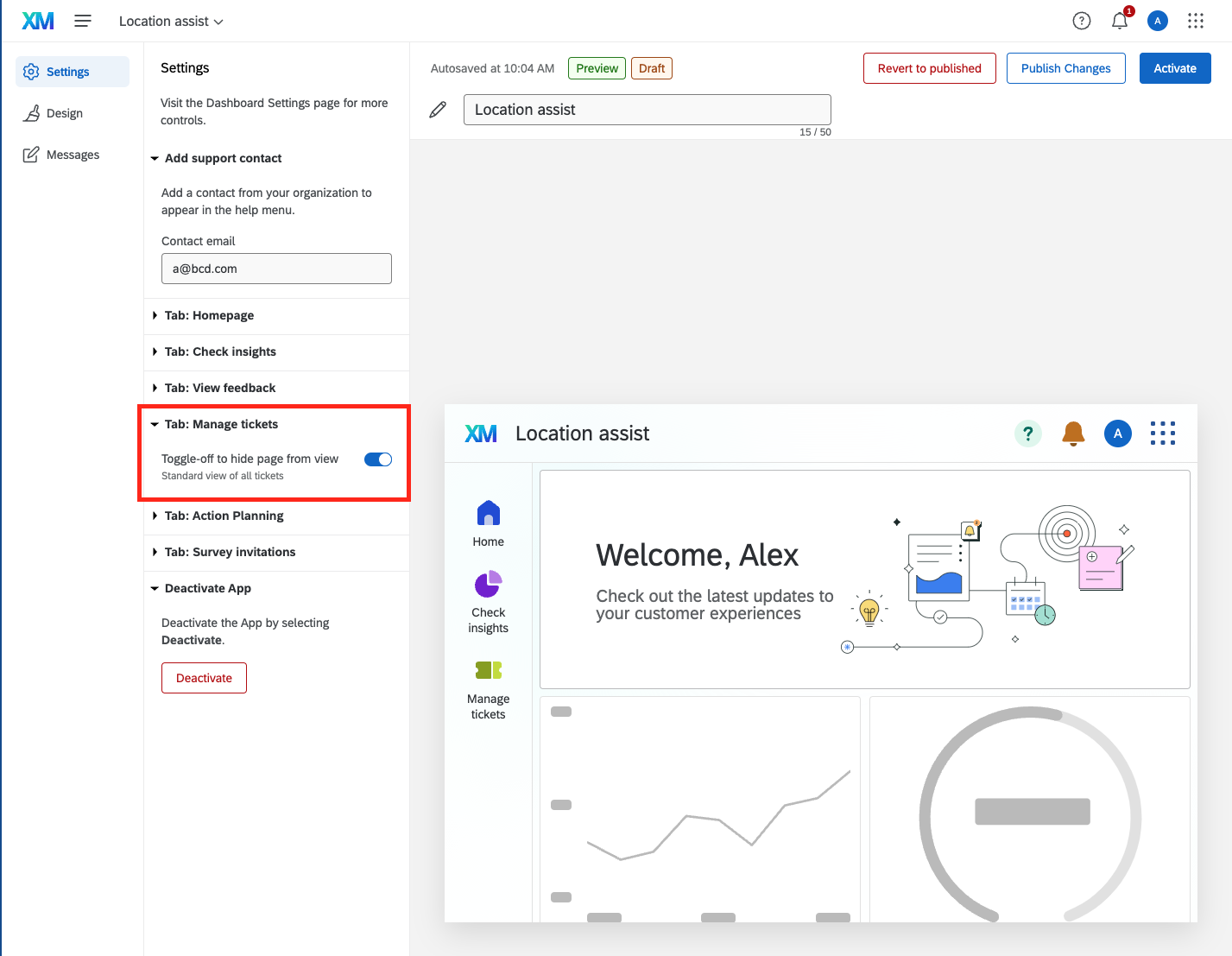
For each dashboard tab, admins can:
- Enable or disable the tab for their users
- Customize the tab name (if
allowTabNameCustomizationis enabled) - Add a tab description (if configured with
tabDescriptionKey) - Select or configure the dashboard to display (in the dashboard selection interface)
Best Practices
-
Use Descriptive Tab IDs: Choose tab IDs that clearly indicate the purpose of the dashboard (e.g.,
MetricsDashboard,PerformanceDashboard) -
Provide Translation Keys: Always use
nameKeyto support multiple languages:{
"nameKey": "MyApp.DashboardTabName"
} -
Order Your Tabs: Use the
orderfield to control the sequence of dashboard tabs in the side navigation:{
"order": 100
} -
Make Important Tabs Configurable: If certain dashboards are optional or vary by brand, make them configurable:
{
  "configurationSettings": {
    "configurable": true,
    "defaultEnabledState": false
  }
} -
Choose Appropriate Icons: Select dashboard-related icons from the available icon options (e.g.,
DashboardIcon,BarChartIcon,LineChartIcon)
Limitations
- Multi-page dashboard tabs display the full dashboard interface, including all pages and navigation elements
- Dashboard access is controlled by the same permissions as regular Qualtrics dashboards
- Users must have appropriate Qualtrics permissions to view the dashboard content
- Dashboard selection happens during app configuration and cannot be changed by end-users
Restricting Dashboard Types
You can control which types of dashboards can be used within your Purpose-built App by configuring the allowedDashboardTypes property. This is an optional array that restricts dashboard selection to only the types you specify. If not specified, all dashboard types are allowed.
The allowedDashboardTypes property is added to the top-level metadata object in your config.json:
{
  "id": "PLUG_12345678-1234-5678-1234-567812345678",
  "type": "purpose_built_app",
  "metadata": {
    "nameKey": "MyAnalyticsApp.AppName",
    "allowedDashboardTypes": [
      "vocalize",
      "employee-engagement",
      "results-dashboards"
    ]
  }
}
Best Practices:
- Restrict to Relevant Types: Only include dashboard types that are relevant to your app's purpose
- No Duplicates: Each dashboard type should appear only once in the array
- Consider Your Audience: Choose dashboard types that match your target users' needs
- Leave Unspecified for Flexibility: If your app should support all dashboard types, omit the
allowedDashboardTypesproperty entirely
Supported Dashboard Types:
| Dashboard Type | Description | Product Context |
|---|---|---|
vocalize | CX Dashboards | Customer Experience dashboards for analyzing customer feedback and sentiment |
employee-engagement | EX Dashboards | Employee Experience dashboards for workforce insights |
bx-dashboard | BX Dashboards (1.0) | Brand Experience dashboards for BX 1.0 Projects |
online-reputation-management | Online Reputation Management | Multi-product dashboards for analyzing online reviews (Google, Yelp, etc.) |
results-dashboards | Results Dashboards | General-purpose survey results dashboards |
bx-dashboards-project | BX Dashboards (2.0) | Unified Brand Experience dashboards for BX 2.0 Projects |
px-dashboard | PX Dashboards | Product Experience dashboards |
threesixty-dashboard | 360 Dashboards | 360-degree feedback dashboards |
candidate-experience | Candidate Experience Dashboards | Recruiting and candidate journey dashboards |
x-program-analytics | X-Program-Analytics Dashboards | Cross-program analytics dashboards |
x-xm-analytics | X-XM-Analytics Dashboards | Experience Management analytics dashboards |
frequent-pulse-dashboard | Frequent Pulse Dashboards | Pulse survey dashboards for regular feedback collection |
employee-lifecycle | Employee Lifecycle Dashboards | Employee journey and lifecycle dashboards |
Configuration Example:
Here's a complete example of a Purpose-built App that only allows CX and EX dashboard types:
{
  "id": "PLUG_12345678-1234-5678-1234-567812345678",
  "type": "purpose_built_app",
  "metadata": {
    "nameKey": "MyAnalyticsApp.AppName",
    "descriptionKey": "MyAnalyticsApp.AppDescription",
    "tags": ["purposeBuiltApp"],
    "type": "purposeBuiltApp",
    "allowedDashboardTypes": [
      "vocalize",
      "employee-engagement"
    ],
    "configurationSettings": {
      "configurable": true,
      "allowTabNameCustomization": true,
      "defaultEnabledState": true
    },
    "tabs": [
      {
        "type": "multiPageDashboardTab",
        "id": "CXMetrics",
        "iconName": "DashboardIcon",
        "nameKey": "MyAnalyticsApp.CXTab",
        "themeType": "blue",
        "order": 100
      },
      {
        "type": "multiPageDashboardTab",
        "id": "EXMetrics",
        "iconName": "Employee360Icon",
        "nameKey": "MyAnalyticsApp.EXTab",
        "themeType": "green",
        "order": 200
      }
    ]
  }
}
The allowedDashboardTypes property is optional. If not specified, users will be able to select from all available dashboard types when configuring your app. Only use this property when you need to restrict the dashboard types for a specific use case.
Configure the app
To make your Purpose-built App configurable, set configurable: true in the configurationSettings object at the top level of your metadata. When configurable, you also need to provide a previewOptions object and a configurationPanel array that define what admins see on the configuration page.
Configuration Panel Overview
The configurationPanel is an array of objects that define the tabs and sections an admin sees when configuring your app. Each panel can display different types of configuration content:
- Sections Panels: Display built-in sections like tab management, logo customization, theme editing, support contact, and deactivation options
Configuration Panel Sections Types
There are six built-in section types you can include in a sections panel:
| Section ID | Purpose | Example Use |
|---|---|---|
SupportContact | Displays support contact information | Show admin contact details for the app |
Deactivate | Provides an option to deactivate the app | Allow admins to disable the app |
TabsSection | Displays and allows configuration of individual tabs | Manage which tabs are visible and how they appear |
EditLogo | Allows uploading or changing the app logo | Customize branding |
EditTheme | Provides theme color selection options | Let admins choose the app color scheme |
EnablementConfigurator | Custom section with admin-defined title and description | Add custom instructional content or guidance |
Full Configuration Example
Here's a complete example showing a configurationPanel with multiple section types and all available options:
{
  "id": "PLUG_...",
  "type": "purpose_built_app",
  "metadata": {
    ...
    "configurationSettings": {
      "configurable": true,
      "previewOptions": { ... },
      "configurationPanel": [
        {
          "id": "getStartedPanel",
          "path": "getting-started",
          "name": { "key": "MyApp.GetStartedTitle" },
          "iconName": "BookIcon",
          "paneType": "sections",
          "sections": [
            { "id": "EnablementConfigurator", "name": { "key": "..." }, "description": { "key": "..." } }
          ]
        },
        {
          "id": "managementPanel",
          "path": "management",
          "name": { "key": "MyApp.ManagementTitle" },
          "iconName": "SettingsIcon",
          "paneType": "sections",
          "sections": [
            { "id": "TabsSection" },
            { "id": "EditTheme" },
            { "id": "EditLogo" }
          ]
        },
        {
          "id": "supportPanel",
          "path": "support",
          "name": { "key": "MyApp.SupportTitle" },
          "iconName": "HelpIcon",
          "paneType": "sections",
          "sections": [
            { "id": "SupportContact" },
            { "id": "Deactivate" }
          ]
        }
      ]
    }
  }
}
Configuration Panel Features
Multiple Panels as Tabs: Each panel in the configurationPanel array becomes a separate tab at the top of the configuration page. Admins can click between them to access different configuration areas.
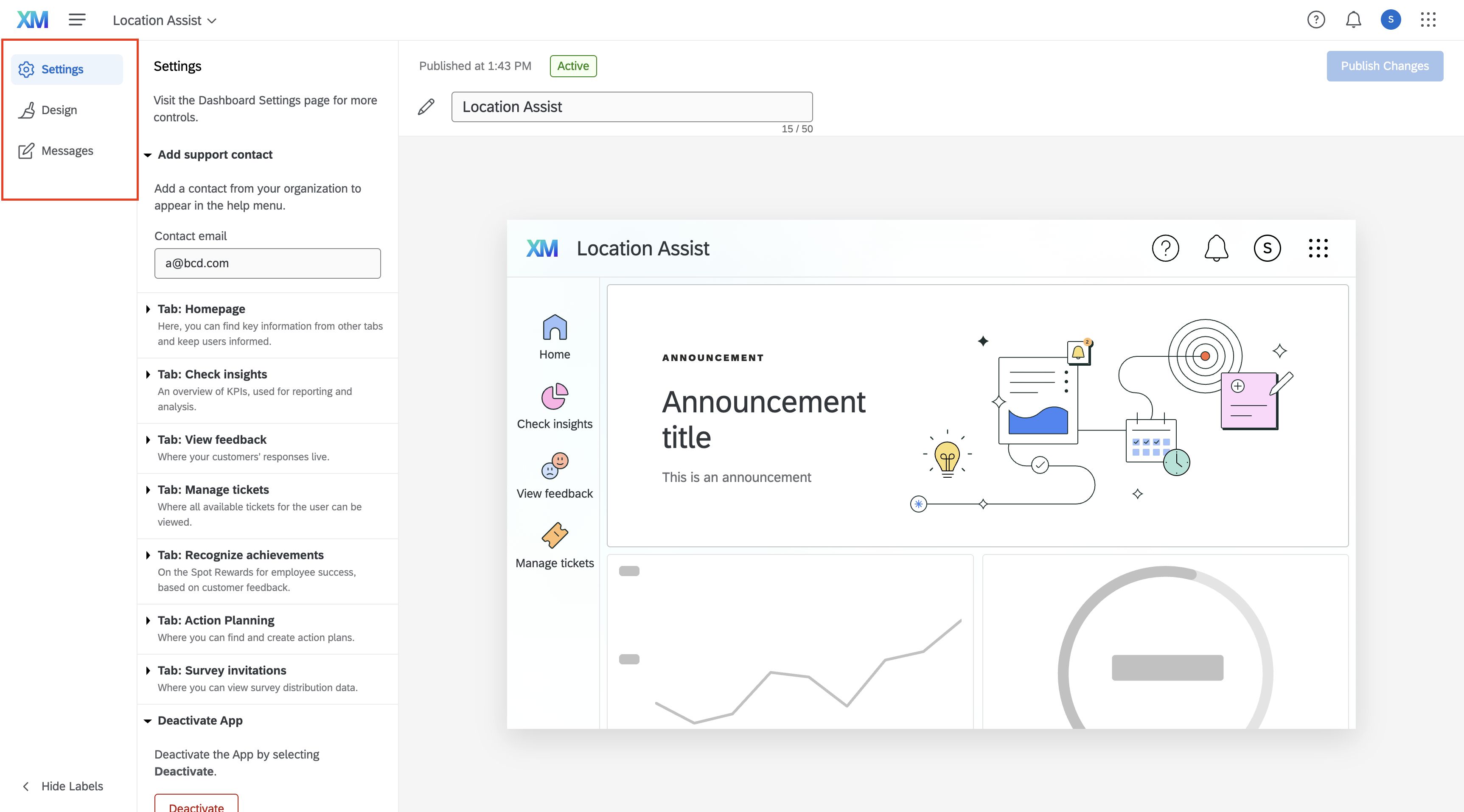
EnablementConfigurator Section: This special section allows you to provide custom titles and descriptions. Use it to give admins guidance or instructions about configuring your app.
{
  "id": "EnablementConfigurator",
  "name": {
    "key": "MyApp.ConfigInstructions"
  },
  "description": {
    "key": "MyApp.ConfigInstructionsDetail"
  }
}
Configuration Best Practices
-
Organize Logically: Group related sections into logical panels (e.g., all appearance options in one panel, all management options in another)
-
Use Descriptive Titles: Make panel and section titles clear so admins understand what each tab does
-
Limit Panels: Keep the number of panels reasonable (3-5) to avoid overwhelming admins
-
Translation Keys: Always use translation keys for panel names and descriptions to support multiple languages:
{
  "name": {
    "key": "MyApp.PanelName"
  },
  "description": {
    "key": "MyApp.PanelDescription"
  }
}
Customize the look and feel
There are several ways to customize the way your Purpose-built App looks.
Tab icons
You must choose an icon to display for each of your tabs. You do that by setting the iconName field inside the tab object. You can select from this list of icons:
| Icon Name | Icon |
|---|---|
AgentCoachingIcon |  |
BookIcon |  |
ClipboardIcon |  |
CollectionIcon |  |
ConversationIcon |  |
DashboardIcon |  |
Employee360Icon |  |
FeedbackIcon |  |
GlobeLanguageIcon |  |
HeartIcon |  |
HomeIcon |  |
LightBulbIcon |  |
MailIcon |  |
RecognitionIcon |  |
SearchHomeIcon |  |
SpeedometerIcon |  |
TicketsIcon |  |
VideoIcon |  |
Ordering
The order field can be set on the individual tab objects that are inside the tabs array to determine which order the tabs on the left hand side of your app will appear in. If you don't set this field, then the tabs will appear in the order they appear in the tabs array.
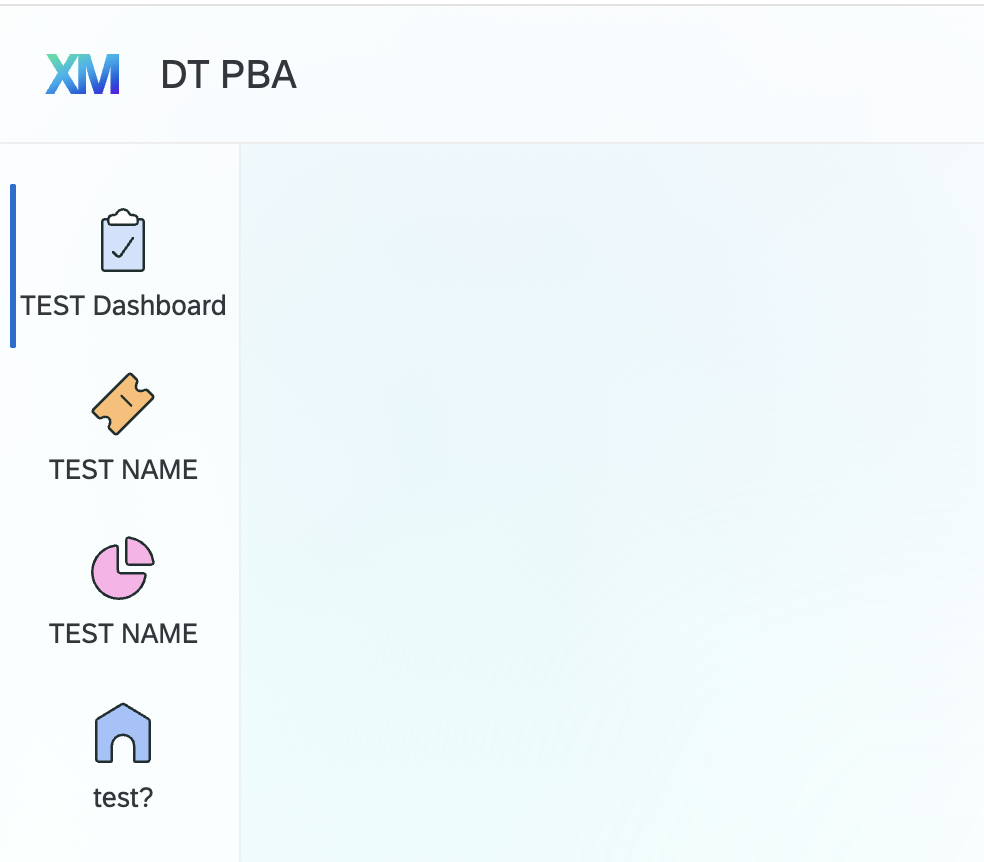
See Customize Appearance for a full walkthrough of icons, color themes, and tab ordering.
Notification Filtering
You can control which notification categories are shown to users of your Purpose-built App by configuring the notificationsFilter property in your app's metadata. This allows you to create a more focused experience by only showing notifications that are relevant to the app's purpose.
To filter notifications, add the notificationsFilter array to your app's metadata:
{
  ...
  "metadata": {
    ...
    "notificationsFilter": [
      "Surveys",
      "Dashboards",
      "Recommendations"
    ]
  }
}
| Category | Description |
|---|---|
AdminApprovals | Get notifications about usage and other administrative events. |
Benchmarks | Get notified about benchmark-related events. |
Collaboration | Get notified whenever someone shares something with you or mentions you in a comment. |
Dashboards | Get notified about available reports and key metrics tracked by your organization. |
Distributions | Receive a weekly email with insights about the health of distributions for selected projects and other status updates for sent or scheduled messages. |
Pulse | Get notified about program or project status changes and setup issues. |
Programs | Get notified about program-related events. |
Recommendations | Get recommendations from Qualtrics that help you use full potential of Qualtrics XM platform. |
Security | Get notified about security-related events. |
Surveys | Receive a weekly email summary about your survey response data and get real-time notifications about response anomalies. |
Tickets | Get notified about ticket assignments and status changes. (You might receive some ticket notifications even when the toggle is off based on your organization's preferences) |
Workflows | Get notified based on custom workflows set up for your organisation. |
Global Wrapper Menu
If the Purpose-built App contains a tab which displays a Qualtrics page, the tab can be configured to hide items on the Global Wrapper's tier-two navigation menu using the globalWrapperConfig field, with an allowList or blockList of navigation menu tab names.
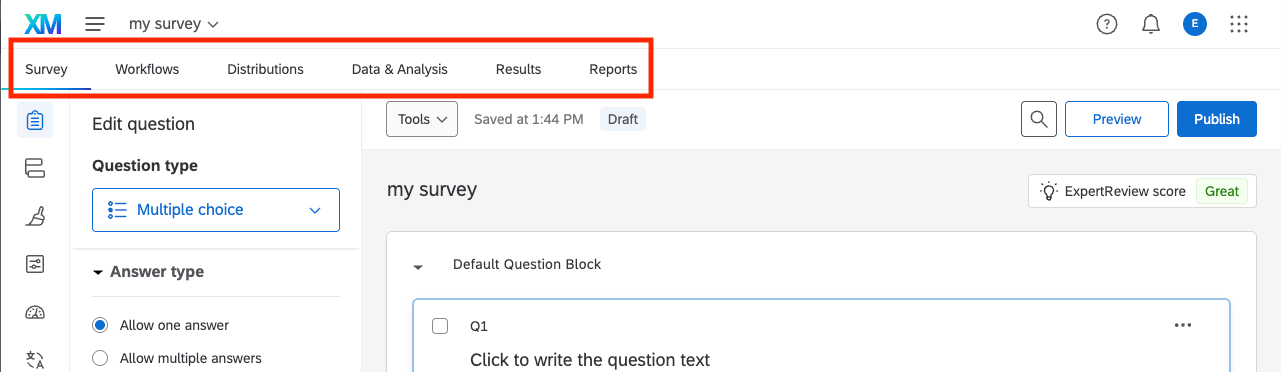
See Configure Global Wrapper Menu for the full list of supported tab names and allow list/block list examples.
Allow users to configure the Purpose-built App
Some aspects of your Purpose-built App can be configured by an admin in the brand that's using it. If you choose to let admins configure the app in these ways, you add a configurationSettings object to your config.json file, and it will appear in this UI that admins have access to:
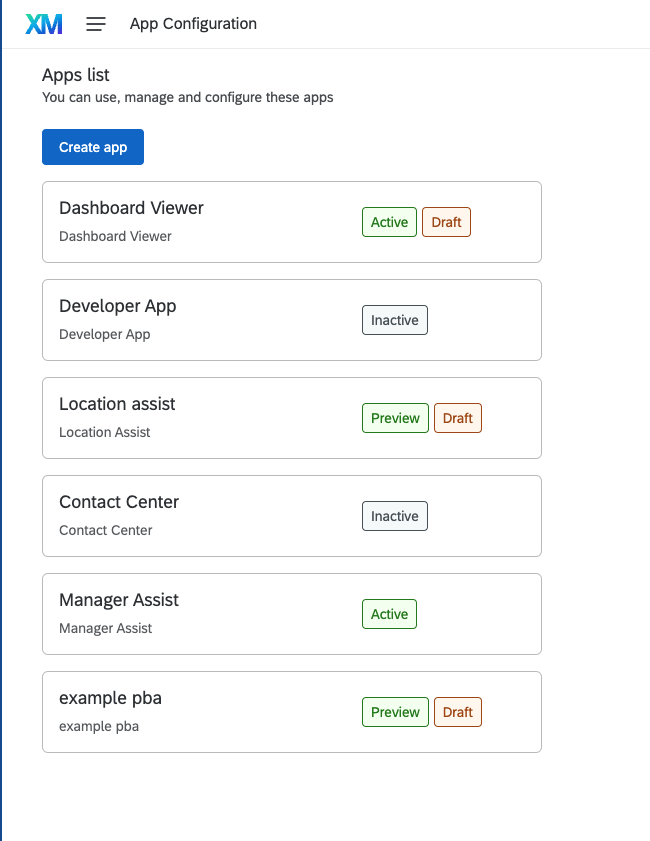
There are two separate configurationSettings objects to be aware of:
metadata.configurationSettings(app-level) — controls whether the app has a configuration experience at all, tab name customization, the default enabled state, and the configuration page preview.- Each tab's own
configurationSettings(tab-level) — controls whether that particular tab participates in the Tabs configuration UI, its title/description in the settings UI, and its default enabled state.
See Enable User Configuration for step-by-step setup of both, and the Configuration Settings API reference for the full field list.
Translate
If you would like your Purpose-built App to be available in multiple languages, you can translate the user visible fields: the app name and description, tab names, tab titles/descriptions on the App Configuration page, and Custom Block strings.
Put your translation files in the main Purpose-built App plugin folder under public/translations. The platform loads translations only from this path. You typically start with an en.json file in that folder; to add another language, add a new JSON file there (e.g., es.json) and reference it in your extension.
See Translate Your Portal for the full field-by-field breakdown and examples.
Restrict access
All extensions with Purpose-built App plugins automatically have two permissions created for them. One allows users to use the app and the other allows them to configure it on the App Configuration page. For most use cases, this is enough to control access to the app. However, there are a couple extra mechanisms for controlling access that you could also choose to use:
- Multi-instance apps — let brand admins manage access per instance using roles, instead of relying on a single set of extension-wide permissions.
- Tab-level access controls — restrict access to individual tabs using the
accessControlsobject.
Access Controls
You can define an accessControls object on specific tabs to further restrict who should have access to them.
Most Purpose-built Apps do NOT need to use the accessControls object.
Access to the app should be controlled by the privileges associated with the extension or by setting it up as a multi-instance app.
If you need to restrict access to individual tabs to particular users, you can use accessControls on those tabs. Even this is often unnecessary, because the Qualtrics pages you can include in content tabs have empty states for users that do not have access to them.
See Configure Access Control for app-level and tab-level examples, and the Access Controls API reference for supported permission values.
Multi-instance apps
Purpose-built Apps can be configured as either single-instance or multi-instance apps.
Single-instance apps
A single-instance app uses the configuration defined in your plugin's config.json file directly. When you publish the plugin, the app becomes immediately available in the App Configuration page for brands to use. There is only one version of the app per brand.
Multi-instance apps
A multi-instance app acts as a template rather than a ready-to-use app. This is useful for large organizations that need multiple configurations with separate branding, different data, or access restricted to different user groups.
Choosing Single-instance vs Multi-instance
When you design a Purpose-built App, decide up front whether it should be single-instance or multi-instance:
-
Single-instance apps
- Simpler to reason about and set up
- Each brand gets one configuration, defined directly from your Plugin's
config.json - Useful for small deployments or narrowly scoped internal tools
-
Multi-instance apps (recommended)
- Treat your Plugin as a reusable template
- Brand admins can create multiple instances, each with its own configuration, branding, and access controls
- Can effectively behave like "single-instance" apps if the brand only creates one instance, but can easily scale to many instances later
You can experiment with both configurations while you are still building your Plugin, as long as no brands have saved configurations or started using the app in production. Once a brand has created an app or saved configuration data, you must not change that app from single-instance to multi-instance (or vice versa). If you need to change the app type at that point, you must create a new Plugin or app and migrate users.
In general, if you expect different teams, regions, or programs to use different configurations, you should default to multi-instance and treat your Plugin as a template.
Publishing a multi-instance plugin adds it as an "App type" admins can pick from when creating a new app, rather than as a ready-to-use app itself. Each instance an admin creates gets its own configuration, and since organizations can now have more than one instance, extension-level permissions alone aren't enough to restrict access to individual instances — admins use roles (backed by either cxRoles or the legacy roleService) to control who can access each instance.
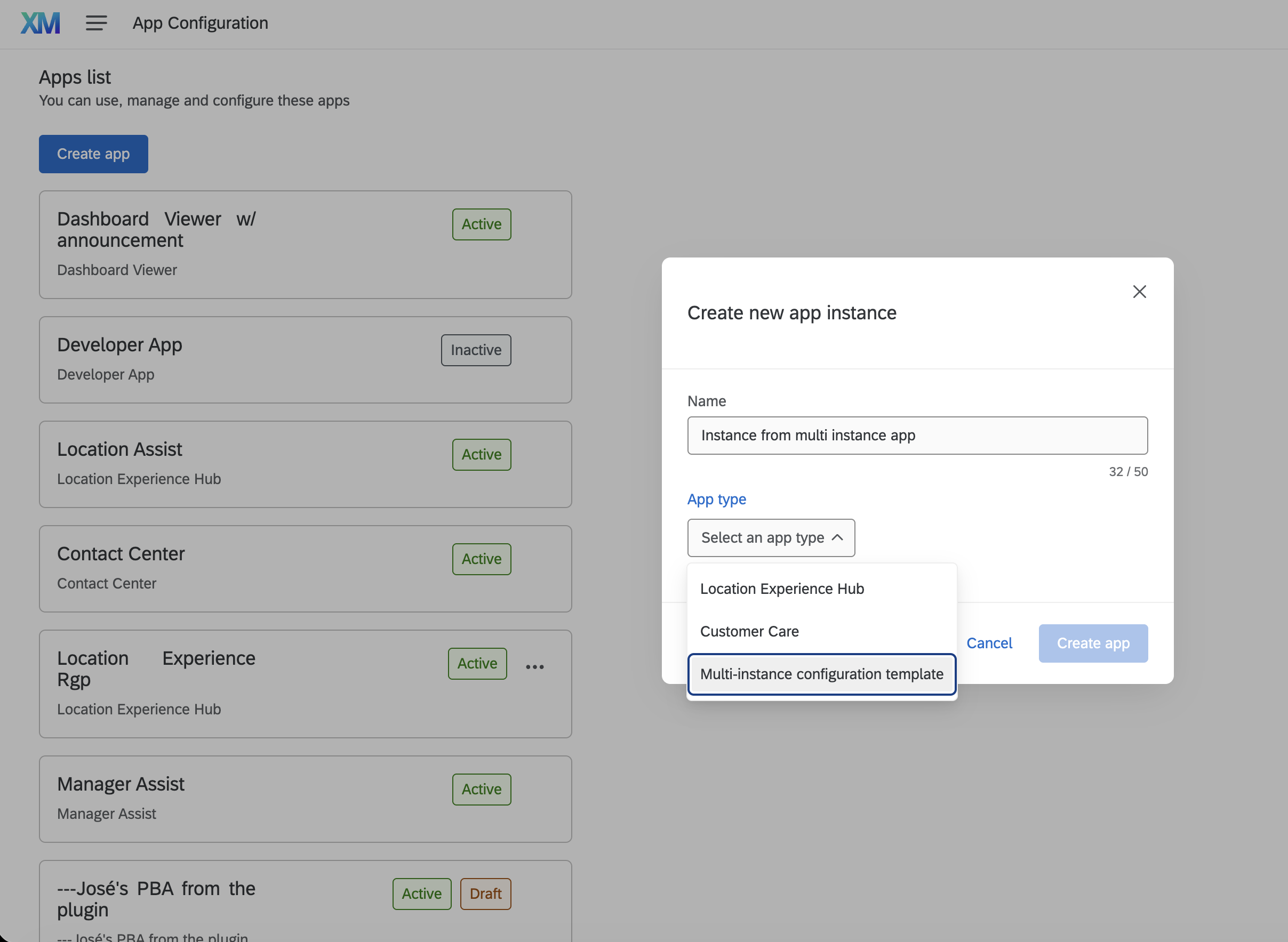
See Configure Multi-Instance Portals for the full setup, including the multiInstanceConfiguration object, authType values, and role assignment.
Deprecated Purpose-built Apps
When you deprecate a Purpose-built App (PBA), you are signaling that the app should no longer be used for new projects or users. Deprecation prevents new users from accessing the app, and it will not appear as an option for new usage within Qualtrics. However, existing users and organizations that already have the app enabled will continue to have access and can use it as before.
Deprecation is a way to phase out an app without causing disruption for current users. It is especially useful if you want to encourage migration to a newer solution or if the app is no longer being actively maintained, but you do not want to break workflows for those who already rely on it.
Key points about deprecating a PBA:
- No new usage: New users cannot access the deprecated app.
- No disruption for existing users: Current users and organizations with the app already enabled will not lose access.
- Migration: Deprecation is often the first step before fully removing an app, giving users time to transition.
How Deprecation affects Developers and Users:
When a Purpose-built App is deprecated, new creation or usage of the app is prevented while preserving access for existing users and configurations, ensuring a smooth transition without disruption.
For single-instance Purpose-built Apps, if a brand has no saved configurations (including drafts), the deprecated app will no longer appear in the app list for new creation.
Additionally, admins will have an action menu option to permanently remove the deprecated app from their app list — this action deletes all related configurations and includes a warning if the app is active.
For multi-instance Purpose-built Apps, deprecated app types will be removed from the "Create Instance" list, blocking new instances. Existing instances are restricted from transitioning into preview or published states, though admins may be allowed to advance drafts depending on implementation.
Users of deprecated Purpose-built Apps will be informed via a generic deprecation message (customizable by developers), and a deprecated status label will be displayed on these apps or instances.
Importantly, deprecated Purpose-built Apps do not show up in selectors for initialization or creation to prevent new usage without affecting existing workflows.
Developers can continue to push new versions to a deprecated Purpose-built App plugin and it will not affect it's deprecated status, which allows you to apply bug fixes to deprecated Purpose-built App Plugins.
If the isDeprecated flag is set back to false, the app will continue working as it did before deprecation, and no message or status will be shown and it will become available to new users.