Enable User Configuration for Purpose-built Apps
Summary
Task: Allow administrators to customize app settings, tab names, announcements, and contact information
Time estimate: 15-20 minutes
Skill level: Intermediate
Prerequisites
- Purpose-built App project initialized
- Understanding of JSON configuration
- Knowledge of which settings should be customizable
- Understanding of your organization's branding requirements
Steps
Step 1: Enable App-Level Configuration
Add the configurationSettings object to your metadata section in config.json:
{
  "metadata": {
    "configurationSettings": {
      "configurable": true,
      "allowTabNameCustomization": true,
      "defaultEnabledState": false
    }
  }
}
Key fields explained:
| Field | Purpose | Values |
|---|---|---|
configurable | Enables the configuration UI | true / false |
allowTabNameCustomization | Lets admins rename tabs | true / false |
defaultEnabledState | App enabled by default for users | true / false |
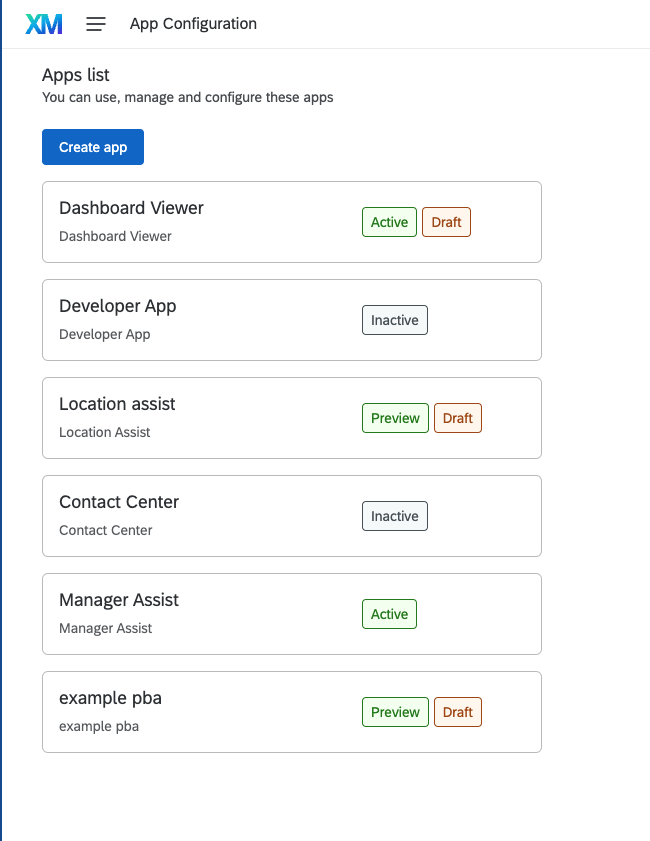
Result: Admins will see a configuration page for your Purpose-built App:
Step 2: Configure Tab Name Customization
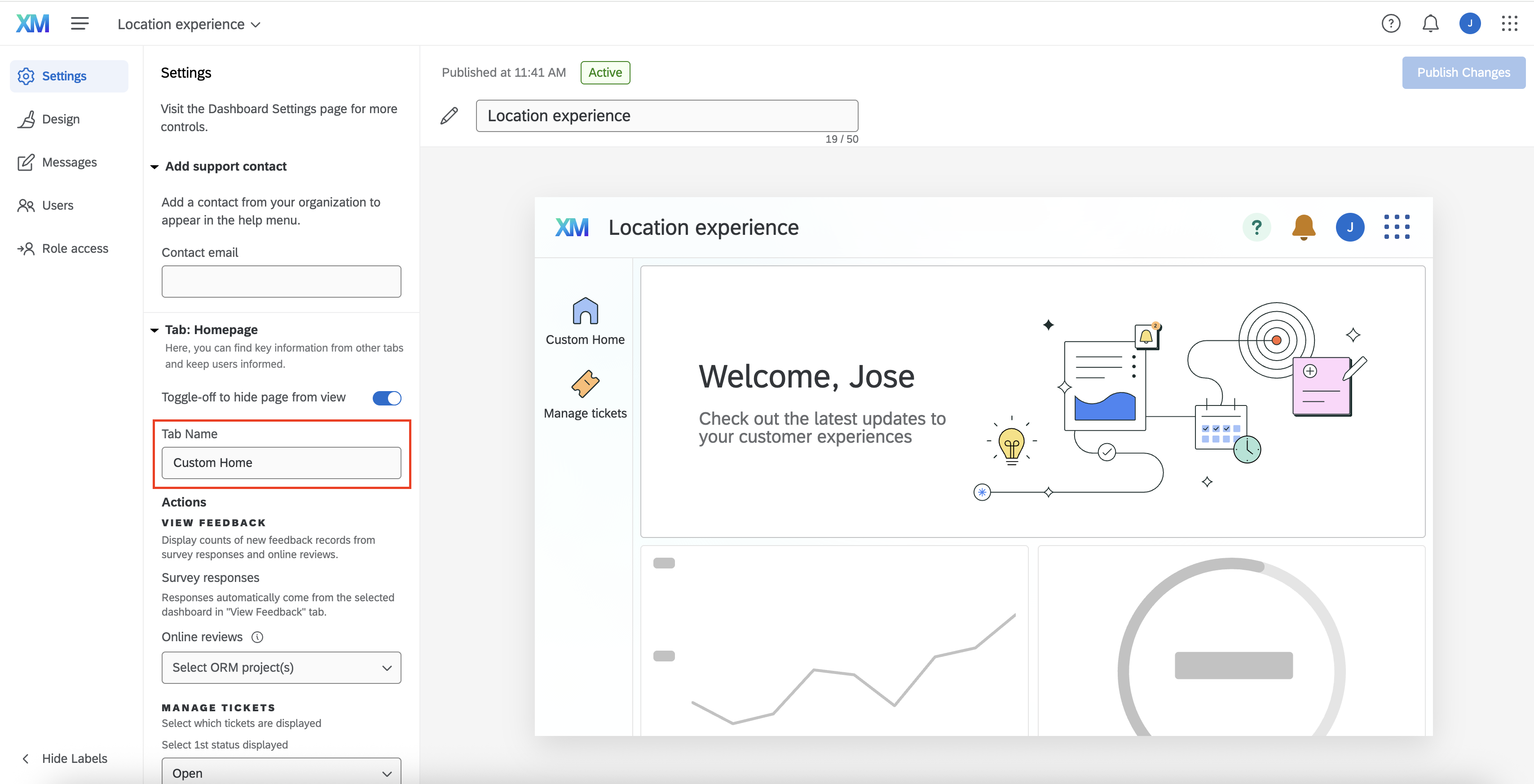
The allowTabNameCustomization field controls whether admins can rename tabs.
Allow customization (flexible naming):
"allowTabNameCustomization": true
Admins will see customization fields:
Lock tab names (consistent branding):
"allowTabNameCustomization": false
Admins cannot change tab names, ensuring consistency across all instances.
When to use each:
true- Multi-tenant deployments where different organizations want different namingfalse- Internal deployments with strict branding requirements
Step 3: Configure Preview Elements (Optional)
Add preview options to show administrators what customizations will look like:
{
  "metadata": {
    "configurationSettings": {
      "configurable": true,
      "allowTabNameCustomization": true,
      "defaultEnabledState": false,
      "previewOptions": {
        "previewElements": [
          {
            "type": "announcement",
            "announcementComponent": "DashboardAnnouncement"
          },
          {
            "type": "basicPreviewElement",
            "previewComponent": "DashboardUpperPanel"
          }
        ]
      }
    }
  }
}
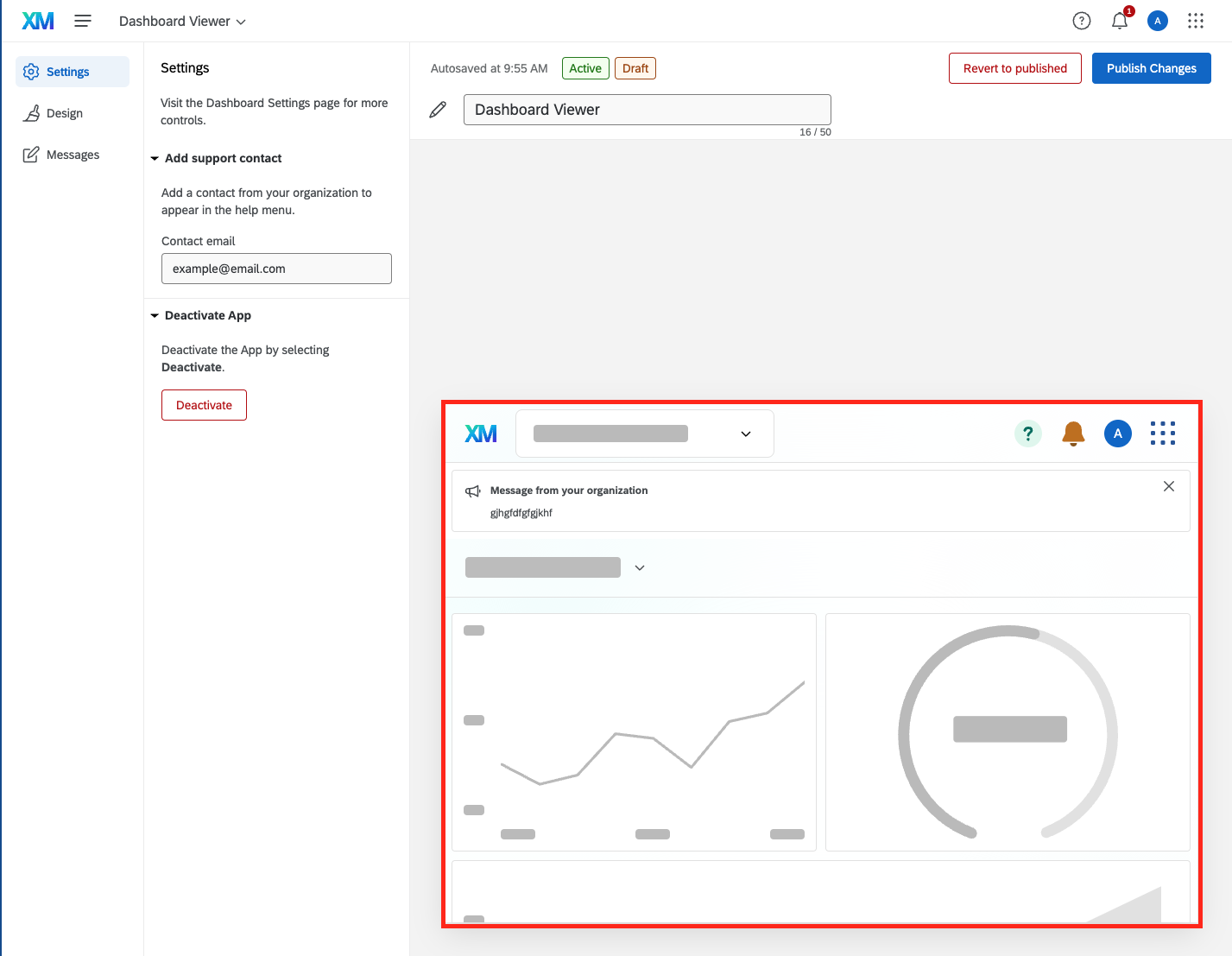
Preview result:
Available preview types:
announcement- Shows announcement bannersbasicPreviewElement- Shows custom preview components
For complete preview options, see the Command Reference.
Step 4: Enable Tab-Level Configuration
Allow admins to configure individual tabs by adding configurationSettings to each tab:
{
  "metadata": {
    "tabs": [
      {
        "type": "content",
        "href": "/dashboard",
        "configurationSettings": {
          "configurable": true,
          "tabTitle": {"value": "Analytics Dashboard"},
          "tabDescription": {"value": "View performance metrics and reports"}
        }
      },
      {
        "type": "content",
        "href": "/tickets",
        "configurationSettings": {
          "configurable": true,
          "tabTitle": {"value": "Support Tickets"},
          "tabDescription": {"value": "Manage customer support requests"}
        }
      }
    ]
  }
}
Key tab configuration fields (all nested under the tab's configurationSettings object, not on the tab directly):
| Field | Purpose | Example |
|---|---|---|
configurationSettings.configurable | Makes this tab configurable | true |
configurationSettings.tabTitle | Default title for the tab | {"value": "Dashboard"} |
configurationSettings.tabDescription | Description shown in config UI | {"value": "View analytics"} |
Admin view:
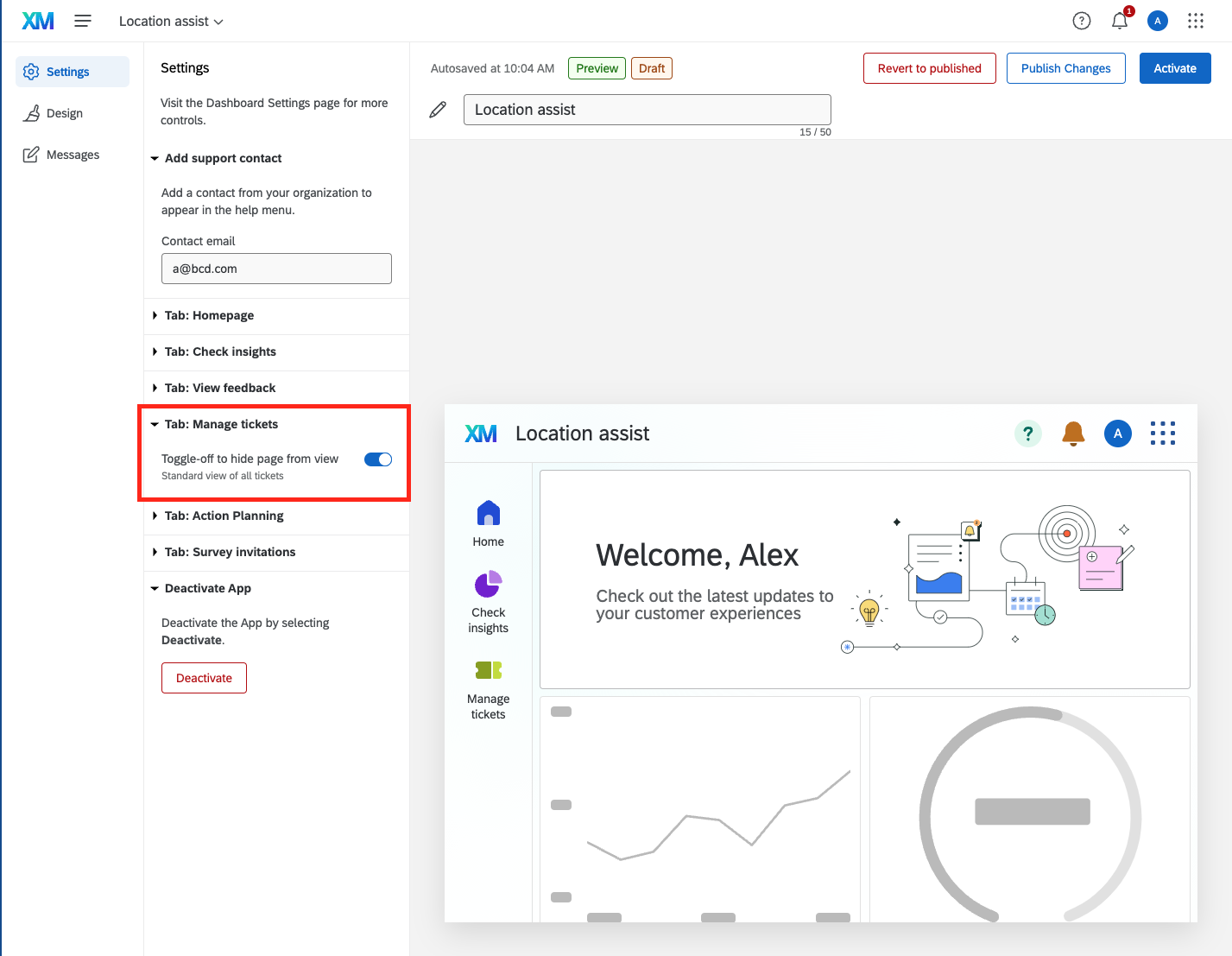
Admins can:
- Enable/disable individual tabs
- Customize tab titles (if
allowTabNameCustomization: true) - View tab descriptions
Step 5: Set Default Enabled State
Control whether the app is automatically enabled for users or requires admin activation:
Disabled by default (recommended for new deployments):
"defaultEnabledState": false
- Admins must explicitly enable the app
- Allows time for configuration before user access
- Prevents incomplete apps from being visible
Enabled by default (for established apps):
"defaultEnabledState": true
- App immediately available to users
- Good for simple apps that need minimal configuration
Step 6: Test the Configuration Interface
- Save your
config.jsonfile - Rebuild and deploy your Purpose-built App
- Log in as an administrator
- Navigate to the apps configuration page
- Verify all configuration options appear correctly
- Test making configuration changes
- Confirm changes apply to the app
Checkpoint: Administrators should see a configuration interface with all the options you've enabled, and changes should reflect in the app.
Common Issues and Solutions
Issue: Configuration Page Not Appearing
Symptoms: Admins cannot find the configuration page
Causes:
configurable: falseor missing- User lacks administrator permissions
- App not properly deployed
Solution:
Verify configuration is enabled:
"configurationSettings": {
  "configurable": true  // ✅ Must be true
}
Ensure user has administrator or configuration permissions in Qualtrics.
Issue: Tab Names Not Customizable
Symptoms: Tab name fields are read-only
Causes:
allowTabNameCustomization: false- Tab-level
configurable: false
Solution:
Enable both app-level and tab-level customization:
// App-level
"configurationSettings": {
  "allowTabNameCustomization": true
}

// Tab-level (nested under the tab's own configurationSettings)
"tabs": [
  {
    "configurationSettings": {
      "configurable": true,
      "tabTitle": {"value": "Default Name"}
    }
  }
]
Issue: Preview Not Showing
Symptoms: Preview section is blank or missing
Causes:
- Invalid preview component names
- Missing preview elements configuration
- Component not implemented
Solution:
Verify preview element configuration:
"previewOptions": {
  "previewElements": [
    {
      "type": "announcement",
      "announcementComponent": "ValidComponentName"  // Must match actual component
    }
  ]
}
Reference the Command Reference for valid component names.
Alternative Approaches
No Configuration (Fixed Settings)
For simple, single-purpose apps, skip configuration entirely:
{
  "metadata": {
    // No configurationSettings object
    "tabs": [...]
  }
}
Appropriate when:
- App has a single, well-defined purpose
- Organization prefers consistency over flexibility
- Reduces complexity and maintenance overhead
Hybrid Approach (Selective Configuration)
Enable configuration only for specific elements:
{
  "configurationSettings": {
    "configurable": true,
    "allowTabNameCustomization": false,  // Lock tab names
    "defaultEnabledState": true           // Auto-enable
  }
}
This allows admin control while maintaining strict branding.
Best Practices
User Experience
- Provide clear, descriptive default values for all fields
- Use meaningful tab descriptions to guide administrators
- Test the configuration UI with actual administrators
- Document what each configuration option does
Security
- Remember that configuration is not access control
- Use Qualtrics permissions for true security
- Configuration controls UX, not data access
- Validate all admin-provided values
Maintenance
- Version your configuration schema
- Document available preview components
- Keep configuration options simple and focused
- Review configuration options as the app evolves
Recap
You've successfully enabled user configuration for your Purpose-built App. Administrators can now:
- Enable/disable the app
- Customize tab names (if allowed)
- Configure individual tabs
- Preview customizations
- Tailor the app to their organization's needs
This flexibility allows your Purpose-built App to serve multiple organizations or departments with different branding and terminology requirements.
Related Content
- Purpose-built App Deep Dive - Core concepts and architecture
- Purpose-built App Command Reference - Complete configuration options
- Customize Appearance - Developer-side appearance configuration
- Translate Your Portal - Multi-language support
- Configure Access Control - Permissions and requirements