Customize Purpose-built App Appearance
Summary
Task: Configure tab icons, color themes, and ordering to match your brand and user needs
Time estimate: 10-15 minutes
Skill level: Beginner
Prerequisites
- Purpose-built App project initialized
- Basic understanding of JSON configuration
- At least one tab configured in your app
Steps
Step 1: Choose Tab Icons
Each tab in your Purpose-built App must have an icon. Set the iconName field for each tab in your config.json:
{
  "metadata": {
    "tabs": [
      {
        "iconName": "TicketsIcon",
        "type": "content",
        "href": "/tickets/app"
      }
    ]
  }
}
Available icon options:
TicketsIcon- For support and ticketing featuresDashboardIcon- For analytics and dashboardsReportsIcon- For reports and data visualizationHelpIcon- For help and documentationSettingsIcon- For configuration and settingsSurveyIcon- For survey-related features- And many more...
See the complete icon list with visual previews: Command Reference - Tab Icons
Step 2: Set Color Themes
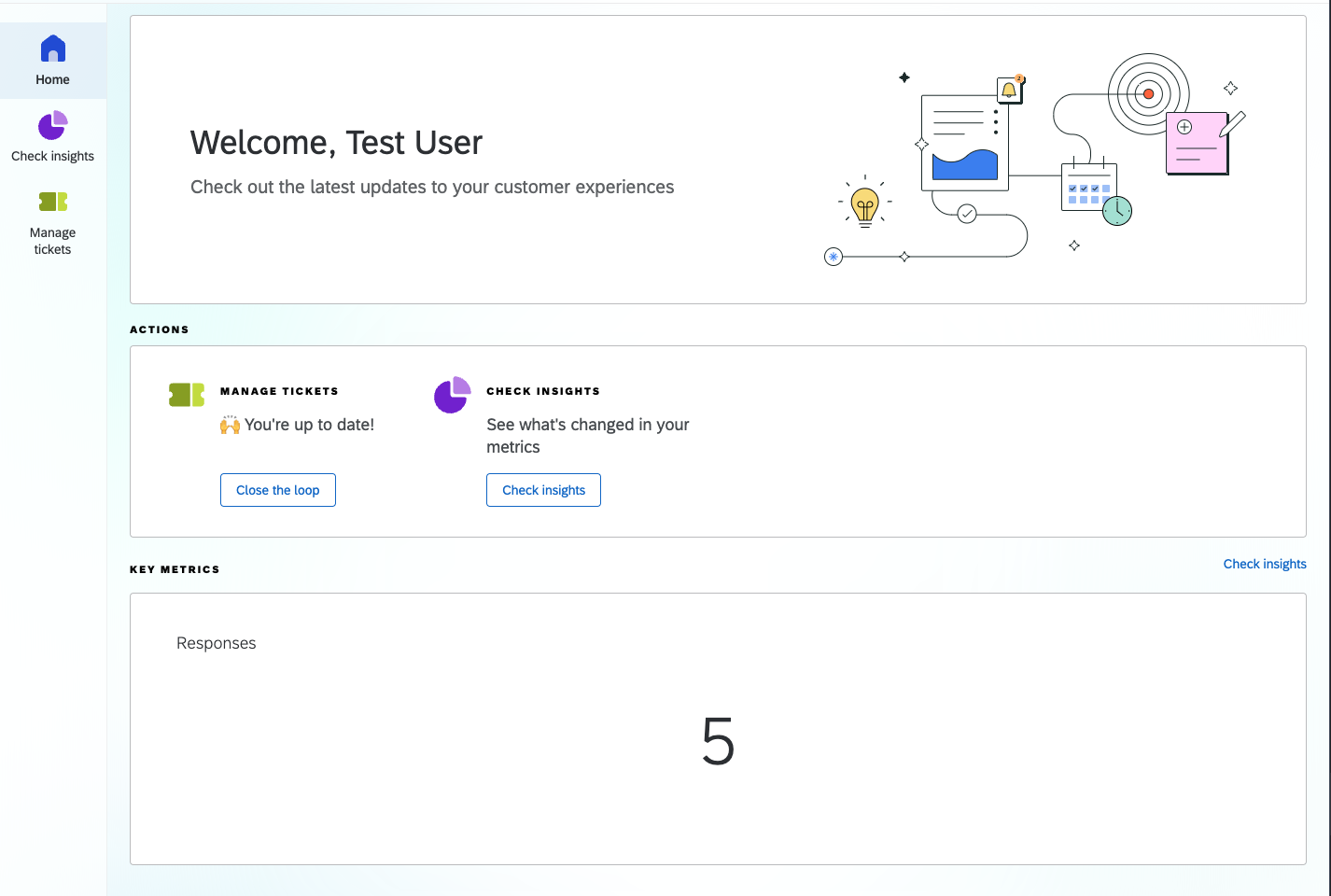
Apply color themes to tabs using the themeType field. This adds a colorful gradient to the tab background:
{
  "iconName": "DashboardIcon",
  "themeType": "blue"
}
Available theme types:
blue- Professional blue gradientgreen- Fresh green gradientgreenblue- Teal/cyan gradientpurple- Rich purple gradientyellow- Warm yellow/orange gradient
Example with theme applied:
Step 3: Configure Tab Order
The order field controls where tabs appear in your app's navigation.
Tab ordering example:
{
  "metadata": {
    "tabs": [
      {
        "iconName": "DashboardIcon",
        "themeType": "blue",
        "order": 1
      },
      {
        "iconName": "TicketsIcon",
        "themeType": "green",
        "order": 2
      },
      {
        "iconName": "ReportsIcon",
        "themeType": "purple",
        "order": 3
      }
    ]
  }
}
Order behavior:
- Lower numbers appear first (1 = first tab)
- If
orderis not set, tabs appear in array order - Order values don't need to be consecutive (1, 2, 3 or 1, 10, 20 both work)
Step 4: Set App Chooser Order (Optional)
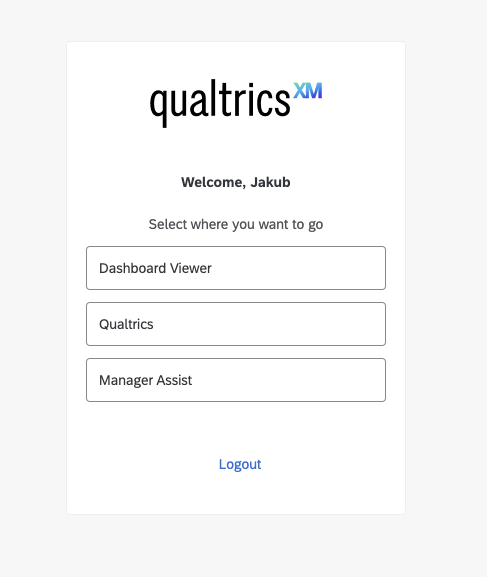
If users have access to multiple Purpose-built Apps, the top-level order field determines which order apps appear in the app chooser:
{
  "metadata": {
    "order": 5,
    "tabs": [...]
  }
}
App chooser example:
Best practices:
- Use consistent ordering across your organization
- Lower numbers for frequently-used apps
- Leave gaps (5, 10, 15) to allow for future additions
Step 5: Test Your Appearance Configuration
- Save your
config.jsonfile - Rebuild and deploy your Purpose-built App
- Navigate to your app
- Verify icons display correctly
- Check that theme colors match your design
- Confirm tabs appear in the correct order
Checkpoint: Your Purpose-built App should now have properly configured icons, colors, and tab ordering that align with your brand and user needs.
Common Issues and Solutions
Issue: Icon Not Displaying
Symptoms: Tab shows a default or missing icon
Causes:
- Invalid
iconNamevalue - Typo in icon name
- Icon name not supported
Solution:
- Verify icon name exactly matches the supported list
- Check for typos (icons are case-sensitive)
- Reference the Command Reference for valid names
- Use a fallback icon like
HelpIconwhile troubleshooting
Issue: Theme Not Applying
Symptoms: Tab background remains default color
Causes:
- Invalid
themeTypevalue - CSS conflicts
- Caching issues
Solution:
Verify theme type is one of the supported values:
"themeType": "blue"  // ✅ Valid
"themeType": "red"   // ❌ Not supported
Clear browser cache and reload if the theme still doesn't apply.
Issue: Tabs in Wrong Order
Symptoms: Tabs don't appear in the expected sequence
Causes:
- Conflicting
ordervalues - Missing
orderfield on some tabs
Solution:
Ensure all tabs have consistent order values:
"tabs": [
  {"order": 1, ...},  // Will appear first
  {"order": 2, ...},  // Will appear second
  {...}               // No order - may appear unpredictably
]
Alternative Approaches
Dynamic Theming Based on User Role
While not directly supported, you can use multi-instance configurations to provide different appearances for different user groups:
// Instance 1: Support team
{
  "metadata": {
    "tabs": [
      {"iconName": "TicketsIcon", "themeType": "green"}
    ]
  }
}

// Instance 2: Analytics team
{
  "metadata": {
    "tabs": [
      {"iconName": "ReportsIcon", "themeType": "blue"}
    ]
  }
}
See Configure Access Control for multi-instance setup.
Consistent Branding Across Apps
Create a branding guide for your organization:
// Branding standards (not in config)
{
  "primary": "blue",      // Use for main features
  "secondary": "green",   // Use for secondary features
  "accent": "purple"      // Use for special features
}
Apply consistently across all Purpose-built Apps.
Best Practices
Design
- Use consistent icon-to-feature mapping (e.g., always use
TicketsIconfor support) - Limit theme variety (2-3 colors per app)
- Match colors to your organization's brand guidelines
- Consider accessibility when choosing colors
User Experience
- Order tabs by frequency of use (most used first)
- Group related functionality with similar colors
- Use recognizable icons that match feature names
- Test with actual users for clarity
Maintenance
- Document your icon and color choices
- Create a style guide for your apps
- Review appearance periodically as features change
- Get stakeholder approval before major visual changes
Recap
You've successfully customized your Purpose-built App's appearance. Your app now has:
- Clear, recognizable tab icons
- Professional color themes
- Logical tab ordering
- Consistent branding
These visual elements help users navigate your app efficiently and create a professional, polished user experience.
Related Content
- Purpose-built App Deep Dive - Core concepts and architecture
- Purpose-built App Command Reference - Complete icon and theme options
- Display Qualtrics Pages - Configure content tabs
- Display Custom Blocks - Add custom functionality
- Configure Access Control - Multi-instance configurations