Custom Block Plugin Quickstart
Custom Block Plugins enable you customize a blank canvas to integrate Qualtrics features with custom functionality into a tailored and user-centered experience.
Objectives
This guide will walk you through the process of creating, developing, and enabling a new Global Navigation Custom Block Plugin.
Step 1: Initialize Custom Block Plugin
Navigate to the hello_world directory you made in the Extension Quickstart guide.
Run the following xmt commands to initialize a custom_block Plugin:
xmt create plugin -t custom_block -n "my custom block plugin"
Answer the prompts to finish initializing your plugin:
# Select the Custom Block surface
Use the arrow keys to navigate: ↓ ↑ → ←
? Select the Custom Block surface:
  ▸ Global Navigation
    Purpose Built Apps Tab (early access)
    Extensions Admin (early access)
    Custom Project Tool (experimental)

# Skip adding a connection to the plugin for now. This can be done later if needed.
? Would you like to add a connection to your new plugin?:
    Add existing connection: test-connection
    Update and Add Existing Connection: test-connection
    Learn more
  ▸ No thanks
After completing the above steps, you will see the scaffolded plugin in the plugins directory of your extension.
Step 2: Build and Submit Your Plugin
To get your plugin ready for testing inside Qualtrics, you will need to build your plugin code and submit it to the Qualtrics Developer Platform so we can display it inside the product.
The simplest way to do this requires two open terminal windows:
Terminal Window 1: Building the Plugin
To ensure Qualtrics displays your plugin correctly, you need to build the plugin code. Execute the following commands within your custom block plugin directory:
# navigate to the plugin directory from the root of your extension
cd plugins/my-custom-block-plugin

# install node dependencies
npm i

# build the plugin in watch mode
npm start
After a successful build, assets will appear in the public/ directory.
Terminal Window 2: Submitting the Plugin
Now that the plugin is built, you can submit it to the Qualtrics Developer Platform. The fastest way to do this is with the xmt develop extension command.
This command will watch for changes in your plugin and automatically submit your plugin code to the platform. Run this command in your extension's root directory where the manifest.json file is located:
xmt develop extension
Step 3: Share Your Extension
In order to review and iterate on your Extension, you need to share it with a Qualtrics brand. We recommend the following order for deciding which brand to share with during development:
- Developer Brand (most recommended)
- Shared sandbox brand
- Production brand (least recommended)
The first time you run xmt develop extension or xmt submit extension it may take up to 20 minutes for your Extension to appear in a Qualtrics brand that you have shared it with. All subsequent invocations of those commands result in very quick updates to your Extension in any brands that you have shared it with.
Step 4: Experience Your Extension
In order to experience your Extension, you first need to install it in the brand you shared it with by following these steps:
- Log in to the brand with a Brand Admin user (you are a Brand Admin in your Developer Brand)
- Follow these instructions to navigate to the Extensions Admin page
- Find and install your Extension
In your Qualtrics brand, open the global context switcher menu in the header:
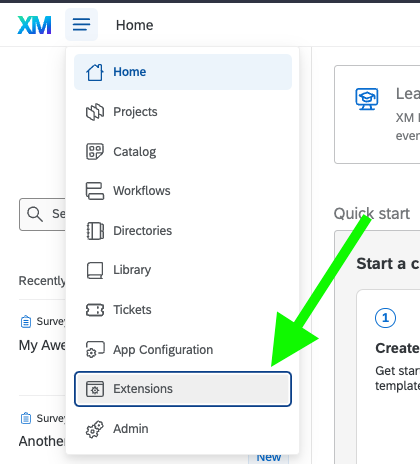
You may need to refresh your account to see the Extensions page. To refresh your account, click on your profile and select "Refresh Account" from the dropdown menu.
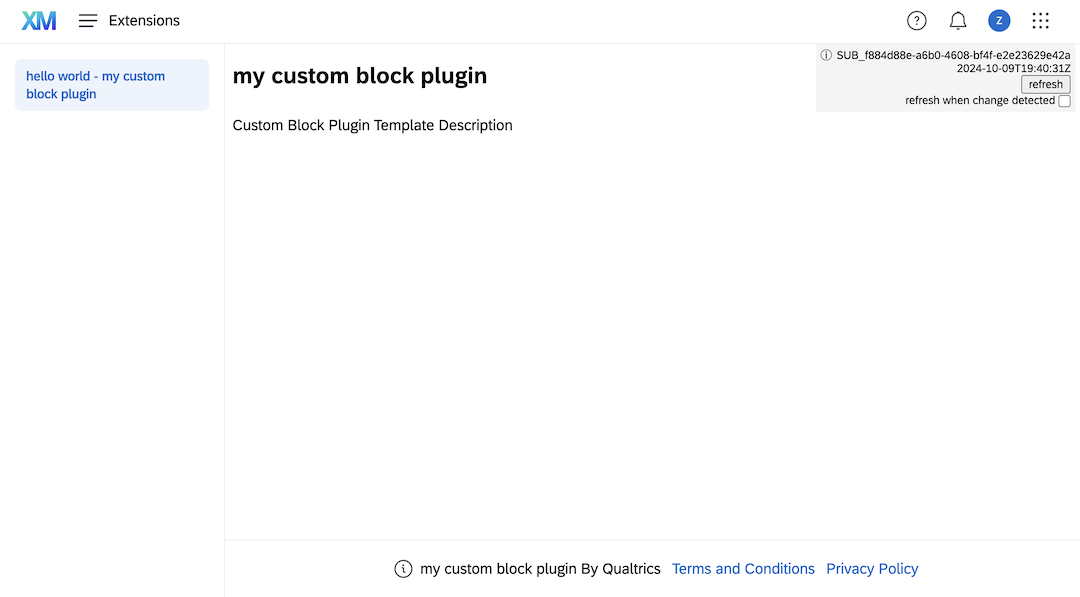
After navigating to the extensions page, you should see your new plugin on the left-hand menu, titled in the format:
<extensionName> - <pluginName>
Click on the plugin in the left-hand menu, and your plugin will load into view:
Step 5: Make Changes to Your Plugin
Now that you have your plugin loaded in your brand, you can make changes to your plugin and see them reflected in the product.
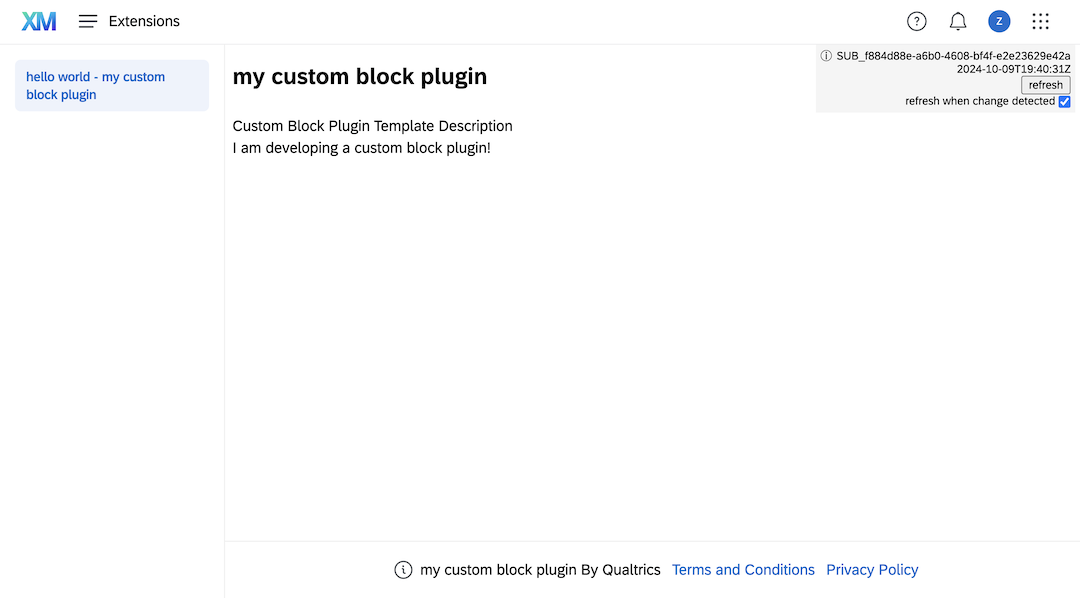
In your plugin's src/plugin-app/plugin-app.tsx file, add a new element before the closing div tag:
<div>I am developing a custom block plugin!</div>
If you still have the commands running from step 2, your changes will be automatically built and submitted to the platform.
To see changes you make to your plugin, click on the “refresh” button in the overlay of your plugin iframe. Or click the checkbox next to the "refresh when change detected" checkbox inside overlay.
Next steps
Now that you are able to develop your custom block plugin and see your changes reflected in the product, you are ready to ready to continue developing your custom block plugin!
Check out the Custom Block Deep Dive to learn more about building custom block plugins.
Check out the Plugin Client Documentation to learn more about the plugin client used inside custom block plugins.