Custom Block Deep Dive
Custom Block Plugins enable you to customize a blank canvas that integrates Qualtrics features with custom functionality into a tailored and user-centered experience. This UI can be placed in multiple locations across the Qualtrics product, including:
- Global Navigation
- Purpose-built App Plugin Tabs (early access)
- Extensions Admin (early access)
- Custom Project Tool (experimental)
Objectives
This guide helps you:
- Create a Custom Block Plugin in different surfaces across Qualtrics
- Learn more details about developing Custom Block Plugins
- Configure a Custom Block Plugin to render external content
Prerequisites
We recommend that you complete the following guides before continuing with this one:
Glossary
This table contains definitions of important terms which are used throughout this guide:
| Term | Description |
|---|---|
Surface | The location in the Qualtrics product where a Custom Block Plugin is displayed. |
Custom Block Plugin Surfaces
Custom Block Plugins can be placed in multiple locations across the Qualtrics product. This section will explain the different available surfaces and how to configure your Custom Block Plugin to be displayed in each.
Some surfaces are in an early access state. If you would like to join the early access program for any of the Custom Block Plugin Surfaces, then please let us know by taking this survey.
Global Navigation
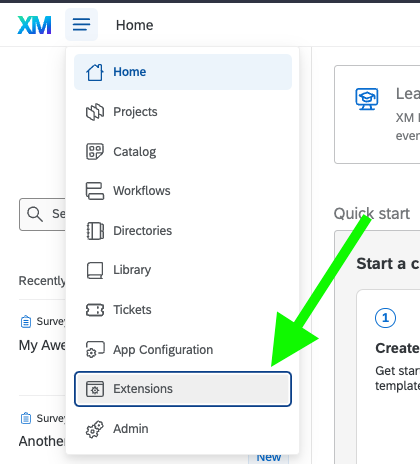
To view Global Navigation Custom Block Plugins, navigate to the Extensions tab from the Qualtrics navigation dropdown.
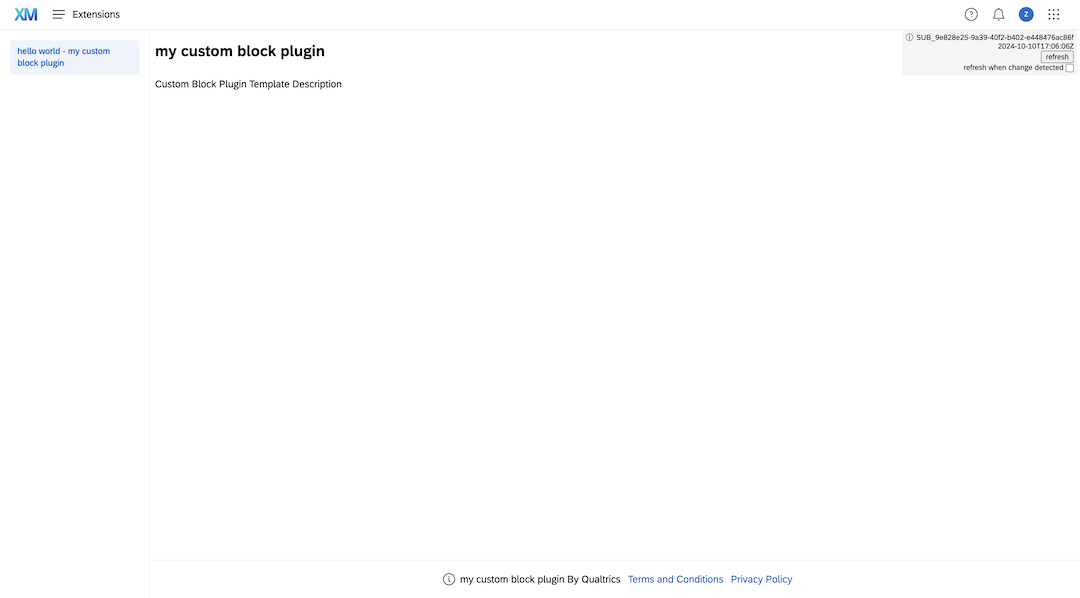
Lists of all of your Global Navigation Custom Block Plugins will then be displayed.
This feature is in Early Access and is not yet generally available. Functionality, APIs, and documentation may change before general availability.
Purpose-built App Tabs (early access)
The tabs in Purpose-built App Plugins can be comprised of Custom Block Plugins. For more details on Purpose-built Apps, see this guide for an overview of Purpose-built App .
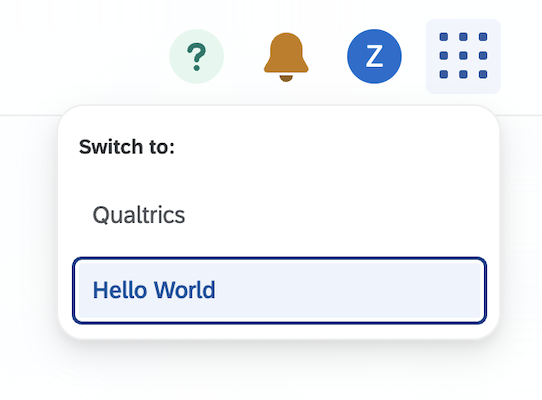
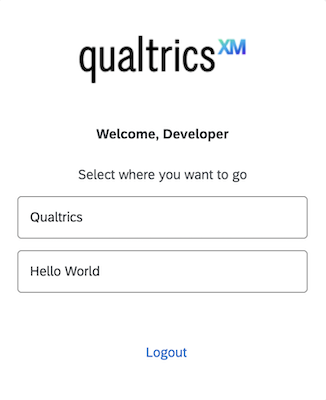
Once you have created a Purpose-built App, you can navigate to it from the waffle menu in the top right hand corner of Qualtrics. You may also be prompted to navigate to the Purpose-built App when logging in if you have access to multiple apps.
You may also see screen prompt when logging in:
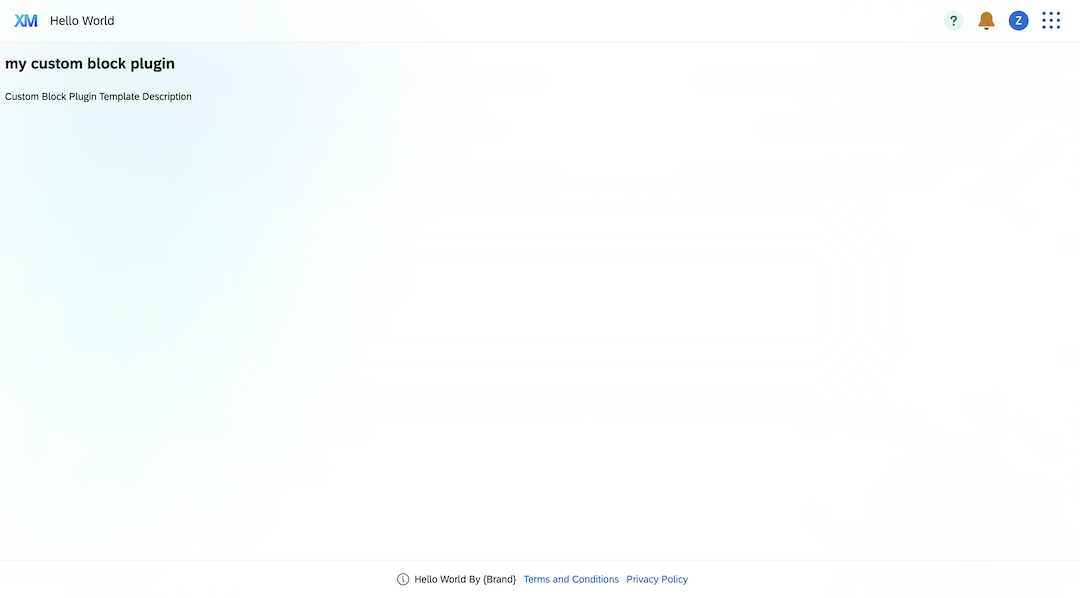
Custom Block Plugins that connected to a Purpose-built App will be rendered in the UI as a tab:
Extensions Admin (early access)
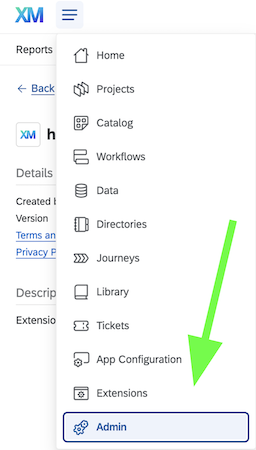
To view Custom Block Plugins in the Extension Admin UI, navigate to the Admin tab from the Qualtrics navigation dropdown. These custom blocks are only visible to Brand Administrators.
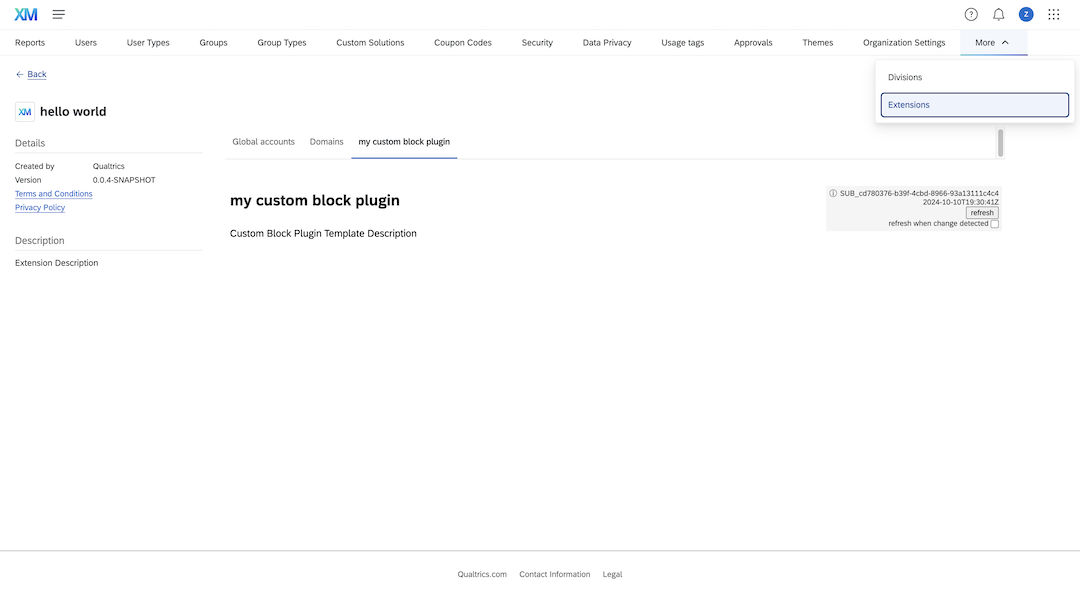
Upon navigation to an extension with an Extensions Admin Custom Block Plugin, you will see a new tab in the UI named after the Extensions Admin Custom Block Plugin.
This feature is in Early Access and is not yet generally available. Functionality, APIs, and documentation may change before general availability.
Changing the Surface for a Custom Block
The easiest way to set the plugin surface is by selecting the desired surface when you create the plugin.
xmt create plugin -t custom_block -n "my custom block plugin"
Use the arrow keys to navigate: ↓ ↑ → ←
? Select the Custom Block surface:
  ▸ Global Navigation
    Purpose-built Apps Tab (early access)
    Extensions Admin (early access)
    Custom Project Tool (experimental)
To change the surface after the plugin has been created, you can update the config.json file at the top level of the plugin directory. The field that sets the surface is metadata.tags.
A custom block plugin can have at most one tag and the value of the tag must be one of the following:
globalExtensionspurposeBuiltAppcustomProjectToolextensionsAdmin
  "metadata": {
      "tags": [
          "globalExtensions"
      ]
  }
Custom Block Plugin Client
We provide the node package @qualtrics/custom-block-plugin-client that provides an API to interact with the Qualtrics product and Developer Platform Features.
Custom Block plugins have access to a subset of the API provided through the Developer Platform Plugin Client. See the table below for a list of the APIs available to Custom Block Plugins:
| API | Description | Plugin Client Command Reference |
|---|---|---|
initialize | Initializes the custom block so it can render within Qualtrics. This is already configured for you when you create a custom block plugin using xmt create plugin -t custom_block. | Plugin Client initialize |
getContext | Get context about the currently running plugin from Qualtrics. | Plugin Client getContext |
getText | Retrieve localized strings from the Plugin's translation files. | Plugin Client getText |
fetch | Make API requests outside of Qualtrics | Plugin Client fetch2 |
qualtricsApiFetch | Make API requests to the Qualtrics Public API | Plugin Client qualtricsApiFetch2 |
getConfig | Retrieve configuration values of an extension. | Plugin Client getConfig |
Render External Content
To render external content in your Custom Block Plugin instead of using the extension SDK build toolkit, you will need to update the configuration files for your extension and plugin.
In this example, we are configuring www.example.com as the content to render into the plugin area.
In your plugin’s config.json, you will need to add a new top-level property entrypoint to specify the URL of the content to render:
  "entrypoint": {
      "root": {
          "url": "https://www.example.com"
      }
  }
In your Extension manifest.json, you will need to specify the domain as allowed in order for the content to be rendered:
  "validDomains": [
      "*.example.com"
  ],
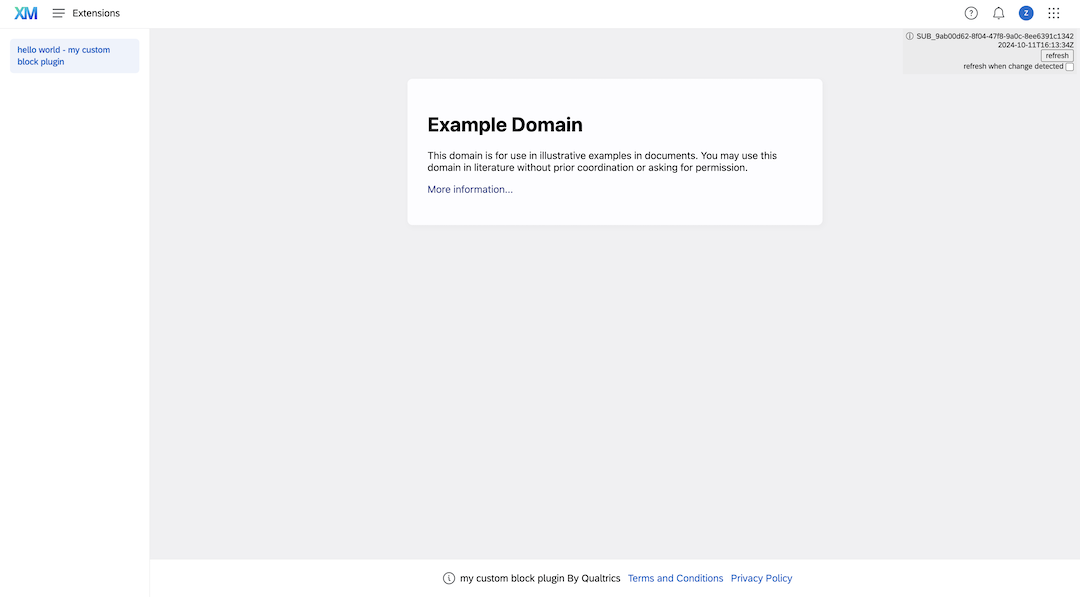
After making these changes, your plugin will render the content from www.example.com inside Qualtrics!