Purpose-built App Quickstart
What are Purpose-built App Plugins
Purpose-built App (PBA) Plugins, are unique experiences for Qualtrics users that present a subset of the full Qualtrics experience along with bespoke functionality. They are great for simplifying the Qualtrics experience for a group of users that need to accomplish a specific task.
Objectives
By the end of this guide, you will:
- Learn the basics of Purpose-built App Plugins.
- Create a Purpose-built App Plugin that displays a Qualtrics page and your own custom page.
Prerequisites
A Purpose-built App is a Plugin that lives inside an Extension. Before continuing with this guide we recommend that you review and complete these prerequisites:
- Review the XM Extension Overview to understand how Extensions and Plugins relate to each other
- Complete Extension SDK Tools Getting Started to install Node,
xmt, and the other tools this guide assumes you already have - Complete the XM Extension Quickstart
While you are still experimenting and have no saved configuration or real usage for your app, you can safely switch between single-instance and multi-instance configurations to explore how they work.
However, after brands start creating apps or saving configuration settings, you cannot flip an existing app back and forth between single-instance and multi-instance. At that point, changing the app type requires creating a new Plugin or app and migrating users.
We recommend configuring your Purpose-built App as a multi-instance app if there is any chance you will need more than one configuration (for different teams, regions, or use cases). Multi-instance apps can behave like "single-instance" apps (with only one instance), but not the other way around.
Quick Start
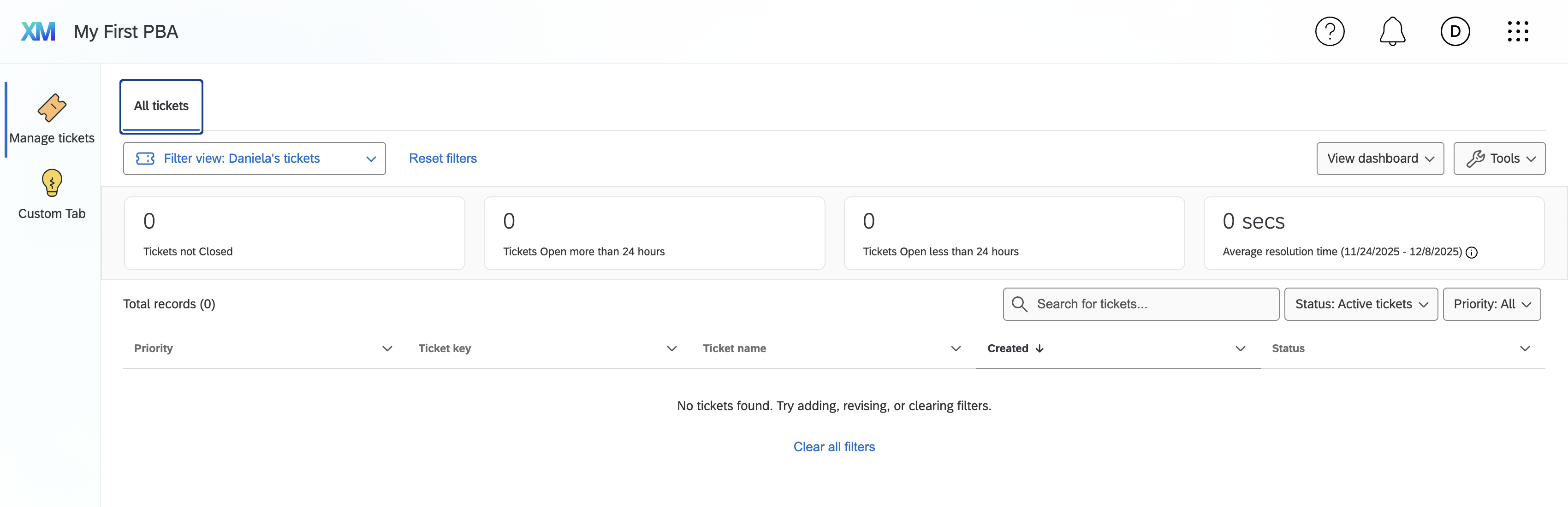
By the end of this guide, you will have created a Purpose-built App Plugin that shows the Qualtrics ticketing page as well as a custom UI that you can create. It will look something like this:
Step 1: Initialize Purpose-built App Plugin
-
Open a shell window
-
Navigate to the hello_world directory you made in the Extension Quickstart guide.
-
Run this
xmtcommand to create a Purpose-built App Plugin:xmt create plugin -t purpose_built_app -n "My first PBA" -
Decide if you'd like to add a connection to your new plugin. You can learn more about connections in the Setting up Authentication guide. It is NOT required to add a connection to finish this quickstart guide.
? Would you like to add a connection to your new plugin?:
Add new connection
Learn more
▸ No thanks
Once complete, you should see a config.json file in the plugins/my_first_pba/ directory that should look like this:
{
  "id": "PLUG_ID",
  "type": "purpose_built_app",
  "metadata": {
    "nameKey": "name",
    "descriptionKey": "description",
    "tags": [
      "purposeBuiltApp"
    ],
    "type": "purposeBuiltApp",
    "tabs": [
      {
        "nameKey": "TAB_TICKETS",
        "type": "content",
        "id": "TicketsTab",
        "iconName": "TicketsIcon",
        "href": "/homepage/ui",
        "URLAllowList": [
          "/homepage/*"
        ]
      }
    ]
  }
}
Step 2: Submit Your Extension
Perform these actions to submit your extension to the Qualtrics Extension Registry:
2a. In a shell window, ensure your location is in the directory of your desired extension (navigate to it if needed).
2b. Run this command to automatically and continuously sync changes to your extension:
xmt develop extension
If you prefer, you can submit changes manually using the xmt submit extension command. However, it's usually easier to to let the xmt develop extension command submit all your changes for you.
2c. Verify that the output of the command indicates that the sync was successful and files are being monitored for changes.
Step 3: Share Your Purpose-built App
It's time to look at your new Purpose-built App, but before you can view it, you need to share it with a Qualtrics brand. You can share it to your Qualtrics Developer Brand (QDB), or any other brand you'd like. Follow the steps below for whichever option you'd like to follow for sharing.
You may have to wait 15-20 minutes for your extension to propagate to relevant Qualtrics resources before successfully sharing or publishing it.
- Qualtrics Developer Brand
- Other brands
- Login to the Qualtrics Developer Portal with the same XM Developer account you used to create your extension.
- Navigate to the Extensions section.
- Find and click on the extension that contains your Purpose-built App Plugin.
- Click on the Versions tab.
- Click on the Preview this version button on the far right side of the page.
- Once successful, click the user icon in the top right of the screen and select Launch QDB Instance.
- Login to your Qualtrics Developer Brand (QDB) with the same XM Developer account you used to create your extension.
- Login to the Qualtrics Developer Portal with the same XM Developer account you used to create your extension.
- Navigate to the Extensions section.
- Find and click on the extension that contains your Purpose-built App Plugin.
- Click on the Share tab.
- Click on the Share button on the far right side of the page.
- Fill out the form and click Share.
- Log in to the brand you shared your extension with.
Step 4: Experience Your Purpose-built App
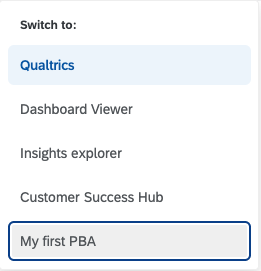
Once in your Qualtrics Developer Brand, click the waffle menu in the top-right corner of the screen and select the name of your Purpose-built App plugin. It should navigate to the Qualtrics home page.
Step 5: Update Your Purpose-built App
Your Purpose-built App just shows the Qualtrics home page. It's more likely that you'd like to show a different page that's more relevant to whatever your users need to accomplish. For now, modify it to show the ticketing page instead. To do so, follow these steps:
5a. Open the config.json file in your plugin.
5b. Change the href field of the tabs object to "/tickets/app".
5c. Change the URLAllowList field of the tabs object to ["/tickets/app"].
The tabs object should now look like this:
"tabs": [
  {
    "nameKey": "TAB_TICKETS",
    "type": "content",
    "id": "TicketsTab",
    "iconName": "TicketsIcon",
    "href": "/tickets/app",
    "URLAllowList": [
      "/tickets/app*"
    ]
  }
]
5d. Submit your changes
5e. Log in to the brand you've shared the extension with.
5f. Click on the waffle menu in the top-right corner of the screen and select the name of your Purpose-built App plugin. You may need to refresh your account before the changes will appear.
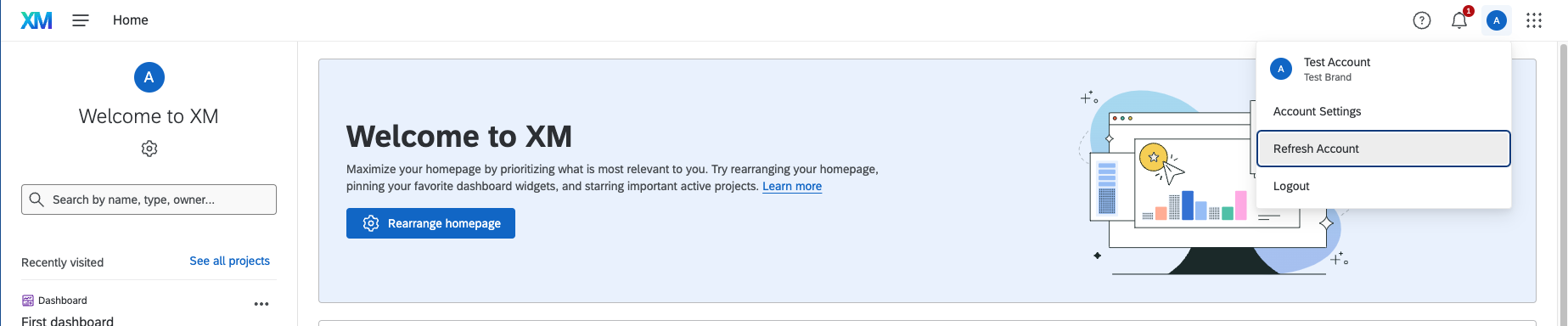
Your Purpose-built App should now show the Qualtrics ticketing page.
To see the changes in your extension, you may need to refresh the page either in the Developer Portal or your Qualtrics Developer Brand.
Step 6: Add a Custom Tab
This section will take you through adding a Custom Tab to your Purpose-built App Plugin via the flexible Custom Block Plugin. For this guide, you'll just be displaying custom text, but Custom Blocks could be used to build any type of page you want. To create a Custom Tab, follow these steps:
6a. Open up a shell window
6b. Navigate to the directory of the extension you created
6c. Run this command to create a custom_block Plugin:
xmt create plugin -t custom_block -n "Custom Tab"
6d. Select Purpose-built Apps Tab from the available options:
? Select the Custom Block surface:
Global Navigation
▸ Purpose Built Apps Tab (early access)
Extensions Admin (early access)
Custom Project Tool (experimental)
6e. In a separate terminal window, navigate to the newly created custom block plugin directory:
cd plugins/custom_tab
6f. Install plugin dependencies:
npm install
6g. Start the process to continuously build the custom tab as files change:
npm start
6h. Once the build completes without errors, you should see new .js assets in the public/ directory of your plugin.
public
  ├── index.html
  └── translations
      └── EN.json
public
  ├── index.html
  ├── main.b31fbb4cca55a9d153e3.js
  ├── main.b31fbb4cca55a9d153e3.js.map
  ├── runtime.c94aec37edee06f35305.js
  ├── runtime.c94aec37edee06f35305.js.map
  ├── translations
  │   └── EN.json
  ├── vendors.60e5a3388cb44cefc027.js
  └── vendors.60e5a3388cb44cefc027.js.map
6i. Link your Custom Tab to the Purpose-built App plugin you created in this step by adding this object to the tabs array in the plugins/my_first_pba/config.json file:
{
  "type": "customBlockTab",
  "pluginId": "PLUG_ID", // Replace with your Custom Block Plugin ID
  "iconName": "LightBulbIcon",
  "nameKey": "TAB_CUSTOM"
}
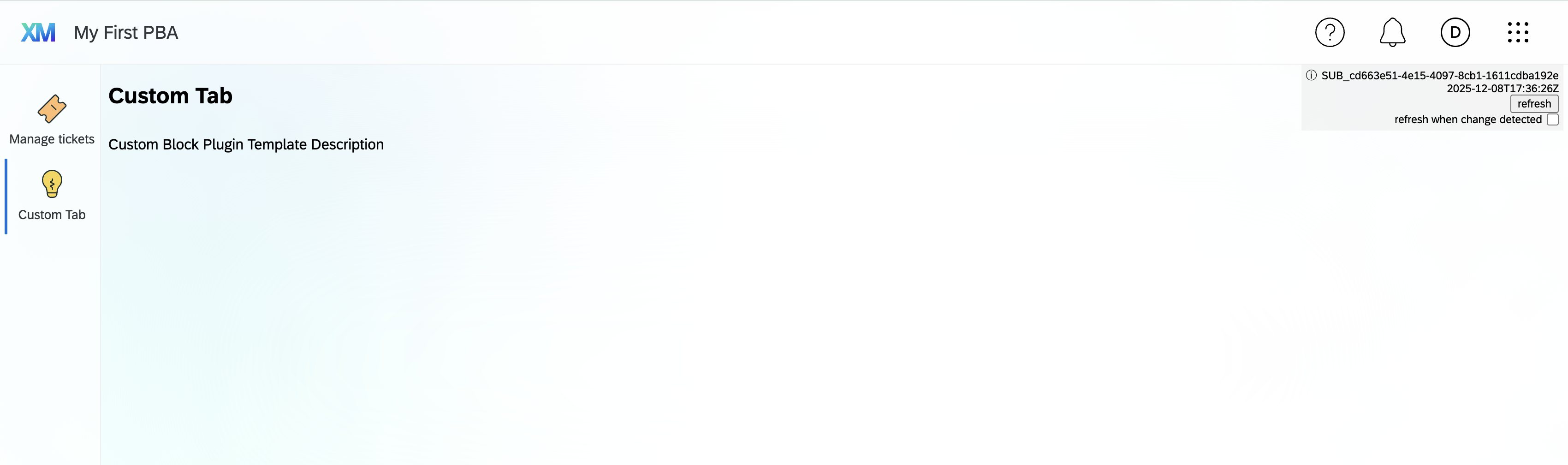
6j. Go back to the Qualtrics UI and refresh the page. You should see the new Custom Tab in the Purpose-built App plugin in the left navigation.
6k. Click on the tab and verify that you see a Custom Tab heading. It should look like this:
If you're still unable to see the Custom Tab, try refreshing your account as described in this section. If that still doesn't work, make sure your Custom Tab plugin is part of the same extension as the Purpose-built App plugin. If you created a separate extension for your Custom Tab plugin, you'll need to share that extension with the same brand you shared your Purpose-built App plugin with.
You may customize the content and functionality of your Custom Tab to consume Qualtrics or external APIs to display relevant data to the users.
Step 7 (optional): Edit your Custom Tab
The Custom Block plugin you've added is a React application. Try making some simple changes to the plugins/src/plugin-app/plugin-app.tsx file. Once your changes have been submitted, you'll see the changes reflected in your Custom Tab.
Convert Your Quickstart App to a Multi-Instance App (Recommended)
Once you have verified that your single-instance Purpose-built App works, you can convert it into a multi-instance app so that brands can create multiple configurations from it.
Follow these steps:
-
Open the config.json file for your app (for example, plugins/my_first_pba/config.json).
-
Ensure your top-level structure looks like this multi-instance template (replace
%id%with your actual Plugin ID and adjust tab details as needed):{
"id": "%id%",
"type": "purpose_built_app",
"metadata": {
"nameKey": "name",
"descriptionKey": "description",
"tags": [
"purposeBuiltApp"
],
"type": "purposeBuiltApp",
"configurationSettings": {
"configurable": true,
"multiInstanceConfiguration": {
"authType": "cxRoles"
},
"configurationPanel": [
{
"nameKey": "PortalsSettings.Settings",
"descriptionKey": "SettingsDescription",
"iconName": "SettingsIcon",
"id": "settings",
"name": {
"key": "PortalsSettings.Settings"
},
"paneType": "sections",
"path": "settings",
"sections": [
{
"id": "SupportContact"
},
{
"id": "TabsSection"
},
{
"id": "Deactivate"
}
]
}
],
"previewOptions": {
"previewElements": [
{
"announcementType": "DashboardAnnouncement",
"type": "announcement"
}
]
}
},
"tabs": [
{
"configurationSettings": {
"tabTitleKey": "HomeTab",
"tabDescriptionKey": "HomeTabDescription",
"configurable": true,
"defaultEnabledState": true,
"tabDescription": {
"value": "View your home page"
},
"tabTitle": {
"value": "Home"
}
},
"nameKey": "tabName",
"type": "content",
"id": "home",
"iconName": "TicketsIcon",
"href": "/homepage/ui",
"URLAllowList": [
"/homepage/*"
]
}
]
}
} -
Submit your changes.
-
Click on the Main Menu button and navigate to the App Configuration page for your brand and verify that your app now appears as a template that admins can use to create multiple app instances.
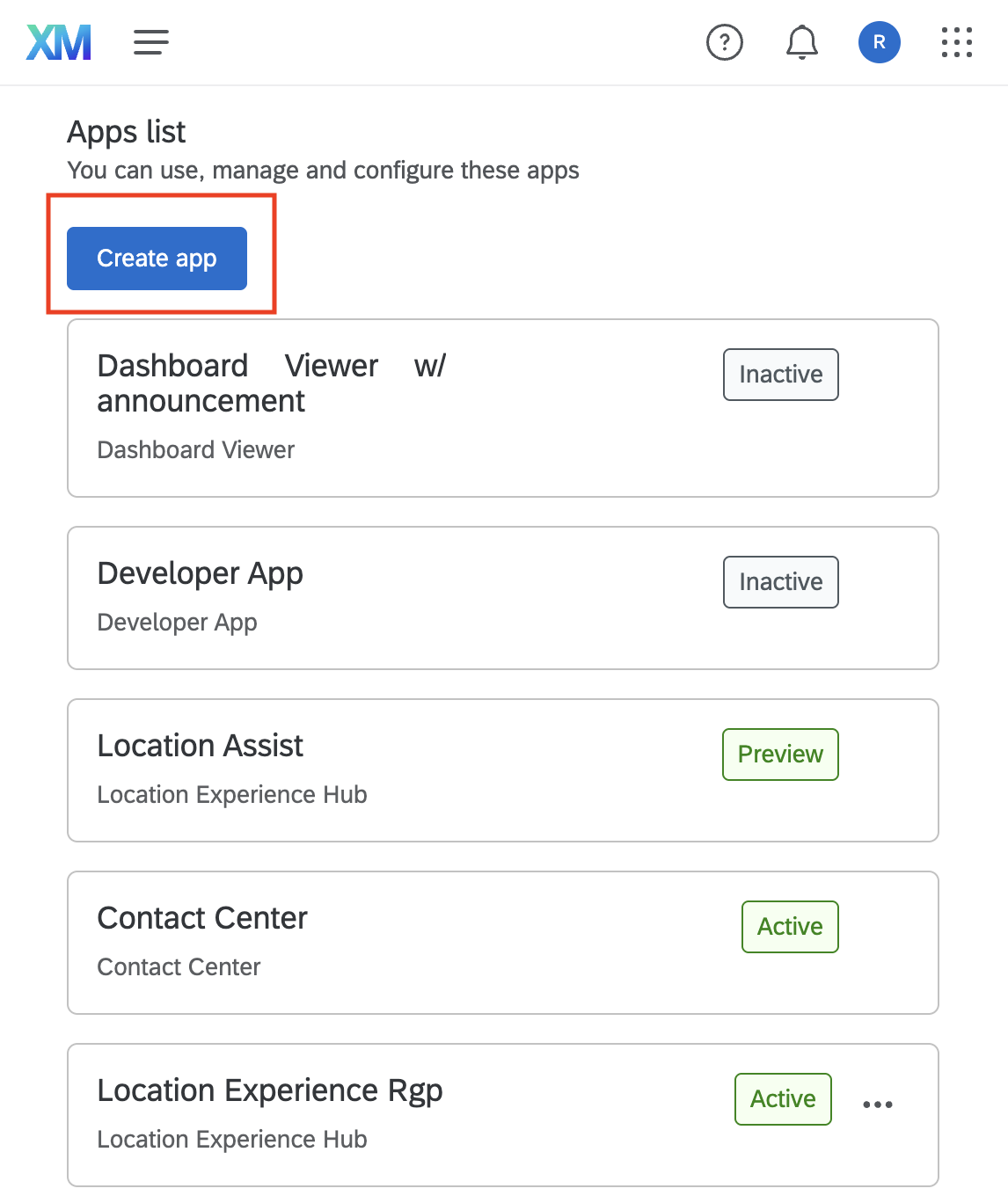
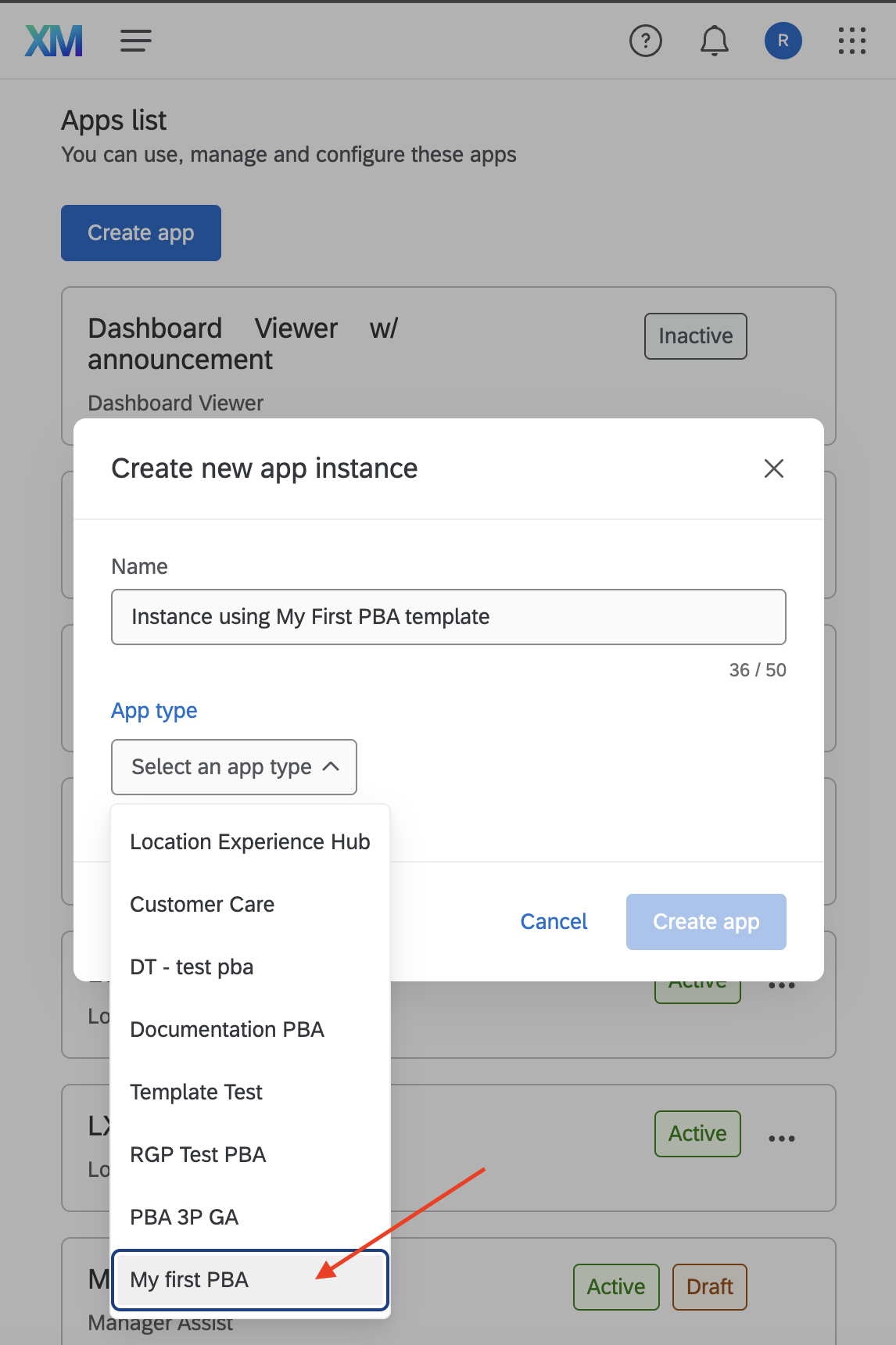
If you want a detailed explanation of each field in this template (such as configurationPanel, previewOptions, top-level configurationSettings, and per-tab configurationSettings), see the Purpose-built App Deep Dive before finalizing your implementation.
What's Next?
Well done on creating a Purpose-built App plugin!
Next you can review the Purpose-built App Deep Dive to learn more about Purpose-built Apps, or check out the Custom Block Plugin documentation to learn more about what custom blocks are capable of.