Configure Global Wrapper Menu in Purpose-built Apps
Summary
Task: Control which Qualtrics navigation menu items are visible within your Purpose-built App tabs
Time estimate: 10-15 minutes
Skill level: Intermediate
Prerequisites
- Purpose-built App with at least one content tab configured
- Understanding of Qualtrics' tier-two navigation menu
- Basic knowledge of JSON configuration
Steps
Step 1: Understand the Global Wrapper Menu
The Global Wrapper Menu is Qualtrics' tier-two navigation that appears within certain features. For example, when viewing a survey project, users see menu options like "Survey," "Distributions," "Data & Analysis," "Reports," and "Workflows."
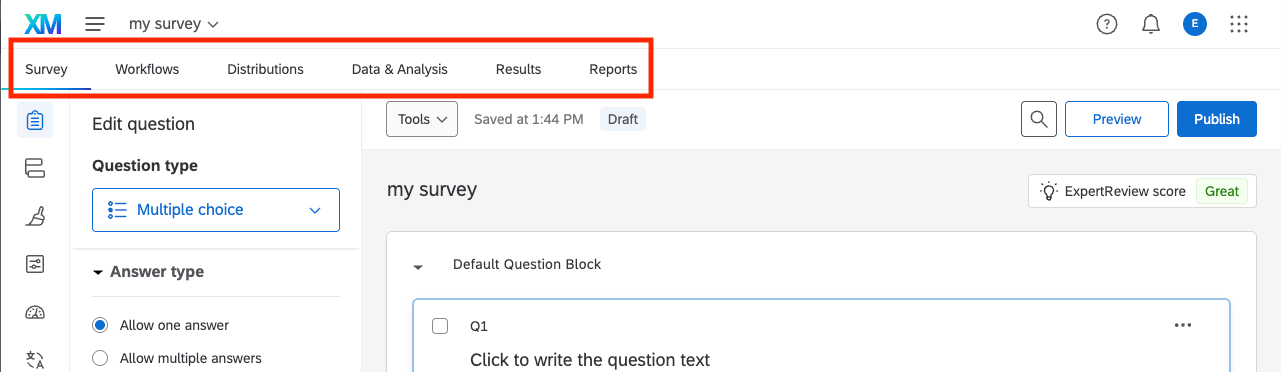
Purpose-built Apps can hide these menu items to create a focused, task-specific interface that reduces cognitive load for your users.
Step 2: Identify Menu Items to Hide or Show
Determine which navigation items your users need access to. Consider:
Common scenarios:
- Support portal: Show only "Data & Analysis" and "Results," hide "Survey" and "Distributions"
- Analytics dashboard: Show only "Reports" and "Data & Analysis," hide everything else
- Simple data viewer: Show only "Data," hide all other menu items
Available menu items:
| Tab Name | Visible Text |
|---|---|
SurveyProject.DistributeSection | Distributions |
SurveyProject.EditSection | Survey |
SurveyProject.PaginatedReportsSection | Reports |
SurveyProject.ResponsesSection.ViewResponses | Data & Analysis → Data |
SurveyProject.ResponsesSection.StatwingSection | Data & Analysis → Stats iQ |
SurveyProject.ResponsesSection.TextToolsSection | Data & Analysis → Text iQ |
SurveyProject.ResponsesSection.CrosstabsIqSection | Data & Analysis → Crosstabs iQ |
SurveyProject.ResponsesSection.PredictIqSection | Data & Analysis → Predict iQ |
SurveyProject.ResponsesSection.ResponseWeightingSection | Data & Analysis → Weighting |
SurveyProject.ResponsesSection.VideoEditorSection | Data & Analysis → Audio & Video |
SurveyProject.ResultsSection | Results |
SurveyProject.TriggersSection | Workflows |
Note: To hide the entire "Data & Analysis" section, you must hide all of its sub-tabs.
Step 3: Configure Using Block List (Hide Specific Items)
Use a block list when you want to show most menu items but hide a few specific ones.
{
  "metadata": {
    "tabs": [
      {
        "type": "content",
        "href": "/tickets/app",
        "globalWrapperConfig": {
          "tabsListType": "blockList",
          "tabsList": [
            "SurveyProject.TriggersSection",
            "SurveyProject.DistributeSection"
          ]
        }
      }
    ]
  }
}
Result: All menu items are visible except "Workflows" and "Distributions."
Best for:
- Removing 1-3 items from a full menu
- Restricting access to specific features
- Creating a "full-featured minus" experience
Step 4: Configure Using Allow List (Show Only Specific Items)
Use an allow list when you want to show only a few specific menu items and hide everything else.
{
  "metadata": {
    "tabs": [
      {
        "type": "content",
        "href": "/tickets/app",
        "globalWrapperConfig": {
          "tabsListType": "allowList",
          "tabsList": [
            "SurveyProject.ResponsesSection.ViewResponses",
            "SurveyProject.ResultsSection"
          ]
        }
      }
    ]
  }
}
Result: Only "Data & Analysis → Data" and "Results" are visible. All other items are hidden.
Best for:
- Creating highly focused interfaces
- Showing only 1-3 features
- Building task-specific portals
Step 5: Apply Configuration to Multiple Tabs
Each content tab can have its own globalWrapperConfig. This allows different tabs to show different menu items:
{
  "metadata": {
    "tabs": [
      {
        "id": "data-viewer",
        "type": "content",
        "href": "/survey-builder/*",
        "globalWrapperConfig": {
          "tabsListType": "allowList",
          "tabsList": ["SurveyProject.ResponsesSection.ViewResponses"]
        }
      },
      {
        "id": "reports",
        "type": "content",
        "href": "/reports/*",
        "globalWrapperConfig": {
          "tabsListType": "allowList",
          "tabsList": [
            "SurveyProject.PaginatedReportsSection",
            "SurveyProject.ResultsSection"
          ]
        }
      }
    ]
  }
}
Step 6: Test the Configuration
- Save your
config.jsonfile - Rebuild and deploy your Purpose-built App
- Navigate to a tab with Global Wrapper configuration
- Verify the correct menu items are visible/hidden
- Test navigation within visible menu items
- Confirm hidden items are not accessible
Checkpoint: Users should see only the menu items you've configured, creating a focused navigation experience.
Common Issues and Solutions
Issue: Menu Items Still Visible
Symptoms: Items in block list are still showing
Causes:
- Incorrect tab name spelling
- Wrong
tabsListTypevalue - Configuration not applied to correct tab
Solution:
Verify exact spelling of tab names:
"tabsList": ["SurveyProject.TriggersSection"]  // ✅ Correct
"tabsList": ["SurveyProject.TriggerSection"]   // ❌ Missing 's'
Double-check tabsListType matches your intent:
"tabsListType": "blockList"  // Hides items in list
"tabsListType": "allowList"  // Shows only items in list
Issue: All Menu Items Hidden
Symptoms: No navigation menu appears at all
Causes:
- Empty
tabsListwithallowList - All items blocked with
blockList - Configuration error
Solution:
Ensure tabsList contains items when using allowList:
{
  "tabsListType": "allowList",
  "tabsList": []  // ❌ Will hide everything
}

{
  "tabsListType": "allowList",
  "tabsList": ["SurveyProject.ResultsSection"]  // ✅ Shows Results
}
Issue: Data & Analysis Section Partially Hidden
Symptoms: Some Data & Analysis sub-items show when they shouldn't
Causes:
- Not all sub-tabs specified in block list
- Misunderstanding of section/sub-tab relationship
Solution:
To completely hide "Data & Analysis," block all sub-tabs:
"tabsList": [
  "SurveyProject.ResponsesSection.ViewResponses",
  "SurveyProject.ResponsesSection.StatwingSection",
  "SurveyProject.ResponsesSection.TextToolsSection",
  "SurveyProject.ResponsesSection.CrosstabsIqSection",
  "SurveyProject.ResponsesSection.PredictIqSection",
  "SurveyProject.ResponsesSection.ResponseWeightingSection",
  "SurveyProject.ResponsesSection.VideoEditorSection"
]
Alternative Approaches
No Configuration (Show All)
If you don't specify globalWrapperConfig, all menu items will be visible. This is appropriate when:
- Users need full access to Qualtrics features
- You're building a general-purpose portal
- You want to minimize configuration complexity
Different Configurations Per User Group
Use multi-instance configurations to show different menus to different user groups:
// Instance 1: Admins see everything (no globalWrapperConfig)
// Instance 2: Analysts see only reports
{
  "globalWrapperConfig": {
    "tabsListType": "allowList",
    "tabsList": ["SurveyProject.PaginatedReportsSection"]
  }
}
See Configure Access Control for multi-instance setup.
Best Practices
User Experience
- Only show menu items relevant to user tasks
- Be consistent across tabs (unless intentionally different)
- Test with actual users to ensure necessary features are available
- Document which items are hidden and why
Security
- Remember that hiding UI elements is not access control
- Use Qualtrics permissions for true security
globalWrapperConfigsimplifies UX, not enforce restrictions
Maintenance
- Keep a mapping of user roles to visible menu items
- Review configuration when Qualtrics adds new features
- Update documentation when changing menu visibility
- Test after Qualtrics platform updates
Recap
You've successfully configured the Global Wrapper Menu in your Purpose-built App. You now have:
- Focused navigation tailored to user needs
- Reduced cognitive load for users
- Task-specific interfaces
- Cleaner, more professional user experience
Your users can now focus on their specific tasks without distraction from unnecessary Qualtrics features.
Related Content
- Purpose-built App Deep Dive - Core concepts and architecture
- Display Qualtrics Pages - Configure content tabs
- Purpose-built App Command Reference - Complete configuration options
- Configure Access Control - Multi-instance configurations