SDK Setup
This guide walks you through integrating the Experience SDK into your application. Once complete, you'll be ready to create intercepts and collect user feedback.
- iOS
- Android
- React Native
Requirements
Please verify that your application meets all requirements listed below.
| Requirement | Version |
|---|---|
| iOS | 15.0+ |
| Swift | 5.0+ |
| Xcode | 14.0+ |
| Package Manager | SPM 5.5+ or CocoaPods 1.9+ |
1. Install the SDK
Our SDK can be installed using either SPM (Swift Package Manager) or CocoaPods.
Check the Release Notes for the latest available version.
SPM via Xcode
- Open your project in Xcode.
- Navigate to File → Add Package Dependencies....
- Enter Package URL:
https://github.com/qualtrics/qualtrics-experience-ios. - Set Dependency Rule to "Up to Next Minor" from version
0.9.0. - Click Add Package.
- Select QualtricsExperience product and add to your target.
SPM via Package.swift
-
In your
Package.swiftfile, add SDK as a dependency:dependencies: [
.package(
url: "https://github.com/qualtrics/qualtrics-experience-ios",
.upToNextMinor(from: "0.9.0")
)
] -
Next, in the same file, add SDK as a dependency to your target:
targets: [
    .target(
        name: "MyApp",
        dependencies: [
            .product(name: "QualtricsExperience", package: "QualtricsExperience")
        ]
    )
]
CocoaPods
-
Add the SDK package to your project's
Podfile:target 'MyApp' do
pod 'QualtricsExperience', '~> 0.9.0'
...
end -
Then install the dependencies:
pod install
2. Initialize the SDK
Our SDK initializes automatically by default. For manual initialization, please refer to the Manual Initialization.
-
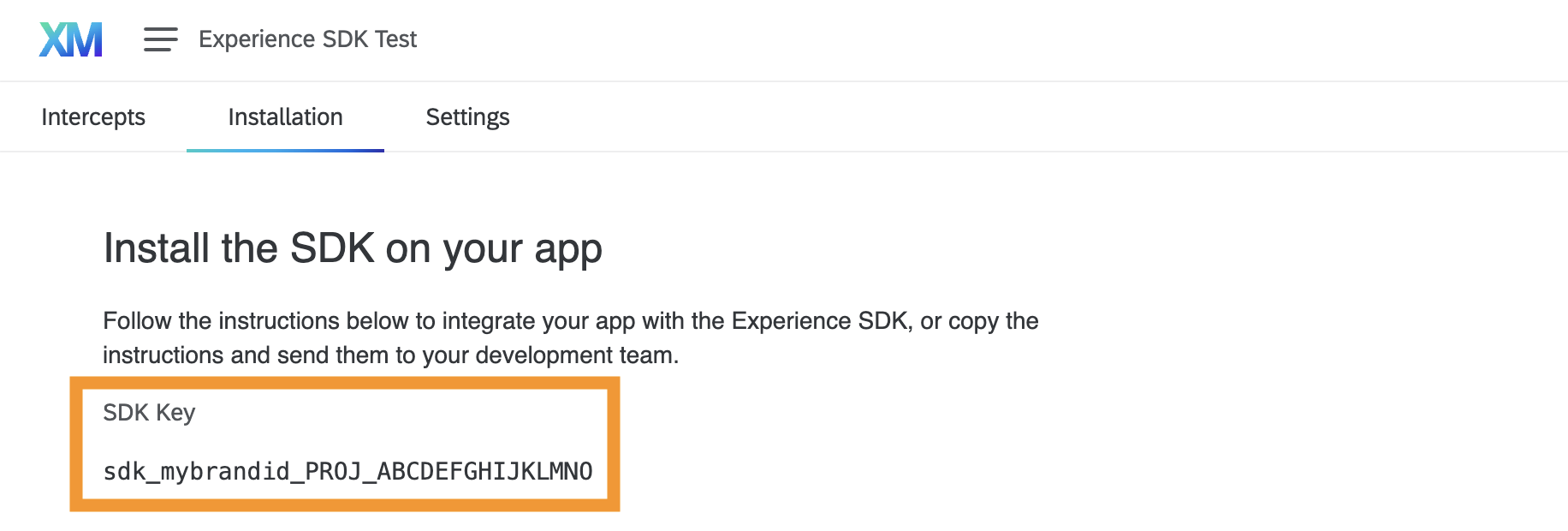
Navigate to the Installation tab in your App Insights Project and copy your SDK Key.
-
Add a Qualtrics dictionary to your
Info.plistfile.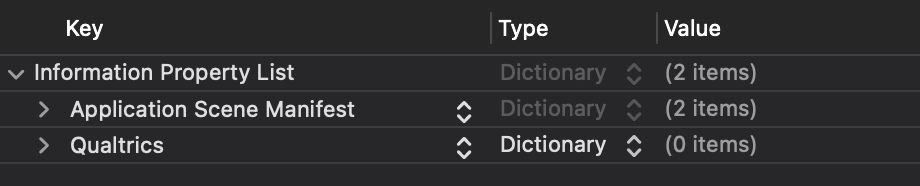
-
Within this dictionary, define a String property named
SdkKeyand assign it your actual SDK Key value.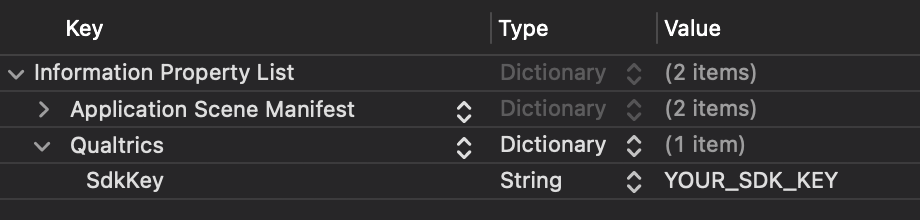
-
Launch the app and check the logs prefixed with
[Q-EXP]to verify successful initialization.
3. Collect Screen Names
This step assumes Screen Name Auto Capture is enabled (enabled by default).
Screen Name Auto Capture works for both UIViewController-based and SwiftUI-based navigation. If you're using a different navigation approach, check out the Manual Screen Changes section.
When you launch the app, the SDK automatically captures visited screen names and sends them to App Insights Project. This makes them accessible in Sequencing Logic configuration (which we'll set up in the next step), allowing you to display intercepts based on user navigation.
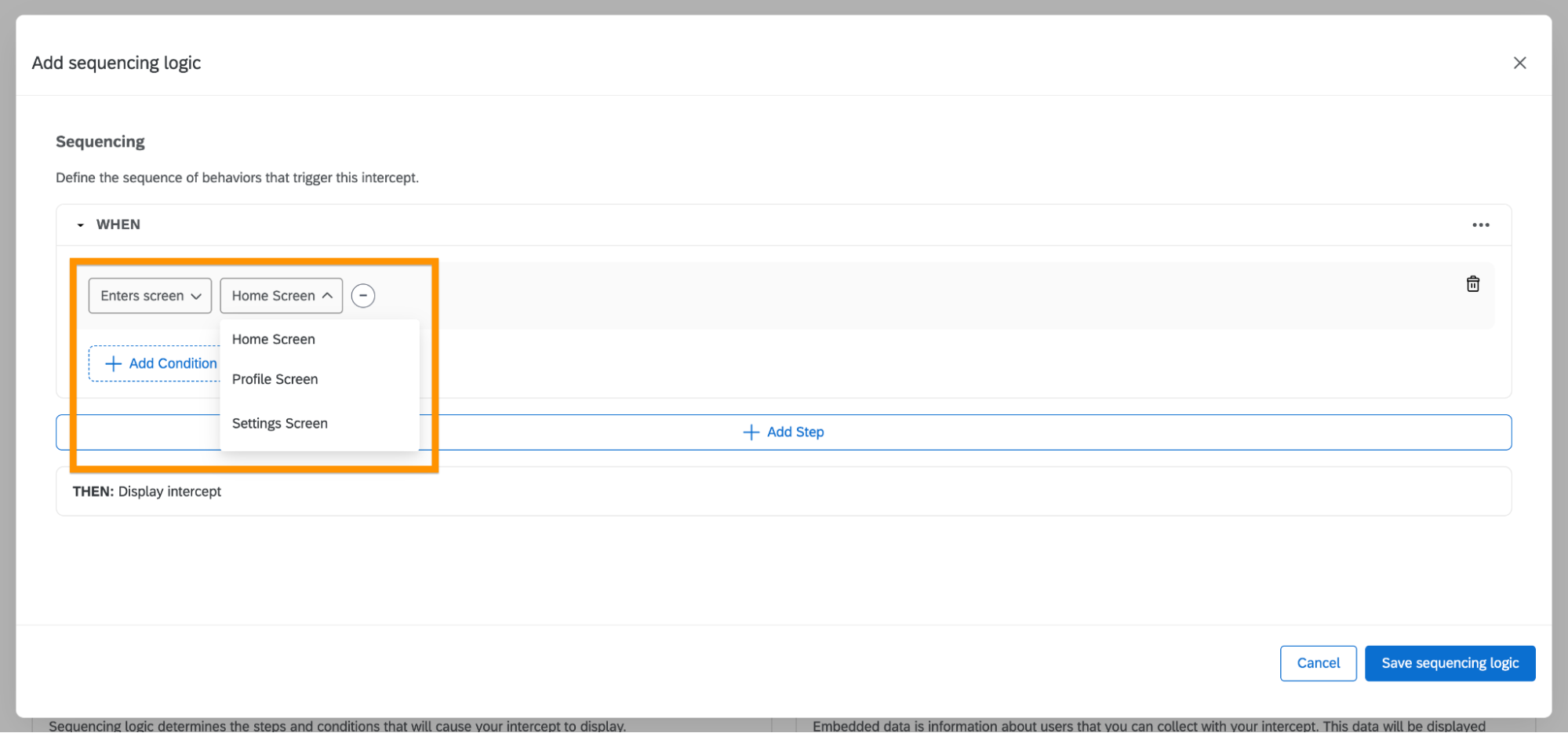
To ensure all app screen names appear in the App Insights Project, visit every screen in your application at least once. Names of screens that haven't been visited won't be available in the dropdown menu.
4. Display Native App Feedback
In the final step of SDK Setup, you'll create and display your first Native App Feedback intercept.
- Follow the First Intercept Setup guide to create your initial intercept. Once published, proceed to the next step.
- Relaunch your app and perform the screen changes specified in the intercept's sequencing logic.
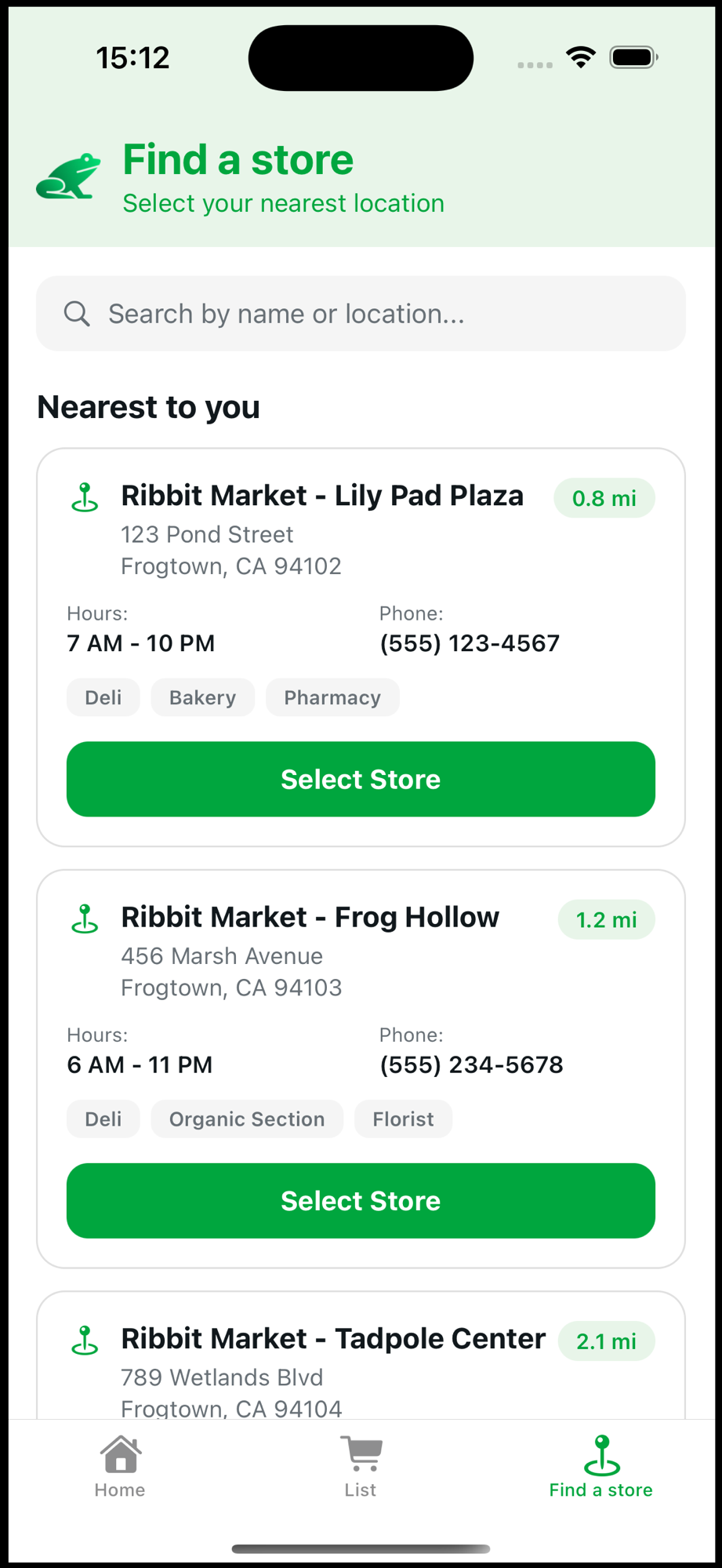
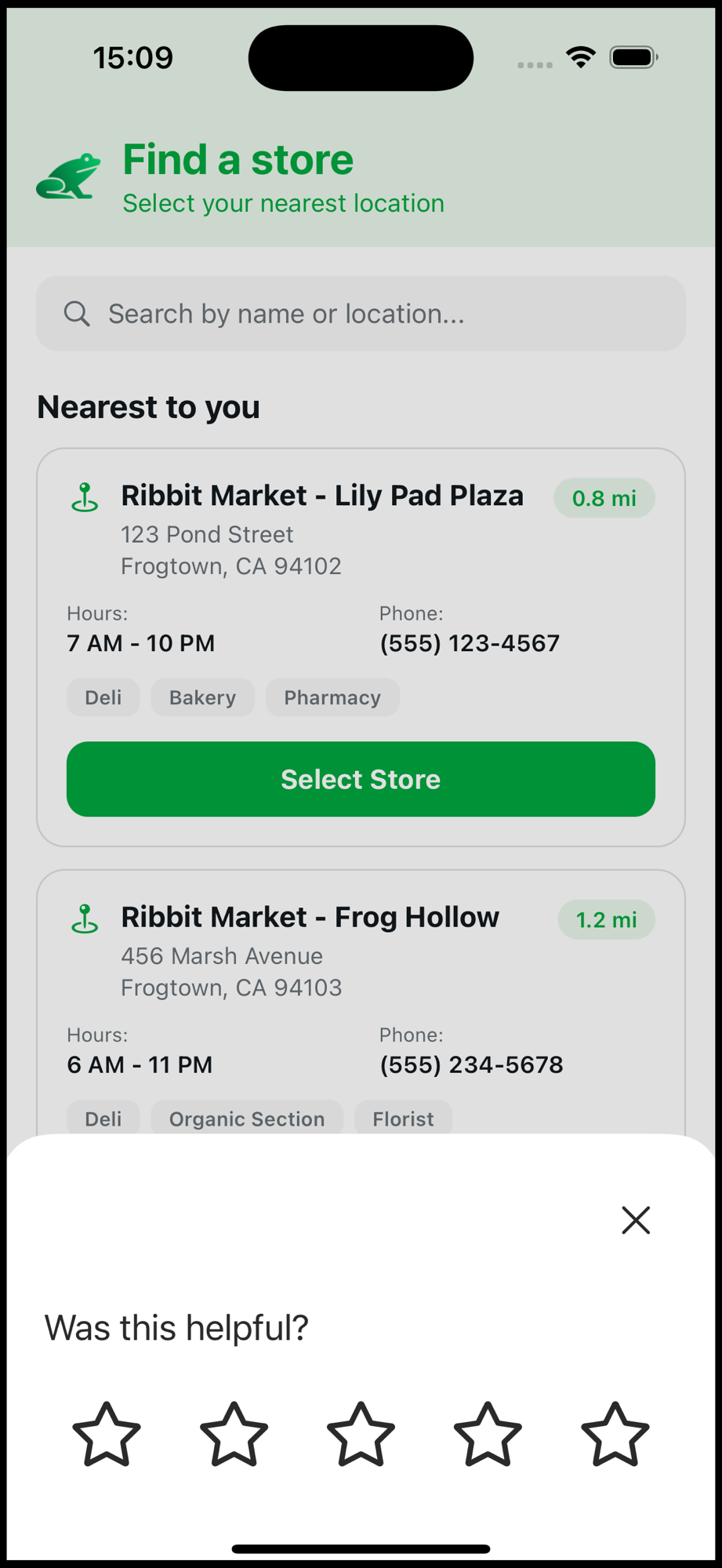
- The Native App Feedback will display, confirming proper SDK functionality.
Next Steps
You're now ready to build more complex intercepts. Begin with the Manual Options to explore adding in custom targeting logic with our SDK, or visit Advanced Usage to discover UI customization and SDK configuration features (such as sequencing).
Requirements
Please verify that your application meets all requirements listed below.
| Requirement | Version | Notes |
|---|---|---|
| Android SDK | 23.0+ | API 23–25 require core library desugaring. |
| Compile SDK | 36+ | Set compileSdk = 36 or higher. Required from SDK version 0.9.2. |
| Java (JDK) | 8+ | |
| Kotlin | 1.8+ | Only if your project uses Kotlin. |
Core library desugaring (API 23–25)
Apps targeting API 23–25 must enable core library desugaring so that java.time APIs are available at runtime. Add the following to your module-level build.gradle.kts:
android {
    compileOptions {
        isCoreLibraryDesugaringEnabled = true
    }
}

dependencies {
    coreLibraryDesugaring("com.android.tools:desugar_jdk_libs:2.1.0")
}
Apps targeting API 26+ require no additional configuration.
1. Install the SDK
Our SDK can be installed using Gradle. It is distributed through Maven Central, which is included in Android projects by default — no additional repository configuration is required. If Maven Central is not already configured in your project, add it to your settings.gradle.kts:
dependencyResolutionManagement {
    repositories {
        mavenCentral()
    }
}
These instructions use Kotlin DSL syntax (build.gradle.kts). If you're using Groovy (build.gradle), please adapt the syntax accordingly.
-
Open your module-level (:app)
build.gradle.ktsfile and add the SDK to the dependencies block:infoCheck the Release Notes for the latest available version.
dependencies {
    // ...
    implementation("com.qualtrics:qualtrics-experience:0.9.2")
} -
Sync your project with Gradle.
2. Initialize the SDK
Our SDK initializes automatically by default. For manual initialization, please refer to the Manual Initialization.
-
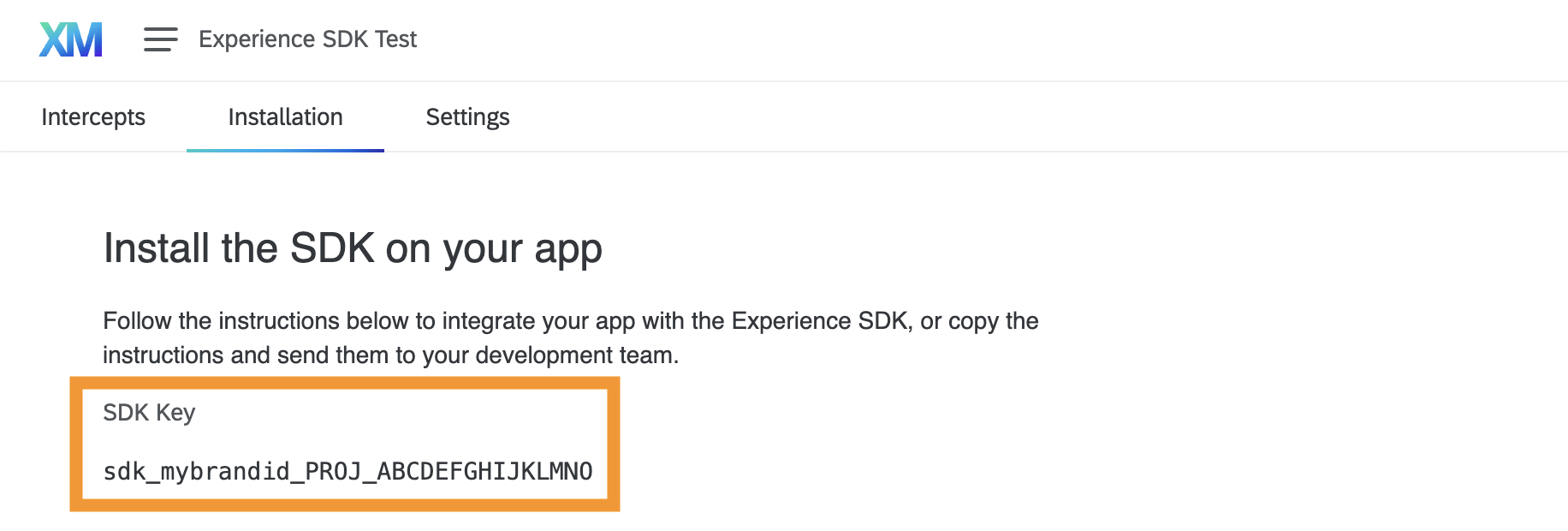
Navigate to the Installation tab in your App Insights Project and copy your SDK Key.
-
Create a
qualtrics_config.xmlfile in theres/valuesdirectory and add thequaltrics_sdk_keystring resource, replacingYOUR_SDK_KEYwith your actual SDK Key:<?xml version="1.0" encoding="utf-8"?>
<resources>
<string name="qualtrics_sdk_key">YOUR_SDK_KEY</string>
</resources>infoAlternatively, you can add this resource to any existing XML file in the
res/valuesdirectory. -
Launch the app and check the logs prefixed with
[Q-EXP]to verify successful initialization.
3. Collect Screen Names
This step assumes Screen Name Auto Capture is enabled (enabled by default).
Currently Screen Name Auto Capture works only for View-based navigation (Activities, Fragments, NavControllers) and Compose Navigation. If you're using a different navigation approach, check out the Manual Screen Changes section.
Compose Navigation
If you want to capture Compose Navigation screen changes, you need to pass every NavController that your app uses to the SDK:
-
Create a controller with
rememberNavController(). -
In that composable, invoke
Qualtrics.captureComposeNavigation(navController). -
Pass the same
navControllerintoNavHost.import androidx.navigation.compose.rememberNavController
import com.qualtrics.expsdk.core.Qualtrics
@Composable
fun MainNav() {
val navController = rememberNavController()
Qualtrics.captureComposeNavigation(navController)
NavHost(navController = navController, startDestination = "home") {
// { ... }
}
}
When you launch the app, the SDK automatically captures visited screen names and sends them to App Insights Project. This makes them accessible in Sequencing Logic configuration (which we'll set up in the next step), allowing you to display intercepts based on user navigation.
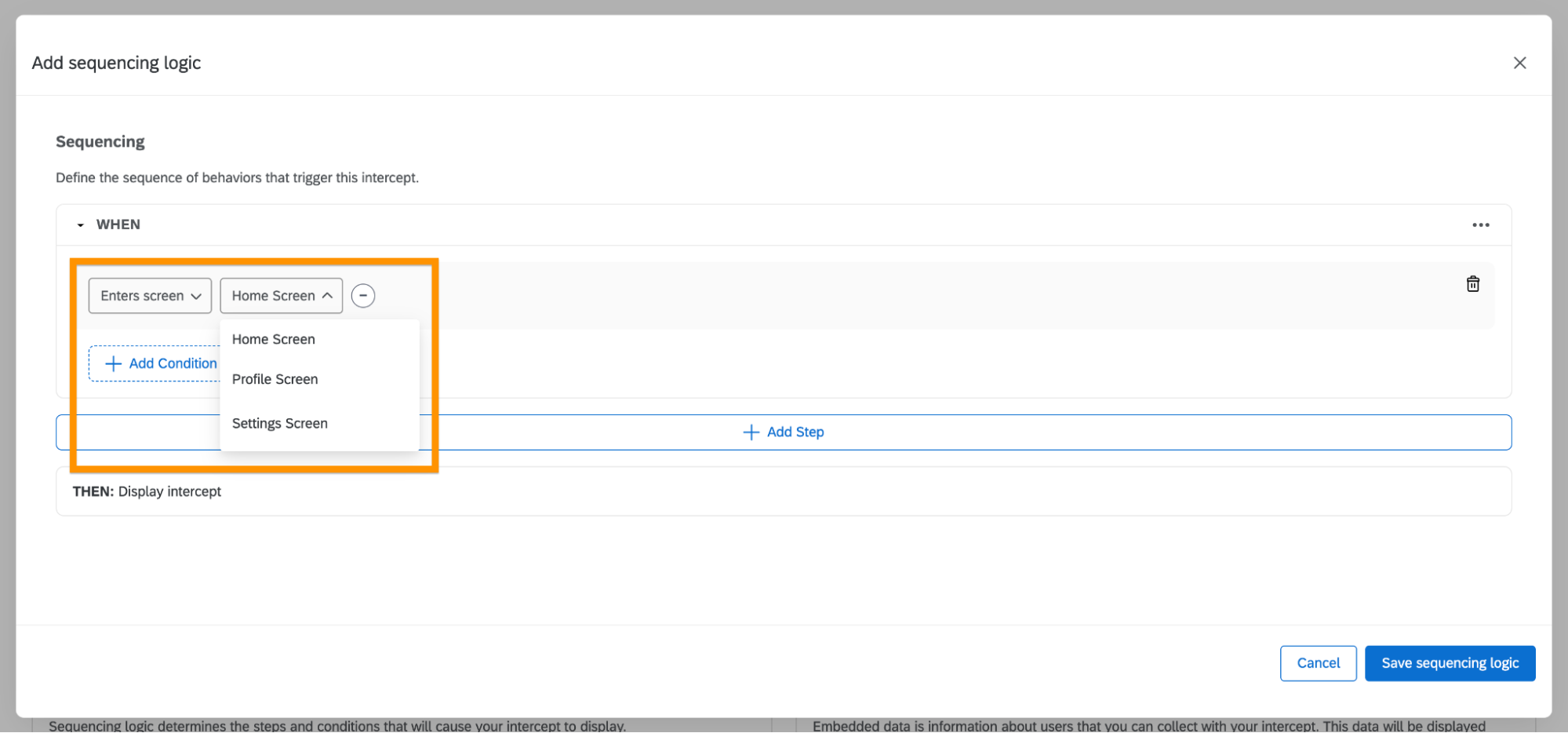
To ensure all app screen names appear in the App Insights Project, visit every screen in your application at least once. Names of screens that haven't been visited won't be available in the dropdown menu.
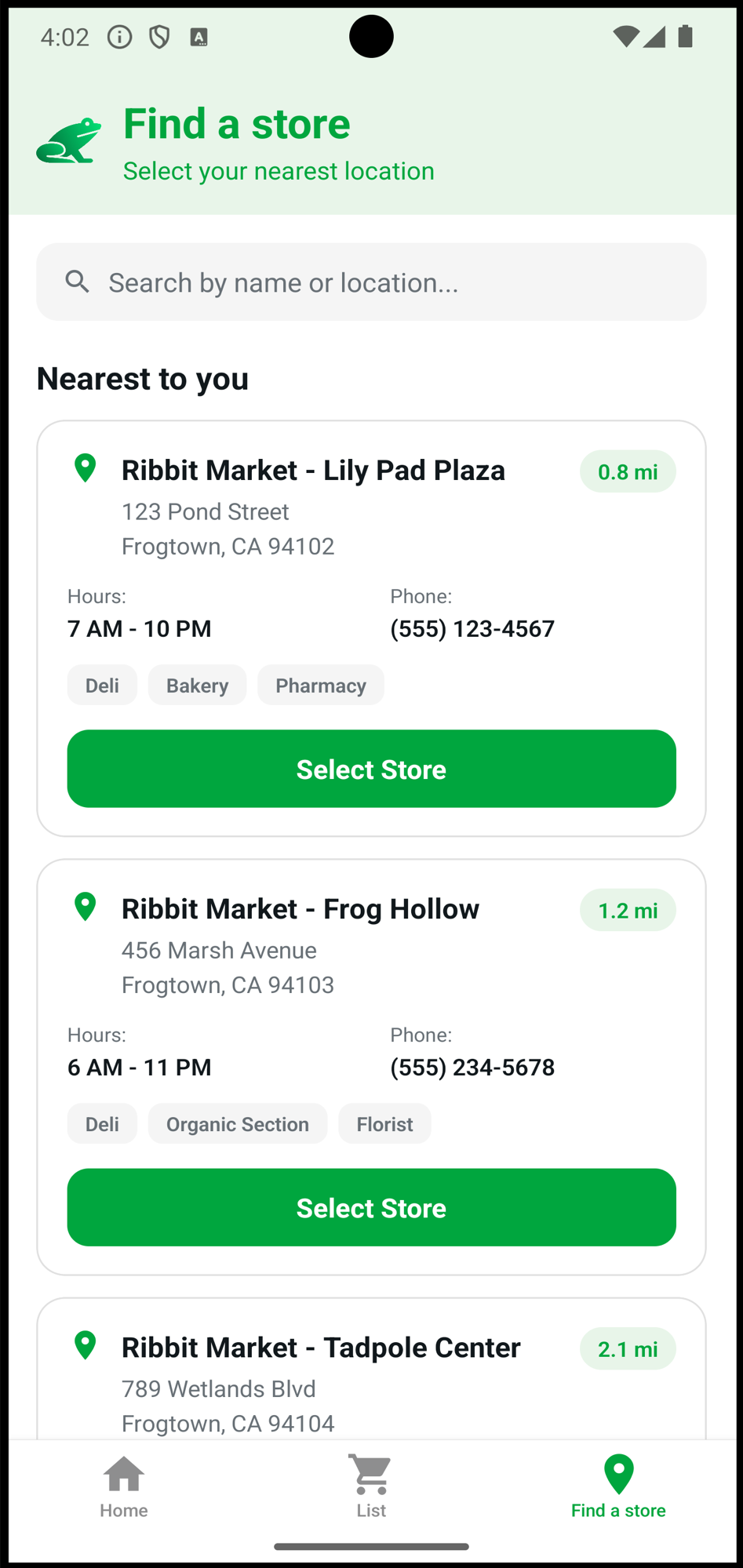
4. Display Native App Feedback
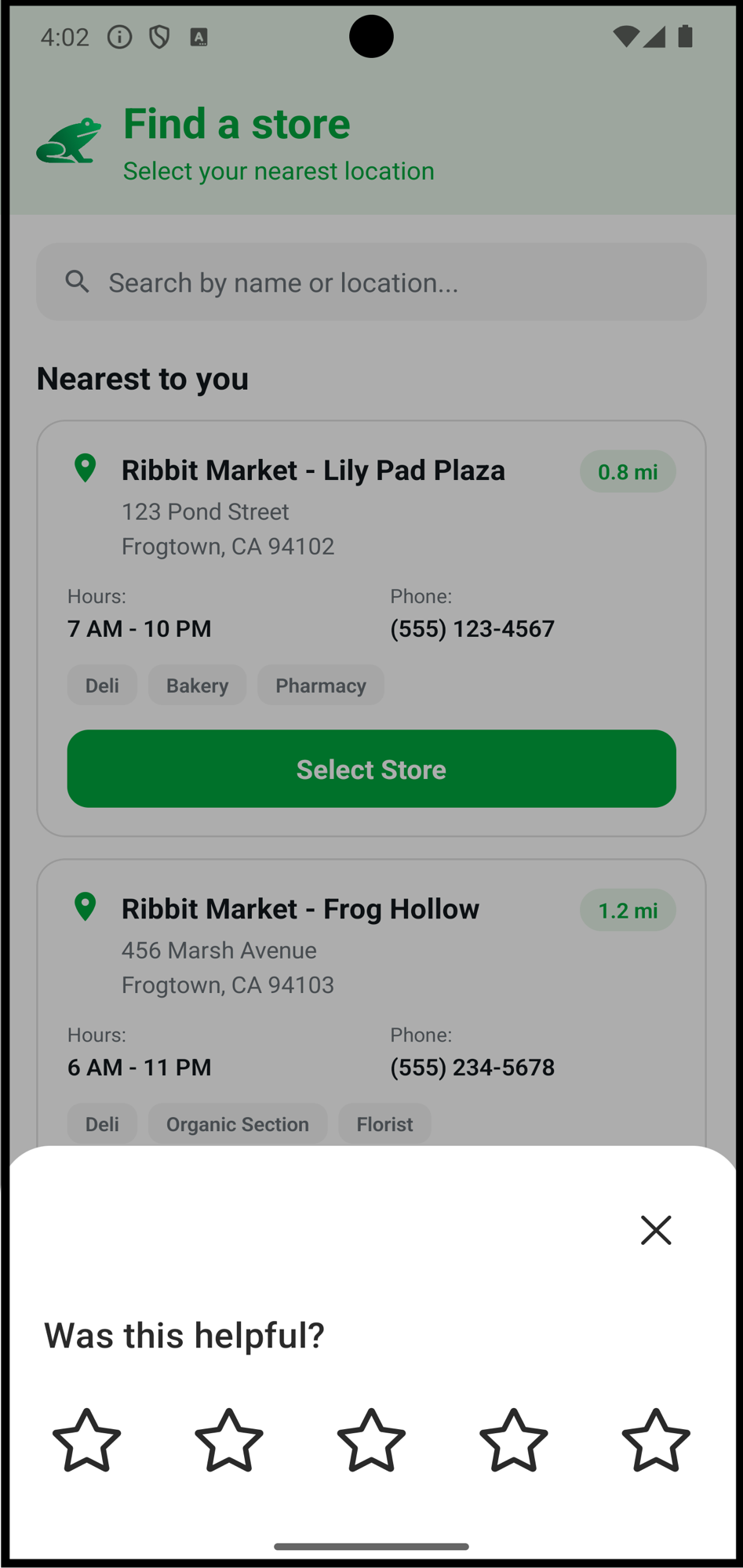
In the final step of SDK Setup, you'll create and display your first Native App Feedback intercept.
- Follow the First Intercept Setup guide to create your initial intercept. Once published, proceed to the next step.
- Relaunch your app and perform the screen changes specified in the intercept's sequencing logic.
- The Native App Feedback will display, confirming proper SDK functionality.
Next Steps
You're now ready to build more complex intercepts. Begin with the Manual Options to explore adding in custom targeting logic with our SDK, or visit Advanced Usage to discover UI customization and SDK configuration features (such as sequencing).
Requirements
Please verify that your application meets all requirements listed below.
| Requirement | Version | Notes |
|---|---|---|
| React Native | 0.77.0+ | |
| React | 18.0.0+ | |
| React Navigation | 6.0.0+ | Only if using Screen Name Auto Capture. |
| iOS Requirement | Version | |
| Xcode | 14.0+ | |
| Android Requirement | Version | Notes |
| Android SDK | 23.0+ | API 23–25 require core library desugaring. |
| Java (JDK) | 8+ |
Core library desugaring (API 23–25)
Android apps targeting API 23–25 must enable core library desugaring so that java.time APIs are available at runtime. Add the following to your android module-level build.gradle.kts:
android {
    compileOptions {
        isCoreLibraryDesugaringEnabled = true
    }
}

dependencies {
    coreLibraryDesugaring("com.android.tools:desugar_jdk_libs:2.1.0")
}
Apps targeting API 26+ require no additional configuration.
1. Install the SDK
Our SDK can be installed using either npm or Yarn.
Expo
-
Add the SDK package with npm:
npx expo install @qualtrics-experience/core
Bare React Native
-
Add the SDK package:
# npm
npm install @qualtrics-experience/core

# Yarn
yarn add @qualtrics-experience/core -
Update Pods by running the following command in the
ios/folder:pod install
2. Initialize the SDK
Our SDK initializes automatically by default. For manual initialization, please refer to the Manual Initialization.
-
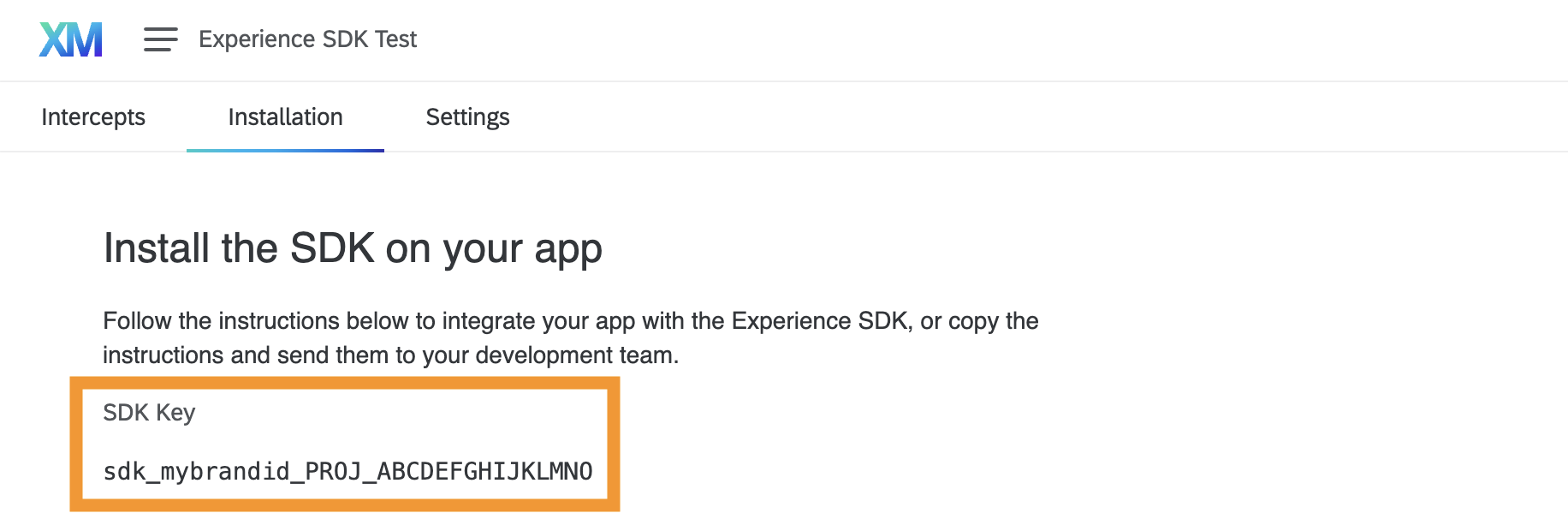
Navigate to the Installation tab in your App Insights Project and copy your SDK Key.
-
Create a
.qualtricsconfigfile in your app's root directory, replacingYOUR_SDK_KEYwith your actual SDK Key:SDK_KEY=YOUR_SDK_KEY -
Launch the app and check the logs prefixed with
[Q-EXP]to verify successful initialization.
3. Enable Screen Name Auto Capture
Currently Screen Name Auto Capture works only for React Navigation version 5.0.0 or later. If you're using a different navigation approach, check out the Manual Screen Changes section.
-
Create a ref to the navigation container:
import { createNavigationContainerRef } from "@react-navigation/native"

export const navigationRef = createNavigationContainerRef() -
Pass the ref to your root navigation container:
import { navigationRef } from "myAppNavigationRef"

function App() {
  return (
    <NavigationContainer ref={navigationRef}>
      {/* ... */}
    </NavigationContainer>
  )
} -
Provide the ref to the SDK:
import { enableScreenAutoCapture } from "@qualtrics-experience/core"
import { navigationRef } from "myAppNavigationRef"

enableScreenAutoCapture(navigationRef)infoWe strongly recommend passing the ref as early as possible to capture and evaluate all events from app launch.
4. Collect Screen Names
This step assumes Screen Name Auto Capture was enabled in the previous step.
When you launch the app, the SDK automatically captures visited screen names and sends them to App Insights Project. This makes them accessible in Sequencing Logic configuration (which we'll set up in the next step), allowing you to display intercepts based on user navigation.
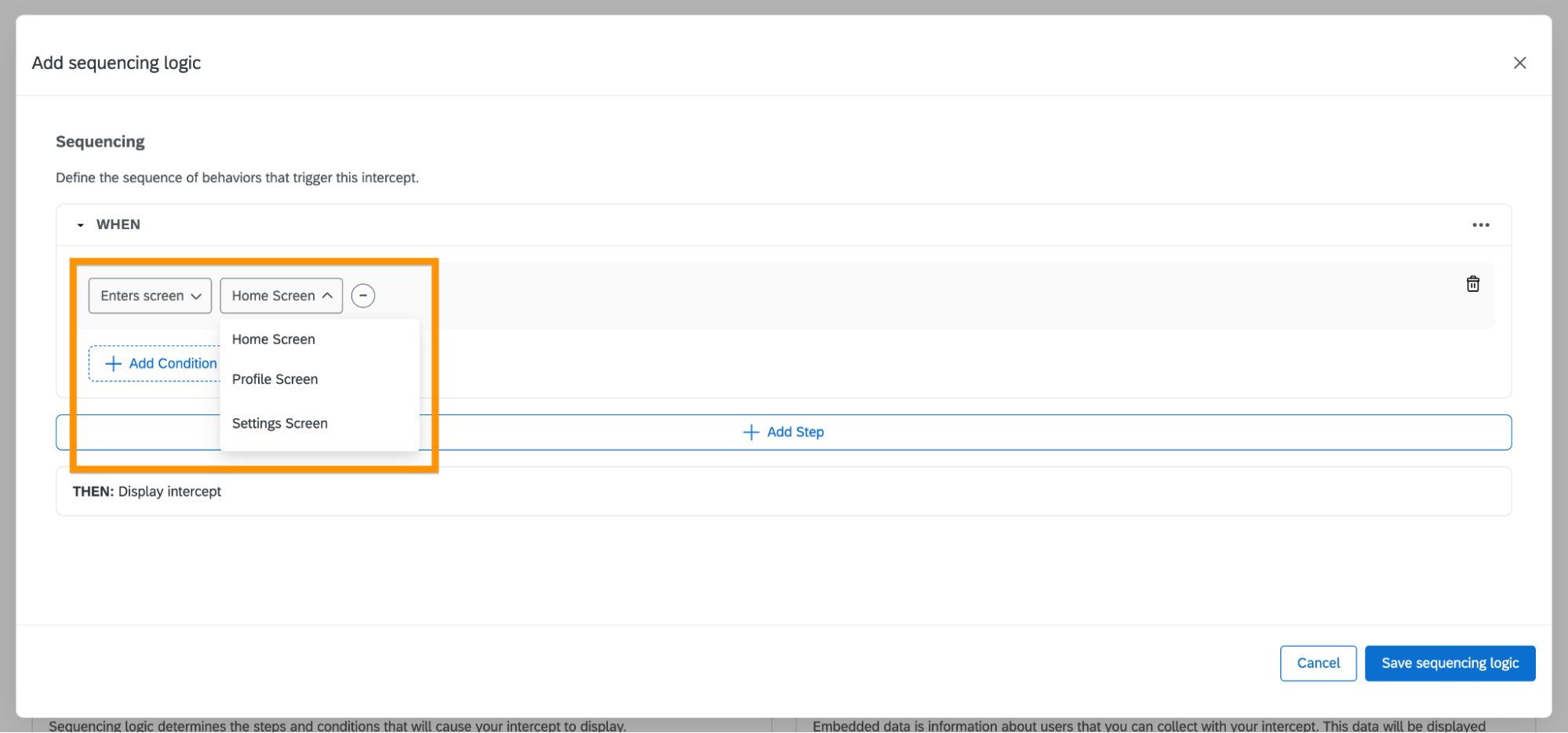
To ensure all app screen names appear in the App Insights Project, visit every screen in your application at least once. Names of screens that haven't been visited won't be available in the dropdown menu.
5. Display Native App Feedback
In the final step of SDK Setup, you'll create and display your first Native App Feedback intercept.
- Follow the First Intercept Setup guide to create your initial intercept. Once published, proceed to the next step.
- Relaunch your app and perform the screen changes specified in the intercept's sequencing logic.
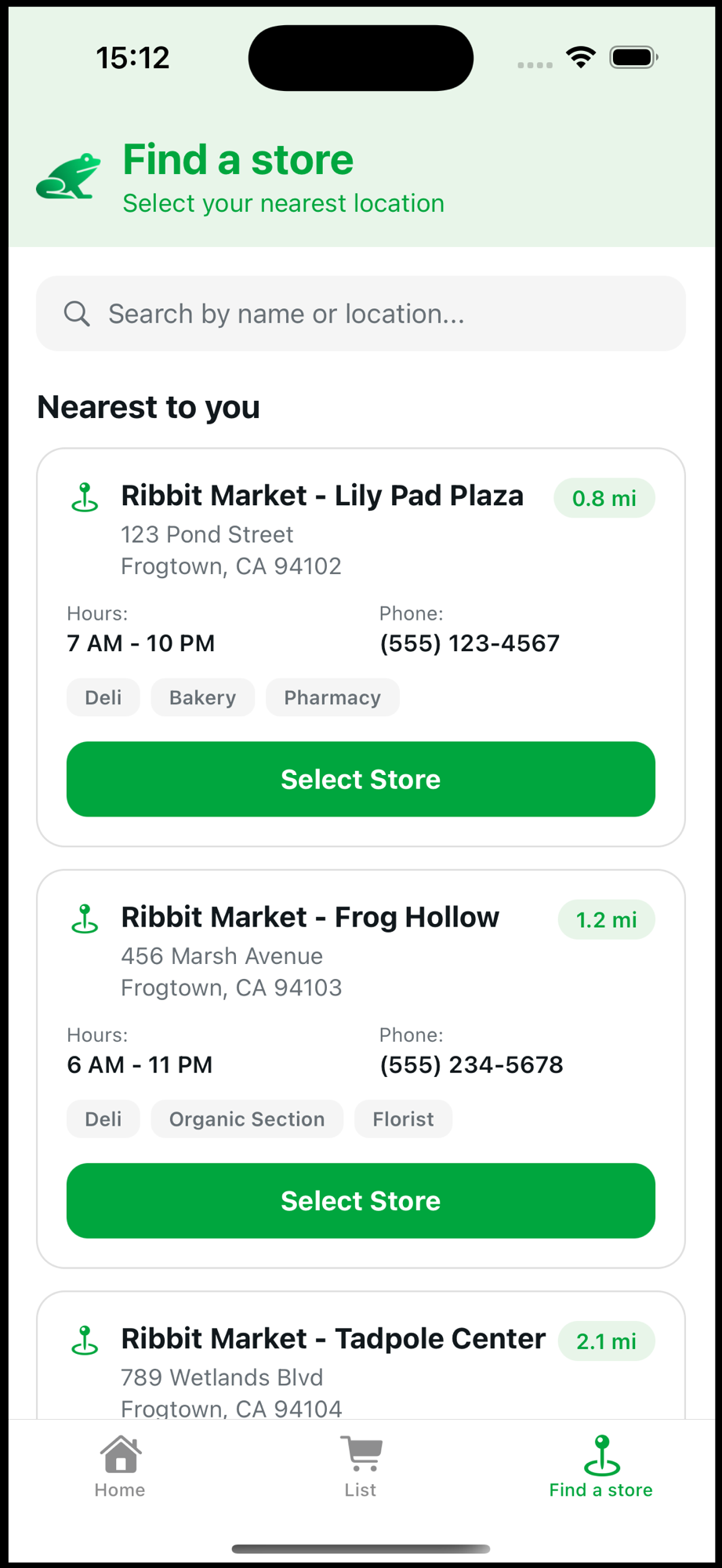
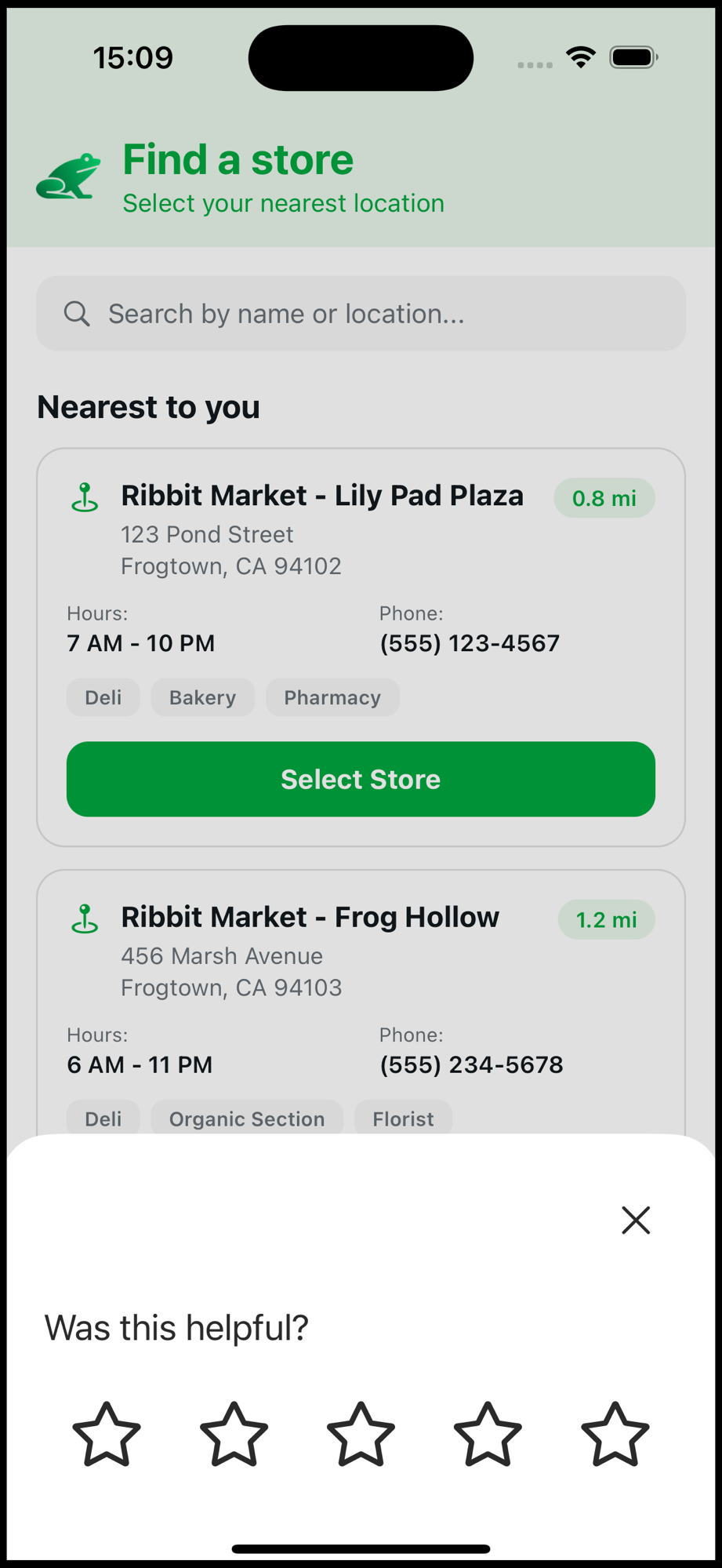
- The Native App Feedback will display, confirming proper SDK functionality.
Next Steps
You're now ready to build more complex intercepts. Begin with the Manual Options to explore adding in custom targeting logic with our SDK, or visit Advanced Usage to discover UI customization and SDK configuration features (such as sequencing).