First Intercept Setup
In this section, you'll create your first intercept in your App Insights Project.
Intercepts are in-app experiences that trigger at strategic moments to display targeted information, promotions, or surveys based on the targeting and sequencing logic. The configuration of an intercept is often done by a brand administrator or power Qualtrics user.
-
Ensure that your App Insights Project is configured in accordance with the App Insights Project Setup.
-
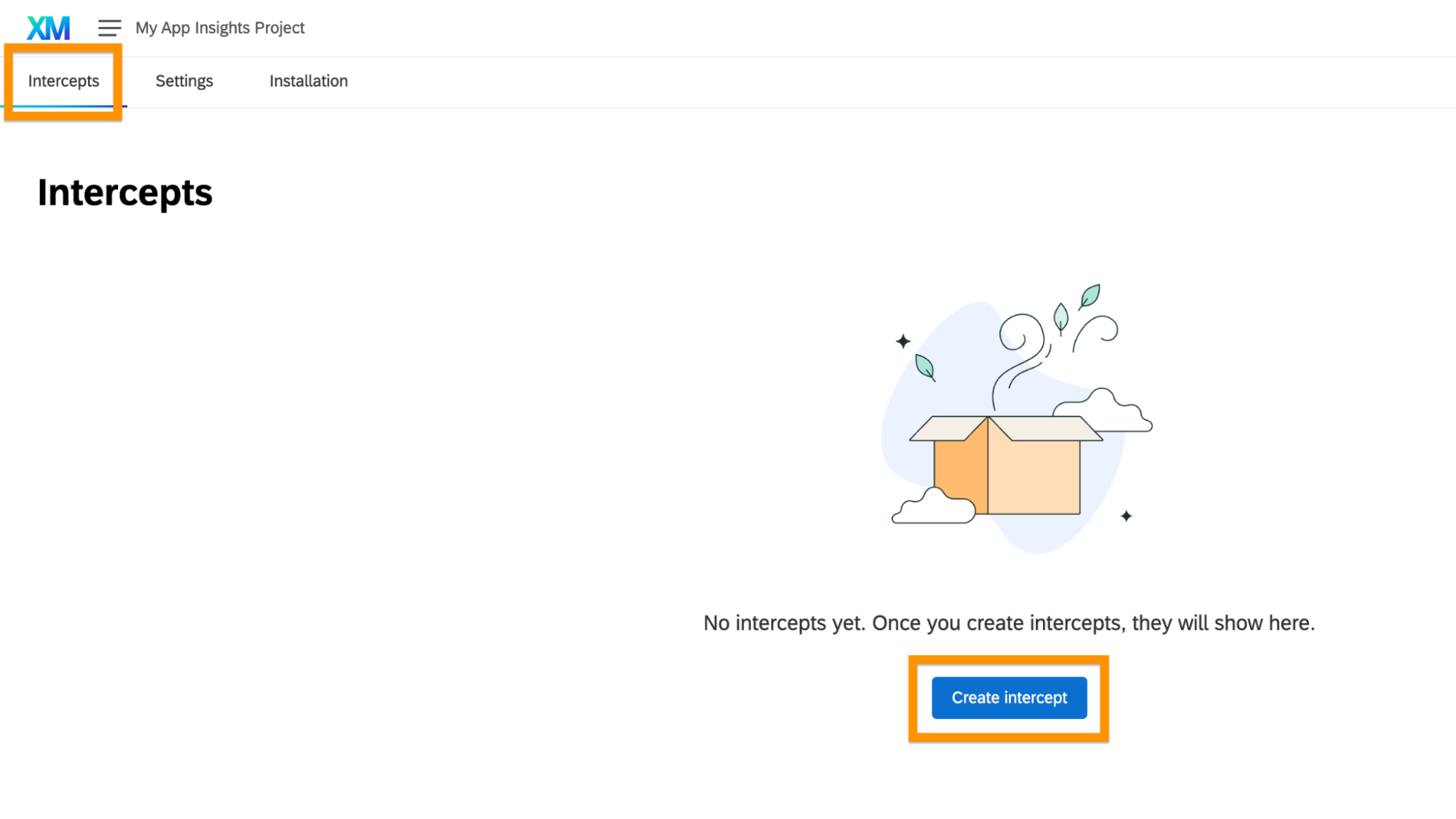
Navigate to the Intercepts tab in your App Insights project and create a new intercept.
-
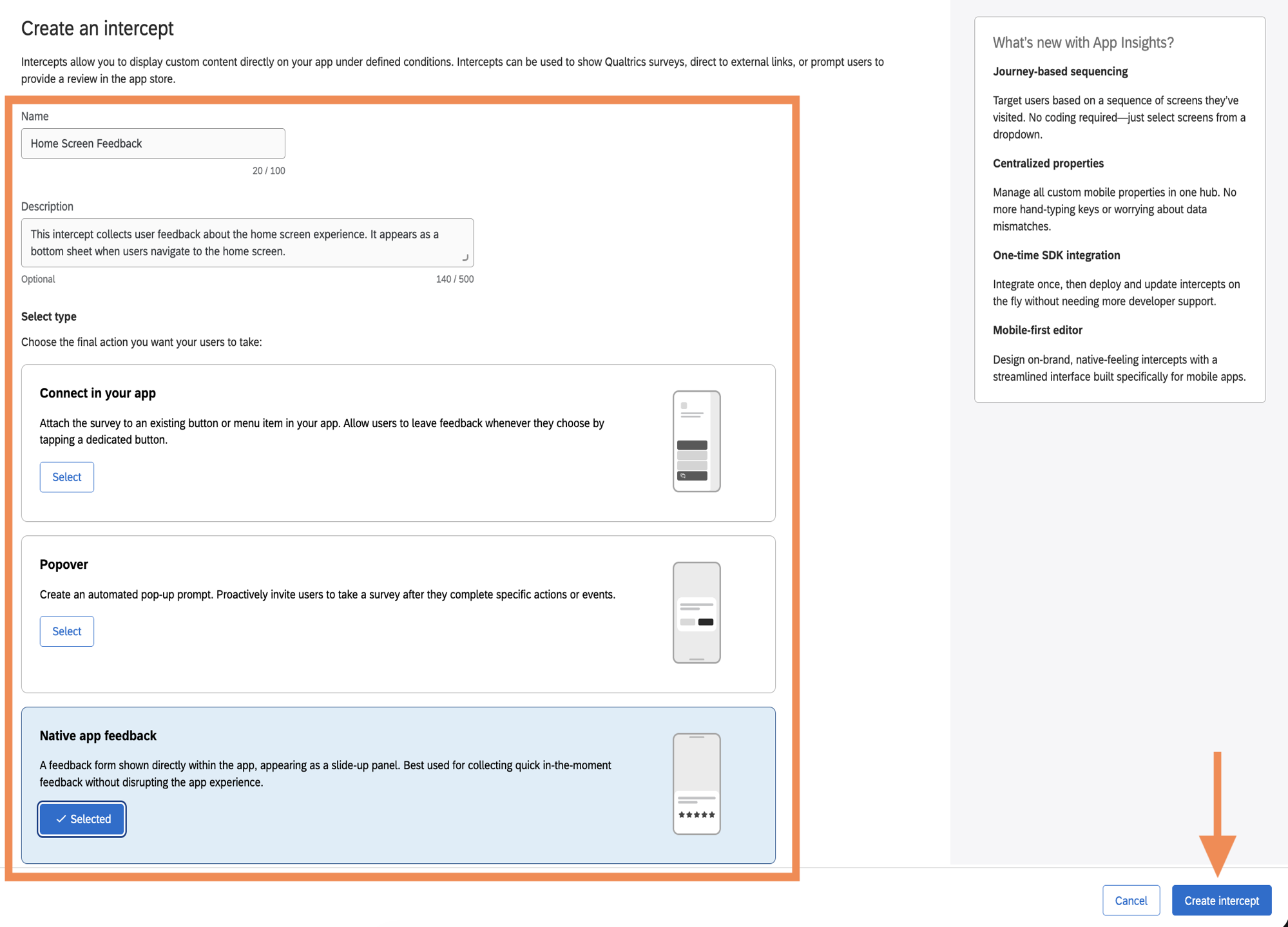
Name the intercept, optionally add a description, select Native App Feedback type, and create the intercept.
-
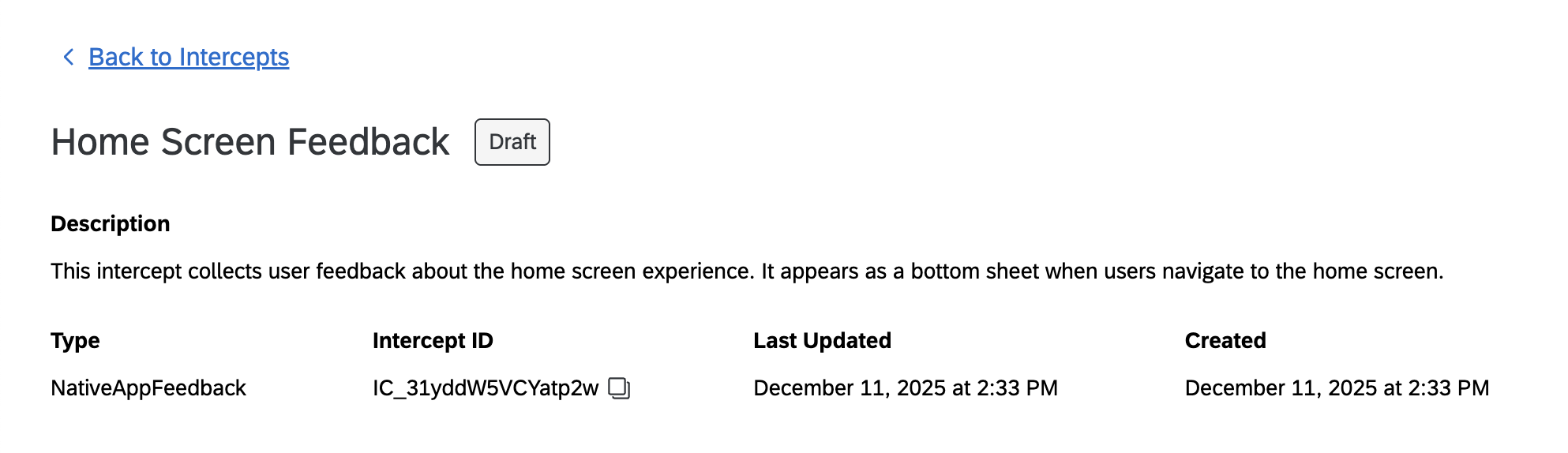
You'll be redirected to the intercept configuration page.
-
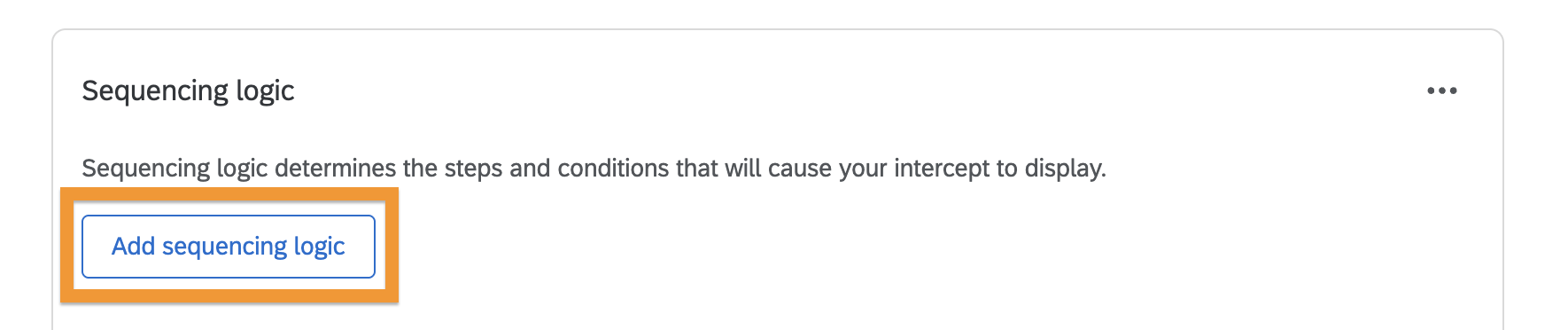
Scroll down to the Sequencing Logic section and add new sequencing logic.
-
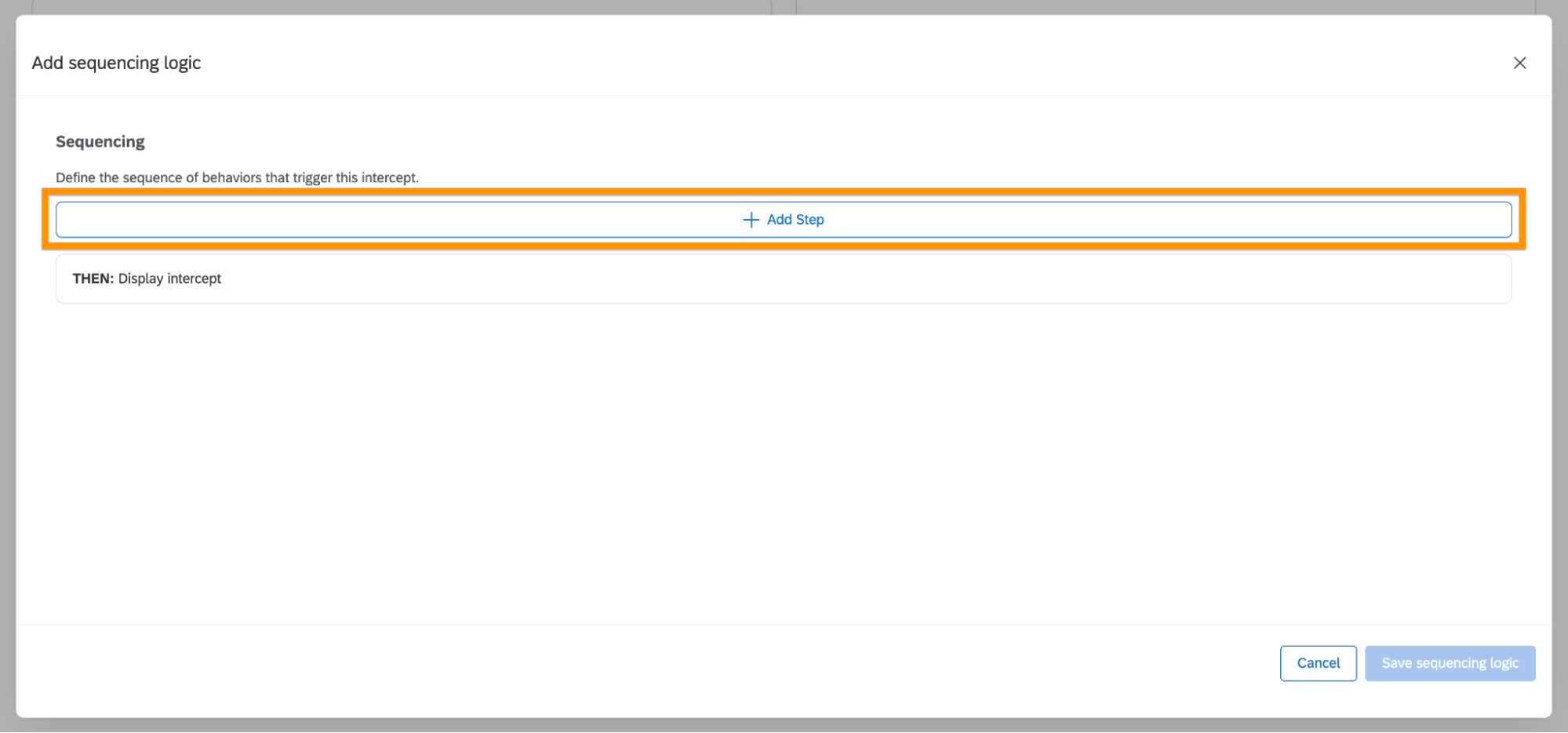
A modal will appear. Click Add Step to build your logic.
-
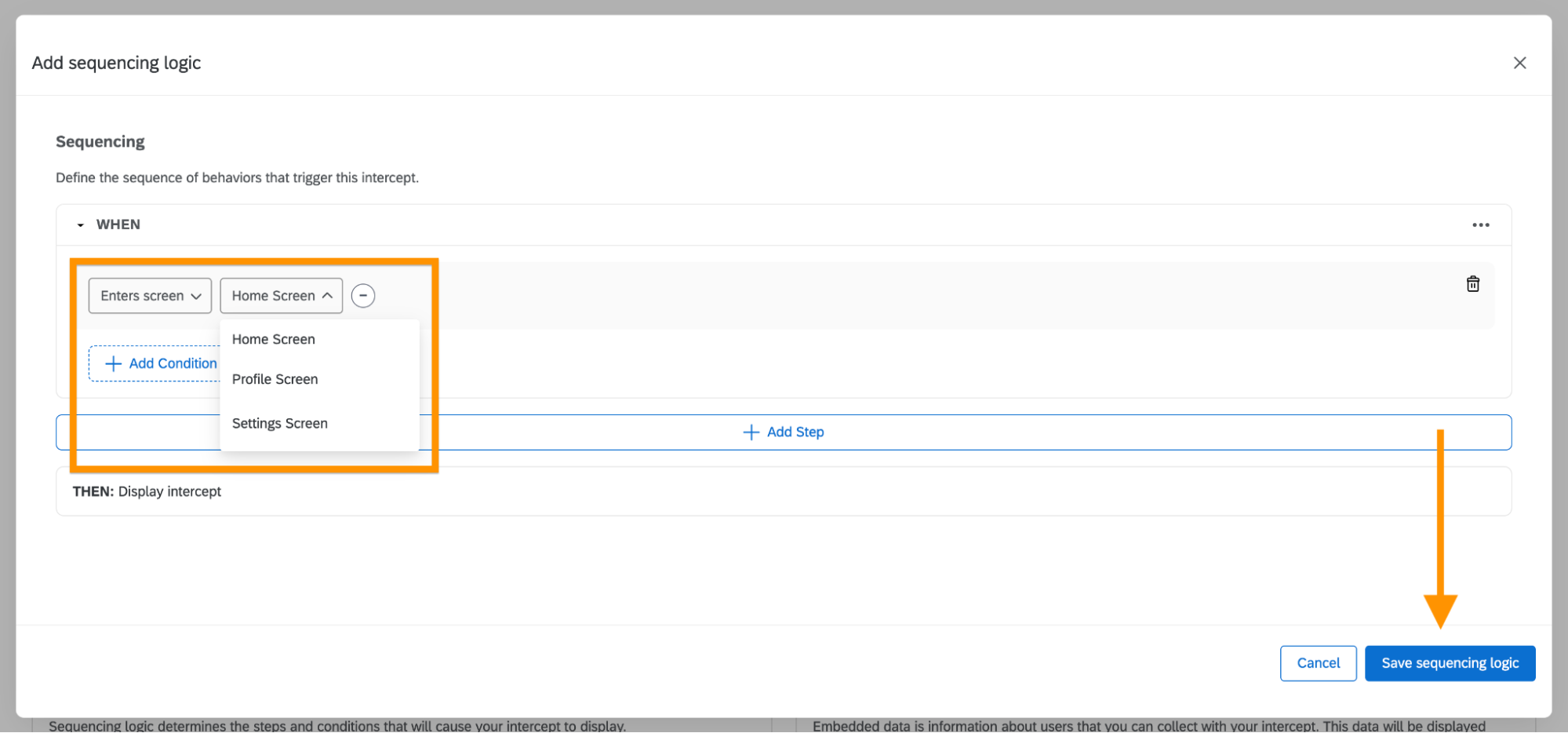
In the step configuration, select "Enters screen" as the behavior type, choose the target screen where you want to display Native App Feedback, and then save.
-
Scroll to the top of the page and publish your intercept.

-
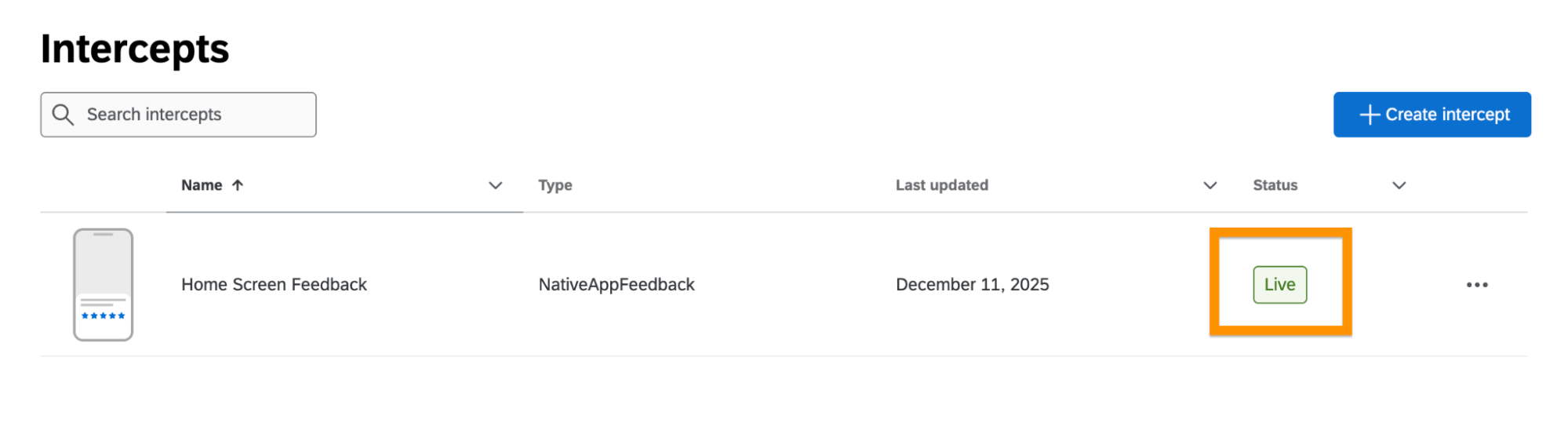
Return to the Intercepts tab to verify the newly created intercept shows a Live status.
After completing the intercept setup, return to the final part of SDK Setup.