Custom Properties
Custom properties are user-defined attributes that capture specific information about your app users, such as their membership level or whether they're currently in a trial period. Custom properties are stored locally on the device. Custom properties can be configured as embedded data to be used inside of Qualtrics reporting. Configuring a custom property as embedded data grants Qualtrics the ability to store and report on this information. Custom properties can be used for creating advanced targeting logic.
The currently supported property types are String, Bool, Number, and Date. Prior to General Availability we will be adding support for multi-value custom properties (otherwise known as Sets).
Uses of Custom Properties
Targeting
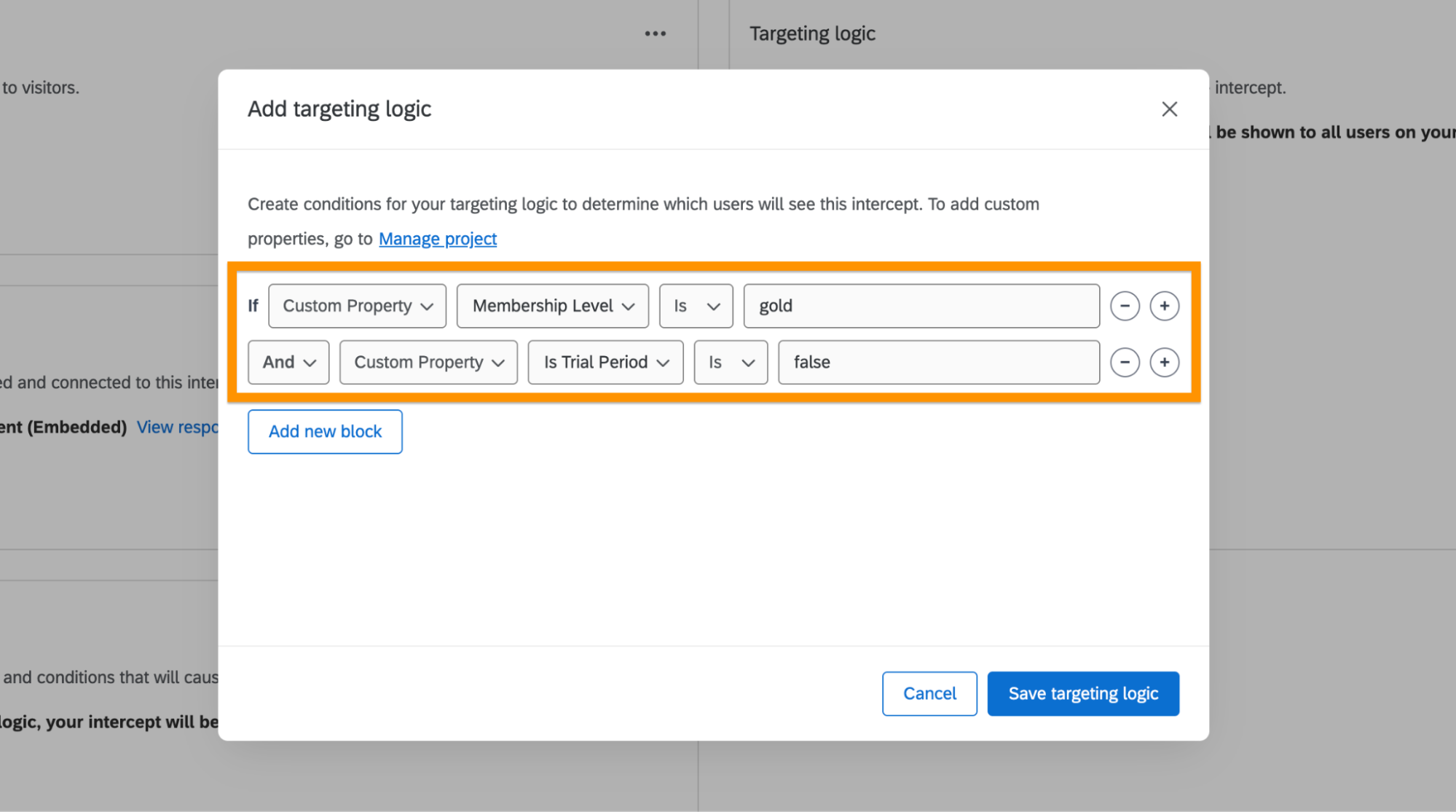
Custom properties can be incorporated into intercept targeting logic.
Embedded Data
Embedded data is a feature that lets you select which custom properties should be sent with your intercept responses. Custom properties remain stored on the device, but by marking them as embedded data, their values are transmitted to Qualtrics when users interact with your intercepts, allowing you to analyze responses with additional user context. For step-by-step setup, see Embedded Data.
Adding Custom Properties in App Insights Project
Before using custom properties, you must configure them in your App Insights Project.
-
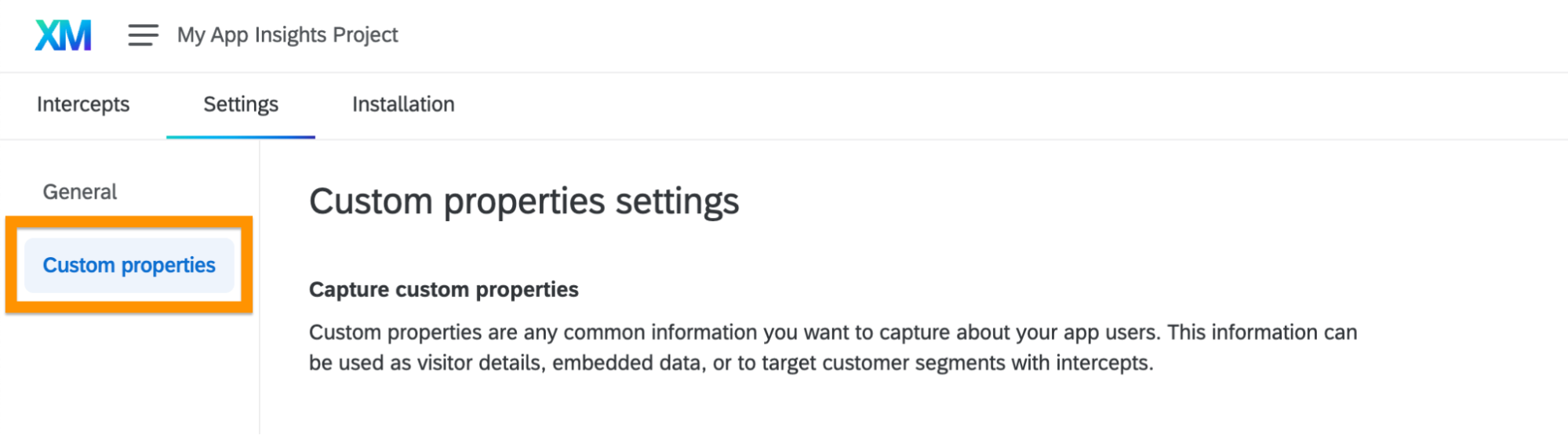
Navigate to the Custom Properties page.
-
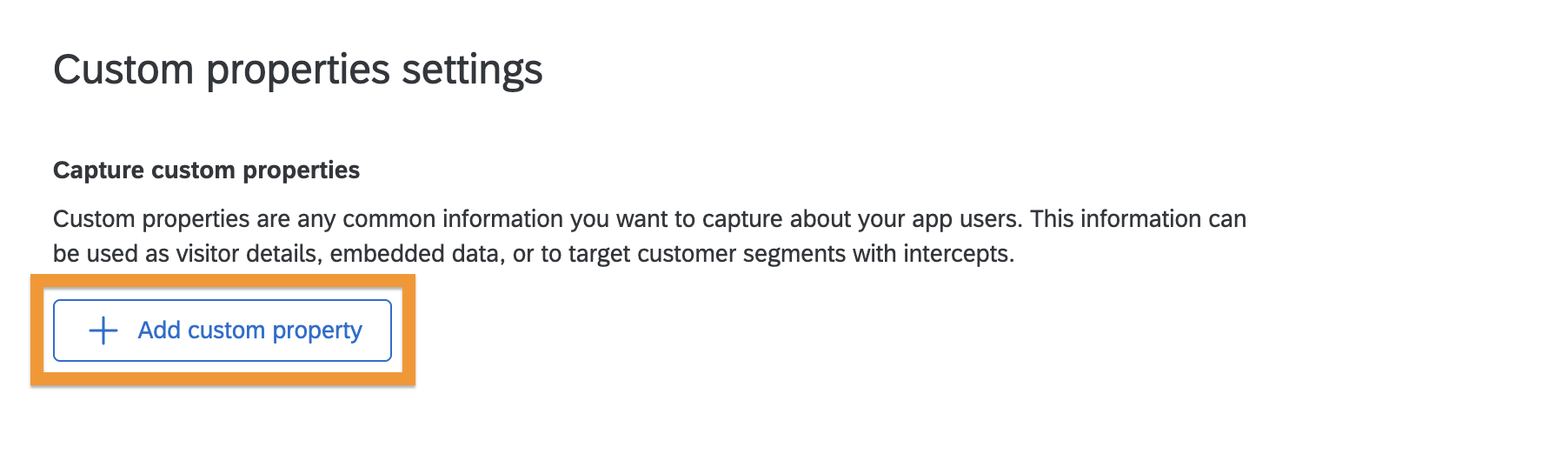
Click to add a new custom property.
-
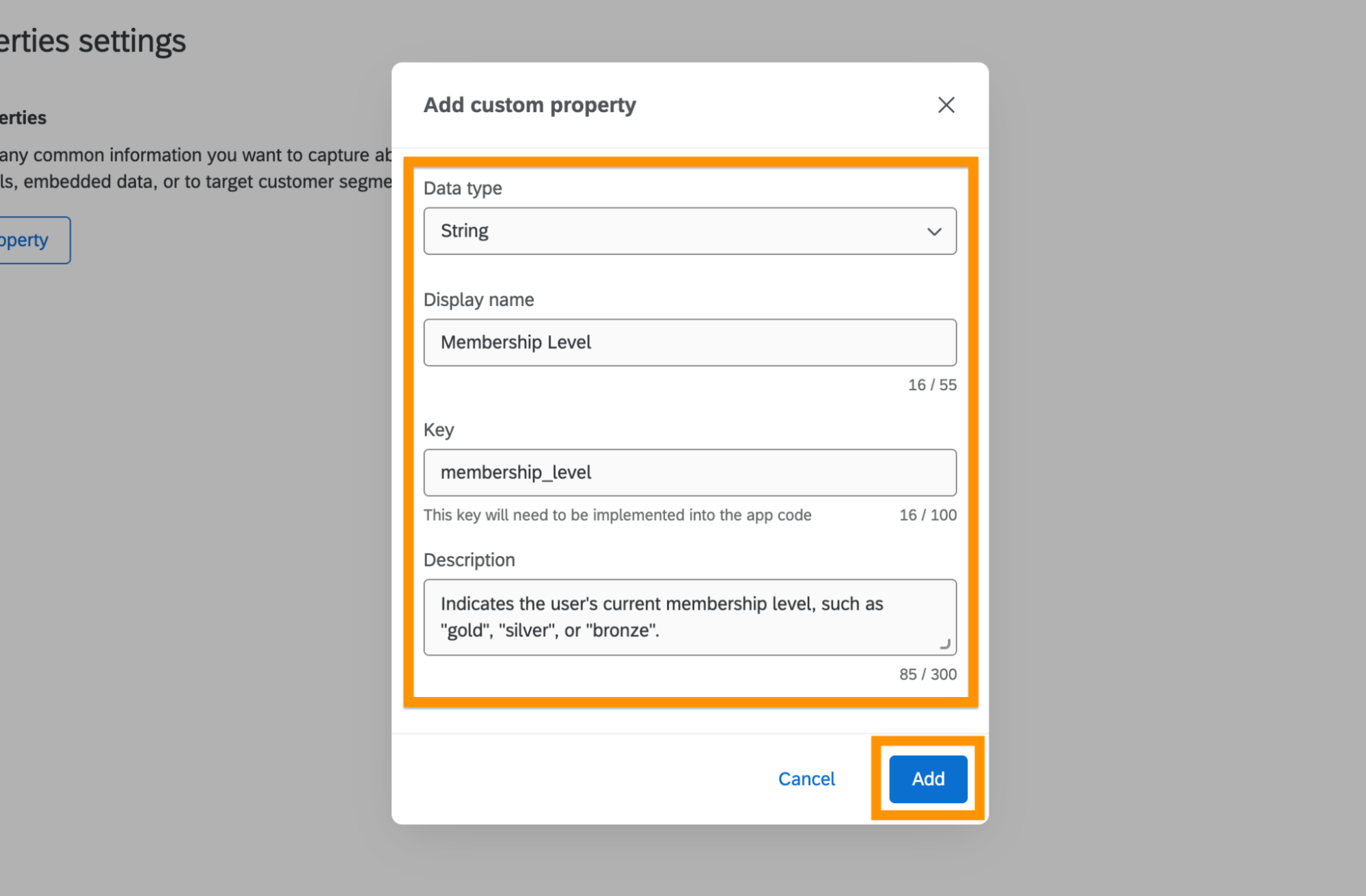
Select the property type, enter the name and key, optionally add a description, then add the property.
-
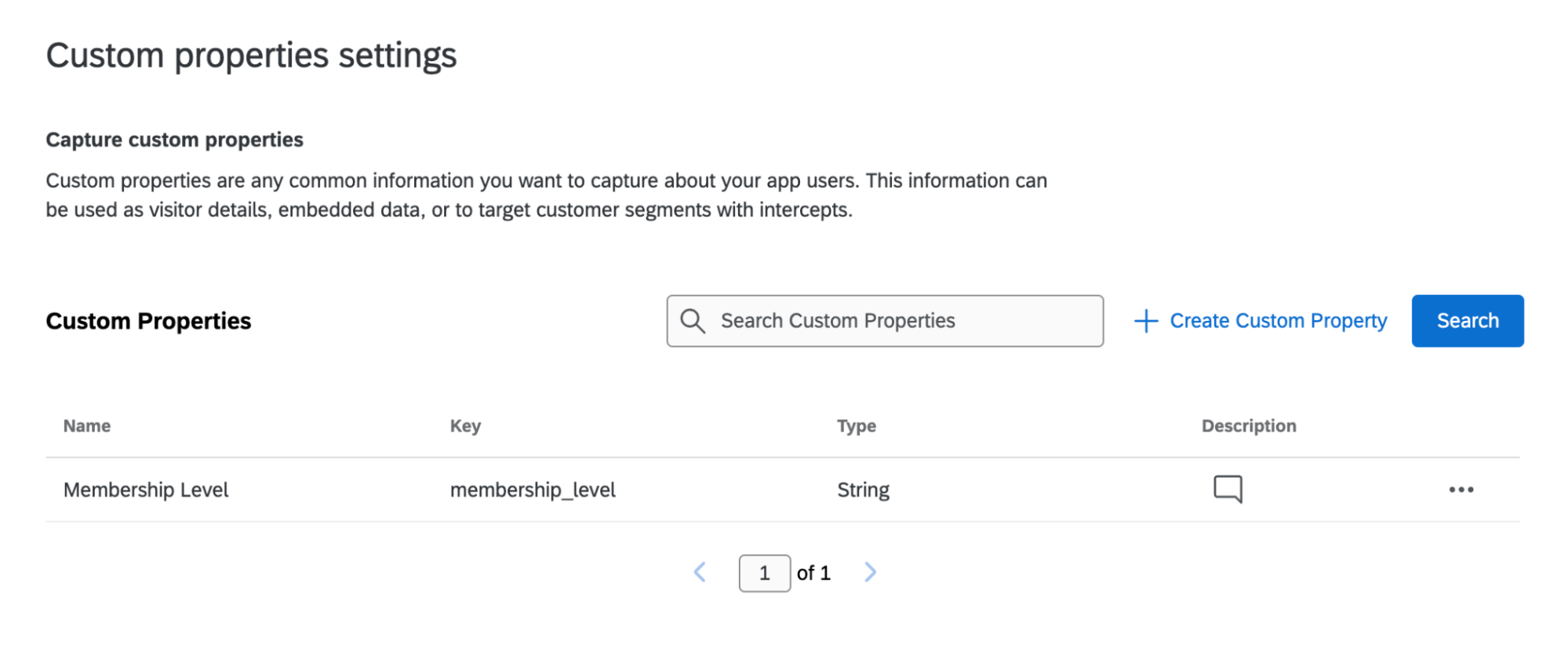
Once added, your property will appear in the list, confirming successful creation.
-
Once your custom property has been created, incorporate it into your codebase by following the code examples provided below.
Implementing Custom Properties in Code
Custom properties can be set, retrieved, and removed using dedicated SDK methods. Learn more about available methods in the API Reference.
Setting a custom property with the same key will override any previous value, regardless of type. For example, calling
Qualtrics.setNumberProperty("itemId", 123)followed byQualtrics.setStringProperty("itemId", "abc")will replace the numeric value with the string.
Code Examples
- iOS
- Android
- React Native
import QualtricsExperience

Qualtrics.setStringProperty(key: "membership_level", value: "gold")
Qualtrics.setBoolProperty(key: "is_trial_period", value: true)

let membershipLevel: String? = Qualtrics.getStringProperty(key: "membership_level")
let isTrialPeriod: Bool? = Qualtrics.getBoolProperty(key: "is_trial_period")
Qualtrics.setStringProperty("travel_destination", "Paris")
Qualtrics.setDateProperty("departure_date", Instant.parse("2027-07-24T11:00:00Z"))

val travelDestination: String? = Qualtrics.getStringProperty(key = "travel_destination")
val departureDate: Instant? = Qualtrics.getDateProperty(key = "departure_date")
import {
  getNumberProperty,
  getStringProperty,
  setNumberProperty,
  setStringProperty,
} from '@qualtrics-experience/core';

setStringProperty("favorite_genre", "sci-fi");
setNumberProperty("books_read", 42);

const favoriteGenre: string | null = getStringProperty("favorite_genre");
const booksRead: number | null = getNumberProperty("books_read");
Automatic Properties
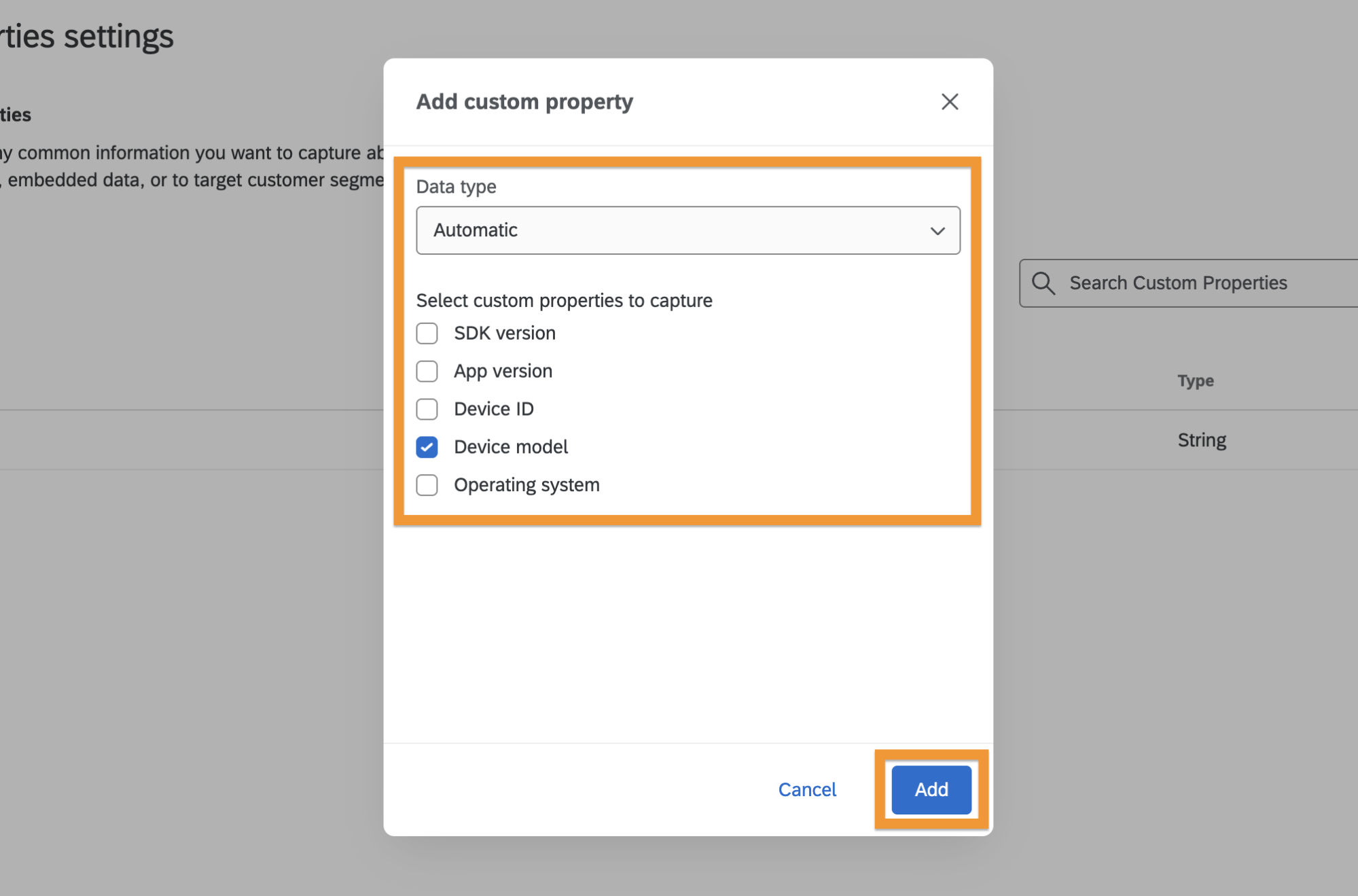
In addition to manually captured custom properties, you can add properties that the SDK captures automatically. To include them, select "Automatic" as the data type and choose the property you want to track.
All automatic properties require you to opt-in to be used inside targeting logic.
If you want to store these data points as embedded data, you must also opt in.