Embedded Data
Embedded data lets you send values from your app to Qualtrics when a user completes an intercept. Custom properties stay on the device until you mark them as embedded data; once marked, their values are included with intercept responses so you can use them in reporting, survey logic, and dashboards.
For how embedded data works in Qualtrics surveys (e.g. survey flow, reporting), see Embedded Data in Qualtrics Support.
Setup Guide
1. Prerequisites
- At least one custom property created in the App Insights Project.
- An intercept (e.g. Native App Feedback) whose survey will receive the embedded data.
2. Configure Embedded Data in App Insights Project
-
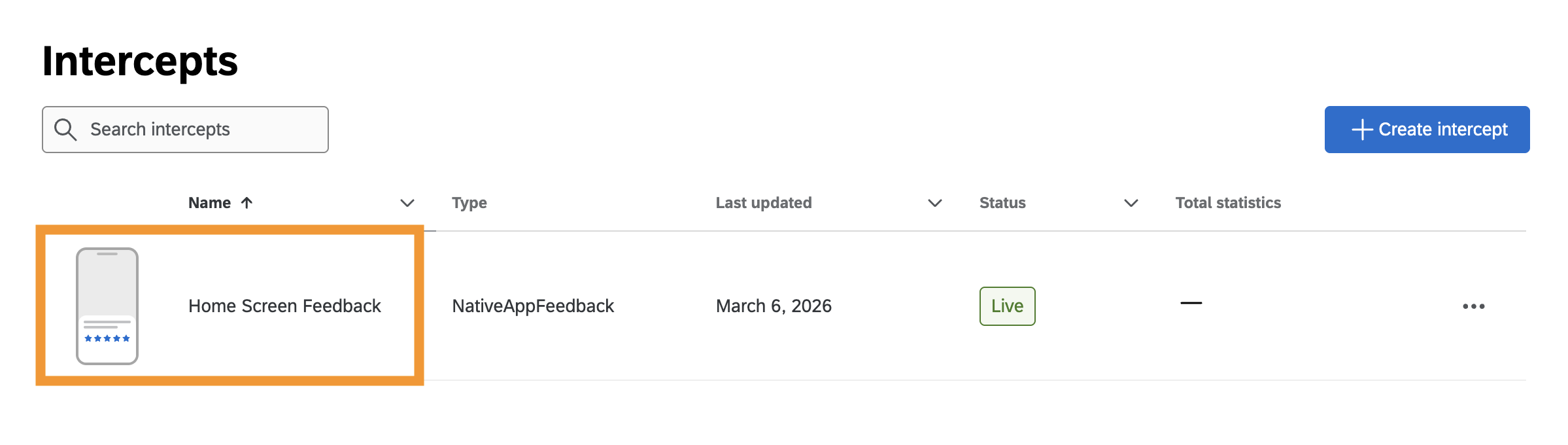
Open the intercept whose survey should receive the embedded data.
-
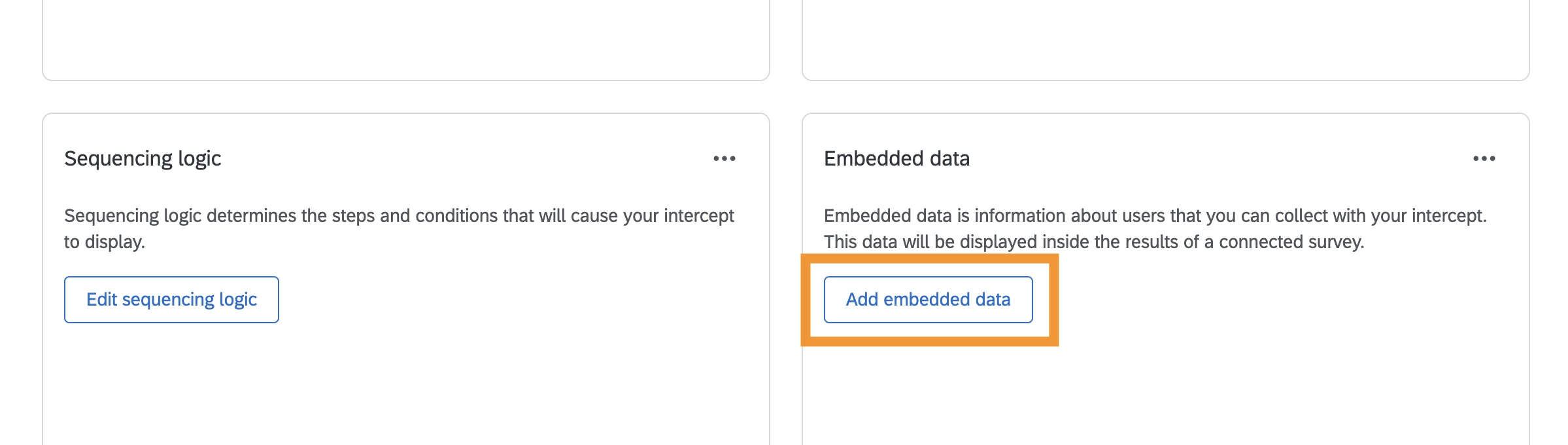
Scroll to the Embedded Data section and click Add Embedded Data.
-
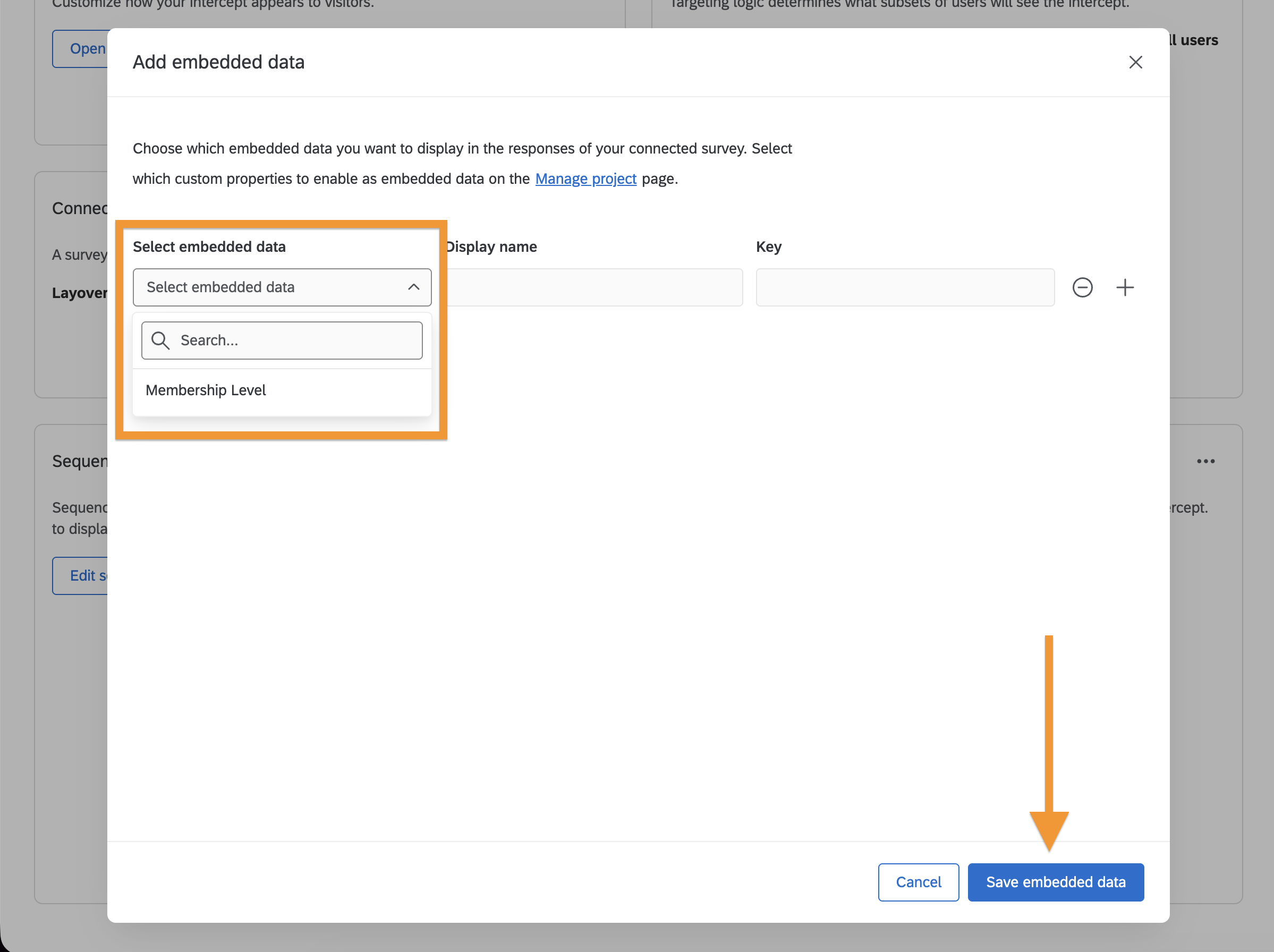
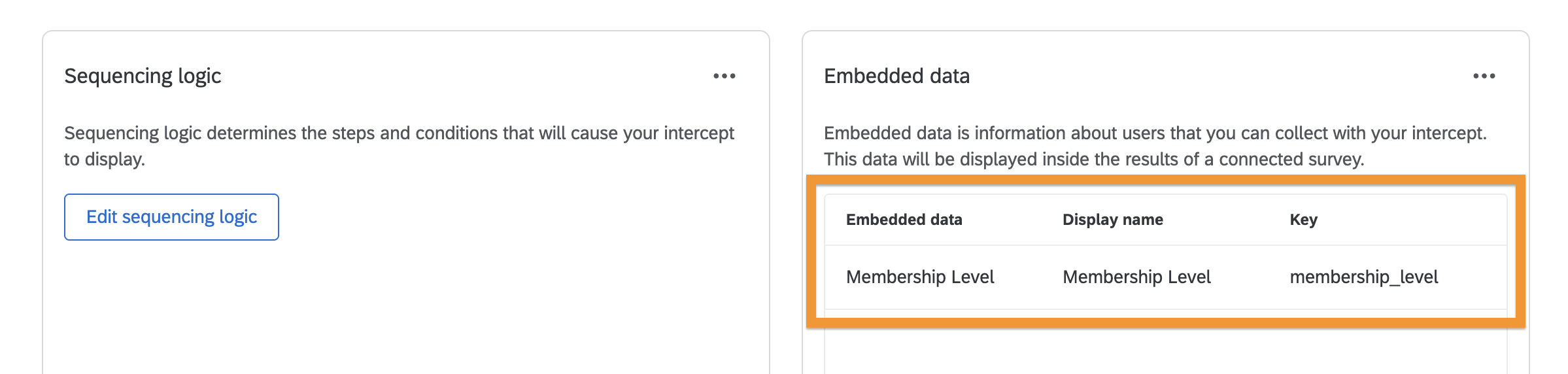
Choose the custom property you want to send from the dropdown, then click Save Embedded Data.
-
The preview will be updated showing the embedded data configured.
-
Publish the intercept so the changes take effect.

3. Set the Property in Your App
Set the custom property in your app so the SDK can send its value when the user completes an intercept.
Code Examples
- iOS
- Android
- React Native
import QualtricsExperience

Qualtrics.setStringProperty(key: "membership_level", value: "gold")
Qualtrics.setStringProperty("membership_level", "gold")
import { setStringProperty } from '@qualtrics-experience/core';

setStringProperty("membership_level", "gold");
Using Embedded Data in the Survey
Once configured, the selected property values are sent with intercept responses and are available as embedded data in the survey. You can use them in survey flow, piping, and reporting by configuring the corresponding embedded data fields in the Qualtrics survey editor.
Viewing Survey
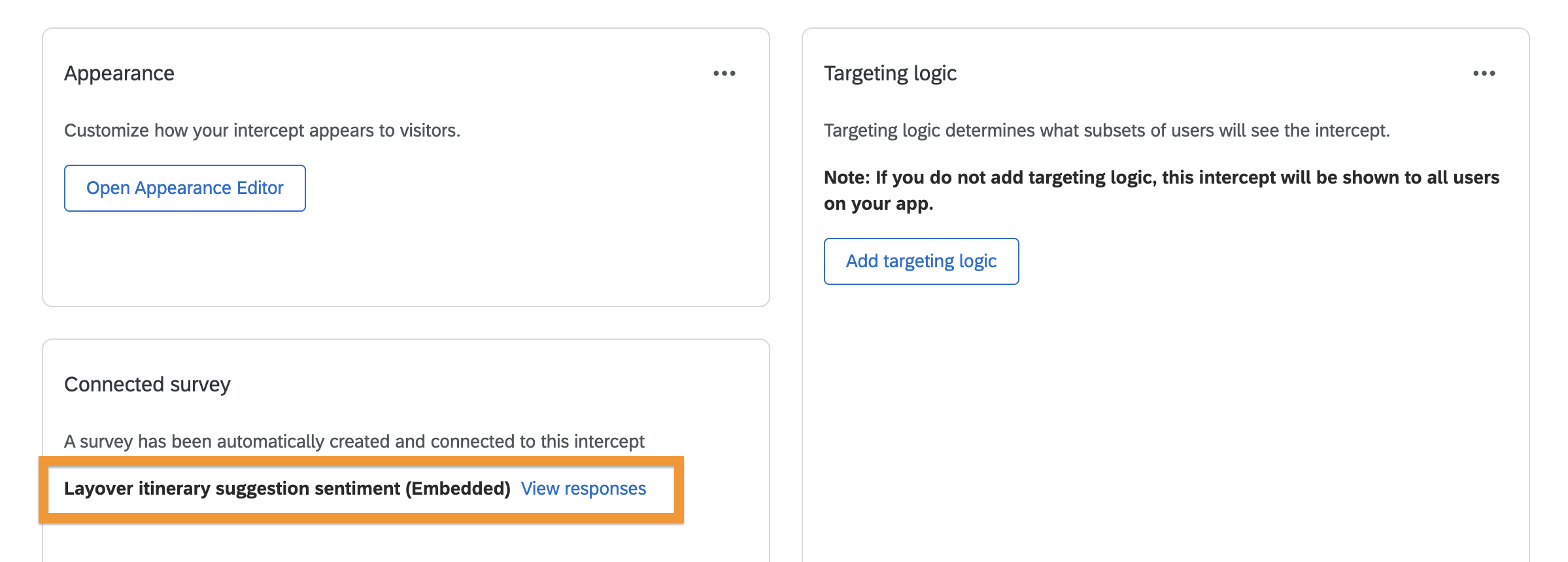
Scroll to the Connected survey section and click View response to open the full Qualtrics survey dashboard, where you can view responses and their embedded data.