Surveys Response Import/Export API
The Survey Response Export and Import API allows you to retrieve survey responses as a file, and import survey responses from a file.
Workflows
- Simple Export
- Export Using a Filter
- Export with Continuation
- Import Using Local File
- Import Via Hosted File URL
Our support team does not offer assistance or consultation on custom coding, but you can always try asking our community of dedicated users. If you’d like to know more about our custom coding services you can commission, please contact your Qualtrics Account Executive.
Simple Export
The general process of getting survey responses requires four steps:
- Request the responses with the Create Response Export API. Qualtrics will create a file that contains the requested responses. You can use various filtering options to this request to retrieve a subset of the responses to speed up processing.
curl --location --request POST 'https://iad1.qualtrics.com/API/v3/surveys/SV_bwrylOA5nNnI9M1/export-responses' \
    --header 'Content-Type: application/json' \
    --header 'Authorization: Bearer <EXAMPLE_TOKEN>' \
    --data-raw '{
        "format": "csv"
    }'
{
    "result": {
        "progressId": "ES_0d2n60qVHB9jSLz",
        "percentComplete": 0.0,
        "status": "inProgress"
    },
    "meta": {
        "requestId": "7a9150e0-08bb-4953-89cf-ef8a157b8aa7",
        "httpStatus": "200 - OK"
    }
}
- Request the export status using the Get Response Export Progress API. You make this call with the
progressIdreturned from the above call to Create Response Export. The result object will contain a status value. Keep looping until status becomes complete. (You might want to pause a few seconds between requests, especially if you think the export is large.)
curl --location --request GET 'https://iad1.qualtrics.com/API/v3/surveys/SV_bwrylOA5nNnI9M1/export-responses/ES_0d2n60qVHB9jSLz' \
    --header 'Authorization: Bearer <EXAMPLE_TOKEN>'
{
    "result": {
        "fileId": "1dc4c492-fbb6-4713-a7ba-bae9b988a965-def",
        "percentComplete": 100.0,
        "status": "complete"
    },
    "meta": {
        "requestId": "a5a2db6c-3fab-4363-92dc-debddcc51e40",
        "httpStatus": "200 - OK"
    }
}
- Once the export is complete, use the fileId field in the result object from Get Response Export Progress. Use the Get Response Export File endpoint to retrieve your export file as shown below. Notice the URL includes the
fileIdfrom the above result.
curl --location --request GET 'https://iad1.qualtrics.com/API/v3/surveys/SV_bwrylOA5nNnI9M1/export-responses/1dc4c492-fbb6-4713-a7ba-bae9b988a965-def/file' \
    --header 'Authorization: Bearer <EXAMPLE_TOKEN>'
- If the file is zipped (default behavior), unzip the file to find the survey responses in the format you requested.
Export Using a Filter
Creating a Filter
In order to export responses using a filter, you will first need to create a filter. You create filters from Qualtrics UI in the Data & Analysis tab. For a more detailed explanation of how to create and edit filters, please see the documentation at Filter Responses. Note: filters are unique to the survey and cannot be shared between surveys.
Getting FilterIds
The filterIds can be determined using either the API or the UI. When editing a saved filter, the filterId is visible in the UI just below the name, as can be seen below.
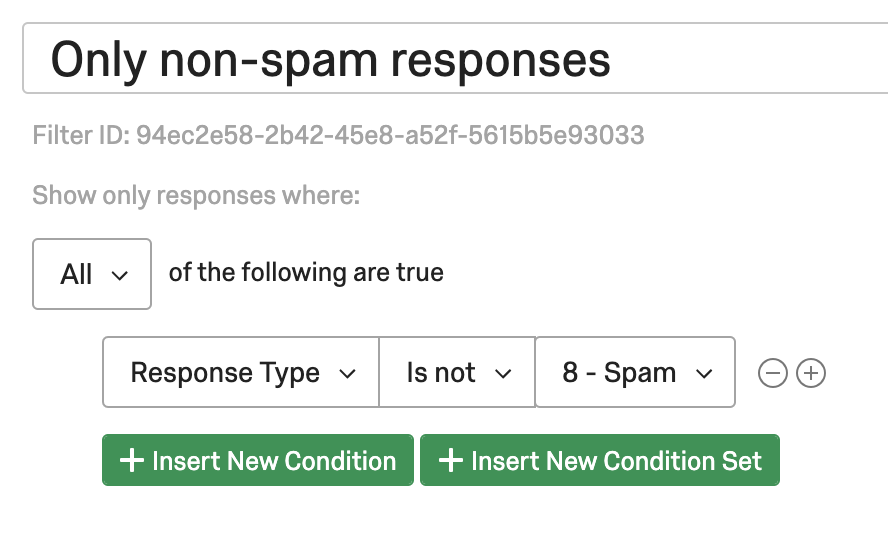 The filterIds can also be found by using the List Survey Filters API endpoint. A request to the List Survey Filters endpoint will return a list of filters for a given survey with their filterIds and names. The filterId is what will be needed to start a response export that uses the associated filter.
As example, the following shell command:
curl --location --request GET 'https://iad1.qualtrics.com/API/v3/surveys/SV_bwrylOA5nNnI9M1/filters' \
    --header 'Authorization: Bearer <EXAMPLE_TOKEN>'
might return:
{
  "result": {
    "elements": [
      {
        "filterId": "94ec2e58-2b42-45e8-a52f-5615b5e93033",
        "filterName": "Only non-spam responses",
        "creationDate": "2010-01-05T03:37:31Z"
      },
      {
        "filterId": "df946afa-2acd-4f48-b0df-34b290479819",
        "filterName": "Only survey responses from promoters",
        "creationDate": "2010-01-01T09:37:31Z"
      }
    ],
    "nextPage": null
  },
  "meta": {
    "requestId": "900df19-75fd-479d-b4c2-6fd1f4b7b3e0"
  }
}
This shows two filters already created through the UI for this survey.
Exporting with a Filter
Now that you have a filterId for the filter you want to use, you can begin an export. When starting an export using the Create Response Export endpoint, simply provide the filterId as the value for the filterId parameter in the body of the request. The export will begin normally and you can monitor progress the same as any other response export. Once the export is complete, the final file will include only the responses that match the provided filter.
As an example, using the "Only non-spam responses" filter from the previous example, you could start an export with the following shell command:
curl --location --request POST 'https://iad1.qualtrics.com/API/v3/surveys/SV_bwrylOA5nNnI9M1/export-responses' \
    --header 'Content-Type: application/json' \
    --header 'Authorization: Bearer <EXAMPLE_TOKEN>' \
    --data-raw '{
        "format": "csv",
        "useLabels": true,
        "filterId": "94ec2e58-2b42-45e8-a52f-5615b5e93033"
    }'
This would begin an export of survey responses that match the filter with ID 94ec2e58-2b42-45e8-a52f-5615b5e93033.
Export with Continuation
Continuation gives you the ability to export new responses since the last export (done with continuation). Setting sortByLastModifiedDate to true will also allow you to export modified responses in addition to new responses since the last export. A file exported with continuation will include all the responses from after the last export. The way this works is you send for an initial export with the allowContinuation field set to true:
curl location --request POST 'https://iad1.qualtrics.com/API/v3/surveys/SV_bwrylOA5nNnI9M1/export-responses' \
    --header 'Content-Type: application/json' \
    --header 'Authorization: Bearer <EXAMPLE_TOKEN>' \
    --data-raw '{
        "format": "csv",
        "useLabels": true,
        "allowContinuation": true
    }'
When you get the response, like any export, you'll get the progressId and will need to wait for the export to complete. Once the export is complete, you will receive a response from the Get Export Progress API with a continuationToken:
{
    "result": {
        "fileId": "b2b21de1-8925-40f2-b17e-096354edf126-def",
        "percentComplete": 100.0,
        "status": "complete",
        "continuationToken": "UQhcCBAIGwgGCFkIEBscGhIcHxwcHBkGCEQIEBweGBoaGhoaGgYITwgQGxwbGhgbHx0ZGFc"
    },
    "meta": {
        "requestId": "d1f89f27-732e-421c-a166-85452e053e73",
        "httpStatus": "200 - OK"
    }
}
In order to receive the responses that occurred after the above export, in your subsequent exports you will call for your export using the continuation token you received:
curl --location --request POST 'https://iad1.qualtrics.com/API/v3/surveys/SV_bwrylOA5nNnI9M1/export-responses' \
    --header 'Content-Type: application/json' \
    --header 'Authorization: Bearer <EXAMPLE_TOKEN>' \
    --data-raw '{
        "format": "csv",
        "useLabels": true,
        "continuationToken": "UQhcCBAIGwgGCFkIEBscGhIcHxwcHBkGCEQIEBweGBoaGhoaGgYITwgQGxwbGhgbHx0ZGFc"
    }'
When you receive the response from the the above call, you will received the progressId, and will need to make the call to check progress until you receive a status of complete. Record the new continuation token for use with your next call.
Make sure you get and store the continuation token from every call, since every export results in a unique continuation token.
It will produce an error to send both the allowContinuation field and the continuationToken field in the same request. Only use the allowContinuation field for the first response export in a continuation series.
Import Using Local File
To do an import, it will help to have a survey with at least one response. Once you have that, you can download the structure of the survey in the format you intend to upload. There are two ways to do this:
- Export from the Qualtrics Web Site:
- Select your survey's Data & Analytics Tab:
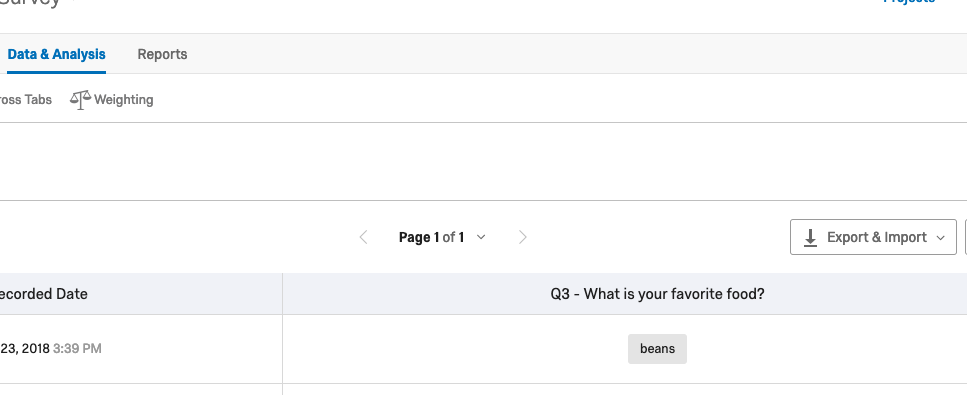
- Pick the CSV button and then click Download
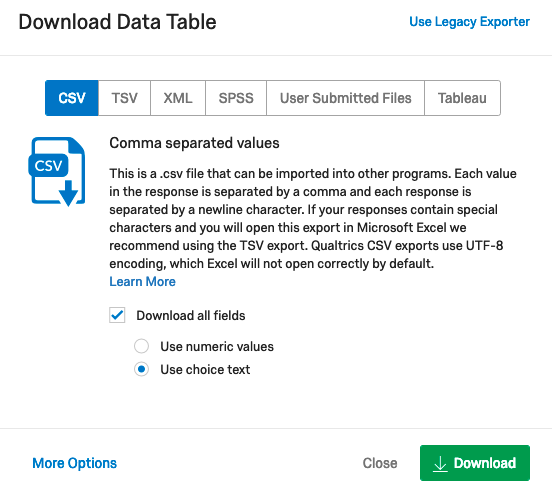
- Unzip the file.
- Select your survey's Data & Analytics Tab:
- Export using the API
- Call the Export Responses API, and use the following request body while specifying your desired timezone (calling this way will have your results match the result you would receive from exporting via the web):
{
    "result": {
        "progressId": "8905212b-860b-478d-83e9-5090a0a91b2f",
        "percentComplete": 0.0,
        "status": "inProgress"
    },
    "meta": {
        "requestId": "3d269540-9543-40e1-9610-debde2166176",
        "httpStatus": "200 - OK"
    }
}
You can then use the progressId to call the Get Import Progress so you know when the import succeeds or fails:
curl --location --request GET 'iad1.qualtrics.com/API/v3/surveys/SV_bwrylOA5nNnI9M1/import-responses/8905212b-860b-478d-83e9-5090a0a91b2f' \
    --header 'Authorization: Bearer <EXAMPLE_TOKEN>'
Upon a successful result:
{
    "result": {
        "percentComplete": 100.0,
        "status": "complete"
    },
    "meta": {
        "requestId": "12a3c89c-3cb4-4109-b91e-6be079b4c76b",
        "httpStatus": "200 - OK"
    }
}
You can verify the import of your responses by checking the Qualtrics web site, or by exporting the responses again.
The requestId is unique to the executed call. If you contact support about an error, please provide the requestId and timestamp of your request so they can help investigate the call failure.
If you to go back and look at the Data & Analysis screen you will see the responses you imported will say imported in the Response Type field:

Import Via Hosted File URL
Read through the Import Using Local File, as the steps for an import are the same. The only difference here is the way to call so Qualtrics fetches your file from the URL. That call is below:
curl --location --request POST 'iad1.qualtrics.com/API/v3/surveys/SV_bwrylOA5nNnI9M1/import-responses' \
    --header 'Content-Type: application/json' \
    --header 'Authorization: Bearer <EXAMPLE_TOKEN>' \
    --data-raw '{
        "format": "csv",
        "fileUrl": "http://myfilehost.com/MyResponses.csv"
    }'
From here, the responses and next steps match the file import exactly.
Download links from most free online file hosting sites are to a human usable "landing Page." You will want to use the link on that page to send in the above call. The link you send, if clicked from your browser, should result in a file download dialog.
Of the two options to provide the import file above, the more secure option is the direct file import. This transfers the file over HTTPS. If you are importing any kind of sensitive information into your survey, please pay careful attention to the security of your data in transit.
Authentication
- API Key: api_token
- OAuth 2.0: public_oauth2
This is a schema for x-api-token header authentication.
Security Scheme Type: | apiKey |
|---|---|
Header parameter name: | X-API-TOKEN |
This is a schema for a public oauth2 api.
Security Scheme Type: | oauth2 |
|---|---|
OAuth Flow (clientCredentials): | Token URL: https://ca1.qualtrics.com/oauth2/token Scopes:
|
OAuth Flow (authorizationCode): | Token URL: https://ca1.qualtrics.com/oauth2/token Authorization URL: https://ca1.qualtrics.com/oauth2/auth Scopes:
|
License
Apache 2.0