Enablement
Overview
In order for customers to access your published XM Extension, it must be enabled and installed on their brand. Once enabled, customers can install the extension by following our documentation for Installing Third Party Extensions.
Finally, Brand Admins may optionally restrict extension access to specific users or user types with user permissions.
Enabling your XM Extension in customer brands
Once your listing has been created and is live in the XM Marketplace, Qualtrics customers and prospects will be able to request more information and work with your organization to gain access from your marketplace listing.
Once you have reached an agreement with a client on their terms of extension usage, you will be able to grant a client access from within the Partner Portal. Navigate to Publish within the Partner Portal, and visit the Enablement tab on the left hand navigation.
Enablement can only be managed for listed extensions. Once the extension is enabled in a customer brand, the customer Brand Admin will be able to manage permissions for users to give them access to the extension.
Managing XM Extension user permissions
Permissions allow Brand Admins to configure which users have access to an Extension. This is the same process used to determine permissions to product features. They can be toggled for individual users or for custom user types by visiting the Admin page and following these instructions:
- Click either the Users or User Types tab
- Click the desired user or type
- In the modal, click the Extensions tab
- Select Enabled or Disabled. Please allow 15 minutes for changes to be reflected
Global User Types (default user types defined by Qualtrics) are not modifiable by Brand Admins. A subset of Global User Types are enabled by default for all Extensions.
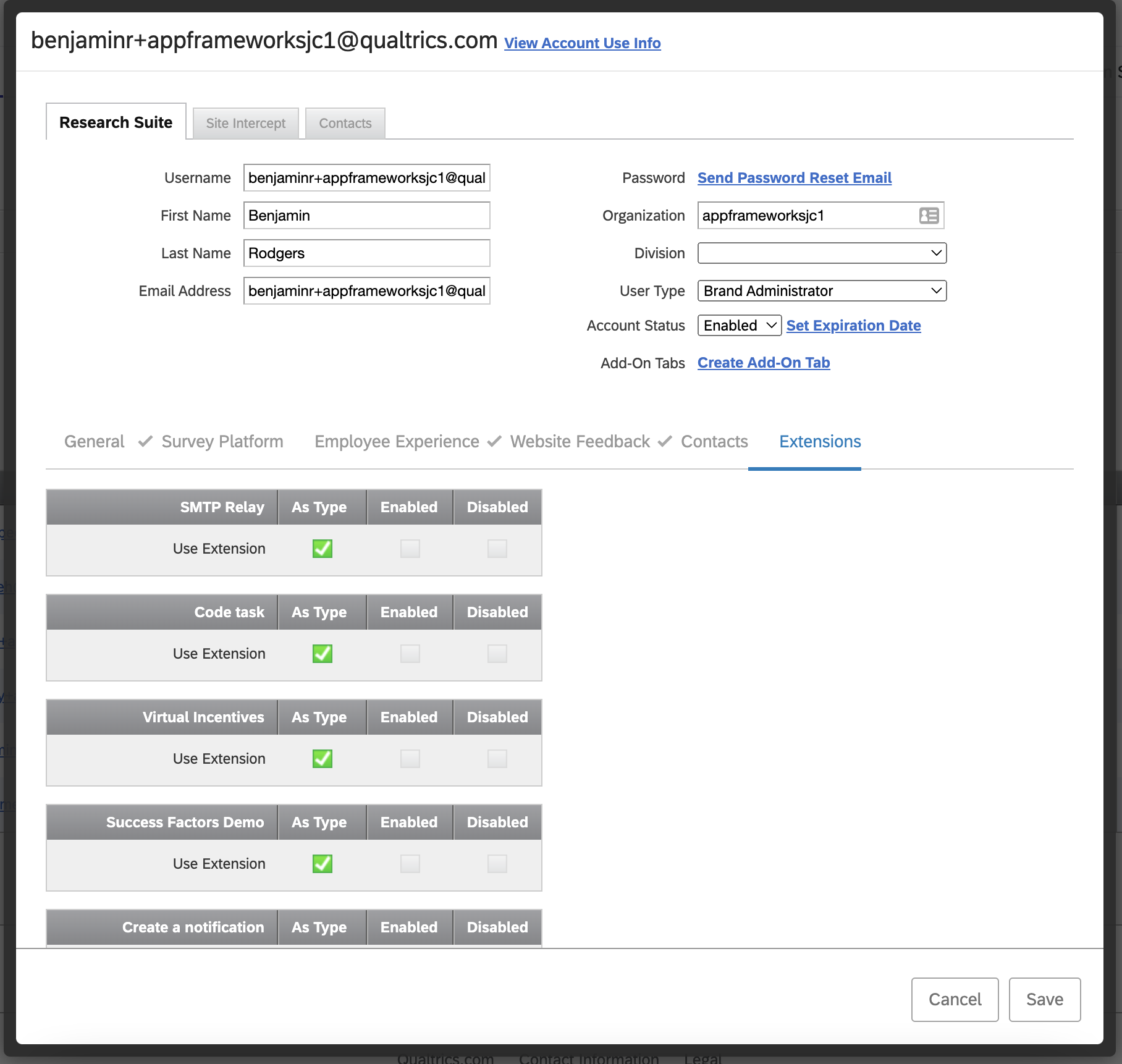
Brand Admins do not need permission to use the Extension in order to manage the Extension from the Admin page
Getting Help
At any time during the process, you can post questions to our community of experts in the XM Community or request an office hours appointment with our Developer Relations team through QPN Assistant.
Next Steps
This is the end of your XM Extension publishing journey, for now. Sit back, and relax!