Embed Insights Plugin Quickstart
Bring Qualtrics to customers in your platform through the Embed Insights Plugin!
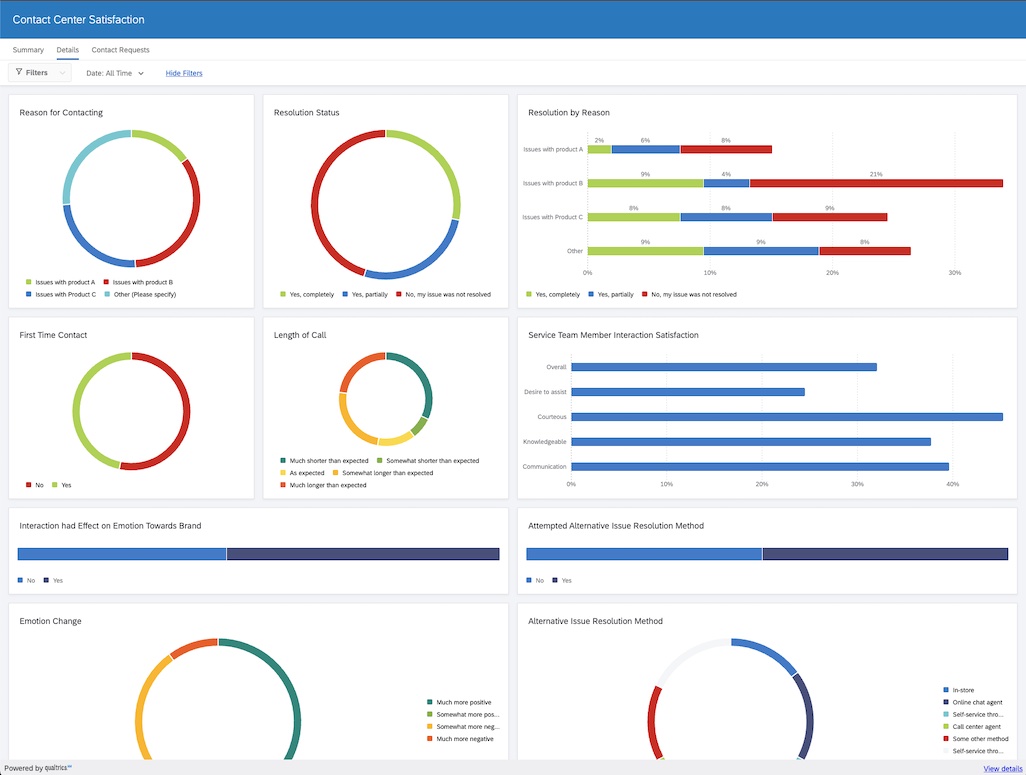
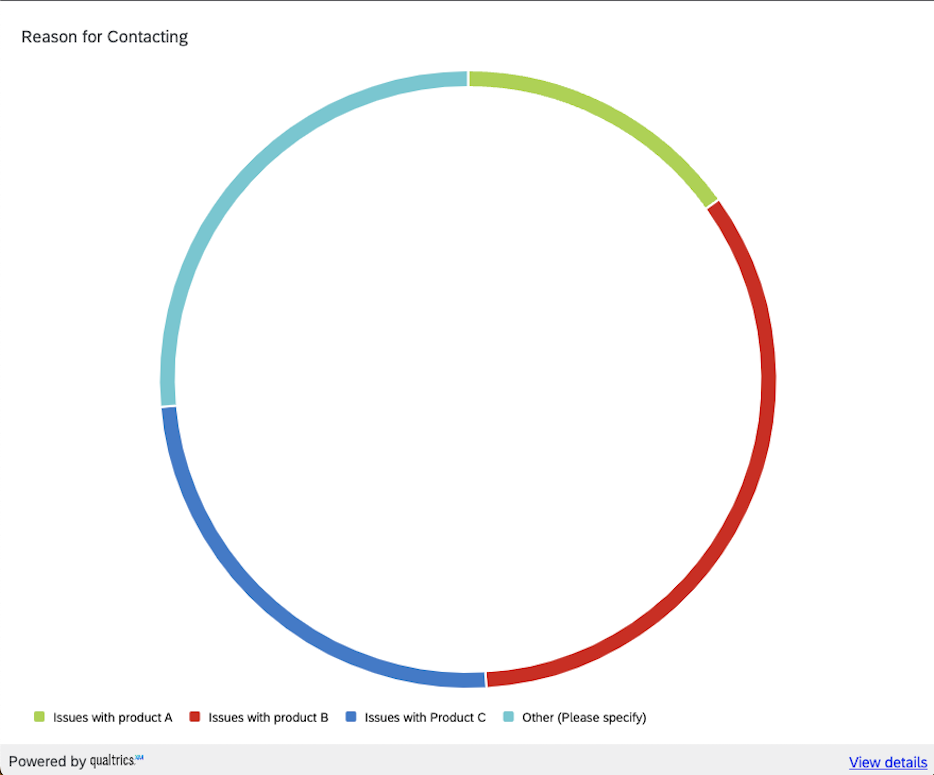
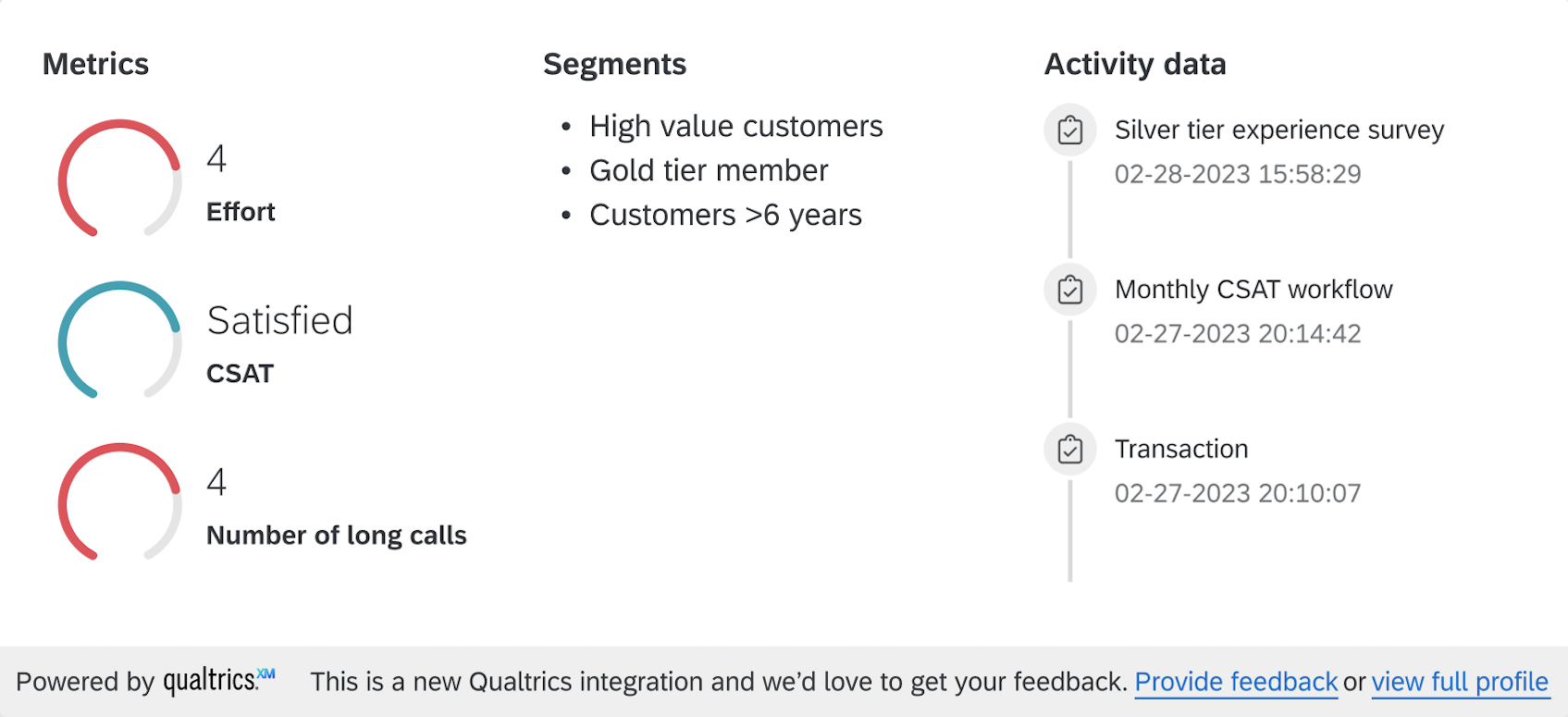
There are currently three main resources which can be embedded:
| Reporting Dashboards | Reporting Widgets | XiD Profile Cards |
|---|---|---|
 |  |  |
In this guide you will learn how to:
- Retrieve a required embed session from within Qualtrics, and
- Use the embed session within your system
For this quick start we will look to embed Qualtrics reporting widgets, which is currently the only insight that can be embedded. For information on other insight types see the Embed Insight deep dive
Prerequisites
Before starting, please ensure you've completed these steps:
- Completed the Extension Quickstart guide
- Ensure you have access to a Qualtrics dashboard and/or to a XM directory. If needed you can create a new CX dashboard
Embed a Qualtrics Reporting Dashboard/Widget or XiD Profile Card
This section highlights the critical steps of interacting with the Qualtrics service that empowers you to embed a Qualtrics reporting dashboard/widget or profile card into your system.
Step 1: Create an Embed Insight Plugin
Initialize a new Embed Insight plugin by executing the command xmt create plugin -t embed_insights. The Plugin will only contain a config.json file with no configuration required currently.
Next, submit your Extension by invoking the xmt submit extension command.
To facilitate communication between your system and Qualtrics, you will need to reference your Application/Extension ID. You will find it as the value of the id key in the manifest.json file found at the root directory of your Extension.
You only need one Extension ID to embed any resource in your system, you don’t need separate IDs for each dashboard, widget, or profile card. This ID will be referenced in the session creation API call in the app-id header.
Step 2: Share Your Extension
In order to review and iterate on your Extension, you need to share it with a Qualtrics brand. We recommend the following order for deciding which brand to share with during development:
- Developer Brand (most recommended)
- Shared sandbox brand
- Production brand (least recommended)
The first time you run xmt develop extension or xmt submit extension it may take up to 20 minutes for your Extension to appear in a Qualtrics brand that you have shared it with. All subsequent invocations of those commands result in very quick updates to your Extension in any brands that you have shared it with.
Step 3: Generate authentication details
Retrieve OAuth 2.0 client_credentials by following this guide to retrieve them.
Ensure when creating the oauth client to provide the write:embedded_dashboards scope for the dashboards/widgets and write:embedded_xid_profile_cards for the profile cards.
You should be able to make the following API request and get back a valid access_token:
curl -u <clientId:clientSecret> --request POST 'https://{datacenter}.qualtrics.com/oauth2/token?grant_type=client_credentials&scope=write:embedded_dashboards' \
--data-raw ''
The response will look like the following:
{
  "access_token":"b18e0e87-ada2-476f-b56c-ba019622c6f7",
  "token_type":"Bearer",
  "expires_in":3599,
  "scope":"write:embedded_dashboards"
}
Using Client Credentials is the quickest way to get up and running for development, but the auth code flow is the preferred method for production apps to authenticate as it allows individual users to connect to their Qualtrics account.
Once you have generated the authentication details you will gather corresponding ids and generate the sessions. Depending on which resource you would like to embed you would follow a different path.
Reporting Dashboards/Widgets
Step 4: Gather Dashboard and Widget IDs
To embed a Dashboard Widget, you first need to obtain the embed code which contains all of the relevant IDs. Follow these steps to obtain embed code instructions
The embed code will look something like 618954eea1e22200115971dc,Widget_54f6d136-0e54-4ab1-bf4f-4bae2d6e0499,,. This is a comma separated list of IDs. The first value is the dashboardId, the second is the widgetId. The third and forth field are both related to filters and will be explained in the Embed Insights Deep Dive
Step 5: Generate a Dashboard/Widget Temporary Session
With a non-expired Oauth2 token, a dashboardId, and a widgetId, you are now ready to create a session. These sessions expire after 15 minutes and will only allow access to the requested dashboard and widget as specified.
curl -X POST -H "content-type: application/json" -H "Authorization: Bearer GENERATED_BEARER_TOKEN" -H "App-Id: UNIQUE_APP_ID" -d '{}' https://{datacenter}.qualtrics.com/API/v3/embedded-insights/dashboards/{dashboardId}/widgets/{widgetId}/sessions
A correctly formatted request should return a result like this:
{
  "result":{
    "resourceUrl":"https://brandId.datacenter.qualtrics.com/embed-component/v1/widget/proxy/reporting-dashboard?encodedFragment=%2Fdashboard%2F628265971d34f70010a05cbf%2Fwidget%2FWidget_54f6d136-0e55-4ab1-bf4f-4bae2d6e0499&widgetExport=true&width=400&height=368&accessToken=c2e9397e3bfab652586de166ee1388662d51bd1bc017984032722f3a29046c13#/dashboard/628275971d34f70010a05cbf/widget/Widget_54f6d136-0e55-4ab1-bf4f-4bae2d6e0499?widgetExport=true&width=400&height=368"
  },
  "meta":{
    "statusCode":"201 - Created",
    "requestId":"629e2468-adac-4038-a644-a48766d384a9"
  }
}
Note the $.result.resourceUrl field which contains a full URL. This URL will allow for access to the resource without any additional authentication.
To generate a session for the entire dashboard you would only need to change the URL in the request to https://{datacenter}.qualtrics.com/API/v3/embedded-insights/dashboards/{dashboardId}/sessions
Step 6: Test the Dashboard/Widget URL in a Non-authenticated Environment
Taking the resourceUrl from step #3, open up an incognito window or another browser and paste in the URL. The widget should render without preexisting Qualtrics sessions in the browser.
If everything has been setup correctly, a Qualtrics reporting dashboard/widget should load without error in the same way you see it directly from a Qualtrics dashboard.
Once these sessions expire, you can repeat step 4 to generate a new session. This may require that step 2 be repeated to generate a new oauth access token.
XiD Profile Cards
Step 4: Gather Contact IDs
To embed a Profile Card you first need to obtain the contactId of the profile you want to embed. To obtain the contact Id you can search in the XM Directory by calling the Search Directory Contacts API.
To execute this request you can use the authentication details setup on Step #2, and you will require your directory PoolID as well as any filters you would like to add (e.g. filter by email address). Once the request succeeds you will find the contactId under the field id with the format "CID_".
Step 5: Generate a Profile Card Temporary Session
With a non-expired Oauth2 token and a contactId, you are now ready to create a session. These sessions expire after 15 minutes and will only allow access to the requested contact as specified.
curl -X POST -H "content-type: application/json" -H "Authorization: Bearer GENERATED_BEARER_TOKEN" -H "App-Id: UNIQUE_APP_ID" -d '{}' https://{datacenter}.qualtrics.com/API/v3/embedded-insights/profile-cards/{contactId}/sessions
A correctly formatted request should return a result like this:
{
    "result": {
        "resourceUrl": "https://brandId.datacenter.qualtrics.com/embed-component/v1/profile-card/proxy/app/profile-card?contactId=CID_0pO2dlxNAQi4uIm&accessToken=397f8fb7bc83f66b9e4a18b93691148e10126a559b69bab376bf42f78809205e"
    },
    "meta": {
        "requestId": "12dc0be1-1dad-4a77-b829-b832faa9fac3",
        "httpStatus": "201 - Created"
    }
}
Note the $.result.resourceUrl field which contains a full URL. This URL will allow for access to the resource without any additional authentication.
Step 6: Test the Profile Card URL in a Non-authenticated Environment
Taking the resourceUrl from Step #3, open up an incognito window or another browser and paste in the URL. The profile card should render with no preexisting Qualtrics sessions in the browser.
If everything has been setup correctly, a Qualtrics profile card should load without error.
Once these sessions expire, you can repeat step 4 to generate a new session. This may require that step 2 be repeated to generate a new oauth access token.
Next steps
Congratulations!! Now that you have successfully initially configured embedding insights, you can start reviewing the Embed Insights Deep Dive.