Test the SDK
Running the App
- Android
- iOS
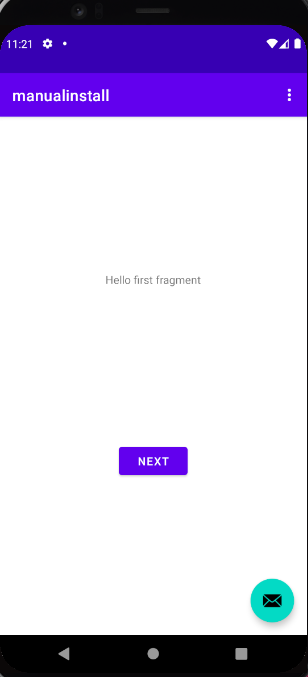
When you run the app on the emulator, you will see a screen similar to the following:
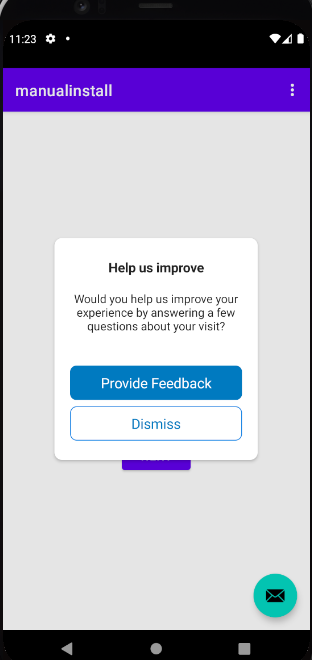
Tap on the button (with an envelope icon), and you should see the creative prompt as shown below:
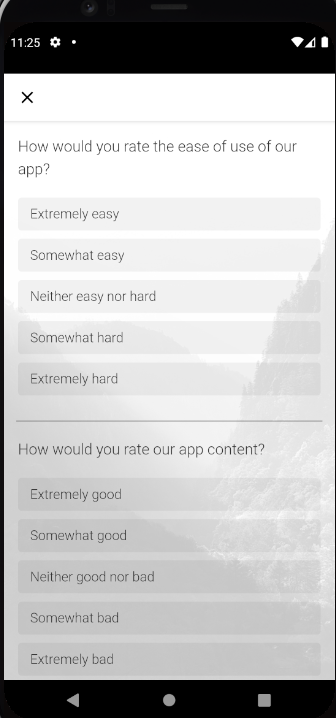
Tap on Provide Feedback to take the survey that is associated with your intercept. An example survey is shown below:
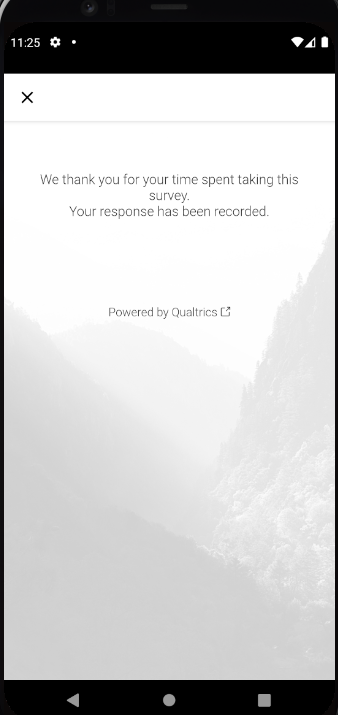
Finally, after you have taken the survey, the intercept concludes as shown in the following screen capture:
Now click Run from the Product menu in Xcode to run the app.
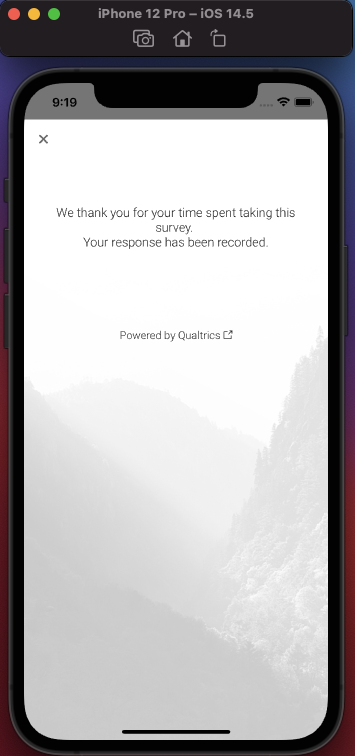
The following screenshot shows the app flow:
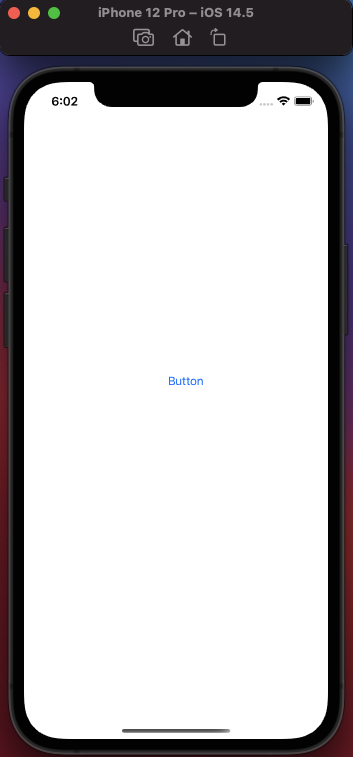
When you tap on the button, you should see an offer to take a survey:
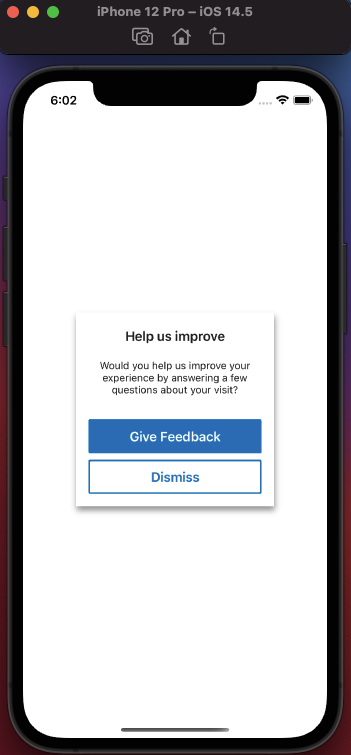
If you tap on Give Feedback you should see your survey:
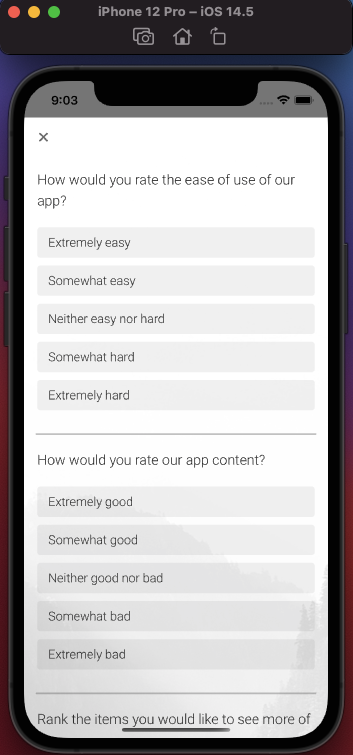
When you are finished with the survey, you should see a similar dialog:
You might receive the following message with an Objective-C app:
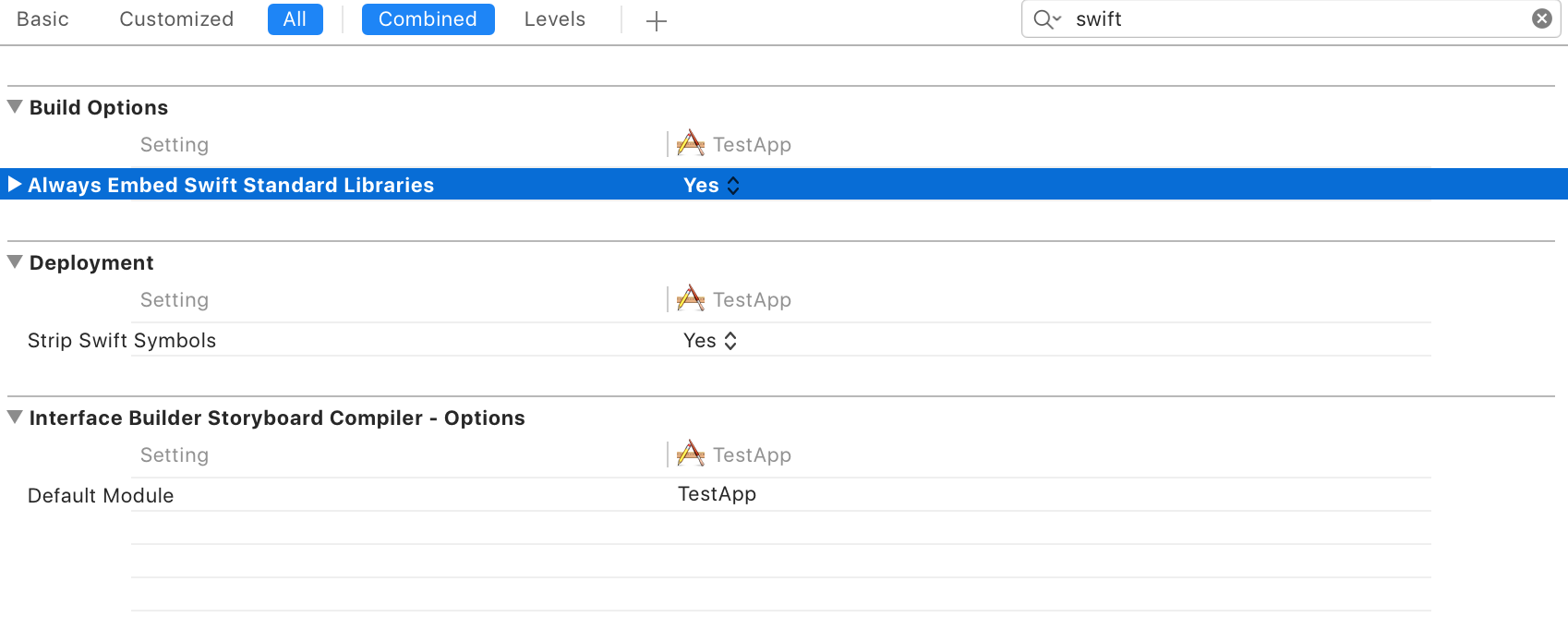
debuggerdyld: Library not loaded: @rpath/libswiftCore.dylibIf so, you need to embed the Swift libraries. In your project's build settings, make sure All is selected and search for Swift. Turn on Always Embed Swift Standard Libraries as shown below:
Display a Second Intercept
Now that we've set up a button to display an intercept in our project, let's go ahead and make a second button, which will call an intercept directly via its ID, without having to reinitialize the Qualtrics singleton. This is a key feature provided by version 2.0.0 or newer, allowing for better control over intercept presentation.
- Android
- iOS
Add New Button to MainActivity
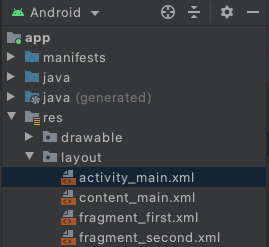
In your res > layout directory, open the activity_main.xml file:
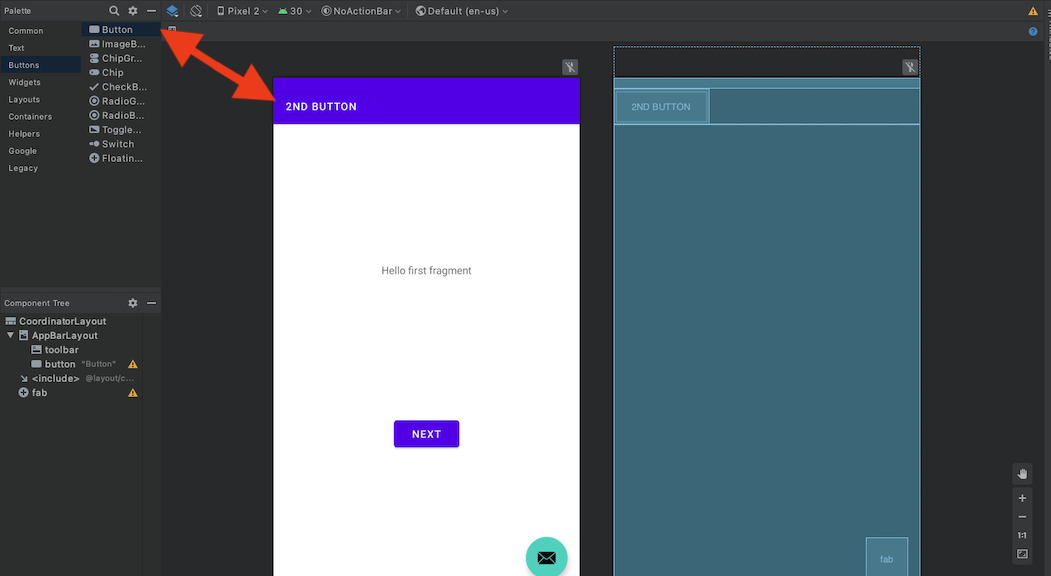
Click and drag a new button into the frame as shown below:
In your MainActivity.java file, add the following import statement:
import android.widget.Button;
Then, after your existing Qualtrics.instance().evaluateProject call, add the following block of code:
import android.util.Log;

Button secondButton = (Button) findViewById(R.id.button);
        secondButton.setOnClickListener(new View.OnClickListener() {
            public void onClick(View v) {
                Qualtrics.instance().evaluateIntercept("InterceptID", new IQualtricsCallback(){
                    @Override
                    public void run(TargetingResult targetingResult) {
                        if (targetingResult.passed()) {
                            Qualtrics.instance().displayIntercept(MainActivity.this, "InterceptID");
                        } else if (targetingResult.getTargetingResultStatus() != null) {
                            if (targetingResult.getError() != null) {
                                Log.v("Qualtrics", targetingResult.getError().getMessage());
                            } else {
                                Log.v("Qualtrics", targetingResult.getTargetingResultStatus().toString());
                            }
                        }

                    }
                });
            }
        });
Your onCreate method should look something like this:
protected void onCreate(Bundle savedInstanceState) {
        super.onCreate(savedInstanceState);
        setContentView(R.layout.activity_main);
        Toolbar toolbar = findViewById(R.id.toolbar);
        setSupportActionBar(toolbar);
        Qualtrics.instance().setLogLevel(QualtricsLogLevel.INFO);
        Qualtrics.instance().initializeProject("BRAND_ID", "PROJECT_ID", "EXT_REF_ID", this);


        FloatingActionButton fab = findViewById(R.id.fab);
        binding.fab.setOnClickListener(new View.OnClickListener() {
            @Override
            public void onClick(View view) {
                Qualtrics.instance().evaluateTargetingLogic(new MyCallback());
            }
        });

        Button secondButton = (Button) findViewById(R.id.button);
        secondButton.setOnClickListener(new View.OnClickListener() {
            public void onClick(View v) {
                Qualtrics.instance().evaluateIntercept("InterceptID", new IQualtricsCallback(){
                    @Override
                    public void run(TargetingResult targetingResult) {
                        if (targetingResult.passed()) {
                            Qualtrics.instance().displayIntercept(MainActivity.this, "InterceptID");
                        } else if (targetingResult.getTargetingResultStatus() != null) {
                            if (targetingResult.getError() != null) {
                                Log.v("Qualtrics", targetingResult.getError().getMessage());
                            } else {
                                Log.v("Qualtrics", targetingResult.getTargetingResultStatus().toString());
                            }
                        }

                    }
                });
            }
        });
    }
Run the App Again
Now restart the app and select your second button. When you click the second button you created, you should see the second intercept, its creative, and ultimately its survey.
Add New Button to View Controller
In your ViewController file, add the following button function. Insert one of the intercept IDs you have saved (preferably not the one viewed via the first button).
@IBAction func buttonTapped2(_ sender:UIButton)
{
    Qualtrics.shared.evaluateIntercept(for: "INTERCEPT_ID", completion: { (targetingResult) in
            if targetingResult.passed() {
                let displayed = Qualtrics.shared.display(viewController: self)
            }
        })
    }
}
- (IBAction)buttonTap:(UIButton *)sender
{
        [Qualtrics.shared evaluateInterceptFor:@"interceptID" completion: ^(TargetingResult * _Nonnull targetingResult) {
               if ([targetingResult passed]) {
                   [Qualtrics.shared displayWithViewController:self];
               }
           }];

}
Add a Second Button
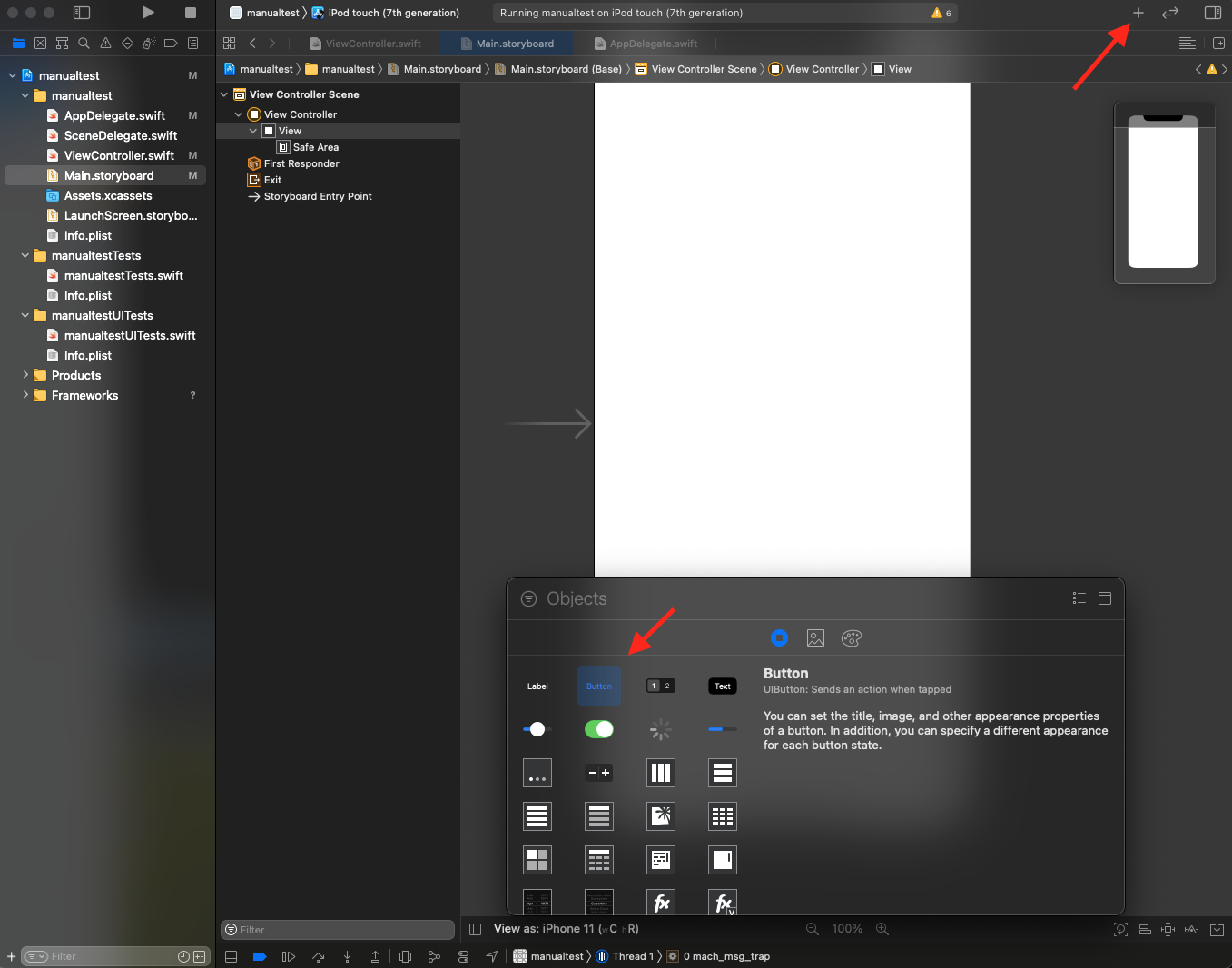
Now open the file called Main.storyboard and select the + sign (Library) button on the top nav bar.
Drag the button object from the object library to the view in the center of the screen as shown below:
Hook Up the Button
Turn on the assistant editor by toggling it on in Editor > Assistant.
This will show two files: the Main.storyboard file next to the ViewController source file. The source file (either ViewController.swift or ViewController.m) should be displayed on the bottom.
While holding down the control button on your keyboard, click & drag the button in Main.storyboard to the button action code @IBAction func buttonTapped2() in your ViewController source file. The entire method or function will highlight when you can release the mouse button. If done correctly, the hollow circle on the button action code's starting line number will now be filled in.
Run the App Again
Now click Run from the Product menu in Xcode to run the app. When you click the second button you created, you should see the second intercept, its creative, and ultimately its survey.