Basic Usage
Add the App Feedback Code
- Android
- iOS
- React Native
- Flutter
Set up the Activity
Open your MainActivity.java file and add the following import statement at the top of the file:
import com.qualtrics.digital.*;
Add the following line in the onCreate method:
Qualtrics.instance().initializeProject("BRAND_ID", "PROJECT_ID", "EXT_REF_ID", MainActivity.this);
The first few lines of your onCreate method should look like the following:
    @Override
    protected void onCreate(Bundle savedInstanceState) {
      super.onCreate(savedInstanceState);

      binding = ActivityMainBinding.inflate(getLayoutInflater());
      setContentView(binding.getRoot());

      setSupportActionBar(binding.toolbar);

      NavController navController = Navigation.findNavController(this, R.id.nav_host_fragment_content_main);
      appBarConfiguration = new AppBarConfiguration.Builder(navController.getGraph()).build();
      NavigationUI.setupActionBarWithNavController(this, navController, appBarConfiguration);

      // Add this line:
      Qualtrics.instance().initializeProject("BRAND_ID", "PROJECT_ID", "EXT_REF_ID", MainActivity.this);
Replace BRAND_ID and PROJECT_ID with the Brand ID and Project ID you obtained from the App Feedback project within the Qualtrics Experience Management (XM) platform.
Add a MyCallback Subclass
You need to implement a callback for the Qualtrics APIs. This will be used to call the displayIntercept() method based on the evaluateIntercept() result. A good place is before the last closing brace } in your MainActivity.java class. Add the following code:
import java.util.Map;

private class MyCallback implements IQualtricsProjectEvaluationCallback {
   @Override
   public void run(Map<String, TargetingResult> targetingResults) {
       for (Map.Entry<String,TargetingResult> result: targetingResults.entrySet())
           if (result.getValue().passed()) {
               Qualtrics.instance().displayIntercept(MainActivity.this, result.getKey());
           }
   }
}
This callback will be called by the Qualtrics.evaluateProject method once the evaluation is complete.
Lambda Expression
You can also implement a lambda expression rather than creating a private class that implements the
IQualtricsProjectEvaluationCallbackinterface (in Java 8 and later).
In the onCreate method, you will find autogenerated code like the following:
FloatingActionButton fab = (FloatingActionButton) findViewById(R.id.fab);
binding.fab.setOnClickListener(new View.OnClickListener() {
    @Override
    public void onClick(View view) {
        Snackbar.make(view, "Replace with your own action", Snackbar.LENGTH_LONG)
                .setAction("Action", null).show();
    }
});
Replace the code within the onClick block with the following:
Qualtrics.instance().evaluateProject(new MyCallback());
It should look like the following:
FloatingActionButton fab = (FloatingActionButton) findViewById(R.id.fab);
binding.fab.setOnClickListener(new View.OnClickListener() {
    @Override
    public void onClick(View view) {

        // Insert this line
        Qualtrics.instance().evaluateProject(new MyCallback());

        // Comment out or remove the original autogenerated code
        //Snackbar.make(view, "Replace with your own action", Snackbar.LENGTH_LONG)
        //.setAction("Action", null).show();
    }
});
Set up the App Delegate
Open Xcode and click on AppDelegate.m or AppDelegate.swift (depending on your language) to open the file in the editor.
Add the following import to the top of the file depending on the language:
import Qualtrics
@import Qualtrics;
Initialize the Qualtrics Singleton
Add the following code to the didFinishLaunchingWithOptions method:
Qualtrics.shared.initializeProject(brandId: "BRAND_ID", projectId: "PROJECT_ID", extRefId: "EXT_REF_ID", completion: { (myInitializationResult) in print(myInitializationResult);})
[Qualtrics.shared initializeProjectWithBrandId:@"BRAND_ID" projectId:@"PROJECT_ID", extRefId:@"EXT_REF_ID", completion:nil];
Replace BRAND_ID and PROJECT_ID with the IDs you obtained earlier, in quotes. The code should look like the following:
func application(_ application: UIApplication, didFinishLaunchingWithOptions launchOptions: [UIApplication.LaunchOptionsKey: Any]?) -> Bool {
        // Override point for customization after application launch.
        Qualtrics.shared.initializeProject(brandId: "BRAND_ID", projectId: "PROJECT_ID", extRefId: "EXT_REF_ID", completion: { (myInitializationResult) in print(myInitializationResult);})
        return true
  }
- (BOOL)application:(UIApplication *)application didFinishLaunchingWithOptions:(NSDictionary *)launchOptions {
    // Override point for customization after application launch.
    [Qualtrics.shared initializeProjectWithBrandId:@"BRAND_ID" projectId:@"PROJECT_ID" extRefId:@"EXT_REF_ID" completion:nil];
    return YES;
}
Set Up the Main ViewController
Click on ViewController.m or ViewController.swift (depending on your language) to open the view controller's source file in the editor.
Add the following import to the top of the file depending on the language:
import Qualtrics
@import Qualtrics;
User Interface Setup
Add the following button code to the ViewController class. This will be used to show the end-user the creative when clicked.
@IBAction func buttonTapped(_ sender:UIButton)
{
    Qualtrics.shared.evaluateProject { (targetingResults) in
        for (interceptID, result) in targetingResults {
            if result.passed() {
                let displayed = Qualtrics.shared.display(viewController: self)
            }
        }
    }
}
- (IBAction)buttonTap:(UIButton *)sender
{
        [Qualtrics.shared evaluateProjectWithCompletion:^(NSDictionary<NSString *,TargetingResult *>* targetingResults){
           for (NSString* interceptID in targetingResults) {
               TargetingResult *result = targetingResults[interceptID];
               if ([result passed]) {
                   [[Qualtrics shared] displayWithViewController:self];
               }
           }
       }];

}
Note About
evaluateProjectWithCompletion
evaluateProjectWithCompletionis the most important method in the Mobile App SDK. It causes the framework to evaluate the intercept's logic asynchronously. Once the framework has completed its evaluation, the app executes the completion block. Thepassedproperty (Objective-C) or method (Swift) signals to the app that the result of the intercept's logic is true, and the app should display the survey. If there is need for the logic to be changed to never display the survey, or display surveys more frequently, this can be done by your Qualtrics Admin. The business logic is separate from the app and can be changed in the Qualtrics portal without recompiling and redistributing your app.
For more information about the business logic, please see Action Set Logic.
Add a Button
Now open the file called Main.storyboard and select the + (Library) button on the top nav bar.
Drag the button object from the object library to the view in the center of the screen as shown below:
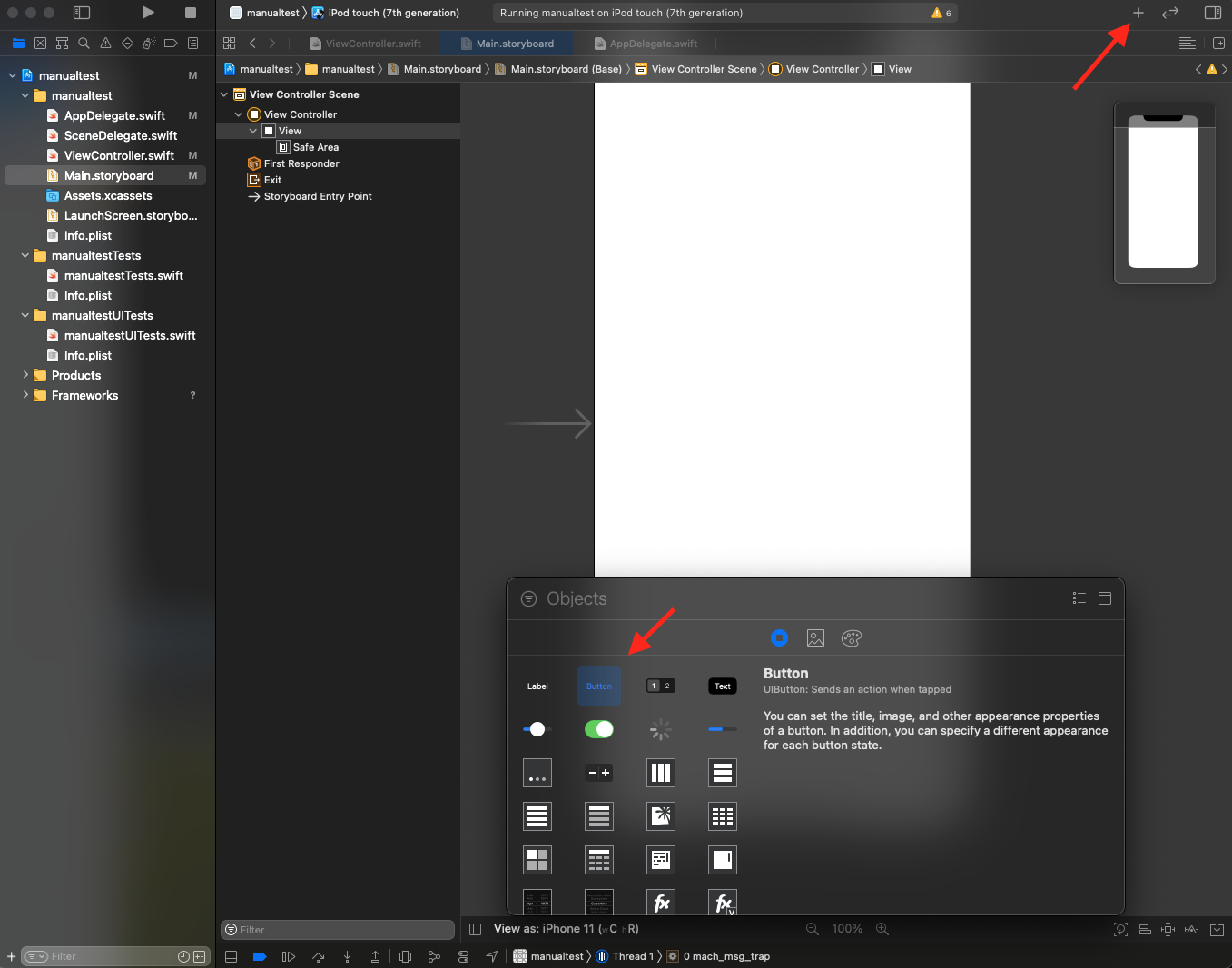
Rename the button, if desired, in the properties inspector.
Hook Up the Button
Turn on the assistant editor by toggling it on in Editor > Assistant.
This will show two files: the Main.storyboard file next to the ViewController source file. The source file (either ViewController.swift or ViewController.m) should be displayed on the bottom.
While holding down the control button on your keyboard, click & drag the button in Main.storyboard to the button action code @IBAction func buttonTapped() in your ViewController source file. The entire method or function will highlight when you can release the mouse button. If done correctly, the hollow circle on the button action code's starting line number will now be filled in.
Import Statement
When we first set up our project, a file called App.js should have been generated in our project's folder. Open it in any text editor. We'll alter the pre-generated code in this file to implement the Qualtrics SDK.
At the top of App.js you'll see a few import statements. We'll do a few things here:
- Add
Buttonto the module list for thereact-nativeimport (we'll use a few buttons soon). - Add the following import statement to bring in Qualtrics:
import Qualtrics from 'react-native-qualtrics';.
Your import section will look similar to this:
import React from 'react';
import { View, Button } from 'react-native';

import Qualtrics from 'react-native-qualtrics';

// ...
Initializing Your Qualtrics Project
We'll now want to add a function to initialize your project in the Qualtrics SDK.
On a blank line in App.js, before the const App declaration, we'll define the following function, which initializes the Qualtrics SDK and then console logs the initialization results:
function initMe() {
  console.log('Initializing...');
  Qualtrics.initializeProjectWithExtRefId(
    'BRAND_ID',
    'PROJECT_ID',
    '',
    initializationResults => {
    console.log(initializationResults);
    console.log('Initialization Done');
    },
  );
}
Replace the BRAND_ID and PROJECT_ID with the values from your project, leaving them in quotes.
Evaluating and Displaying
Let's add another function under initMe() that will evaluate and display our initialized project.
function evalMe() {
  console.log('Evaluating...');
  Qualtrics.evaluateProject(targetingResults => {
    console.log(targetingResults);
    for (var intercept in targetingResults) {
      let result = targetingResults[intercept];
      if (result.passed) {
        Qualtrics.display();
      }
    }
    console.log('Evaluation Done');
  });
}
Adding Some Qualtrics Buttons
Now that we've got our two functions defined (initMe() and evalMe()), let's add some buttons that actually run our functions!
In App.js navigate to the return statement inside the const App declaration we saw before. It should look like the following:
return (
    <SafeAreaView style={backgroundStyle}>
      <StatusBar barStyle={isDarkMode ? 'light-content' : 'dark-content'} />
      <ScrollView
        contentInsetAdjustmentBehavior="automatic"
        style={backgroundStyle}>
        <Header />
        <View
          style={{
            backgroundColor: isDarkMode ? Colors.black : Colors.white,
          }}>
          <Section title="Step One">
            Edit <Text style={styles.highlight}>App.js</Text> to change this
            screen and then come back to see your edits.
          </Section>
          <Section title="See Your Changes">
            <ReloadInstructions />
          </Section>
          <Section title="Debug">
            <DebugInstructions />
          </Section>
          <Section title="Learn More">
            Read the docs to discover what to do next:
          </Section>
          <LearnMoreLinks />
        </View>
      </ScrollView>
    </SafeAreaView>
  );
Let's delete everything in-between the parenthesis () so that it looks like this:
return (

);
Now add the following code in-between the parenthesis:
<View>
  <SafeAreaView style={backgroundStyle}>
  </SafeAreaView>
  <View><Button title="Initialize Me" onPress={() => initMe()} /></View>
  <View><Button title="Evaluate & Display Me" onPress={() => evalMe()} /></View>
</View>
Your return statement should now look like this:
return (
    <View>
      <SafeAreaView style={backgroundStyle}>
      </SafeAreaView>
      <View><Button title="Initialize Me" onPress={() => initMe()} /></View>
      <View><Button title="Evaluate & Display Me" onPress={() => evalMe()} /></View>
    </View>
  );
You can now reload the app or re-run react-native start + react-native run-ios to have your app open. You should now see two buttons.
Click on "Initialize Me", wait a few seconds and then click on "Evaluate & Display Me" and you will see your intercept appear, as long as it passes the intercept logic defined in the Qualtrics portal. You will see the logging output to your terminal window that's running react-native start.
Import the Plugin
In your Dart file (for example lib/main.dart), import the Qualtrics Flutter plugin:
import 'package:qualtrics_digital_flutter_plugin/qualtrics_digital_flutter_plugin.dart';

var qualtrics = QualtricsDigitalFlutterPlugin();
Initializing Your Qualtrics Project
Initialize the project with your Brand ID and Project ID (Zone ID):
Future<void> initializeProject() async {
  var initResults = await qualtrics.initializeProject(
    'BRAND_ID',
    'PROJECT_ID',
  );
  print(initResults);
}
To initialize with XM Directory support, use an external reference ID:
Future<void> initializeWithExtRefId() async {
  var initResults = await qualtrics.initializeProjectWithExtRefId(
    'BRAND_ID',
    'PROJECT_ID',
    'EXT_REF_ID',
  );
  print(initResults);
}
Replace BRAND_ID and PROJECT_ID with the values from your App Feedback project.
Evaluating and Displaying
Evaluate all initialized intercepts, then display creatives that pass targeting logic:
Future<void> evaluateAndDisplay() async {
  var evaluateProjectResult = await qualtrics.evaluateProject();
  for (var interceptId in evaluateProjectResult.keys) {
    var targetingResult = evaluateProjectResult[interceptId]!;
    var passed = targetingResult['passed'];
    var surveyUrl = targetingResult['surveyUrl'];
    print('$interceptId: passed: $passed surveyUrl: $surveyUrl');
  }
  var displayed = await qualtrics.display();
  print(displayed);
}
To evaluate and display a specific intercept:
Future<void> evaluateAndDisplayIntercept(String interceptId) async {
  var targetingResult = await qualtrics.evaluateIntercept(interceptId);
  print(
    '${targetingResult['interceptId']}: passed: ${targetingResult['passed']}, surveyUrl: ${targetingResult['surveyUrl']}',
  );
  if (targetingResult['passed'] == 'true') {
    var displayed = await qualtrics.displayIntercept(interceptId);
    print(displayed);
  }
}
Setting Custom Properties
You can set string, number, and datetime properties used by intercept logic:
await qualtrics.setString('firstName', 'John');
await qualtrics.setNumber('age', 42);
await qualtrics.setDateTime('currentDate');
Registering View Visits
Record visits to particular views for View Count targeting:
await qualtrics.registerViewVisit('HomeScreen');
For a complete working sample, see the example app and the Flutter API Reference.