Install the SDK
To leverage Qualtrics capabilities within your app, we recommend you install the Qualtrics SDK. This guide outlines how to install the SDK for each of the platforms we support.
- Android
- iOS
- React Native
- Flutter
Installing the Qualtrics Dependency
You can use Gradle to install via our Maven repository, or manually install the SDK's AAR package.
Installing the SDK via Gradle
The version number used in the sample code below is v2.7.0. However, please be sure to change it to the latest App Feedback SDK version.
- Open the project-level
build.gradlefile. - Add a new Maven repository for the Qualtrics SDK package to your
allprojectssection:
allprojects {
    repositories {
        google()
        maven {
            url "https://s3-us-west-2.amazonaws.com/si-mobile-sdks/android/"
        }
    }
}
Do not add the Maven repository to the buildscript/repository section. The project will not build.
- Now navigate to the module-level
build.gradlefile. - Add the following to your dependencies block:
dependencies {
    // ...
    implementation 'com.qualtrics:digital:2.7.0'
}
Installing the SDK Manually
The SDK can be integrated manually into an Android project rather than installed using Gradle.
- Download the latest SDK (
.aar) file from the Android Mobile App SDK Releases page. - See how to add
.aarpackages in Android Studio: https://developer.android.com/studio/projects/android-library#psd-add-aar-jar-dependency - Open the module-level
build.gradlefile and add the following dependency:
dependencies {
    // ...
    implementation project(':digital-2.7.0')
}
When installing the Qualtrics SDK manually, the project name must match the file name without the .aar extension. Also, the version of the SDK is in the file name. In this case, it is 2.7.0, so the exact version used in your app may differ from this example.
The line implementation project(':digital-2.7.0') (or the deprecated compile project(':digital-2.7.0') if using an older version of Gradle) should come after the other dependencies.
- You can now sync Gradle.
Adding the Qualtrics Activities
Open the AndroidManifest.xml file from the src/main folder in the project root and add the following XML snippet after the existing activity:
<activity android:name=
    "com.qualtrics.digital.QualtricsSurveyActivity"/>
<activity android:name=
    "com.qualtrics.digital.QualtricsPopOverActivity"
          android:theme="@style/Qualtrics.Theme.Transparent"
          android:configChanges="orientation|screenSize|keyboard|keyboardHidden" />
The AndroidManifest.xml file should appear like the example below:
<?xml version="1.0" encoding="utf-8"?>
<manifest xmlns:android="http://schemas.android.com/apk/res/android"
    package="com.example.manualinstall">

    <application
        android:allowBackup="true"
        android:icon="@mipmap/ic_launcher"
        android:label="@string/app_name"
        android:roundIcon="@mipmap/ic_launcher_round"
        android:supportsRtl="true"
        android:theme="@style/Theme.Manualinstall">

        <activity
            android:name=".MainActivity"
            android:label="@string/app_name"
            android:theme="@style/Theme.Manualinstall.NoActionBar">
            <intent-filter>
                <action android:name="android.intent.action.MAIN" />

                <category android:name="android.intent.category.LAUNCHER" />
            </intent-filter>
        </activity>

        <!-- INSERTED QUALTRICS LINES -->
        <activity android:name=
            "com.qualtrics.digital.QualtricsSurveyActivity"/>
        <activity android:name=
            "com.qualtrics.digital.QualtricsPopOverActivity"
            android:theme="@style/Qualtrics.Theme.Transparent"
            android:configChanges="orientation|screenSize|keyboard|keyboardHidden" />
        <!-- INSERTED QUALTRICS LINES -->

    </application>

</manifest>
These activities are required to display the survey in a popup over the host app.
Installing the Qualtrics Framework
You can use CocoaPods, Carthage, or Swift Package Manager to set up the Qualtrics framework, or manually download and install it. If you want to install the framework manually, you can skip to Installing the Framework Manually.
Installing the Framework with CocoaPods
For more information on CocoaPods, see CocoaPods Documentation.
If you have not already, install CocoaPods with the following in Terminal:
sudo gem install cocoapods
(You will be prompted to enter your password)
Next, you need to update the repository spec for CocoaPods by typing:
pod setup
Navigate to the root directory for your new project and type the following in Terminal:
pod init
You will now need to edit the project's Podfile. It is in the root directory for your project. In the Podfile, add the following line under the use_frameworks! target for your app:
pod 'Qualtrics'
Save and close your Podfile. Your Podfile should look similar to the following example:
# Uncomment the next line to define a global platform for your project
platform :ios, '15.0'

target 'TestApp' do
  # Uncomment the next line if you're using Swift or would like to use dynamic frameworks
  use_frameworks!
    pod 'Qualtrics'

  # Pods for TestApp

end
Close the project file in Xcode. Then, in Terminal, ensure that you are in the project's root directory and type:
pod install
This will install the Qualtrics framework, create a new workspace, and modify your project to include the framework.
After CocoaPods creates the workspace file, you will want to only open the workspace file and no longer open the project file going forward.
In Xcode, select Open a project or file and choose the new workspace file. It should have the extension .xcworkspace.
Installing the Framework with Carthage
For more information on Carthage, see Carthage Documentation.
You can easily install Carthage via Homebrew. For more info on Homebrew, see Homebrew Documentation.
brew install carthage
In the root directory for your new project, create a Cartfile:
touch Cartfile
Add the Qualtrics dependencies in your Cartfile:
binary "https://s3-us-west-2.amazonaws.com/si-mobile-sdks/ios/Qualtrics.json" == 2.7.1
Note: Please update the above with the latest version of the SDK framework (in this example it is version 2.7.1).
Close the Cartfile. Then, from Terminal, ensure that you are in the project's root directory and type:
carthage update
Now navigate to <projectroot>/Carthage/Build/iOS and you will see the Qualtrics.framework.
Drag and drop the Qualtrics.framework folder to your project's Embed Framework section under "Build Phases" in Xcode (check copy items if needed).
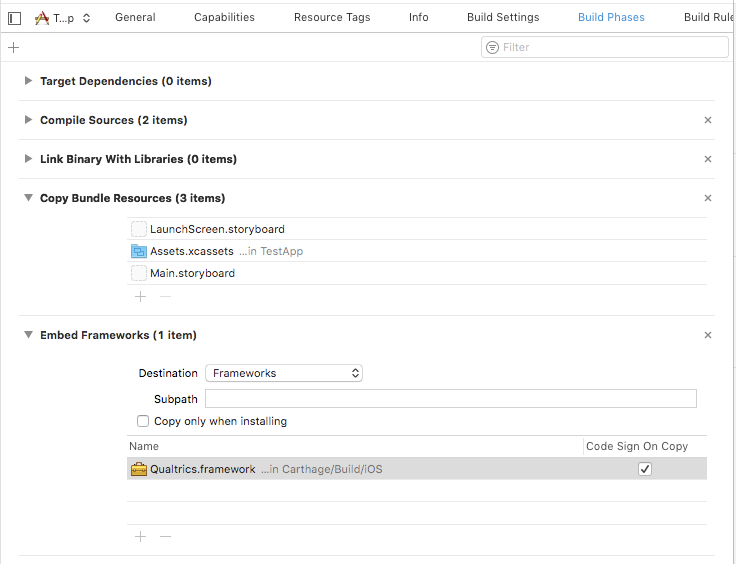
Installing the Framework with SPM (Swift Package Manager)
The Qualtrics framework is also available as a Swift package and can be installed directly from Xcode. Follow the steps listed here to install the framework via Swift Package Manager.
Installing the Framework Manually
If you do not use CocoaPods or Carthage, you can install the framework manually. Select and download the latest framework as a zip file from iOS Releases.
Unzip the file to find a LICENSE file and a Qualtrics.framework folder. Move Qualtrics.framework to your project's root directory.
Open Xcode and select the project in the navigator pane. From there, select the app under Targets and choose General to view the General settings window.
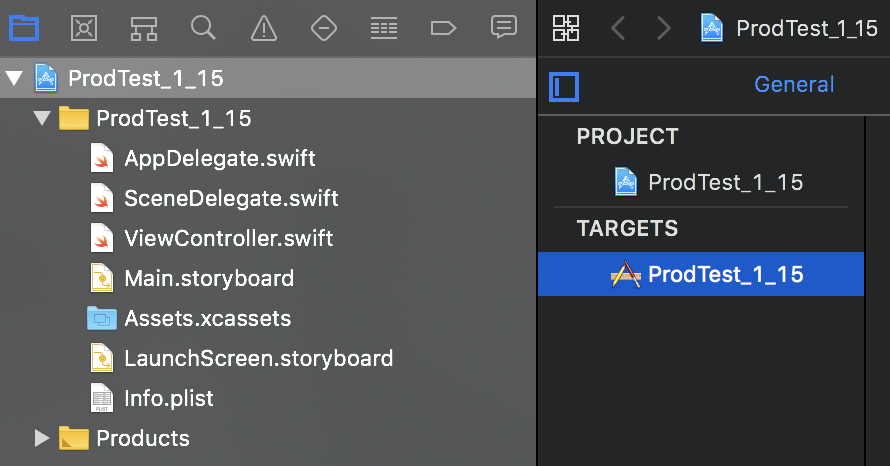
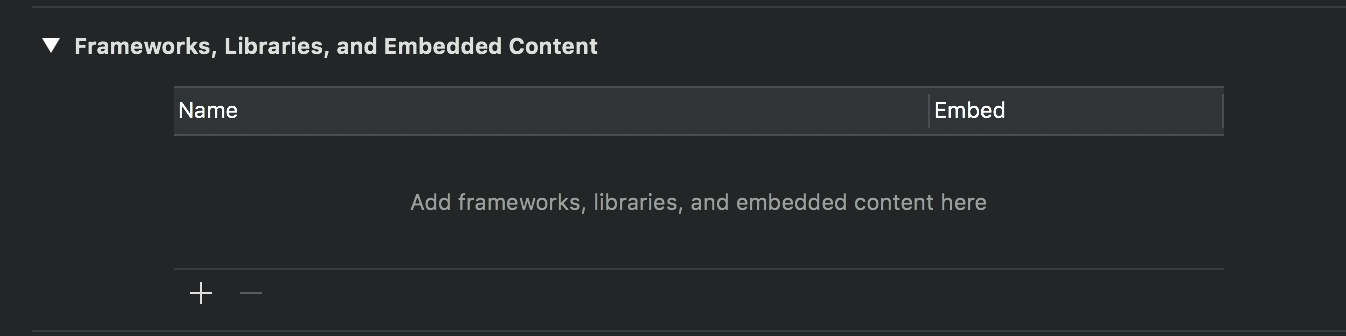
At the bottom of the General settings page is a section labeled Frameworks, Libraries and Embedded Content. Click the + button in this section.
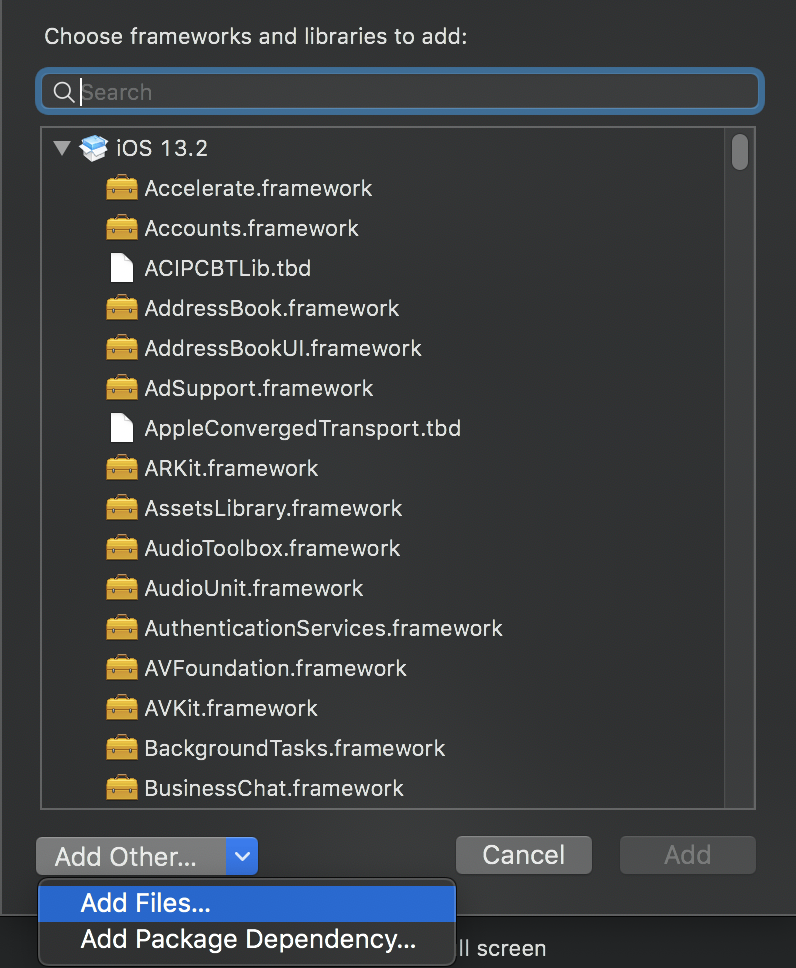
In the dialog that appears (shown below), click on the Add Other… button and select Add Files...
Navigate to the location where the SDK was unzipped (project's root directory), select Qualtrics.framework, and click on the Open button. The SDK will appear under the Frameworks, Libraries and Embedded Content section, as shown below:

Installing the Qualtrics NPM Module
Add react-native-qualtrics to your project using npm or yarn.
npm install react-native-qualtrics --save
yarn add react-native-qualtrics
As an alternative, you can add the react-native-qualtrics in your project's package.json manually. Please use the latest version. You can check it in React Native SDK Releases.
"dependencies": {
    ...
    "react-native-qualtrics": "2.X.X"
    ...
}
Run npm install in your terminal window to install the added/updated packages.
Additional Setup Steps for iOS
If you have not already, please install CocoaPods via: sudo gem install cocoapods
cd <your_project>/iosand runpod setupto set up CocoaPods for your project- Run
pod initto create aPodfilefor your project - Open the
Podfileand update the iOS platform version:
platform :ios, '15.0'
- Run
pod install - Run
npm install - Run:
react-native start - Run your project in Xcode (
Cmd+R) or open another terminal window and runreact-native run-ios
Troubleshooting for iOS
Check iOS Native SDK Version
Open your Podfile.lock and make sure Qualtrics is there with the newest version specified in iOS SDK Releases.
If it is not there, add the following line under your <project_name>'s target: pod 'Qualtrics', '~> 2.X.X', where 2.X.X is a proper version number, to force the version of your choosing.
target 'gettingStarted' do
  config = use_native_modules!
  pod 'Qualtrics', '~> 2.X.X'
end
Objective-C with Swift Issues
You might receive the following message with an Objective-C app: dyld: Library not loaded: @rpath/libswiftCore.dylib. If so, you need to embed the Swift libraries. Open the ios folder in Xcode and in your project's build settings, make sure All is selected and search for Swift. Turn on Always Embed Swift Standard Libraries.
If you get an error when running the pod install command, you may need to increase the iOS version to 15.
Simulator Errors
You may run into Simulator issues at this point. Please ensure that you have Simulator fully closed out before trying to start the app. If issues persist, try also increasing the iOS version in your Podfile followed by another pod install.
Additional Setup Steps for Android
We have a few extra steps on the Android side before it will operate correctly.
- Append the following lines to
android/settings.gradle:
include ':react-native-qualtrics'
project(':react-native-qualtrics').projectDir = new File(rootProject.projectDir,  '../node_modules/react-native-qualtrics/android')
- Insert the following lines inside the dependencies block in
android/app/build.gradle:
implementation project(':react-native-qualtrics')
- Add the SDK Maven repo to your Android configuration:
In android/build.gradle, add the following:
// Add to repositories section
repositories {
    maven {
        url "https://s3-us-west-2.amazonaws.com/si-mobile-sdks/android/"
    }
}

// Add outside of any existing blocks
allprojects {
    repositories {
        maven {
            url "https://s3-us-west-2.amazonaws.com/si-mobile-sdks/android/"
        }
    }
}
If you are using Mobile Notification Creatives and you are targeting Android 13 or newer, you will also need to request notification permissions. Failure to do so will result in notifications not being displayed on devices running Android 13 or newer. Reference the Android documentation.
- Add Qualtrics Activities:
Open the AndroidManifest.xml file from the android/app/src/main folder in the project root and update the file as shown below:
<?xml version="1.0" encoding="utf-8"?>
<manifest [...]>
    <application [...]>
        <activity [...]>
            [...]
        </activity>

        <!-- ADD THESE LINES -->
        <activity android:name="com.qualtrics.digital.QualtricsSurveyActivity" />
        <activity android:name="com.qualtrics.digital.QualtricsPopOverActivity"
            android:theme="@style/Qualtrics.Theme.Transparent"
            android:configChanges="orientation|screenSize|keyboard|keyboardHidden" />
        <!-- ADD THESE LINES -->

    </application>
</manifest>
If you're having trouble finding these files, they may be easier to locate using Android Studio.
Troubleshooting for Android
Bundle Loading Issues
If you encounter issues with the JS bundle not loading in React Native debug mode, ensure android:usesCleartextTraffic="true" is set in your android/app/src/debug/AndroidManifest.xml file within the <application> tag.
Installing the Qualtrics Package
Once your Flutter environment is set up, you can install the Qualtrics SDK. Please use the latest version. You can check it in Flutter SDK Releases.
- In terminal,
cd <your_app>. - Run
flutter pub add qualtrics_digital_flutter_plugin. - Open your
main.dartand add the entire example code.
Additional Setup Steps for Android
Update minSDKVersion
- Open
<your_app>/android/app/build.gradle. - Make sure you are targeting API level
21or higher.
Add Qualtrics Activities
Open the AndroidManifest.xml file from the android/app/src/main folder in the project root and update the file as shown below:
<?xml version="1.0" encoding="utf-8"?>
<manifest [...]>
    <application [...]>
        <activity [...]>
            [...]
        </activity>

        <!-- ADD THESE LINES -->
        <activity android:name="com.qualtrics.digital.QualtricsSurveyActivity" />
        <activity android:name="com.qualtrics.digital.QualtricsPopOverActivity"
            android:theme="@style/Qualtrics.Theme.Transparent"
            android:configChanges="orientation|screenSize|keyboard|keyboardHidden" />
        <!-- ADD THESE LINES -->

    </application>
</manifest>
Obfuscation
If you are using R8 instead of ProGuard, R8 respects ProGuard rules files (see Android Developer Docs).
Additional Setup Steps for iOS
iOS Dependency Management
Starting with version 1.6.0, the Flutter plugin supports Swift Package Manager (SPM) for iOS. CocoaPods remains supported.
We recommend migrating to Swift Package Manager soon. CocoaPods support will be removed in a future release.
Update iOS Platform Target
- Set your iOS deployment target to version
15.0or higher (in your Xcode project settings, or in<your_app>/ios/Podfileif you use CocoaPods). - If you use CocoaPods, open
<your_app>/ios/Podfileand confirm the platform is set accordingly:
platform :ios, '15.0'