Advanced Usage
Sample Scenarios
This section describes several alternative scenarios you can try with the base app you created in the previous sections.
The following scenarios are discussed:
- Using Intercept Logic to Solicit App Reviews: You can use an intercept's logic to determine whether the user should be asked to review the app. This lets you adjust the frequency of the requests at any time on the server rather than needing to add additional logic to the app, recompiling it, and resubmitting it to the app store.
- View Targeting: If you use a property to save the name of the current activity/view controller, you can create logic on the server that displays different surveys depending on which screen the user is accessing. You could use this scenario to display different surveys for newly created UI such as a new settings screen or a new login screen.
- Using Embedded Data: You can also use the properties collection to alter a survey's text. In this case, the user's first name is sent back to the server via a custom property, which is displayed to the user with piped text on the survey.
- Controlling the Survey Presentation: If you would like to create your own means of presenting a survey rather than calling the display method, you can use this scenario to create custom survey invitations.
- Bypassing the Give Feedback Prompt: You can use this scenario to go directly to the survey instead of asking first whether your users want to give feedback. This scenario is ideal for having a Give Feedback button in your app that you want to go straight to the survey.
- Using Local Notifications: You can use local notifications within your app in order to show the feedback survey prompt to users when the app is not in the foreground. This is most helpful in scenarios such as app-exit when you want to measure app visitors' experience after they have interacted with your app.
- Using Intercept Action Sets Within Your App: You can include logic to show different creatives within the same app as needed. This is typically the case if you are trying to capture end-user VOC across different app journeys.
- Personalizing App Intercepts with Qualtrics XM Directory: The Qualtrics XM Directory can also be used to personalize your in-app listening and drive deeper customer segment and journey based insights. XM Directory can allow you to control cross-channel contact frequency as well as to target specific segments of users.
Using Intercept Logic to Solicit App Reviews
- Android
- iOS
Method one (preferred)
This method uses the built-in functionality offered by the Mobile App Prompt Creative. This works by sending users to the review section of their device's app store automatically. You can find setup instructions here.
Method two
Because the App Feedback solution allows you to control when interactions with users occur, you can use it for more besides presenting surveys. One example is you can control, from the server, when requests to review the app appear. The following example shows how to request a review.
In the code example below, modify the current evaluateProject handler inside onCreate and replace PLAY_STORE_REVIEW_URL to the URL to your app in the Play Store:
Qualtrics.instance().evaluateProject(new IQualtricsProjectEvaluationCallback() {
    @Override
    public void run(Map<String, TargetingResult> targetingResults) {
       for (Map.Entry<String,TargetingResult> result: targetingResults.entrySet())
           // Displays if passed and if the InterceptID matches the desired app review's InterceptID
           if (result.getValue().passed() && result.getInterceptID().equals("APP_REVIEW_INTERCEPT_ID")
              startActivity(new Intent(Intent.ACTION_VIEW, Uri.parse(PLAY_STORE_REVIEW_URL)));
              break;
           }
        }
   }
}
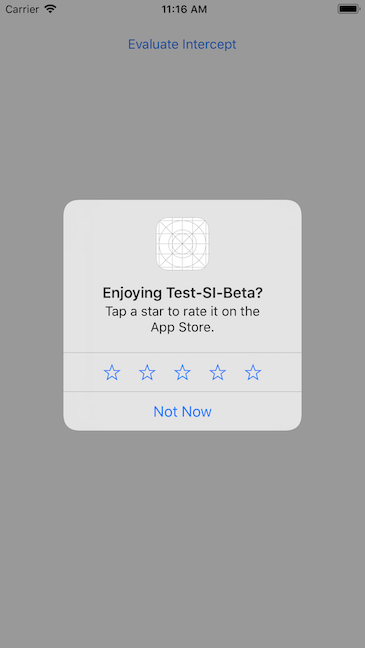
When an intercept passes evaluation, the user will be presented with a request to review the app.
Note
The final decision to display the prompt rests with Apple. To ensure compliance with Apple's guidelines, our SDK includes local tracking of these limitations. Should these limitations be exceeded, our system will redirect users to the app store's review page instead of displaying the prompt when using display() function.
Because the App Feedback solution allows you to control when interactions with users occur, you can use it for more besides presenting surveys. One example is you can control, from the server, when requests to review the app appear. The following example shows how to request a review only when a specific intercept evaluation passes.
First, add a line to import the Store Kit framework to the top of the ViewController.m or .swift file:
// Add the following line:
import StoreKit
import Qualtrics
#import "ViewController.h"
@import Qualtrics;
// Add the following line:
@import StoreKit;
Then create a viewDidAppear method like the following:
override func viewDidAppear(_ animated: Bool)
{
  Qualtrics.shared.evaluateIntercept(for: "INTERCEPT_ID", completion: { (targetingResult) in
          if targetingResult.passed() {
              SKStoreReviewController.requestReview()
          }
      })
  }
}
- (IBAction)buttonTap:(UIButton *)sender
{
        [Qualtrics.shared evaluateInterceptFor:@"interceptID" completion: ^(TargetingResult * _Nonnull targetingResult) {
               if ([targetingResult passed]) {
                   [SKStoreReviewController requestReview];
               }
           }];

}
When the intercept passes evaluation, the user will be presented with a request to review the app.
View Targeting
By keeping the intercept logic on the server rather than in the app, you can change when intercepts appear easily and without rebuilding and redistributing your app. For this to work properly, though, the app must have all of the activities/view controllers properly instrumented, even those you do not care about.
- Android
- iOS
In this example, the activity sends its name to the server to be used in the logic for displaying a survey. First, when the activity is loaded, it sends its name to the server. All activities would have a similar method, which could be moved to a base class. All classes could then be subclassed from this class.
Qualtrics.instance().properties.setString("activity", Activity.class.getSimpleName());
Qualtrics.instance().registerViewVisit(Activity.class.getSimpleName());
The first line registers the activity's name (in this case the name is MainActivity), and the second line increments the unique views (if this is the first time an activity named MainActivity has been registered) and total views.
Then you would evaluate the intercept logic where it makes the most sense for your app: in onCreate or after the user tapped a button, for instance:
Qualtrics.instance().evaluateProject(new MyCallback());
On the server, you would add an action that is only true if the desired activity is loaded. First, add a new action to your intercept by clicking on Add Intercept Display Logic. You will then see the action chooser:
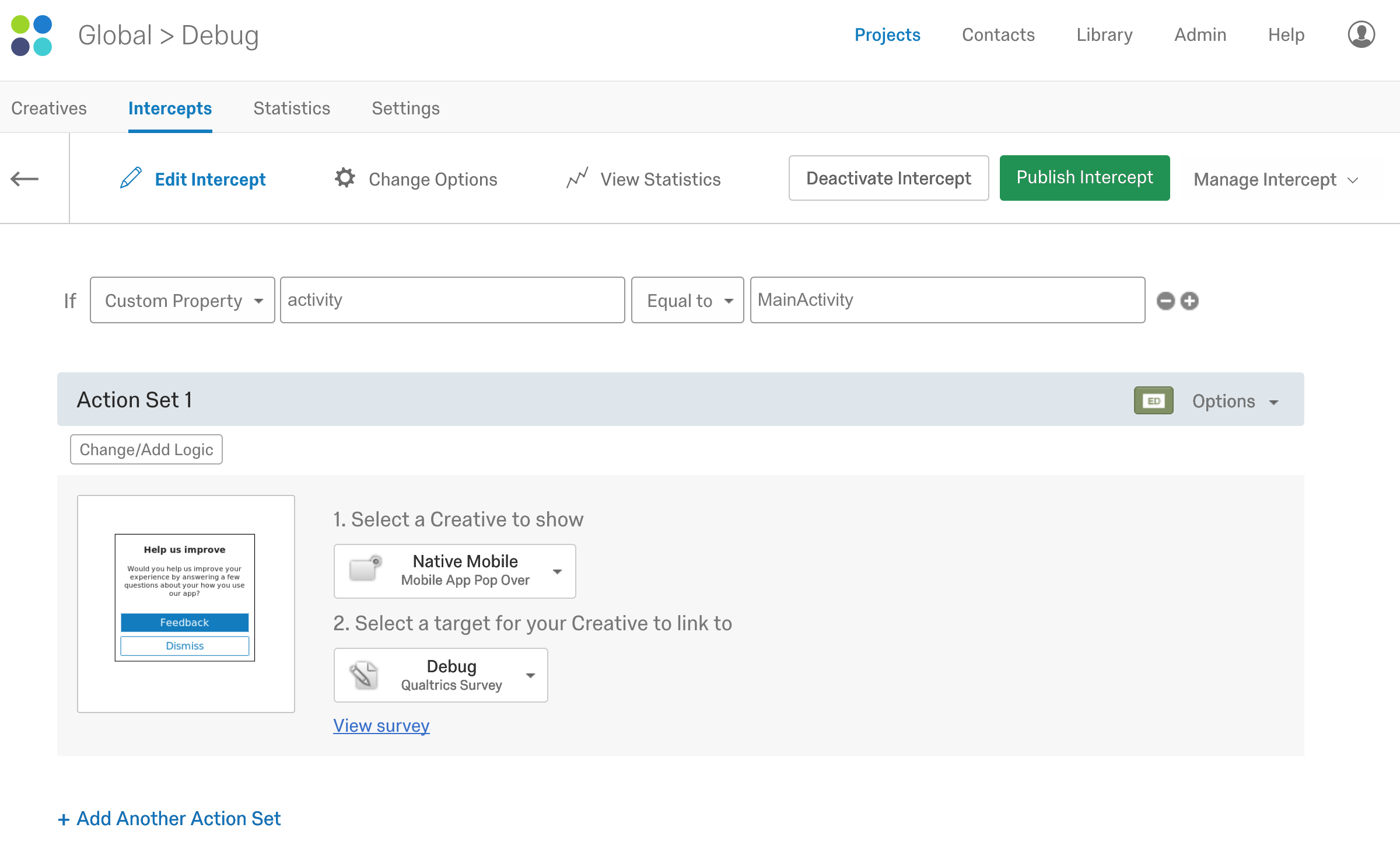
Add the logic shown above. The custom property is activity and in the case of the sample, its value is MainActivity.
You could create new action sets (click on Add Another Action Set) for different activities (SettingsActivity, LoginActivity, for instance) and present different surveys for each. You can also use the View Count Total Views and Unique Views values for additional conditional processing. The Total Views value is incremented every time your app calls registerViewVisitWithViewName. The Unique Views value is incremented every time your app calls registerViewVisitWithViewName with a unique name.
You can use the registerViewVisitWithViewName (Objective-C) or registerViewVisit (Swift) method to return data to the server about which how many total and unique views the user has seen. These statistics can be used to enable more complex logic around displaying surveys and other actions.
In this example, the view controller sends its name to the server to be used in the logic for displaying a survey. First, when the view is loaded, it sends its name to the server. All view controllers would have a similar method, which could be moved to a base class. All classes could then be subclassed from this class.
    override func viewDidLoad() {
        super.viewDidLoad()

        Qualtrics.shared.properties.setString(string: String(describing: type(of:self)), for: "viewController")
        Qualtrics.shared.registerViewVisit(viewName: String(describing: type(of: self)))
    }
-(void)viewDidAppear:(BOOL)animated
{
  [super viewDidAppear:animated];

  [Qualtrics.shared.properties setStringWithString:NSStringFromClass([self class]) for:@"viewController"]; // #1
  [Qualtrics.shared registerViewVisitWithViewName:NSStringFromClass([self class])];; // #2

}
The first line registers the view controller's name (in this case the name is ViewController), and the second line increments the unique views (if this is the first time a view named viewController has been registered) and total views.
Then, in viewDidAppear you would evaluate the intercept logic, as shown below:
    override func viewDidAppear(_ animated: Bool) {
        Qualtrics.shared.evaluateTargetingLogic { (targetingResult) in
            if targetingResult.passed()
            {
                Qualtrics.shared.display(viewController: self)
            }
        }
    }
- (void)viewDidAppear:(BOOL)animated
{
    [super viewDidAppear:animated];

    [Qualtrics.shared evaluateTargetingLogicWithCompletion:^(TargetingResult * _Nonnull targetingResult) {
        if(targetingResult.passed)
        {
          [[Qualtrics shared] displayWithViewController: self];
        }
    }];
}
(You could also evaluate the intercept logic elsewhere if it makes more sense for your app.)
On the server, you would add an action that is only true if the desired view is loaded. First, add a new action to your intercept by clicking on Add Intercept Display Logic. You will then see the action chooser:
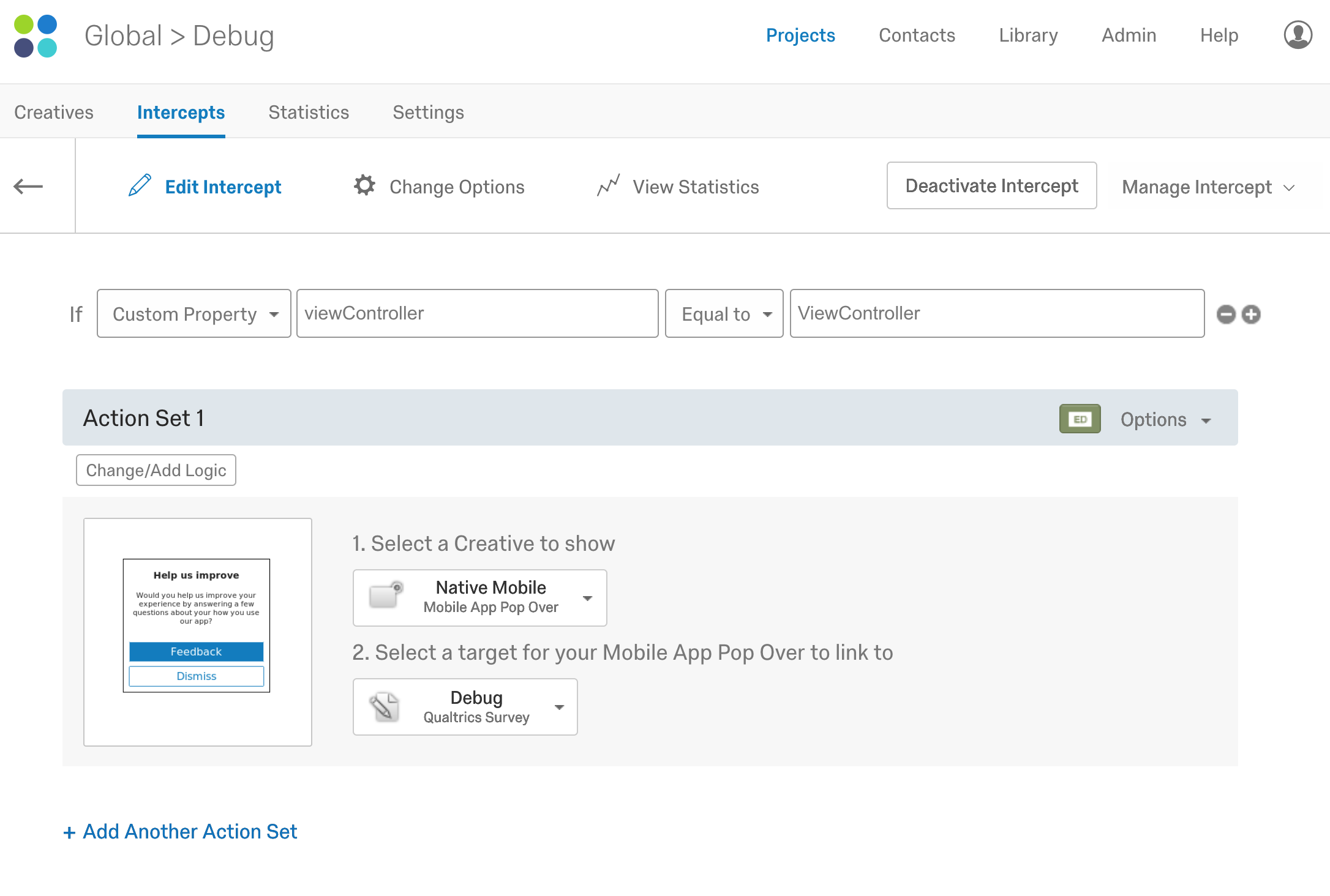
Add the logic shown above. The custom property is viewController and in the case of the sample, its value is ViewController.
You could create new action sets (click on Add Another Action Set) for different view controllers (SettingsViewController, LoginViewController, for instance) and present different surveys for each. You can also use the View Count Total Views and Unique Views values for additional conditional processing. The Total Views value is incremented every time your app calls registerViewVisitWithViewName. The Unique Views value is incremented every time your app calls registerViewVisitWithViewName with a unique name.
Using Embedded Data
By using the properties collection, you can push data back to the server, which can pass it on to your survey as embedded data. For more information about using embedded data with the App Feedback solution, see Setting up the Intercept. For more information about embedded data and surveys, see Embedded Data.
In the example below, the app will send the user's first name back to the server to be used as piped text in the survey. If the app requires the user to create an account, the user's first name should be readily available.
- Android
- iOS
In your App Feedback project UI, open the intercept and choose the embedded data from the Options dropdown on the action set.
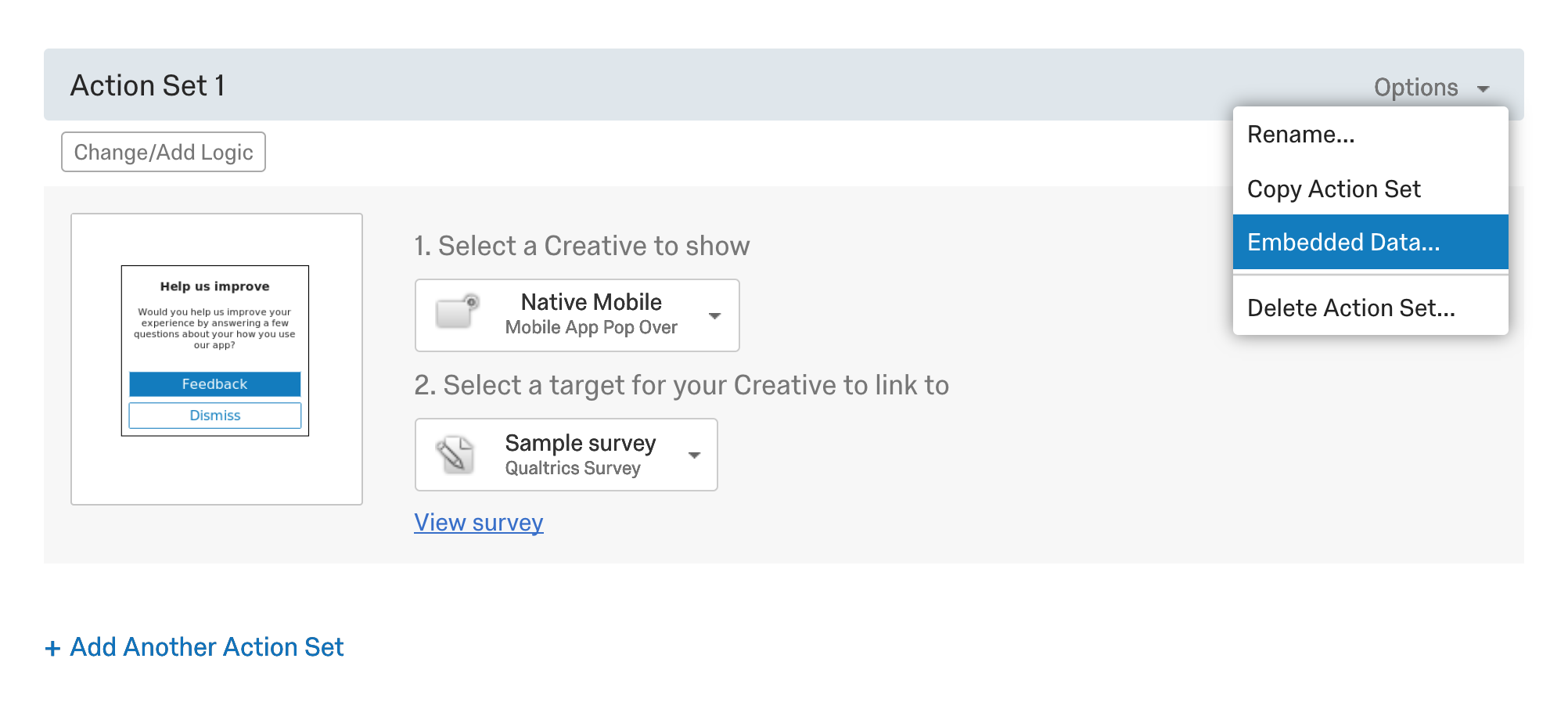
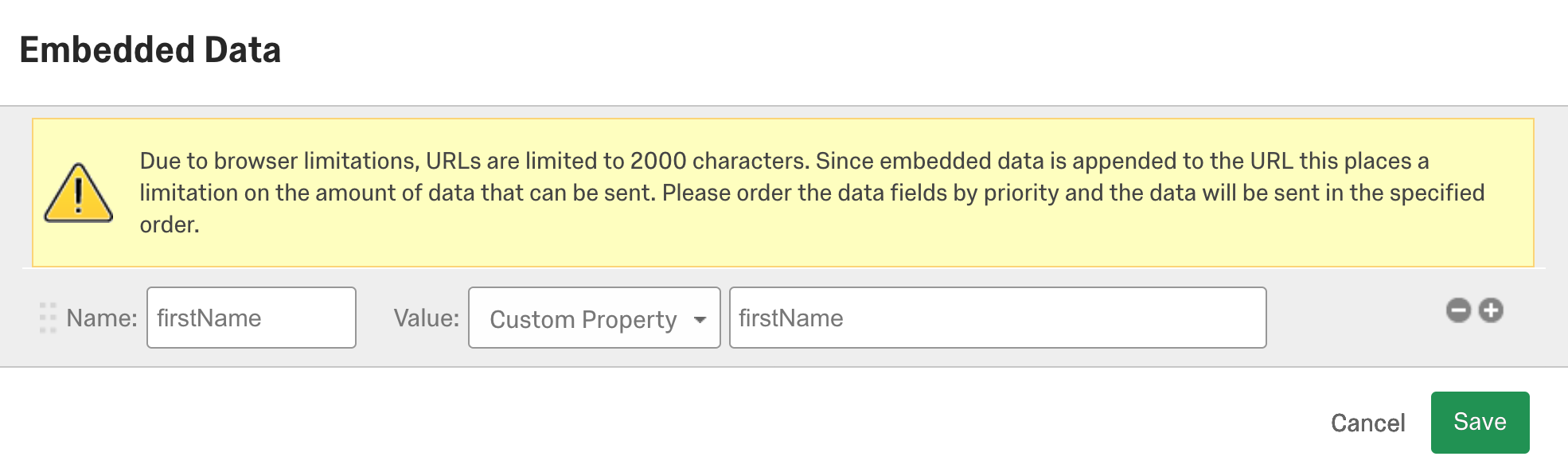
Now choose Custom Property from Value and use type firstName in both the fields as shown below:
Now open the specific survey project to edit the survey to include the firstName value in the survey. Start by choosing a question.
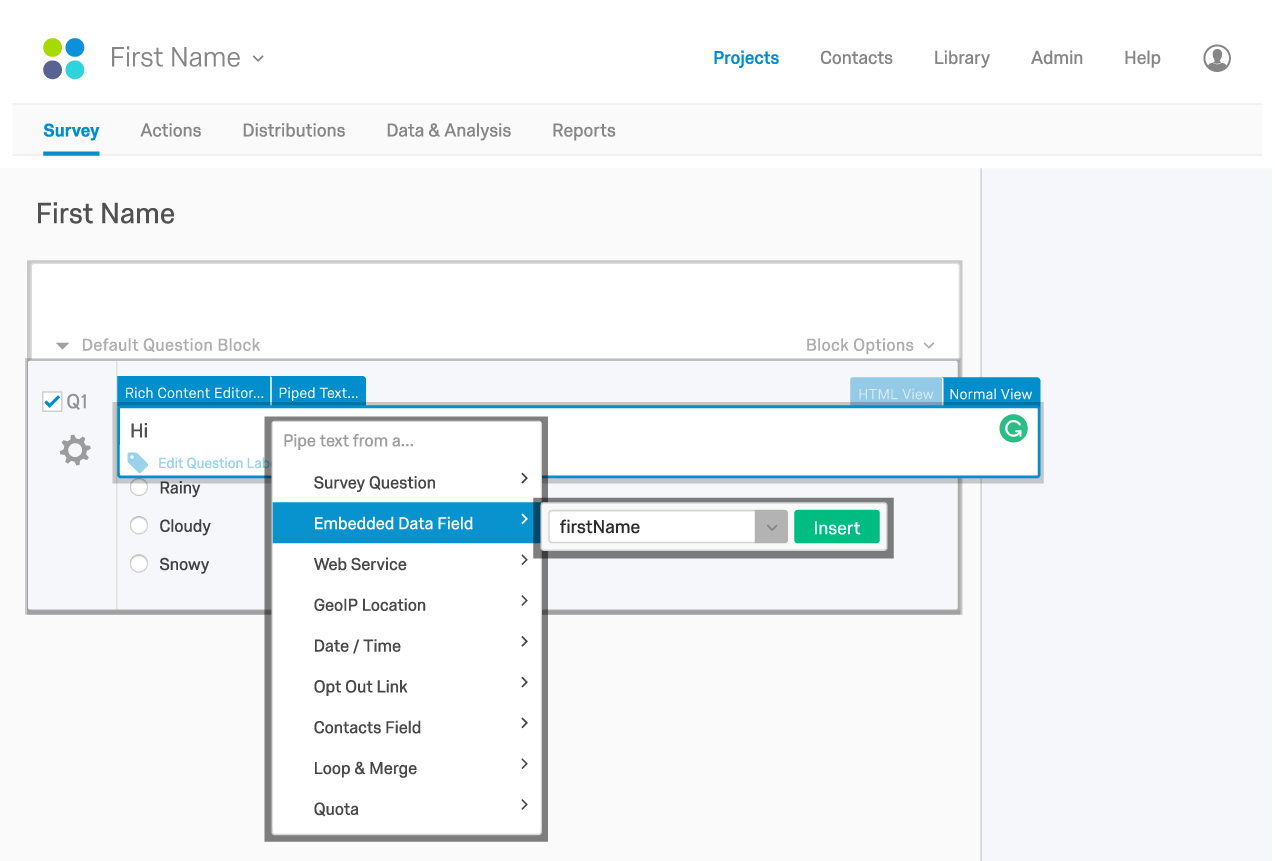
You will modify the question text so it includes an embedded data field. Choose Piped Text... and then choose Embedded Data Field and type firstName in the text field as shown below:
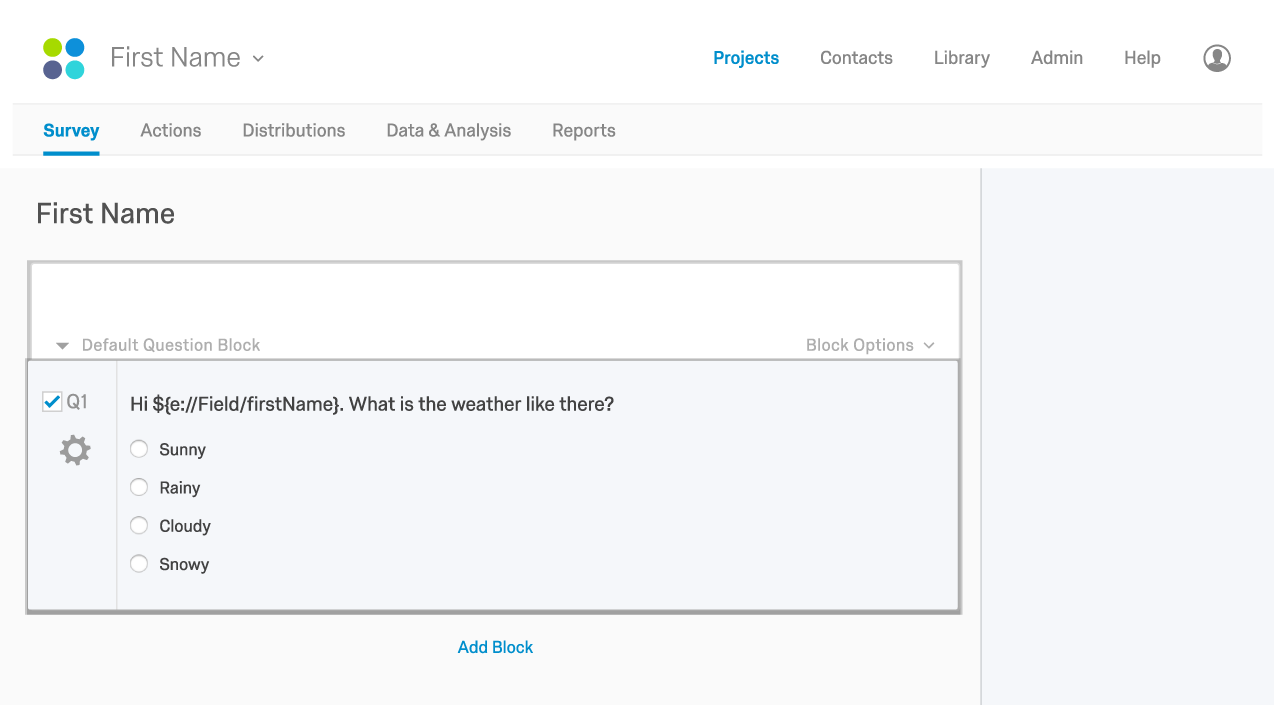
The question should look like this after you added the embedded text:
In the MainActivity.java source file, add the following code to the onCreate method after the call to initializeProject.
Qualtrics.instance().properties.setString("firstName", "John");
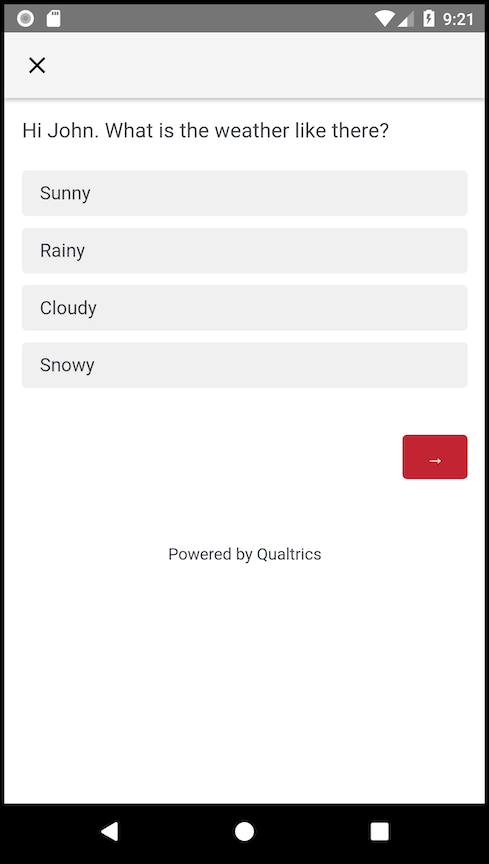
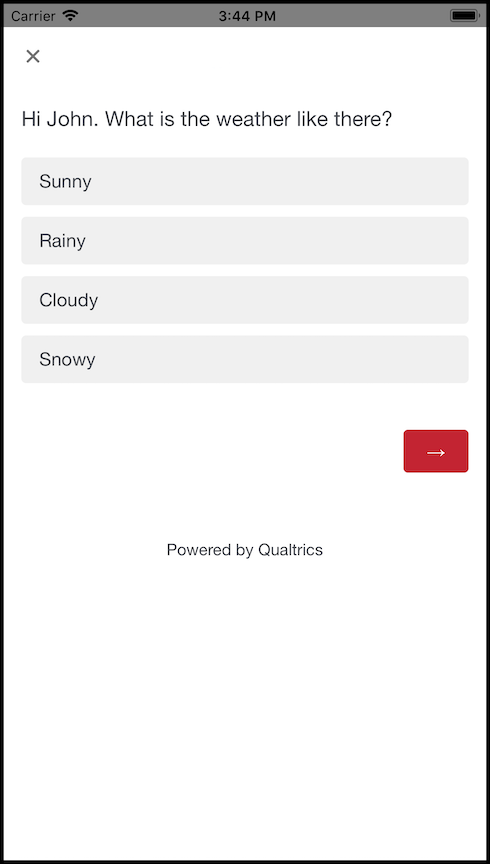
When you run the app and display the survey, you should see the firstName filled in as shown below:
In the Experience Management (XM) portal, locate your specific Website / App Feedback project and open the intercept and choose the embedded data from the Options dropdown on the action set.
Now choose Custom Property from Value and use type firstName in both the fields as shown below:
Now you need to choose Insight Platform from the top of the screen to edit the survey to include the firstName value in the survey. Open your survey project and choose a question.
You will modify the question text so it includes an embedded data field. Choose Piped Text... and then choose Embedded Data Field and type firstName in the text field as shown below:
The question should look like this after you added the embedded text:
In the view controller source file, add the following code to the viewDidLoad method.
Qualtrics.shared.properties.setString(string: "John", for: "firstName")
[Qualtrics.shared.properties setStringWithString:@"John" for:@"firstName"] ;
When you run the app and display the survey, you should see the firstName filled in as shown below:
Controlling the Survey Presentation
Rather than calling the Qualtrics display method, you can design and build your own survey invitation prompt and then call the getSurveyUrl method to present the survey in a WebView (in the handler for your "Take survey" action).
- Android
- iOS
You would modify the run method as shown below:
Qualtrics.instance().evaluateIntercept("InterceptID", new IQualtricsCallback() {
    @Override
    public void run(final TargetingResult targetingResult) {
        // Use the targeting result to see if the targeting logic passed
        // You may choose to add additional conditions here before allowing the survey to display
        if (targetingResult.passed()) {
            // Record an impression
            // This sends data back to Qualtrics, indicating that a survey invitation has been displayed to the user
            targetingResult.recordImpression();

            // Create an AlertDialog with options to take the survey or dismiss in
            // The AlertDialog can be replaced with any custom dialog
            AlertDialog.Builder builder = new AlertDialog.Builder(MainActivity.this);
            builder.setTitle("Give Feedback");
            builder.setMessage("Would you like to take a brief survey?");
            builder.setPositiveButton("Yes", new DialogInterface.OnClickListener() {
                @Override
                public void onClick(DialogInterface dialogInterface, int i) {
                    // Record a click
                    // This sends data back to Qualtrics, indicating that the user opted to take the survey
                    targetingResult.recordClick();

                    // Load the survey URL into a WebView on the activity
                    // This can be replaced with a browser intent or any custom WebView implementation
                    mWebView.loadUrl(targetingResult.getSurveyUrl());
                    dialogInterface.dismiss();
                }
            });

            builder.setNegativeButton("No thanks", new DialogInterface.OnClickListener() {
                @Override
                public void onClick(DialogInterface dialogInterface, int i) {
                    dialogInterface.dismiss();
                }
            });

            // Build and show the dialog
            AlertDialog alert = builder.create();
            alert.show();
        }
    }
});
The new code first presents the user with an alert asking whether it is okay to show a survey. If the user chooses to show the survey, the web view shows the survey at the URL from the targeting result's getSurveyUrl(). We can also use the displayTarget() method to show the survey in Qualtrics webview, avoiding the need to make a custom webview.
Tip
If you want to use Preventing Repeated Display with this function, you need to call targetingResult.setLastDisplayedTime(). Otherwise, the Prevent Repeated Display will not be respected.
Qualtrics.instance().evaluateIntercept("InterceptID", new IQualtricsCallback() {
    @Override
    public void run(final TargetingResult targetingResult) {
        // Use the targeting result to see if the targeting logic passed
        // You may choose to add additional conditions here before allowing the survey to display
        if (targetingResult.passed()) {
            // Record an impression
            // This sends data back to Qualtrics, indicating that a survey invitation has been displayed to the user
            targetingResult.recordImpression();

            // Create an AlertDialog with options to take the survey or dismiss in
            // The AlertDialog can be replaced with any custom dialog
            AlertDialog.Builder builder = new AlertDialog.Builder(MainActivity.this);
            builder.setTitle("Give Feedback");
            builder.setMessage("Would you like to take a brief survey?");
            builder.setPositiveButton("Yes", new DialogInterface.OnClickListener() {
                @Override
                public void onClick(DialogInterface dialogInterface, int i) {
                    // Record a click
                    // This sends data back to Qualtrics, indicating that the user opted to take the survey
                    targetingResult.recordClick();

                    // Load the survey URL into a Qualtrics WebView on the activity
                    // This can be replaced with a browser intent or any custom WebView implementation
                    Qualtrics.instance().displayTarget(this, targetingResult.getSurveyUrl(), true);
                    dialogInterface.dismiss();
                }
            });

            builder.setNegativeButton("No thanks", new DialogInterface.OnClickListener() {
                @Override
                public void onClick(DialogInterface dialogInterface, int i) {
                    dialogInterface.dismiss();
                }
            });

            // Build and show the dialog
            AlertDialog alert = builder.create();
            alert.show();
        }
    }
});
Note
If using your own webview, Survey Taken/This Action Logic will be unavailable.
The first step is to include the WebKit framework in ViewController.m (or .swift).
import UIKit
// add the following line:
import WebKit
import Qualtrics
#import "ViewController.h"
// Add the following line:
@import WebKit;
@import Qualtrics;
Then you need to implement your custom invitation in the callback function of evaluateTargetingLogic. An example of how to do so is shown below with a simple custom survey invitation dialog:
        Qualtrics.shared.evaluateProject { (targetingResults) in
          for (interceptID, result) in targetingResults {
            if targetingResult.passed(){
                // Remove the [Qualtrics.shared display]; line and add the below code
                // In the custom invitation scenario, be sure to record the impressions and clicks
                targetingResult.recordImpression()

                let alert = UIAlertController(title: "Give Feedback", message: "Would you like to take a brief survey?", preferredStyle: .alert)
                let defaultAction = UIAlertAction(title: "OK", style: UIAlertActionStyle.default, handler: { (action) in
                    self.presentSurvey(targetingResult: TargetingResult)
                })
                let cancelAction = UIAlertAction(title: "Cancel", style: .cancel, handler:nil)

                alert.addAction(defaultAction)
                alert.addAction(cancelAction)
                self.present(alert, animated: true, completion: nil)
                break;
            }
          }
        }
[[Qualtrics shared] evaluateProjectWithCompletion:^(NSDictionary<NSString *, TargetingResult *>* targetingResults) {
  for (NSString* interceptID in targetingResults) {
    TargetingResult *result = targetingResults[interceptID];
    if ([result passed]){
        // Remove the [Qualtrics.shared display]; line and add the below code
        // In the custom invitation scenario, be sure to record the impressions and clicks
        [targetingResult recordImpression];

        UIAlertController* alert = [UIAlertController alertControllerWithTitle:@"Give Feedback"
                    message:@"Would you like to take a brief survey?"
                    preferredStyle:UIAlertControllerStyleAlert];

        UIAlertAction* defaultAction = [UIAlertAction
            actionWithTitle:@"OK"
            style:UIAlertActionStyleDefault
            handler:^(UIAlertAction * action) {
                [self presentSurvey:targetingResult];
            }];
        UIAlertAction *cancelAction = [UIAlertAction
                            actionWithTitle:@"Cancel"
                            style:UIAlertActionStyleCancel
                            handler:nil];
        [alert addAction:defaultAction];
        [alert addAction:cancelAction];
        [self presentViewController:alert animated:YES completion:nil];
        break;
}];
Add two new methods as shown below:
    func presentSurvey(targetingResult: TargetingResult)
    {
        let request = NSURLRequest(url: URL(string: targetingResult.getSurveyUrl())!)
        let webView = WKWebView();
        let surveyViewController = UIViewController()
        surveyViewController.view = webView;

        let navigationController = UINavigationController(rootViewController: surveyViewController)
        surveyViewController.navigationItem.rightBarButtonItem = UIBarButtonItem(barButtonSystemItem: .done, target: self, action: #selector(dismissSurvey))

        targetingResult.recordClick()

        webView.load(request as URLRequest)

        self.present(navigationController, animated: true, completion: nil)
    }

    @objc func dismissSurvey()
    {
        self.dismiss(animated: true, completion: nil)
    }
- (void)presentSurvey:(TargetingResult *)targetingResult
{
    NSURLRequest *request = [[NSURLRequest alloc] initWithURL:[NSURL URLWithString:[targetingResult getSurveyUrl]];
    WKWebView *webView = [[WKWebView alloc] init];
    UIViewController *surveyViewController = [[UIViewController alloc] init];
    surveyViewController.view = webView;

    UINavigationController *navigationController = [[UINavigationController alloc] initWithRootViewController:surveyViewController];
    surveyViewController.navigationItem.rightBarButtonItem = [[UIBarButtonItem alloc] initWithBarButtonSystemItem:UIBarButtonSystemItemDone target:self action:@selector(dismiss)];


    [Qualtrics.shared recordClick];

    [webView loadRequest:request];

    [self presentViewController:navigationController animated:YES completion:nil];
}

- (void)dismiss
{
    [self dismissViewControllerAnimated:YES completion:nil];
}
The new code presents the user with an alert asking whether it is okay to show a survey.
The presentSurvey method handles the presentation of the survey. The presentSurvey method creates a web view inside a navigation controller, adds a "Done" button (to allow exiting the survey), and displays the survey at the URL from the targetingResult.getSurveyUrl() method.
Bypassing the Give Feedback Prompt
Typically, you would want to bypass the give feedback prompt when your users tap on a Give Feedback menu item or button. If you were to use the display() method, they would be asked whether they want to give feedback after they had already chosen to give feedback.
- Android
- iOS
To avoid that, you can use the following code example instead for calling the displayTarget() method like we did in the previous example.
Qualtrics.instance().evaluateIntercept("InterceptID" new IQualtricsCallback() {
    @Override
    public void run(TargetingResult targetingResult) {
        if (targetingResult.passed()) {
            // Record an impression
            targetingResult.recordImpression();

            // Record a click
            targetingResult.recordClick();
            // Calls the Qualtrics webview with the survey URL as the target URL
            Qualtrics.instance().displayTarget(this, targetingResult.getSurveyUrl());
        }
    }
});
To avoid that, you can use the following code example instead of calling the display method.
Qualtrics.shared.evaluateProject { (targetingResults) in
  for (interceptID, targetingResult) in targetingResults {
    if targetingResult.passed(), let url = targetingResult.getSurveyUrl() {
        // Record an impression
        targetingResult.recordImpression()

        // Run this operation on the UI thread
        DispatchQueue.main.async {
            // Create a QualtricsSurveyViewController view controller, passing it the URL provided by the TargetingResult object
            // Any valid URL can be displayed using the QualtricsSurveyViewController, not only survey URLs
            let surveyViewController = QualtricsSurveyViewController(url: url)

            // Set the QualtricsSurveyViewController to present on top of the current view
            surveyViewController.modalPresentationStyle = .overCurrentContext

            // Present the QualtricsSurveyViewController
            self.present(surveyViewController, animated: true, completion: nil)
        }
    }
}
[Qualtrics.shared evaluateProjectWithCompletion:^(NSDictionary<NSString *, TargetingResult *>* targetingResults) {
    for (NSString* interceptID in targetingResults) {
      if ([result passed]) {
        NSString *url = targetingResult.getSurveyUrl;

        // Record an impression
        [targetingResult recordImpression];

        // Run this operation on the UI thread
        dispatch_async(dispatch_get_main_queue(), ^{
            // Create a QualtricsSurveyViewController activity, passing it the URL provided by the TargetingResult object
            // Any valid URL can be displayed using the QualtricsSurveyViewController, not only survey URLs
            QualtricsSurveyViewController *surveyViewController = [[QualtricsSurveyViewController alloc] initWithUrl:url];
            // Set the QualtricsSurveyViewController to present on top of the current view
            surveyViewController.modalPresentationStyle = UIModalPresentationOverCurrentContext;
            // Present the QualtricsSurveyViewController
            [self presentViewController:surveyViewController animated:YES completion:nil];
            break;
        }}});
    }

}];
Alternatively, you can make use of our displayTarget method to bypass the creative and only show the target survey in the Qualtrics webview.
Tip About
displayTargetIf you want to use Preventing Repeated Display with this function, you need to call TargetingResult.setLastDisplayTime(). Otherwise, the Prevent Repeated Display will not be respected.
Qualtrics.shared.evaluateProject { (targetingResults) in
  for (interceptID, targetingResult) in targetingResults {
    if targetingResult.passed() {
      guard let surveyUrl = result.getSurveyUrl() else{
        return
      }
      let displayed = Qualtrics.shared.displayTarget(targetViewController: self, targetUrl: surveyUrl)
    }
  }
}
[Qualtrics.shared evaluateProjectWithCompletion:^(NSDictionary<NSString *, TargetingResult *>* targetingResults) {
    for (NSString* interceptID in targetingResults) {
      if ([result passed]) {
          [[Qualtrics shared] displayTargetWithTargetViewController:self targetUrl:[result getSurveyUrl]];
        }
    }

}];
Using Local Notifications to show app feedback prompts
You can create and edit the Local Notification message using the Website / App Feedback authoring portal. Once the Notification creative has been added to your intercept and published, there are a few lines of Qualtrics SDK code that need to be added to your app.
- Android
- iOS
For Android, Notifications do not automatically take the app's Icon as the Icon in the Notification. For this reason we need the app developer to let the Qualtrics SDK know which Image to use as the Notification Icon. It is recommended that the image being used is placed in the drawable folder of your application. After Initializing your intercept and before calling Display, simply add the following code.
Qualtrics.instance().properties.setNotificationIconAsset(R.drawable.my_notification_icon);
When targeting Android 13 or newer, It is Application developer's responsibility to request notification permissions. Failure to do so will result in notifications not being displayed on devices running Android 13 or newer.
In your AppDelegate.m or AppDelegate.swift (depending on your language) add the following import line to your AppDelegate file:
import UserNotifications
@import UserNotifications;
Before the didFinishLaunchingWithOptions method, inside of the AppDelegate class, add the following line:
var window: UIWindow?
@property (strong, nonatomic) UIWindow *window;
Inside the didFinishLaunchingWithOptions method, add the following:
if #available(iOS 10.0, *) {
    UNUserNotificationCenter.current().delegate = self
}
if (@available(iOS 10, *)) {
    UNUserNotificationCenter *center = [UNUserNotificationCenter currentNotificationCenter];
    center.delegate = self;
}
Then add the following at the bottom of your AppDelegate file (after the AppDelegate class):
@available(iOS 10.0, *)
extension AppDelegate {
    // Application is in the foreground
    func userNotificationCenter(_ center: UNUserNotificationCenter, willPresent notification: UNNotification, withCompletionHandler completionHandler: @escaping (UNNotificationPresentationOptions) -> Void) {
        completionHandler(UNNotificationPresentationOptions.alert)
    }

    func userNotificationCenter(_ center: UNUserNotificationCenter, didReceive response: UNNotificationResponse, withCompletionHandler completionHandler: @escaping () -> Void) {
        let _ = Qualtrics.shared.handleLocalNotification(response: response, displayOn: self.window!.rootViewController!)
        completionHandler()
    }
}

extension AppDelegate {
    func application(_ application: UIApplication, didReceive notification: UILocalNotification) {
        let _ = Qualtrics.shared.handleLocalNotification(notification, displayOn: self.window!.rootViewController!)
    }

    func application(_ application: UIApplication, handleActionWithIdentifier identifier: String?, for notification: UILocalNotification, withResponseInfo responseInfo: [AnyHashable : Any], completionHandler: @escaping () -> Void) {

    }
}
 // Required for the localNotification event.
- (void)application:(UIApplication *)application didReceiveLocalNotification:(UILocalNotification *)notification
{
  [Qualtrics.shared handleLocalNotification:notification displayOn:self.window.rootViewController];
}

- (void)userNotificationCenter:(UNUserNotificationCenter *)center didReceiveNotificationResponse:(UNNotificationResponse *)response withCompletionHandler:(void (^)(void))completionHandler
{
  [Qualtrics.shared handleLocalNotificationWithResponse:response displayOn:self.window.rootViewController];
  completionHandler();
}

- (void)userNotificationCenter:(UNUserNotificationCenter *)center willPresentNotification:(nonnull UNNotification *)notification withCompletionHandler:(nonnull void (^)(UNNotificationPresentationOptions))completionHandler
{
  completionHandler(UNNotificationPresentationOptionAlert);
}
Using Intercept Action Sets Within Your App to Show Different Creatives
Use Action Sets With the action sets capabilities, you can configure the same intercept to show multiple different creatives. This enables you to essentially have different intercepts (and surveys) display in different parts of your app.
In the example below, different creatives are shown depending on custom property values evaluated in the logic set condition.
- Android
- iOS
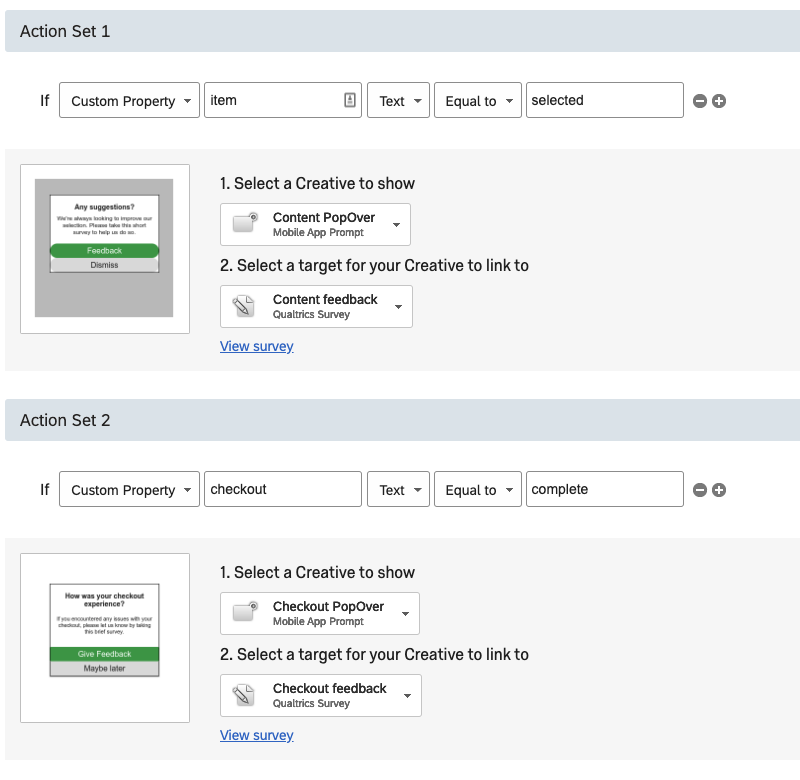
Note: With action sets, each time the intercept is evaluated, only ONE of the action sets will evaluate to true and only that particular creative+survey combination will be displayed. Additionally, with this approach all of the underlying creatives will inherit the same sampling and repeated display prevention settings.
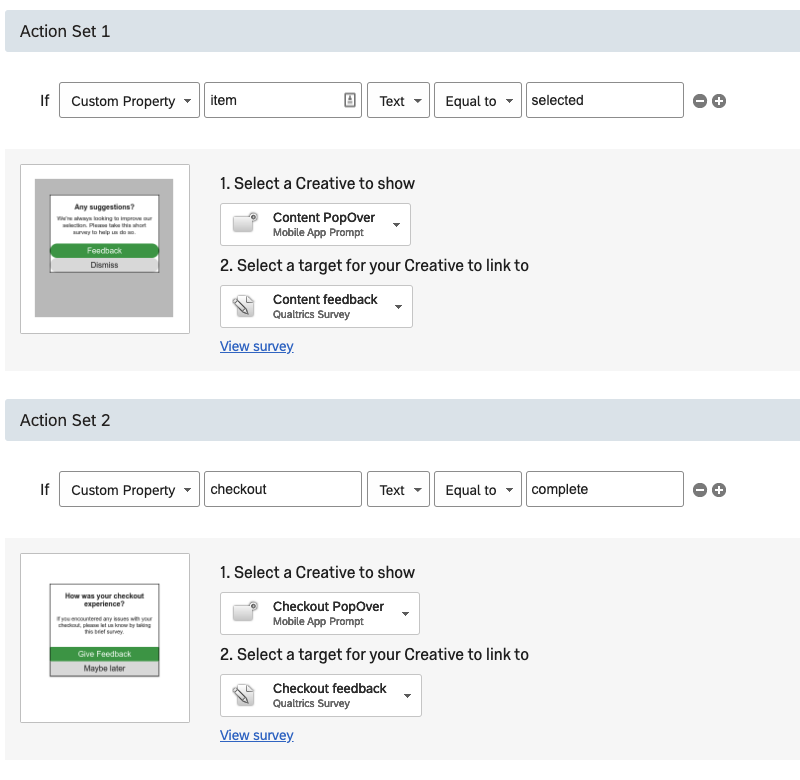
Note: With action sets, each time the intercept is evaluated, only ONE of the action sets will evaluate to true and only that particular creative+survey combination will be displayed. Additionally, with this approach all of the underlying creatives will inherit the same sampling and repeated display prevention settings.
Personalizing App Intercepts with Qualtrics XM Directory
In order to personalize your app intercepts using the Qualtrics XM Directory, you will need to use the version of the InitializeProject API that accepts an optional External Reference ID parameter.
Qtip: This External Reference ID can be any ID (such as a customer number) that uniquely identifies each app user and that is associated with this user in the XM Directory.
- Android
- iOS
initializeProject
Function Signature
public void initializeProject(String brandId, String zoneId, String extRefId, Context context, IQualtricsProjectInitializationCallback callback)
This method initializes the Qualtrics singleton using the specified brand ID, project ID (See Finding your Intercept IDs), optional external reference ID, and completion handler. You typically call this method in the app delegate's applicationDidBecomeActive method. This function will initialize all active intercepts in your project and make them available to evaluate and display.
The method's InitializationResult dictionary (returned in the completion handler) indicates the state of initialization for each intercept. See InitializationResult Class for more information.
Example usage
Qualtrics.instance().initializeProject(
    "BRAND_ID", "PROJECT_ID", "EXT_REF_ID", MainActivity.this, (initializationResults) -> {
        for (Map.Entry<String, InitializationResult> result: initializationResults.entrySet()) {
            if (result.getValue().passed()) {
                ...
            }
        }
    }
);
initializeProject
Function Signature
public func initializeProject(brandId: String, projectId: String, extRefId: String?, completion: ((_ InitializationResult: [String: InitializationResult]) -> Void)? = nil )
[Qualtrics.shared initializeProjectWithBrandId:<#(NSString * _Nonnull)#> projectId:<#(NSString * _Nonnull)#> extRefId:<#(NSString * _Nullable)#> completion:<#^(NSDictionary<NSString *,InitializationResult *> * _Nonnull)completion#>]
This method initializes the Qualtrics singleton using the specified brand ID, project ID (See Finding your Intercept IDs), optional external reference ID, and completion handler. You typically call this method in the app delegate's applicationDidBecomeActive method. This function will initialize all active intercepts in your project and make them available to evaluate and display.
The method's InitializationResult dictionary (returned in the completion handler) indicates the state of initialization for each intercept. See InitializationResult Class for more information.
Example usage
Qualtrics.shared.initializeProject(brandId: "BRAND ID", projectId: "PROJECT ID", extRefId: "EXT REF ID", completion: {(initializationResults) -> Void in
    DispatchQueue.main.async {
        for (interceptID, result) in initializationResults {
            if result.passed() {
                ...
            }
        }
    }
})
[Qualtrics.shared initializeProjectWithBrandId:@"brandID" projectId:@"projectID", extRefId:@"extRefID" completion:^(NSDictionary<NSString *,InitializationResult *>* initializationResults) {
        // completion handler code
    }];