Qualtrics API Quick Start
Qualtrics REST API is a Paid Feature
The API is an additional feature. If you are unsure if your account has API access, please contact the Qualtrics Administrator at your organization. If you are the Qualtrics Administrator please contact your sales representative at Qualtrics to discuss licensing for API access.
What You Will Need to Start
You'll need some tools to be able to call the APIs. A good place to start is using Postman or cURL. You'll want to code against these API calls as well, but as you're learning them, a simple tool will help. With Postman, as your library of API calls grows, you will also get useful starter code for each request.
Getting Your API URL
To send a request to a specific endpoint, you need to know your datacenter. The format of the URL is:
https://{datacenterid}.qualtrics.com/API/v3/pathToRequest
Where {datacenterid} is a specific datacenter assigned to you based on your location and pathToRequest is the path to a specific API endpoint.
You can find your datacenterid information in your account information.
-
Login to your Qualtrics account
-
Go to your Qualtrics IDs page:
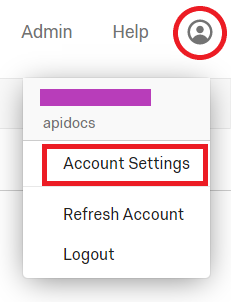
-
In the User box, find your datacenter ID
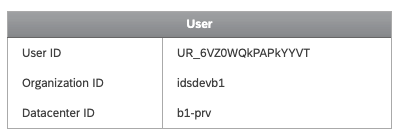
In this example, if we use the Datacenter ID shown in the image above to call the Create Distributions endpoint, our URL is https://b1-prv.qualtrics.com/API/V3/distributions.
Getting OAuth Set Up for Authentication
In order to use the API, you'll need to authenticate with every call you make. The best way to do this is to use OAuth. There is a full description of OAuth here, but for this quick start, we'll keep it simple.
To get your OAuth Credentials you'll need to first set up OAuth users in your Account Settings. Navigate to Account Settings in your Brand's Qualtrics page by clicking on this link:
Once you open that page, click the link on the left that reads "OAuth Client Manager" in the red box below:
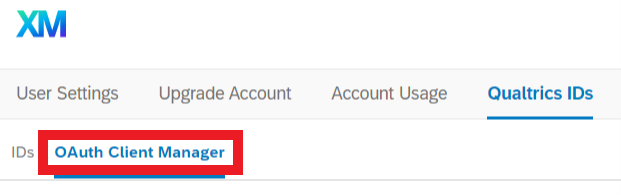
When you click on this link, you'll see a button on the right side that looks like:

Click that button, then fill out the popup with the name of the user to whom you are granting API access. Ensure "Client Credentials" is the selected value in the drop down, then click the "Create Client" button.
Grant Type Drop Down Only Visible to Brand Administrators
If you do not see the
Grant Typedrop down below, it is because you are not a brand administrator. The drop down is still there, and it's default value isClient Credentialswhich will allow you to continue with the example.
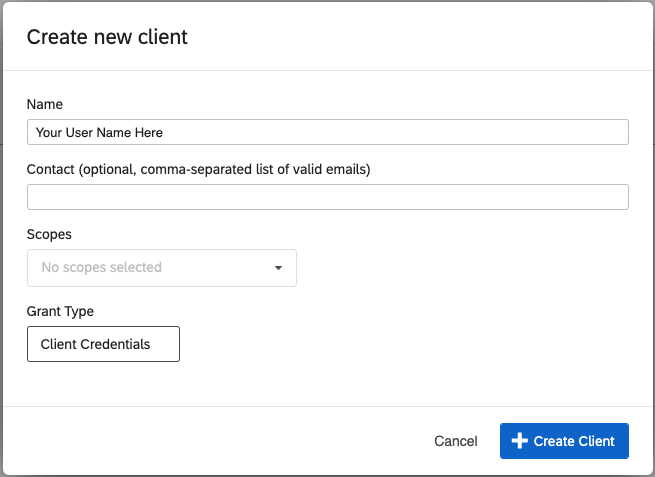
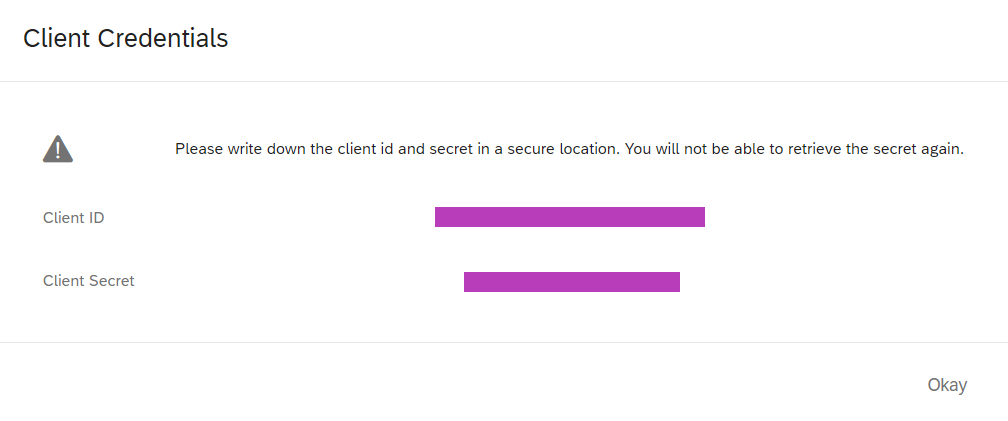
When you've created the client, you'll receive a modal dialog showing your Client ID and Client Secret for the user name you chose above. For the user you named before, this is the only time you'll see that user's Client Secret. (You can delete the user and get a new secret.) Copy the user's information where the purple bars are below. Put that information somewhere safe, and keep it handy because you'll use it to get your Bearer Token next.
Obtaining Your Bearer Token
If you are using Postman, open it and create a new request. Set up the request tabs as follows:
- Example URL for POST
https://iad1.qualtrics.com/oauth2/token
- Authorization:
- Select "Basic Auth"
- Set the user name to your Client ID
- Set the password to your Client Secret
- It is best to use the Environment to store your Client ID and Secret for easy reuse.
- Select "Basic Auth"
- Headers:
- Set the "Content-Type" header to "application/x-www-form-urlencoded"
- Body:
- Paste "grant_type=client_credentials" in the body
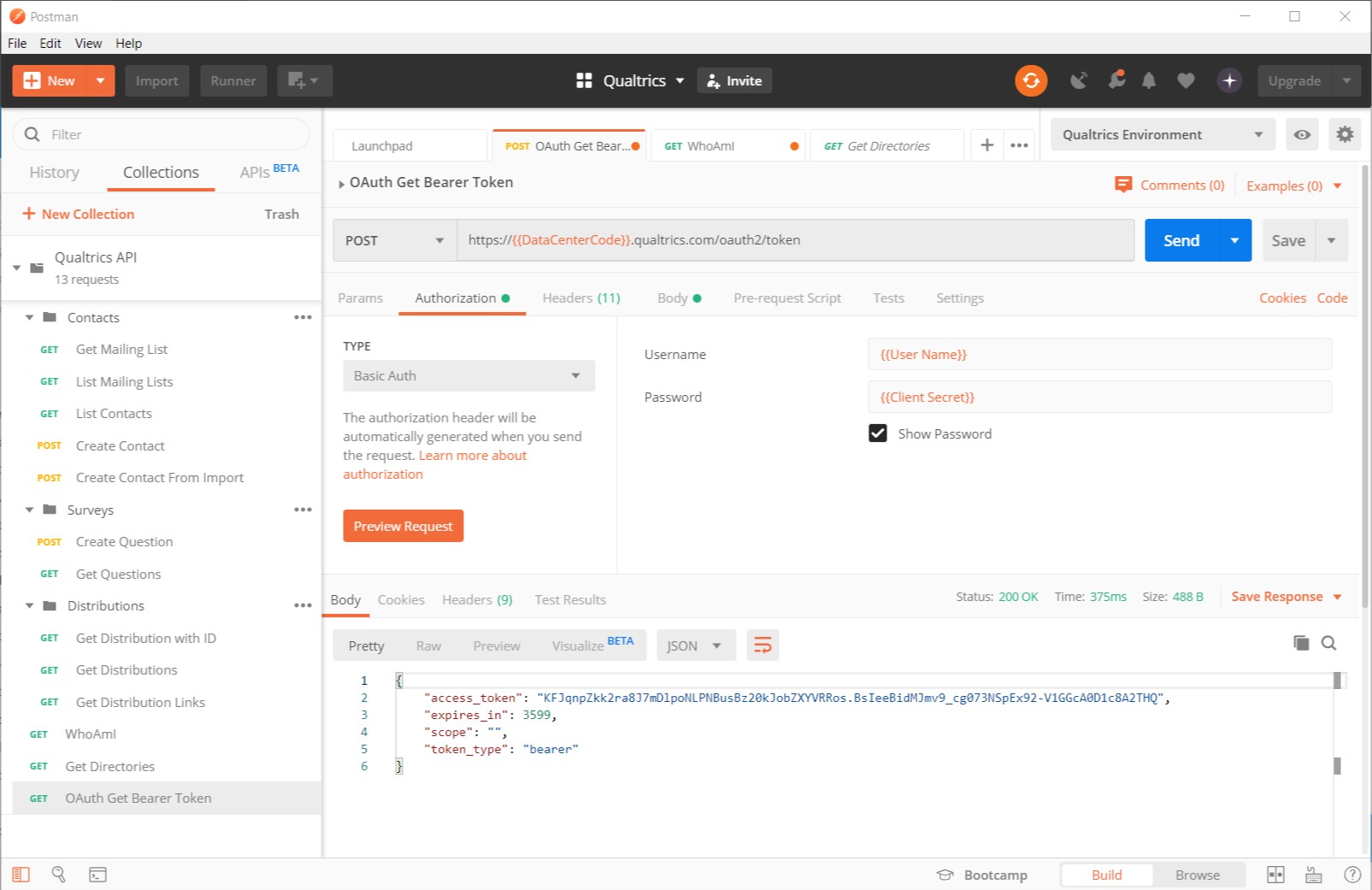
Once you have it all set up, when you send the request, you should receive a response that looks like:
{
  "access_token": "KFJqnpZkk2ra8J7mDlpoNLPNBusBz20kJobZXYVRRos.BsIeeBidMJmv9_cg073NSpEx92-V1GGcA0D1c8A2THQ",
  "expires_in": 3599,
  "scope": "",
  "token_type": "bearer"
}
Congratulations! The token you've receive in the above response is what you will need to make calls to the API. Copy that token into an environment variable in Postman for use in subsequent calls.
OAuth Token Expires
An hour after you create your bearer token, it will expire. When you get a response that shows the bearer token is expired, you'll have to get a new token by repeating the call above.
Code Sample for Obtaining Bearer Token
If you are starting with code, here is sample code to get the Bearer Token:
curl -X POST -d "grant_type=client_credentials" -u "{Client ID}:{Client Secret}" https://{yourdatacenterid}.qualtrics.com/oauth2/token
Code and Qualtrics Support
Our support team does not offer assistance or consultation on custom coding, but you can always try asking our community of dedicated users. If you’d like to know more about our custom coding services you can commission, please contact your Qualtrics Account Executive.
import http.client
import mimetypes
import base64

#create the Base64 encoded basic authorization string
clientID="{Client ID}"
clientsecret="{Client Secret}"
auth = "{0}:{1}".format(clientID, clientsecret)
encodedBytes=base64.b64encode(auth.encode("utf-8"))
authStr = str(encodedBytes, "utf-8")

#create the connection
conn = http.client.HTTPSConnection("st3.qualtrics.com")
body = "grant_type=client_credentials&scope=read:users"
headers = {
  'Content-Type': 'application/x-www-form-urlencoded'
}
headers['Authorization'] = 'Basic {0}'.format(authStr)

#make the request
conn.request("POST", "/oauth2/token", body, headers)
res = conn.getresponse()
data = res.read()

print(data.decode("utf-8"))
Making Sure You Can Call the API
If you are using Postman, open it and create a new request. We'll use the simplest Qualtrics API to verify that you have all the above information correct and you are able to connect. Make this request a GET for the following URL:
https://{{DataCenterCode}}.qualtrics.com/API/v3/whoami
For more information about this API, visit Who Am I. There you will find how to call the API using cURL, and details on what the response means.
To call the WhoAmI API, you will need to replace {{DataCenterCode}} with the string you found above. Notice that the above URL does not use the brand ID. Once you have the URL you'll need to add the bearer token you received above:
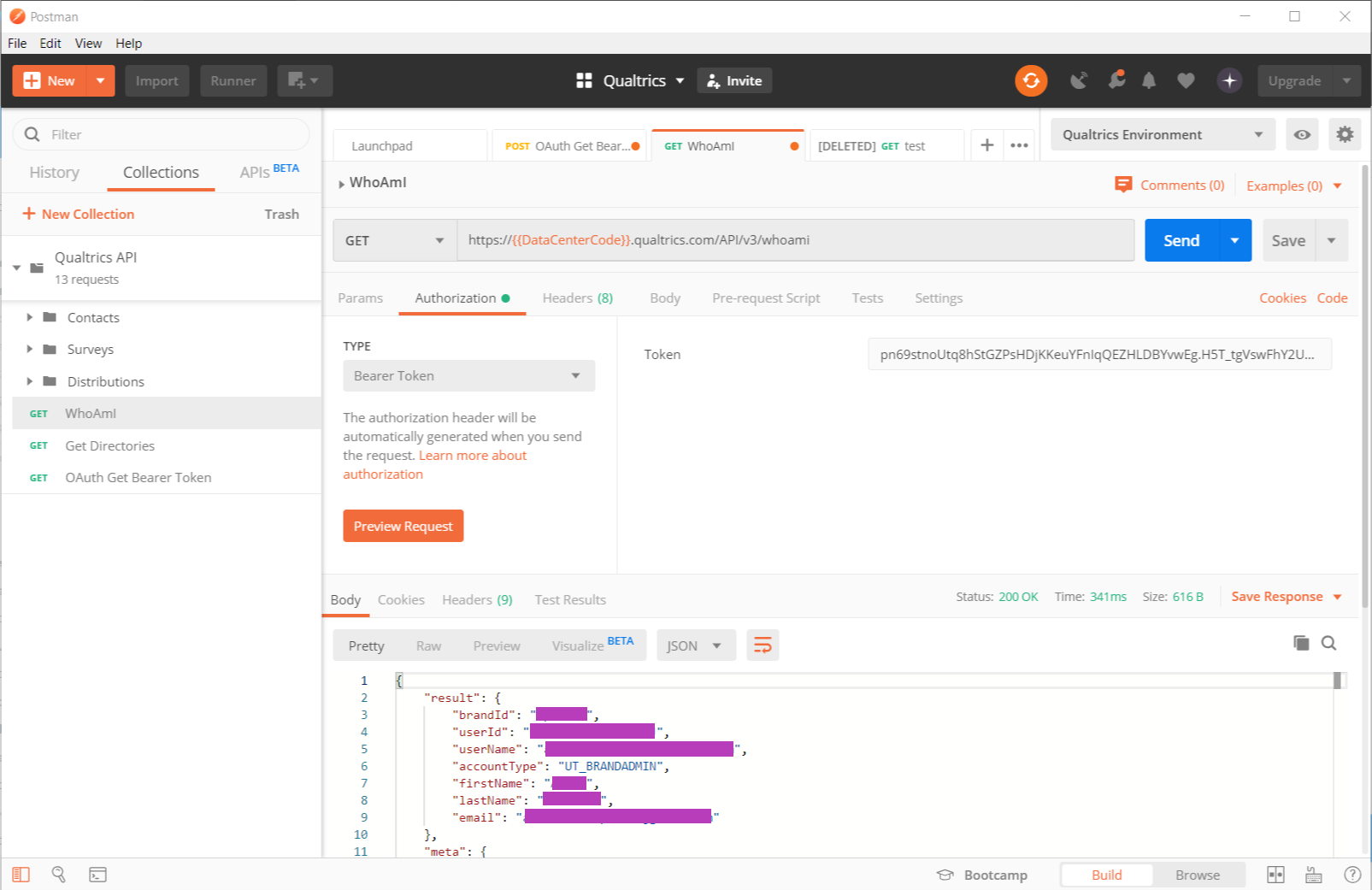
Once you have all that ready, you should be able to hit Send and receive a response. The response will look something like this:
{
  "result": {
    "brandId": "AcmeBrand",
    "userId": "UR_cVcNH0elQesua8J",
    "userName": "jane.smith@example.com",
    "accountType": "UT_BRANDADMIN",
    "firstName": "Jane",
    "lastName": "Smith",
    "email": "jane.smith@example.com"
  },
  "meta": {
    "requestId": "e721d880-d45b-43d9-9ab7-5b339fe49778",
    "httpStatus": "200 - OK"
  }
}
Code Samples for First Call to API
If you are starting with code, here is code to call Who Am I.
curl -H 'Authorization:bearer {your Bearer Token}' 'https://st3.qualtrics.com/API/v3/whoami'
import http.client
import mimetypes

# create the request
conn = http.client.HTTPSConnection("st3.qualtrics.com")
body = ''
headers = {
  'Authorization': 'Bearer {your Bearer Token}'
}

# make the request
conn.request("GET", "/API/v3/whoami", body, headers)
res = conn.getresponse()
data = res.read()
print(data.decode("utf-8"))
Troubleshooting
| Result | What to Check |
|---|---|
| Could Not Get A Response | Check your network and your proxy. For those of you behind a corporate firewall, make sure it isn't getting in your way. Check for typos in your URL. |
| 400 - Bad Request | Check you added the Authorization header as shown above. |
| 401 - Unauthorized | Check your Data Center ID - you may have tried to hit the wrong data center, or your data center string is missing from the URL. You can get this response if your Credentials are incorrect. |
| 500 - Server Error | Try the call again later, and ensure you api call is correct. |
Getting Help
To get help with the Qualtrics API, please contact Qualtrics Support. Include the API call or a clear outline of what you are trying to accomplish with the Qualtrics API.