Finding your Qualtrics IDs
In order to use the Qualtrics API, you will need to be able to find the IDs for all the components that make up your brand. Everything you interact with in Qualtrics has a unique, alphanumeric ID.
IDs from your Qualtrics Account Settings
The easiest way to get started with finding your IDs is on the web page. When you log in to your account, click on the person icon in the upper right of the screen (circled below):
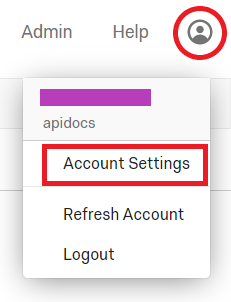 Then click Account Settings (boxed in red above).
The new page will have a navigation bar, where you want to click Qualtrics IDs (boxed in red below):
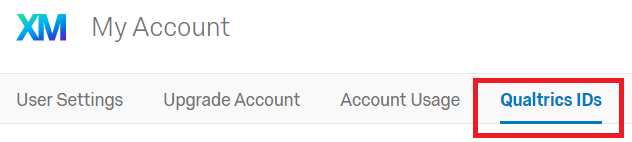
The Qualtrics IDs Page
Once you've opened the Qualtrics IDs page, you'll see a few tables with IDs that look like:
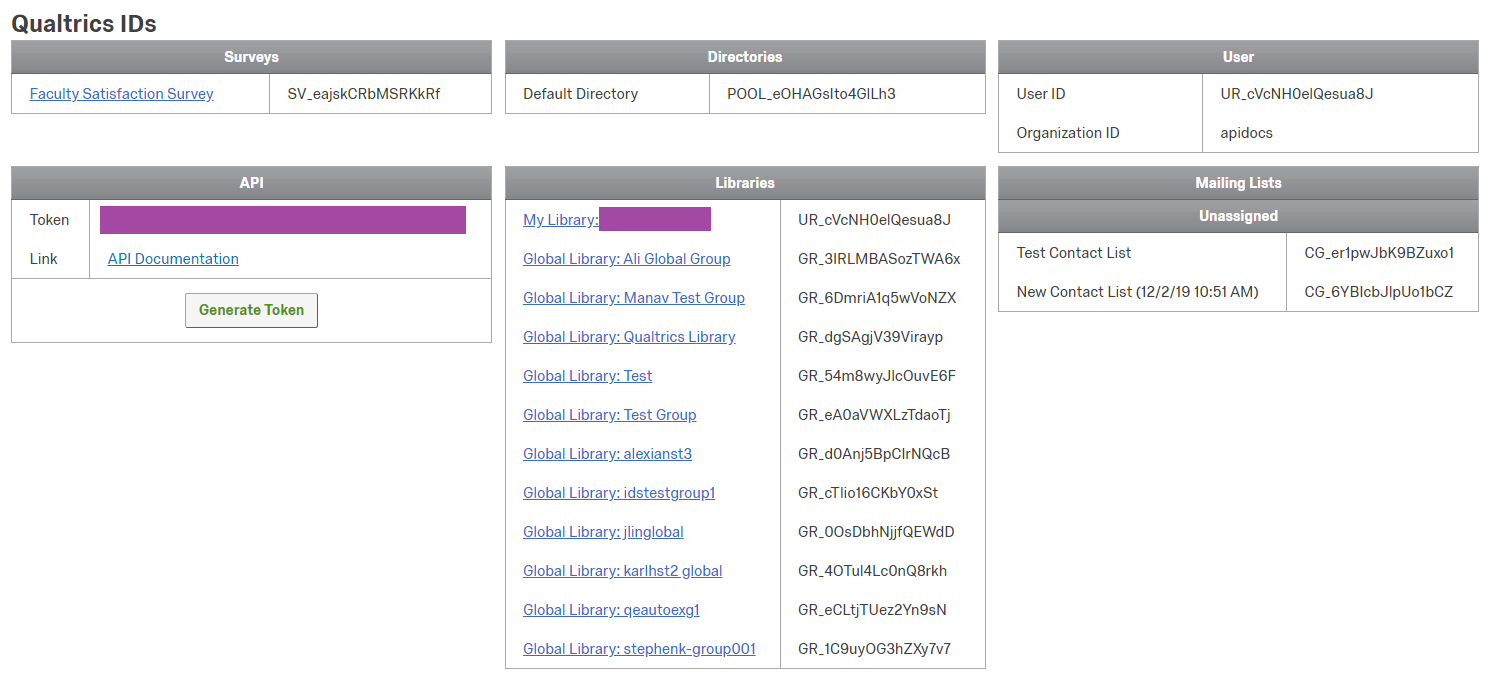
Within this page you can find the IDs for most items you can interact with in the API. There is a convenient link to the API documentation on this page in the API table. All the other links on this page will open a dialog with more IDs related to the linked Item. For example, if you click one of your survey links, you'll find a dialog like this one:
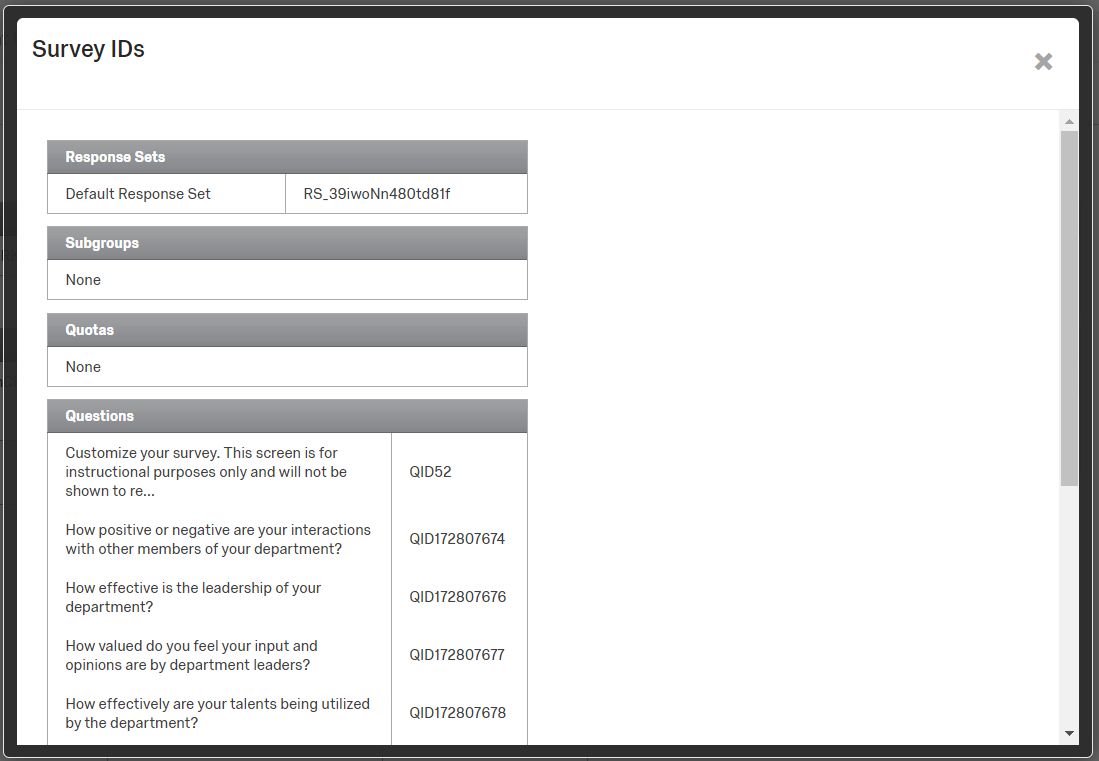
In this example dialog, you can find the ID of the default response set, as well as IDs for all the individual questions in the survey.
IDs from API created items may not show up
There are some items you can create from using the API that will not show in the Qualtrics IDs page. If you are using the API, the best way to get your IDs is from the API
IDs from the Qualtrics API
When using the API, the best way to obtain IDs is using the List API method for the type of item for which you want the IDs. A few examples of important List APIs are: