Session Replay
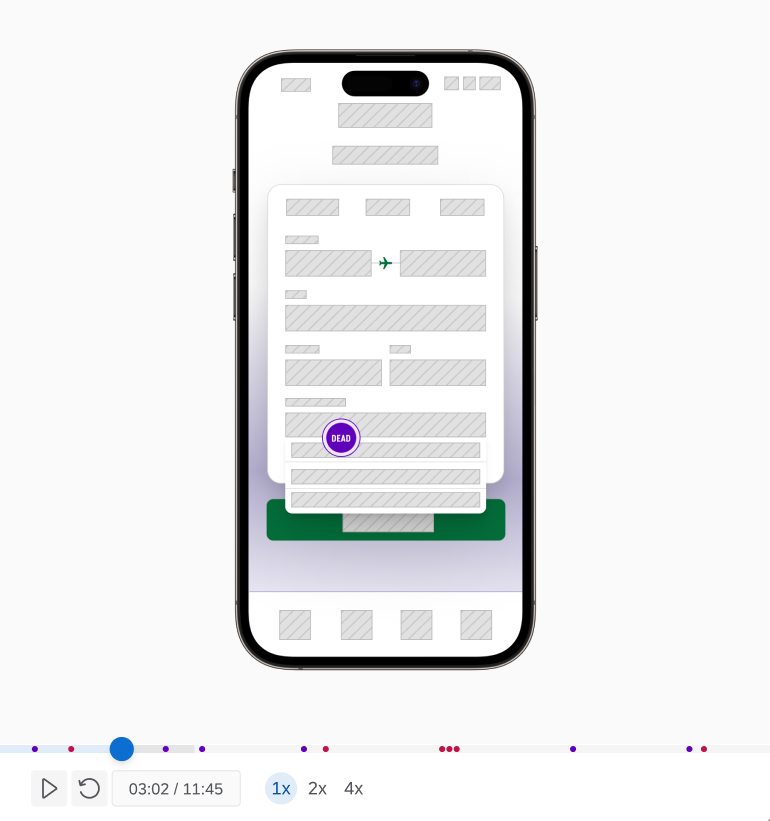
Mobile Session Replay allows a visual representation of a user’s journey on mobile apps. The Session Replay feature provides comprehensive tools to capture and analyze user interactions and behavior within your application.
Importantly, the SDK never records the user screen; instead, it builds a hierarchy of components to ensure privacy while delivering detailed insights.
The QualtricsSR class serves as the primary interface for controlling these functionalities, offering a streamlined approach to managing recording sessions.
This section will guide you through the process of setting up and recording a session. Additionally, it covers important aspects of logging and custom error handling.
Basic usage
This section provides instructions for the basic implementation of the SDK, so you can quickly integrate it into your application without needing to dive into more complex features just yet. By following these steps, you'll effectively deploy Session Replay using our SDK's capabilities.
Initialization
The initializeProject method sets up the SDK with necessary identifiers and prepares it to work with your app's main interface. It must be called before any session recording activities.
- Android
- iOS
- React Native
This method should be invoked in the main activity of your application.
Parameters:
| Parameter | Description |
|---|---|
| activity | Your main activity. |
| brandId | A unique identifier for the brand. This ID can be retrieved from your project settings inside the Installation Tab. |
| projectId | A unique identifier for the project within the brand. This ID can be retrieved from your project settings inside of the Installation tab. |
Return value:
| Parameter | Description |
|---|---|
| InitializationResult | Status indicating the result of the initialization process. |
Usage:
val result = QualtricsSR.instance().initializeProject(
    yourMainActivity,
    "yourBrandId",
    "yourProjectId"
)

// Validate result
InitializationResult result = QualtricsSR.Companion.instance().initializeProject(
    yourMainActivity,
    "yourBrandId",
    "yourProjectId"
);

// Validate result
This method should be executed within your App's SceneDelegate scene(_:willConnectTo:options:) method.
Parameters:
| Parameter | Description |
|---|---|
| brandId | A unique identifier for the brand. This ID can be retrieved from your project settings inside the Installations Tab |
| projectId | A unique identifier for the project within the brand. This ID can be retrieved from your project settings inside the Installations Tab. |
| window (optional) | Specifies your main UIKit window. If not explicitly passed, the SDK will attempt to determine the window automatically using connectedScenes. However, initialization will fail if it cannot obtain the window, as a valid window is crucial for the SDK's operation. |
Return Value:
| Parameter | Description |
|---|---|
| InitializationResult | Status indicating the result of the initialization process. |
Usage:
func scene(_ scene: UIScene, willConnectTo session: UISceneSession, options connectionOptions: UIScene.ConnectionOptions) {

    let initializationStatus = QualtricsSR.shared.initializeProject(
        brandId: "yourBrandId",
        projectId: "yourProjectId",
        window: yourMainUIWindow
    )
    // Validate initializationStatus
}
This method should be executed within your application's App.js file.
Parameters:
| Parameter | Description |
|---|---|
| brandId | A unique identifier for the brand. This ID can be retrieved from your project settings inside the Installation Tab. |
| projectId | A unique identifier for the project within the brand. This ID can be retrieved from your project settings inside the Installation tab. |
Return value:
| Parameter | Description |
|---|---|
| InitializationResult | Status indicating the result of the initialization process. |
Usage:
import { initializeProject } from "dxa-react-native"

const initResult = initializeProject("yourBrandId", "yourProjectId")
// Validate result
Starting the session
The startRecording method initiates a new session recording with your specified configuration. Before calling this method, ensure that initializeProject has been successfully executed.
Once startRecording is called, Session Replay is configured in the basic scope. That is the minimal implementation needed for the SDK to work.
- Android
- iOS
- React Native
Return Value:
| Parameter | Description |
|---|---|
| SessionStartResult | Status indicating the result of the start recording process. |
Usage:
val startResult = QualtricsSR.instance().startRecording()
QualtricsSR.Companion.instance().startRecording((result) -> {
    // Handle the result
});
Parameters:
| DxaConfiguration | Description |
|---|---|
| additionalViewTypesToMask | Allows masking of additional view types. By default all of the views inherit from UILabel, UITextInput, UIImageView, and any SwiftUIView are masked. |
automaticNavigationTracking (default: true) | Enables the Automatic Screen Capture, allowing automatic tracking of screen changes via swizzling. If you don’t want to use automatic capture, set it to false and refer to Manual Screen Capture. |
Experimental Feature: The
additionalViewTypesToMaskproperty is currently experimental. Use with caution as it may be subject to changes or removal in future versions. It is recommended to rely on the default masking behavior for most use cases.
Returns:
| Parameter | Description |
|---|---|
| SessionStartResult | Status indicating the result of the start recording process. |
Usage:
let recordingStartResult = await QualtricsSR.shared.startRecording()
Parameters:
| DxaConfiguration | Description |
|---|---|
| navigationRef (optional) | For users of react-navigation version 5 and above only. Reference to the navigation container that enables Automatic Screen Capture, allowing automatic tracking of screen changes. See this section for detailed setup instructions. If you don't use react-navigation or use a lower version, check Manual Screen Capture. |
Return Value:
| Parameter | Description |
|---|---|
| SessionStartResult | Status indicating the result of the start recording process. |
Usage:
import { startRecording } from "dxa-react-native"

const startResult = await startRecording({
  navigationRef
})
Advanced Data Protection
This section focuses on features related to session control and debugging. Our advanced features allow you to gain finer control over session management and gather detailed insights through logging.
Pausing the session
The pauseRecording method pauses a recording (without closing it, the same session can be resumed). It can be used to ensure that there are no signals detected or screens captured for certain parts of the application. Make sure the session is running before calling this method.
- Android
- iOS
- React Native
val pauseResult = QualtricsSR.instance().pauseRecording()
let pauseResult = QualtricsSR.shared.pauseRecording()
import { pauseRecording } from "dxa-react-native"

const pauseResult = await pauseRecording()
Resuming the session
The resumeRecording method resumes a paused recording (no new session is created, the existing one is being continued). Make sure the session is paused before calling this method.
- Android
- iOS
- React Native
val resumeResult = QualtricsSR.instance().resumeRecording()
let resumeResult = QualtricsSR.shared.resumeRecording()
import { resumeRecording } from "dxa-react-native"

const resumeResult = await resumeRecording()
Stopping the session
To manually close the session and stop the recording use stopRecording method.
If not called, the session will be properly closed automatically.
- Android
- iOS
- React Native
val stopResult = QualtricsSR.instance().stopRecording()
QualtricsSR.Companion.instance().stopRecording((result) -> {
    // Handle the result
});
let stopResult = QualtricsSR.shared.stopRecording()
import { stopRecording } from "dxa-react-native"

const stopResult = await stopRecording()
Screen Capture
The Screen Capture feature records screen names as they change during the session to improve understanding of user interactions—for example, when a user navigates from the Home screen to the Profile screen.
Automatic Screen Capture
Automatic Screen Capture records every screen change automatically after one-time setup.
- Android
- iOS
- React Native
Work in progress.
On iOS, Automatic Screen Capture is enabled by default. It tracks all views managed by UIViewControllers, recording a screen change each time a view appears or disappears.
This feature uses method swizzling on
UIViewController’sviewDidAppear(_:)andviewDidDisappear(_:)methods. If you don't want to use it, check Manual Screen Capture.
In React Native, Automatic Screen Capture requires a short setup by providing a navigation ref from the react-navigation library.
Currently, this feature supports only
react-navigationversion 5 and above. If you don't use it or use a lower version, check Manual Screen Capture.
- Create a navigation container ref.
import { createNavigationContainerRef } from "@react-navigation/native"

const navigationRef = createNavigationContainerRef()
- Pass the ref to your root navigation container.
function App() {
  return (
    <NavigationContainer ref={navigationRef}>
      {/* ... */}
    </NavigationContainer>
  )
}
- Provide the ref when starting the recording. All navigation changes will now be automatically recorded.
import { startRecording } from "dxa-react-native"

const startResult = await startRecording({
  navigationRef
})
Manual Screen Capture
Manual Screen Capture requires explicit tracking calls to record screen changes during sessions.
- Android
- iOS
- React Native
Work in progress.
If Automatic Screen Capture is not disabled, both automatic and manual screen capture methods will operate simultaneously, which may cause unintended behavior. To avoid this, set
automaticNavigationTrackingto false, unless you intentionally want to combine both methods for advanced tracking scenarios.
Manual reporting
You can manually report screen appearances and disappearances by calling the corresponding methods.
- Reporting screen appearance.
import QualtricsDXA

QualtricsSR.shared.report(screenAppeared: "Home")
QualtricsSR.shared.report(screenAppeared: "Profile")
- Reporting screen disappearance.
import QualtricsDXA

QualtricsSR.shared.report(screenDisappeared: "Home")
QualtricsSR.shared.report(screenDisappeared: "Profile")
QualtricsViewController (alternative)
You can subclass your view controllers from QualtricsViewController instead of UIViewController to enable automatic tracking of their view appearance and disappearance as screen changes. This should be done for every View Controller that needs to be tracked.
- Create your View Controller.
class HomeViewController: UIViewController {
    // ...
}
- Replace
UIViewControllerwithQualtricsViewController. From now on, this View Controller will be tracked.
import QualtricsDXA

class HomeViewController: QualtricsViewController {
    // ...
}
Basic usage
You can manually report screen appearances and disappearances by calling the corresponding methods.
- Reporting screen appearance.
import { reportScreenAppearance } from "dxa-react-native"

reportScreenAppearance("Home")
reportScreenAppearance("Profile")
- Reporting screen disappearance.
import { reportScreenDisappearance } from "dxa-react-native"

reportScreenDisappearance("Home")
reportScreenDisappearance("Profile")
Advanced usage
For Automatic Screen Capture, we support react-navigation version 5 and above. However, you can achieve similar functionality on earlier versions or with other navigation libraries through Manual Screen Capture.
Below is an example setup for react-navigation version 4.
import { reportScreenAppearance, reportScreenDisappearance } from "dxa-react-native"
import { createAppContainer, createStackNavigator } from "react-navigation"

const AppNavigator = createStackNavigator(AppRouteConfigs)
const AppContainer = createAppContainer(AppNavigator)

export default () => (
  <AppContainer
    onNavigationStateChange={async (prevState, currentState) => {
      const previousRouteName = getRouteName(prevState)
      const currentRouteName = getRouteName(currentState)

      if (previousRouteName !== currentRouteName) {
        reportScreenDisappearance(previousRouteName)
        reportScreenAppearance(currentRouteName)
      }
    }}
  />
)

function getActiveRouteName(navigationState) {
  if (!navigationState) return null

  const route = navigationState.routes[navigationState.index]
  if (route.routes) return getActiveRouteName(route)

  return route.routeName
}
Errors & Insights
Errors
It is possible to pass a custom error to the Qualtrics SDK. If a tap occurs before logError, it will be linked to this error and reported as an Error tap.
- Android
- iOS
- React Native
Parameters:
| Parameter | Description |
|---|---|
| message (optional) | Custom message for the detected error (should not contain any sensitive data) |
Usage:
QualtricsSR.instance().logError("Custom Error Message")
Logging
Enable debug logs by adding allowed tags to this set. Each feature of this SDK logs with different tags to allow the developers to decide which tags to enable. If the set is empty, nothing will be logged.
- Android
- iOS
- React Native
QualtricsSR.instance().allowedLoggingTags = setOf(
	// list of tags
)
Supported tags:
enum class LogTag {
    LIFECYCLE,
    GESTURE,
    SIGNAL,
    PLAYBACK,
    NETWORK,
    THREADING,
    NAVIGATION,
}
QualtricsSR.shared.allowedLoggingTags = [
	// list of tags
]
Supported tags:
enum LogTag {
    case memoryUse
    case lifecycle
    case gesture
    case signal
    case playback
    case network
    case navigation
}
import { setLoggingTags } from "dxa-react-native"

setLoggingTags([
	// list of tags
])
Supported tags:
export const LOG_TAGS = {
  LIFECYCLE: "LIFECYCLE",
  GESTURE: "GESTURE",
  SIGNAL: "SIGNAL",
  PLAYBACK: "PLAYBACK",
  NETWORK: "NETWORK",
  NAVIGATION: "NAVIGATION"
} as const;
To listen to Qualtrics logs for monitoring and troubleshooting purposes use addLogListener method. Only the allowed logging tags will be listened to.
- Android
- iOS
QualtricsSR.instance().addLogListener(listener: yourListener)
QualtricsSR.shared.addLogListener(listener: yourListener)