Using Transactions in XM Directory
This tutorial describes how to use transactions in XM Directory. Transactions allow you to track interactions with your customers and save data with each interaction that can be referenced later in a survey. For example, with every purchase, you could save a customer's purchase amount and location and distribute surveys that are customized based on this transaction data.
Transaction data can be accessed in surveys the same way as embedded data. See Embedded Data for more information.
XM Directory Only
These APIs are only available to XM Directory users.
Transaction Objects
There are two objects required when working with transactions: a contact transaction (or just a transaction) and a transaction batch.
Contact Transaction
A contact transaction is the transaction data associated with a contact. It consists of key-value pairs that specify the information you want to associate with a transaction and the date and time the transaction occurred. You can set the transaction date and time to any time (so you can batch transactions at the end of the day, for instance).
The following shows an example transaction associated with a contact and mailing list. Transactions are always associated with a contact and a mailing list (and the contact has to be in the specified mailing list). The key-value pairs in the data object are the transaction data that was associated with the contact. In a survey, each item can be used as embedded data. For instance, the survey could have a condition to display a block only if enrolledInValueClub is equal to true.
String Values
All values in the transaction are string values. Numbers are converted to strings. Boolean values are converted to the strings true or false.
{
  "contactId": "CID_123456",
  "data": {
    "currency": "Euro",
    "spending": 21.45,
    "type": "Online",
    "representative": "B. Smith",
    "enrolledInValueClub": true
  },
  "mailingListId": "CG_1234567",
  "transactionDate": "2017-08-18 20:51:00",
  "transactionId": "CTR_12345678"
}
Transaction Batch
A transaction batch collects all of the transactions that are relevant to the survey you will send out. Because contacts can have multiple transactions (and thus multiple data items with the same keys), transaction batches allow you to specify which transaction will be available to the survey as embedded data.
A transaction batch is an array of transactions. The following shows an example of a transaction batch:
{
  "transactionIds": [
    "CTR_12345",
    "CTR_23461",
    "CTR_47113",
  ],
  "creationDate": "2017-08-28 21:30:00"
}
Overview of the Steps
The following three steps show how to create a transaction and then send an email distribution. The first step uses the Create Contact Transactions API and associates transaction data with a contact. The second step uses the Create Transaction Batch API to collect the relevant transactions into a batch. Finally, the third step uses the Create Transaction Batch Survey Distribution API to generate a distribution to the contacts associated with the transactions in the specified transaction batch.
Step One: Create Transaction
The code sample creates three transactions associated with three contacts. All simply provide a location value. A mailing list ID is required, and if a contact is not on the specified mailing list, you will get an error. Note that they are given arbitrary keys: a, b, and c. Also, note that the transaction date we are using is different with each transaction.
Transaction Date
The transactionDate parameter must match the format in the example exactly. It must be UTC, must include seconds, must be 24-hour time, and must have a space between the date and time.
Code and Qualtrics Support
Our support team does not offer assistance or consultation on custom coding, but you can always try asking our community of dedicated users. If you’d like to know more about our custom coding services you can commission, please contact your Qualtrics Account Executive.
# Create Contact Transaction

import requests

# Setting user Parameters
apiToken = "YOUR API TOKEN"
dataCenter = "YOUR DATA CENTER"

directoryId = "POOL_12345"

baseUrl = "https://{0}.qualtrics.com/API/v3/directories/{1}/transactions".format(dataCenter, directoryId)
headers = {
    "x-api-token": apiToken,
    "Content-Type": "application/json"
    }


data = {
      "a": {
        "mailingListId": "CG_1234",
        "contactId": "CID_12345",
        "transactionDate": "2017-08-21 12:00:00",
        "data": {
            "location": "Seattle"
        }
      },
      "b": {
        "mailingListId": "CG_1234",
        "contactId": "CID_84312",
        "transactionDate": "2017-08-22 14:00:00",
        "data": {
            "location": "New York"
        }

      },
      "c": {
        "mailingListId": "CG_1234",
        "contactId": "CID_67341",
        "transactionDate": "2017-08-23 10:00:00",
        "data": {
            "location": "Chicago"
        }
      }
   }

response = requests.post(baseUrl, json=data, headers=headers)
print(response.text)
The response to this code snippet indicates the transaction IDs:
{
    "meta": {
        "httpStatus": "200 - OK",
        "requestId": "d97b2b51-acbe-4dae-afdb-1f1055fea781"
    },
    "result": {
        "createdTransactions": {
            "a": {
                "id": "CTR_12345"
            },
            "b": {
                "id": "CTR_12346"
            },
            "c": {
                "id": "CTR_12347"
            }
        },
        "unprocessedTransactions": {}
    }
}
The transaction IDs need to be extracted from the response object and used to create a transaction batch, the next step.
Step Two: Create a Transaction Batch
The transaction batch selects the transactions to be surfaced to the survey as embedded data. The batch is used to create a distribution for requesting responses to the survey.
The following example shows how to create a transaction batch comprised of the three transactions that were created in the previous step:
Creation Date
The creationDate parameter must match the format in the example exactly. It must be UTC, must include seconds, must be 24-hour time, and must have a space between the date and time.
# Create Transaction Batch

import requests

# Setting user Parameters
apiToken = "YOUR API TOKEN"
dataCenter = "YOUR DATA CENTER"

directoryId = "POOL_12345"

baseUrl = "https://{0}.qualtrics.com/API/v3/directories/{1}/transactionbatches".format(dataCenter, directoryId)
headers = {
    "x-api-token": apiToken,
    "Content-Type": "application/json"
    }

data = {
  "transactionIds": [
    "CTR_12345",
    "CTR_12346",
    "CTR_12347",
  ],
  "creationDate": "2017-08-28 21:30:00"
   }

response = requests.post(baseUrl, json=data, headers=headers)
print(response.text)
The response object contains the transaction batch ID, as shown in the following response:
{
    "meta": {
        "httpStatus": "200 - OK",
        "requestId": "2f9aff75-d7a0-4462-bb69-80a345f5b82a"
    },
    "result": {
        "id": "BT_12345"
    }
}
The transaction batch ID will be used in the next step to create an email distribution.
Step Three: Create a Distribution
You can now distribute your survey to the contacts with transaction data. There is no UI to create a transaction distribution.
A transaction distribution requires several pieces of information: You need the transaction batch ID from the previous step. You need the survey ID for the survey to be sent. You need to create a survey invitation message.
Before beginning:
- Create a message and save it in your library.
- Obtain the message ID and your library ID.
- Obtain the survey's ID.
To create a message, see Creating a Message in a Library. You need to obtain your message's ID and the library's ID. See Finding Your Qualtrics IDs for more information.
Replace the values in the data object below. The transactionBatchId was obtained in the last step. You also need to set an expiration date for the link to your survey as expirationDate. Finally, set the sendDate to the date and time the invitation should be delivered. Both of these dates follow the ISO 8601 format. See Dates and Times for more information.
# Create Transaction Batch Survey Distribution

import requests

# Setting user Parameters
apiToken = "YOUR API TOKEN"
dataCenter = "YOUR DATA CENTER"

baseUrl = "https://{0}.qualtrics.com/API/v3/distributions".format(dataCenter)
headers = {
    "x-api-token": apiToken,
    "Content-Type": "application/json"
    }

data = {
    "surveyLink": {
      "surveyId":"SV_12345",
      "expirationDate":"2017-08-31T00:00:00Z",
      "type":"Individual"
    },
    "header": {
      "fromEmail": "noreply@qemailserver.com",
      "fromName": "Survey User",
      "replyToEmail": "noreply@qualtrics.com",
      "subject": "Transaction Test"
    },
    "message": {
      "libraryId":"UR_123456",
      "messageId":"MS_123456"
    },
    "recipients": {
      "transactionBatchId":"BT_12345"
    },
    "sendDate": "2017-08-17T22:20:00Z"

   }


response = requests.post(baseUrl, json=data, headers=headers)
print(response.text)
Note that the recipients are selected by the transaction batch rather than a mailing list.
The response object contains the distribution's ID as shown below:
{
    "meta": {
        "httpStatus": "200 - OK",
        "requestId": "88f4f662-e42b-40aa-bc0e-ec4afec0016f"
    },
    "result": {
        "id": "EMD_12345"
    }
}
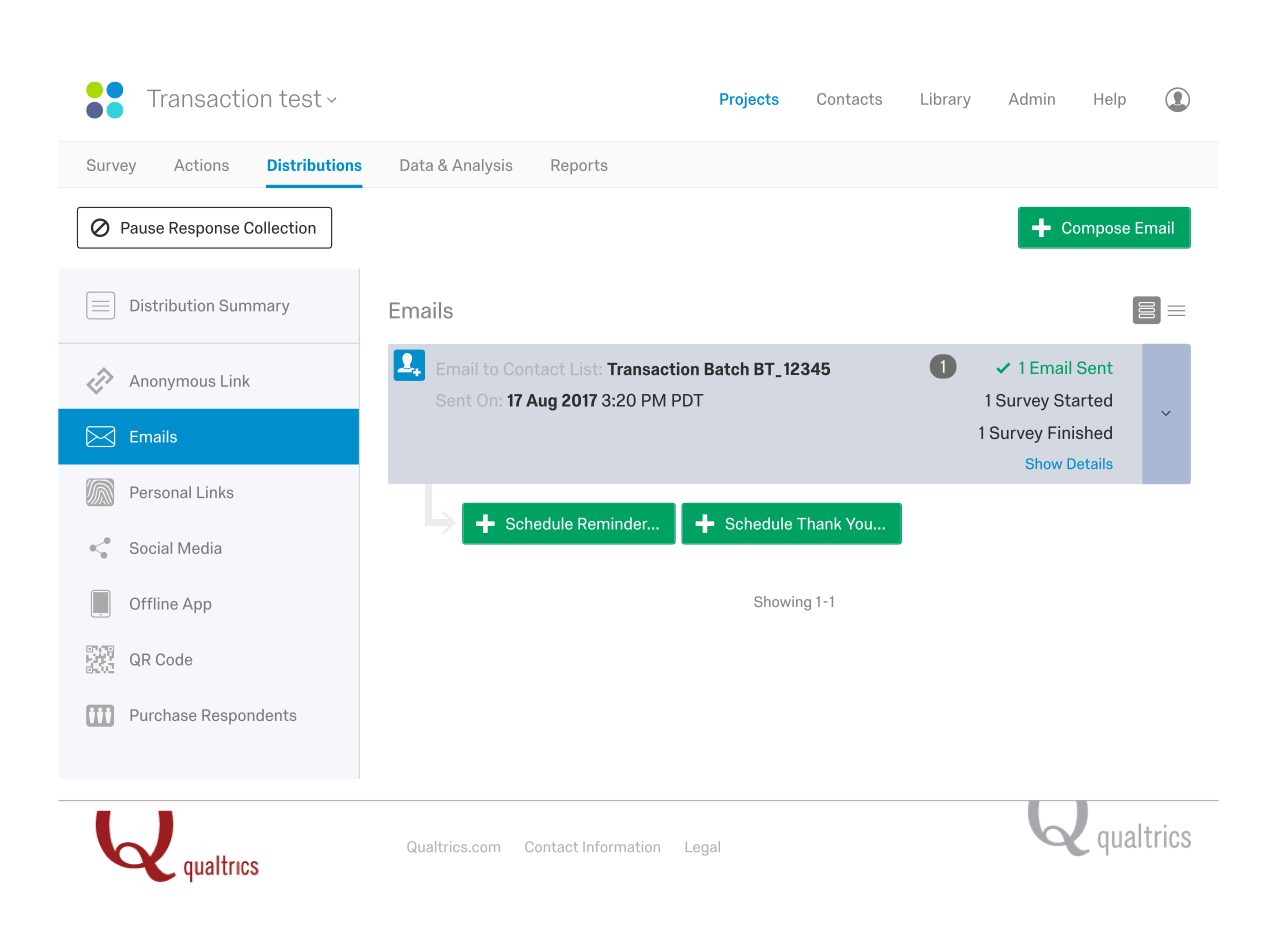
The transaction distribution appears in the administration UI as a new distribution with the contact list as the transaction batch:
Conflicting Transactions
Because each contact can contain multiple transactions, it is possible for there to be conflicting transactions. If there is a conflict, the last transaction in the transaction batch wins.
For instance, if a contact has these two transactions:
[
  {
    "contactId": "CID_1",
    "data": {
      "location": "Seattle"
    },
    "id": "CTR_1",
    "mailingListId": "CG_1",
    "transactionDate": 1504283255000
  },
  {
    "contactId": "CID_1",
    "data": {
      "location": "London"
    },
    "id": "CTR_2",
    "mailingListId": "CG_1",
    "transactionDate": 1503943200000
  },
]
Both transactions contain a location item, but that in itself does not cause a conflict. In fact, a contact with multiple transactions with the same-named data items is normal.
The conflict occurs if the transaction batch references two (or more) transactions in the same contact. For instance, this transaction batch references these two transactions with the second transaction (CTR_2) coming last in the batch:
{
  "transactionIds": [
    "CTR_1",
    "CTR_2",
  ],
  "creationDate": "2017-08-28 21:30:00"
}
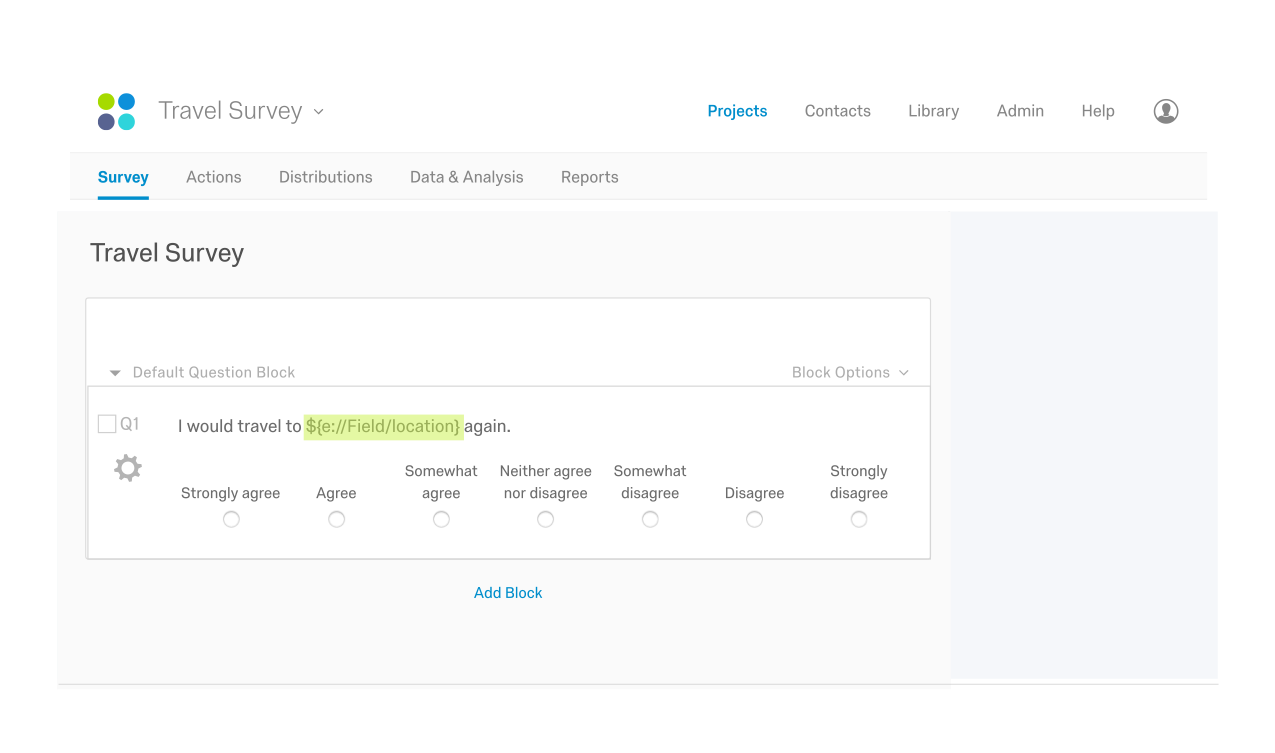
The survey could reference the location transaction data item as piped text, as highlighted below:
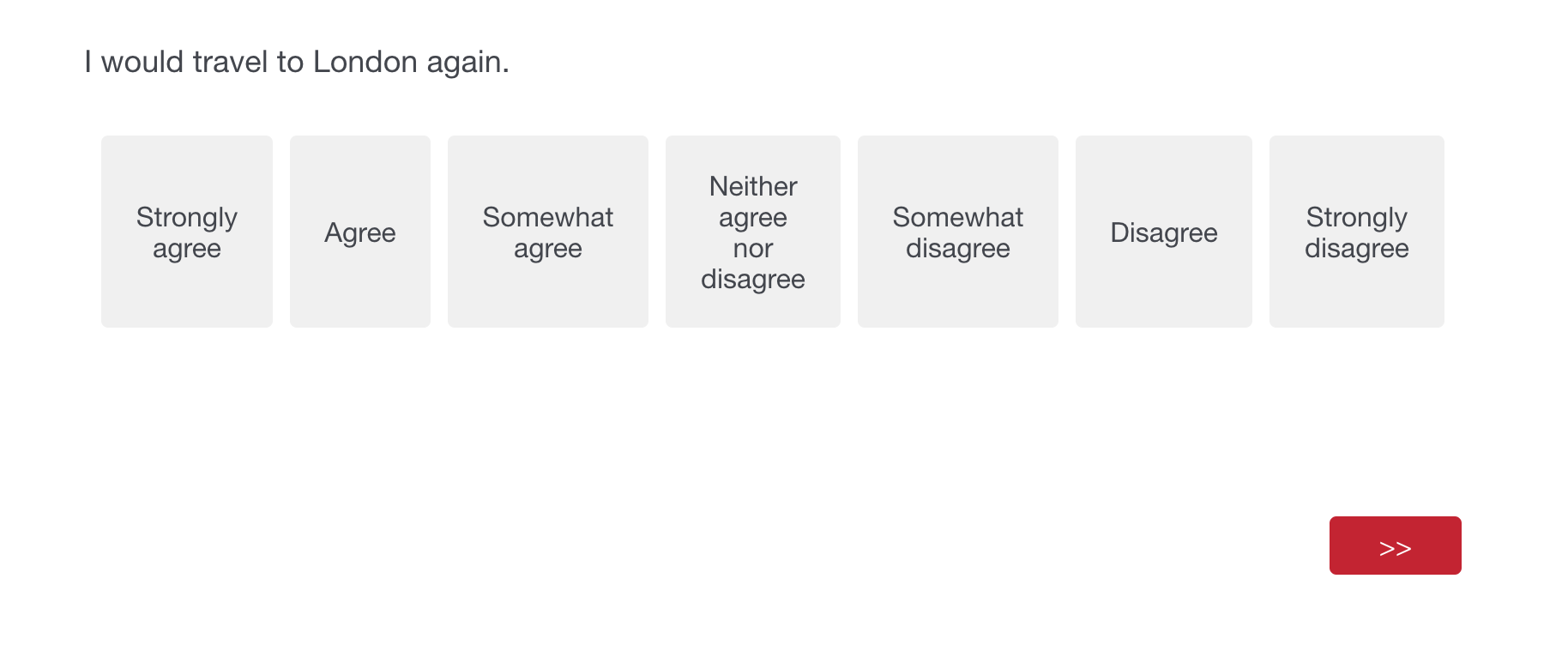
 In this case, the survey would display London because it is the last transaction in the transaction batch:
 If the transactions are reversed in the transaction batch as shown below the piped text would refer to a different transaction:
{
  "transactionIds": [
    "CTR_2",
    "CTR_1",
  ],
  "creationDate": "2017-08-28 21:30:00"
}
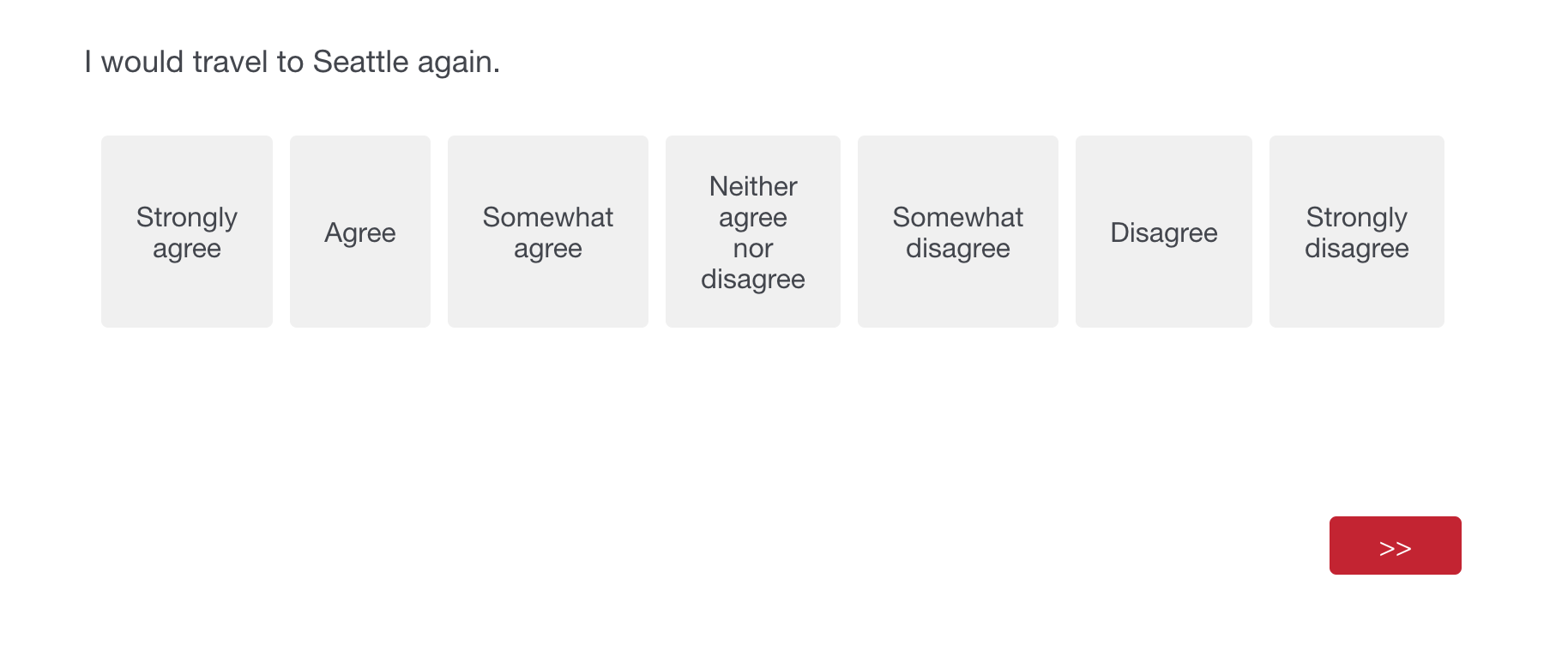
Because the last transaction refers to the Seattle location, the survey would display Seattle as the piped text: