Actions
About JSON Events
Have you ever wanted a request made on your website to trigger a ticket in Qualtrics? Have you ever wanted to create a seamless integration between Qualtrics and your own internal system? Have you ever wanted to trigger a task in the Actions tab, but with an event that happens outside of Qualtrics?
JSON events allow external software to start workflows via HTTP request. Instead of waiting for an event in Qualtrics to trigger further action in the platform, you can simply configure a JSON event to receive requests from a third party.
Code and Qualtrics Support
Our support team does not offer assistance or consultation on custom coding, but you can always try asking our community of dedicated users. If you’d like to know more about our custom coding services you can commission, please contact your Qualtrics Account Executive.
Link to documentation on support site
Limitations
The JSON event is not compatible with the following set-ups and configurations:
- Anything that is not HTTP (e.g., message queue, SMS).
- Outbound HTTP calls. Example: JSON events cannot call the Zendesk API. You would want to set up a Web Service Task for this instead.
- Process anything other than JSON (the XML request body will be ignored)).
- Authenticate any way other than an X-API-TOKEN header, specifically: OAuth, HTTP basic auth, and other forms of authentication are incompatible with JSON events.
- Any JSON parsing that cannot be satisfied by using JSONPath queries on the JSON body.
- The Inbound Event API (shown below) has a brand wide limit of 3000 calls per minute.
Setting Up a JSON Event
-
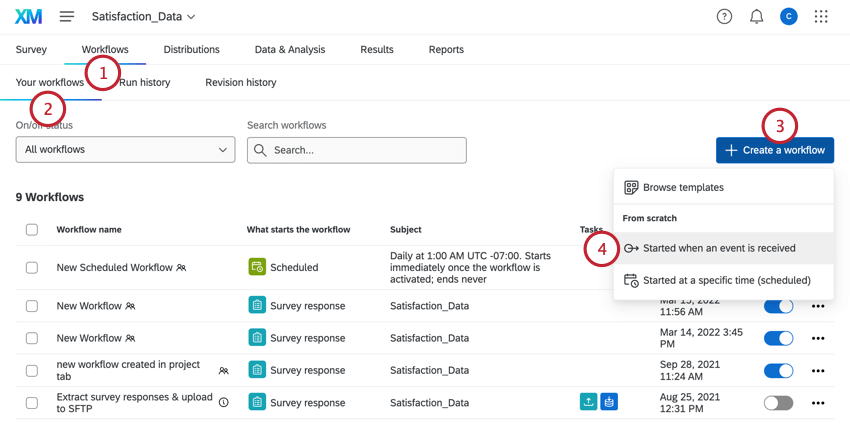
First, create a workflow. Go to the Workflows tab in a project, or the stand-alone Workflows page.
-
Make sure you’re in the Your workflows tab.
-
Select Create a workflow.
-
Select Started when an event is received.
-
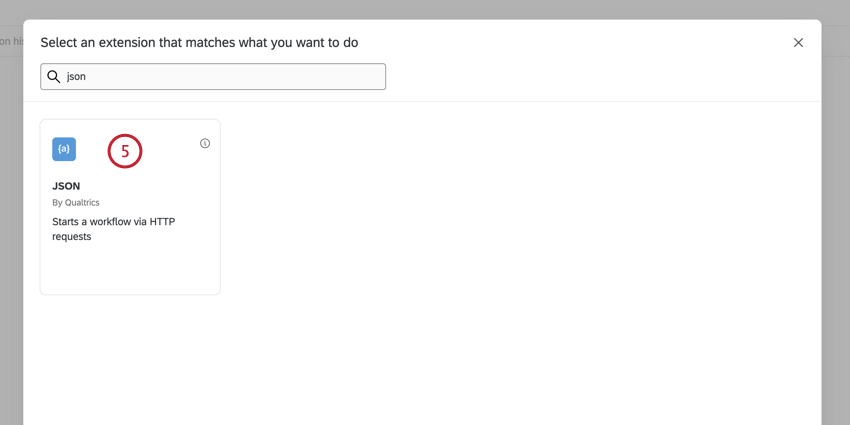
Select the JSON event.
-
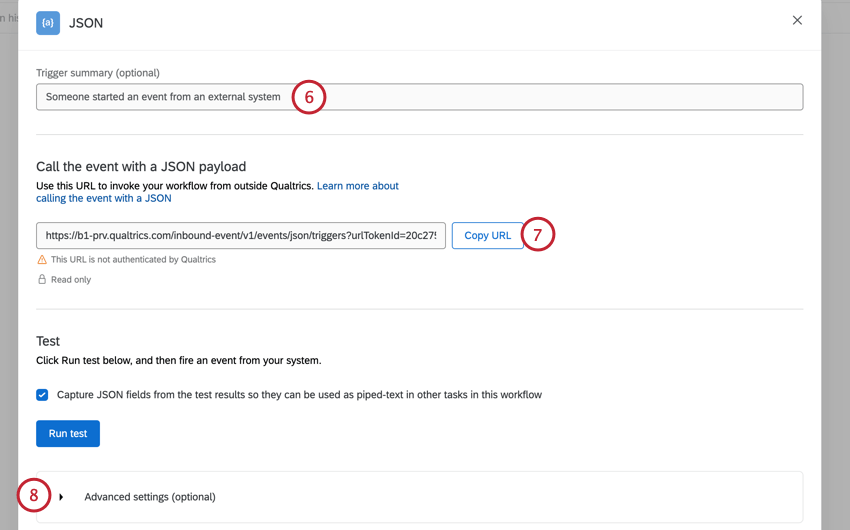
If you like, specify a Trigger summary, which should describe the purpose of the JSON event.
-
You'll receive a URL. Use this to invoke your new workflow from outside Qualtrics, using Postman, your own internal system, or other similar applications. To copy it, select Copy URL.
-
Now, you can define the event data. This will capture data from the inbound request. To start, select Advanced settings.
Tip!
For information about the Test section, see Capturing Events documentation.
- On the box on the left, give the JSON field name. On the box on the right, give the location within the event data (HTTP request body).

Tip!
The locations must be in JSONPath format! Refer to this JSONPath Syntax table for a quick guide to JSONPath Syntax.
-
To add another field, select Add a JSON field.
-
If you’d like to add a GET parameter, add them in the GET Parameters section. For more on what these parameters are and how they work in API, see our API Documentation on Parameters.
Warning
It's inadvisable to pass personal data through GET parameters. Any personal or sensitive data should be passed in the body of a POST call, which is more secure. Please contact Qualtrics Support if you have questions or concerns.
-
To remove a field, select the minus sign ( – ).
-
To save your changes, select Save.
-
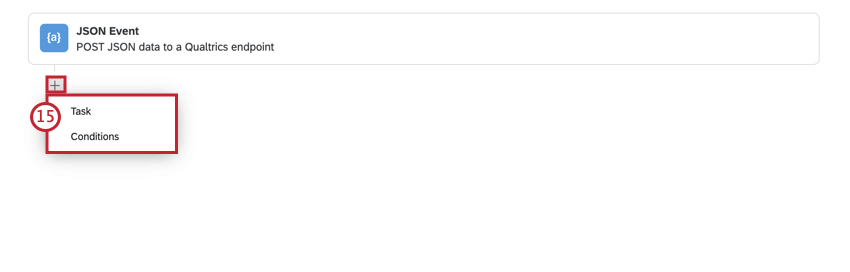
Add conditions and a task to your workflow by selecting the plus sign ( + ). Conditions determine when a workflow runs, while tasks are the result of the workflow. See the Workflows Overview for more information.
Tip!
Select your JSON event to change the parameters and JSON fields.
Attention!
A JSON event can only be fired via API from the same account that created the event. If a different account is used to fire the API for a JSON event, you may receive a
202 Acceptedresponse, however this means that a valid API token was used to make a valid request, but does not necessarily mean that the correct API token was used, or that the JSON event was triggered correctly. If you receive a202 Acceptedresponse, check the platform to confirm the correct API was used.
JSONPath Syntax
The table below gives some of the basics of JSONPath Syntax. Note that these are not established by Qualtrics, but are standards used with JSON.
| JSONPath | Description | Example |
|---|---|---|
| $ | The root object/element | $.stores[0].name |
| @ | The current object/element | $.stores[?(@.name===”ACME Store”)] |
| . | Child operator | $.eventDescription |
| .. | Recursive descendant operator | $.stores[0]..price |
| * | Wildcard | $.stores[*].name |
| [] | Subscript operator | $.stores[0].name |
| [,] | Union operator | $.stores[0,1] |
| [start:end:step] | Array slice operator | $.stores[0:10:2] |
| ?() | Applies a filter | $.stores[?(@.name==”ACME Store”)] |
| () | Script expression | $.stores[(@.length-1)] |
Example API in Node Javascript
The example below is a basic template you can follow when formatting your Event Data.
var request = require('request-promise');
var surveyId = "SV_XXXXXXXXXXXX";
var triggerId = "OC_XXXXXXXXX";
var brandId = "YOUR_BRAND_ID";
var userId = "UR_XXXXXXXXXXXXXXX";
var datacenter = "xx1";
var apiToken = "YOUR_QUALTRICS_API_TOKEN";

var url = "https://" + datacenter + ".qualtrics.com/inbound-event/v1/event/JSON/triggers" +
     "?contextId=" + surveyId + "&userId=" + userId + "&brandId=" + brandId + "&triggerId=" + triggerId;
var payload = {
    "text": "This is some text",
    "object": {
        "number": 4
    },
    "array": ["a", "b", "c", "d"]
};

var options = {
    url: url,
    json: true,
    body: payload,
    headers: {
        "Content-Type": "application/json", // REQUIRED!!!
        "X-API-TOKEN": apiToken
    }
};

request.post(options).then(function (ret) {
    console.log("success:", url, payload);
}).catch(function (err) {
    console.log("error: ", url);
    console.log(err);
});
FAQs
| Question |
|---|
| Does the JSON event enable me to integrate with _? |
| Answer: |
| In order to integrate via the JSON event, the third-party must satisfy the following requirements: |
- Can be configured to make outbound HTTP POST calls (e.g. webhooks, custom application)
- Can authenticate by passing a header token
- Sets the Content-Type header to “application/json” and formats the request bodies as valid JSON (optional for Event Data)
| Question |
|---|
| How many events per minute can I make to my JSON event (op_start) before being throttled? |
| Answer: |
| The JSON event is subject to the standard Qualtrics API limits. If you start getting throttled, your server will receive an HTTP response code of 429. |
| Question |
|---|
| How will I know if my JSON Event workflow fails? |
| Answer: |
| If the workflow is enqueued, the op_start response will be 202 (Accepted). This provides no guarantee that the workflow will actually run and certainly does not communicate the result of running. You can also obtain workflow execution results via Actions Reporting. |