Getting Survey Responses Using New Export APIs
This document describes how you can get your users' responses to your surveys using the new export APIs. Examples are included in both Python and Java.
Unlike the legacy endpoints, exports via these new endpoints match the current UI exporter. In other words, they match the UI export when “Legacy Format” is not selected. Not only are they faster and more reliable, but include additional fields from the data and analysis tab that were previously unavailable via API exports. These include response edits, text iQ fields, and custom fields added in the data and analysis UI.
Getting Survey Responses
The general process of getting survey responses requires four steps:
-
Request the responses with the Create Response Export API. Qualtrics will create a file that contains the requested responses. You can use various filtering options to this request to retrieve a subset of the responses to speed up processing. See step 1 in the samples below.
-
Request the export status using the Get Response Export Progress API. The result object will contain a status value. Keep looping until status has the value complete. (You might want to sleep a few seconds between requests.)
-
Once the export is complete, use the fileId field in the result object from Get Response Export Progress. (See the code sample below for an example.) Use the Get Response Export File your export file. The samples below show an alternative method by creating the URL from the id returned in step 1.
-
Unzip the file to find the survey responses in the format you requested (csv, tsv, or spss).
Using Python to Get Survey Responses
Code and Qualtrics Support
Our support team does not offer assistance or consultation on custom coding, but you can always try asking our community of dedicated users. If you’d like to know more about our custom coding services you can commission, please contact your Qualtrics Account Executive.
The following Java snippet demonstrates how to download responses for the specified survey. This code is for Python 3.
# Python 3

import requests
import zipfile
import json
import io, os
import sys
import re

def exportSurvey(apiToken,surveyId, dataCenter, fileFormat):

    surveyId = surveyId
    fileFormat = fileFormat
    dataCenter = dataCenter

    # Setting static parameters
    requestCheckProgress = 0.0
    progressStatus = "inProgress"
    baseUrl = "https://{0}.qualtrics.com/API/v3/surveys/{1}/export-responses/".format(dataCenter, surveyId)
    headers = {
    "content-type": "application/json",
    "x-api-token": apiToken,
    }

    # Step 1: Creating Data Export
    downloadRequestUrl = baseUrl
    downloadRequestPayload = '{"format":"' + fileFormat + '"}'
    downloadRequestResponse = requests.request("POST", downloadRequestUrl, data=downloadRequestPayload, headers=headers)
    progressId = downloadRequestResponse.json()["result"]["progressId"]
    print(downloadRequestResponse.text)

    # Step 2: Checking on Data Export Progress and waiting until export is ready
    while progressStatus != "complete" and progressStatus != "failed":
        print ("progressStatus=", progressStatus)
        requestCheckUrl = baseUrl + progressId
        requestCheckResponse = requests.request("GET", requestCheckUrl, headers=headers)
        requestCheckProgress = requestCheckResponse.json()["result"]["percentComplete"]
        print("Download is " + str(requestCheckProgress) + " complete")
        progressStatus = requestCheckResponse.json()["result"]["status"]

    #step 2.1: Check for error
    if progressStatus is "failed":
        raise Exception("export failed")

    fileId = requestCheckResponse.json()["result"]["fileId"]

    # Step 3: Downloading file
    requestDownloadUrl = baseUrl + fileId + '/file'
    requestDownload = requests.request("GET", requestDownloadUrl, headers=headers, stream=True)

    # Step 4: Unzipping the file
    zipfile.ZipFile(io.BytesIO(requestDownload.content)).extractall("MyQualtricsDownload")
    print('Complete')


def main():

    try:
      apiToken = os.environ['APIKEY']
      dataCenter = os.environ['DATACENTER']
    except KeyError:
      print("set environment variables APIKEY and DATACENTER")
      sys.exit(2)

    try:
        surveyId=sys.argv[1]
        fileFormat=sys.argv[2]
    except IndexError:
        print ("usage: surveyId fileFormat")
        sys.exit(2)

    if fileFormat not in ["csv", "tsv", "spss"]:
        print ('fileFormat must be either csv, tsv, or spss')
        sys.exit(2)

    r = re.compile('^SV_.*')
    m = r.match(surveyId)
    if not m:
       print ("survey Id must match ^SV_.*")
       sys.exit(2)

    exportSurvey(apiToken, surveyId,dataCenter, fileFormat)

if __name__== "__main__":
    main()
To create a response export you will need to send a POST request to the responseexports endpoint. You will get back an ID for the asynchronous export request.
{"result":{"progressId":"ES_6nZ9gWOgTs9hi0R","percentComplete":0.0,"status":"inProgress"},"meta":{"requestId":"cfdb9cfb-0dc2-403f-8835-a6db74a164d3","httpStatus":"200 - OK"}}
progressStatus= inProgress
Download is 100.0 complete
Complete
To get the status of an export send a GET request for the responseexport you just created. When the export is complete, status will equal complete and fileId will contain the ID used to download the survey response file.
{
  "result": {
    "percentComplete": 100.0,
    "fileId": "b4a753b8-8e27-43c2-824e-2b033fcf6bd8",
    "status": "complete"
  },
  "meta": {
    "httpStatus": "200 - OK",
    "requestId": "555b3857-db1e-492d-9288-47652c3cc6b0"
  }
}
The resulting file will be a .zip file containing the file in the specified format.
Using Java to Get Survey Responses
The following Java snippet demonstrates how to download responses for the specified survey. Version 1.8 of the Java Development Kit (JDK) was used.
import com.fasterxml.jackson.databind.JsonNode;
import com.fasterxml.jackson.databind.ObjectMapper;
import org.apache.commons.io.IOUtils;
import org.apache.http.HttpResponse;
import org.apache.http.client.HttpClient;
import org.apache.http.entity.StringEntity;
import org.apache.http.client.methods.HttpGet;
import org.apache.http.client.methods.HttpPost;
import org.apache.http.client.methods.HttpRequestBase;
import org.apache.http.client.utils.URIBuilder;
import org.apache.http.impl.client.HttpClientBuilder;
import org.apache.http.util.EntityUtils;


import java.io.FileOutputStream;
import java.io.IOException;
import java.net.URI;
import java.net.URISyntaxException;
import java.util.zip.ZipEntry;
import java.util.zip.ZipInputStream;

public class ExportClient
{
  private static final String SURVEY_ID = "<SURVEY_ID>";
  private static final String API_TOKEN = "<API_TOKEN>";
  private static final String DATA_CENTER = "<DATA_CENTER_ID>";

  private static HttpClient httpClient;
  private static ObjectMapper mapper;


  public static void main(String[] args) throws IOException, URISyntaxException, InterruptedException, Exception
  {
    httpClient = HttpClientBuilder.create().build();
    mapper = new ObjectMapper();

    // Step 1: Start the export
    URI uri = new URIBuilder()
        .setScheme("https")
        .setHost(String.format("%s.qualtrics.com", DATA_CENTER))
        .setPath("/API/v3/surveys/" + SURVEY_ID + "/export-responses")
        .build();

    HttpPost post = new HttpPost(uri);
    post.setHeader("X-API-TOKEN", API_TOKEN);
    post.setHeader("Content-Type", "application/json");

    StringEntity body = new StringEntity(String.format("{ "format": "csv" }"));
    post.setEntity(body);
    JsonNode responseJson = sendRequest(post);
    String progressId = responseJson.get("result").get("progressId").asText();
    URI exportStatusUrl = new URIBuilder()
        .setScheme("https")
        .setHost(String.format("%s.qualtrics.com", DATA_CENTER))
        .setPath("/API/v3/surveys/" + SURVEY_ID + "/export-responses/" + progressId)
        .build();

    // Step 2: Wait for the export to complete
    String fileId;
    JsonNode statusJson = null;
    String progressStatus;
      progressStatus = "InProgress";
    while (!"complete".equals(progressStatus) & !"failed".equals(progressStatus))
    {
      HttpGet statusGet = new HttpGet(exportStatusUrl);
      statusGet.setHeader("X-API-TOKEN", API_TOKEN);
      statusJson = sendRequest(statusGet);
      progressStatus = statusJson.get("result").get("status").asText();
      Thread.sleep(1000);
    }
    if ("Failed".equals(progressStatus))
    {
        // end here
        throw new java.lang.Exception("Export Failed.");
    }

    fileId = statusJson.get("result").get("fileId").asText();

    // Step 3: Download the exported file
    URI fileUrl = new URIBuilder()
        .setScheme("https")
        .setHost(String.format("%s.qualtrics.com", DATA_CENTER))
        .setPath("/API/v3/surveys/" + SURVEY_ID + "/export-responses/" + fileId + "/file")
        .build();
    HttpGet statusGet = new HttpGet(fileUrl);
    statusGet.setHeader("X-API-TOKEN", API_TOKEN);
    HttpResponse response = httpClient.execute(statusGet);

    // Step 4: Extract exported file
    ZipInputStream zs = new ZipInputStream(response.getEntity().getContent());
    ZipEntry entry;
    while ((entry = zs.getNextEntry()) != null)
    {
      FileOutputStream out = new FileOutputStream("./" + entry.getName());
      IOUtils.copy(zs, out);
      out.close();
    }
  }

  private static JsonNode sendRequest(HttpRequestBase httpRequest) throws IOException
  {
    HttpResponse response = httpClient.execute(httpRequest);
    String body = EntityUtils.toString(response.getEntity());
    return mapper.readTree(body);
  }
}
Replace the value of <SURVEY_ID> with the correct value for your account. The two other values (<API_TOKEN> and <DATA_CENTER_ID>) should be obtained from your environment. See Finding Your Qualtrics IDs for more information.
The following .jar files are necessary:
- commons-io-2.5.jar
- commons-logging-1.2.jar
- httpcore-4.4.6.jar
- org.apache.httpcomponents.httpclient_4.5.3.jar
- jackson-annotations-2.9.1.jar
- jackson-core-2.9.1.jar
- jackson-databind-2.9.1.jar
Copy the .jar files to a folder. In this example, the .jar files are in a folder on the desktop called Libraries. The source file (ExportClient.java) is in another folder on the desktop, from which you are running the following commands. Both javac and java need to be in your path.
Below are examples for compiling the Java snippet on Linux or Mac and Windows:
javac -extdirs "~/Desktop/Libraries/" ExportClient.java
javac -extdirs "%USERPROFILE%\Desktop\Libraries" ExportClient.java
Run the generated .class file by typing the following:
## classpath must include both the folder with the Jars, and the folder with the class

java -cp "~/Desktop/Libraries/*;." ExportClient
## classpath must include both the folder with the Jars, and the folder with the class

java -cp "%USERPROFILE%\Desktop\Libraries\*;." ExportClient
Wildcards in classpath
Do not use *.jar (or similar) in the classpath (-cp) because the wildcard character has a special interpretation in Java 6 and above. It expands to the .jar files in the specified folder.
When the program completes, the downloaded survey results will be available in the same folder as the program.
The Qualtrics API provides a set of endpoints for exporting survey responses in batch. By default, this will export all the survey responses in a survey but the export API also allows exporting all responses recorded between a start and end date. However, what if you want to only export responses where respondents answered a question in a certain way, or perhaps all responses that have not been flagged as spam? For these scenarios, exporting using a filter allows you to export only the subset of responses in a survey that match defined conditions.
Creating a Filter
In order to export responses using a filter, you will first need to create a filter. Filters are created in the UI in the Data & Analysis tab. For a more detailed explanation of how to create and edit filters, please see the documentation at Filter Responses. Note that filters are unique to the survey and cannot be shared between surveys.
Getting Filter IDs
The filter IDs can be determined using either the API or the UI. When editing a saved filter, the filter ID is visible in the UI just below the name, as can be seen below.
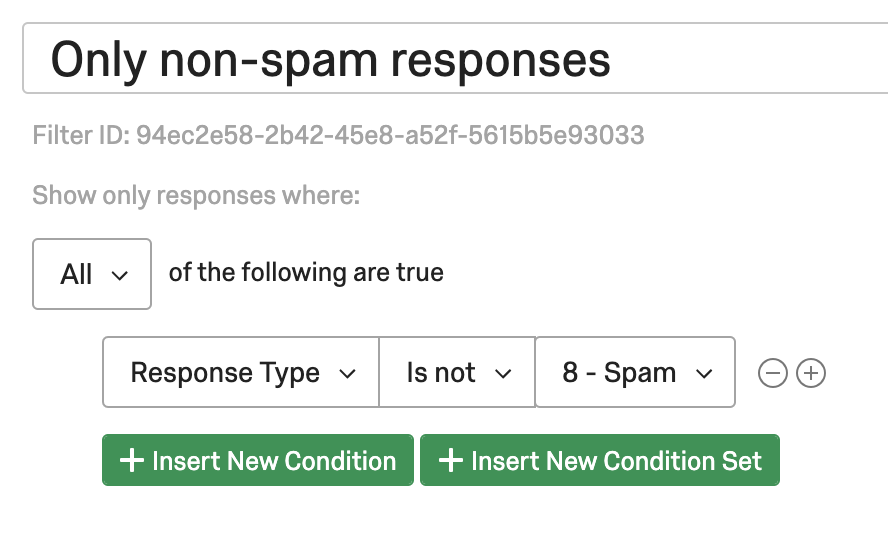 The filter IDs can also be found by using the List Survey Filters API endpoint. A request to the List Survey Filters endpoint will return a list of filters for a given survey with their filter IDs and names. The filterId is what will be needed to start a response export that uses the associated filter.
As example, the following shell command:
curl -H 'X-API-TOKEN: <APITOKEN>' 'https://yourdatacenterid.qualtrics.com/API/v3/surveys/SV_123456/filters'
might return:
{
  "result": {
    "elements": [
      {
        "filterId": "94ec2e58-2b42-45e8-a52f-5615b5e93033",
        "filterName": "Only non-spam responses",
        "creationDate": "2010-01-05T03:37:31Z"
      },
      {
        "filterId": "df946afa-2acd-4f48-b0df-34b290479819",
        "filterName": "Only survey responses from promoters",
        "creationDate": "2010-01-01T09:37:31Z"
      }
    ],
    "nextPage": null
  },
  "meta": {
    "requestId": "900df19-75fd-479d-b4c2-6fd1f4b7b3e0"
  }
}
This shows two filters that have already been created through the UI for this survey.
Exporting with a Filter
Now that you have a filterId for the filter you would like to use, you can begin an export. When starting an export using the Create Response Export endpoint, simply provide the filterId as the value for the filterId parameter in the body of the request. The export will begin normally and progress can be monitored the same way as any other response export. Once the export is finished, the final file will include only the responses that match the provided filter.
As an example, using SV_123456 again and the "Only non-spam responses" filter from the previous example, an export using that filter could be started with the following shell command
curl -X POST -H 'X-API-TOKEN: <APITOKEN>' -H 'Content-Type: application/json' -d '{
    "format": "csv",
    "filterId": "94ec2e58-2b42-45e8-a52f-5615b5e93033"
}' 'https://yourdatacenterid.qualtrics.com/API/v3/surveys/SV_012345678912345/export-responses'
This would begin an export of survey responses that match the filter with ID 94ec2e58-2b42-45e8-a52f-5615b5e93033.