New Survey Response Export Guide
Here we illustrate how to use the new API Survey Export API.
Sample Python Code
Below is some sample code that you can use to experiment with the different body parameters and file formats. We give sample scenarios below that illustrating how to use the parameters.
The APIs used are:
This code creates the export, checks the progress until it is complete, and then downloads the zipped results to the MyQualtricsDownload folder.
To look at the results, you can, of course, easily read JSON with any text editor. To read CSV files, you could import them into a spreadsheet to help you debug your code.
Code and Qualtrics Support
Our support team does not offer assistance or consultation on custom coding, but you can always try asking our community of dedicated users. If you’d like to know more about our custom coding services you can commission, please contact your Qualtrics Account Executive.
If Using the Following Sample Code, use an Exponential Backoff Delay Algorithm
If you use the sample code without using an Exponential Backoff Delay algorithm, you risk exceeding rate limits and Qualtrics may suspend your IP address.
import requests
import zipfile
import json
import io, os
import sys

# Setting user Parameters

try:
    apiToken = os.environ['APIKEY']
except KeyError:
    print("set environment variable APIKEY")
    sys.exit(2)


surveyId = "SV_6hsqQZccKfnIKGN"
dataCenter = 'co1'

# Setting static parameters
requestCheckProgress = 0.0
progressStatus = "inProgress"
url = "https://{0}.qualtrics.com/API/v3/surveys/{1}/export-responses/".format(dataCenter, surveyId)
headers = {
    "content-type": "application/json",
    "x-api-token": apiToken,
    }

# Step 1: Creating Data Export
data = {
        "format": "csv",
        "seenUnansweredRecode": 2
       }

downloadRequestResponse = requests.request("POST", url, json=data, headers=headers)
print(downloadRequestResponse.json())

try:
    progressId = downloadRequestResponse.json()["result"]["progressId"]
except KeyError:
    print(downloadRequestResponse.json())
    sys.exit(2)

isFile = None

# Step 2: Checking on Data Export Progress and waiting until export is ready
while progressStatus != "complete" and progressStatus != "failed" and isFile is None:
    if isFile is None:
       print  ("file not ready")
    else:
       print ("progressStatus=", progressStatus)
    requestCheckUrl = url + progressId
    requestCheckResponse = requests.request("GET", requestCheckUrl, headers=headers)
    try:
       isFile = requestCheckResponse.json()["result"]["fileId"]
    except KeyError:
       1==1
    print(requestCheckResponse.json())
    requestCheckProgress = requestCheckResponse.json()["result"]["percentComplete"]
    print("Download is " + str(requestCheckProgress) + " complete")
    progressStatus = requestCheckResponse.json()["result"]["status"]

#step 2.1: Check for error
if progressStatus is "failed":
    raise Exception("export failed")

fileId = requestCheckResponse.json()["result"]["fileId"]

# Step 3: Downloading file
requestDownloadUrl = url + fileId + '/file'
requestDownload = requests.request("GET", requestDownloadUrl, headers=headers, stream=True)

# Step 4: Unzipping the file
zipfile.ZipFile(io.BytesIO(requestDownload.content)).extractall("MyQualtricsDownload")
print('Complete')
If Using the Prior Sample Code, use an Exponential Backoff Delay Algorithm
If you use the sample code without using an Exponential Backoff Delay algorithm, you risk exceeding rate limits and Qualtrics may suspend your IP address.
Survey Structure
To filter on values or column names or otherwise use certain parameters you need to know something about the structure of the survey. You can do that by running the code above with only this one parameter, which would then show the whole, unaltered output.
data = {
  "format": "json"
}
And then inspecting these fields in the output. QID1 are the field labels and the choices for each are 1, 2, 3, ... varying by how many possible choices there are.
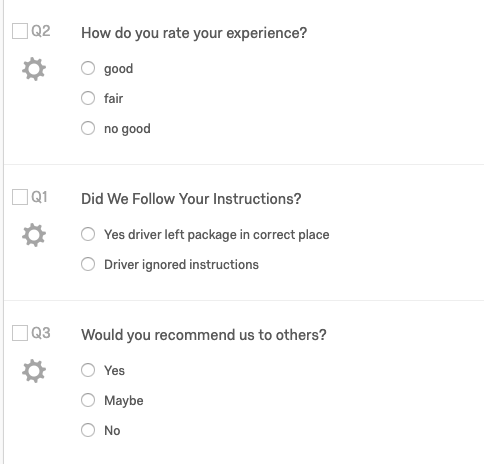
You can see that by look at the screen print of this simple three question survey below. The questions are shown as QID1, ... to the user on the screen. The numbers are the questions.
},
  "displayedFields": ["QID1", "QID3", "QID2"],
  "displayedValues": {
    "QID1": [1, 2],
    "QID3": [1, 2, 3],
    "QID2": [1, 2, 3]
  }
The complete output looks like this:
{
  "responses": [{
    "responseId": "R_1Cx8FIukucgqM94",
    "values": {
      "startDate": "2019-05-02T14:06:49Z",
      "endDate": "2019-05-02T14:06:58Z",
      "status": 0,
      "ipAddress": "24.197.127.176",
      "progress": 100,
      "duration": 9,
      "finished": 1,
      "recordedDate": "2019-05-02T14:06:59.208Z",
      "_recordId": "R_1Cx8FIukucgqM94",
      "locationLatitude": "34.8307952880859375",
      "locationLongitude": "-82.35070037841796875",
      "distributionChannel": "anonymous",
      "userLanguage": "EN",
      "QID2": 2,
      "QID3": 2
    },
    "labels": {
      "status": "IP Address",
      "finished": "True",
      "QID2": "fair",
      "QID3": "Maybe"
    },
    "displayedFields": ["QID1", "QID3", "QID2"],
    "displayedValues": {
      "QID1": [1, 2],
      "QID3": [1, 2, 3],
      "QID2": [1, 2, 3]
    }
  }]
}
Survey Structure
If you want to learn more about survey structure, you can read this guide, which explains survey structure in depth, including display logic, field names, etc. and how to use the survey definitions APIs, such as this one.
Sample Body Parameters and Scenarios
Below we show some sample body parameter scenarios. These are designed to support new and legacy file formats and parameters for backward compatibility with the old API. The complete list of parameters is shown here:
We use this survey as an example:
seenUnansweredRecode
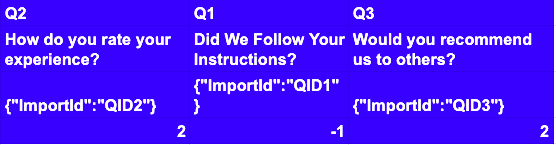
Recode allows a brand to change the value, i.e., recode it, for questions the user skipped over to make it fit into their interfacing system easier. For example, the value -1 below means change blank answers to -1. If that was not there the response will be shown as a blank.
This parameter cannot be used for JSON or NDJSON (newline delimited JSON) formats.
data = {
  "format": "csv",
  "seenUnansweredRecode": -1
}
Results in:
useLabels
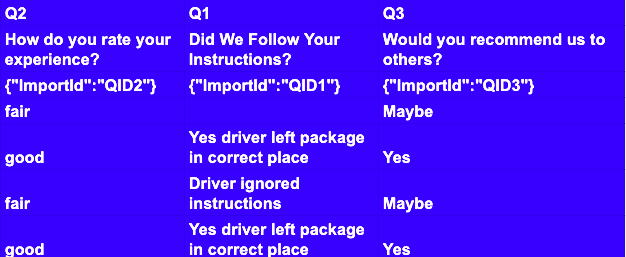
This says whether to display the text labels shown to the user rather then the internal numbers defined in the survey structure.
data = {
        "format": "csv",
        "startDate": "2019-04-30T07:31:43Z",
        "useLabels": True
       }
Results are shown in the CSV file snippet below. As you can see the text shown to the user is shown instead of a numerical response.
JSON Example
Here is a JSON output example:
startDate
Notice the time format is UTC aka Zulu time.
data = {
        "format": "json",
        "startDate": "2019-04-30T07:31:43Z"
}
And the resulting output:
{
  "responses": [{
    "responseId": "R_1Cx8FIukucgqM94",
    "values": {
      "startDate": "2019-05-02T14:06:49Z",
      "endDate": "2019-05-02T14:06:58Z",
      "status": 0,
      "ipAddress": "24.197.127.176",
      "progress": 100,
      "duration": 9,
      "finished": 1,
      "recordedDate": "2019-05-02T14:06:59.208Z",
      "_recordId": "R_1Cx8FIukucgqM94",
      "locationLatitude": "34.8307952880859375",
      "locationLongitude": "-82.35070037841796875",
      "distributionChannel": "anonymous",
      "userLanguage": "EN",
      "QID2": 2,
      "QID3": 2
    },
    "labels": {
      "status": "IP Address",
      "finished": "True",
      "QID2": "fair",
      "QID3": "Maybe"
    },
    "displayedFields": ["QID1", "QID3", "QID2"],
    "displayedValues": {
      "QID1": [1, 2],
      "QID3": [1, 2, 3],
      "QID2": [1, 2, 3]
    }
  }]
}